
How to fix "This application requires Windows App Runtime" error in Windows?

Prefer to fix it yourself? The manual steps follow.
- 6methods
- 5 to 30 minutes
- Intermediate
Applies to Windows 11, Windows 10; desktop apps built with the Windows App SDK (WinUI 3) that ask for Windows App Runtime 1.x or 2.x
6 methods in this guide
Every time I start my PC, I receive the "This application requires Windows App Runtime Version 1.3" error. Any tips?
"This application requires the Windows App Runtime" means that a desktop program built on Microsoft's Windows App SDK started, looked for one exact version of the runtime and did not find it. Install the version that the message names from Microsoft, x64 and x86, then restart. If it comes back, update the program named in the title bar.
Read the Version line of the message, for example 1.3, 1.8 or 2.x. Download the Installer of exactly that version from Microsoft's Windows App SDK downloads page, run the x64 and the x86 one, and restart (Fix 1). If the message returns, run the installer as administrator with --force (Fix 2), then update the program named in the title bar (Fix 3).
| Error | This application could not be started. "This application requires the Windows App Runtime Version 1.3 (MSIX package version >= 3000.851.1712.0). Do you want to install a compatible Windows App Runtime now?" Newer apps say "Required components of the Windows App Runtime are missing". |
|---|---|
| Where it appears | A classic Windows message box with Yes and No, when a program opens or right after you sign in. Its title bar names the program's .exe file. |
| Main cause | The runtime version that the program was built for is not installed, or it is installed for another user account only. |
| Fastest fix | Install that version's runtime from Microsoft's Windows App SDK downloads page, then restart (Fix 1). |
| Also written as | Windows App Runtime missing, Windows App Runtime 1.3 / 1.5 / 1.8 required, Required components of the Windows App Runtime are missing Version 2.x, WinAppRuntime error. |
| Affects | Windows 11 and Windows 10. Reports cover runtime 1.2 to 1.8 and 2.x, for example PowerToys 0.100.0 on Windows 11 25H2 build 26200.8655. |
| Microsoft's status | Not a Windows bug. Microsoft says the developer of such an app must deploy the runtime with it. The Windows App SDK report about this message was closed in February 2025 with a workaround for developers. |
| Where the cause is logged | The installer's own return code (0x80073d06, 0x80070005) and Event Viewer > Applications and Services Logs > Microsoft > Windows > AppXDeployment-Server. |
| Time to fix | About 5 minutes for the installer. Up to 30 minutes if you also need to find and reinstall the program. |
Facts checked on 15 October 2026. Steps written for Windows 11 (25H2 and 26H2) and Windows 10 22H2.
What "This application requires the Windows App Runtime" means
The message comes from the program itself, not from Windows. Microsoft explains that desktop apps built on the Windows App SDK call a small bootstrapper when they start. It finds and loads the Windows App SDK framework package. When the version the app was built for is missing, the bootstrapper stops the start and shows this box.
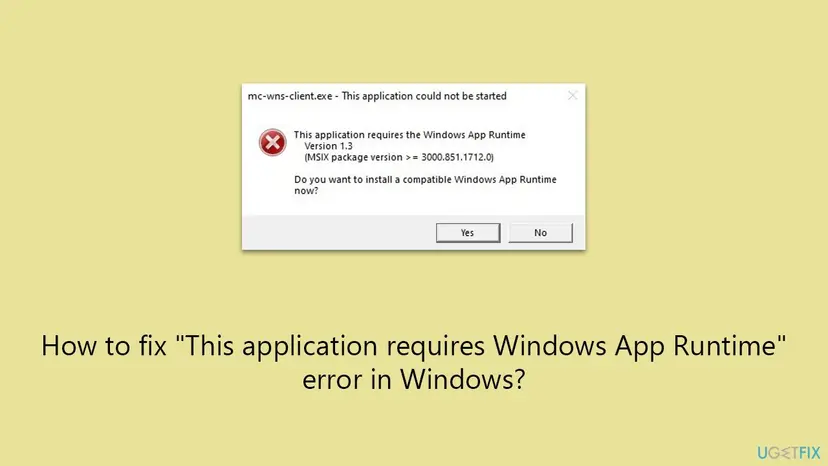
- Title bar
- The .exe file of the program that failed, then "This application could not be started". In the picture above it is
mc-wns-client.exe. - Version line
- The runtime version the program needs, such as Version 1.3, Version 1.5 or Version 1.8.
- MSIX package version
- The lowest build of that version that will do, such as
>= 3000.851.1712.0for 1.3 or>= 5001.119.156.0for 1.5. - Yes button
- Opens Microsoft's download page in the browser. It does not install anything by itself.
Apps built on the newer 2.x runtime word it differently: "Required components of the Windows App Runtime are missing." The next line reads, for example, "Windows App Runtime Version 2.x (MSIX package version >= 2.0.1.0)". The cause and the fixes are the same. Only the version you install differs.
Each runtime version is its own package. Microsoft's installer output names them with the version inside, for example Microsoft.WindowsAppRuntime.1.0. An app that asks for 1.3 still fails when only 1.8 or 2.x is installed. Install the version in the message, even if a newer one is already there.
What Windows App Runtime and Windows App Runtime Main are, and whether you need them
The Windows App Runtime is the shared part of Microsoft's Windows App SDK, the toolkit behind many modern desktop apps with WinUI 3. Instead of copying it into each program, Windows keeps one copy of each version on the disk. Every app of that version uses it.
| Package Microsoft's installer deploys | Example name in the installer output | What you see in Installed apps |
|---|---|---|
| Framework | Microsoft.WindowsAppRuntime.1.0 (x64 and x86) | Windows App Runtime |
| Main | MicrosoftCorporationII.WindowsAppRuntime.Main.1.0 | Windows App Runtime Main |
| Singleton | Microsoft.WindowsAppRuntime.Singleton | Windows App Runtime Singleton |
| DDLM | Microsoft.WinAppRuntime.DDLM... | Microsoft Windows App Runtime DDLM |
Microsoft says a properly installed runtime consists of all four packages, and that an installer should always try to install all of them. So yes, you need Windows App Runtime Main as long as any app on the PC uses that version. Removing it does not save space worth having and makes those apps fail with exactly this message. What each package does is explained in our guide to the Windows App Runtime DynamicDependency LifetimeManager error.
Why the Windows App Runtime message appears: the causes, ranked
Most often the runtime version the program needs was never installed, because the program's setup did not bring it. Less often it is installed, but only for one Windows account, or a package of it is damaged. Rarely the program itself is outdated or half removed and keeps starting with Windows.
| Cause | How often | How to tell | Fix |
|---|---|---|---|
| The runtime version in the message is not on the PC. | Most often | A new or freshly updated program fails on its first start. | Fix 1 |
| The runtime is installed for another account only, or is in use and was not updated. | Often | The message returns after you installed the runtime, or appears in one account only. | Fix 2, then Fix 5 |
| The program is outdated, half uninstalled, or starts with Windows. | Often | The message appears at sign-in, as in the reader's question above. | Fix 3 |
| Store updates of the runtime are stuck. | Sometimes | Microsoft Store shows runtime entries as pending or failed. | Fix 4 |
| A runtime package is registered wrongly. | Sometimes | PowerShell lists the version, but the message stays. | Fix 5 |
| Damaged Windows system files. | Rarely | Other apps and the runtime installer fail too. | Fix 6 |
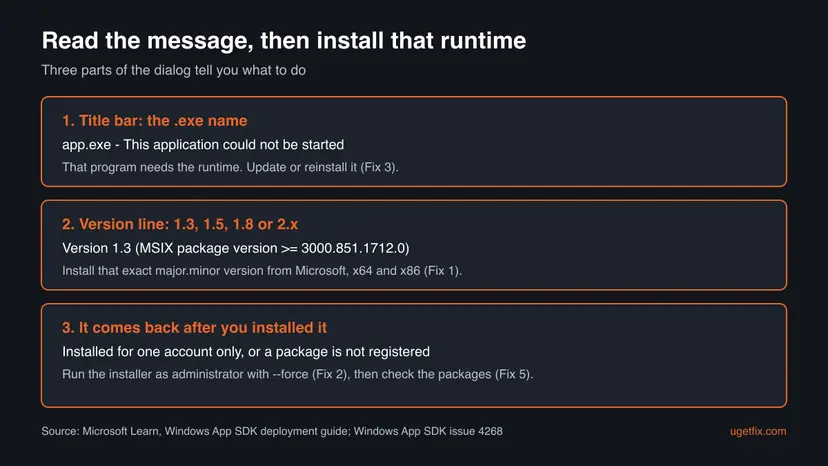
The column "How often" is our reading of Microsoft's deployment guide and of the reports in Microsoft's GitHub repositories. Microsoft publishes no numbers for this message.
How to fix "This application requires the Windows App Runtime"
Fixes 1 and 2 install the runtime the program asks for and solve most cases. Fix 3 deals with the program that shows the message. Fixes 4 to 6 repair updates, package registration and Windows itself.
| What you see or have | Start with |
|---|---|
| The message names Version 1.x and appears the first time you open a program. | Fix 1 |
| The message says "Required components of the Windows App Runtime are missing" with Version 2.x. | Fix 1, with the 2.x installer |
| You already installed the runtime, and the message is still there. | Fix 2, then Fix 5 |
| The message appears every time you start the PC. | Fix 3 |
| Microsoft Store shows Windows App Runtime updates that fail. | Fix 4 |
| The runtime installer itself ends with an error code. | Fix 6, then read "If the error is still there" |
Fix 1. Install the Windows App Runtime version that the message names
5 minutesLow riskAnyone who sees the message. Start here.
The program checks for one version of the runtime. Microsoft's installer for that version puts all four of its packages on the PC in one run, which is exactly what the bootstrapper looks for.
- Write down the version from the message, for example 1.3, 1.8 or 2.x.
- Select No to close the message. The Yes button only opens a web page.
- Open Microsoft's page Latest Windows App SDK downloads.
- Find the release with the same first two numbers as your message. Older ones are in the archive linked from that page.
- Under Runtime downloads, download Installer (x64) and Installer (x86). On an ARM PC take Installer (arm64) as well.
- Run each installer. A console window lists the packages and ends with All install operations successful.
- Restart the PC and open the program again.
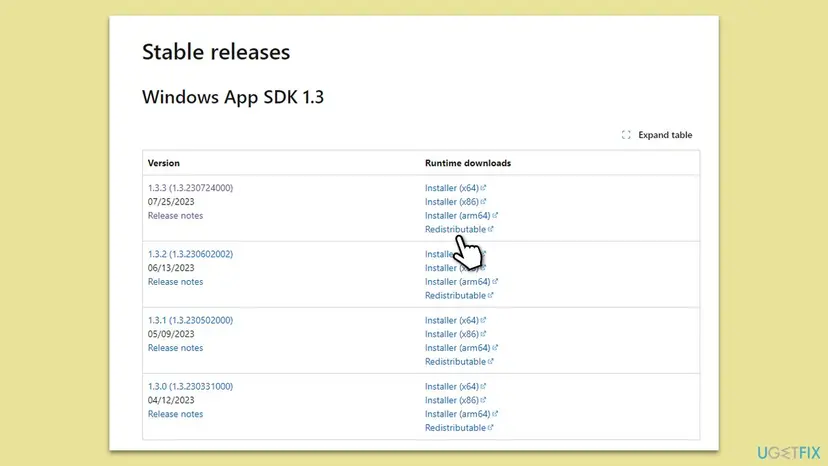
Microsoft says a correct runtime on an x64 PC has the framework and the DDLM in both x86 and x64. Each installer adds only the packages of its own architecture. A 32-bit program on a 64-bit PC needs the x86 one.
Take the installer only from microsoft.com. In one report on GitHub, the Yes button of a 2.x message opened a Microsoft address that no longer worked. If that happens, open the downloads page above yourself.
It worked if: The installer window ends with "All install operations successful." and the program opens without the message after the restart.
If not: If the message returns, run the installer again as administrator with Fix 2.
Fix 2. Run the runtime installer as administrator with --force
5 minutesLow riskThe runtime was installed, but the message keeps coming back, or it appears in only one Windows account.
Microsoft's installer registers the runtime for every account only when it runs elevated; otherwise it adds it for the current user alone. The --force option also updates packages that a running app keeps in use.
- Close the program that shows the message.
- Right-click Start and select Terminal (Admin). On Windows 10 select Windows PowerShell (Admin).
- Select Yes in the User Account Control window.
- Go to your Downloads folder with the first command below.
- Run the installer with the second command. Use the exact file name you downloaded.
- Read the last line: All install operations successful. means it worked.
- Repeat for the x86 installer, then restart the PC.
1. Go to the Downloads folder
cd $env:USERPROFILE\Downloads2. Install for all users and replace packages in use
.\windowsappruntimeinstall-x64.exe --forceMicrosoft: it force updates the MSIX packages and shuts down any running Windows App SDK processes. Save your work in apps such as PowerToys before you run it. --h lists all the installer's options.
| Installer result | What Microsoft says it means | What to do |
|---|---|---|
0x0 | Installation or provisioning completed. | Restart and open the program. |
0x80070005 | System-wide install was not possible: not elevated or no admin rights. | Run it again from Terminal (Admin). |
0x80073d06 | One or more packages failed to install. | Go to Fix 5, then read the log under "If the error is still there". |
It worked if: The console ends with "All install operations successful." and the program opens in every account.
If not: If the message appears at every start of the PC, find the program with Fix 3.
Fix 3. Update or reinstall the program named in the title bar
15 minutesLow riskThe message appears at sign-in, or one program shows it even after Fixes 1 and 2.
Microsoft makes the program's developer responsible for deploying the runtime it needs. A current version of the program usually brings the right runtime with it, or no longer asks for an old one.
- Read the title bar of the message: the part before "This application could not be started" is the program's file.
- If you do not know the file, open Task Manager with Ctrl + Shift + Esc while the message is open, right-click the entry and select Open file location.
- Check the folder name to see which program it belongs to.
- Update that program from inside it, from Microsoft Store, or from its publisher's own site.
- If you no longer use it, uninstall it in Settings > Apps > Installed apps.
- If the message comes at sign-in and you cannot tell the program, turn off recent apps in Settings > Apps > Startup, a few at a time, and restart.
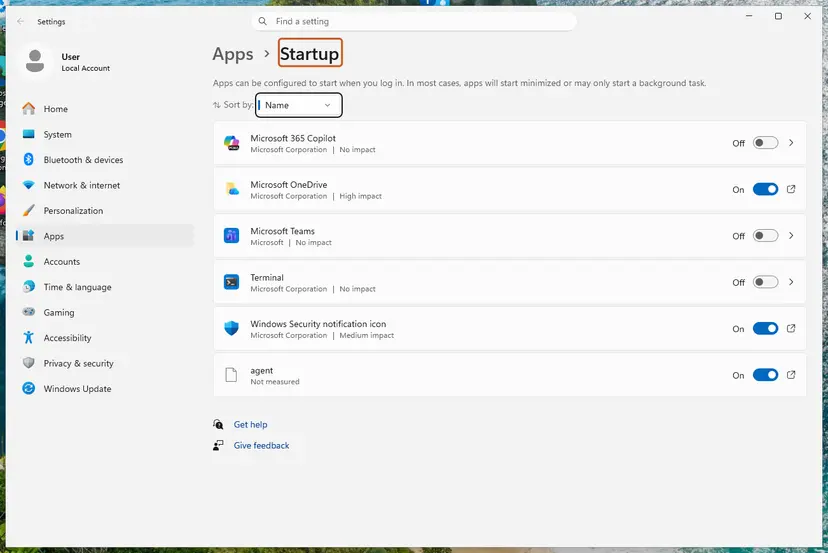

- mc-wns-client.exe is the file in the old screenshot on this page. The old version of this guide tied the message to McAfee security software and advised updating or reinstalling it. We could not confirm that link in a source, so check the folder as in step 2.
- PowerToys: the Keyboard Manager editor of version 0.100.0 showed the 2.x message. The reporter wrote that it was resolved in a later version. Another user fixed it by installing the 2.0 runtime.
It worked if: The program opens, and the message no longer appears when the PC starts.
If not: If the runtime still fails to update, let Microsoft Store update it with Fix 4.
Fix 4. Update Microsoft Store apps and Windows
10 minutesNo riskWindows App Runtime updates fail or stay pending in Microsoft Store, or Windows has updates waiting.
Windows App Runtime packages arrive as Store updates, which is why their entries show up in the update history. A stuck runtime update leaves an app with an older package than it needs.
- Open Microsoft Store and select Library.
- Select Get updates and wait until every item is done, including entries named Windows App Runtime.
- Press Win + I, open Windows Update and select Check for updates.
- Install what is offered, including optional updates, and restart.
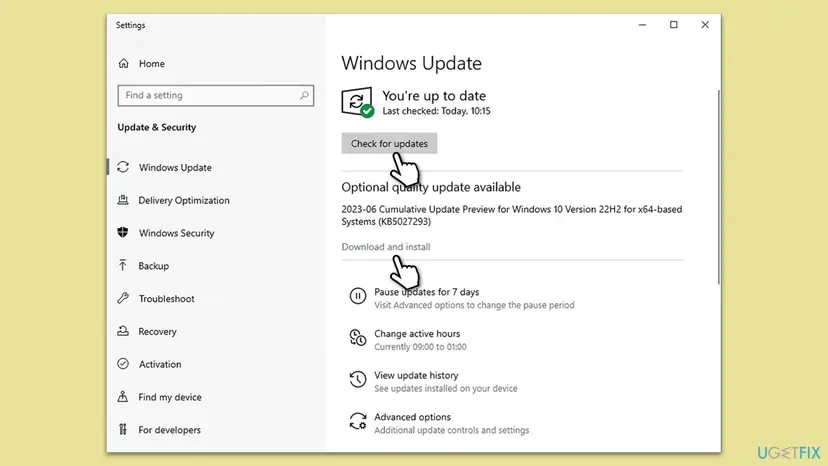
- Windows 10: in Microsoft Store select See more > Downloads and updates > Get updates.
- A runtime update shows "Something went wrong": restart, run Get updates again, and if it still fails, reset the Store with Reset the Microsoft Store.
- Windows 10 22H2 left support on 14 October 2025. Store apps still update there, but Windows itself gets no new fixes without paid extended updates.
It worked if: The Store Library shows no waiting updates, and the program opens.
If not: Check which runtime packages are really registered with Fix 5.
Fix 5. Check the installed runtime versions and register them again
10 minutesLow riskYou installed the runtime, but the program still says it is missing.
Microsoft staff asked users with this message to list the runtime packages for their account and for all users. A version that exists for all users but is not registered for you looks missing to the program.
- Open Windows PowerShell from Start the normal way, not as administrator.
- Run the first command. It lists the runtime packages registered for your account.
- Look for the version from the message in the Name column, for example
Microsoft.WindowsAppRuntime.1.3, and check that Status is Ok. - If the version is missing here, run the installer again with Fix 2.
- If it is listed, run the second command to register the packages again, then restart.
1. List the runtime packages for your account
Get-AppxPackage micro*win*app*run* | Select-Object Name, Version, Architecture, Status2. Register them again
Get-AppxPackage micro*win*app*run* | ForEach-Object { Add-AppxPackage -DisableDevelopmentMode -Register "$($_.InstallLocation)\AppxManifest.xml" }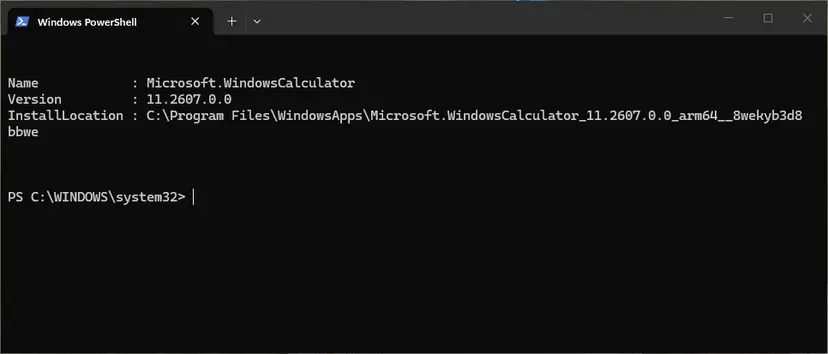
The same commands with -AllUsers in an admin window show what is installed for every account. The general procedure for any app is here: How to re-register Microsoft Store apps with PowerShell
It worked if: The version from the message is listed with status Ok, and the program starts.
If not: If registering fails with red text, repair Windows with Fix 6.
Fix 6. Repair Windows system files with SFC and DISM
20 minutesNo riskThe runtime installer fails with an error code, or other built-in apps fail as well.
The runtime installer hands its packages to the Windows deployment service. If that service's own files are damaged, no runtime install can finish until Windows repairs them.
- Open an elevated command window. Right-click Start and select Terminal (Admin), or type cmd in the search box, right-click Command Prompt and select Run as administrator. Select Yes when Windows asks for permission.

Search for cmd and choose Run as administrator. Screenshot: Windows 11 26H2. - Run DISM first. Type the command below and press Enter. DISM downloads clean copies of damaged components from Windows Update, so it can take several minutes. Wait until it says The operation completed successfully.
DISM.exe /Online /Cleanup-Image /RestoreHealth
DISM /RestoreHealth running. Screenshot: Windows 11 26H2. - Run System File Checker. In the same window, type the command below and press Enter. Do not close the window until the verification reaches 100%.
sfc /scannow
sfc /scannow at 100%. Screenshot: Windows 11 26H2. - Read the result and restart. Compare the last message with the table below this guide, then restart the PC so that repaired files are loaded.

The result line tells you what SFC did. Screenshot: Windows 11 26H2.
These steps were written for Windows 11 24H2 and 25H2. The full page with the other versions and what each result means: Run DISM and SFC to repair Windows system files
Run Fix 1 again after the repair, because an install that failed before can now finish.
It worked if: SFC finds no integrity violations or repairs them, and the runtime installer from Fix 1 completes.
If not: Read the deployment log under "If the error is still there".
If the error is still there: read the log and report it
When the installer returns an error, Microsoft points to the detailed deployment event logs. They name the package and the reason it could not be installed or registered.
- Run the installer once more and note the time.
- Press Win + R, type
eventvwr.mscand press Enter. - Expand Applications and Services Logs > Microsoft > Windows > AppXDeployment-Server.
- Open Microsoft-Windows-AppXDeploymentServer/Operational and look for Error entries at that time.
- Read the entries that name WindowsAppRuntime or WinAppRuntime.
- Or run
Get-AppxLog | Out-GridViewin Windows PowerShell to see the last deployment in a table.
- What to send: the error code, the log entry, the output of the list command from Fix 5 with and without
-AllUsers, your Windows build (Win + R,winver) and whether you ran the installer as administrator. Microsoft asked for exactly these details in its GitHub issue. - Where to send it: first to the publisher of the program in the title bar, because Microsoft makes the developer responsible for deploying the runtime. Runtime installer bugs go to Microsoft's Windows App SDK issues on GitHub.
- Work or school PC: policy may block package installs. Microsoft says an IT admin can provision the runtime for everyone.
- Hardware: nothing in Microsoft's description points to hardware. This is a software problem.
How to keep the Windows App Runtime message from coming back
- Install programs from their publisher's own site or from Microsoft Store, and keep them updated.
- Run the runtime installer as administrator, so every account gets it.
- Install both x64 and x86 runtimes of the version you need.
- Let Microsoft Store finish its updates after a big Windows update.
- Do not uninstall Windows App Runtime, Main, Singleton or DDLM entries to tidy up. Apps of that version stop opening.
- Do not download runtime files from DLL or mirror sites. Microsoft's downloads page has every version.
- Do not assume a newer runtime covers an older one. Each version is separate.
- Do not leave a program you no longer use in the startup list.
Most cases come from the same gap: a program asks for a runtime version that its own setup did not install. Installing that version once, for all users, closes the gap for every program built on it.
Frequently asked questions
What does "Required components of the Windows App Runtime are missing" mean?
It is the same problem, shown by programs built on the newer 2.x runtime or newer 1.x versions such as 1.7 and 1.8. The program looked for its runtime version, and Windows did not have it registered for your account. The message names the version, for example "Windows App Runtime Version 2.x (MSIX package version >= 2.0.1.0)" or "Version 1.8". Install that version's runtime from Microsoft's downloads page as in Fix 1. In a PowerToys report, a user fixed the 2.x message by installing the 2.0 runtime.
I have version 1.8 or 2.x installed. Why does the app still ask for 1.3?
Because each runtime version is a separate package with its own name, such as Microsoft.WindowsAppRuntime.1.3 or Microsoft.WindowsAppRuntime.1.8. The bootstrapper inside the program looks for the version it was built with and does not take a different one. So a PC can need several runtimes side by side, and that is normal. Install the version from the message as well. If the version is listed in PowerShell and the message still appears, it is registered for another account; run the installer as administrator with Fix 2.
What is Windows App Runtime Main and do I need it?
Yes, you need it while any program on the PC uses that runtime version. Windows App Runtime Main is one of the four packages that Microsoft's runtime installer deploys, next to the framework, Singleton and DDLM. Microsoft says a properly installed runtime consists of all four. You see one Main entry per runtime version, so two or three entries are normal. Our guide to the DynamicDependency LifetimeManager error explains what each of the four packages does.
Can I uninstall Windows App Runtime Main?
You can, but the programs built on that runtime version then fail to start, usually with this very message. The packages take little space and are shared, so removing them does not tidy anything up. If a program you no longer use brought the runtime, uninstall that program instead and leave the runtime alone. Remove a runtime package only to replace a damaged one, and install it again right after with Microsoft's installer.
Why does the message appear every time I start my PC?
Because a program that starts with Windows needs a runtime version that is not installed. The title bar of the message names its file, for example mc-wns-client.exe in the screenshot on this page. Install the runtime version the message names with Fix 1. If you do not need the program, turn it off in Settings > Apps > Startup or uninstall it. If you need it, update it from its publisher, because a current version should bring the runtime it needs.
What does "Installation successful: Windows successfully installed the following update: 9NRZT3Q9R3DL-Microsoft.WindowsAppRuntime.2" mean?
It means the 2.x Windows App Runtime was installed or updated on your PC, and the install worked. The entry comes from the update history or the event log, not from an error. The first part is an identifier used by Microsoft Store and Windows Update, and Microsoft.WindowsAppRuntime.2 is the runtime's package name. You do not need to do anything. A program that needs 1.x still needs its own 1.x runtime next to it.
WindowsAppRuntime.2 or WinAppRuntime.Main.1.8 says "Something went wrong" in the Store. What now?
That is a failed Store update of the runtime, not of your program. Restart the PC, open Microsoft Store, go to Library and select Get updates again. If it fails a second time, reset the Store as described in Fix 4 and try once more. You can also skip the Store: Microsoft's runtime installer for that version installs the same packages directly, as in Fix 1. Run it as administrator so it covers every account.
How do I check which Windows App Runtime versions I have?
Open Windows PowerShell and run Get-AppxPackage micro*win*app*run* | Select-Object Name, Version, Architecture, Status. Each runtime version appears with its number in the name, for example Microsoft.WindowsAppRuntime.1.5, together with its Main, Singleton and DDLM packages. Add -AllUsers in an admin window to see what is installed for every account. You can also type Windows App Runtime into the search box of Settings > Apps > Installed apps, which shows the entries without the architecture.
Is this the same as "Unable to find a version of the runtime to run this application"?
No. "Unable to find a version of the runtime to run this application" is a .NET Framework message, shown when a program needs a .NET version that is not installed. This page is about the Windows App Runtime of the Windows App SDK. The two can meet in one program, because Microsoft lists .NET 6 or later and the Visual C++ Redistributable as requirements of such apps. Fix the message you actually see: a .NET message needs the .NET version it names.
Is the Windows App Runtime message a virus?
No, not by itself. The runtime is Microsoft's own software, and the message is the standard box that Windows App SDK programs show when it is missing. The risk lies in the cure: runtime files from download sites that are not Microsoft. Take the installer only from Microsoft's Windows App SDK downloads page. If the title bar names a file you do not recognise and cannot find in Installed apps, scan the PC with Microsoft Defender: How to scan for malware with Microsoft Defender.
Sources
- Microsoft Learn: Windows App SDK deployment guide for framework-dependent apps packaged with external location or unpackaged (installer, --force, return codes, architectures, bootstrapper) (learn.microsoft.com)
- GitHub, microsoft/WindowsAppSDK issue 4268: This application requires the Windows App Runtime version 1.X when the runtime is already installed (github.com)
- GitHub, microsoft/PowerToys issue 48711: Required components of the Windows App Runtime are missing on Windows 11 25H2 (github.com)
Did this fix work?
One click, no account. It tells the next reader which guides are worth their time.
Questions and experiences: fix "This application requires Windows App Runtime" error in Windows
Still broken, or found a fix we did not cover? Ask here: members and our editors answer. Reading is open; writing needs a free account.
…