
How to fix “This operation is not supported when reserved storage is in use” error in Windows?

Prefer to fix it yourself? The manual steps follow.
- 6methods
- 10 minutes to 1 hour
- Intermediate
Applies to Windows 11 (all versions) and Windows 10 version 2004 and later: DISM, the Set-WindowsReservedStorageState cmdlet and Sysprep
6 methods in this guide
I got "This operation is not supported when reserved storage is in use" error in Command Prompt. How do I fix it?
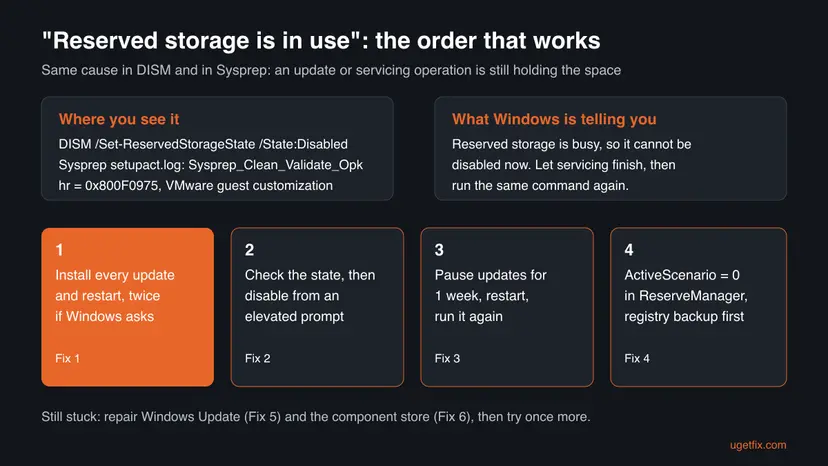
Windows shows this message when you try to disable reserved storage with DISM, or run Sysprep, while an update or servicing operation still holds that space. It is not damage: the command is refused until servicing finishes. Install every pending update, restart, and run the same command again from an elevated prompt.
The message means an update or servicing operation is using reserved storage right now, so Windows refuses to disable it. Open Settings > Windows Update, install everything, restart, and check again until nothing is pending (Fix 1). Then run DISM.exe /Online /Set-ReservedStorageState /State:Disabled from an elevated prompt (Fix 2). If it still fails, pause updates for a week and restart (Fix 3).
| Error | This operation is not supported when reserved storage is in use. Please wait for any servicing operations to complete and then try again later. Shown by DISM as Error: 0x800f0975, and by Sysprep as Audit mode cannot be turned on if reserved storage is in use. |
|---|---|
| Where it appears | In Command Prompt or Terminal after DISM.exe /Online /Set-ReservedStorageState /State:Disabled or Set-WindowsReservedStorageState -State Disabled. For Sysprep, in %WINDIR%\System32\Sysprep\Panther\setupact.log, also when VMware guest customization runs Sysprep for you. |
| Main cause | A Windows update is downloaded, installing or waiting for a restart, and it is using the reserved space. Microsoft's DISM documentation says reserved storage may not be disabled while it is in use. |
| Fastest fix | Install all updates and restart until Windows Update shows nothing pending (Fix 1), then run the DISM command again as administrator (Fix 2). |
| Also written as | 0x800f0975, hr = 0x800F0975, "reserved storage is in use", "an update or servicing operation may be using reserved storage", Sysprep_Clean_Validate_Opk. |
| Affects | Windows 11, and Windows 10 version 2004 and later, where Microsoft added the DISM reserved storage commands. Windows 10 left support on 14 October 2025. |
| Microsoft's status | Expected behaviour, not a bug. The message is printed word for word in Microsoft's DISM reserved storage documentation, with the advice to wait for servicing to complete. |
| Where the cause is written | DISM: C:\Windows\Logs\DISM\dism.log. Sysprep: %WINDIR%\System32\Sysprep\Panther\setupact.log, search for Sysprep_Clean_Validate_Opk. |
| Time to fix | 10 to 30 minutes when updates install cleanly. Up to an hour when an update has to be repaired first (Fix 5 and Fix 6). |
Facts checked on 15 October 2026. Steps written for Windows 11 25H2 and 26H2, and Windows 10 22H2.
What “This operation is not supported when reserved storage is in use” means
Reserved storage is a part of drive C: that Windows keeps free for updates, temporary files and caches. Microsoft says it makes it more likely that updates can be downloaded and installed without you having to free disk space first. Since Windows 10 version 2004, administrators can turn it on and off with DISM.
The command that turns it off is the one that fails. Microsoft's DISM documentation states that if reserved storage is in use, it may not be disabled, and DISM then returns exactly this text:
What DISM prints in Command Prompt (Admin)
Error: 0x800f0975

This operation is not supported when reserved storage is in use. Please wait for any servicing operations to complete and then try again later.| Part of the message | What it tells you |
|---|---|
| This operation is not supported | Only the change of state is refused. Your reserved storage, your files and Windows are fine. |
| when reserved storage is in use | Something has placed files in the reserved space right now, most often a downloaded or half-installed update. |
| Please wait for any servicing operations to complete | Servicing means installing updates, features or language packs. Finish it, usually with a restart, and the command works. |
| 0x800f0975 | The code DISM and Sysprep both show. We could not confirm Microsoft's internal name for it, but both tools use it for this same condition. |
PowerShell's Set-WindowsReservedStorageState -State Disabled calls the same Windows function, so it fails with the same text. Running it in PowerShell instead of Command Prompt does not get around the block.
Why reserved storage is in use and the command is refused
There is one cause behind every case: servicing is not finished. What differs is why it is not finished. The table ranks the reasons we found in Microsoft's and VMware's documentation and ties each to a fix.
| Cause | How often | How to tell | Fix |
|---|---|---|---|
| An update is installed but waits for a restart. | Most often | Settings > Windows Update shows Restart now or Restart required. | Fix 1 |
| Updates are downloaded or still installing in the background. | Often | Windows Update shows Downloading, Installing or Pending install. | Fix 1, Fix 2 |
| Windows starts a new update right after each restart. | Sometimes | The command fails again a few minutes after every restart. | Fix 3 |
| A servicing flag stays set after the update is done. | Sometimes, mostly Sysprep | Nothing is pending, yet the error stays. ActiveScenario under ReserveManager is not 0. | Fix 4 |
| An update keeps failing and never completes. | Less often | The same update shows Install error or comes back after each restart. | Fix 5 |
| The component store that servicing uses is damaged. | Rarely | Sysprep logs Failed to query pending CBS operations, or DISM repair commands fail. | Fix 6 |
Microsoft notes that reserved storage works on its own only for PCs that get updates straight from Windows Update. On PCs managed with WSUS or Configuration Manager, the management tool may switch it off and on around each update, so ask your IT team before you change it.
Sysprep: audit mode cannot be turned on if reserved storage is in use
When you generalize an image with Sysprep, it checks that no servicing is active before it starts. If reserved storage is in use, Sysprep stops with Sysprep was not able to validate your Windows installation, and the reason is written to its log, not to the screen.
The line to look for in %WINDIR%\System32\Sysprep\Panther\setupact.log
Error SYSPRP Sysprep_Clean_Validate_Opk: Audit mode cannot be turned on if reserved storage is in use. An update or servicing operation may be using reserved storage.; hr = 0x800F0975- Open the log in Notepad and search for
Sysprep_Clean_Validate_Opk. Broadcom documents three variants of that line for VMware guest customization. - Audit mode cannot be turned on if reserved storage is in use points to this guide: start with Fix 1, then use Fix 4.
- Audit mode can't be turned on if there is an active scenario has the same code, 0x800F0975, and the same cure: finish or pause updates (Fix 1, Fix 3) and reset
ActiveScenario(Fix 4). - Failed to query pending CBS operations with hr = 0x800706b5 means Sysprep could not read the servicing state at all. Start with Fix 1, then Fix 6.
- VMware users see no error in vCenter. Broadcom says the customization simply does not take effect, and the guest's
%WINDIR%\temp\toolsDeployPkg.logends after the network interfaces connect.
Microsoft also notes that a change of reserved storage state is carried into a Sysprep generalized image. If you disable reserved storage on the reference PC to get Sysprep through, every PC deployed from that image starts with it disabled. Turn it back on before you capture the image if you want the default (see the section on undoing the change).
How to fix “This operation is not supported when reserved storage is in use”
Fix 1 and Fix 2 solve most cases and change nothing you need to undo. Fix 3 holds off new updates for a week. Fix 4 edits the registry and is meant for PCs where nothing is pending but the error stays, mostly before Sysprep. Fix 5 and Fix 6 repair Windows Update when the updates themselves fail.
| What you see or have | Start with |
|---|---|
| Windows Update shows Restart now, Pending install or Downloading. | Fix 1 |
| Windows Update says You're up to date and you have restarted. | Fix 2 |
| The command fails again a few minutes after every restart. | Fix 3 |
| Sysprep stops and its log says Audit mode cannot be turned on if reserved storage is in use. | Fix 1, then Fix 4 |
| The same update fails or comes back after each restart. | Fix 5 |
| Sysprep logs Failed to query pending CBS operations. | Fix 6 |
Fix 1. Install every pending update and restart until nothing is left
10 to 30 minutesNo riskEveryone, and first of all PCs where Windows Update shows a pending restart or install.
The message itself asks you to wait for servicing to complete. An update that is installed but waiting for a restart keeps its files in reserved storage, so only a restart lets Windows release the space. Broadcom's first resolution for the Sysprep version is the same: bring Windows fully up to date.
- Save your work and close open apps.
- Press Win + I and select Windows Update. On Windows 10, open Update & Security > Windows Update.
- If you see Restart now, select it. If you see Download & install all or Install all, select it and wait.
- When the installs finish, restart even if Windows does not ask.
- Open Windows Update again and select Check for updates. Repeat steps 3 and 4 until it says You're up to date with nothing pending.
- Wait 5 minutes after signing in so background servicing can finish, then run the DISM command again as in Fix 2.
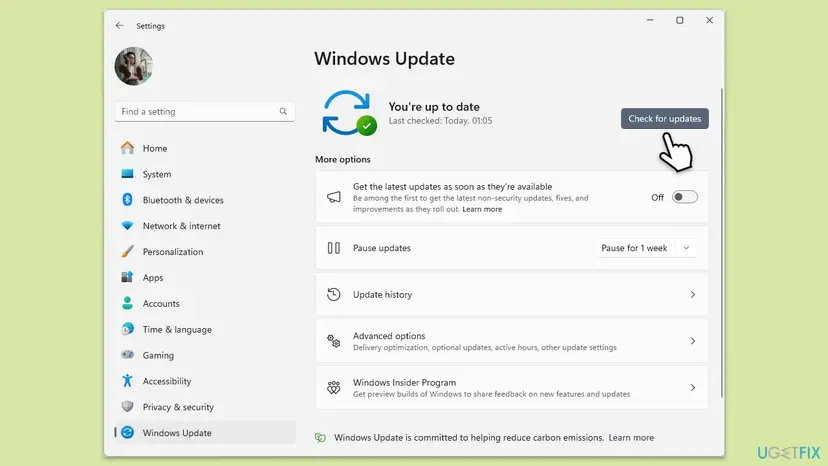
Optional updates under Advanced options > Optional updates do not have to be installed for this fix. What matters is that nothing already started is left waiting.
It worked if: Windows Update shows You're up to date, and the DISM command in Fix 2 ends with The operation completed successfully.
If not: If Windows Update is clear but the error stays, go to Fix 2. If an update keeps failing, go to Fix 5.
Fix 2. Check the reserved storage state and disable it from an elevated prompt
5 minutesLow riskWindows Update shows nothing pending and you have restarted at least once.
Microsoft's DISM commands only work on the running Windows and need administrator rights. Checking the state first tells you whether there is anything to change, and running the command soon after a restart catches the moment before Windows Update starts new work.
- Restart the PC and sign in.
- Right-click Start and select Terminal (Admin), or search for cmd and select Run as administrator. Select Yes in the User Account Control prompt.
- Check the current state:
DISM.exe /Online /Get-ReservedStorageState - If it says Reserved storage is disabled, there is nothing to change and you can stop here.
- Disable it:
DISM.exe /Online /Set-ReservedStorageState /State:Disabled - In PowerShell, the same change is:
Set-WindowsReservedStorageState -State Disabled - Run the check again to confirm:
DISM.exe /Online /Get-ReservedStorageState
If DISM answers Error: 740 and asks for elevated permissions, the prompt is not running as administrator. Our guide on DISM error 740 shows how to open it the right way.
It worked if: DISM prints The operation completed successfully, and the check shows Reserved storage is disabled.
If not: If the same message returns minutes after a restart, Windows is starting new updates: go to Fix 3.
Fix 3. Pause Windows updates for a week, restart and try again
10 minutesLow riskThe command fails again shortly after every restart, or you need Sysprep to pass today.
As long as Windows Update keeps downloading new work, reserved storage keeps filling. Broadcom's second resolution for the Sysprep error starts with Pause for 1 week, which stops new downloads so the current servicing can end.
- Press Win + I and select Windows Update.
- Next to Pause updates, select Pause for 1 week. On Windows 10, select Pause updates for 7 days.
- Restart the PC.
- Run
DISM.exe /Online /Set-ReservedStorageState /State:Disabledin an elevated prompt, or run Sysprep again. - When you are done, open Windows Update and select Resume updates, so security updates are not delayed.
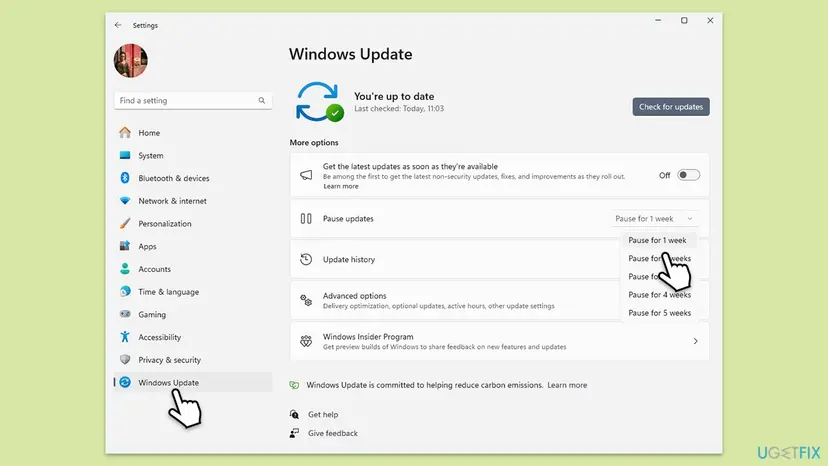
It worked if: After the restart the DISM command succeeds, or Sysprep passes the validation step.
If not: If nothing is pending and the error still appears, the servicing flag is stuck: go to Fix 4.
Fix 4. Reset ActiveScenario in the ReserveManager registry key, then disable reserved storage
10 minutesRead the warningUpdates are finished or paused, yet DISM or Sysprep still says reserved storage is in use.
Windows records active servicing in the value ActiveScenario under the ReserveManager key. Broadcom's fix for the Sysprep version sets it to 0 and then runs the DISM command, which clears a flag that was left behind after the update ended.
A wrong registry change can stop Windows Update or other parts of Windows from working. Export the key or create a restore point before you edit it: Back up the registry before editing it. Do not use this fix while an update is really installing.
- Make sure Windows Update shows nothing installing (Fix 1) or that updates are paused (Fix 3).
- Press Win + R, type
regeditand press Enter. Select Yes in the User Account Control prompt. - Paste this path into the address bar and press Enter:
HKEY_LOCAL_MACHINE\SOFTWARE\Microsoft\Windows\CurrentVersion\ReserveManager - Double-click ActiveScenario, set Value data to
0and select OK. - Open an elevated prompt and disable reserved storage:
DISM.exe /Online /Set-ReservedStorageState /State:Disabled - Restart the PC, then run Sysprep or your next step again.
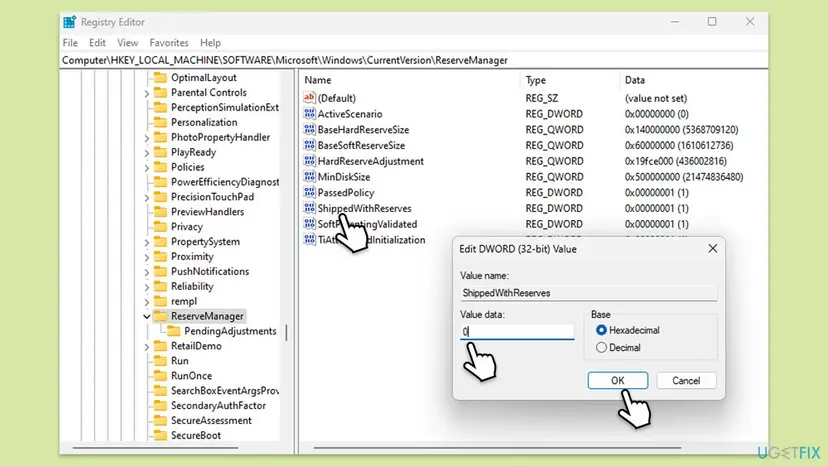
It worked if: ActiveScenario shows 0x00000000 (0), and DISM prints The operation completed successfully.
If not: If Windows sets ActiveScenario back and the error returns, an update is still running or failing: go to Fix 5.
Fix 5. Reset Windows Update when an update never finishes
15 minutes, plus a restartLow riskThe same update fails, rolls back or comes back after every restart.
A failing update counts as servicing in progress, so reserved storage stays in use for as long as it keeps retrying. Clearing the update cache lets Windows download it once more and finish, which ends the servicing.
This stops the update services, renames the download cache and the catalog folder, and starts the services again. Step by step: Reset Windows Update components
- Open Command Prompt as administrator. Type cmd in the search box, right-click Command Prompt and select Run as administrator. Select Yes when Windows asks for permission.
- Stop the update services. Type the commands below and press Enter after each one. If Windows says that other services depend on Cryptographic Services, it stops them too. A message that a service is not started is fine.
net stop wuauserv
net stop bits
net stop cryptsvc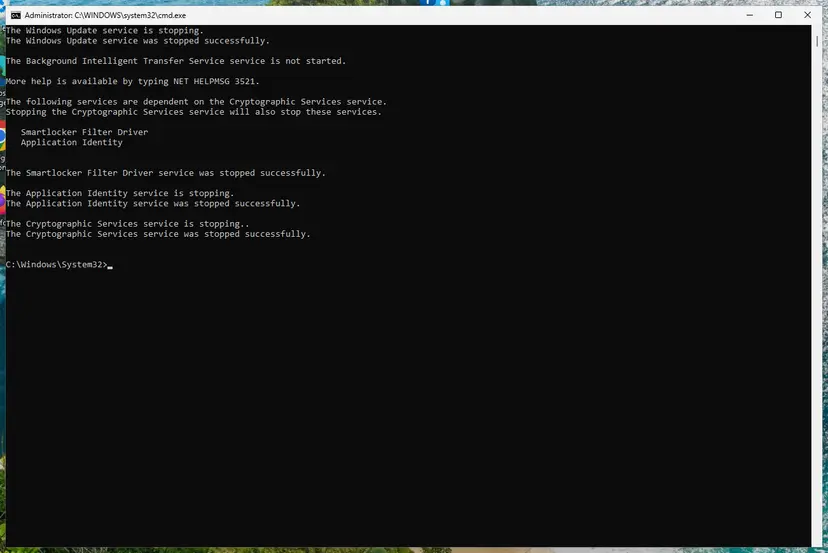
The update services are stopped. Screenshot: Windows 11 26H2. - Delete the download queue files. This clears the list of downloads that the Background Intelligent Transfer Service keeps. If Windows says it cannot find the files, continue.
del "%ALLUSERSPROFILE%\Application Data\Microsoft\Network\Downloader\qmgr*.dat" - Rename the update cache folders. Renaming keeps a copy in case you need it; Windows creates new, empty folders when the services start again. If you get Access is denied, a service is still running: repeat the previous step.
ren %systemroot%\SoftwareDistribution SoftwareDistribution.old
ren %systemroot%\System32\catroot2 catroot2.old
Both folders now end in .old. Screenshot: Windows 11 26H2. - Start the services again. Type the commands below and press Enter after each one. The requested service has already been started is fine: Windows started it on its own.
net start cryptsvc
net start bits
net start wuauserv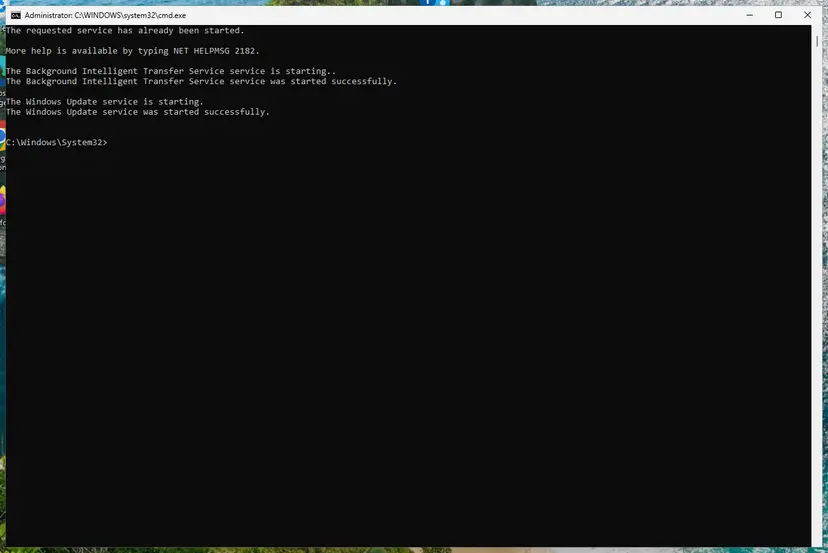
BITS and Windows Update are running again. Screenshot: Windows 11 26H2. - Restart and check for updates. Restart the PC. Then select Start > Settings > Windows Update > Check for updates. The first check can take longer than usual because everything is downloaded again.
These steps were written for Windows 11 and Windows 10 (the steps are the same). The full page with the other versions and what each result means: Reset Windows Update components
Afterwards, go back to Fix 1, install the update and restart. Then run the DISM command or Sysprep again.
It worked if: The update installs, Windows Update shows You're up to date, and the reserved storage command succeeds.
If not: If the update still fails with its own error code, search for that code, or repair the component store in Fix 6.
Fix 6. Repair the component store with DISM and SFC
20 to 40 minutesLow riskSysprep logs Failed to query pending CBS operations, or updates fail even after Fix 5.
Servicing reads its state from the component store. When that store is damaged, Windows cannot tell whether servicing has finished, so it keeps reserved storage marked as in use. A repair gives servicing a clean state again.
Run DISM's RestoreHealth first and SFC after it, in an elevated prompt. Step by step: Run DISM and SFC to repair Windows system files
- Open an elevated command window. Right-click Start and select Terminal (Admin), or type cmd in the search box, right-click Command Prompt and select Run as administrator. Select Yes when Windows asks for permission.

Search for cmd and choose Run as administrator. Screenshot: Windows 11 26H2. - Run DISM first. Type the command below and press Enter. DISM downloads clean copies of damaged components from Windows Update, so it can take several minutes. Wait until it says The operation completed successfully.
DISM.exe /Online /Cleanup-Image /RestoreHealth
DISM /RestoreHealth running. Screenshot: Windows 11 26H2. - Run System File Checker. In the same window, type the command below and press Enter. Do not close the window until the verification reaches 100%.
sfc /scannow
sfc /scannow at 100%. Screenshot: Windows 11 26H2. - Read the result and restart. Compare the last message with the table below this guide, then restart the PC so that repaired files are loaded.

The result line tells you what SFC did. Screenshot: Windows 11 26H2.
These steps were written for Windows 11 24H2 and 25H2. The full page with the other versions and what each result means: Run DISM and SFC to repair Windows system files
Restart when both are done, then repeat Fix 1 and Fix 2.
It worked if: SFC reports that it found no integrity violations or repaired them, and the DISM reserved storage command now succeeds.
If not: If DISM repair itself fails, read the logs as described in the next section and keep the files for support.
If reserved storage is still in use after every fix
When all six fixes fail, the logs show what servicing is still doing. Open them in Notepad from an elevated prompt, press Ctrl + End to go to the newest lines and search upward.
| Log | Path | What to look for |
|---|---|---|
| DISM | C:\Windows\Logs\DISM\dism.log | The last lines with 0x800f0975 and the lines just before them. |
| Servicing | C:\Windows\Logs\CBS\CBS.log | Lines with Error or a package that is still pending at the time of the DISM call. |
| Sysprep | %WINDIR%\System32\Sysprep\Panther\setupact.log | Sysprep_Clean_Validate_Opk and its reason. |
- A package or KB number named next to the error tells you which update is holding the space. Install or remove it, then try again: How to uninstall a Windows update.
- On a work or school PC, ask IT: WSUS or Configuration Manager may control reserved storage and undo your change.
- For Microsoft support, send the three logs, the output of
DISM.exe /Online /Get-ReservedStorageStateand your Windows version from Settings > System > About.
This message is a software state, not a sign of a failing drive. Hardware signs look different: chkdsk reporting bad sectors, a drive that disappears, or update errors that change on every attempt.
How to turn reserved storage back on, and when you should
Disabling reserved storage returns its space to drive C:, but updates then need free space of their own. Microsoft's reason for the feature is that updates install without you having to clean up the disk first, so turn it back on when the job is done.
Turn reserved storage back on (elevated prompt)
DISM.exe /Online /Set-ReservedStorageState /State:Enabled- Re-enable it after Sysprep and imaging if you want deployed PCs to keep the default, because the state is carried into the generalized image.
- Leave it disabled only on a PC with a very small drive that you watch yourself, and free space before big updates: Free up disk space and delete temporary files.
- In Settings > System > Storage, reserved storage is counted under System & reserved.
How to avoid the reserved storage error next time
- Run reserved storage commands right after a restart, with Windows Update showing nothing pending.
- Before Sysprep, install all updates, restart twice and pause updates for a week on the reference PC.
- Do not build images on a PC that is in the middle of a feature update.
- In scripts, run
DISM.exe /Online /Get-ReservedStorageStatefirst and retry the change later instead of forcing it. - On managed PCs, change reserved storage through your management tool so it does not fight your change.
Most people never need to touch reserved storage at all. If your goal is free space, the cleanup tools in Windows usually return more than reserved storage holds, and they do not make future updates harder.
Frequently asked questions
What does "this operation is not supported when reserved storage is in use" mean?
It means Windows refused to change the reserved storage state because that space is being used by servicing right now. Servicing is the installing of updates, features or language packs. Microsoft documents the message for the DISM command that disables reserved storage, and its own advice is in the second sentence: wait for any servicing operations to complete and try again later. Nothing is broken. Install pending updates, restart, and run the command again as administrator.
What is error 0x800f0975?
0x800f0975 is the code DISM prints together with this message, and Sysprep writes the same code to its setupact.log as hr = 0x800F0975. In both tools it stands for the same thing: servicing is active, so reserved storage or audit mode cannot be changed. We could not confirm Microsoft's internal name for the code. The fixes are the same in both cases: finish or pause updates, restart, and if needed reset ActiveScenario in the registry.
Is it safe to disable reserved storage?
Yes, it does not harm Windows or your files, but updates lose their guaranteed space. Microsoft built reserved storage so updates can install without you freeing disk space first. With it disabled, a big update on a nearly full drive can fail for lack of space. Disable it when you have a reason, such as a small drive or an image you are preparing, and turn it back on with DISM.exe /Online /Set-ReservedStorageState /State:Enabled when you are done.
How do I use Set-WindowsReservedStorageState -State Disabled?
Open PowerShell as administrator and run Set-WindowsReservedStorageState -State Disabled. It is the PowerShell version of the DISM command and works only on the running Windows, not on an offline image. It needs the same conditions: no servicing in progress. If it returns the reserved storage in use message, follow Fix 1 to finish updates and restart, then run it again. Get-WindowsReservedStorageState shows the current state.
How do I fix the Sysprep error audit mode cannot be turned on if reserved storage is in use?
Install all updates and restart until nothing is pending, then pause updates for one week and restart again. If Sysprep still fails, set ActiveScenario to 0 under the ReserveManager registry key and run the DISM command to disable reserved storage, as Broadcom describes for VMware guest customization. Back up the registry first. Then run Sysprep again. Remember that the disabled state is carried into the generalized image.
Why do I get "this operation is not supported" or "the operation is not supported" for other things?
Those shorter messages are generic Windows texts that many tools show for many reasons, from file systems to network shares. This page covers only the reserved storage version, where the full text continues with "when reserved storage is in use". If your message stops after "not supported", look at the program and the command that showed it, and search for that program's error together with the exact action you tried.
Is "there is not enough usable space for this operation" the same error?
No. That is a different message about free space for a disk or partition operation, and it is not caused by reserved storage being in use. Disabling reserved storage returns some space to drive C:, but it does not create unallocated space on a disk, so it will not fix a partition tool's space error. We did not research that message for this page. Free space first if drive C: is full.
Can I just wait instead of doing anything?
Often, yes. If an update is downloading or installing, it finishes on its own and the next restart releases the space. The problem is an update that waits for a restart indefinitely, or one that fails and retries. Waiting does not help those. Check Windows Update: if it shows Restart now, restart; if it shows the same failed update every day, use Fix 5.
Does the old ShippedWithReserves registry trick still work?
We could not confirm it in Microsoft's current documentation. Setting ShippedWithReserves to 0 was the way to stop Windows 10 version 1903 from creating reserved storage, before DISM had commands for it. Since version 2004 Microsoft documents the DISM commands, and Broadcom's fix for the in-use error changes ActiveScenario, not ShippedWithReserves. Use DISM, and edit ActiveScenario only when servicing is really finished.
Sources
- Microsoft Learn: DISM Reserved Storage Command-line Options (the error text, /Set- and /Get-ReservedStorageState) (learn.microsoft.com)
- Microsoft Learn: Set-WindowsReservedStorageState (Dism PowerShell module) (learn.microsoft.com)
- Broadcom Knowledge Base 313408: Guest OS Customization fails, Sysprep_Clean_Validate_Opk, hr = 0x800F0975 (knowledge.broadcom.com)
Did this fix work?
One click, no account. It tells the next reader which guides are worth their time.
Questions and experiences: fix “This operation is not supported when reserved storage is in use” error in Windows
Still broken, or found a fix we did not cover? Ask here: members and our editors answer. Reading is open; writing needs a free account.
…