
How to fix Turn Windows features on or off is not working?

Prefer to fix it yourself? The manual steps follow.
- 7methods
- 5 minutes for Fixes 1 and 2, 20 to 60 minutes for a store repair
- Intermediate
Applies to The Windows Features window (OptionalFeatures.exe) on Windows 11 and Windows 10, Home, Pro and Enterprise
7 methods in this guide
Hi, I wanted to enable Hyper-V via Turn Windows features on or off, but when I opened it, nothing got populated. The message says "Please wait," and nothing happens. Are there any fixes for this?
When Turn Windows features on or off stays on Please wait or opens with an empty list, the servicing part of Windows cannot read its list of optional features. Usually the Windows Modules Installer service is disabled or the component store is damaged. Check the service first, and turn on the feature you need with DISM while you repair the window.
A blank Windows Features list is a servicing problem, not a broken window. Open services.msc and make sure Windows Modules Installer is not set to Disabled (Fix 1). If you need one feature now, turn it on from an administrator terminal with DISM /Online /Enable-Feature /FeatureName:<name> /All (Fix 2). If DISM fails too, repair the component store with RestoreHealth and SFC (Fix 3).
| Error | No error code. The Windows Features window shows Please wait for a long time, then an empty white list, or never fills at all. |
|---|---|
| Where it appears | Control Panel > Programs > Programs and Features > Turn Windows features on or off, or Win + R and optionalfeatures. |
| Main cause | The Windows Modules Installer service (TrustedInstaller) is disabled, or the component store it reads from is damaged. |
| Fastest fix | Set Windows Modules Installer to Manual and start it (Fix 1), or turn the feature on with DISM or PowerShell (Fix 2). |
| Also written as | turn windows features on or off blank, windows features not loading, windows features not showing, windows features empty, turn windows features on or off please wait. |
| Affects | Windows 11 and Windows 10. Users report the same blank list back to Windows Vista. Windows 10 left support on 14 October 2025. |
| Microsoft's status | Not a listed known issue. Microsoft documents DISM and PowerShell as full alternatives to the window for turning features on and off. |
| Not a fault | Hyper-V missing from the list on Windows 10 Home or Windows 11 Home. Microsoft says the Hyper-V role can't be installed on Home editions. |
| Logs to read | C:\Windows\Logs\CBS\CBS.log and C:\Windows\Logs\DISM\dism.log. |
| Time to fix | 2 minutes for Fix 1, 5 minutes for Fix 2, 20 to 60 minutes for Fix 3. |
Facts checked on 15 October 2026. Steps written for Windows 11 (25H2 and 26H2) and Windows 10 22H2.
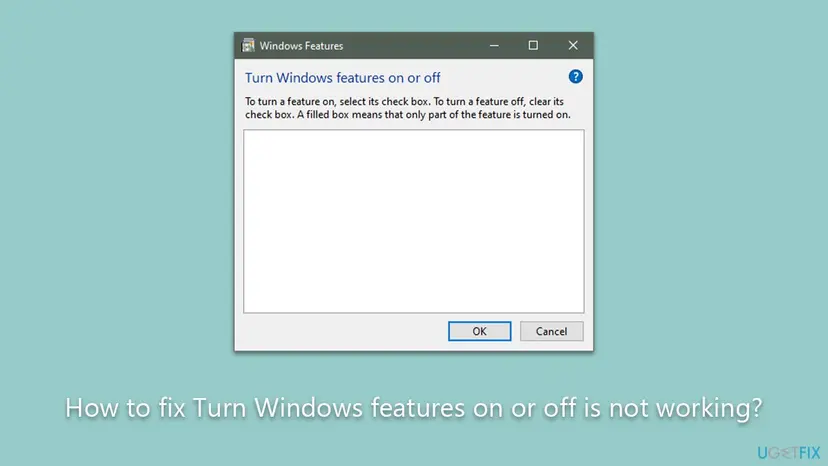
What it means when Turn Windows features on or off is blank or stuck on Please wait
Turn Windows features on or off opens a small window called Windows Features. It does not hold the list itself. It asks the Windows servicing stack, run by the Windows Modules Installer service, which optional features exist in your component store and which of them are on. While it waits for that answer it shows Please wait.
| What you see | What it means |
|---|---|
| Please wait for under a minute, then a full list | Normal. The first open after a restart can be slow. |
| Please wait that never ends | The servicing stack does not answer: service disabled or busy with pending work (Fixes 1 and 4). |
| An empty white list after Please wait | The answer came back empty: usually a damaged component store (Fix 3). |
| The list works but Hyper-V is not in it | Not a fault on Windows Home. Hyper-V needs Pro, Enterprise or Education. |
| The list works, but after OK the change fails | A different problem: the feature's files cannot be found. Fix 2 shows the error code. |
The window is only one door to these features. Microsoft documents DISM and PowerShell commands that list, enable and disable the same features from a terminal. That is why Fix 2 can get you Hyper-V, WSL or .NET Framework 3.5 today, even while the window stays blank.
Why the Windows Features list does not load, from most to least common
- Most often: Windows Modules Installer is disabled. Its own description says that if it is disabled, install or uninstall of Windows updates and optional components might fail. Tuning tools and guides that disable services cause this. Fix 1.
- Often: the component store is damaged. The list is read from
C:\Windows\WinSxSand its records. Damage there leaves the list empty and makes DISM fail too. Fix 3. - Less often: servicing is busy. An update waiting for a restart, or a failed update stuck halfway, keeps the servicing stack occupied. Fix 4.
- Rarely: a stale servicing flag. A registry value called
StoreDirtyunderHKLM\COMPONENTSis widely suggested as the cause. We could not confirm it on a Microsoft page. Fix 5. - Rarely: another program blocks it. Security or tuning software that hooks into system processes. Fix 6.
| Cause | Sign | Start with |
|---|---|---|
| Service disabled | Startup type: Disabled for Windows Modules Installer | Fix 1 |
| Damaged store | DISM /Online /Get-Features fails, ScanHealth says repairable | Fix 3 |
| Pending restart or update | Restart required in Windows Update, features in Enable Pending | Fix 4 |
| Stale flag | Store healthy, service fine, list still empty | Fix 5 |
| Third-party software | Works in a clean boot, fails in a normal start | Fix 6 |
How to fix Turn Windows features on or off not working
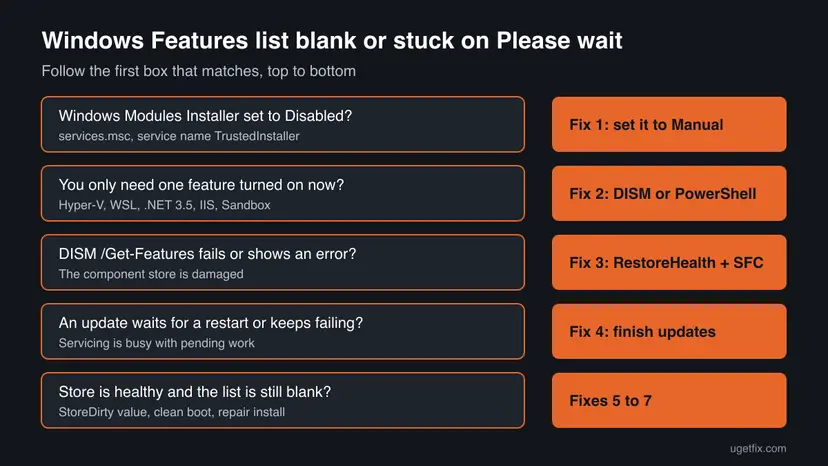
Fix 1 takes two minutes and solves the most common cause. Fix 2 gets you the feature you came for, whatever happens to the window. Fixes 3 and 4 repair what the window reads from. Fixes 5 to 7 are for the rare case where everything else checks out.
| What you see or need | Start with |
|---|---|
| You used a tuning tool or changed services before | Fix 1 |
| You just need Hyper-V, WSL, IIS or .NET 3.5 turned on now | Fix 2 |
| DISM also fails, or the list is empty after Please wait | Fix 3 |
| Windows Update says Restart required or keeps failing | Fix 4 |
| Store and service are fine and the list is still blank | Fix 5 |
| The list loads in a clean boot only | Fix 6 |
| Nothing above helped | Fix 7 |
Fix 1. Set Windows Modules Installer to Manual and start it
2 minutesLow riskThe window stays on Please wait, or you ever disabled services to speed up Windows.
Windows Modules Installer (service name TrustedInstaller) is the process that reads and changes optional components. Its description says that if it is disabled, install or uninstall of updates and components might fail, so the window gets no list.
- Press Win + R, type the command and press Enter.
services.msc - Click any row and type W to jump down the list. Find Windows Modules Installer.
- Look at the Startup Type column. If it says Disabled, double-click the service.
- In Startup type, choose Manual and select Apply. Manual is the usual setting: Windows starts the service when it needs it.
- Select Start, then OK. Close Services.
- Open the features window again.
optionalfeatures
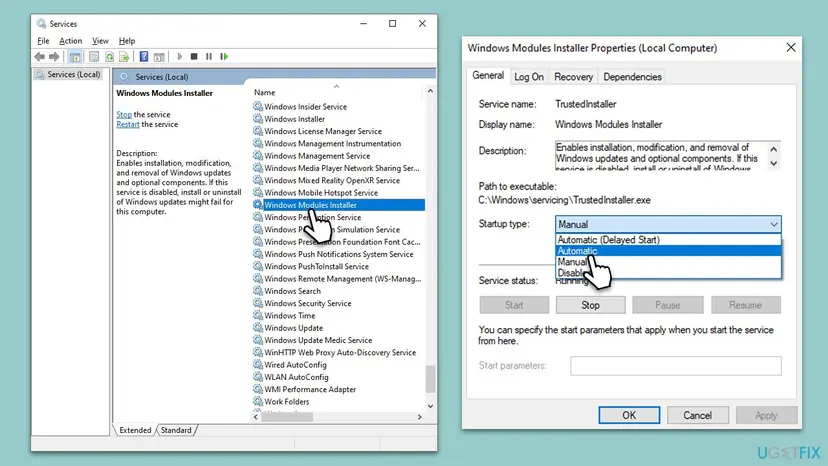
The old version of this guide said to choose Automatic. That works, but it is not needed: the service runs on demand. Step by step for any service: Check and restart Windows services.
It worked if: The Windows Features window fills its list within a minute.
If not: If the service was already Manual or Automatic and the list is still blank, get your feature with Fix 2 and check the store with Fix 3.
Fix 2. Turn the feature on with DISM or PowerShell instead of the window
5 minutes plus a restartLow riskYou came to turn on one feature, such as Hyper-V, and need it now.
Microsoft documents DISM's Features commands to list, enable and disable Windows features on a running system. They talk to the same servicing stack without the window, and when they fail they print an error code that names the real problem.
- Right-click Start and select Terminal (Admin) on Windows 11, or Windows PowerShell (Admin) on Windows 10. Select Yes.
- List every feature with its state. Add
> features.txtto save the list to a file.DISM /Online /Get-Features /Format:Table - Find the exact name of the feature you want, then turn it on.
/Allalso turns on the parent features it needs. Hyper-V is the example here.DISM /Online /Enable-Feature /FeatureName:Microsoft-Hyper-V /All - Wait for The operation completed successfully and restart when asked.
- Check the state after the restart. Enabled is done. Enable Pending means Windows needs one more restart.
DISM /Online /Get-FeatureInfo /FeatureName:Microsoft-Hyper-V
The same in PowerShell, from Microsoft's Hyper-V page
Enable-WindowsOptionalFeature -Online -FeatureName Microsoft-Hyper-V -AllTo turn a feature off, Microsoft's command is DISM /Online /Disable-Feature /FeatureName:<name>. If a feature needs files that are not on the PC, DISM asks Windows Update for them. /LimitAccess stops that, and /Source: points DISM at a mounted Windows ISO instead.
Microsoft lists Hyper-V for Windows 10 and Windows 11 Pro or Enterprise only, on a 64-bit CPU with Second Level Address Translation and at least 4 GB of memory. On Home, Microsoft-Hyper-V is not in the DISM list either. That is a licence limit, not this fault.
It worked if: DISM prints The operation completed successfully, and after the restart Get-FeatureInfo shows State : Enabled.
If not: If /Get-Features itself fails or ends with an error such as 0x800f081f, the component store is damaged. Go to Fix 3.
Fix 3. Repair the component store with DISM RestoreHealth and SFC
20 to 60 minutesLow riskThe list is empty after Please wait, or DISM /Get-Features fails.
The Windows Features list comes from the component store. RestoreHealth fixes damaged store records from Windows Update, and System File Checker then restores system files from the repaired store.
- In Terminal (Admin), ask whether the store is damaged. This takes several minutes.
DISM /Online /Cleanup-Image /ScanHealth - If it says The component store is repairable, repair it.
DISM /Online /Cleanup-Image /RestoreHealth - When it reports success, check system files.
sfc /scannow - Restart the PC and open
optionalfeaturesagain.

Step by step, with what each result means: Run DISM and SFC to repair Windows system files. If RestoreHealth sits at 62.3 % for a long time, our guide to DISM RestoreHealth stuck at 62.3% shows how to tell a working run from a frozen one.
It worked if: ScanHealth reports No component store corruption detected, and the Windows Features list fills after the restart.
If not: If RestoreHealth fails with a download or source error, reset Windows Update with Fix 4 and run it again.
Fix 4. Finish pending updates and reset Windows Update
15 to 30 minutesLow riskWindows Update shows Restart required, an update keeps failing, or features stay in Enable Pending.
Updates and optional features go through the same servicing stack. While an update waits for a restart or is stuck halfway, that stack is busy, and RestoreHealth also needs a working Windows Update to fetch clean files.
- Restart the PC through Start > Power > Restart, not Shut down. Install anything that asks for a restart.
- Open Settings > Windows Update and select Check for updates. Install what is offered and restart again.
- If an update fails again and again, reset the update services and their cache with the procedure below, then restart.
- Open
optionalfeaturesagain. If you came from Fix 3, run RestoreHealth once more.
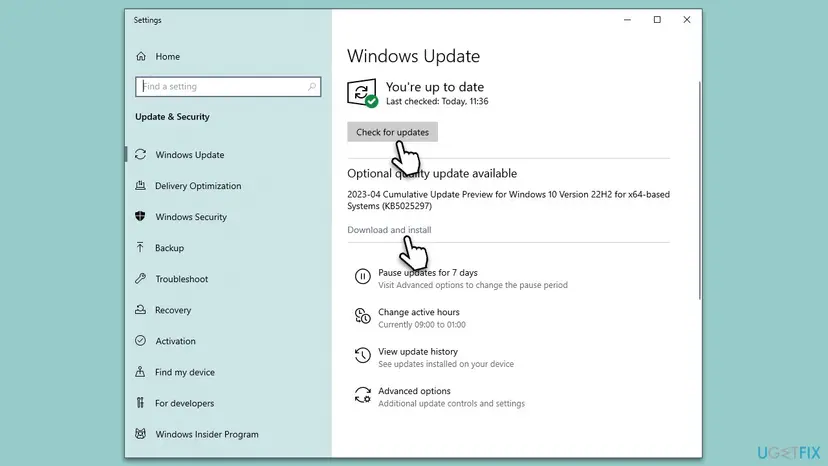
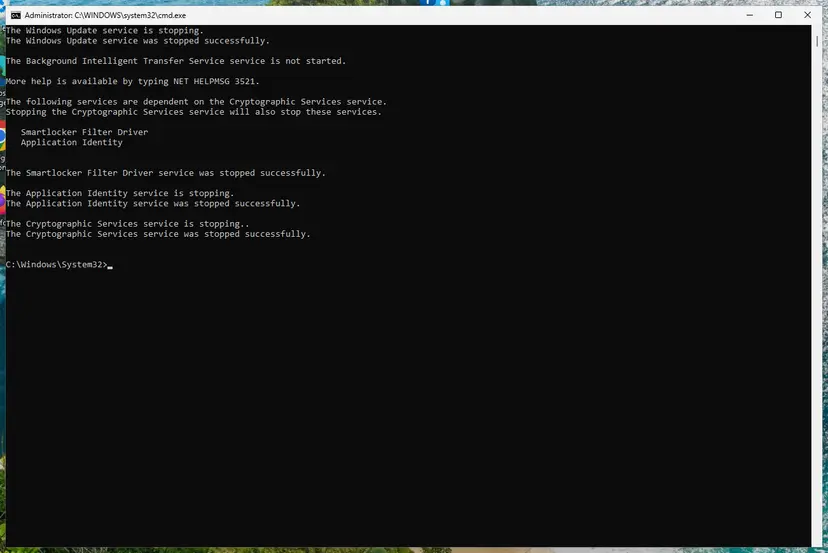
Step by step: Reset Windows Update components. Microsoft notes that after an enable or disable, a feature shows Enable Pending or Disable Pending until you restart, so a restart is often the whole fix.
It worked if: Windows Update says You're up to date with no restart waiting, and the features list loads.
If not: If updates install fine and the store is healthy but the list is still blank, try Fix 5.
Fix 5. Delete the StoreDirty value from the COMPONENTS registry hive
5 minutesRead the warningFixes 1 to 4 checked out: service fine, store healthy, updates done, list still empty.
Users have reported for years that a value named StoreDirty under HKLM\COMPONENTS keeps the list blank, and that deleting it brings the list back. We could not confirm this on a Microsoft page, so it comes after the documented fixes.
This changes the registry hive that Windows servicing uses. A wrong deletion can break updates. Export a full backup first, and only delete the one value named here: Back up the registry before editing it.

- Export the registry backup as shown above and keep the .reg file somewhere safe.
- Right-click Start and select Terminal (Admin), then Yes.
- Delete the value. Answer Yes if asked to confirm.
reg delete HKLM\COMPONENTS /v StoreDirty - If you see The system was unable to find the specified registry key or value, the value is not there and this is not your cause. Change nothing else.
- Restart the PC and open
optionalfeatures.
It worked if: The command says The operation completed successfully, and after a restart the list fills.
If not: If the value did not exist, or the list is still blank, look for interfering software with Fix 6.
Fix 6. Open Windows Features in a clean boot
15 minutesLow riskThe fixes above did not help, and you run security, tuning or system cleaner software.
A clean boot starts Windows with only Microsoft services. If the list fills there, a third-party program is blocking the servicing stack, and you can find it by turning items back on in groups.
- Press Win + R, type the command and press Enter.
msconfig - On the Services tab, tick Hide all Microsoft services, then select Disable all.
- On the Startup tab, select Open Task Manager and disable each startup app.
- Restart, then open
optionalfeaturesand see whether the list fills.
Step by step, including how to undo it: How to perform a clean boot in Windows. In the clean boot, run optionalfeatures. If the list loads, make your change there, then turn services back on in halves until the blank list returns. That last group holds the culprit.
It worked if: The list fills in the clean boot. You then know the cause is a program, not Windows.
If not: If the list is blank in a clean boot too, Windows itself is damaged. Use Fix 7.
Fix 7. Reinstall Windows over itself and keep your files and apps
1 to 2 hoursLow riskThe store cannot be repaired, or nothing above brought the list back.
A repair install replaces the whole component store and the servicing stack with fresh copies, while it keeps your files, apps and settings. It fixes damage that RestoreHealth cannot reach.

- Back up the files you cannot lose first.
- On Windows 11 open Settings > System > Recovery and, under Fix problems using Windows Update, select Reinstall now.
- On Windows 10, or if that option is missing, mount a Windows ISO of the same version, run setup.exe and keep personal files and apps.
- After the restart, open
optionalfeaturesand check that the list fills.
Back up what you cannot lose with Back up your files (Windows Backup, File History, Time Machine), then follow Reinstall Windows without losing files. On Windows 11 use Settings > System > Recovery > Reinstall now. On Windows 10, run setup from a Windows ISO and keep personal files and apps.
It worked if: Windows starts on the same version with your files and apps, and Turn Windows features on or off shows its full list.
If not: If the list is still blank on a fresh store, collect the logs in the next section before you reset the PC.
If Windows Features is still blank: logs, support and limits
- Copy
C:\Windows\Logs\CBS\CBS.logandC:\Windows\Logs\DISM\dism.logto your Desktop. Work on the copies. - Open the windows features list once, wait until it goes blank, and note the time.
- In the CBS.log copy, look at the lines with that time. Search for error, Failed or a code starting with 0x8.
- Run
DISM /Online /Get-Featuresand save its output. If it fails, the last Error line in dism.log names the code. - For help on Microsoft Q&A or from support, send those two log files, your Windows version from
winverand the DISM output.
This is not a hardware fault in itself. If the store keeps getting damaged again after a repair, check the drive with Check a disk for errors (chkdsk) and back up your files first. And if one feature is simply missing from the list, check your edition: Hyper-V and some other features are not part of Windows Home.
How to keep the Windows Features list working
- Leave Windows Modules Installer on Manual, its usual setting.
- Restart when Windows Update asks, before you add or remove features.
- Keep DISM's feature commands in mind: they work when the window does not.
- Run
DISM /Online /Cleanup-Image /ScanHealthafter a crash during an update.
- Disable Windows services with tuning tools or service lists from the web.
- Force the PC off while it says Working on updates or Working on features.
- Delete files from
C:\Windows\WinSxSby hand. - Change other values under
HKLM\COMPONENTSthan the one in Fix 5.
Windows can show a full-screen Working on features message while it applies a change you made in this window. That is normal and can take several minutes. Let it finish: switching the PC off then is one of the ways the component store gets damaged.
Frequently asked questions
Why is Turn Windows features on or off blank?
The window asks the Windows Modules Installer service for the list of optional features in the component store. A blank list means that question got no usable answer. Most often the service is disabled, so nothing answers at all. Next most often the component store is damaged, so the answer is empty. Check the service in services.msc first, then run DISM /Online /Cleanup-Image /ScanHealth to test the store. Both checks take only a few minutes.
How long should Please wait take in Windows Features?
Usually a few seconds, sometimes up to a minute on the first open after a restart or on a slow drive. Microsoft does not give a time. One user on Microsoft Q&A reports Please wait for about 45 seconds, then a blank window. If it lasts longer than a couple of minutes, or ends empty, waiting will not help. Start with Fix 1 to check the service, then use Fix 2 if you need a feature right away.
How do I turn on Windows features without the window?
Use DISM or PowerShell as administrator. DISM /Online /Get-Features /Format:Table lists every feature and its state. DISM /Online /Enable-Feature /FeatureName:<name> /All turns one on, and /Disable-Feature turns it off. In PowerShell the same is Enable-WindowsOptionalFeature -Online -FeatureName <name> -All. Microsoft documents both ways. Restart when asked, then check the state with /Get-FeatureInfo.
How do I open Turn Windows features on or off with a run command?
Press Win + R, type optionalfeatures and press Enter. This opens the Windows Features window directly on Windows 11 and Windows 10. You can also go through Control Panel > Programs > Programs and Features and select Turn Windows features on or off on the left. If the run command also gives a blank list, the window is not the problem: use the fixes on this page.
Why is Hyper-V not showing in Windows Features?
Most likely because the PC runs Windows Home. Microsoft states that the Hyper-V role can't be installed on Windows 10 Home or Windows 11 Home. It also needs a 64-bit processor with Second Level Address Translation and at least 4 GB of memory. On Pro or Enterprise, run DISM /Online /Get-Features to see whether Microsoft-Hyper-V is listed. If the whole list is empty, not only Hyper-V, that is the fault this page fixes.
Should Windows Modules Installer be Automatic or Manual?
Manual is fine and is the usual setting. Windows starts the service when it installs updates or changes features, and it stops again afterwards. Automatic also works but is not needed. The only setting that breaks the features list is Disabled. Its own description warns that install or uninstall of updates and optional components might fail when it is disabled.
Is it safe to delete StoreDirty from the registry?
It is a widely shared fix, but we could not confirm it on a Microsoft page, so treat it as a last resort. Back up the registry first and delete only that one value with reg delete HKLM\COMPONENTS /v StoreDirty. If Windows says it cannot find the value, it is not there and you should change nothing else. Never delete other entries under HKLM\COMPONENTS, because Windows servicing depends on them.
What does Working on features mean?
It is the screen Windows shows while it applies a change you made in Windows Features, usually during a restart. It can take several minutes when a large feature such as Hyper-V or WSL is added. Let it finish and do not hold the power button. If it never finishes, restart once normally, then check the feature with DISM /Online /Get-FeatureInfo /FeatureName:<name> and repair the store with Fix 3 if needed.
What Windows features should be turned on?
Only the ones a program or task needs. Windows comes with sensible defaults, and you can leave them alone. Common reasons to add one: Hyper-V or Virtual Machine Platform for virtual machines, Windows Subsystem for Linux for Linux tools, .NET Framework 3.5 for older programs, and Internet Information Services for a local web server. Turning off features you do not recognise rarely helps and can break programs that use them.
This page is in English. Is there help in other languages?
This guide is about the blank or stuck Windows Features window in Windows 11 and Windows 10, and it is written in English only. The window has the same layout in every language. The commands optionalfeatures, services.msc and the DISM lines work exactly as shown on any language edition of Windows, so you can follow the steps even if your menus read differently.
Sources
- Microsoft Learn: Enable or Disable Windows Features Using DISM (learn.microsoft.com)
- Microsoft Learn: Install Hyper-V in Windows and Windows Server (learn.microsoft.com)
- Microsoft Q&A: Turn Windows Features on or off presents empty dialog box (learn.microsoft.com)
Did this fix work?
One click, no account. It tells the next reader which guides are worth their time.
Questions and experiences: fix Turn Windows features on or off is not working
Still broken, or found a fix we did not cover? Ask here: members and our editors answer. Reading is open; writing needs a free account.
…