
How to fix USB error Code 38: a previous instance of the device driver is still in memory

Prefer to fix it yourself? The manual steps follow.
- 7methods
- 2 to 30 minutes
- Easy
Applies to Windows 11 and Windows 10 PCs where a USB flash drive, external disk, USB controller or other device shows Code 38 in Device Manager
7 methods in this guide
Hello. When I tried to load onto my USB, I received this message: "Windows cannot load the device driver for this hardware because a previous instance of the device driver is still in memory. (Code 38)" Can I fix it?
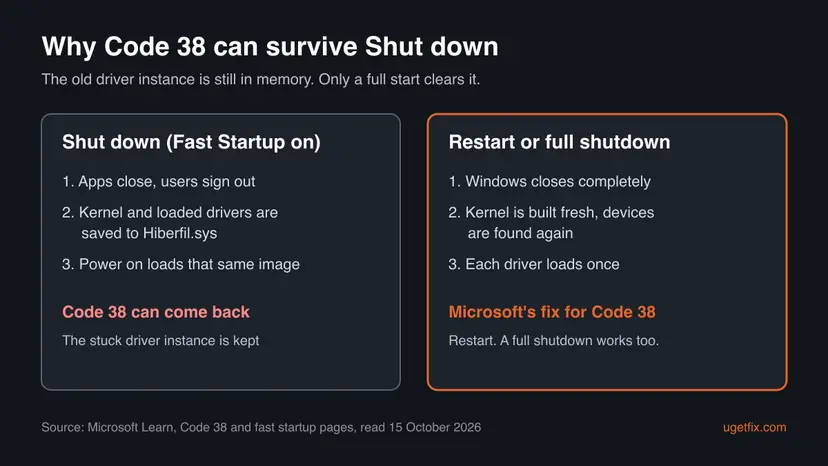
Code 38 means Windows tried to load a device's driver while an earlier copy of the same driver was still in memory, so the USB drive or other device does not work. Microsoft's fix is a restart. Use Restart, not Shut down, because Fast Startup can keep the stuck driver.
Code 38 means the device's driver could not start because an older instance of it never unloaded. Microsoft's recommended resolution is to restart the computer. Choose Restart from the Start menu, not Shut down, because Fast Startup saves loaded drivers and brings them back (Fix 1). If Code 38 returns, do a full shutdown with the USB device unplugged (Fix 2), then reinstall the device and its USB controllers (Fix 4).
| Error | Windows cannot load the device driver for this hardware because a previous instance of the device driver is still in memory. (Code 38). Microsoft's internal name is CM_PROB_DRIVER_FAILED_PRIOR_UNLOAD. |
|---|---|
| Where it appears | In Device Manager, in the Device status box of the device's Properties. The device has a yellow warning sign and does not appear or open in File Explorer. |
| Main cause | An earlier copy of the driver did not unload: a wrong reference count, a race between load and unload, or two driver packages that install the same service. |
| Fastest fix | Start > Power > Restart (Fix 1). Microsoft gives a restart as the only resolution. |
| Also written as | code 38, error code 38, error 38, windows code 38, code 38 windows 10, The driver could not be loaded because a previous version of the driver is still in memory, CM_PROB_DRIVER_FAILED_PRIOR_UNLOAD. |
| Affects | Any device with a driver, most often USB flash drives, external disks, card readers and USB controllers. Windows 11 and Windows 10. |
| Vendor status | Microsoft documents Code 38 and recommends a restart. No Microsoft known issue tied to it was listed on 15 October 2026. |
| Why Shut down may not help | With Fast Startup on, Shut down saves the kernel and its loaded drivers to Hiberfil.sys, so the stuck copy can come back. |
| Time to fix | 2 minutes for a restart. 15 to 30 minutes when the driver or its software must be reinstalled. |
Facts checked on 15 October 2026. Steps written for Windows 11 (25H2 and 26H2) and Windows 10 22H2.
What "a previous instance of the device driver is still in memory (Code 38)" means
Code 38 is a Device Manager problem code. Microsoft's driver documentation names it CM_PROB_DRIVER_FAILED_PRIOR_UNLOAD and says the driver could not be loaded because a previous instance is still loaded. Windows wanted to start the driver for your device, found an older copy of it that never shut down, and gave up.
The driver file itself is usually fine. That makes Code 38 different from Code 39, where the driver is damaged or missing. Here the problem is timing and memory, which is why a clean start of Windows clears it in most cases.
| What you see or type | What it means |
|---|---|
| Windows cannot load the device driver for this hardware because a previous instance of the device driver is still in memory. (Code 38) | The full English message in the device's Device status box |
| The driver could not be loaded because a previous version of the driver is still in memory. | The cause line Microsoft prints under the same code |
code 38, error code 38, error 38, windows code 38, error38 | Short searches for the same Device Manager code |
CM_PROB_DRIVER_FAILED_PRIOR_UNLOAD | The code's name in Microsoft's documentation and in PowerShell output |
motherboard code 38, ge washer code 38, 0x38 | Different things with the same number: see the FAQ |
Code 38 stops Windows from talking to the drive. It does not erase anything on it. Do not format the drive to fix this code: once the driver loads, the files are there again.
Why the old driver stays in memory: the causes, most common first
Microsoft names three technical reasons. The driver keeps a wrong count of who is still using it, so Windows never unloads it. Loading and unloading run into each other in a race. Or the same driver is named by several AddService lines in one or more INF files, which happens when two packages install the same driver service.
| How often | Cause | Sign | Fix |
|---|---|---|---|
| Most often | A driver instance that did not unload after the device was removed or Windows slept | Code 38 on one device, often after unplugging a USB drive without ejecting it | Fix 1 |
| Often | Fast Startup brings the stuck instance back after every Shut down | Code 38 is gone after Restart but returns the next day | Fix 2, Fix 3 |
| Often | The USB controller or root hub driver is stuck, not the device | Several USB devices fail on the same ports | Fix 4 |
| Less often | Two driver packages for the same device, such as an old maker's tool next to the Windows driver | Code 38 began after you installed software for the device | Fix 5 |
| Less often | A driver bug in load and unload that a newer or older version fixes | Code 38 began after a driver update and returns after every restart | Fix 6 |
| Rarely | Another program keeps the driver busy | Code 38 only appears while a backup, encryption or virtual drive tool runs | Fix 7 |
Confirm it is Code 38 and find the device
One minute of checking tells you which device has the problem and whether it is one device or several. Right-click Start and select Terminal (Admin).
- List the devices that have a problem and their problem code:
Get-PnpDevice | Where-Object Status -ne 'OK' | Format-Table FriendlyName, Class, Problem, InstanceId - Look for
CM_PROB_DRIVER_FAILED_PRIOR_UNLOADin the Problem column. Note the device name. - One row points to Fixes 1 to 3. Several USB rows at once point to Fix 4.
- In Device Manager, right-click the device, select Properties and read the Device status box on the General tab.
Write down whether the PC woke from sleep, whether the USB drive was pulled out without ejecting it, or whether you installed device software. The fixes below are chosen by exactly these clues.
How to fix Code 38 in Device Manager
Fix 1 is Microsoft's own resolution and clears Code 38 for most readers. The order of the rest follows how often each cause appears. Each fix says what to try next.
| What you see or have | Start with | Then |
|---|---|---|
| Code 38 on one device, first time | Fix 1 | Fix 2 |
| Restart helped, but Code 38 is back after the next Shut down | Fix 3 | Fix 4 |
| Several USB devices or ports fail at once | Fix 4 | Fix 6 |
| It began after you installed the device maker's software | Fix 5 | Fix 6 |
| It began after a driver update and returns after every restart | Fix 6 | Fix 7 |
| It appears only while a backup or virtual drive tool runs | Fix 7 | Fix 5 |
Fix 1. Restart Windows with Restart, not Shut down
2 minutesLow riskYou see Code 38 for the first time, on any device.
Microsoft's only recommended resolution for Code 38 is to restart the computer. A restart starts Windows fully, so every driver is loaded fresh and the old instance that never unloaded is gone.
- Save your work and close open files on the USB drive.
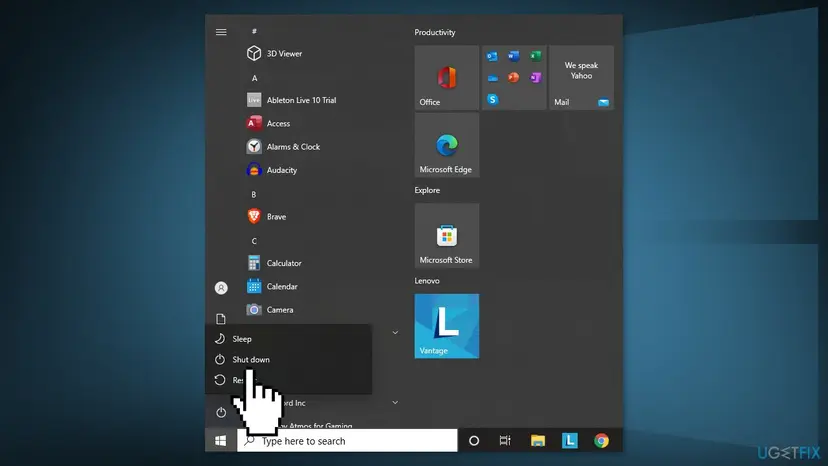
- Select Start, then the Power button, then Restart.
- Sign in and plug the USB device in again if you unplugged it.
- Open Device Manager, right-click the device, select Properties and read Device status.
Microsoft explains that with Fast Startup, Shut down saves the kernel memory image, including the loaded kernel-mode drivers, to Hiberfil.sys. The next power on loads that image, so the stuck driver can come back with it. Restart does not use Fast Startup.
It worked if: The yellow sign is gone, Device status reads This device is working properly and the USB drive opens in File Explorer.
If not: If Code 38 is still there after a restart, go to Fix 2 and do a full shutdown with the device unplugged.
Fix 2. Do a full shutdown with the USB device unplugged
5 minutesLow riskRestart did not clear Code 38, or the PC was asleep or hibernated when the problem began.
A full shutdown closes the kernel and every driver, which Fast Startup skips. Unplugging the device and waiting also lets the USB port power down, so no part of the old session is left when Windows finds the device again.
- If you can, eject the USB drive in File Explorer, then unplug it.
- Press and hold Shift, then select Start > Power > Shut down. Keep holding Shift until the screen goes dark.
- Or open Terminal and run a full shutdown, which skips Fast Startup:
shutdown /s /t 0 - Wait about 30 seconds, then turn the PC on.
- Sign in and plug the device into the same port, then check Device status again.
It worked if: The device works after the cold start and Device status reads This device is working properly.
If not: If it worked but Code 38 returns after a normal Shut down later, go to Fix 3. If it never cleared, go to Fix 4.
Fix 3. Turn off Fast Startup if Code 38 keeps coming back
3 minutesLow riskRestart or a full shutdown clears Code 38, but it is back after a normal Shut down.
With Fast Startup on, every Shut down saves the loaded drivers and reloads them, so a driver that fails to unload carries its stuck state into the next session. Turning it off makes every shutdown a full one.
- Press Win + R, type
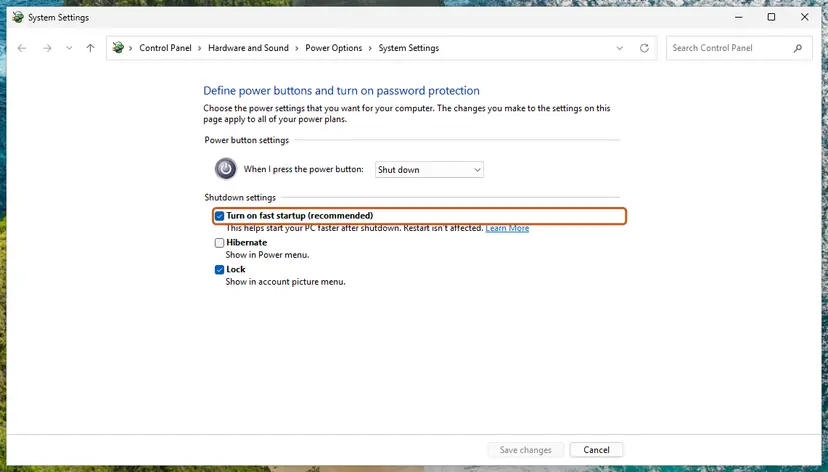
powercfg.cpland select OK. - Select Choose what the power buttons do, then Change settings that are currently unavailable.
- Clear Turn on fast startup (recommended) and select Save changes.
- Shut down the PC and start it again. Step by step: Turn off Fast Startup
The cost is a slower start, usually a few seconds on a PC with an SSD. You can turn Fast Startup back on later, once the driver is fixed with Fix 5 or Fix 6.
It worked if: After a normal Shut down and power on, the device works and Code 38 does not return.
If not: If Code 38 returns even after a full start, the driver itself fails to unload: go to Fix 4.
Fix 4. Reinstall the device and the USB controllers
10 minutesLow riskCode 38 stays after a restart, or several USB devices or ports fail at once.
Removing the device and its USB host controller or root hub from Device Manager unloads their driver instances. After a restart Windows builds them again from scratch, which clears a stuck instance in the controller as well as in the device.
If your mouse and keyboard are USB, they stop working when you uninstall the USB controllers, until the restart in step 6. Do steps 4 and 5 last, or use the keyboard and Alt + F4 to restart.
- Plug in the USB device with Code 38, right-click Start and select Device Manager.
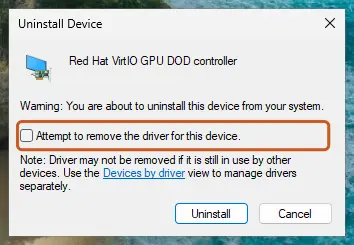
- Right-click the device with the yellow sign, select Uninstall device, tick Attempt to remove the driver for this device if it is shown, and select Uninstall.
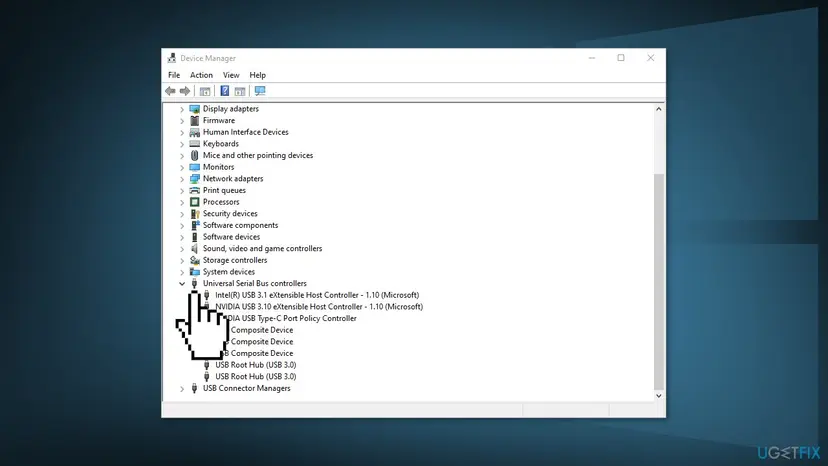
- Expand Universal Serial Bus controllers.
- Right-click any USB Root Hub with a yellow sign and select Uninstall device.
- Right-click each Host Controller entry and select Uninstall device.
- Restart the PC with the USB device still plugged in. Windows reinstalls the controllers and the device by itself.
All driver buttons with screenshots: Update, roll back or reinstall a driver
It worked if: After the restart the controllers and the device appear again without a yellow sign, and the USB drive shows up in File Explorer.
If not: If Code 38 comes back on the same device, check its software with Fix 5.
Fix 5. Remove the extra driver software that installs the same driver
15 minutesLow riskCode 38 began after you installed the device maker's tool, an old driver pack or a second version of the same software.
Microsoft says Code 38 can appear when one driver is named by several AddService directives in one or more INF files. In practice that means two packages that set up the same driver service, so Windows sees an instance that is already there.
- Open Settings > Apps > Installed apps (on Windows 10, Settings > Apps > Apps & features).
- Look for two entries for the same device, such as an old and a new version of a card reader, docking station, phone sync or USB tool. Note the maker's name.
- Uninstall the older entry, or both if you are not sure which one is current.
- In Device Manager, uninstall the device with Attempt to remove the driver for this device ticked, as in Fix 4, step 2.
- Restart the PC.
- If the device needs the maker's software, install one current version from the maker's own site, then restart again.
It worked if: Only one copy of the device's software is installed, and the device works after the restart.
If not: If the device has no extra software, or Code 38 still returns, go to Fix 6.
Fix 6. Update or roll back the device driver
10 minutesLow riskCode 38 returns after every restart, or it began right after a driver update.
A wrong reference count or a race between load and unload is a fault in the driver code itself. A newer version from the maker may fix that fault, and rolling back returns to a version that unloaded correctly.
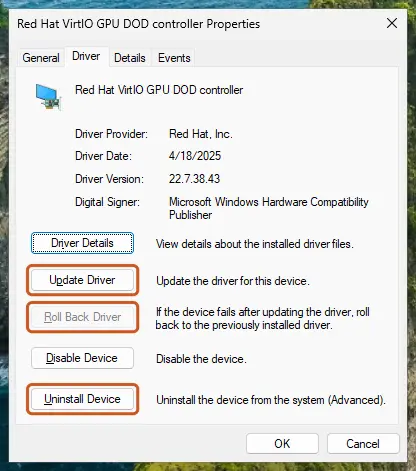
- In Device Manager, right-click the device with Code 38 and select Properties.
- Open the Driver tab and note the Driver Provider, Driver Date and Driver Version.
- If Code 38 began after a driver update, select Roll Back Driver, choose a reason and select Yes.
- Otherwise check Settings > Windows Update > Advanced options > Optional updates for a newer driver of that device.
- Or download the latest driver for your PC, motherboard or device model from the maker's site and install it.
- Restart the PC and check Device status.
For USB controllers on a desktop PC, the chipset or USB driver comes from the motherboard maker. On a laptop it comes from the laptop maker's support page. Avoid third-party driver updater programs.
It worked if: The Driver Version has changed and the device works after the restart.
If not: If the version is the newest one and rolling back is greyed out, go to Fix 7.
Fix 7. Find a program that keeps the driver busy with a clean boot
20 minutesLow riskCode 38 appears only at times, for example while a backup, disk encryption, antivirus scan or virtual drive tool runs.
A driver unloads only when nothing holds it any more. A program that keeps a USB drive or its driver open can stop that, and a clean boot starts Windows without such programs so you can see whether one of them is the cause.
A clean boot turns off non-Microsoft services and startup apps for one test. If Code 38 does not appear in a clean boot, turn the services back on in halves until it returns, and you have found the program. Step by step: How to perform a clean boot in Windows
- Press Win + R, type
msconfigand select OK. - On the Services tab, tick Hide all Microsoft services and select Disable all.
- Restart the PC and plug in the device.
- If Code 38 is gone, turn the services back on in halves and restart each time until it returns.
- Programs that often keep USB drives open: backup and sync tools, disk encryption, virtual drive and ISO tools, device maker utilities.
- Update or remove the program you find, then return Windows to a normal start as the procedure explains.
- Never leave security software turned off: update it or ask its maker instead.
It worked if: In a clean boot the device works, and after you find and update the program it also works in a normal start.
If not: If Code 38 appears even in a clean boot, read the next section.
Still Code 38: what to check and whom to ask
If none of the fixes cleared Code 38, try the device on another PC and another device on this PC. That one test splits the problem in two: the device, or this Windows installation.
- The device name and Problem value from the
Get-PnpDevicecommand near the top of this page. - The Driver Provider, Driver Date and Driver Version from the device's Driver tab.
- Whether Code 38 clears after Restart and returns after Shut down, or never clears.
- Your Windows edition and version from Settings > System > About.
- Whether the device works on another PC.
| Where to ask | When |
|---|---|
| The device or PC maker's support | First: a load and unload fault is in their driver, and they can say whether a fixed version exists |
| Microsoft Support or Microsoft Q&A | When Code 38 is on a built-in Microsoft driver, such as the standard USB host controller, after Fixes 1 to 6 |
Code 38 is a driver code, not a hardware fault. Suspect the USB drive only if it fails on a second PC too. Suspect a USB port only if every device fails on that port and works on another one.
How to keep Code 38 from coming back
- Eject USB drives in File Explorer before you unplug them.
- Use Restart, not Shut down, after a driver or device problem.
- Keep one current version of each device maker's software.
- Get drivers from the device or PC maker, or from Windows Update.
- Unplug a USB drive while files are copying or the PC is asleep.
- Install two tools that manage the same device.
- Use third-party driver updater programs.
- Format a USB drive to fix Code 38: the files are fine.
Windows 10 left support on 14 October 2025. Device makers may stop publishing drivers for it, so a fixed driver for an old device is less likely to arrive on Windows 10.
Frequently asked questions
What is error code 38 in Windows?
Code 38 is the Device Manager code for CM_PROB_DRIVER_FAILED_PRIOR_UNLOAD. Its message is "Windows cannot load the device driver for this hardware because a previous instance of the device driver is still in memory. (Code 38)". It means an older copy of the device's driver never unloaded, so Windows could not start a new one. Microsoft's recommended resolution is to restart the computer. Use Restart from the Start menu, because Shut down with Fast Startup can keep the stuck driver.
Why does Code 38 come back after I shut down my PC?
Because of Fast Startup. When it is on, Shut down closes your apps and signs you out, but saves the Windows kernel with its loaded drivers to the hibernation file, Hiberfil.sys. The next start loads that saved image, and the stuck driver with it. Restart does not use Fast Startup, so it clears the code. If you want Shut down to clear it too, turn Fast Startup off (Fix 3).
How do I fix Code 38 on a USB flash drive?
Restart Windows with Restart, not Shut down, then plug the flash drive in again (Fix 1). If the code stays, unplug the drive, do a full shutdown with Shift + Shut down and start the PC again (Fix 2). Still failing, uninstall the drive and the USB controllers in Device Manager and restart (Fix 4). The files on the flash drive are not touched by Code 38 or by these fixes.
Is Code 38 the same on Windows 10 and Windows 11?
Yes. Microsoft's Device Manager help lists the same message and the same resolution for both. The fixes on this page work on Windows 11 and Windows 10, and only the Installed apps path in Fix 5 differs slightly. Windows 10 left support on 14 October 2025, so a newer driver for an old device is less likely to be released for it. Search terms such as "code 38 windows 10" lead to this same fix.
Will I lose the files on my USB drive?
No. Code 38 only stops Windows from loading the driver that talks to the drive. The data on the drive is not changed. Uninstalling the device or the USB controllers in Device Manager does not touch the drive's files either. Do not format the drive or run repair tools that write to it because of this code. Once the driver loads, the drive appears in File Explorer with its files.
What does "error code 38 drives cannot be found" mean?
Most likely the drive is missing from File Explorer because its driver or the USB controller has Code 38. Open Device Manager and look for a yellow sign under Disk drives, Universal Serial Bus controllers or Storage controllers. If you see Code 38 there, follow Fix 1 and Fix 4. If Windows Setup says it cannot find any drives, that is a storage driver issue during installation, which this page does not cover.
What is motherboard code 38?
It is not this error. Many motherboards show a two-digit debug code on a small display or LEDs while the PC starts, and 38 is one of those codes. Its meaning is set by each motherboard maker and differs between them, so look it up in your board's manual. Windows Code 38 only appears in Device Manager after Windows has started. We could not confirm one meaning of debug code 38 that applies to all boards.
Is GE washer code 38 or error 0x38 related?
No. This page is about Code 38 in Windows Device Manager, a driver message. A code 38 on a GE washer or another appliance is that appliance's own fault code, and its manual explains it. A code written as 0x38 or 00000038 is a hexadecimal number used by other Windows parts, not this Device Manager code. We could not confirm one Windows message for 0x38 that matches searches for it.
Is Code 38 a hardware problem?
Almost never. Device Manager can see the device, and the message says the driver could not load because an older instance of it is still in memory. That is a software state, and Microsoft's fix is a restart. Suspect the hardware only when the device fails on a second PC too, or when every device fails on one USB port. Microsoft lists no hardware cause for this code.
What is the difference between Code 38 and Code 39?
Code 38 means the driver could not load because an earlier copy of it is still running in memory. Code 39 means the driver could not load because its file is damaged, missing or blocked. So Code 38 is usually cleared by a restart, while Code 39 usually needs the driver to be reinstalled or replaced. See our guide on Code 39, the driver may be corrupted or missing.
Sources
- Microsoft Learn: Code 38, CM_PROB_DRIVER_FAILED_PRIOR_UNLOAD (learn.microsoft.com)
- Microsoft Support: Error codes in Device Manager in Windows (support.microsoft.com)
- Microsoft Learn: Distinguishing fast startup from wake-from-hibernation (learn.microsoft.com)
Did this fix work?
One click, no account. It tells the next reader which guides are worth their time.
Questions and experiences: fix USB error Code 38: a previous instance of the device driver is still in memory
Still broken, or found a fix we did not cover? Ask here: members and our editors answer. Reading is open; writing needs a free account.
…