
How to fix Valheim crashes and errors?

Prefer to fix it yourself? The manual steps follow.
- 9methods
- 10 to 45 minutes
- Easy
Applies to Valheim from Steam on Windows 11 and Windows 10; the Windows menus are the same for the Microsoft Store version
9 methods in this guide
Hi, I have heard good things about Valheim, so I bought it on Steam. I had a lot of fun, but the games started crashing pretty often. I am not sure whether it is the game's fault or there is something wrong with my Windows PC? Anyways, it would be nice if you'd provide some solutions for Valheim crashes.
Valheim can close without a message, freeze with "Valheim.exe is not responding", or show a Unity error box. The cause is almost always on the PC: damaged game files, an old graphics driver or mod leftovers. Start with the Steam file check, then the driver.
Valheim crashes on Windows are usually caused by damaged game files, an old graphics driver or leftover mod files. Ask Steam to verify the game files first (Fix 1), then install the current driver from NVIDIA, AMD or Intel (Fix 2). If you ever installed mods, remove them next (Fix 3), because users report they are the most common cause.
| Error | The game closes to the desktop with no message, freezes with "Valheim.exe is not responding", or shows a Unity crash window. |
|---|---|
| Where it appears | While loading a world, after you create a character and press start, or after some minutes of play. The message comes from Windows, not from Steam. |
| Main cause | Damaged or incomplete game files, an outdated or damaged graphics driver, or files left behind by mods. Failing hardware and damaged Windows files are rarer. |
| Fastest fix | Verify the game files in Steam (Fix 1), then update the graphics driver (Fix 2). Together they take about 15 minutes. |
| Also written as | Valheim not responding, Valheim keeps crashing, Valheim crashing after 5 minutes, Valheim crash to desktop, a search for site:ugetfix.com Valheim. |
| Affects | Valheim on Windows 11 and Windows 10, mostly the Steam version. Windows 10 22H2 has been out of support since 14 October 2025. |
| Vendor status | The game's maker asks players to send crash reports through its support page and Discord server, and lists known problems there. It is not a Windows bug. |
| Time to fix | 5 minutes for the file check, 10 to 15 minutes for a driver, up to 30 minutes for a reinstall. |
Facts checked on 16 October 2026. Steps written for Windows 11 (25H2 and 26H2) and Windows 10 22H2 with the Steam version of Valheim.
What Valheim crashes and "Valheim.exe is not responding" mean
A Valheim crash is the game process, Valheim.exe, stopping while you play. It can look like three different things. The window closes with nothing on screen. Windows shows "Valheim.exe is not responding" and then ends the game. Or a small Unity error box appears, whose title carries a build number such as Unity 2019.4.16f1_e05b6e02d63e in older reports.
The "not responding" box means the game stopped answering Windows for a while, often because it was waiting for a graphics driver or for a damaged file. It does not name the cause. Some players see it right after they create a character and press the start button, which points at the graphics driver and the first load of the world.
Valheim shows no error code, so there is no code to look up. What you can do is work through the usual causes in order: the game files, the graphics driver, mods, permissions and the Windows files under the game. The table in the next section ranks them.
A bug is a fault in the game itself, such as a creature stuck in a wall, and only the developer can fix it. A crash on your PC can be fixed on your side, and this page is about those. The developer's support page also lists known issues, so check it before you spend an hour on fixes.
Why Valheim keeps crashing, most common cause first
The table lists the causes that players and the developer's own support pages point to, with the fix for each. Windows crashes of this kind come from corrupted system files, incompatible software, outdated or damaged graphics drivers and failing hardware, and the order below follows how easy each one is to test.
| How often | Cause | How to spot it | Fix |
|---|---|---|---|
| Most often | Damaged or incomplete game files after an update or a stopped download | The crash started after a game update, or a texture or model is missing | Fix 1 |
| Often | An outdated or damaged graphics driver | Crashes on loading a world or after a few minutes, and the driver is more than a few months old | Fix 2 |
| Often | Mods or mod loader files left in the game folder | Users report crashes after a game update that the mods do not support, and after removing mods | Fix 3 |
| Sometimes | The game cannot reach a resource Windows protects | "Valheim.exe is not responding" right after you press start for a new character | Fix 4, Fix 5 |
| Sometimes | A saved graphics mode the PC no longer handles | The game crashes before the menu is drawn | Fix 6 |
| Rarely | Damaged Windows system files, or failing memory or disk | Other programs crash too, or Windows shows errors | Fix 9 |
Valheim is not the only game with this problem. Crashes after updates also happen in far older games, so a crash does not mean your PC is broken. Work from the first fix down and test the game after each one, so you know which change helped.
How to fix Valheim crashes and errors
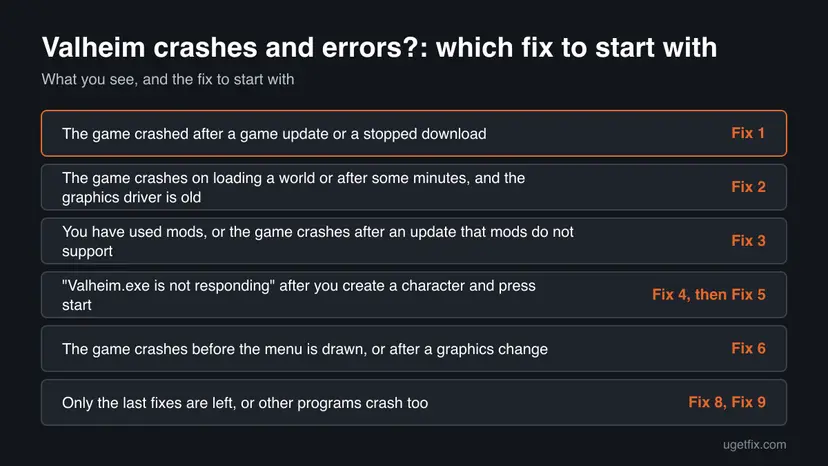
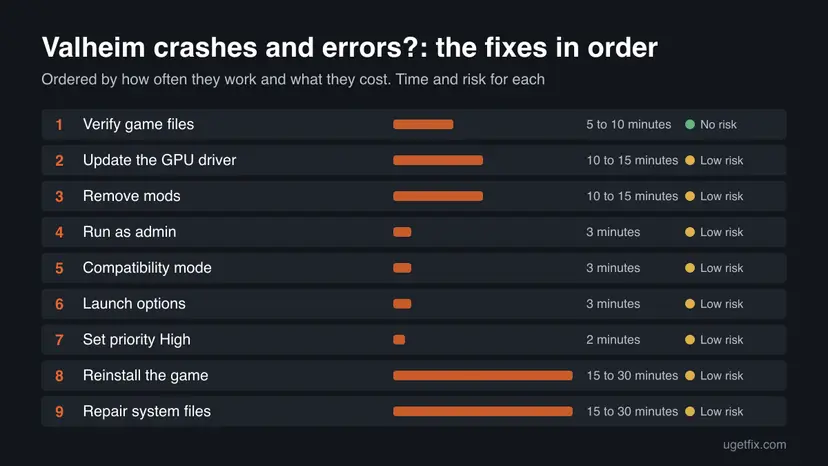
Start with Fix 1 and Fix 2, which solve most cases. Go to Fix 3 if you ever used mods, and to Fix 4 or Fix 5 if the "not responding" box appears right after you press start. Fixes 6 to 9 are for the cases that remain.
| What you see | Start with |
|---|---|
| The game crashed after a game update or a stopped download | Fix 1 |
| The game crashes on loading a world or after some minutes, and the graphics driver is old | Fix 2 |
| You have used mods, or the game crashes after an update that mods do not support | Fix 3 |
| "Valheim.exe is not responding" after you create a character and press start | Fix 4, then Fix 5 |
| The game crashes before the menu is drawn, or after a graphics change | Fix 6 |
| Only the last fixes are left, or other programs crash too | Fix 8, Fix 9 |
Fix 1. Verify the integrity of the game files in Steam
5 to 10 minutesNo riskValheim crashes after a game update, after a stopped download, or with no other clue.
Steam compares every game file with the copy on its servers and downloads again the ones that are damaged or missing. Steam's own support page says this is the step for a game that crashes while you play.
- Restart and open Steam. Restart your computer and launch Steam.
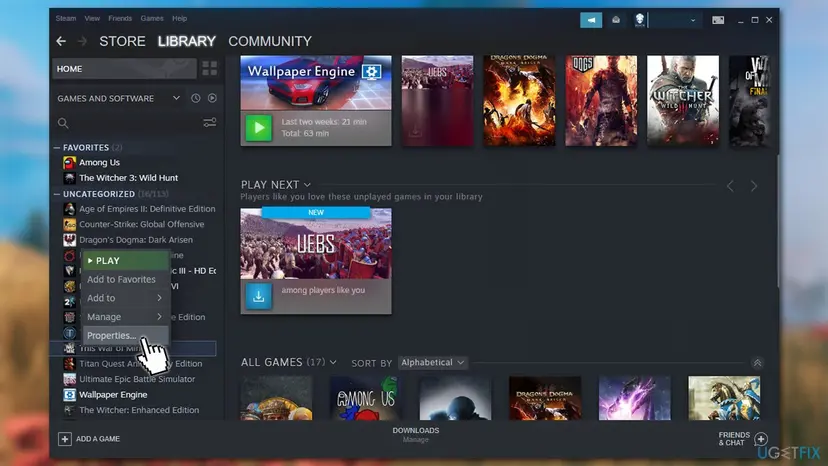
- Open the game's menu. Right-click the game in your Library, or open the game's Library page and select the gear icon on the far right.
- Open Properties. Select Properties in the menu.
- Verify the files. Select the Installed Files tab and select Verify integrity of game files.
- Wait for the result. Steam checks the game's files. This can take several minutes.
These steps were written for Steam on Windows. The full page with the other versions and what each result means: How to verify game files in Steam, Epic Games, Xbox app, EA app, Battle.net and GOG Galaxy
Close other heavy programs while the check runs. Steam says some files may fail to verify, and that this is normal for most games because they are local configuration files that should not be replaced.
Steam's support page now names the tab Installed Files. The old guide called it Local Files. The button is still Verify integrity of game files.
It worked if: Steam checks the files, may download a few, and reports that the files verified. Start Valheim and play for a while.
If not: If it still crashes, update the graphics driver in Fix 2.
Fix 2. Update the graphics driver from the card maker
10 to 15 minutesLow riskValheim crashes while loading a world or after some minutes, and the graphics driver is several months old or was just changed.
A current graphics driver matters for every game. A driver that is old or damaged can make a game hang while it waits for the card, which Windows reports as "not responding".
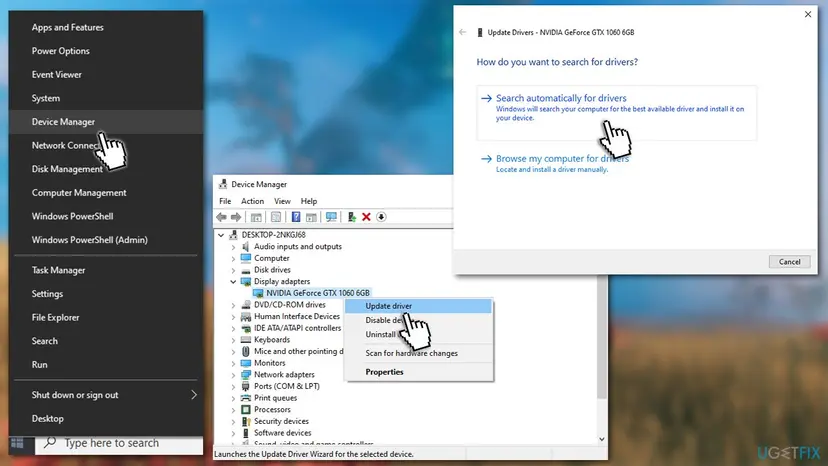
- Open Device Manager. Right-click Start and select Device Manager.
- Open the device's Driver tab. Expand the category (for example Display adapters), right-click the device, select Properties and open the Driver tab. Driver Date and Driver Version show what is installed now.
- Update the driver. Select Update Driver and let Windows search automatically. To use a driver you downloaded from the device maker, select Browse my computer for drivers instead and point to the unpacked folder.
- Or roll back the driver. If the problem started after a driver update, select Roll Back Driver, choose a reason and select Yes. The button is greyed out when Windows has no earlier driver to return to.
- Or reinstall the driver. Select Uninstall Device. Tick Attempt to remove the driver for this device only if you want Windows to delete the driver package too, then select Uninstall.
- Restart. Restart the PC. Windows detects the device again and installs a driver for it.
- Check optional driver updates. Open Settings > Windows Update > Advanced options > Optional updates. If driver updates are listed, tick the ones you need and select Download & install.
These steps were written for Windows 11 24H2 and later. The full page with the other versions and what each result means: Update, roll back or reinstall a driver
Device Manager's automatic search often reports that the best driver is already installed, even when the maker has a newer one. The reliable way is to install the driver from the card maker. You need to know your card model. Open Task Manager with Ctrl + Shift + Esc, go to Performance and select GPU to read it. Then download the driver from NVIDIA, AMD or Intel. On a laptop, the laptop maker's page may offer the version tested for that model.
Restart the PC after the driver installs, even if the installer does not ask. The new driver is not used until Windows loads it again.
It worked if: The installer finishes, the screen may flicker once, and Valheim starts with the new driver.
If not: If the driver was already current, go to Fix 3 when you have used mods, or to Fix 4.
Fix 3. Remove mods and the files they leave behind
10 to 15 minutesLow riskYou installed mods at any time, or Valheim started crashing after a game update.
Valheim has no official mod support, so a game update can break any mod. Users report that most crashes come from mods, or from mod files that stay in the game folder after the mods are uninstalled in the mod manager.
- Close Valheim and the mod manager. Open Steam and go to your Library.
- Right-click Valheim, select Manage, then Browse local files. File Explorer opens the game folder.
- Look for folders and files that Valheim does not ship with. Users report a BepInEx folder,
winhttp.dllanddoorstop_config.inias the usual leftovers of the common mod loader. - Move these items to a new folder on your desktop, so you can put them back. Do not delete them yet.
- Start Valheim without mods and play for a while.
We could not confirm the exact file names in a vendor page, so only move items you did not expect. If the game does not crash after this, the mods were the cause. Add them back one at a time, newest first, and check each against the current game version.
It worked if: Valheim starts with the vanilla files and does not crash in a session that crashed before.
If not: Put the moved items back if you want your mods, and go to Fix 4.
Fix 4. Run Valheim as an administrator
3 minutesLow riskThe game freezes or closes right after you create a character and press the start button, and the first three fixes did not help.
An administrator process can write to places that a normal process cannot. If the game was blocked from a file or a folder, the elevated start removes that block, and the crash shows it.
- Run the program as administrator once. Right-click the program in the Start search results, or right-click its shortcut, and select Run as administrator. Select Yes when Windows asks for permission. If the program now works, it only needed administrator rights.
- Open the program's properties. If the program still fails, right-click its shortcut or its .exe file and select Properties.
- Open the Compatibility tab. Select the Compatibility tab. Every setting on this tab applies to this one program only.
- Turn on compatibility mode. Select the Run this program in compatibility mode for check box. In the list below it, select the version of Windows the program was made for.
- Make it always run as administrator. Only if step 1 helped: select the Run this program as an administrator check box. Windows will then ask for permission every time the program starts.
- Save and test. Select OK and start the program again. If it does not help, come back to this tab and try another version of Windows in the list.
- Run the compatibility troubleshooter. If no setting helps, open Start > Settings > System > Troubleshoot > Other troubleshooters. Find Program Compatibility Troubleshooter, select Run and follow the instructions on the screen.
These steps were written for Windows 11 25H2 and 26H2. The full page with the other versions and what each result means: How to run a program as administrator or in compatibility mode
To reach the file, open Steam, right-click Valheim, select Manage and Browse local files, then right-click valheim.exe. Test once with Run as administrator. Only if that helps, open Properties, go to the Compatibility tab and tick Run this program as an administrator, so the game always starts that way. Select Apply and OK.
It worked if: The game starts without the crash. If it does, keep the setting.
If not: Undo the setting and go to Fix 5.
Fix 5. Run Valheim in compatibility mode
3 minutesLow riskUsers report "Valheim.exe is not responding" right after creating a character and pressing the start button, even with the administrator setting.
Compatibility mode makes Windows present an older version to the program and applies older graphics and window handling. Players report it removes this freeze, although it is a workaround and not a repair.
- In the game folder, right-click valheim.exe and select Properties.
- Open the Compatibility tab.
- Tick Run this program in compatibility mode for and pick Windows 8 in the list. The old guide used Windows 7, which you can test next if Windows 8 does not help.
- Select Apply and OK.
- Start the game from Steam.
Windows 10 and 11 are the versions the game runs on today. If the mode makes things worse, untick the box and select Apply.
It worked if: The game reaches the world after you press start.
If not: Untick the box and go to Fix 6.
Fix 6. Set launch options in Steam
3 minutesLow riskValheim crashes before the menu is drawn, or after you changed a graphics option in the game.
Steam says launch options can supersede the internal settings of a game, which is an effective way to recover from incompatible video settings. The old guide used window-mode exclusive.
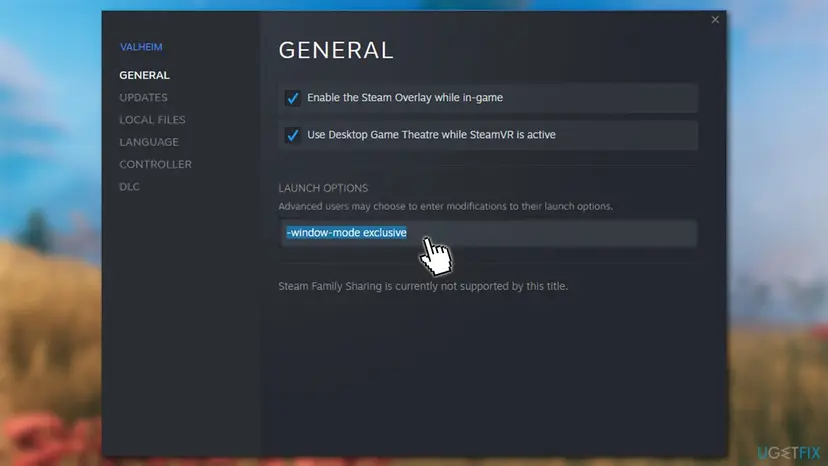
- Open your Steam Library, right-click Valheim and select Properties.
- On the General tab, find Launch Options.
- Type
-window-mode exclusivein the box. - Close the Properties window and start the game.
Steam's page lists common options for Valve games only and says they do not apply to most third party games. The option above is the one the old guide used for Valheim, and we could not confirm it in a Valheim page. Clear the box if the game behaves worse.
It worked if: Valheim starts in exclusive fullscreen mode and the crash on start is gone.
If not: Clear the Launch Options box and go to Fix 7.
Fix 7. Set the game's priority to High in Task Manager
2 minutesLow riskValheim freezes or stutters shortly before it closes, and you can start it and reach the world.
Priority tells Windows which process gets processor time first. Raising it gives the game more of the time, which users report can stop a freeze before the crash. It lasts only until the game closes.
- Start Valheim and reach the menu or the world.
- Press Ctrl + Shift + Esc to open Task Manager.
- Find valheim in the process list and expand it.
- Right-click valheim and select Go to details.
- Right-click valheim.exe and select Set priority, then High.
- Select Change priority if Windows asks.
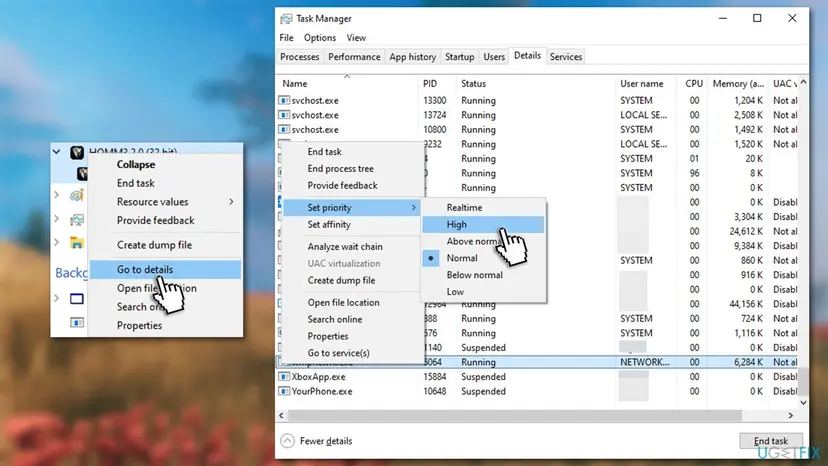
Do not choose Realtime. Windows warns that it can make the PC stop responding to the mouse and keyboard.
It worked if: The game runs without freezing for the session. You repeat the steps each time you start it.
If not: Close the game and go to Fix 8 to reinstall it with clean files.
Fix 8. Reinstall Valheim
15 to 30 minutesLow riskThe file check does not help and the game still crashes on this PC.
A new install replaces every file and removes anything extra in the game folder. Some players report that this stops crashes that nothing else did.
- Close Valheim. In Steam, go to your Library.
- Right-click Valheim, select Manage, then Uninstall, and confirm.
- Open File Explorer and check that the Valheim folder in Steam's
steamapps\commonlibrary folder is gone. Delete leftover files in it. - Restart the PC.
- In Steam, select Valheim in the Library and select Install.
Worlds and characters are saved on the PC, and Steam Cloud may hold a copy. We could not confirm the save folder in a vendor page. Search File Explorer for a folder named Valheim inside your user profile and copy it to another drive before you reinstall.
It worked if: The game downloads again and starts with clean files.
If not: Check the Windows system files with Fix 9, then read the still broken section.
Fix 9. Repair the Windows system files
15 to 30 minutesLow riskOther programs also crash or freeze, or nothing above helped.
Windows crashes of this kind can come from corrupted system files. SFC and DISM compare the Windows files with their stored copies and restore damaged ones, which also helps a game that depends on them.
- Open an elevated command window. Right-click Start and select Terminal (Admin), or type cmd in the search box, right-click Command Prompt and select Run as administrator. Select Yes when Windows asks for permission.
- Run DISM first. Type the command below and press Enter. DISM downloads clean copies of damaged components from Windows Update, so it can take several minutes. Wait until it says The operation completed successfully.
DISM.exe /Online /Cleanup-Image /RestoreHealth - Run System File Checker. In the same window, type the command below and press Enter. Do not close the window until the verification reaches 100%.
sfc /scannow - Read the result and restart. Compare the last message with the table below this guide, then restart the PC so that repaired files are loaded.
These steps were written for Windows 11 24H2 and 25H2. The full page with the other versions and what each result means: Run DISM and SFC to repair Windows system files
It worked if: The scan reports that it found no problems, or that it repaired the files it found.
If not: Read the still broken section for the next step.
Valheim still crashes: what to do next
If none of the nine fixes help, the cause is probably in the hardware or in a bug that only the developer can solve. Check the temperature and memory of the PC. Crashes that begin only when the PC is hot, or that also happen in other games, point at the hardware.
- Check the known issues first. The developer's support page has a Known Issues tab, so you can see whether your problem is already reported.
- Report the crash to the developer. The support page asks players to bring technical problems such as crashes, connection and performance to its Discord server, and to use the bug report form only for bugs.
- Say what you tried. Give your Windows version from
winver, your graphics card and driver version, and whether you use mods. - Test the hardware. Run the Windows Memory Diagnostic and a disk check if other programs crash too.
Sites that offer a "Valheim crash fix" or a crack are not from the developer. Get the game and its updates only from Steam or the store you bought it from.
How to avoid Valheim crashes in the future
Most crashes come back after a game update, a driver change or a mod. A few habits stop that.
- Update the graphics driver from the card maker every few months.
- Remove mods before you start a session after a game update, and add them back one at a time.
- Verify the game files in Steam after an update that was interrupted.
- Back up the Valheim save folder before you reinstall.
- Do not leave mod files in the game folder after you stop using mods.
- Do not set the priority to Realtime.
- Do not turn off the antivirus to stop a crash.
- Do not download a crash fix from a site that is not the developer's.
Frequently asked questions
Why does Valheim keep crashing on my PC?
The usual causes are damaged game files, an outdated graphics driver and mods or mod files left in the game folder. Less often it is a Windows permission block, a saved graphics mode the PC cannot use, damaged Windows files or failing hardware. Start with the file check in Steam (Fix 1) and the driver from the card maker (Fix 2). If you ever used mods, check them next (Fix 3), because users report mods cause most of the remaining crashes.
What does "Valheim.exe is not responding" mean?
It means the game stopped answering Windows for a while, so Windows offers to close it. The message does not name a cause. It usually comes from a graphics driver problem, damaged game files or a permission block. Some players see it right after they create a character and press start. For that case, try the administrator start (Fix 4) and compatibility mode (Fix 5) after the file check and the driver.
Why does Valheim crash after 5 minutes?
A crash a few minutes into a session points at the graphics driver, at mods, or at the PC running too hot. The game loads more of the world as you move, which is when an old driver or a damaged file fails. Verify the game files (Fix 1), install the driver from the card maker (Fix 2) and remove mods (Fix 3). If the crash comes only when the PC is hot, check the cooling of the card and the processor.
How do I verify the game files for Valheim?
Open your Steam Library, right-click Valheim and select Properties. Open the Installed Files tab and select Verify integrity of game files. Steam checks every file and downloads the damaged ones again, which takes a few minutes. Steam says some files may fail to verify and that this is normal for most games, because they are local configuration files. Do not run the check while you scan for viruses. The full steps are in Fix 1.
Do mods make Valheim crash?
Users report that mods are a common cause, especially after a game update. The game has no official mod support, so an update can break a mod without warning, and the files of a mod loader can stay in the game folder after you uninstall the mods. Move the extra files out of the folder and start the game without mods (Fix 3). If the crash stops, add the mods back one at a time.
Should I reinstall Valheim to stop the crashes?
Reinstalling is a late step. Verify the game files in Steam first, because it replaces damaged files without downloading the whole game. Update the graphics driver and remove mods before you reinstall. If those do not help, uninstall the game, check that its folder is gone, restart the PC and install it again (Fix 8). Copy your save folder to another drive first, so no world or character can be lost.
Is the Valheim crash caused by Steam or by Windows?
Neither, in most cases. The message "Valheim.exe is not responding" comes from Windows, but only reports that the game stopped answering. The cause is usually the game files, the graphics driver or mods. Steam helps by checking the game files. If other programs and games also crash, check the Windows files (Fix 9) and the hardware.
Does the launch option window-mode exclusive stop the crash?
Some players report that it helps with a crash on start. It makes the game use exclusive fullscreen mode, and Steam says launch options can recover from incompatible video settings. Steam lists its common options for Valve games only, and we could not confirm this option in a Valheim page. Try it as a test (Fix 6) and clear the box if the game behaves worse.
Where do I report a Valheim crash to the developer?
The developer's support page has a bug report form, a feedback form and a Known Issues tab. It asks players to bring technical problems such as crashes, connection and performance to its Discord server, and not to the form. Check Known Issues first. When you ask for help, say your Windows version, graphics card, driver version, whether you use mods and which fixes you already tried.
Sources
- Valheim: Support (Iron Gate) (valheimgame.com)
- Steam Support: Verify Integrity of Game Files (help.steampowered.com)
- Steam Support: Setting Game Launch Options (help.steampowered.com)
Did this fix work?
One click, no account. It tells the next reader which guides are worth their time.
Questions and experiences: fix Valheim crashes and errors
Still broken, or found a fix we did not cover? Ask here: members and our editors answer. Reading is open; writing needs a free account.
…