
How to fix Vanguard User-Mode Service high CPU usage in Windows?

Prefer to fix it yourself? The manual steps follow.
- 8methods
- 5 minutes to measure and restart, 15 minutes to reinstall Vanguard, longer for BIOS work
- Intermediate
Applies to Riot Vanguard (vgc service and vgk driver) with VALORANT, League of Legends and other Riot games on Windows 11 and Windows 10
8 methods in this guide
- What the service is
- Normal or not
- Causes, ranked
- The fixes
- 1. Measure it first
- 2. Exit Vanguard, restart
- 3. Reinstall Vanguard
- 4. Update Windows, driver, BIOS
- 5. Lower the game's CPU load
- 6. Clean boot, vgc kept on
- 7. Vanguard On-Demand
- 8. Check the file, scan
- Still high: contact Riot
- What not to do
- Keep it low
- FAQ
Hello. I noticed that the Vanguard User-Mode Service uses high amounts of CPU because the PC gets laggy when I am playing. Is there a way to fix this?
Vanguard User-Mode Service is vgc.exe, the user-mode part of Riot Vanguard, the anti-cheat of VALORANT and League of Legends. Some CPU use while a Riot game runs is normal; high use with the game closed, or more than the game itself, is not. Measure it first in Task Manager, then exit Vanguard and restart the PC.
Vanguard User-Mode Service (vgc.exe) is expected to work while a Riot game runs, so first measure when and how much it uses (Fix 1). If it stays high after you close the game, exit Vanguard from the tray and restart the PC (Fix 2), then reinstall Vanguard the way Riot describes (Fix 3). If you only want Vanguard gone when you are not playing, use Riot's optional On-Demand mode (Fix 7). Never switch Secure Boot or TPM off to fix it.
| Error | No error message. Task Manager shows Vanguard user-mode service high in the CPU column; the Details tab shows it as vgc.exe. |
|---|---|
| Where it appears | Task Manager on Windows 11 and Windows 10, mostly while VALORANT or League of Legends runs. Players notice lag, stutter or loud fans first. |
| Main cause | Vanguard checks the PC while a Riot game runs, which costs CPU time. It becomes a problem when the session gets stuck, the install is damaged, another program clashes with it, or the CPU has no headroom left. |
| Fastest fix | Measure it with the game closed and in a match (Fix 1), then Exit Vanguard from the tray icon and restart Windows (Fix 2). |
| Also written as | vgc high CPU usage, vgc.exe, Vanguard user mode service, Vanguard usermode service, Riot Vanguard high CPU, Vanguard eating CPU. |
| What is normal | Riot: the client runs while its games are active, and the kernel driver (vgk) is usually loaded when Windows starts. Riot publishes no CPU figure for either part. |
| Riot's status | No known-issue notice for vgc CPU use found on 14 October 2026. Riot's own "How to Fix High CPU Usage" article (updated 28 October 2025) covers game CPU load in general. |
| New since June 2026 | Vanguard On-Demand (Pre-Check): on Windows 11 25H2 or newer with Secure Boot, TPM 2.0, IOMMU, VBS and HVCI on, Vanguard starts with the game and stops after it. Optional. |
| Do not | Lower vgc.exe priority, limit its affinity, delete the service while you still play, or switch security features off. Riot documents none of these as a fix. |
| Where the evidence is | Task Manager (Processes, Details), Resource Monitor (CPU tab, Average CPU), and the Vanguard logs in C:\Program Files\Riot Vanguard\Logs for a Riot ticket. |
Facts checked on 14 October 2026. Steps written for Windows 11 (25H2 and 26H2) and Windows 10 22H2, with Riot Vanguard steps read from Riot Support articles updated between May and July 2026.
What Vanguard User-Mode Service (vgc.exe) is
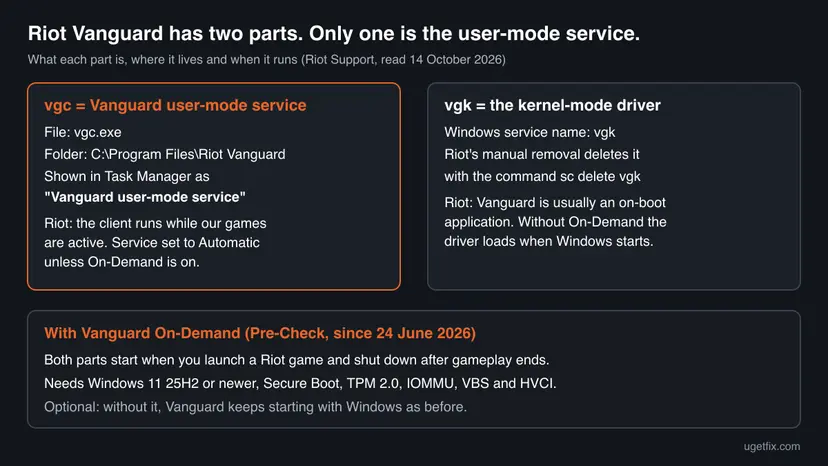
Riot Vanguard is Riot Games' own game security software. Riot Support describes it as two pieces: "a client that runs while our games are active along with a kernel mode driver". The client is the Windows service vgc, the file vgc.exe, which Task Manager names Vanguard user-mode service. The driver is the service vgk.
| What you see | Where | What it is |
|---|---|---|
| Vanguard user-mode service | Task Manager, Processes tab | The friendly name of the vgc process. The CPU column you are worried about. |
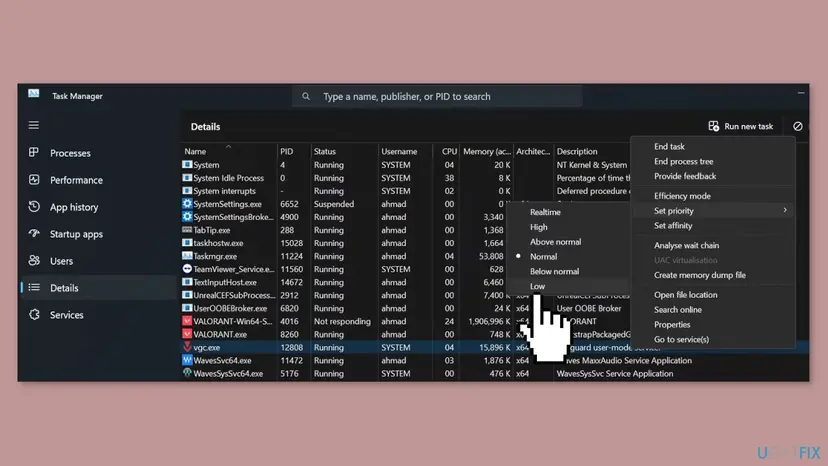
vgc.exe, user name SYSTEM | Task Manager, Details tab | The same process. It runs as a Windows service, not as your user. |
| vgc | Services (services.msc) | The service entry. Its path is C:\Program Files\Riot Vanguard\vgc.exe. |
| vgk | Services list, Riot's uninstall commands | The kernel-mode driver. Riot's manual removal deletes it with sc delete vgk. |
| Red Riot Vanguard icon, VGTray | System tray, bottom right | The tray app. It has Exit Vanguard, Advanced > Uninstall Vanguard and, since June 2026, the Pre-Check status. |
The real vgc.exe sits in C:\Program Files\Riot Vanguard. Riot ships it with VALORANT, League of Legends and its other games that need Vanguard. A file with the same name anywhere else is not Riot's: go to Fix 8.
How much CPU Vanguard should use: what is normal and what is not
Riot does not publish a CPU figure for Vanguard. What Riot does say decides what is normal: the client works while a Riot game is active, and without On-Demand mode Vanguard "is usually an on-boot application", so the driver is there from the moment Windows starts. A Vanguard process in Task Manager is therefore not a fault by itself.
| What you see | Normal? | Why |
|---|---|---|
| Red Vanguard icon in the tray and vgc in Task Manager, game closed, CPU near 0% | Normal | Without On-Demand, Vanguard starts with Windows and stays loaded. |
| vgc busy for a short time while the Riot Client starts or a match loads | Normal | The client checks the system when a protected game starts. |
| vgc using some CPU during a match, clearly less than the game | Normal | It is doing its job while the game is active. |
| vgc using several percent or more for minutes with the game and Riot Client closed | Not normal | Nothing protected is running. Treat it as a stuck session: Fix 2, then Fix 3. |
| vgc using more CPU than the game itself, with stutter | Not normal | Something is making the checks expensive: a clash, a damaged install or old firmware. |
| The whole CPU near 100% for a long time while you play | A capacity problem | Microsoft calls 80% or more for extended periods an underlying issue. Look at the game's load too: Fix 5. |
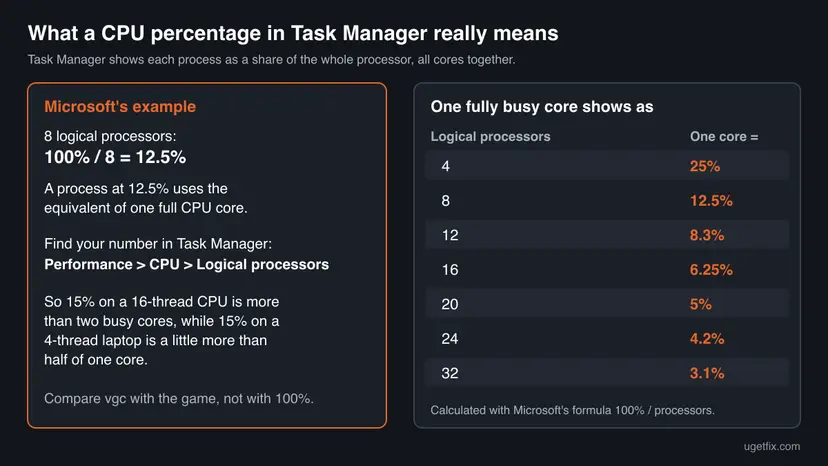
Read the number against your processor. Microsoft explains that on a PC with eight logical processors, a process at 12.5% uses the equivalent of one full CPU. On a 4-thread laptop that same core shows as 25%. So 15% for vgc in a screenshot online says little about your PC.
Why Vanguard uses so much CPU, from most to least common
Most often vgc is simply busy because a Riot game is running on a CPU with little headroom. Less often the Vanguard session is stuck or its files are damaged after an update. Rarely another program, old firmware or a fake vgc.exe is behind it. Riot publishes no statistics, so this order comes from Riot's troubleshooting articles and what each fix addresses.
| Cause | How often | How to tell | Fix |
|---|---|---|---|
| Vanguard is working during play on a CPU that is already near its limit. | Most often | vgc is high only in a match; the PC is close to Riot's minimum specs; the whole CPU is near 100%. | Fix 5, Fix 4 |
| A stuck Vanguard session, for example after sleep, a crash or the game closing badly. | Often | vgc stays busy with the game and the Riot Client closed. | Fix 2 |
| Damaged or outdated Vanguard files after an update. Riot says reinstalling often helps with errors caused by corrupted Vanguard files. | Sometimes | It started after an update; a restart helps only for a while; VAN error codes appear too. | Fix 3 |
| Outdated Windows, graphics driver or BIOS. Riot says Windows updates include changes Vanguard relies on. | Sometimes | Updates are waiting; on AMD Ryzen, short stutters every few minutes. | Fix 4 |
| Another program that hooks into games or the system: overlays, RGB and tuning tools, other anti-cheats, security software. | Less often | The trouble started after you installed such a program; it goes away in a clean boot. | Fix 6 |
| Malware that uses the name vgc.exe, or other malware eating CPU. Riot's CPU article lists a malware scan. | Rarely | The file is not in C:\Program Files\Riot Vanguard, or CPU stays high with Vanguard exited. | Fix 8 |
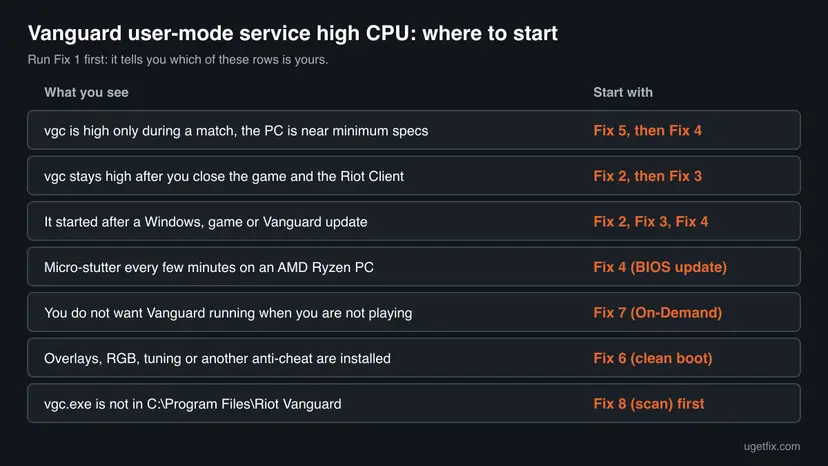
Riot has not published why vgc can stay busy after a game closes, and we found no Riot staff statement with a normal CPU range. Player reports on Reddit and forums range from a few percent to over 40%, but those are reports, not Riot figures.
How to fix Vanguard User-Mode Service high CPU usage
Fix 1 takes two minutes and tells you whether you have a problem at all. Fix 2 and Fix 3 repair Vanguard itself and solve the stuck cases. Fix 4 to Fix 6 deal with the PC around Vanguard. Fix 7 is for players who want Vanguard off when they are not playing, and Fix 8 rules out a fake vgc.exe.
| What you see or have | Start with |
|---|---|
| You saw a high number once and are not sure it is a problem. | Fix 1 |
| vgc stays busy after you close VALORANT or League and the Riot Client. | Fix 2, then Fix 3 |
| It started after a Windows, game or Vanguard update, or VAN error codes appear too. | Fix 3, then Fix 4 |
| Stutter every few minutes on an AMD Ryzen PC. | Fix 4 (BIOS update) |
| vgc is high only in a match, the game lags, and the PC is close to Riot's minimum specs. | Fix 5 |
| You run overlays, RGB or tuning software, or another game's anti-cheat. | Fix 6 |
| You do not want Vanguard running at all when you are not playing. | Fix 7 |
vgc.exe is in a folder other than C:\Program Files\Riot Vanguard. | Fix 8 |
Fix 1. Measure when vgc uses CPU and how much
5 minutesNo riskEveryone, before changing anything. It also gives you the numbers Riot Support asks for.
A single look at Task Manager mixes up three different states: Vanguard idle, Vanguard starting a game and Vanguard working in a match. Only the first and the third tell you whether vgc is misbehaving or the game is simply heavy for your CPU.
- Close VALORANT or League, then right-click the Riot Client icon in the tray and select Exit. Leave Vanguard running.
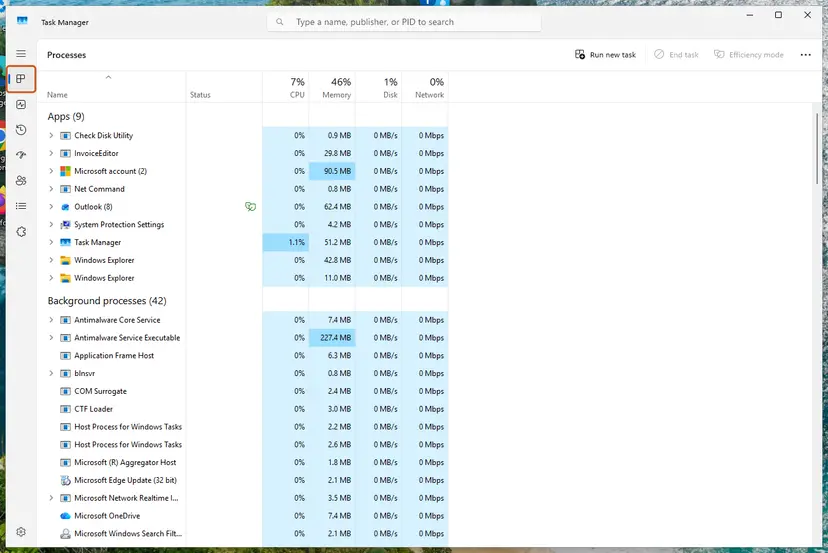
- Press Ctrl + Shift + Esc to open Task Manager. On Windows 10, select More details if you see a short list.
- On the Processes tab, select the CPU column header so the arrow points down and the busiest process is on top.
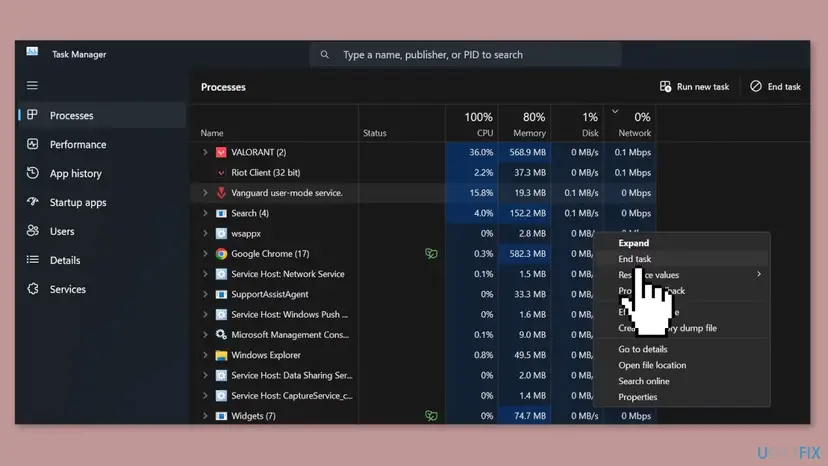
- Find Vanguard user-mode service and note its CPU value over a minute. This is the idle reading.
- Open Performance > CPU and note the number next to Logical processors. Use it to read the percentage, as in the chart above.
- Start the game and play one match. Keep Task Manager on a second screen, or open it right after the match.
- Note vgc and the game side by side. For a steadier figure press Win + R, type
resmon, open the CPU tab and sort by Average CPU.
| Idle (game closed) | In a match | Go to |
|---|---|---|
| Near 0% | Below the game | Vanguard is normal. If the game still lags, Fix 5. |
| Near 0% | Above the game, with stutter | Fix 3, then Fix 6 |
| Busy for minutes | Any value | Fix 2, then Fix 3 |
| Busy, and vgc.exe opens from an odd folder | Any value | Fix 8 |
The old version of this guide set vgc.exe to Low priority, turned on Efficiency mode and limited its affinity. Riot documents none of this. Its own CPU article does the opposite and raises the game's priority. Starving the anti-cheat can slow the checks the game waits for. A player on Microsoft Q&A reported a VAN 185 error after limiting Vanguard.
It worked if: You have two readings, idle and in a match, and the table tells you which fix applies or that Vanguard is behaving normally.
If not: If Task Manager shows no Vanguard process at all while the game runs, Vanguard is not running: restart the PC and read Fix 2 and Fix 3.
Fix 2. Exit Vanguard, close the Riot Client and restart Windows
5 minutesNo riskvgc stays busy with the game closed, or the PC has been through sleep, hibernation or a game crash since the last restart.
Riot calls Vanguard an on-boot application: without On-Demand mode it only starts fully when Windows starts. Exiting it and restarting the PC gives both vgc and the driver a fresh session instead of one that has been running since before the problem began.
- Close every game that starts from the Riot Client.
- Right-click the Riot Client icon in the system tray and select Exit. Check that the icon is gone.
- Right-click the red Riot Vanguard icon in the system tray and select Exit Vanguard.
- Select Yes in the confirmation window.
- Open Task Manager again and check that Vanguard user-mode service has left the list.
- Open Start, select the power button and choose Restart. Do not use Shut down: with Fast Startup on, Windows may resume the old session.
- After the restart, start the Riot Client and your game, then measure again as in Fix 1.
- Exit Vanguard means no Riot games. Riot warns that you can no longer start most of its games while Vanguard is off. The restart brings it back.
- The game will not start afterwards? Riot's article for that error is summarized in our guide to VAN 0 in VALORANT. Its second step is to set the vgc service to Automatic, which Riot requires unless you use On-Demand.
- Shut down versus restart. If you shut down rather than restart, read Turn off Fast Startup to see why a full restart matters.
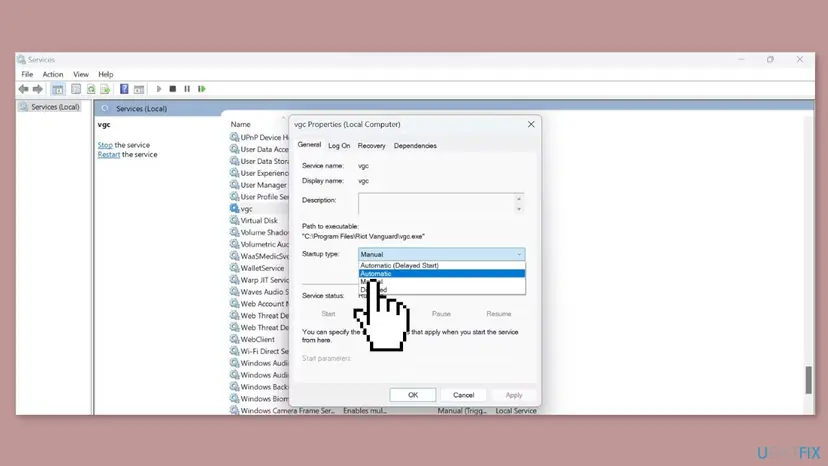
It worked if: After the restart vgc is quiet with the game closed and settles below the game's own CPU use during a match.
If not: If vgc is busy again within a session or two, the install itself is suspect. Go to Fix 3.
Fix 3. Uninstall Riot Vanguard and let the Riot Client reinstall it
15 minutesLow riskThe problem survives a restart, started after an update, or comes with VAN error codes.
Riot says that knowing how to uninstall Vanguard often helps with troubleshooting errors caused by corrupted Vanguard files. A fresh copy replaces the client, the driver and their settings, and the Riot Client puts the current version back on its own.
- Close all Riot games and Exit the Riot Client from the tray, as in Fix 2.
- Right-click the red Riot Vanguard tray icon and select Advanced > Uninstall Vanguard. Follow the prompts.
- If the icon is not there: press the Windows key, type Add or remove programs, press Enter, find Riot Vanguard and uninstall it.
- Restart the PC. Riot's check: after the restart, the Vanguard icon must not come back in the tray.
- Start the Riot Client or the game. It reinstalls Vanguard automatically.
- Restart the PC once more so the driver loads at boot, then measure as in Fix 1.

If Vanguard refuses to uninstall, Riot gives manual steps. Run them only with every Riot program closed, from an administrator Command Prompt: press the Windows key, type cmd, right-click Command Prompt and select Run as administrator.
Riot's manual removal: two commands, then restart
sc delete vgc
sc delete vgk- After the restart, open File Explorer, go to
C:\Program Files, right-click the Riot Vanguard folder and delete what is left. - Then start the Riot Client to reinstall Vanguard, and restart once more.
- General uninstall steps for Windows 11 and 10, with screenshots: Uninstall a program or app in Windows
It worked if: The tray icon returns after the reinstall and restart, the game starts, and vgc is quiet when the game is closed.
If not: If vgc is high again right after a clean reinstall, the cause is outside Vanguard. Go to Fix 4, then Fix 6.
Fix 4. Update Windows, the graphics driver and, on AMD Ryzen, the BIOS
20 to 60 minutesRead the warningUpdates are waiting, the graphics driver is old, or an AMD Ryzen PC stutters every few minutes.
Riot's VAN 0 article says Windows updates can include security and system service changes Vanguard relies on. Riot's CPU article names outdated graphics drivers as a cause of high CPU load. Riot's TPM article adds a known fTPM stutter on older AMD firmware that only a BIOS update cures.
- Windows 11: open Settings > Windows Update and select Check for updates. Windows 10: Settings > Update & Security > Windows Update.
- Install everything offered and restart the PC.
- Update the graphics driver from NVIDIA, AMD or Intel, or through Device Manager: Update, roll back or reinstall a driver
- Only for AMD Ryzen with short stutters every few minutes: press Win + R, type
msinfo32, and note BaseBoard Manufacturer and BaseBoard Product. - Download the newest BIOS for that exact board from the maker's support site and follow its flashing instructions.
- After the update, enter the BIOS once more and check that fTPM is still enabled, then measure as in Fix 1.
Riot warns: do not turn off the PC during a BIOS update. A failed flash can leave the board unbootable, and firmware changes can trigger BitLocker recovery. Before you start, save your BitLocker recovery key from your Microsoft account and back up important files. If you are unsure, ask the PC maker's support.
- Do not switch fTPM off to stop the stutter. Riot's TPM article says plainly: "Do NOT disable fTPM to fix stuttering", because you lose access to Vanguard games. AMD fixed the stutter in later BIOS updates.
- Windows 10. It left support on 14 October 2025. VALORANT still lists Windows 10 build 19041 or newer, but Riot explains that Windows 10 lacks some of the APIs Vanguard uses, and On-Demand mode needs Windows 11 25H2.
It worked if: Windows Update shows that you are up to date, the driver version is new, and on AMD the periodic stutter is gone with fTPM still on.
If not: If the system is current and vgc is only high in matches, the CPU is short of headroom. Go to Fix 5.
Fix 5. Lower the game's own CPU load with Riot's settings
10 minutesNo riskvgc is only high during matches, the whole CPU is near its limit, and the PC is close to Riot's minimum specs.
Vanguard works alongside the game, so on a busy CPU every percent it uses is felt as lag. Riot's own high CPU article does not touch Vanguard: it lowers the game's load and gives the game more priority, which frees the room vgc also needs.
- In the game, open the Video or Graphics settings and lower shadows, particle effects, post-processing and other high-detail options, as Riot suggests.
- Press Win + I, open Gaming > Game Mode and turn Game Mode on.
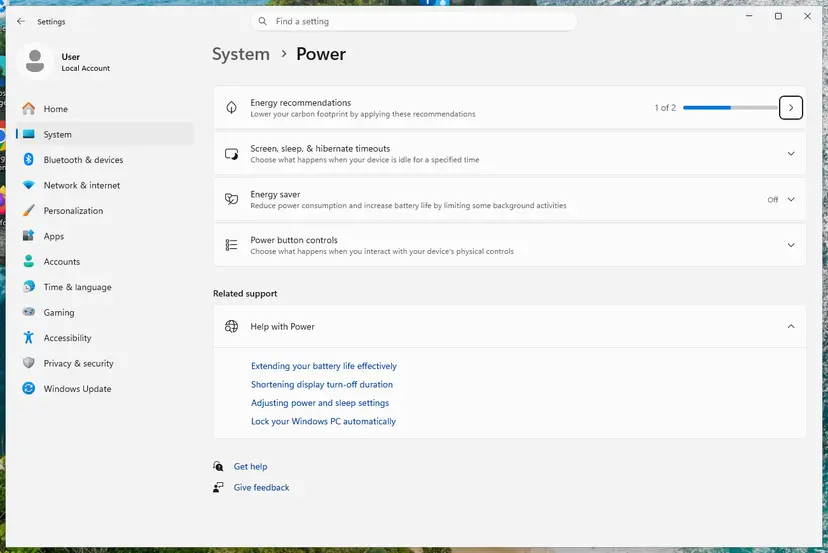
- Set the power mode to Balanced or Best performance. Riot names Balanced or High Performance in Control Panel > Hardware and Sound > Power Options.
- Close other heavy programs before playing: browsers with many tabs, recorders, launchers you do not need.
- While the game runs, open Task Manager, go to Details, right-click the game's main process and select Set priority > High, as Riot's article describes.
- Check CPU temperature and dust: Riot notes that an overheating CPU throttles itself to cool down.
- Play a match and measure again as in Fix 1.
| Target | Intel | AMD |
|---|---|---|
| Minimum, 30 FPS | i3-540 | Athlon 200GE |
| Recommended, 60 FPS | i3-4150 | Ryzen 3 1200 |
| High-end, 144 FPS | i5-9400F 2.90GHz | Ryzen 5 2600X |
- Riot's other requirements: 4GB RAM, SSE 4.2 or AVX support, ARM processors not supported, and no cloud gaming or virtual machines.
- Power plans in detail: Change the power mode
It worked if: Total CPU use drops below its ceiling, the game stops lagging, and vgc stays clearly below the game.
If not: If vgc is still above the game with low settings, something is making Vanguard's checks expensive. Go to Fix 6.
Fix 6. Run a clean boot that keeps Vanguard on
15 minutesLow riskYou use overlays, RGB, fan or tuning tools, other anti-cheats, or third-party security software.
Riot lists a clean boot in both its CPU article and its VAN 0 article because background programs can interfere with Vanguard. Riot's version differs from the usual one in one step: you switch vgc back on, so the game still runs and you can measure.
- Press Win + R, type
msconfigand press Enter. - Open the Services tab and tick Hide all Microsoft services.
- Select Disable all.
- Find vgc in the list and tick its box again to re-enable it.
- Select Apply, then OK. Also turn off non-essential startup apps in Task Manager, Startup apps tab, and note which ones.
- Restart the PC, start the game and measure as in Fix 1.
- If vgc is now normal, re-enable the services and apps in small groups, restarting each time, until the problem returns. The last group holds the culprit.

- Some programs ignore a clean boot. Riot notes that antivirus and networking software often stay active. Update such a program and add the game to its exceptions; pausing it is a short test only: Turn off Microsoft Defender protection for a moment
- When you have found it. Riot's advice is to ask that software's maker how to configure it so it does not interfere with Vanguard. Keep the security software itself.
- Going back to normal: the full procedure and how to undo it: How to perform a clean boot in Windows
It worked if: In the clean boot vgc stays low, and turning groups back on shows one program that makes it climb.
If not: If vgc is high even in a clean boot, no third-party program is to blame. Go to Fix 7 if idle use bothers you, or Fix 8.
Fix 7. Turn on Vanguard On-Demand so it runs only while you play
10 minutes, longer if BIOS settings are neededRead the warningVanguard's background presence bothers you when you are not playing, and the PC can run Windows 11 25H2 or newer.
Riot announced On-Demand on 24 June 2026. With Vanguard Pre-Check passed, the driver no longer launches when Windows starts: Vanguard starts with a Riot game and shuts down after gameplay ends. Outside play there is then no Vanguard CPU use at all.
Riot asks you to follow your PC or board maker's instructions and to get help if you are not used to the BIOS. Never switch a legacy (MBR) system to UEFI without converting the disk first, or Windows will not boot. Changing TPM or Secure Boot keys can trigger BitLocker recovery: keep the recovery key at hand.
- Press Win + R, type
winverand check that you run Windows 11 version 25H2 or newer. If not, update first. - Open the red Riot Vanguard icon in the system tray (VGTray). It shows whether the PC is Pre-Check compatible and which requirement is missing.
- Check Secure Boot: press Win + R, type
msinfo32. BIOS Mode must read UEFI and Secure Boot State On. - In the same window, Virtualization-based security must read Running, with Hypervisor enforced Code Integrity among its services.
- Check TPM: press Win + R, type
tpm.msc. It must say The TPM is ready for use with Specification Version 2.0. - Fix each missing item through the link VGTray offers for it. Memory integrity is under Windows Security > Device security > Core isolation details.
- When VGTray reports all requirements met, use its option to switch Vanguard to on-demand mode, then restart.
| Requirement | Where you check it | If it is missing |
|---|---|---|
| Windows 11 25H2 or newer | winver | Windows Update |
| Secure Boot | msinfo32, Secure Boot State | BIOS, maker's guide |
| TPM 2.0 | tpm.msc | BIOS: Intel PTT or AMD fTPM |
| IOMMU | msinfo32, Kernel DMA Protection (may be missing even when on) | BIOS: Intel VT-d or AMD IOMMU |
| VBS and HVCI (Memory integrity) | msinfo32, Virtualization-based security | Core isolation in Windows Security; virtualization in BIOS |
- It is optional. Riot repeats that Pre-Check is not mandatory. If you do nothing, Vanguard keeps starting with Windows, and you can still play.
- Trade-offs we read about. TweakTown notes that VBS and HVCI can cost a little FPS and that the driver blocklist they bring may stop old drivers. Riot says IOMMU has negligible performance impact.
- Label of the switch. Riot says the button appears in VGTray once the PC qualifies. We could not see its exact wording on a test PC.
It worked if: After the restart there is no Vanguard icon in the tray and no vgc in Task Manager until you start a Riot game, and both are gone again after you quit.
If not: If VGTray keeps listing a requirement you believe is on, update the BIOS as in Fix 4 and use Riot's article for that requirement. Otherwise keep the normal mode: it is fully supported.
Fix 8. Check where vgc.exe lives and scan for malware
15 to 60 minutesNo riskvgc.exe opens from an odd folder, CPU stays high with Vanguard exited, or you never installed a Riot game.
Riot's CPU article lists a malware scan, because hidden programs can use CPU in secret. Malware can also borrow a trusted name, so the folder of vgc.exe is the quickest test of whether the busy process is Riot's at all.
- Open Task Manager and go to the Details tab.
- Right-click vgc.exe and select Open file location.
- File Explorer must open
C:\Program Files\Riot Vanguard. Any other folder is a red flag. - Run a full scan with Microsoft Defender, as below.
- Open Windows Security. Select Start, type Windows Security and open the app.
- Open Virus & threat protection. Select Virus & threat protection. Under Current threats you see when the last scan ran, how long it took and how many files it checked.
- Run a quick scan. Select Quick scan. If Windows Security thinks a deeper scan is needed, it tells you when the quick scan is done.
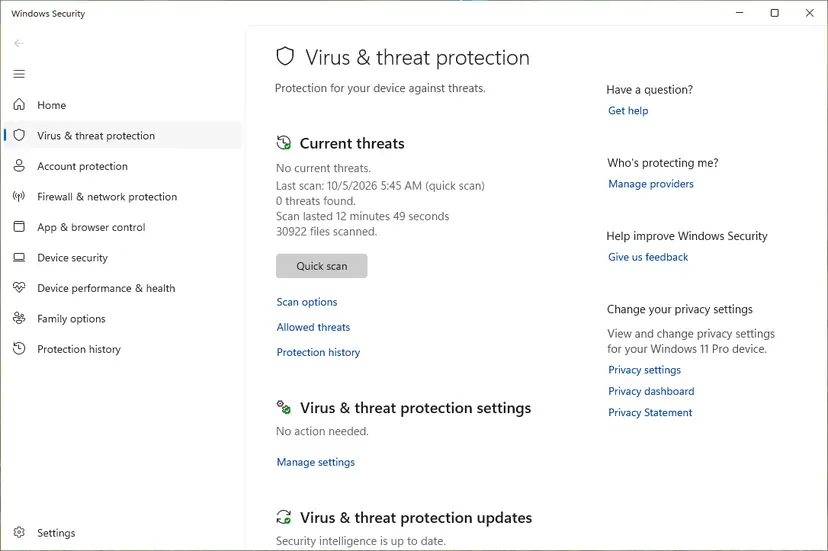
Quick scan and Scan options sit under Current threats. Screenshot: Windows 11 26H2. - Open Scan options. If the quick scan finds nothing and you still suspect an infection, select Scan options under Current threats.
- Run a full scan. Select Full scan and start it. It checks every file and program on the device, so it takes much longer than a quick scan. Leave the PC on until it ends.
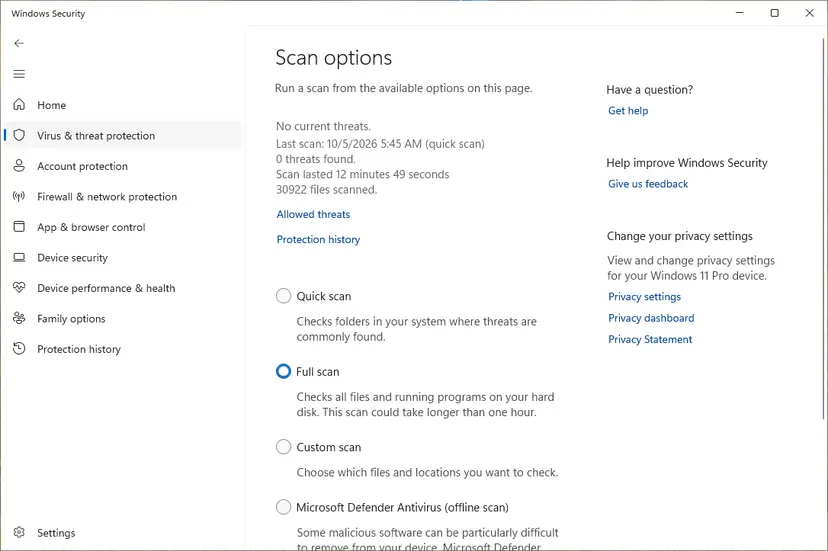
Scan options: Quick scan, Full scan, Custom scan and the offline scan. Screenshot: Windows 11 26H2.
These steps were written for Windows 11 25H2 and 26H2, Windows 10 22H2. The full page with the other versions and what each result means: How to scan for malware with Microsoft Defender
If you never installed a Riot game and still have a process called vgc.exe, treat it as unknown software. Remove what the scan finds. Then check Installed apps for programs you do not recognize.
It worked if: vgc.exe opens from C:\Program Files\Riot Vanguard, and Microsoft Defender finds no threats.
If not: If the scan finds threats, let Defender remove them, restart and measure again. If the file is genuine and clean, collect logs as described below and open a Riot ticket.
If Vanguard still uses too much CPU: what to send Riot Support
Riot's CPU article ends with a ticket, and asks for two files: a screenshot of Task Manager's Performance tab and a DxDiag report. For a Vanguard problem its log article adds the Vanguard logs. Send all of them, plus your Fix 1 readings.
| What | How | Why it helps |
|---|---|---|
| Vanguard logs | Open C:\Program Files\Riot Vanguard, copy the Logs folder to the desktop, right-click it, Send to > Compressed (zipped) folder. | Shows what Vanguard did and any errors. |
| Process list | In Command Prompt run tasklist /v > "%USERPROFILE%\desktop\Process.txt" | Shows every program running next to Vanguard. |
| DxDiag | Press Windows, type dxdiag, select Save All Information. | Your hardware, drivers and Windows build. |
| VALORANT logs | %localappdata%\VALORANT\saved\Logs, zipped the same way. | The game's side of the story. |
| Task Manager screenshot | Performance tab, plus the Processes tab sorted by CPU while the problem is visible. | Asked for in Riot's CPU article. |
- Where to send it: Riot Support, Submit A Ticket, at support.riotgames.com. Attach the files; Riot asks you not to paste the process list as text.
- When it is your hardware: the whole CPU is near 100% in every game, the CPU runs hot, or the PC is under Riot's minimum specs. Riot's last step for high CPU is an upgrade of CPU, cooling or RAM, or new thermal paste.
- When it is not Vanguard: CPU stays high with Vanguard exited (Fix 2). Then Vanguard is innocent and the cause is another process.
- Network use instead of CPU: if vgc shows high Network use, that is a different symptom. A player on Microsoft Q&A linked it to VAN 185; we found no Riot article on it.
What not to do about Vanguard's CPU use
Most videos and older guides for this problem offer tricks that are not in any Riot article. Some do nothing, some break the game, and one kind weakens the PC's security. Here is what we checked.
- Exit Vanguard from its tray icon and restart Windows.
- Uninstall Vanguard through its tray menu or Installed apps and let the Riot Client reinstall it.
- Use Riot's clean boot with vgc ticked again.
- Give the game, not Vanguard, a higher priority, as Riot's CPU article does.
- Use On-Demand if you want Vanguard off between games.
- Do not set vgc.exe to Low priority, Efficiency mode or fewer cores.
- Do not end vgc.exe in Task Manager during a match: Riot requires Vanguard to stay active while you play.
- Do not set the vgc service to Disabled and expect to play. Riot requires it on Automatic unless you use On-Demand.
- Do not delete files in the Riot Vanguard folder without first running Riot's uninstall steps.
- Do not switch TPM, fTPM, Secure Boot or Memory integrity off to gain speed. Riot requires them on Windows 11 and for Pre-Check.
On Windows 11 VALORANT requires TPM 2.0 and UEFI Secure Boot. Riot's own TPM article warns against turning fTPM off to fix stutter. Switching them off will not lower vgc's CPU use: it stops the game from starting, with VAN 9001, VAN 9003 or a restriction error.
How to keep Vanguard's CPU use down
- Restart rather than sleep after long sessions. Vanguard is built to start with Windows; a fresh boot gives it a clean session.
- Close games and the Riot Client through their menus instead of ending them in Task Manager.
- Install Windows updates and new graphics drivers before big game patches, since Riot says Vanguard relies on Windows changes.
- Keep the BIOS current on AMD Ryzen boards to avoid the fTPM stutter Riot describes.
- Keep one anti-cheat game running at a time and add new overlays or tuning tools one by one, so you know which one caused trouble.
- Measure once in a while as in Fix 1: an idle reading near zero is your baseline.
If your PC meets the requirements, On-Demand mode (Fix 7) prevents the idle complaint for good: Vanguard is then not running at all when no Riot game is open. On older PCs the normal always-on mode stays fully supported.
Frequently asked questions
What is Vanguard User Mode Service?
It is vgc.exe, the user-mode client of Riot Vanguard, the anti-cheat used by VALORANT, League of Legends and other Riot games. Riot describes Vanguard as a client that runs while its games are active plus a kernel-mode driver called vgk. In Task Manager the client appears as Vanguard user-mode service, in the Details tab as vgc.exe running as SYSTEM, and in Services as vgc. The genuine file lives in C:\Program Files\Riot Vanguard. Searches in other languages, such as the Russian "vanguard user mode service грузит процессор" ("loads the processor"), describe this same problem.
Why is Vanguard using so much CPU?
Mostly because it is checking the system while a Riot game runs, and on a CPU with little headroom that work is visible. Real problems look different: vgc stays busy with the game closed, or uses more CPU than the game itself. Those usually come from a stuck session, fixed by exiting Vanguard and restarting Windows, or from damaged Vanguard files, fixed by reinstalling Vanguard. Less often another program clashes with it, old firmware causes stutter, or something else hides behind the name vgc.exe.
How much CPU should Vanguard use?
Riot publishes no figure, so there is no official normal range. A practical test: with the game and Riot Client closed, vgc should be close to 0%. During a match it should stay clearly below the game. Remember that Task Manager shows a share of all logical processors: on an 8-thread CPU 12.5% is one full core, on a 4-thread laptop one core is 25%. Compare vgc with the game on the same PC instead of with numbers from someone else's screenshot.
Is it safe to end Vanguard user-mode service in Task Manager?
It does not harm Windows, but it stops Riot games. Riot's way to turn Vanguard off is the tray icon: right-click the red Riot Vanguard icon and select Exit Vanguard. Riot warns that most of its games will not start while Vanguard is off, and without On-Demand mode you need to restart the PC before you can play again. Riot requires Vanguard to stay active while you play, so do not end vgc.exe during a match. As a test of whether Vanguard causes your CPU load, exiting it is fine.
Can I set vgc.exe to low priority or Efficiency mode?
We do not recommend it, and no Riot article suggests it. Riot's own high CPU article goes the other way: it raises the game's priority to High in the Details tab. Vanguard's checks run alongside the game, so starving them can slow the game rather than speed it up. One player on Microsoft Q&A reported a VAN error after limiting Vanguard. Lowering the game's graphics settings, closing heavy background apps and updating drivers free the same CPU time without touching the anti-cheat.
Why does Vanguard run when I am not playing?
Because Riot built it to start with Windows. Riot Support says Vanguard is usually an on-boot application, which is why its tray icon is there right after you sign in. Since 24 June 2026 there is an optional alternative, Vanguard On-Demand. On a PC with Windows 11 25H2 or newer, Secure Boot, TPM 2.0, IOMMU, VBS and HVCI enabled, Vanguard starts when you launch a Riot game and shuts down after gameplay ends. The Vanguard tray app shows whether your PC qualifies.
Does Riot Vanguard slow down my PC or lower FPS?
When vgc is quiet at idle and below the game during play, its share is small, but Riot publishes no benchmark. On a CPU that is already near its limit any extra work is felt, which is why Riot's CPU advice is about the game's settings and power plan. AMD Ryzen PCs on old BIOS versions could stutter every few minutes from an fTPM bug; Riot says a BIOS update fixes it. For On-Demand mode, TweakTown notes that VBS and HVCI can cost a little FPS.
Does the same fix work for League of Legends?
Yes. League of Legends uses the same Riot Vanguard as VALORANT, with the same vgc client and vgk driver, the same tray icon and the same uninstall and reinstall steps. Riot's League FAQ says Vanguard must be running to play League, and its CPU and clean boot articles are written for all Riot games. The only part that differs is Fix 5: lower League's own graphics options instead of VALORANT's, and check League's requirements on Riot Support.
Can I uninstall Vanguard and still play VALORANT?
No. Riot says Vanguard must be active while you play most of its games, VALORANT and League of Legends included. You can uninstall it whenever you like, through the tray icon (Advanced, then Uninstall Vanguard) or Installed apps, and Riot explains that launching a Riot game reinstalls it automatically. If you stopped playing Riot games for good, uninstall it; Riot's manual steps remove both vgc and vgk. If you still play, On-Demand mode is the middle way: installed, but not running between games.
Vanguard user mode service shows high network usage. Is that the same problem?
No, it is a different symptom. This page is about CPU. We found no Riot Support article about Vanguard network use. A player on Microsoft Q&A in April 2026 reported vgc.exe taking all of their bandwidth together with error VAN 185, and that limiting Vanguard brought the error. If you see it, collect the network log Riot describes in its log article, NetworkInfo.txt, and send it with a ticket. Do not block vgc.exe in a firewall, because the game then cannot connect.
Sources
- Microsoft Learn: Troubleshoot processes by using Task Manager (learn.microsoft.com)
- Microsoft Learn: High CPU usage troubleshooting guidance (Task Manager and Resource Monitor) (learn.microsoft.com)
- Microsoft Q&A: player report of vgc.exe network use with VAN 185, April 2026 (learn.microsoft.com)
Did this fix work?
One click, no account. It tells the next reader which guides are worth their time.
Questions and experiences: fix Vanguard User-Mode Service high CPU usage in Windows
Still broken, or found a fix we did not cover? Ask here: members and our editors answer. Reading is open; writing needs a free account.
…