
How to fix VAN 0 Error Code in Valorant?

Prefer to fix it yourself? The manual steps follow.
- 9methods
- 2 to 40 minutes
- Easy
Applies to VALORANT with Riot Vanguard on Windows 11 and Windows 10 PCs
9 methods in this guide
- What the error means
- Causes and their fixes
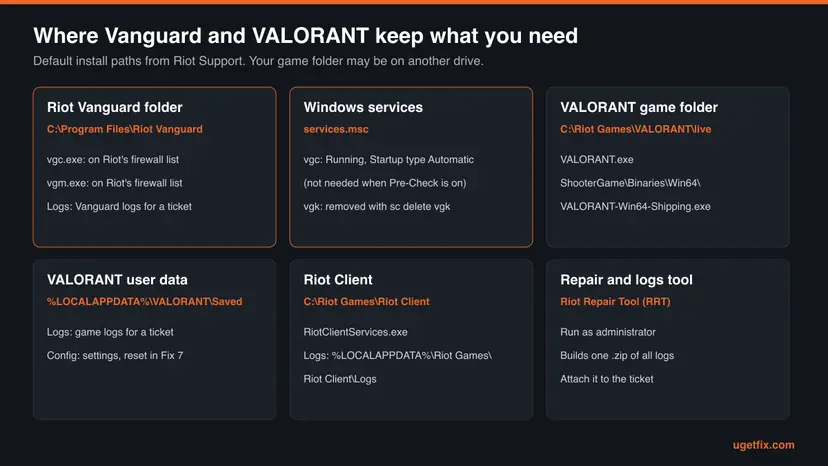
- Vanguard parts and paths
- The fixes
- 1. Restart PC and client
- 2. Set vgc to Automatic
- 3. Install Windows updates
- 4. Reinstall Riot Vanguard
- 5. Allow Riot through firewall
- 6. Clean boot, keep vgc
- 7. Repair VALORANT files
- 8. Clean reinstall VALORANT
- 9. Check the network
- Still there: logs and ticket
- Prevent it
- FAQ
Hello. I have been trying to launch Valorant, but every time I try, I receive the VAN 0 error code. What should I do?
Error VAN 0 means Riot Vanguard, the anti-cheat that VALORANT needs, could not confirm your PC is ready or failed while it was starting. It is rarely a ban and rarely your internet. Restart the PC, check that the vgc service runs and starts automatically, then reinstall Vanguard if the error stays.
VAN 0 is a Riot Vanguard start-up error, not a ban. Restart the PC and launch the game again (Fix 1). If the Vanguard icon is missing from the system tray, open services.msc, set vgc to Automatic, start it and restart (Fix 2). Still there? Install Windows updates, then remove and reinstall Vanguard (Fixes 3 and 4).
| Error | VAN 0, shown as "Connection Error: VALORANT has encountered a connection error. Please relaunch the client to reconnect. Error Code: VAN 0". |
|---|---|
| Where it appears | In a pop-up when you start VALORANT from the Riot Client, or after the game throws you out of a match or the menu. |
| Main cause | Riot Vanguard could not confirm the PC is ready or failed to start. Most often the vgc service is stopped or not set to start. |
| Fastest fix | Restart the PC (Fix 1), then set the vgc service to Automatic and start it (Fix 2). |
| Also written as | VAN0, VAN 0 error, Vanguard error VAN 0. VAL 0 is a different code from the game client with a similar message. |
| Affects | VALORANT on Windows 11 and Windows 10. Vanguard Pre-Check (on-demand Vanguard) needs Windows 11 25H2 or newer. |
| Vendor status | Riot keeps a VAN 0 article (updated July 2026). Since 22 September 2026 Riot also warns that VALORANT shows wrong error codes for some errors. |
| Time to fix | 2 minutes for a restart, about 10 minutes for a Vanguard reinstall, longer for a full game reinstall. |
Facts checked on 14 October 2026. Steps written for Windows 11 (25H2 and 26H2) and Windows 10 22H2, Riot Client and Riot Vanguard as documented by Riot Support in October 2026.
What error VAN 0 means in VALORANT
Riot's own article puts it in one line: VAN 0 usually means Riot Vanguard could not verify that your PC is ready to run the game, or ran into a problem while it was starting. Vanguard is the anti-cheat that runs next to VALORANT. When it does not answer, the game refuses to start or drops you back to the menu with this code.
The window looks like a network problem, which is why so many players start with their router. The title says Connection Error and the text reads "VALORANT has encountered a connection error. Please relaunch the client to reconnect." The connection that failed is usually the link between the game and Vanguard on your own PC, not your internet line.
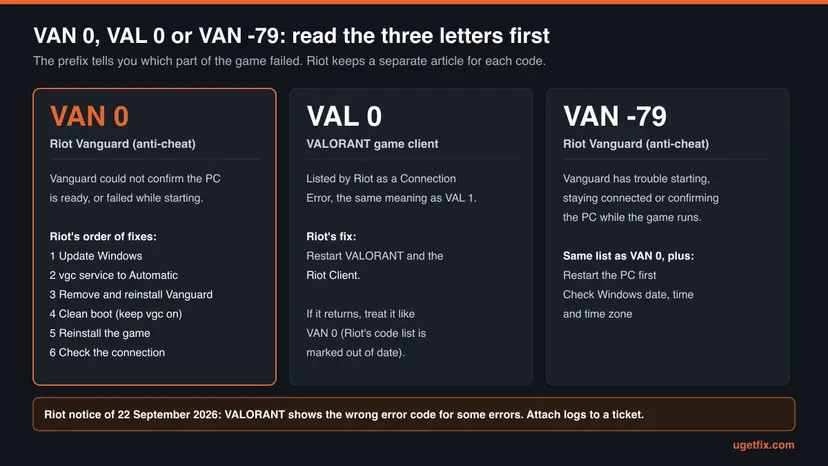
| Code you see | Who reports it | What Riot says it means | Where to go |
|---|---|---|---|
| VAN 0 | Riot Vanguard | Vanguard could not verify the PC is ready, or failed while starting. | This page, Fixes 1 to 9 |
| VAL 0 | VALORANT client | Connection Error. Riot's fix: restart VALORANT and the Riot Client. | Fix 1, then this page if it returns |
| VAN -79 | Riot Vanguard | Vanguard has trouble starting, staying connected or confirming the PC. | This page, plus the clock check in the FAQ |
| VAN -81 / VAL -81 | Vanguard / client | VAL -81 is listed as Service Start Failed. | Fixes 1, 4 and 8 |
| 0xc0000142 | Windows | A program library failed to initialise, so the process ended. | FAQ below |
Riot keeps VAN codes (Vanguard) and VAL codes (the game) on separate pages and warns that the two are easy to mix up. A VAL code with another number, such as the party error, has its own fix: see how to fix error code VAL 51 in VALORANT.
What causes VAN 0, ranked and tied to a fix
Riot does not publish how often each cause appears. The order below follows Riot's own troubleshooting order for VAN 0 and VAN -79, adjusted so that the cheapest checks come first. Each cause points to the fix that rules it out.
| How likely | Cause | Sign you can check | Fix |
|---|---|---|---|
| Most often | Vanguard did not start with Windows, or stopped after an update or crash. | No red Riot Vanguard icon in the system tray; vgc shows Stopped in services.msc. | Fix 1, Fix 2 |
| Often | Windows is missing security or service updates that Vanguard relies on. | Settings shows pending updates or a restart waiting. | Fix 3 |
| Often | Vanguard files or settings are damaged. | The service starts but the error returns; the tray icon shows an error. | Fix 4 |
| Sometimes | A firewall or security suite blocks vgc.exe, vgm.exe or the game. | A third-party firewall or suite is installed; the error began after you installed it. | Fix 5, Fix 6 |
| Sometimes | A background program interferes with Vanguard. | Overlays, tuning, RGB, VPN or network tools run at start-up. | Fix 6 |
| Less often | VALORANT or Riot Client files are damaged or settings files are corrupt. | The error began after a patch, a crash or a drive problem. | Fix 7, Fix 8 |
| Rarely | An unstable network connection. | The error comes mid-match, together with lag or other disconnects. | Fix 9 |
VAN 0 is not a penalty. Riot lists bans and restrictions under their own names, such as VAN: RESTRICTION, and the hardware ban as code 152. VAN 0 also does not ask you to change Secure Boot or TPM: those requirements have their own VAN codes. Keep Secure Boot, TPM and your antivirus on.
The parts of Riot Vanguard you will touch in these fixes
Most VAN 0 fixes come down to four things: one Windows service, one folder, one tray icon and one optional feature. Knowing where they are saves time, because you can check each in seconds before you reinstall anything.
- vgc service
- The Vanguard service in services.msc. Riot asks you to set its Startup type to Automatic unless you use Vanguard Pre-Check.
- vgk
- The second Vanguard component. Riot's manual removal deletes it with
sc delete vgkaftersc delete vgc. - Install folder
C:\Program Files\Riot Vanguard, which holds vgc.exe, vgm.exe and the Logs folder.- Tray icon
- The red Riot Vanguard icon next to the clock. Right-click it for Exit Vanguard and Advanced > Uninstall Vanguard.
- Vanguard Pre-Check
- Optional. Vanguard starts when you launch a Riot game and stops after you finish. Needs Windows 11 25H2 or newer, Secure Boot, TPM 2.0, IOMMU, VBS and HVCI.
How to fix error VAN 0 in VALORANT
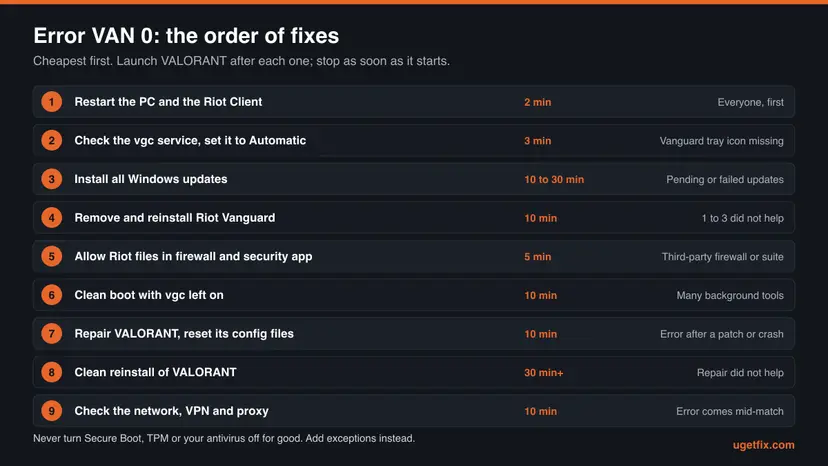
Launch VALORANT after each fix and stop as soon as it starts. Fixes 1 and 2 solve the common case, a Vanguard that is not running. Fixes 3 and 4 repair Windows and Vanguard. Fixes 5 to 9 rule out blocking software, damaged game files and the network.
| What you see or have | Start with |
|---|---|
| VAN 0 or VAL 0 for the first time, the PC has been on for days or just woke from sleep. | Fix 1 |
| No red Riot Vanguard icon in the system tray after a restart. | Fix 2 |
| Settings shows Windows updates waiting, or the error began right after a Windows upgrade. | Fix 3 |
| vgc is running and set to Automatic, but VAN 0 keeps coming back. | Fix 4 |
| You use a third-party firewall or security suite. | Fix 5 |
| The error began after you installed an overlay, tuning, RGB or VPN tool. | Fix 6 |
| The error began after a VALORANT patch, a crash or a full drive. | Fix 7, then Fix 8 |
| The error comes in the middle of matches, together with lag. | Fix 9 |
Fix 1. Restart the PC and the Riot Client properly
2 minutesNo riskEveryone, as the first step, especially when the PC has not been restarted for a while.
Vanguard is meant to start with Windows, so a full restart gives it a clean start. Riot's code list answers VAL 0 with a restart of VALORANT and the Riot Client, and Riot puts a PC restart first for the related VAN -79.
- Close VALORANT if any window of it is still open.
- Right-click the Riot Client icon in the system tray, next to the clock, and select Exit.
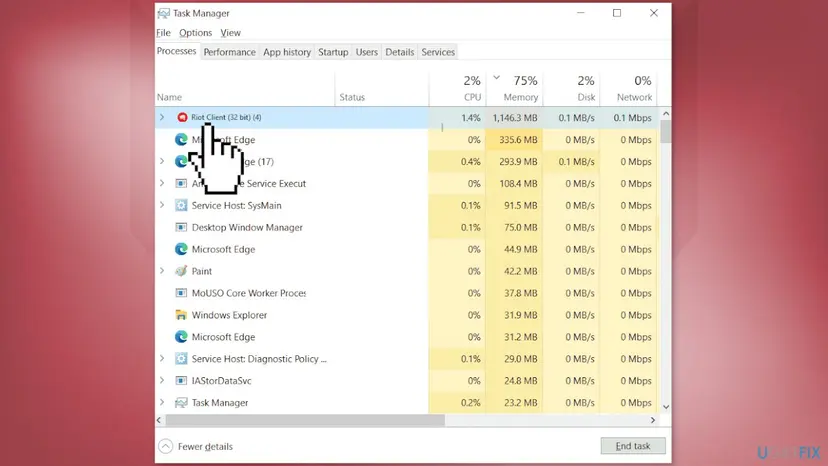
- Press Ctrl + Shift + Esc to open Task Manager. If Riot Client is still listed under Processes, select it and click End task.
- Open Start, select the power button and choose Restart.
- After Windows starts, wait about a minute and look for the red Riot Vanguard icon in the system tray. Select the arrow ^ if the tray hides icons.
- Open the Riot Client and launch VALORANT.
It worked if: The Vanguard icon appears in the tray and VALORANT reaches the main menu without the VAN 0 pop-up.
If not: If the Vanguard icon is missing after the restart, go straight to Fix 2. If the icon is there but the error stays, go to Fix 3.
Fix 2. Check the vgc service and set it to start automatically
3 minutesLow riskThe Vanguard tray icon is missing, or VAN 0 appears after every restart of Windows.
Riot's VAN 0 article says that an installed Vanguard does nothing if it is not running when you play. Without Vanguard Pre-Check, the vgc service must start with Windows, and a stopped or Manual vgc is the most direct cause of VAN 0.
First check whether you use Vanguard Pre-Check. Right-click the Vanguard tray icon and look at its security status, or check Riot's list: Pre-Check needs Windows 11 25H2 or newer plus Secure Boot, TPM 2.0, IOMMU, VBS and HVCI. With Pre-Check on, Vanguard starts on demand and you skip to Fix 3. Windows 10 PCs never qualify, so they always need vgc on Automatic.
Optional quick check: open Command Prompt and type this. The STATE line says RUNNING or STOPPED.
sc query vgc- Press Win + R, type the command below and press Enter.
services.msc - In the Services list, click any row and type v to jump to the services that start with V. Find vgc.
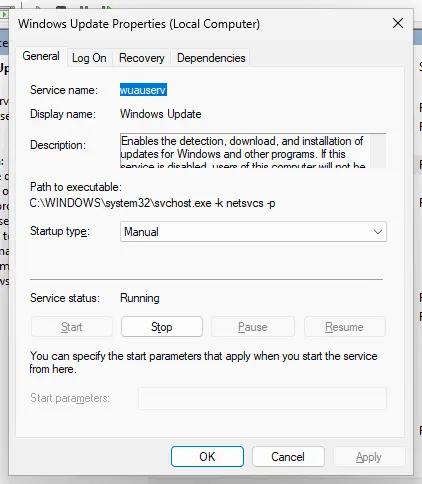
- Double-click vgc to open its properties.
- On the General tab, set Startup type to Automatic.
- If Service status says Stopped, click Start.
- Click Apply, then OK.
- Restart the PC, then open the Riot Client and launch VALORANT.
The general steps for services, with more pictures, are here: Check and restart Windows services. Change only vgc. Riot does not ask you to change any other service for this error.
It worked if: After the restart vgc shows Running with Automatic, the Vanguard icon is in the tray and VALORANT starts.
If not: If vgc is not in the list at all, Vanguard is missing: launch the Riot Client so it reinstalls Vanguard, or follow Fix 4. If vgc stops again by itself, go to Fix 3.
Fix 3. Install all Windows updates and restart
10 to 30 minutesLow riskSettings shows updates waiting, a restart is pending, or the error began after a Windows upgrade.
This is the first step in Riot's VAN 0 article: Windows updates can change security and system services that Vanguard relies on. A half-installed update that waits for a restart can leave those services in a state Vanguard does not accept.
- On Windows 11 open Start > Settings > Windows Update. On Windows 10 open Start > Settings > Update & Security > Windows Update.
- Select Check for updates.
- If updates appear, select Download & install, including optional quality updates if Settings offers them.
- Restart when Windows asks, even if the update says it can wait.
- Repeat Check for updates until no more updates appear, then launch VALORANT.
Windows 10 lost free updates on 14 October 2025. Microsoft says the PC still works, but it no longer gets security fixes. Vanguard Pre-Check is available only on Windows 11 25H2 or newer.
If an update fails with an error code, fix the update first: Run the Windows Update troubleshooter. A single failed update can be installed by hand from the Microsoft Update Catalog: Install an update from the Microsoft Update Catalog.
It worked if: Windows Update says you are up to date, no restart is pending, and VALORANT starts without VAN 0.
If not: If Windows is current and VAN 0 stays, Vanguard itself is likely damaged: go to Fix 4.
Fix 4. Remove Riot Vanguard completely and let the Riot Client reinstall it
10 minutesLow riskvgc runs and Windows is up to date, but VAN 0 keeps coming back.
Riot calls this the quickest way to restore Vanguard's default settings. Damaged Vanguard files or a broken service entry survive a restart; removing both services and the folder forces a clean copy on the next launch.
Work on a Windows account with administrator rights. Close VALORANT, exit the Riot Client from the tray, then right-click the red Vanguard icon and select Exit Vanguard and Yes. First try the normal removal.
- Right-click the Riot Vanguard tray icon, select Advanced, then Uninstall Vanguard, and follow the prompts.
- If the icon is gone, open Settings > Apps > Installed apps on Windows 11 (or Apps & features on Windows 10), find Riot Vanguard and select Uninstall. More detail: Uninstall a program or app in Windows.
- Restart the PC. If the Vanguard icon is gone after the restart, the removal worked: skip the manual steps below.
If Vanguard will not uninstall, or comes back broken, remove it by hand as Riot describes. Close every Riot program first.
- Press Win, type cmd, right-click Command Prompt and select Run as administrator.
- Type the first command and press Enter.
sc delete vgc - Type the second command and press Enter.
sc delete vgk - Restart the PC.
- Open File Explorer, go to
C:\Program Files, right-click the Riot Vanguard folder and select Delete. - Open the Riot Client and launch VALORANT. The client installs Vanguard again and may ask for one more restart.
It worked if: After the reinstall and restart, the Vanguard icon is back in the tray, vgc is Running and VALORANT starts.
If not: If the Riot Client does not reinstall Vanguard, run Fix 7 to repair the client files. If Vanguard installs but VAN 0 returns, something blocks it: go to Fix 5 and Fix 6.
Fix 5. Allow VALORANT and Vanguard through your firewall and security software
5 minutesLow riskYou use a third-party firewall or security suite, or you changed Windows Firewall rules before.
A firewall can mistake the Riot Client or Vanguard for an unknown program and block them. Riot publishes the exact files to allow for VALORANT, so you add exceptions instead of switching protection off.
| File to allow | Default path |
|---|---|
| VALORANT | C:\Riot Games\VALORANT\live\VALORANT.exe |
| VALORANT game process | C:\Riot Games\VALORANT\live\ShooterGame\Binaries\Win64\VALORANT-Win64-Shipping.exe |
| Riot Client | C:\Riot Games\Riot Client\RiotClientServices.exe |
| Vanguard | C:\Program Files\Riot Vanguard\vgc.exe |
| Vanguard | C:\Program Files\Riot Vanguard\vgm.exe |
- For Windows Firewall, press Win + R, type the command below and press Enter. It opens Windows Defender Firewall.
control firewall.cpl - Select Allow an app or feature through Windows Defender Firewall, then Change settings.
- Select Allow another app, then Browse, and pick the first file from the table. Select Add.
- Repeat for every file in the table, then make sure each one has Private and Public ticked. Select OK.
- In a third-party firewall or security suite, open its settings, find Exceptions, Allowed apps or Applications, and add the same files with full access.
- Update the third-party product to its latest version. Riot says it asked many firewall makers to allow the game, and older versions may lack those rules.
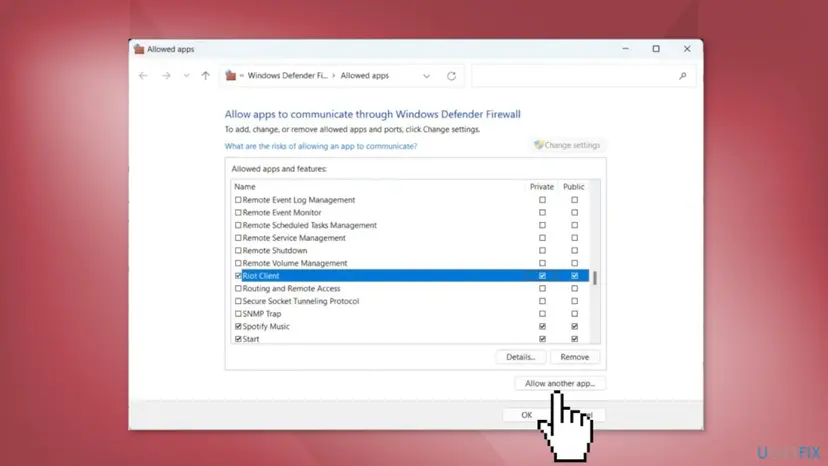
Riot notes that some third-party firewalls keep blocking even when switched off, and suggests a temporary uninstall to test. If the game then starts, reinstall the product and add the exceptions above. For Microsoft Defender you can pause real-time protection for one test and turn it back on: Turn off Microsoft Defender protection for a moment.
It worked if: The five files appear in the allowed list (or the suite's exceptions) and VALORANT starts with the protection still on.
If not: If the error stays with the firewall rules in place, look for other background software with a clean boot in Fix 6.
Fix 6. Do a clean boot that keeps the vgc service on
10 minutesLow riskYou run overlays, tuning, RGB, macro, VPN or network tools, or the error began after installing one.
Riot lists the clean boot for VAN 0 because background services can interfere with Vanguard. The important difference from a normal clean boot is step 4: you must turn vgc back on, or you create the very problem you are testing.
- Press Win + R, type the command below and press Enter.
msconfig - Open the Services tab and tick Hide all Microsoft services.
- Click Disable all.
- Find vgc in the list and tick its box again so it stays enabled.
- Click Apply, then OK, and restart the PC.
- Launch VALORANT. If it starts, turn the other services back on a few at a time in msconfig until the error returns. The last group you turned on holds the conflict.

The full clean boot, including start-up apps in Task Manager and how to undo it, is here: How to perform a clean boot in Windows. Riot adds that third-party antivirus and network software often keep running during a clean boot, so check the list again after the restart.
It worked if: VALORANT starts in the clean boot. Turning services back on in groups shows which program brings VAN 0 back.
If not: If VAN 0 appears even in a clean boot with only vgc on, background software is not the cause: undo the clean boot and go to Fix 7.
Fix 7. Repair VALORANT in the Riot Client and reset its settings files
10 minutesLow riskThe error began after a VALORANT patch, a crash, a forced shutdown or a full drive.
Riot's VAN 0 steps include replacing corrupted or missing game files that can stop Vanguard or the game from starting. The client's Repair button does this without a full download, and Riot's Vanguard connection page adds a reset of the config files.
- Open and sign in to the Riot Client.
- Click the profile icon in the upper right corner and select Settings.
- Choose VALORANT on the left.
- Select Repair and follow the prompts. Wait until it finishes, then launch the game.
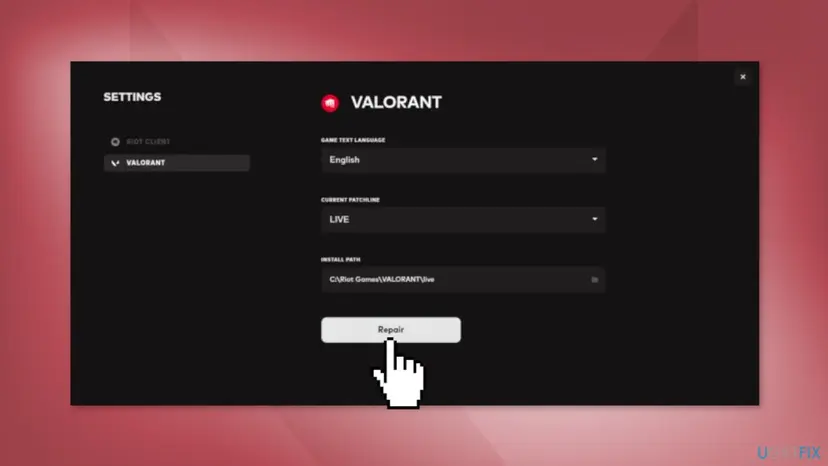
If Repair finds nothing and VAN 0 stays, reset the settings files. Write down your sensitivity and key bindings first, because they go back to default. Riot also asks you to delete your Agent Profiles before this step.
- Close VALORANT and exit the Riot Client.
- Press Win + R, type
%LOCALAPPDATA%and press Enter. - Open VALORANT > Saved > Config. Copy the folder elsewhere if you want a backup, then delete everything inside it.
- Open the Riot Client and delete any files that appear again in Config. Sign in to VALORANT and delete any files that appear once more.
- Play a custom game for about 5 minutes, reset the settings to default in the game, then close the game.
It worked if: Repair ends without an error, or the Config folder is rebuilt by the game, and VALORANT starts without VAN 0.
If not: If Repair fails or the error stays, do the clean reinstall in Fix 8.
Fix 8. Uninstall VALORANT cleanly and install it again
30 minutes or moreRead the warningRepair did not help, or the Riot Client itself does not start or update properly.
Riot lists a game reinstall for VAN 0 because it replaces every game and client file at once. The clean variant also removes the Riot Client folder and the cached data that Repair does not touch.
This deletes the game, the Riot Client and the local VALORANT folder, including your local settings files. Your account, skins and rank are stored on Riot's servers and are not affected. Note your sensitivity and key bindings first, and expect a full download of the game.
- Exit the Riot Client from the tray. Open Settings > Apps > Installed apps, select VALORANT and Uninstall. Restart if asked.
- Open File Explorer and go to
C:\Riot Games. Delete the VALORANT and Riot Client folders. - Empty the Recycle Bin.
- Press Win + R, type
%localappdata%and press Enter. Delete the Riot Games and VALORANT folders. - Restart the PC.
- Download the installer from the official site, playvalorant.com, and run it. The Riot Client installs, then downloads VALORANT and Vanguard.
- Restart again when Vanguard asks, then launch VALORANT.

It worked if: The fresh install finishes, Vanguard asks for a restart, and VALORANT starts without VAN 0.
If not: If even a clean install shows VAN 0, check the network in Fix 9 and then collect logs for Riot as described below.
Fix 9. Check your connection, VPN and proxy
10 minutesLow riskVAN 0 comes during matches, together with lag, high ping or other disconnects.
Riot puts the connection last in its VAN 0 list, as the step for when Vanguard itself is fine. Vanguard and the game must reach Riot's servers, and VPNs, proxies and stuck network settings are common reasons they cannot.
- Plug the PC into the router with an Ethernet cable if you can, and test again.
- Turn the modem and router off, wait at least 30 seconds and turn them on again.
- Pause downloads, streaming and cloud syncing on the same network.
- Turn off any VPN or proxy in Settings > Network & internet for the test. Riot says these often cause connection problems.
- Reset the network settings and flush DNS, then restart: Reset the network and flush DNS.
- Launch VALORANT and play a match.
Riot also suggests trying a public DNS server if the problem stays. For a quick check that the connection itself works, see How to check your internet connection in Windows.
It worked if: Matches run without disconnects and VAN 0 no longer appears.
If not: If VAN 0 still appears on a stable wired connection, collect the logs and send them to Riot Player Support, as explained in the next section.
VAN 0 still there: collect the logs and send them to Riot
Riot's VAN 0 article ends the same way every time: if the error survives the steps, open a ticket with Player Support and attach your logs. Since 22 September 2026 Riot also warns that VALORANT shows the wrong error code for some errors, so the logs matter more than the number on the screen.
- Download the Riot Repair Tool (RRT) from Riot's article on gathering logs.
- Right-click it and select Run as administrator.
- Choose VALORANT and let the tool finish. It creates a .zip file.
- Open a ticket at Riot Player Support, name the error VAN 0, list the fixes you tried, and attach the .zip.
| Log | Where it is |
|---|---|
| Vanguard logs | C:\Program Files\Riot Vanguard\Logs |
| VALORANT logs | %localappdata%\VALORANT\Saved\Logs |
| Riot Client logs | %localappdata%\Riot Games\Riot Client\Logs |
| Running programs | Run tasklist /v > "%USERPROFILE%\desktop\Process.txt" in Command Prompt |
If VALORANT runs inside a virtual machine, Riot says it is not allowed and shows its own code; install it on a normal Windows instead. A hardware ban (code 152) and VAN: RESTRICTION are account matters that only a ticket can answer. If other players report the same error at the same hour, check Riot's support banners and Discord before you change anything.
How to keep VAN 0 from coming back
Most repeats of VAN 0 come from the same few habits: Vanguard is closed from the tray and not restarted, the vgc service gets switched to Manual by a tuning tool, or an update waits for a restart for weeks.
- Restart Windows after each Windows update and after each Vanguard update.
- Keep vgc on Automatic, or turn on Vanguard Pre-Check if your Windows 11 PC meets its requirements.
- Add Riot's five files to any new firewall or security suite you install.
- Keep Secure Boot, TPM and your antivirus on.
- Let "game booster" or tuning tools disable services they do not recognise, such as vgc.
- Exit Vanguard from the tray and then expect VALORANT to start without a restart.
- Download VALORANT or Vanguard from anywhere except Riot's official site.
- Use a VPN or proxy while you troubleshoot.
Frequently asked questions
What does VAN 0 mean in VALORANT?
VAN 0 means Riot Vanguard, the anti-cheat that VALORANT needs, could not verify that your PC is ready to run the game, or ran into a problem while it was starting. That is Riot's own wording on its support page. The pop-up calls it a connection error, but the failed connection is usually between the game and Vanguard on your PC. Start with a full restart, then make sure the vgc service is running and set to Automatic.
Is error code VAL 0 the same as VAN 0?
No. VAL codes come from the VALORANT client and VAN codes from Riot Vanguard, and Riot keeps them on separate pages. Riot's VALORANT list describes VAL 0 as a connection error and tells you to restart VALORANT and the Riot Client, which is Fix 1 here. Riot marks that list as out of date and warns that the game shows wrong codes for some errors, so if VAL 0 keeps returning, work through the VAN 0 fixes and attach logs to a ticket.
Is VAN 0 a ban?
No. VAN 0 is a start-up and verification error of Vanguard, and Riot's article for it lists only technical fixes. Penalties have their own names and pages, such as VAN: RESTRICTION, and Riot lists the hardware ban as code 152, which typically lasts four months. If you see VAN 0 alone, your account is not restricted. If a ticket is still needed, Riot Player Support can confirm the status of your account.
What is the vgc service and should it be Automatic?
vgc is the Windows service of Riot Vanguard, listed in services.msc under that short name. Riot says it must start with Windows, so its Startup type should be Automatic, unless you use Vanguard Pre-Check. Pre-Check is an optional mode that starts Vanguard only when you launch a Riot game. It needs Windows 11 25H2 or newer with Secure Boot, TPM 2.0, IOMMU, VBS and HVCI, so Windows 10 PCs always need vgc on Automatic.
How do I fix VAN -79 in VALORANT?
VAN -79 is close to VAN 0: Riot says Vanguard has trouble starting, staying connected or confirming the PC while the game launches or runs. Riot's list starts with a PC restart, then a check of the Windows date, time and time zone, then the same steps as VAN 0. Turn on automatic time and sync the clock: How to fix the date and time in Windows. After that, follow Fixes 2, 4, 6, 8 and 9 on this page.
What does 0xc0000142 mean when VALORANT will not start?
0xc0000142 is a Windows status code, not a Riot code. Microsoft's list names it STATUS_DLL_INIT_FAILED: a program library failed to initialise and the process ended. We could not find a Riot article for it with VALORANT. Start with a PC restart and the Riot Client repair in Fix 7. If it stays, repair the Visual C++ runtimes that games use, How to repair Microsoft Visual C++ Redistributable and .NET Framework, and then do the clean reinstall in Fix 8.
Do I need to turn off my antivirus or Secure Boot to fix VAN 0?
No. Riot's VAN 0 steps do not mention Secure Boot or TPM, and switching security off for good leaves the PC open to real threats. Add Riot's five files to your firewall or security suite as exceptions (Fix 5) instead. For a single test you can pause Microsoft Defender and turn it back on right after. Riot suggests a temporary uninstall of a third-party suite only to test, followed by reinstalling it with the exceptions.
Will reinstalling Vanguard or VALORANT delete my account progress?
No. Your account, rank, agents and skins are stored on Riot's servers and come back when you sign in. Removing Vanguard (Fix 4) touches only the anti-cheat; the Riot Client installs it again on the next launch. A clean reinstall of VALORANT (Fix 8) deletes local files, including settings in the Config folder, so note your sensitivity, crosshair and key bindings first. Expect a full game download.
Why does VAN 0 appear in the middle of a match?
Riot's VAN 0 page includes the case "I got kicked out of the game and got VAN 0". In that case Vanguard stopped answering while the game ran. Check whether the Vanguard icon is still in the tray, then run Fixes 2 and 4. If the drops come with lag or other disconnects, the network is the more likely cause: use a wired connection, turn off any VPN and reset the network settings (Fix 9).
Does VAN 0 happen on Windows 10?
Yes. VALORANT and Vanguard still run on Windows 10, and the same fixes apply. Two things differ. Vanguard Pre-Check needs Windows 11 25H2 or newer, so on Windows 10 the vgc service must always be set to Automatic. And Windows 10 stopped getting free security updates on 14 October 2025, so Fix 3 may find nothing new to install. The paths in Settings differ slightly; this page gives both.
Sources
- Microsoft Support: Install Windows Updates (support.microsoft.com)
- Microsoft Learn: Sc.exe query (learn.microsoft.com)
- Microsoft Learn: [MS-ERREF] NTSTATUS Values (0xC0000142) (learn.microsoft.com)
Did this fix work?
One click, no account. It tells the next reader which guides are worth their time.
Questions and experiences: fix VAN 0 Error Code in Valorant
Still broken, or found a fix we did not cover? Ask here: members and our editors answer. Reading is open; writing needs a free account.
…