
How to fix Volmgr 162 error in Windows?

Prefer to fix it yourself? The manual steps follow.
7 methods in this guide
For several weeks now, I have had this issue where my PC suddenly hangs and then crashes. This happens consistently, and it doesn't matter what I'm doing on it. When checking the Event Log, I noticed numerous Event ID 162 (Volmgr) errors, followed by one Event ID 41, which probably crashes Windows. Any tips for me would be appreciated.
Event ID 162 from volmgr, "Dump file generation succeeded", is not an error in itself: it says Windows saved a crash dump after the PC crashed. The crash is the problem, and event 162 tells you the evidence exists. Start by reading the stop code in the Kernel-Power 41 event of the same start.
Volmgr 162 means "Dump file generation succeeded": after a crash, Windows saved a memory dump. It does not cause crashes and needs no fix of its own. Read the stop code in the Kernel-Power 41 event of the same start (Fix 1), open the dump file (Fix 2), then fix the driver, firmware, memory or power problem it points to.
| Error | Event ID 162, source volmgr, System log: "Dump file generation succeeded." |
|---|---|
| Where it appears | In Event Viewer under Windows Logs > System, at the start after a crash, usually next to Kernel-Power 41. It is not a pop-up. |
| Main cause | A crash (stop error) happened and Windows wrote a dump file. The event reports success; the crash has its own cause. |
| Fastest fix | Read the BugcheckCode in event 41 (Fix 1) and the dump file (Fix 2), then fix what they name. |
| Also written as | volmgr 162, volmgr error 162, event 162 volmgr, event id 162, volmgr event id 162, error volmgr 162. |
| Related events | Kernel-Power 41 (unclean restart), 6008 (unexpected shutdown), volmgr 46 (no dump file ready at startup), volmgr 161 (dump creation failed). |
| Where the dump is | C:\Windows\Minidump\ (small dumps) and C:\Windows\MEMORY.DMP (the last larger dump). |
| Affects | Windows 11 and Windows 10. Windows 10 left support on 14 October 2025. |
| Time to fix | 10 minutes to read the evidence; the fix itself depends on what the dump names. |
Facts checked on 15 October 2026. Steps written for Windows 11 (25H2 and 26H2) and Windows 10 22H2.
What volmgr Event ID 162 "Dump file generation succeeded" means
volmgr is the Volume Manager driver of Windows. It handles the dump file, the copy of memory that Windows writes when the system stops with a stop error. Event ID 162 carries the text "Dump file generation succeeded". It means that, after a crash, the dump was written and saved.
So event 162 is good news inside bad news. Your PC did crash, and Windows kept the evidence. Users report seeing it listed among the errors next to Kernel-Power 41, which is why it reads like the cause. It is the receipt for the crash, not the crash.
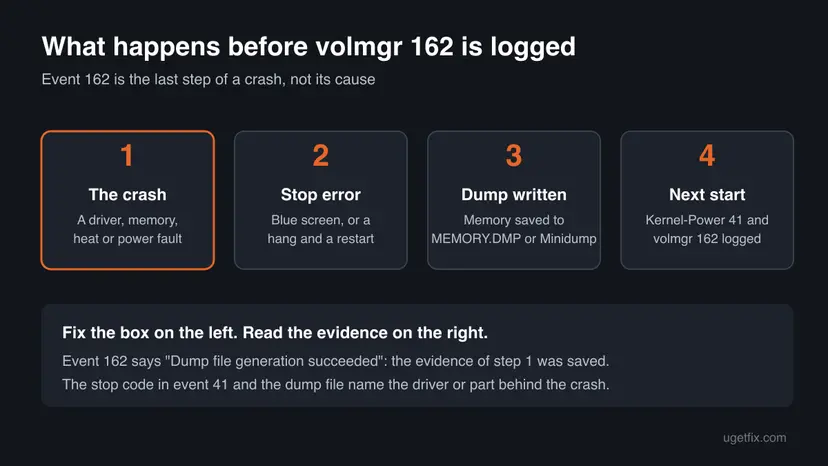
- The full event. Log Name System, Source volmgr, Event ID 162, text "Dump file generation succeeded."
- Its spellings in searches. volmgr 162, volmgr error 162, event 162 volmgr, event id 162, error volmgr 162 and volmgr event id 162.
- Not the same as event 161. volmgr 161, "Dump file creation failed due to error during dump creation", means the crash happened and the dump was lost.
- Not the same as event 46. volmgr 46, "Crash dump initialization failed!", is logged at startup when no dump file is ready. If you see 46 and never 162, read our guide to Event ID 46.
- Other sources. Some other programs and drivers also use the number 162. This page is about the one whose Source column says volmgr.
What causes the crash behind volmgr 162, most common first
Event 162 has one cause: a crash that Windows could save. The crash itself has many causes. Microsoft's article on Kernel-Power 41 splits them by what event 41 records, and that split is the fastest way to rank them for your PC.
| Cause | How common | Sign | Fix |
|---|---|---|---|
| A driver crashed Windows (graphics, storage, network, antivirus) | Most common when event 41 has a code | Event 41 BugcheckCode is not 0; the dump names a .sys file | Fix 2, then Fix 3 |
| Firmware or chipset that does not fit new hardware | Common after a new CPU, board or BIOS update | Crashes began right after the change | Fix 4 |
| Overclocking, memory profile (XMP or EXPO) or faulty RAM | Common on self-built PCs | Different stop codes from crash to crash | Fix 5 |
| Power supply or overheating | Common when the PC freezes or goes dark | BugcheckCode 0, often no blue screen | Fix 6 |
| Damaged system files or file system | Less common | Disk or NTFS warnings in the System log | Fix 7 |
Earlier guides, our own old version included, tied volmgr 162 to the system time and date. Event 162 is about the crash dump, not the clock. Setting the time does no harm, but it does not touch the crash.
How to fix the crash behind volmgr 162
Fix 1 and Fix 2 do not change anything: they read the evidence that event 162 says was saved. Fixes 3 to 6 act on what that evidence names, the most common cause first. Fix 7 is the generic repair, for when nothing points elsewhere.
| What you see or have | Start with |
|---|---|
| You just found event 162 and do not know what crashed. | Fix 1, then Fix 2 |
| Event 41 has a BugcheckCode other than 0, and the dump names a driver file. | Fix 3 |
| Crashes started after a new CPU, motherboard or BIOS update. | Fix 4 |
| Stop codes change from crash to crash, or you use XMP, EXPO or an overclock. | Fix 5 |
| The PC freezes or goes dark, and event 41 shows BugcheckCode 0. | Fix 6 |
| Disk or NTFS warnings in the log, or the dump points to a Windows file. | Fix 7 |
Fix 1. Read the stop code in Kernel-Power 41 next to event 162
5 minutesNo riskEveryone who found volmgr 162 and wants to know what crashed.
Microsoft says that after a stop error Windows writes the bug check code into Kernel-Power 41 at the next start. The 41 logged with your 162 therefore holds the stop code of that crash.
- Right-click Start and select Terminal (Admin). On Windows 10, right-click Start and select Windows PowerShell (Admin).
- Select Yes when Windows asks for permission.
- Paste the first command below and press Enter. It lists the crash and dump events of the last 30 days, oldest first.
- Check that the rows with Id 162 say volmgr in the ProviderName column. Note their times.
- Paste the second command and press Enter. It shows the BugcheckCode of the last ten Kernel-Power 41 events, in decimal and in hex.
- Match the times. The event 41 at the same start as a 162 holds the stop code of the crash that dump belongs to.
PowerShell (as administrator): crash and dump events, last 30 days
Get-WinEvent -FilterHashtable @{ LogName='System'; Id=41,46,161,162,1001,6008; StartTime=(Get-Date).AddDays(-30) } |
  Sort-Object TimeCreated |
  Format-Table TimeCreated, Id, ProviderName, Message -Wrap
PowerShell (as administrator): stop codes stored in event 41
Get-WinEvent -FilterHashtable @{ LogName='System'; ProviderName='Microsoft-Windows-Kernel-Power'; Id=41 } -MaxEvents 10 |
  ForEach-Object {
    $d = ([xml]$_.ToXml()).Event.EventData.Data
    $code = [int](($d | Where-Object Name -eq 'BugcheckCode').'#text')
    [pscustomobject]@{
      Time = $_.TimeCreated
      BugcheckCode = $code
      Hex = ('0x{0:X8}' -f $code)
      PowerButton = ($d | Where-Object Name -eq 'PowerButtonTimestamp').'#text'
    }
  } | Format-Table -AutoSize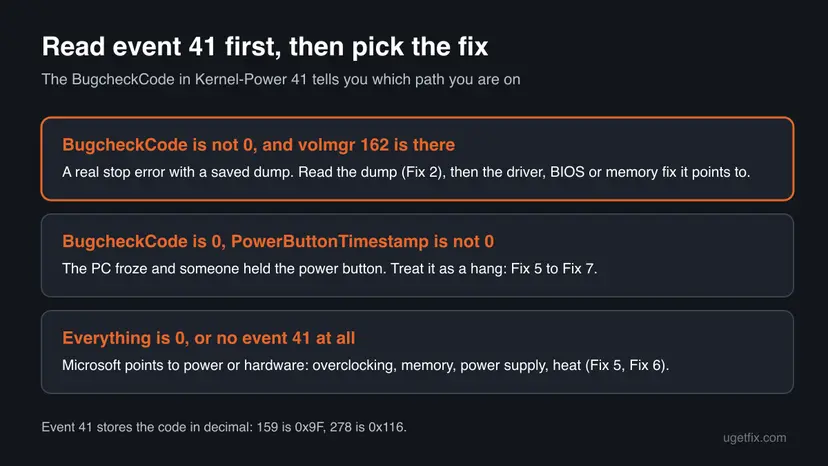
| Event 41 shows | Meaning (Microsoft) | Next |
|---|---|---|
| BugcheckCode other than 0, for example 159 | A stop error; 159 in decimal is 0x0000009F | Fix 2 |
| BugcheckCode 0, PowerButtonTimestamp not 0 | The power button was held on a PC that stopped responding | Fix 5 and Fix 6 |
| Every value 0, or no event 41 | Often power: an underpowered or faulty supply, or power lost | Fix 6, then Fix 5 |
It worked if: You have a stop code in hex, such as 0x0000009F, for each crash that has a volmgr 162, or you know the crash left no code.
If not: If the second command shows no rows, the log does not hold an event 41. Run the first command with a larger number than 30, then go to Fix 2.
Fix 2. Open the dump file and find the driver it names
15 minutesNo riskEvent 41 has a BugcheckCode other than 0, or you want the driver name behind the crash.
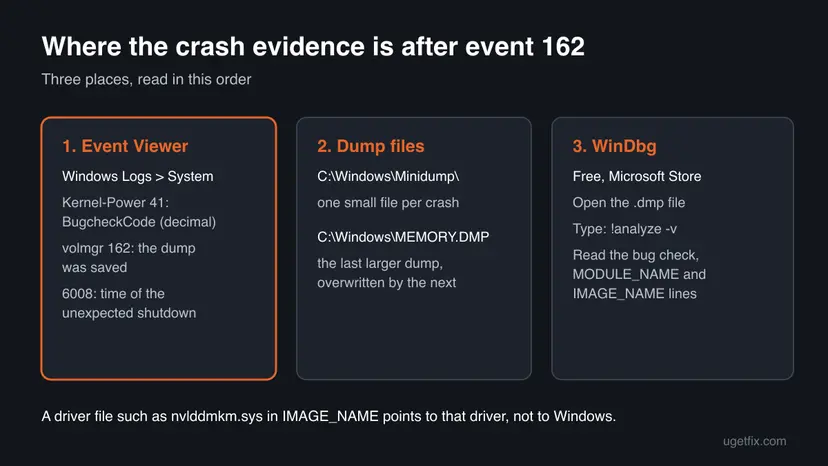
Event 162 says the dump was written. The dump holds the stop code, the process and the module that was running, so it names the driver far more often than the event log does.
- Open File Explorer and go to
C:\Windows\Minidump\. Sort by Date modified. Each file is one crash. If the folder is empty, useC:\Windows\MEMORY.DMP. - Copy the newest
.dmpfile to your Desktop. Windows protects the original folder, and a copy opens without trouble. - Open Microsoft Store, search for WinDbg and install the app published by Microsoft.
- Start WinDbg and open the copied
.dmpfile from the File menu. - Wait for loading to finish, then type
!analyze -vin the command box and press Enter. - Read the bug check name, and the MODULE_NAME and IMAGE_NAME lines. Note the driver file, for example
nvlddmkm.sys.
| Stop code | Name | Usually points to | Go to |
|---|---|---|---|
| 0x0000000A | IRQL_NOT_LESS_OR_EQUAL | A driver using memory it should not | Fix 3 |
| 0x0000007E | SYSTEM_THREAD_EXCEPTION_NOT_HANDLED | A driver or system file | Fix 3, then Fix 7 |
| 0x0000009F | DRIVER_POWER_STATE_FAILURE | Power management, a driver at sleep or wake | Fix 3, then Fix 4 |
| 0x0000001A | MEMORY_MANAGEMENT | RAM or memory settings | Fix 5 |
| 0x00000050 | PAGE_FAULT_IN_NONPAGED_AREA | Faulty RAM or a driver | Fix 5, then Fix 3 |
It worked if: You know the stop code name and, in most cases, the driver file that was running when Windows stopped.
If not: If the dump names ntoskrnl.exe or another Windows file, the real cause is often hardware or memory. Go to Fix 5.
Fix 3. Update or roll back the driver the dump names
10 to 20 minutesLow riskThe dump or the stop code points to a driver file, for example a graphics, network, storage or security driver.
When the same driver appears in dump after dump, the crash is in that driver. A newer version from its maker, or the version from before the crashes began, removes the faulty code.
Find which device the file belongs to: search the file name, or check its Details tab under C:\Windows\System32\drivers\. Then update it from the maker, or roll it back if the crashes began after an update. Step by step: Update, roll back or reinstall a driver
- Open Device Manager. Right-click Start and select Device Manager.

Device Manager lists devices by category; a yellow warning sign marks a device with a problem. Screenshot: Windows 11 26H2. - Open the device's Driver tab. Expand the category (for example Display adapters), right-click the device, select Properties and open the Driver tab. Driver Date and Driver Version show what is installed now.
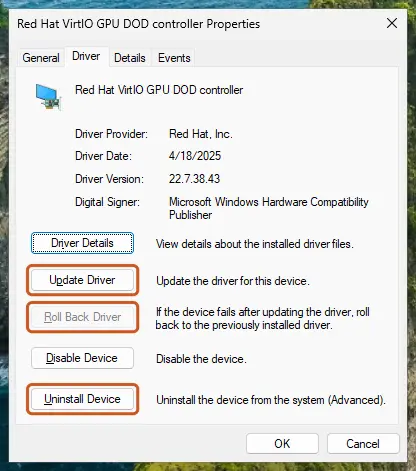
The Driver tab holds all three actions: update, roll back, uninstall. Screenshot: Windows 11 26H2. - Update the driver. Select Update Driver and let Windows search automatically. To use a driver you downloaded from the device maker, select Browse my computer for drivers instead and point to the unpacked folder.
- Or roll back the driver. If the problem started after a driver update, select Roll Back Driver, choose a reason and select Yes. The button is greyed out when Windows has no earlier driver to return to.
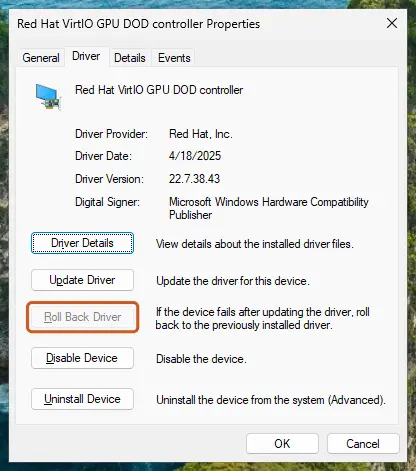
Roll Back Driver is greyed out here because there is no earlier driver. Screenshot: Windows 11 26H2.
These steps were written for Windows 11 24H2 and later. The full page with the other versions and what each result means: Update, roll back or reinstall a driver
Users on the NVIDIA forum report dumps after volmgr 162 that show VIDEO_TDR_FAILURE with nvlddmkm.sys. For a graphics driver, a clean install of the current version from the card maker is the first try. A rollback to the last version without crashes is the second.
It worked if: No new event 41 and volmgr 162 pair for several days of normal use.
If not: If crashes continue with the same driver after a clean install, the device itself or its power may be at fault. Go to Fix 4, then Fix 6.
Fix 4. Update the BIOS and chipset drivers after new hardware
20 to 30 minutesRead the warningCrashes began after a new CPU, motherboard, memory kit or BIOS change, or the stop code is 0x9F.
A board whose firmware predates its CPU, or an old chipset driver, mishandles power states and memory. That gives crashes across many drivers, each saved as a dump and logged as volmgr 162.
If power fails during a BIOS update, the board can be left unable to boot. Plug a laptop into power, use a desktop on a stable supply, and use only the file from the board or PC maker for your exact model. Your files are not touched, but back them up first anyway.
- Press Win + R, type
msinfo32and select OK. Note BaseBoard Product (or System Model) and BIOS Version/Date. - Open the maker's support page for that exact model.
- Check the CPU support list: your processor must be listed for the BIOS version you have.
- If a newer BIOS is listed, install it with the maker's tool or instructions.
- Download and install the chipset driver for the same model, then restart.
- Load the default firmware settings once if you changed many of them.
It worked if: msinfo32 shows the new BIOS date, Device Manager shows no warning signs, and crashes stop.
If not: If the BIOS was already current, check memory and overclock settings in Fix 5.
Fix 5. Undo overclocking and memory profiles, then test the RAM
30 minutes or moreLow riskThe stop code changes from crash to crash, the dump names a Windows file, or you use XMP, EXPO or a CPU or GPU overclock.
Microsoft lists overclocking and memory as the first checks for unexplained restarts. Memory that is unstable at its rated profile corrupts random data, so each crash looks different.
- Turn off any overclock in the tool you used, or load the default settings in the BIOS.
- Turn off the XMP or EXPO memory profile in the BIOS for the test, so the RAM runs at its base speed.
- Use the PC normally for a day or two and watch for a new event 41 and volmgr 162 pair.
- Run the Windows Memory Diagnostic: How to test your RAM with Windows Memory Diagnostic
- If it finds errors, test one memory stick at a time to find the faulty one.
Microsoft also asks you to check that all memory modules run at the same speed and are configured correctly. Mixed kits are a common reason for a profile that is not stable.
It worked if: No new crashes at default settings, and the memory test reports no errors.
If not: If crashes stop at default settings, the overclock or memory profile was the cause: keep them off, or lower them. If nothing changes, go to Fix 6.
Fix 6. Check the power supply and temperatures
20 minutesLow riskThe PC freezes or goes dark, event 41 shows BugcheckCode 0, or crashes come under load such as games.
Microsoft says an event 41 with no bug check code often means a power problem: an underpowered or faulty supply, or lost power. Heat stops a PC in the same way.
- Check that the power supply's wattage covers the CPU and graphics card. Microsoft names a newer processor, more memory or more drives as reasons a supply can fall short.
- Shut down, unplug the PC and reseat the graphics card power cables and the CPU power connector.
- Watch CPU and GPU temperatures under load with the maker's tool or a monitoring app.
- Clean dust from the fans, the filters and the power supply intake.
- Try another wall socket without a power strip. For frequent power cuts, Microsoft suggests a UPS (battery backup).
- On a laptop, test on the charger, and check the battery health if crashes come on battery only.
A power supply cannot be tested well at home. If the signs fit and nothing else helped, a test with a known good supply, at a repair shop or from a friend, is the clearest answer.
It worked if: Temperatures stay within the maker's limits and the freezes stop.
If not: If power and heat look fine, repair the Windows files and the drive with Fix 7.
Fix 7. Repair system files and check the drive
30 to 60 minutesLow riskThe dump points to a Windows file, the log has disk or NTFS warnings, or nothing else applied.
Damaged system files or file system errors on the Windows drive can stop Windows during normal work. They are the least common cause of these crashes, so this repair comes last.
First repair the Windows image and system files with DISM and SFC. Step by step: Run DISM and SFC to repair Windows system files
- Open an elevated command window. Right-click Start and select Terminal (Admin), or type cmd in the search box, right-click Command Prompt and select Run as administrator. Select Yes when Windows asks for permission.

Search for cmd and choose Run as administrator. Screenshot: Windows 11 26H2. - Run DISM first. Type the command below and press Enter. DISM downloads clean copies of damaged components from Windows Update, so it can take several minutes. Wait until it says The operation completed successfully.
DISM.exe /Online /Cleanup-Image /RestoreHealth
DISM /RestoreHealth running. Screenshot: Windows 11 26H2. - Run System File Checker. In the same window, type the command below and press Enter. Do not close the window until the verification reaches 100%.
sfc /scannow
sfc /scannow at 100%. Screenshot: Windows 11 26H2.
These steps were written for Windows 11 24H2 and 25H2. The full page with the other versions and what each result means: Run DISM and SFC to repair Windows system files
Then check the Windows drive for file system errors and schedule the repair for the next start. Step by step: Check a disk for errors (chkdsk)
If chkdsk reports bad sectors or cannot finish, copy your files to another drive before anything else. A failing drive can crash Windows and lose data at the same time.
It worked if: SFC reports no integrity violations or fixed them, chkdsk finds no problems, and no new crashes follow.
If not: If crashes continue, collect the evidence described in the next section.
If volmgr 162 keeps coming back: what to collect and when it is hardware
Each new volmgr 162 is a new saved crash. If they keep coming after the fixes, collect the evidence before you change more. A repair shop, the PC maker or Microsoft Support can work with it.
- The event list. The output of both commands in Fix 1 for 30 days or more.
- The dump files. The newest files from
C:\Windows\Minidump\and, if asked,C:\Windows\MEMORY.DMP. - The WinDbg result. The
!analyze -vtext of two or three dumps. - What changed. New parts, BIOS updates, overclock or memory profiles, and new drivers before the first crash.
- Your hardware. The
msinfo32summary: board, BIOS version, CPU and memory.
| Sign | Why |
|---|---|
| Different stop codes and drivers in every dump | One bad driver usually repeats one code; random ones fit memory or power |
| Event 41 with BugcheckCode 0 and no dump | Microsoft says Windows could not even record the error, which fits power |
| Memory test errors | Faulty RAM corrupts whatever runs at the time |
| Crashes only under load | Power supply or cooling cannot keep up |
| Crashes continue after a clean Windows install | Software has been ruled out |
Users report solving long runs of volmgr 162 crashes by replacing a motherboard. That is the last step, after memory, power and firmware are ruled out, and best confirmed by a repair shop first.
How to keep the crashes behind volmgr 162 from coming back
- Keep the dump settings on. Event 162 only appears because dumps work. Do not turn them off: the next crash would leave no evidence.
- Update the BIOS before a CPU swap. Check the board's CPU support list first, not after the first crash.
- Run memory at a profile you have tested. If XMP or EXPO crashes, a lower speed is better than a daily crash.
- Give drivers from the maker priority. Get graphics, chipset and storage drivers from the device or PC maker.
- Keep the PC clean and cool. Dust in the fans and the power supply raises temperatures over months.
- Look at the log after changes. Run the first command from Fix 1 after any new part or BIOS update.
None of this costs performance in daily use. It only matters on the day something fails, when a saved dump is the fastest way to the cause.
Frequently asked questions
What is volmgr 162?
It is Event ID 162 from the Volume Manager driver, volmgr, with the text "Dump file generation succeeded." It is written to the System log at the start after a crash, when Windows managed to save a memory dump of that crash. The event itself is not a fault. It tells you that the PC crashed and that the evidence is in C:\Windows\Minidump\ or C:\Windows\MEMORY.DMP. Read the Kernel-Power 41 event of the same start for the stop code (Fix 1).
Does volmgr 162 cause crashes?
No. Event 162 is logged after a crash, so it always sits next to one, and that makes it look like the cause. The crash came first: a driver, firmware, memory, power or heat problem stopped Windows, Windows wrote a dump, and at the next start it logged 162 to say the dump was saved. Fixing 162 directly is not possible and not needed. Fix the crash, and the 162 entries stop with it.
Why do I see volmgr 162 together with Kernel-Power 41?
Both are logged at the start after a crash. Kernel-Power 41 says "The system has rebooted without cleanly shutting down first", and Microsoft explains that after a stop error it also stores the bug check code in its event data. volmgr 162 says the dump of the same crash was saved. Together they give you the stop code and the dump file. A 41 with a code of 0 and no 162 points more toward power or a hang.
How do I read a volmgr 162 dump file?
Copy the newest file from C:\Windows\Minidump\ to your Desktop, or use C:\Windows\MEMORY.DMP if that folder is empty. Install WinDbg from the Microsoft Store, open the file from the File menu and type !analyze -v. Read the bug check name and the MODULE_NAME and IMAGE_NAME lines, which often name the driver behind the crash. Fix 2 has the steps and a table of common stop codes.
Is event ID 162 always from volmgr?
No. The number 162 is used by more than one source, so check the Source column in Event Viewer or the ProviderName column in the command from Fix 1. This page is about the event from volmgr with the text "Dump file generation succeeded". A number 162 shown by the firmware before Windows starts is a different thing and is not covered here. If your event 162 has another source, its meaning is different.
Do I need to change the time and date to fix volmgr 162?
No. Older guides, our own earlier version of this page included, said volmgr 162 comes from a wrong system clock. That is not what the event says. Its text, "Dump file generation succeeded", is about the crash dump. A correct clock is good for many other reasons, and setting it does no harm, but it will not stop the crashes that lead to event 162. Start with the stop code in Fix 1.
What is the difference between volmgr 161, 162 and 46?
All three come from volmgr and are about crash dumps. Event 162, "Dump file generation succeeded", means a crash was saved. Event 161, "Dump file creation failed due to error during dump creation", means a crash happened but the dump was lost. Event 46, "Crash dump initialization failed!", is logged at startup when no dump file is ready, usually because of the paging file. If you see 46 or 161, fix the dump setup first.
Should I turn off crash dumps to stop event 162?
No. Turning off dumps in Startup and Recovery would stop event 162, but the crashes would go on without any evidence. You would lose the stop code and driver name that point to the fix. Keep Automatic memory dump, the Windows default, and work on the crash. Once the cause is fixed, no new dumps are written and no new event 162 appears.
Is there a guide to volmgr 162 in Russian or Japanese?
This page is in English only. People search for it as "volmgr 162 ошибка" in Russian and "volmgr エラー 162" in Japanese. The event ID 162 and the source volmgr are the same in every language of Windows, only the text on screen is translated. The commands in Fix 1 work as written in any language, and WinDbg shows its analysis in English.
Sources
Did this fix work?
One click, no account. It tells the next reader which guides are worth their time.
Questions and experiences: fix Volmgr 162 error in Windows
Still broken, or found a fix we did not cover? Ask here: members and our editors answer. Reading is open; writing needs a free account.
…