
How to fix Waves MaxxAudio Service Application high CPU in Windows?

Prefer to fix it yourself? The manual steps follow.
- 6methods
- 2 minutes to restart it, 15 to 30 minutes for a driver change
- Easy
Applies to Waves MaxxAudio Service Application (WavesSvc64.exe), Waves Audio Services (WavesSysSvc64.exe) and the Waves MaxxAudio Pro app with the Realtek Audio driver on Dell laptops and desktops
6 methods in this guide
Hello. I recently bought a new Dell computer and the fans run all the time. I then found that Waves MaxxAudio Service Application consumes a high amount of CPU power. How do I fix this problem?
Waves MaxxAudio Service Application is the background part of Waves MaxxAudio Pro, the sound effects suite Dell puts on many laptops. It is not a virus and you can live without it. When it eats CPU, unplug USB audio devices and restart it first.
Waves MaxxAudio Service Application (WavesSvc64.exe) runs the Waves MaxxAudio Pro sound effects on Dell PCs. It is safe, but not needed for sound. Unplug USB headsets and docks, end it and restart Waves Audio Services (Fix 1). Then reset MaxxAudio Pro (Fix 2) and update the Realtek and Waves packages from Dell (Fix 3). If the load stays, turn it off at startup (Fix 4).
| Error | No error message. Task Manager shows Waves MaxxAudio Service Application high in the CPU or Memory column, and the fans keep running. |
|---|---|
| Where it appears | Task Manager, Processes tab, on Dell PCs with Waves MaxxAudio Pro. The file is WavesSvc64.exe. Its partner is the service Waves Audio Services (WavesSysSvc64.exe). |
| Main cause | A USB or dock audio device that keeps the Waves service stuck, or an old or damaged Waves and Realtek package. |
| Fastest fix | Unplug USB audio devices, end the process and restart Waves Audio Services (Fix 1), then reset MaxxAudio Pro (Fix 2). |
| Also written as | Waves MaxAudio Service Application, Waves Max Audio Service Application, Waves Sys Svc Service Application, WavesSysSvc, Waves audio service, MaxxAudio Pro. |
| What it does | Dell: MaxxAudio Pro is an audio suite that enhances the audio performance of the system and improves sound in open spaces. |
| Safe to disable? | Yes. Sound keeps playing through the Realtek driver. You lose the MaxxAudio effects and, users report, the pop-up and automatic switching when you plug in headphones. |
| Vendor status | No Dell article names a fix for the CPU load. Dell's latest package on the page we read is version 4.0.47.0, A06, from 19 November 2021. |
| Time to fix | 2 minutes for Fix 1. 15 to 30 minutes for a driver change. |
Facts checked on 16 October 2026. Steps written for Windows 11 (25H2 and 26H2) and Windows 10 22H2, with the MaxxAudio Pro reset and reinstall steps read from Dell Support and the package details from Dell's driver page.
What Waves MaxxAudio Service Application is
Waves MaxxAudio Pro is a sound effects suite made by Waves and shipped by Dell with the Realtek audio driver. Dell describes it as an audio suite that enhances the audio performance of the system, improves the audio quality in open spaces and minimizes feedback from other devices.
Waves MaxxAudio Service Application is the name Task Manager gives to WavesSvc64.exe, the part that starts with Windows and applies the effects. A second part, the Windows service Waves Audio Services (WavesSysSvc64.exe), runs in the background. Dell forum members report that it keeps checking the audio jacks so it can show a pop-up when you plug something in.
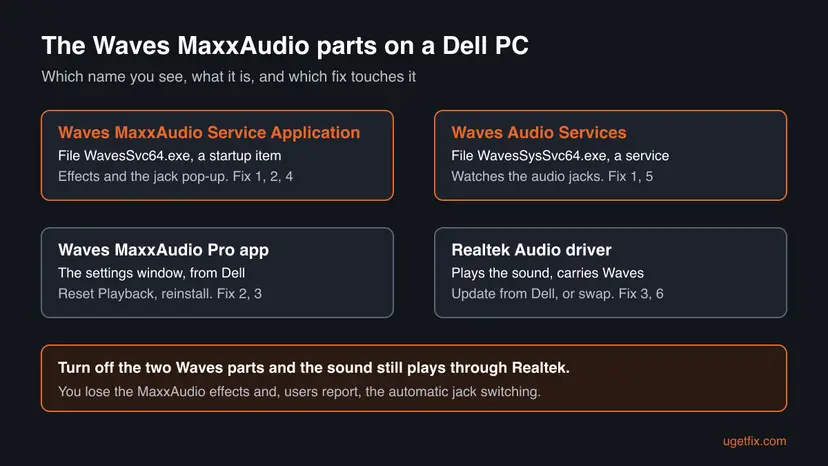
| Name | Where you see it | What it is |
|---|---|---|
| Waves MaxxAudio Service Application | Task Manager, Processes and Startup apps | WavesSvc64.exe, the effects helper that starts at sign-in |
| Waves Audio Services | Services (services.msc) | WavesSysSvc64.exe, shown as Waves Sys Svc Service Application in some lists |
| Waves MaxxAudio Pro | Start menu, Dell Support downloads | The settings app where you change effects and the jack pop-up |
| Realtek(R) Audio | Device Manager, Sound, video and game controllers | The audio driver that plays the sound and carries the Waves parts |
While you play sound, a few percent is the effects at work. Near 0% is normal when nothing plays. A load of 10% or more at idle, or a fan that never stops, is the fault this page fixes.
Why Waves MaxxAudio Service Application uses high CPU, from most to least common
Dell publishes no cause for this load, so the order below follows the reports on Dell's own forum. Most often the Waves service gets stuck while it deals with a USB headset or a dock. Next comes an old or damaged MaxxAudio Pro install. Less often the effects just cost more than your PC can spare.
| Cause | How often | How to tell | Fix |
|---|---|---|---|
| Waves Audio Services stuck in Starting because of a USB headset or dock. | Most often | You use a USB headset or a USB-C dock, and the load started after a restart or a plug-in. | Fix 1 |
| MaxxAudio Pro settings in a broken state. | Often | The MaxxAudio Pro app does not change the sound any more, or shows no device. | Fix 2 |
| An old or damaged Waves and Realtek package. | Often | The PC came with an early driver, or the load began after a Windows update. | Fix 3 |
| The Waves helper keeps polling for devices even when nothing changes. | Sometimes | The load stays near the same level all day with nothing plugged in. | Fix 4, Fix 5 |
| The Waves parts do not suit your PC at all. | Rarely | Every fix above fails, even on a fresh Dell package. | Fix 6 |
We found no Dell or Waves page that admits a CPU bug or names a version that fixed it. A user on Dell's forum traced the load to the service reading registry keys that do not exist hundreds of times a second. That is one report, not a vendor finding.
How to fix Waves MaxxAudio Service Application high CPU
Fix 1 to Fix 3 keep MaxxAudio Pro and repair it. Fix 4 and Fix 5 turn the Waves parts off and keep the sound. Fix 6 removes Waves from the audio driver.
| What you see or have | Start with |
|---|---|
| You use a USB headset or a USB-C dock. | Fix 1 |
| MaxxAudio Pro no longer changes the sound. | Fix 2, then Fix 3 |
| The PC is new or the drivers were never updated. | Fix 3 |
| You never use the MaxxAudio effects. | Fix 4, then Fix 5 |
| The load comes back after every fix. | Fix 6 |
Fix 1. Unplug USB audio devices, end the process and restart Waves Audio Services
2 minutesNo riskEveryone, first. Most of all if you use a USB headset, a USB-C dock or a docking station.
A Dell forum user found the Waves service stuck in Starting after a reboot with a USB headset on a dock. With the headset detached and the service restarted, it showed Running and the high CPU was gone.
- Unplug USB headsets, USB speakers and the dock cable.
- Press Ctrl + Shift + Esc to open Task Manager and select the CPU column.
- Right-click Waves MaxxAudio Service Application and select End task.
- Press Win + R, type
services.mscand press Enter. - Find Waves Audio Services and check the Status column. If it says Starting or the load is still high, right-click it and select Restart.
- Plug your devices back in one at a time and watch Task Manager for a minute after each.
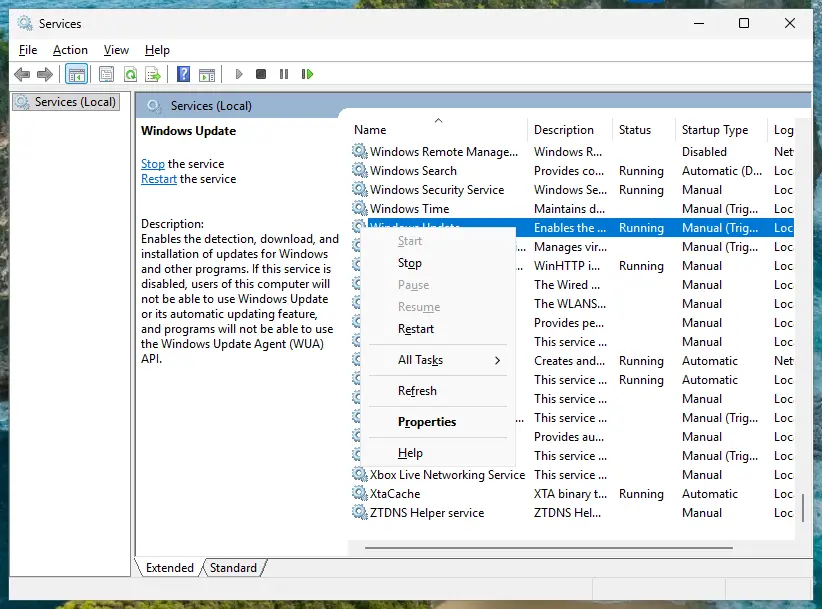
Waves MaxxAudio Service Application starts again at your next sign-in. To start it now, restart the PC. The general steps for any service: Check and restart Windows services.
It worked if: Waves Audio Services shows Running, the sound plays, and the Waves processes drop to near 0% CPU when nothing plays.
If not: If the load returns as soon as one device is plugged in, update that device's driver and the dock firmware from its maker. If it returns with nothing plugged in, go to Fix 2.
Fix 2. Reset MaxxAudio Pro and turn off the plug-in pop-up
3 minutesLow riskThe MaxxAudio Pro app stopped changing the sound, or the load started after you changed its settings.
Dell's own fix for a MaxxAudio Pro that misbehaves is to turn its Playback function off and on, which resets all its functions. A Dell forum member also reports that with the pop-up turned off, the Waves helper only ran for a few seconds after a plug-in.
- Open the Start menu, type MaxxAudio and open Waves MaxxAudio Pro.
- Turn the Playback function off.
- Wait a few seconds and turn Playback on again. This resets all the functions of the app.
- Open the Advanced options of the app and turn off the pop-up that asks which device you plugged in. The option exists in newer Realtek driver versions only.
- Restart the PC and watch Task Manager.
The reset puts the effects back to their defaults. Note down any custom equalizer or preset values first if you want them back.
It worked if: MaxxAudio Pro changes the sound again and the service stays near 0% CPU when nothing plays.
If not: If you cannot find the pop-up option or the load stays, your package is old. Go to Fix 3.
Fix 3. Update the Realtek audio driver and Waves MaxxAudio Pro from Dell
15 to 30 minutesLow riskThe PC came with its first driver, the load began after a Windows update, or Fix 2 did not help.
The Waves parts are installed with the Realtek driver and the MaxxAudio Pro package, so a newer pair from Dell replaces every Waves file. Dell posts these packages per model, which is why a generic driver site is not the place to get them.
- Open Dell's Drivers & Downloads page at dell.com/support and enter your Service Tag. It is on the sticker under the laptop.
- In the Audio category, download the Realtek High Definition Audio Driver and the Waves MaxxAudio Pro Application for your model.
- Run the Realtek driver package first, select Install and restart when asked.
- Run the Waves MaxxAudio Pro package, select Install and restart.
- If MaxxAudio Pro is still missing or broken, reinstall it the way Dell describes: extract the Waves package, open PowerShell as administrator in that folder and run the command below.
PowerShell (administrator), in the folder of the Waves package
.\InstallApp.bat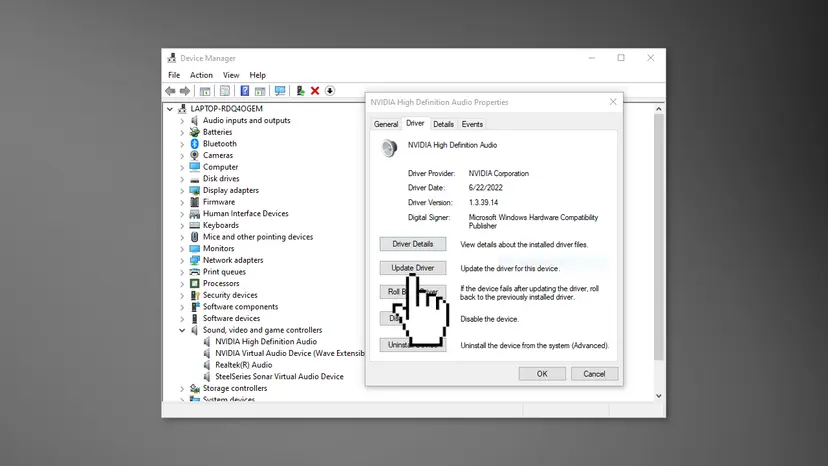
In Device Manager, expand Sound, video and game controllers, double-click Realtek(R) Audio and open the Driver tab. The Driver Version should match the Dell package after the restart.
It worked if: The Realtek driver shows the new version, MaxxAudio Pro opens, and the Waves processes stay quiet at idle.
If not: If the new package changes nothing and you do not need the effects, go to Fix 4.
Fix 4. Stop Waves MaxxAudio Service Application from starting with Windows
3 minutesLow riskYou never change the MaxxAudio effects, or Fix 1 to Fix 3 did not stop the load.
The Waves helper is a startup item, not a part of Windows. With it off, the sound plays through the Realtek driver without the Waves effects. A Dell forum user did this with the step in Fix 5 and saw no trace of Waves after a reboot.
- Press Ctrl + Shift + Esc to open Task Manager.
- Select Startup apps. On Windows 10, open the Startup tab.
- Select Waves MaxxAudio Service Application and select Disable.
- Restart the PC and play a sound to check that it still works.
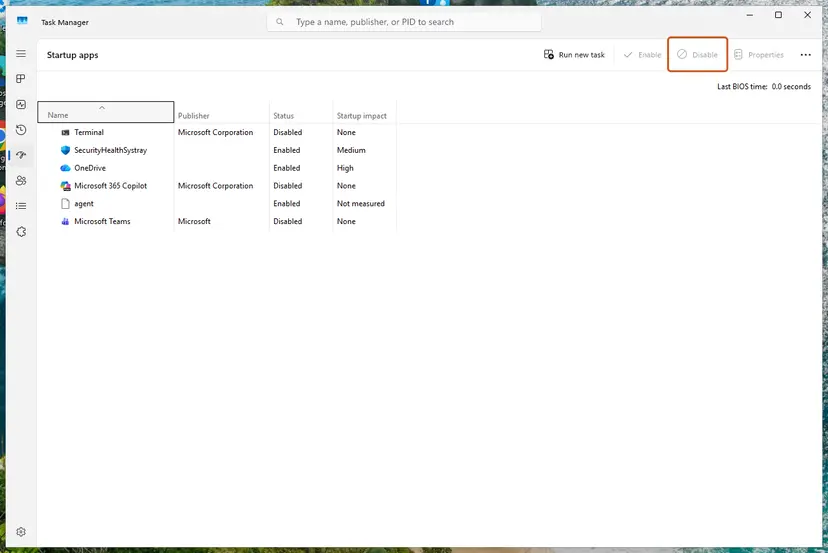
The general steps, with Settings as a second route: Stop apps from opening at startup.
Open the same list, select Waves MaxxAudio Service Application and select Enable, then restart.
It worked if: After the restart, Waves MaxxAudio Service Application is not in the Processes list and the sound plays.
If not: If Waves Audio Services still uses CPU, go to Fix 5.
Fix 5. Set Waves Audio Services to Disabled
3 minutesLow riskWavesSysSvc64.exe still uses CPU after Fix 4, and you can live without the plug-in pop-up.
Waves Audio Services is the part that keeps working in the background. A Dell forum user who set it to Disabled and turned off the startup item saw the load gone. The same user then found that the PC no longer switched to headphones by itself.
- Press Win + R, type
services.mscand press Enter. - Double-click Waves Audio Services.
- Select Stop.
- Set Startup type to Disabled.
- Select Apply and OK, then restart the PC.
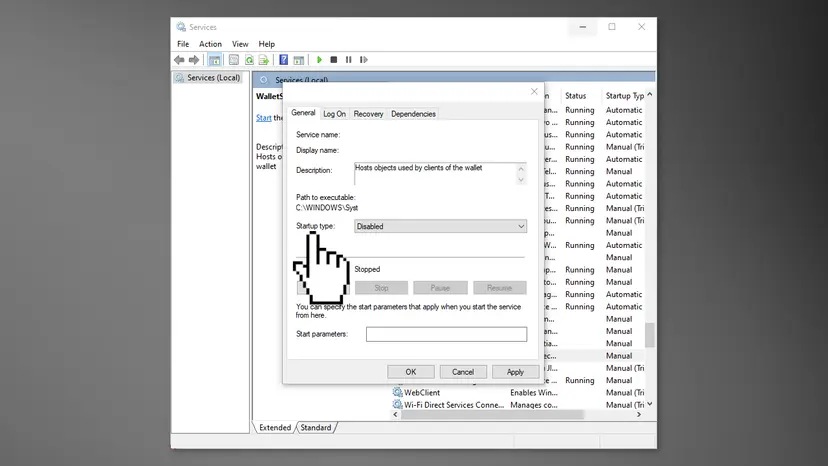
If the sound stays on the speakers when you plug in headphones, select the speaker icon on the taskbar and pick the headphones as the output. To undo the fix, set Startup type back to Automatic and select Start.
It worked if: Waves Audio Services shows Disabled and no status, the Waves processes are gone after the restart, and the sound plays.
If not: If Waves comes back after a driver update, repeat Fix 4 and Fix 5, or remove Waves from the driver with Fix 6.
Fix 6. Switch to the Microsoft High Definition Audio Device driver
10 minutesLow riskYou want no Waves part at all, or every fix above failed.
The Waves parts come with the Realtek driver. The High Definition Audio Device driver built into Windows plays sound without them, so nothing of Waves is left to run.
- Right-click Start and select Device Manager.
- Expand Sound, video and game controllers, right-click Realtek(R) Audio and select Update driver.
- Select Browse my computer for drivers.
- Select Let me pick from a list of available drivers on my computer.
- Select High Definition Audio Device and select Next. Confirm the warning with Yes.
- Restart the PC and test the speakers, the headphone jack and the microphone.
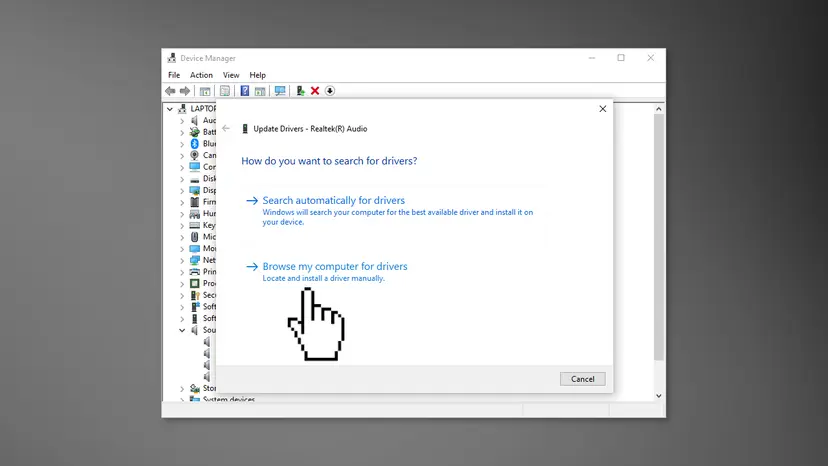
The Windows driver has no Realtek or Waves settings, and on some Dell models the internal microphone or the headset jack may work less well. To go back, run the Dell Realtek package from Fix 3 again. More on driver routes: Update, roll back or reinstall a driver.
It worked if: Device Manager lists High Definition Audio Device, the sound plays, and no Waves process starts.
If not: If sound or the microphone fails, reinstall the Dell Realtek package and keep Fix 4 and Fix 5 instead.
Waves MaxxAudio still uses high CPU or memory: what to check
If the load stays with the Waves parts off, the process you see may not be the one at fault. Check what the PC logged and which file is running before you change more.
- Resource Monitor: press Win + R, type
resmonand open the CPU tab. Sort by Average CPU to see whetherWavesSvc64.exe,WavesSysSvc64.exeor another audio process such asaudiodg.exeis the busy one. - Event Viewer: press Win + R, type
eventvwr.mscand open Windows Logs > Application. An Application Error that names a Waves file shows the faulting module. - File location: in Task Manager, right-click the Waves process and select Open file location. A file outside Program Files and Windows folders, or with no digital signature, needs a scan: How to scan for malware with Microsoft Defender.
- Clean boot: start Windows with only Microsoft services to see whether other audio software adds to the load: How to perform a clean boot in Windows.
- Dell support: send them your Service Tag, the Realtek driver version from Fix 3 and what Resource Monitor showed.
A fan that keeps running with no busy process at all is not a Waves problem. Dust, a worn fan or the power mode can cause it. Dell's built-in diagnostics test the fan and the audio parts.
How to keep Waves MaxxAudio from using high CPU again
- Get audio drivers from Dell's support page for your Service Tag, not from a driver updater.
- After a big Windows update, check that Waves Audio Services is in the state you chose.
- Plug USB headsets straight into the PC when you can, and keep the dock firmware current.
- If you never use the effects, keep Fix 4 and Fix 5 in place; they cost nothing but the Waves features.
Windows 10 left support on 14 October 2025. Dell's Waves package we read lists Windows 10 64-bit; on Windows 11, use the package Dell lists for your model.
Frequently asked questions
What is Waves MaxxAudio Service Application?
It is the background part of Waves MaxxAudio Pro, the sound effects suite Dell installs with the Realtek audio driver. The file is WavesSvc64.exe and it starts at sign-in. Dell says MaxxAudio Pro enhances the audio performance of the system, improves the audio quality in open spaces and minimizes feedback from other devices. It is not part of Windows and not a virus.
Do I need Waves MaxxAudio Service Application on startup?
No, not for sound. The sound plays through the Realtek driver with or without it. Keep it on startup only if you use the MaxxAudio Pro effects, the equalizer or the pop-up that asks what you plugged into the jack. If you never open MaxxAudio Pro, turning it off in Startup apps (Fix 4) saves CPU and memory, and you can turn it back on at any time.
Can I disable Waves MaxxAudio Service Application?
Yes. Disable it in Task Manager under Startup apps (Fix 4) and, if needed, set Waves Audio Services to Disabled (Fix 5). The sound keeps working. What you lose is the Waves effects and, users report, the automatic switch to headphones when you plug them in. You then pick the output from the speaker icon on the taskbar. Both changes can be undone in the same windows.
Why does Waves MaxxAudio Service Application use so much memory?
The helper holds its effects and settings in memory, so a steady amount is normal. Memory that keeps growing over hours, or a load that stays high with no sound playing, points to the same faults as high CPU: a stuck service, an old package or a USB audio device. Restart it as in Fix 1, update the package as in Fix 3, and turn it off at startup as in Fix 4 if the growth returns.
What is Waves Audio Services in Task Manager?
Waves Audio Services is the Windows service that comes with Waves MaxxAudio Pro. Its file is WavesSysSvc64.exe, and some lists show it as Waves Sys Svc Service Application. Dell forum members report that it polls the audio jacks so the pop-up can appear when you plug in a device. It is safe to stop, and Fix 5 sets it to Disabled if it keeps using CPU.
What is the difference between WavesSvc64.exe and WavesSysSvc64.exe?
WavesSvc64.exe is Waves MaxxAudio Service Application, the startup item that applies the effects for your user account. WavesSysSvc64.exe is Waves Audio Services, the Windows service that runs for the whole PC. Either can show high CPU. Task Manager shows which one is busy, and Resource Monitor on the CPU tab names the file. Fix 4 turns off the first, Fix 5 the second.
Is WavesSvc64.exe a virus?
The real file is Waves software that Dell installs, not a virus. Malware can copy any file name, so check it if you are unsure. In Task Manager, right-click the process and select Open file location. The real file sits in a Realtek or Waves folder under Program Files or in the Windows driver folders, and its Properties show a digital signature. A file elsewhere needs a full Microsoft Defender scan.
How do I reinstall Waves MaxxAudio Pro?
Download the Waves MaxxAudio Pro Application for your model from Dell's support page and run it. If the app still does not open, Dell gives a command line route: open PowerShell as administrator in the folder of the downloaded package and run .\InstallApp.bat. Install the Realtek audio driver for your model first, because MaxxAudio Pro works on top of it. Restart the PC after both.
What does "waves maxxaudio service application とは" mean?
It is Japanese for "what is Waves MaxxAudio Service Application". The answer is the same as above: it is the background helper of Waves MaxxAudio Pro on Dell PCs, safe to keep and safe to turn off. This page is in English. The fixes and the menu names apply to Windows in any language, but the labels on your screen will be in Japanese.
Sources
- Dell Support: Steps to Reset MaxxAudio Pro Functionality (article 000187742, Playback reset and InstallApp.bat reinstall) (dell.com)
- Dell Support: Waves MaxxAudio Pro Application, driver MT722, version 4.0.47.0 A06 (description and supported systems) (dell.com)
- Dell Community: MaxxAudioPro high CPU usage with and without audio playing (user reports) (dell.com)
Did this fix work?
One click, no account. It tells the next reader which guides are worth their time.
Questions and experiences: fix Waves MaxxAudio Service Application high CPU in Windows
Still broken, or found a fix we did not cover? Ask here: members and our editors answer. Reading is open; writing needs a free account.
…