
How to fix "We're sorry, but Word has run into an error" in Windows?

Prefer to fix it yourself? The manual steps follow.
- 6methods
- 5 to 45 minutes
- Intermediate
Applies to Microsoft Word in Microsoft 365, Office 2024, Office 2021, Office 2019 and Office 2016 for Windows
6 methods in this guide
Hi, I recently encountered an issue where every time I try to open Microsoft Word on my Windows computer, I receive an error message stating, "We're sorry, but Word has run into an error that is preventing it from working correctly." It's really hindering my ability to work on my documents.
We're sorry, but Word has run into an error that is preventing it from working correctly. is a Microsoft Word crash box that closes Word and offers Repair Now. It means Word hit a fault it cannot recover from, most often in damaged Office program files. If Repair Now did not stop it, run Online Repair of Office yourself.
The Repair Now button in the message is a quick automatic repair, and a Microsoft Q&A moderator calls it generally ineffective. Run the repair yourself instead: Installed apps > Microsoft 365 > Modify, then Quick Repair, and Online Repair if the message comes back (Fix 1). Then update Office (Fix 2). If only Word crashes, test it without add-ins by holding Ctrl while you open it (Fix 3).
| Error | We're sorry, but Word has run into an error that is preventing it from working correctly. Word will need to be closed as a result. Would you like us to repair now? with the buttons Repair Now, Help and Close. |
|---|---|
| Where it appears | In a box titled Microsoft Word, when you open Word or a document, or after Word freezes while you work. Word closes after the box. |
| Main cause | Damaged Office program files, often after an interrupted update. Less often a Word add-in, one damaged document or another program that clashes with Office. |
| Fastest fix | Quick Repair, then Online Repair of Office from Installed apps (Fix 1). Both keep your documents. |
| Also written as | We are sorry but Word has run into an error, Word has run into an error that is preventing it from working correctly, Microsoft Word we're sorry but Word has run into an error, Word error. |
| Affects | Word in Microsoft 365, Office 2024, 2021, 2019 and 2016 on Windows 11 and Windows 10. The same box exists for Excel, Outlook, PowerPoint, Visio and Project with the app's name. |
| Microsoft's status | Not a known bug of one build. Users still report it on Microsoft Q&A in 2026, and the moderator's answer is the same as in 2018: a manual Office repair, Online Repair being the more thorough one. |
| Time to fix | 5 minutes for Quick Repair. 20 to 45 minutes for Online Repair or a reinstall, depending on your connection. |
Facts checked on 15 October 2026. Steps written for Microsoft 365, Office 2024, 2021, 2019 and 2016 on Windows 11 (25H2 and 26H2) and Windows 10 22H2, read against Microsoft's documentation.
What "We're sorry, but Word has run into an error" means
The box has the title Microsoft Word, a red error icon and three sentences: We're sorry, but Word has run into an error that is preventing it from working correctly. Word will need to be closed as a result. Would you like us to repair now? Below them are Repair Now, Help and Close.
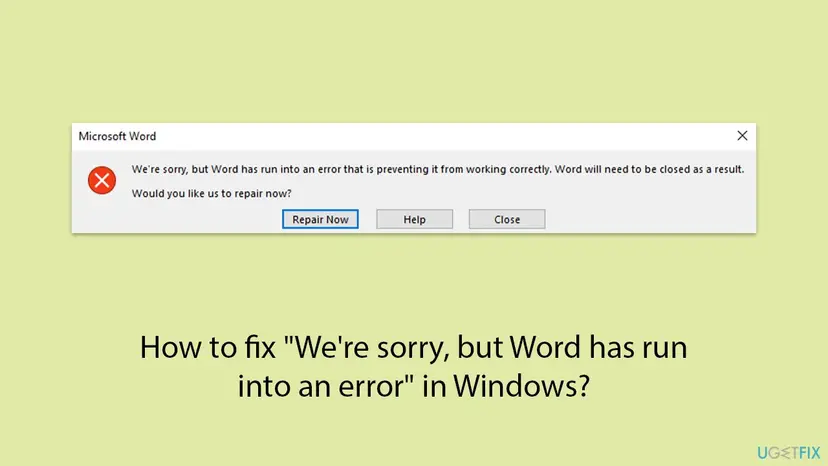
Unlike a startup failure, this message often comes after Word has opened: while a document loads, a few seconds into work, or every time you start Word. Word has already crashed when you see it, so anything unsaved since the last AutoRecover save may be gone.
| Part of the message | What it tells you |
|---|---|
| Word has run into an error that is preventing it from working correctly | Word itself, not Windows, stopped. The text gives no code and no cause. |
| Word will need to be closed as a result | The crash is final for this session. Word closes whichever button you choose. |
| Would you like us to repair now? with Repair Now | Office offers its automatic repair. It may help once, but the message often returns. |
| Help | Opens Microsoft's help in the browser. It does not tell you the cause either. |
If Word never opens and a small Microsoft Word 16.0 box says that Word was unable to start, with a number such as (24), see Sorry, something went wrong and Word was unable to start. It shares some fixes but adds the winword /a test and a reset of Word's registry settings.
What makes Word run into this error, from the most common to the rare
Microsoft does not publish a cause list for this message. On Microsoft Q&A the accepted answers for it, from 2018 to January 2026, are an Office repair, and the reporters say it worked. So damaged program files lead the list. The rest follow from what Word loads when it starts: add-ins, the document and other programs that hook into Office.
| How often | Cause | Typical sign | Fix |
|---|---|---|---|
| Most often | Damaged Office program files | Excel or Outlook show the same box, or it began after an Office update or a forced shutdown. | Fix 1 |
| Often | An outdated Office build with a fixed bug | Update Options shows that updates are disabled, or Office was not updated for months. | Fix 2 |
| Often | A Word add-in that crashes | Only Word fails, and it opens when you hold Ctrl. | Fix 3 |
| Less often | One damaged document | Word works with a blank document and crashes with one file. | Fix 4 |
| Less often | Another program that clashes with Office | It began after you installed a PDF, backup or screen-reader tool. | Fix 5 |
| Rarely | An install that repair cannot save | Online Repair finishes and nothing changes. | Fix 6 |
How to fix "Word has run into an error" in Windows 11 and Windows 10
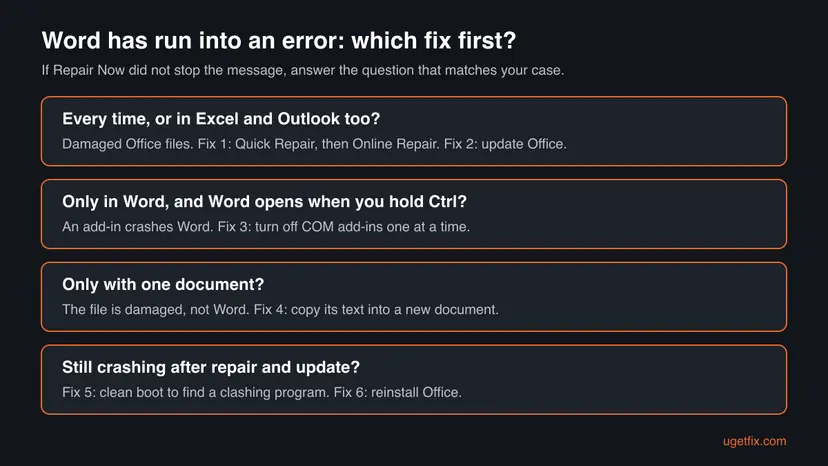
Start with Fix 1 unless the chooser below points elsewhere. After each fix open Word from the Start menu with a blank document first, then your usual file. When Word stays open without the message, you are done.
| Your case | Start with | Then |
|---|---|---|
| Repair Now did not help, or you do not know why it started | Fix 1 | Fix 2 |
| Excel, Outlook or PowerPoint show the same box | Fix 1 | Fix 2, Fix 6 |
| Only Word fails, and it opens when you hold Ctrl | Fix 3 | Fix 5 |
| Word crashes with one document only | Fix 4 | Fix 1 |
| You recently installed a program that adds a tab to Word | Fix 3 | Fix 5 |
Fix 1. Skip Repair Now and repair Office yourself: Quick Repair, then Online Repair
5 to 30 minutesLow riskEveryone, first. Above all when Repair Now ran and the message came back, or when other Office apps crash too.
A Microsoft Q&A moderator answered this exact message in January 2026: the automatic repair is generally ineffective, run an Office repair and choose Online Repair, which is more thorough. Microsoft says Quick Repair only detects and replaces corrupted files, while Online Repair makes sure everything gets fixed. Your documents stay where they are.
- Open Installed apps. Right-click the Start button and select Installed apps.
- Find Microsoft 365 or Office. Find your Microsoft 365 or Office product in the list. If you have a standalone app such as Visio or Project, search for it by its own name.
- Open the repair window. Select the three dots next to the product and select Modify.
- Start with Quick Repair. In the repair window, select Quick Repair, then Repair. It is the faster option: it finds damaged files and replaces them.
- Finish and test. Follow the instructions on the screen until the repair is done. Restart the PC if you are asked to, then open the app that had the problem.
- Run Online Repair if the problem is still there. Open the same repair window again and select Online Repair, then Repair. Microsoft recommends this option to make sure everything gets fixed. It takes longer than Quick Repair.
These steps were written for Windows 11 25H2 and 26H2. The full page with the other versions and what each result means: How to repair Microsoft 365 or Office
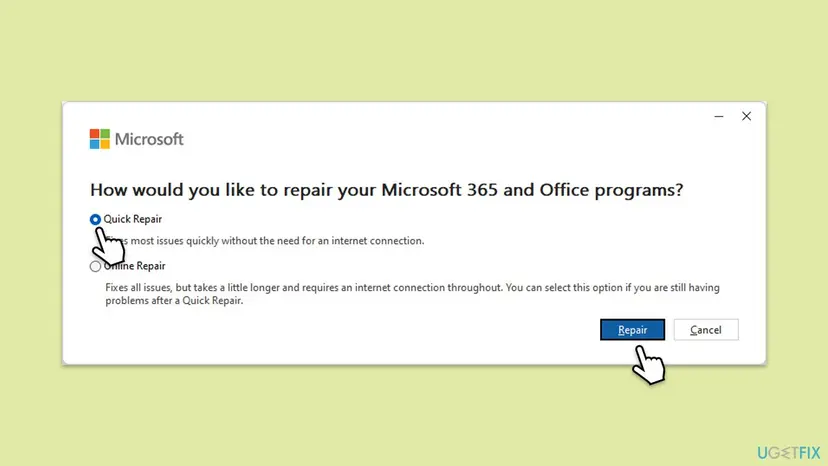
Save your work and close Word, Excel, Outlook and the rest before you select Repair. Microsoft notes that the repair covers the whole Office suite even when only Word fails. An older MSI install shows Change your installation instead: select Repair and Continue.
It worked if: The repair window reports that it is done, and Word opens and stays open after the restart.
If not: If the message returns after Online Repair, update Office with Fix 2.
Fix 2. Update Office and Windows, starting from another Office app if Word closes
10 to 20 minutesLow riskThe repair did not help, or Office has not been updated for a while.
If a bug in your Office build crashes Word, repair puts back the same build and the same bug. An update replaces it. Office updates come for the whole suite, so you can start one from Excel or PowerPoint when Word closes too fast.
- Open Word, or Excel if Word closes at once, and create a blank file.
- Select File > Account.
- Under Product Information select Update Options > Update Now.
- Wait until Office says it is up to date, then close the window.
- Open Settings > Windows Update, select Check for updates and install what is offered.
- Restart the PC and open Word.
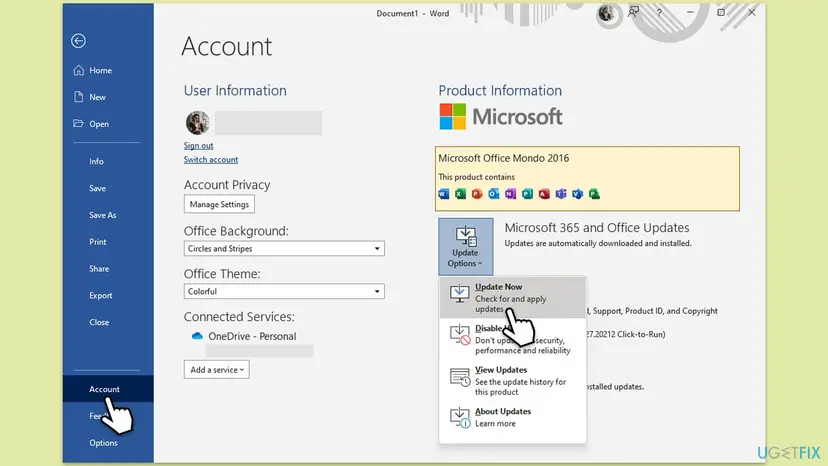
If the menu offers Enable Updates, updates were turned off: select it, then Update Now. If Update Options is missing, your employer or school manages Office updates, so ask IT which build you should run.
It worked if: Office installs the updates or reports that it is up to date, and Word no longer crashes.
If not: If only Word still crashes, test its add-ins with Fix 3.
Fix 3. Open Word in safe mode and turn off its add-ins one at a time
10 minutesNo riskOnly Word shows the message, or it began after you installed a program that adds a tab or button to Word.
Safe mode opens Word without its add-ins. If Word then stays open, one add-in crashes it, and the box cannot say which. Turning them off one by one finds it without losing the others.
- Hold down Ctrl and open Word from the Start menu. Keep holding until Word asks whether to start in safe mode, then select Yes.
- Select File > Options > Add-ins.
- In the Manage box at the bottom choose COM Add-ins and select Go.
- Clear the check box of one add-in and select OK.
- Close Word and open it the normal way.
- If the message returns, repeat with the next add-in. The one you cleared when the crashes stopped is the cause: update it or remove it.
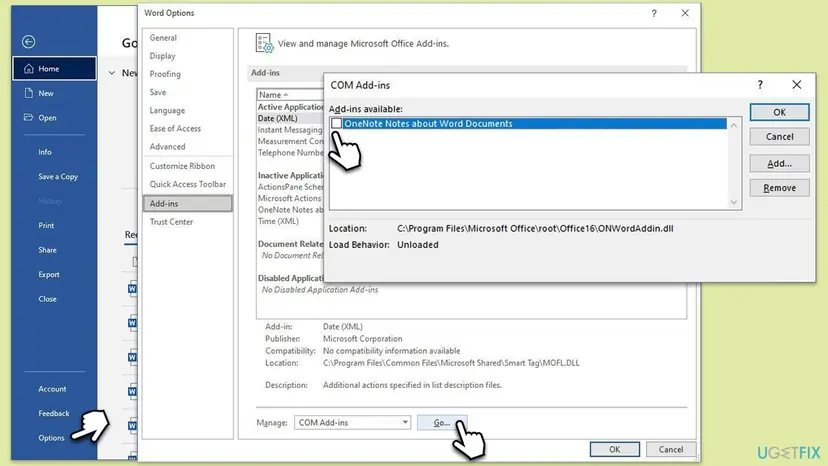
If Word crashes even in safe mode, the add-ins are not the cause. The guide to the Word was unable to start message, linked above, shows how to reset Word's saved settings in the registry, which safe mode also skips.
It worked if: Word opens in safe mode, and after the right add-in is off it also opens and stays open the normal way.
If not: If Word works with a blank document but crashes with one file, go to Fix 4. Otherwise go to Fix 5.
Fix 4. Check whether one document crashes Word, and save its text
5 minutesLow riskWord opens with a blank document but shows the message each time you open one particular file.
When only one file triggers the crash, the file is damaged, not Word, and repairing Office will not help. Inserting the file's text into a new document leaves the damaged formatting behind.
- Open Word from the Start menu and select Blank document.
- Open another document you trust. If it opens, Word itself works.
- In a new blank document, on the Insert tab, open the arrow next to Object and select Text from File.
- Pick the document that crashes Word and select Insert.
- Check the text and save it under a new name with File > Save As.
If the file sits in OneDrive, open it at office.com and use its version history to restore a copy from before the crash. On the PC, a previous version may exist: Restore an earlier version of a file or folder.
It worked if: The text of the document appears in the new file, and the new file opens without the message.
If not: If every document crashes Word, the file is not the cause. Go to Fix 5.
Fix 5. Find a program that clashes with Office: clean boot
15 minutesLow riskRepair and update did not help, and Word crashes even with a blank document.
PDF tools, backup clients, screen readers and security tools can load into Word from outside, where safe mode does not reach. A clean boot starts Windows without other companies' services and startup apps, so a clash shows up as a Word that suddenly works.
- Open System Configuration. Select Search on the taskbar, type msconfig and select System Configuration from the results.
- Hide Microsoft services. On the Services tab, select the Hide all Microsoft services check box. Only services from other companies stay in the list.
- Disable the remaining services. Select Disable all, then select Apply.
- Open Task Manager. On the Startup tab of System Configuration, select Open Task Manager.
- Disable the startup apps. On the Startup apps tab in Task Manager, select each item whose status is Enabled and select Disable. Write down or take a screenshot of the items you disable: you need the list to turn them back on.
- Confirm the changes. Close Task Manager. On the Startup tab of System Configuration, select OK.
- Restart and test. Restart the PC. Windows now starts in a clean boot environment: try again the thing that failed (run the app, install the update, uninstall the program).
These steps were written for Windows 11 25H2 and 26H2. The full page with the other versions and what each result means: How to perform a clean boot in Windows

If Word works after the clean boot, turn services and startup apps back on in small groups and restart each time. The group that brings the message back holds the program. Update it or remove it with Uninstall a program or app in Windows.
It worked if: Word stays open in the clean boot, and the message returns only with one program active.
If not: If Word crashes in the clean boot too, undo the clean boot as the procedure explains and go to Fix 6.
Fix 6. Uninstall Office completely and install it again
30 to 45 minutesLow riskOnline Repair did not help, or every Office app shows the message.
A reinstall replaces the whole install, including parts a repair leaves in place. Your documents are not part of Office and stay on the PC. Restart, not shut down, between the uninstall and the new install, so Windows releases every Office file.
- Make sure you know the Microsoft account or work account that holds your Office licence.
- Remove Office from Installed apps: Uninstall a program or app in Windows.
- If the uninstall fails or leaves Office half removed, use the Uninstall button on Microsoft's page Something went wrong error when you try to start a Microsoft 365 app.
- Select Start > Power > Restart.
- Sign in at office.com with the account that holds the licence and install Office again.
- Open Word and sign in.
Older guides tell you to delete C:\Program Files\Microsoft Office and the ClickToRun keys in Registry Editor. Microsoft's tool does this safely. A wrong deletion in the registry can break other programs or Windows.
It worked if: Office installs and activates with your account, and Word opens and stays open.
If not: If a fresh Word still crashes, the cause is outside Office. See the next section.
If Word still runs into an error: what to check next
A clean install of Office that still crashes points to your Windows profile, to Windows itself or to hardware. These checks tell them apart before you change more on the PC.
- Read the crash entry in Event Viewer. Open Event Viewer > Windows Logs > Application right after the crash and look for an Error entry from that minute that names
WINWORD.EXE. The faulting module in it often names the add-in or program at fault. - Try a second Windows account. Word's settings and add-ins are stored per user. If Word works in a new account, your profile is damaged: Create a new user account to test a problem.
- Check Windows system files if other apps crash too: Run DISM and SFC to repair Windows system files.
- Test the memory if Word crashes at random moments and other programs freeze as well: How to test your RAM with Windows Memory Diagnostic.
Do not uninstall Office yourself on a managed PC. Send IT the full message, the time of the crash, the faulting module from Event Viewer, and whether Word opens in safe mode.
While you wait, Word for the web at office.com opens and edits the same documents, so the work does not have to stop.
How to keep Word from running into this error again
Most of these crashes follow an interrupted update or a new add-in. A few habits keep both under control and protect your work when Word does crash.
- Let Office updates finish and restart when Windows asks. Do not force the PC off while Office is updating.
- Keep few Word add-ins, and remove the ones you no longer use under File > Options > Add-ins.
- Turn on AutoSave for files in OneDrive, or keep AutoRecover short under File > Options > Save, so a crash costs minutes, not hours.
- Keep Windows updated. Windows 10 left support on 14 October 2025 and no longer gets fixes. Windows 11 25H2 and 26H2 do.
Frequently asked questions
Should I click Repair Now in the Word error message?
You can, it does no harm, but do not stop there. Repair Now starts Office's automatic repair, and a Microsoft Q&A moderator wrote in January 2026 that it is generally ineffective for this message. If the message comes back, run the repair yourself from Installed apps > Modify and choose Online Repair, the more thorough option. Users on Microsoft Q&A report that Online Repair fixed it where the quick fix did not.
Is "we are sorry but Word has run into an error" the same message?
Yes. We are sorry, We're sorry and We re sorry are the same Word message typed differently, and some people search only for the end of it: Word has run into an error that is preventing it from working correctly. Microsoft Word shows it in one box with Repair Now, Help and Close. The fixes on this page are the same for every spelling, starting with an Online Repair of Office.
Will I lose my documents if I repair or reinstall Office?
No. Quick Repair, Online Repair and a reinstall work on the Office program files, not on documents in Documents, Desktop, OneDrive or anywhere else. What a crash can take is the work you had not saved yet. When you open Word again, check the Document Recovery pane on the left for an AutoRecover copy, and save it before you close Word.
Excel and Outlook show the same error. Is it one problem?
Most likely, yes. When Excel has run into an error and Outlook has run into an error appear alongside Word, the shared Office program files are the suspect, not one app. One Microsoft Q&A reporter had the box in Word, Excel and Outlook, and an Online Repair fixed all three. Repair works on the whole suite at once, so Fix 1 covers every app. Add-ins are per app, so Fix 3 matters only when Word alone fails.
Why does Word crash only with one document?
Because that file is damaged, often after a crash, a full disk or a copy from a USB stick that was pulled out too early. Word reads the damaged part and stops. Open a blank document and use Insert > Object > Text from File to bring the text of the file into a new one, as Fix 4 shows. If the file is in OneDrive, its version history may hold an undamaged copy.
What is the difference between this error and "Word was unable to start"?
This message comes as a crash: Word is starting or already open, then closes and offers Repair Now. Sorry, something went wrong and Word was unable to start comes before Word opens, in a Microsoft Word 16.0 box with a number in brackets. Both share Office repair and add-ins as fixes. The startup error has its own guide with the winword /a test and a reset of Word's registry settings.
Does the Program Compatibility troubleshooter fix this error?
We found no Microsoft source that ties it to this message, so it is not one of the fixes here. The troubleshooter is meant for older programs written for an earlier Windows, and current Word in Microsoft 365 or Office 2024 is built for Windows 11 and Windows 10. Repair, update and add-ins are the fixes that match this crash.
Is this error caused by a virus?
Rarely. The usual causes are damaged Office files, an add-in or a damaged document, and the fixes above deal with those. Malware that hooks into Office can crash it, though, so if Word crashes together with other strange behaviour, such as pop-ups or a changed browser home page, run a full scan with Microsoft Defender: How to scan for malware with Microsoft Defender. A clean scan and a crash that stops after repair point back to Office.
Can I keep working while Word keeps crashing?
Yes. Sign in at office.com with the account that holds your Office licence and open the document in Word for the web. It reads and saves .docx files, and files in OneDrive open directly. Upload a file from the PC to OneDrive first. Word for the web does not use the desktop program or its add-ins, so this crash does not affect it.
Sources
- Microsoft Support: Repair an Office application (support.microsoft.com)
- Microsoft Q&A: We're Sorry but Word Has Run Into an Error, moderator answer (January 2026) (learn.microsoft.com)
- Microsoft Q&A: We're sorry, but Word has run into an error that is preventing it from working correctly (Word, Excel and Outlook) (learn.microsoft.com)
Did this fix work?
One click, no account. It tells the next reader which guides are worth their time.
Questions and experiences: fix "We're sorry, but Word has run into an error" in Windows
Still broken, or found a fix we did not cover? Ask here: members and our editors answer. Reading is open; writing needs a free account.
…