
How to fix Windows 10 update error code 0x800f0831?

Prefer to fix it yourself? The manual steps follow.
5 methods in this guide
Hello. For a past few months, Windows 10 tries to install the latest updates but always fails with error code 0x800f0831. I am running 1903 currently. Is there anything that can be done to solve this? It is really frustrating, please help.
Error code 0x800f0831 is an error people can encounter while using the Windows Update service. Indeed, it’s not pleasant to see this, as it means that none of the cumulative, security or other updates can be installed successfully. Most recently, users encountered this error when trying to download the KB5012599 update for Windows 10/11.
Apart from 0x800f0831, there are hundreds of Windows Update errors (e.g., 0x80070103, 0x80073712, or 0x80070541), but most of them can be easily resolved. Usually, they are triggered by Windows Store cache, inaccessible Windows Update service, antivirus software, or some damaged update files.
In most cases, Microsoft reacts to people’s reports related to Windows Update service crashes immediately and either fixes the issue automatically or provides manual guidelines explaining how to deal with them.
However, there are no official patches to fix the 0x800f0831 error, so we will try to help you. Having the latest updates installed is very important to maintain a system’s performance and security. If each attempt to install Windows updates leads to the error mentioned above, try to perform the following steps first:
- Reboot your PC to a normal mode;
- Disable your anti-virus temporarily;
- Check your internet connection (perform a speed test)
- Check your time and date settings.
- Install and run a full scan with it to resolve underlying Windows issues that could cause the error.
If none of these methods helped, please refer to the following fixes.
Method 1. Download the missing KB package
In most cases, the main reason for the 0x800f0831 error to occur is due to the missing KB package, which does not allow a newer update to be installed. Therefore, you should check which package you are missing and download it manually via Microsoft Update Catalog:
- Press Win + E to open File Explorer.
- Navigate to the following location: C:\Windows\Logs\CBS.
- In here, open CBS.log file by double-clicking it.
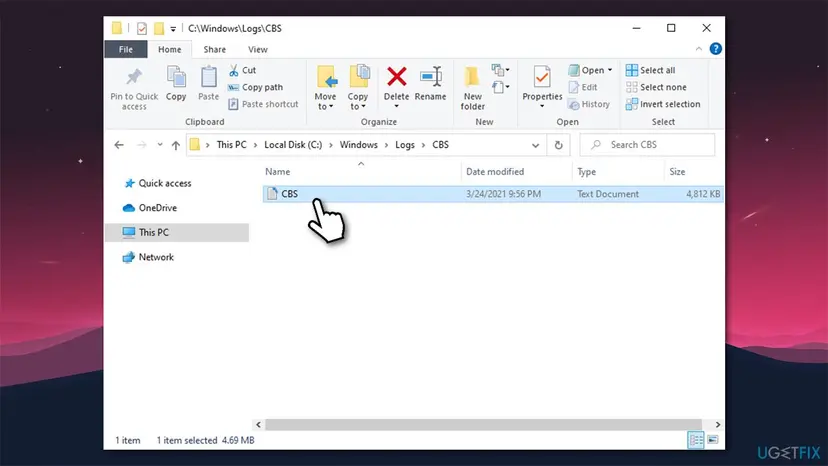
How to fix windows 10 update error code 0x800f0831 download the missing kb package - Here, look for lines that include the 0x800f0831 error, or includes the following information (use Ctrl + F to look for specific keywords):
Store corruption, manifest missing for package: [Missing_Package]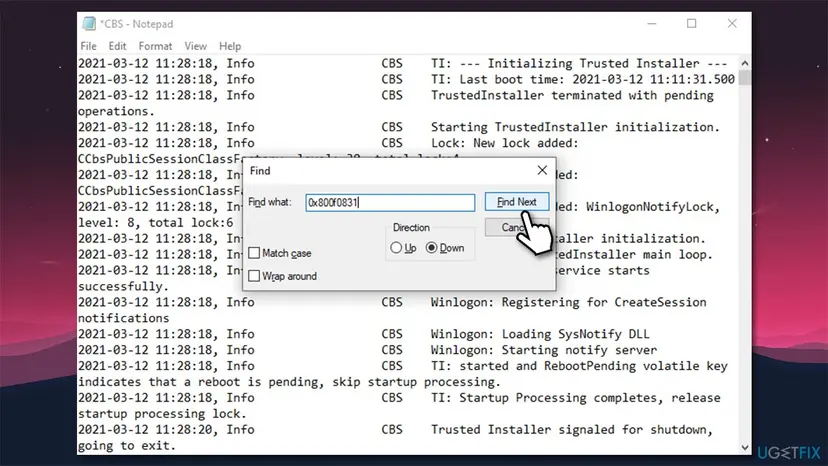
How to fix windows 10 update error code 0x800f0831 download the missing kb package2 - Write down the KB number next to one of these lines.
- Now visit Microsoft Update Catalog website download and install the missing package.
- Reboot your PC and then try running Windows updates as per usual.
Method 2. Run Windows Update troubleshooter
Whenever you encounter problems with Windows updates, you should first try running Windows update troubleshooter, available via settings panel:
- Right-click on Start and pick Settings.
- In the new window, select Update & security section.
- On the left, pick Troubleshoot and then pick Additional Troubleshooters on the right.
- Find Windows Update, click it, and select Run the troubleshooter.
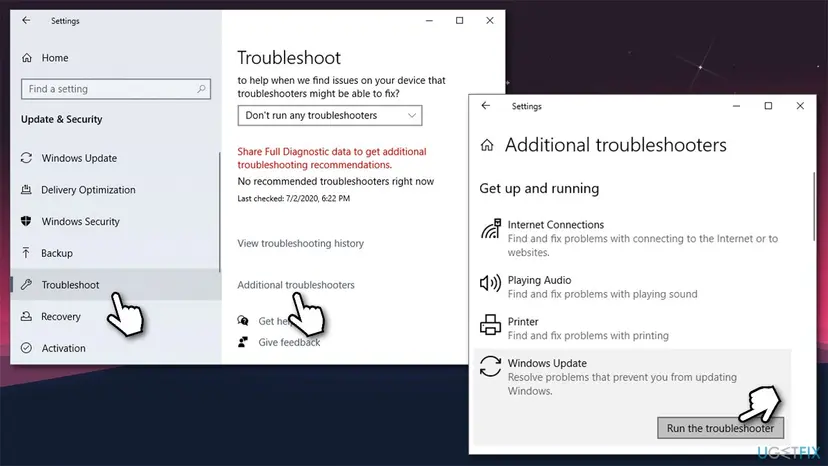
How to fix windows 10 update error code 0x800f0831 run windows update troubleshooter
Method 3. Perform SFC and DISM scans
In case Windows system files are corrupt, you can run commands via Command Prompt to fix them, consequently allowing you to perform an easy 0x800f0831 fix.
- Type in cmd in Windows search
- Right-click on Command Prompt search result and pick Run as administrator
- Copy and paste the following command:
sfc /scannow - Press Enter and wait for the process to be finished
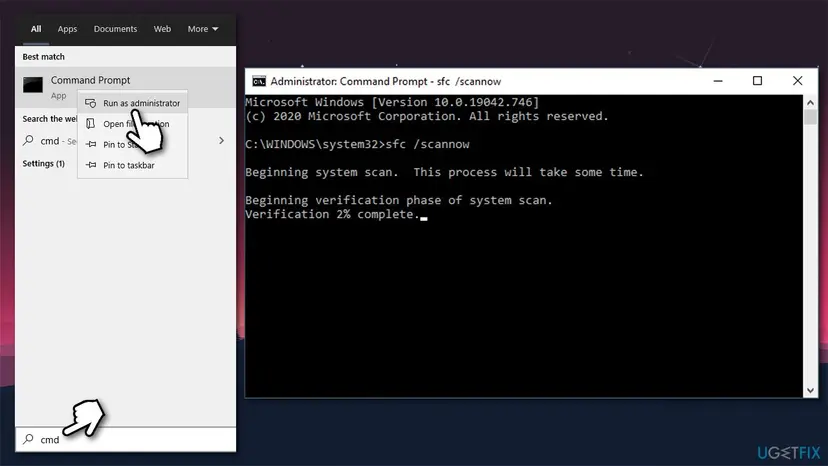
How to fix windows 10 update error code 0x800f0831 run sfc scan - Once done, run the following commands, pressing Enter after each of them:
DISM /Online /Cleanup-Image /CheckHealth
DISM /Online /Cleanup-Image /ScanHealth
DISM /Online /Cleanup-Image /RestoreHealth - Once complete, reboot Windows.
Method 4. Reset Windows Update Components
- Open Command Prompt as administrator as explained above.
- Then stop stop BITS, Windows Update, Cryptographic, and MSI Installer services. For that, type the following commands and press Enter after each:
net stop bits
net stop wuauserv
net stop appidsvc
net stop cryptsvc - Once done, paste the Del "%ALLUSERSPROFILE%\Application Data\Microsoft\Network\Downloader\qmgr*.dat” command to delete qmgr*.dat files.
- Then copy and paste cd /d %windir%\system32 command and press Enter.
- To re-register BITS and Windows Update files, type all the commands listed below and press Enter after each:
regsvr32.exe atl.dll
regsvr32.exe urlmon.dll
regsvr32.exe mshtml.dll
regsvr32.exe shdocvw.dll
regsvr32.exe browseui.dll
regsvr32.exe jscript.dll
regsvr32.exe vbscript.dll
regsvr32.exe scrrun.dll
regsvr32.exe msxml.dll
regsvr32.exe msxml3.dll
regsvr32.exe msxml6.dll
regsvr32.exe actxprxy.dll
regsvr32.exe softpub.dll
regsvr32.exe wintrust.dll
regsvr32.exe dssenh.dll
regsvr32.exe rsaenh.dll
regsvr32.exe gpkcsp.dll
regsvr32.exe sccbase.dll
regsvr32.exe slbcsp.dll
regsvr32.exe cryptdlg.dll
regsvr32.exe oleaut32.dll
regsvr32.exe ole32.dll
regsvr32.exe shell32.dll
regsvr32.exe initpki.dll
regsvr32.exe wuapi.dll
regsvr32.exe wuaueng.dll
regsvr32.exe wuaueng1.dll
regsvr32.exe wucltui.dll
regsvr32.exe wups.dll
regsvr32.exe wups2.dll
regsvr32.exe wuweb.dll
regsvr32.exe qmgr.dll
regsvr32.exe qmgrprxy.dll
regsvr32.exe wucltux.dll
regsvr32.exe muweb.dll
regsvr32.exe wuwebv.dll - To reset Winsock, type netsh winsock reset and netsh winhttp reset proxy commands. Press Enter after each of them as usually.
- Finally, restart BITS, Windows Update, Cryptographic, MSI Installer services by entering the following commands each followed by Enter:
net start bits
net start wuauserv
net start appidsvc
net start cryptsvc
Method 5. Disable Proxy
- Click Win key + R, type inetcpl.cpl, and press Enter.
- Select Connections and then open LAN Settings.
- Find Automatically detect settings box and mark it with a tick.
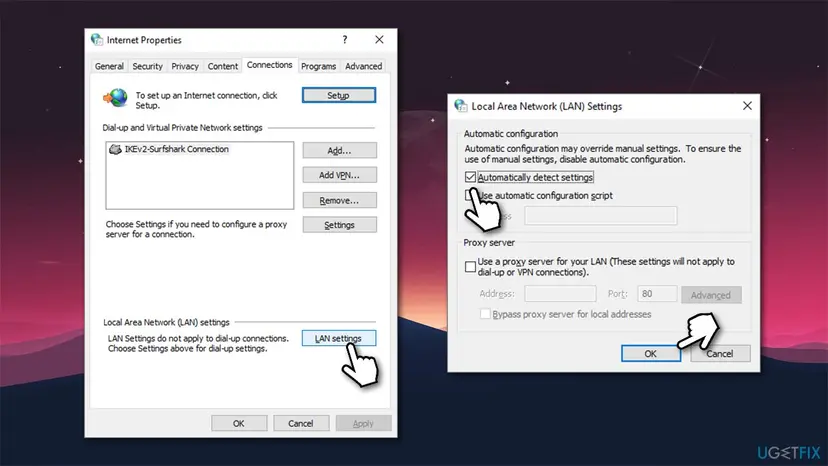
How to fix windows 10 update error code 0x800f0831 disable proxy - Finally, unmark the Proxy server box.
These are the methods that helped for most of the Windows users who have been struggling with the installation of Windows updates. If they did not work in your case, we would also recommend checking if the Date & Time settings are correct. Sometimes, incorrectly set Date and time may collide with Windows Update and Windows Store services, which is why the updates fail to download/install.
Did this fix work?
One click, no account. It tells the next reader which guides are worth their time.
Questions and experiences: fix Windows 10 update error code 0x800f0831
Still broken, or found a fix we did not cover? Ask here: members and our editors answer. Reading is open; writing needs a free account.
…