
How to fix Windows activation error 0x803FABC3?

Prefer to fix it yourself? The manual steps follow.
- 7methods
- 2 to 30 minutes
- Easy
Applies to Windows 11 and Windows 10, Home and Pro, after a motherboard or CPU change, a BIOS update, a reinstall or on a PC that came from a company
7 methods in this guide
I'm facing the Windows activation error code 0x803FABC3 on my Windows 11 system with the message "We can't activate Windows on this device", although I'm using a correct product key. I've restarted and checked my internet connection, but the problem persists, and I can't fully use my system. What is happening and how can I fix it?
Error 0x803FABC3 means Windows could not find a licence it may use on this PC, so activation stops. Users report it most often after a new motherboard or CPU, sometimes after a BIOS update. Read the message on the Activation page first, then reactivate with the Activation troubleshooter or your own product key.
Open Settings > System > Activation and read the message under Activation state (Fix 1). Changed the motherboard or CPU? Run Troubleshoot and choose I changed hardware on this device recently, signed in with your Microsoft account (Fix 2). Have your own key? Enter it under Change product key (Fix 3). A message about your organization's server means a company licence (Fix 4). A preinstalled licence on a new motherboard may need a new licence (Fix 7).
| Error | 0x803FABC3, shown under Activation state as "Not active" with a red message that ends in Error code: 0x803FABC3. |
|---|---|
| Where it appears | Settings > System > Activation on Windows 11, Settings > Update & Security > Activation on Windows 10, and in the Activation troubleshooter. |
| Main cause | Windows no longer finds a licence that matches this hardware, most often after a motherboard or CPU change, or the PC holds a company volume licence it cannot reach. |
| Fastest fix | Activation troubleshooter with I changed hardware on this device recently (Fix 2), or your own product key under Change product key (Fix 3). |
| Also written as | 0x803fabc3, 0x803FABC3, "Error code: 0x803FABC3". People also type 0x803fabba, which we found in no Microsoft source. |
| Affects | Windows 11 and Windows 10, Home and Pro. Windows 10 left support on 14 October 2025, but activation works the same way. |
| Vendor status | Microsoft's list of activation errors has no row for 0x803FABC3. Its hardware change rules for 0xC004F211 are the ones that apply in the reported cases. |
| When it is not fixable on the PC | A licence that came preinstalled with the PC after the motherboard was replaced, which Microsoft says may need a new licence. |
| Time to fix | 2 minutes to read the message, 5 minutes for the troubleshooter or a key, longer when you wait for the seller or support. |
Facts checked on 15 October 2026. Steps written for Windows 11 (25H2 and 26H2) and Windows 10 22H2.
What Windows activation error 0x803FABC3 means
Microsoft's page of activation errors does not list 0x803FABC3, so there is no official one-line meaning. The two messages that come with it, and the cases users report on Microsoft's own Q&A forum, point the same way: Windows looked for a licence that fits this PC and did not find one it may use.
Windows ties a licence to the hardware of the device. Microsoft says that after a significant change, such as a new motherboard, Windows no longer finds a matching licence and has to be reactivated. That is the situation in most reports of this code. The code comes with one of two texts, and the text tells you which way to go.
| The message you see | What it points to |
|---|---|
| We can't activate Windows on this device as we can't connect to your organization's activation server. Make sure you're connected to your organization's network and try again. If you continue having problems with activation, contact your organization's support person. Error code: 0x803FABC3 | The installed key is a volume licence that a company activates through its own server. Fix 4, or your own key with Fix 3. |
| A message that users quote as ending in: You can try activating again later or go to the Store to buy genuine Windows. Error code: 0x803FABC3 | Windows found no licence for this hardware. Users report it after a motherboard, CPU or BIOS change. Fix 2. |
| Activate Windows watermark on the desktop | Only the result. The text on the Activation page tells you the reason. |
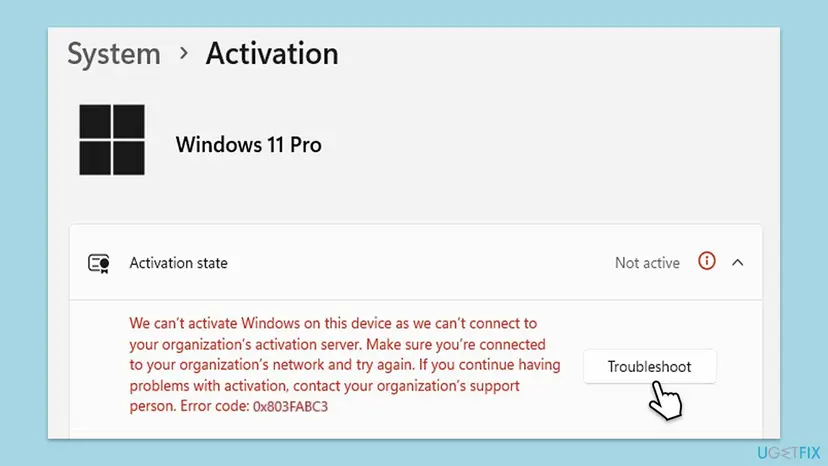
An activation error does not delete anything and Windows keeps starting. You see a watermark and reminders, and some personalisation settings are locked until Windows is activated again, so take the time to pick the right fix.
Why error 0x803FABC3 appears, from most to least common
The code is the same in every case. What differs is what happened just before it appeared. Find your row and go to its fix.
| Cause | How often | How to tell | Fix |
|---|---|---|---|
| The motherboard, the CPU or both were replaced, so the licence no longer matches the hardware. | Most often in user reports | The PC was activated before the change. | Fix 2 |
| The installed key is a company volume licence and the company's activation server cannot be reached. | Often | The message names your organization's activation server. | Fix 4, Fix 3 |
| A BIOS update or a reinstall changed how Windows sees the hardware. | Sometimes | Nothing was replaced, but the error came after an update or reinstall. | Fix 6, Fix 2 |
| The licence cannot move: it came preinstalled with the PC, or it was a free upgrade from an old Windows 7 or 8 key. | Sometimes | The troubleshooter does not list your device or refuses it. | Fix 7 |

Older guides blame the internet connection and corrupted system files. We found no source that ties this code to either one. The connection matters for every activation, so it is checked in Fix 6, but it is rarely the reason for this code.
How to fix Windows activation error 0x803FABC3
Fix 1 takes two minutes and tells you which of the others you need. Fixes 2 and 3 reactivate a licence you already own. Fix 4 is for a PC that came from a company. Fix 5 gives a clearer answer from Command Prompt. Fixes 6 and 7 cover a BIOS update and a licence that cannot move. Never use an activator tool or a free key from the web.
| What you see or did | Start with |
|---|---|
| You are not sure what changed or which licence you have. | Fix 1 |
| You replaced the motherboard or the CPU. | Fix 2 |
| You have a product key from a box, a card or an order email. | Fix 3 |
| The message names your organization's activation server. | Fix 4 |
| Settings shows only the code and you want more detail. | Fix 5 |
| The error came after a BIOS update and nothing was replaced. | Fix 6 |
| Windows came preinstalled and the motherboard is new. | Fix 7 |
Fix 1. Read the message, the edition and the licence on the Activation page
2 minutesNo riskEveryone who sees the code, before any other fix.
0x803FABC3 comes with two different messages and the right fix depends on which one you see, which edition is installed and whether your Microsoft account was linked to the licence.
- Open Settings > System > Activation. On Windows 10 it is Settings > Update & Security > Activation.
- Expand Activation state and read the red message. Note whether it mentions your organization's activation server.
- Read the edition next to the Windows logo: Home or Pro.
- Open Settings > Accounts > Your info. Check that it says Administrator and shows an email address, which means a Microsoft account.
- Think back: a new motherboard, a new CPU, a BIOS update, a reinstall, or a PC bought from a company?
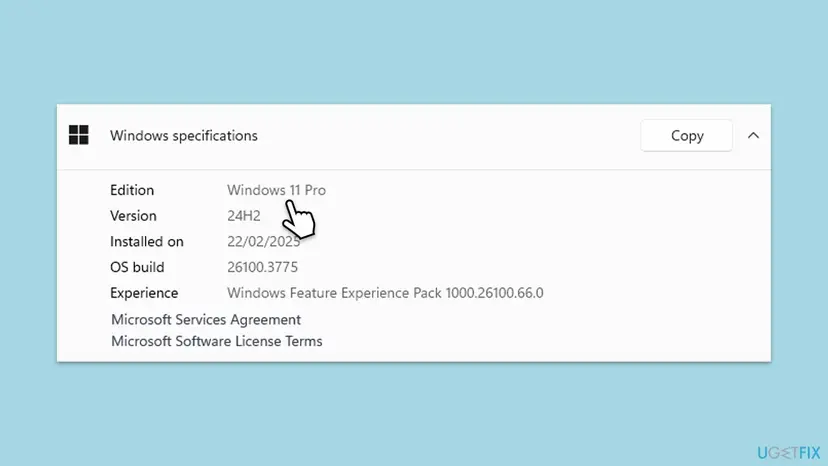
Microsoft says a digital licence and a product key reactivate only when the edition stays the same. If you had Home before and Pro is installed now, or the other way round, no fix on this page will activate the wrong edition.
It worked if: You know which message you have, the edition, whether you sign in with a Microsoft account, and what changed before the error.
If not: If you cannot tell, start with Fix 2. It asks the questions for you and works for most readers who changed hardware.
Fix 2. After a motherboard or CPU change: run the Activation troubleshooter
5 minutesNo riskWindows was activated on this PC before you replaced the motherboard, the CPU or both.
Microsoft offers an exception path for moving a licence after a hardware change. It works through the troubleshooter, but only for the Microsoft account that was linked to the licence before the change.
- Sign in to Windows as an administrator, with the Microsoft account you used before the hardware change.
- Open Settings > System > Activation and select Troubleshoot. The troubleshooter shows Windows can't be activated on your device.
- Select I changed hardware on this device recently, then Next.
- Enter your Microsoft account and password and select Sign in.
- In the list of devices linked to your account, tick This is the device I'm using right now.
- Select Activate and wait for the result.
Microsoft says to check that you signed in with the same Microsoft account that was linked to the digital licence. If the licence was never linked before the change, the troubleshooter cannot find it, and Fix 3 or Fix 7 is the way.
The troubleshooter is only offered while Windows is not activated, which is the case when you see this code. For the full hardware change path and the related code 0xC004F211, see our guide to error 0xC004F211.
It worked if: The Activation page says Windows is activated with a digital license linked to your Microsoft account and the watermark goes after a restart.
If not: If you have a product key, enter it with Fix 3. If the troubleshooter refuses the device, read Fix 7.
Fix 3. Enter your own product key under Change product key
5 minutesLow riskYou have a 25-character key from a box, a card, a sticker or an order email, or the message mentions your organization's server on your own home PC.
Microsoft says a retail key used on the device before a hardware change can be entered again. Your own key also replaces a company volume key, which ends the search for an organization's activation server.
- Find the key: the order confirmation email, the packaging, or the Certificate of Authenticity sticker on the back or bottom of the PC.
- Open Settings > System > Activation. On Windows 10 open Settings > Update & Security > Activation.
- Next to Change product key, select Change. On Windows 10 select the Change product key link.
- If User Account Control asks, select Yes.
- Type the 25-character key and select Next, then Activate.
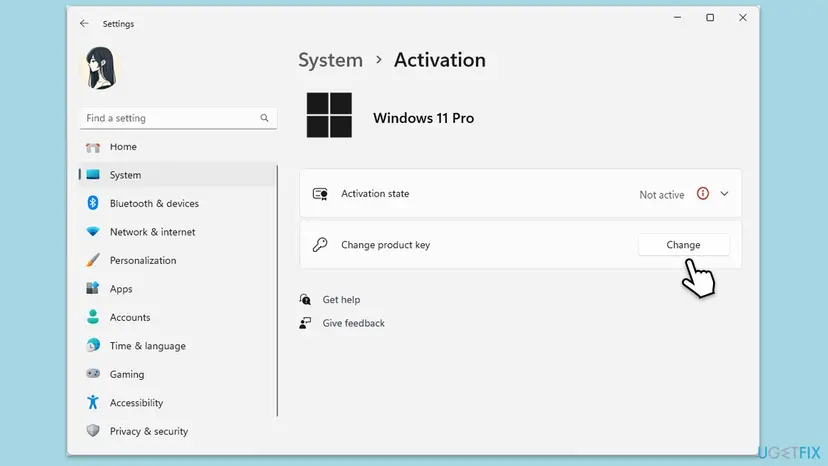
The key must be for the edition that is installed. A Home key does not activate Pro and a Pro key does not activate Home as it is.
It worked if: The Activation page says Windows is activated and the red message is gone.
If not: If Settings refuses the key or shows only a code, try Fix 5 for a clearer reply. If the key was used on another PC, go to Fix 7.
Fix 4. A PC from a company or school: connect to its network or ask its IT staff
5 minutes, or the time IT needsNo riskThe message names your organization's activation server, and the PC belongs to, or came from, a company or school.
This wording means Windows holds a volume licence that is activated by the organization's own server. Windows can renew it only while it reaches that server, so the network or the IT staff are the fix.
- Connect the PC to the office network, or start the company VPN if you work from home.
- Open Settings > System > Activation and select Activate if it is offered, or restart the PC.
- Still not activated: send the code and a screenshot of the message to your organization's support person, as the message says.
- Bought the PC second hand from a company? Ask the seller whether a Windows licence came with it.
- No licence came with it: enter your own key with Fix 3, or buy one with Fix 7.
A home PC that shows this message without ever having been in a company usually holds a key that someone typed in from the web or that an activator tool left behind. Replace it with your own key in Fix 3. This page does not cover activator tools.
It worked if: On the company network Windows activates again, or your own key in Fix 3 turns the message into Windows is activated.
If not: If IT says the PC is not theirs to license, treat it as a home PC: Fix 3, then Fix 7.
Fix 5. Enter the key and activate from Command Prompt
5 minutesLow riskSettings shows only the code or does not take the key, and you want the exact reply.
slmgr is the licensing script built into Windows. It installs a key, tries online activation and shows the licence details, which tells you whether the key reached Microsoft's servers and what they answered.
- Type cmd in the search box, select Run as administrator next to Command Prompt, then Yes. Step by step: How to run a program as administrator or in compatibility mode
- Install your own key, with your characters in place of the X:
slmgr /ipk XXXXX-XXXXX-XXXXX-XXXXX-XXXXX - Start online activation:
slmgr /ato - Read the licence details: the Name line gives the edition and License Status the result.
slmgr /dlv - Check the status at any time:
slmgr /xpr
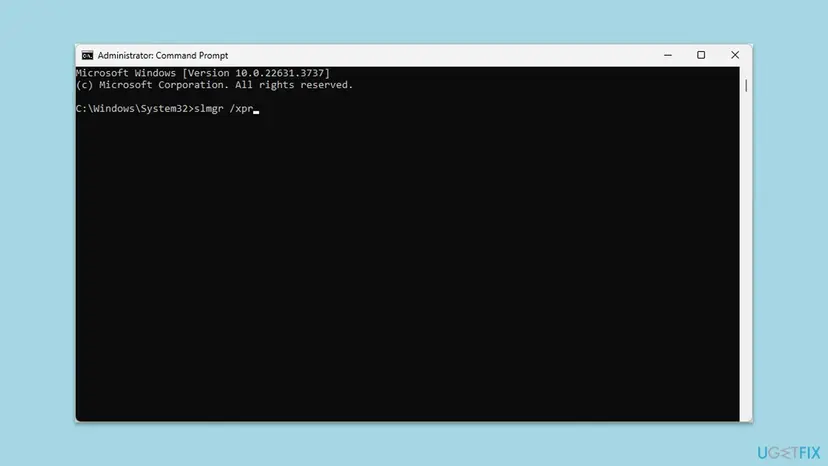
Older guides call slmgr /xpr a reset of the licensing status. It only shows whether Windows is activated. If the key cannot be used on this PC, Command Prompt returns the same refusal as Settings, with more detail for support.
It worked if: slmgr /ato reports that the product was activated successfully and slmgr /dlv shows License Status: Licensed.
If not: If the edition in slmgr /dlv differs from the installed one, you need a key for that edition. If activation is refused again, go to Fix 7.
Fix 6. After a BIOS update or with no change: check the connection and try again later
5 minutes, sometimes a day of waitingNo riskNothing was replaced, but the error appeared after a BIOS update, a reinstall or out of the blue.
Users on Microsoft's forum report this code after a BIOS update with no new parts. Activation needs a working connection, and Microsoft's own advice for busy activation servers is to wait a while and select Activate again.
Activation needs the internet. Check it first: How to check your internet connection in Windows

- Turn off any VPN or proxy you use at home for the test.
- Open Settings > System > Activation and select Activate if it is offered.
- If it fails, leave the PC connected and try again after a few hours.
- Still not activated the next day: run the troubleshooter from Fix 2. A BIOS update can count as a hardware change.
- Turn the VPN back on when you are done.
It worked if: Windows activates on a later try, or the troubleshooter in Fix 2 reactivates it.
If not: If the troubleshooter also refuses, enter your key with Fix 3 or contact support from the troubleshooter page.
Fix 7. When the licence cannot move to the new hardware: get a valid one
15 minutes, or the time of a purchaseNo riskWindows came preinstalled with the PC and the motherboard was replaced, or the troubleshooter refuses the device.
Microsoft says that if Windows came preinstalled on your device and you replaced the motherboard, you may need to purchase a new licence. A preinstalled licence belongs to the original board.
| Your situation | Who can help |
|---|---|
| The PC maker or its service replaced the board under warranty | The PC maker. Give them the repair number and the error code. |
| An independent repair shop replaced the board | The shop. Microsoft advises asking whether the repair needs a new licence. |
| You built or upgraded the PC yourself with a retail key | Microsoft support, from the troubleshooter page, with your proof of purchase. |
| Windows 11 was a free upgrade from an old Windows 7 or 8 key | Microsoft support. See the note below. |
- Look for proof: the box card, the order email, or your Microsoft account order history.
- Run
slmgr /dlvfrom Fix 5 and save a screenshot for support. - Contact the PC maker, the shop or Microsoft support from the table.
- If no one can restore the licence, open Settings > System > Activation and buy a licence from the Microsoft Store link there, or from an authorised retailer.
- Enter the new key with Fix 3.
Tools that promise free activation change system files and run with full rights on your PC, and free keys posted online are generic or stolen. This page does not link to any of them, and you should not run them.
One forum advisor on Microsoft Q&A says a licence that came from a free upgrade of an old Windows 7 or 8 key no longer reactivates Windows 11 after a hardware change. We could not confirm this in a Microsoft source, so ask support before you buy.
It worked if: The maker, the shop or support restores the licence, or a new key activates Windows.
If not: If support confirms the licence is fine but activation still fails, check the edition again with Fix 1.
If error 0x803FABC3 is still there
When none of the fixes worked, the question is no longer a setting on the PC. It is whether this licence may activate this hardware. Collect these facts before you contact anyone, so support does not start from zero.
| What to check | Where | What it tells you |
|---|---|---|
| The exact message | Settings > System > Activation, under Activation state | Hardware change or a company licence. |
| Edition and licence details | slmgr /dlv in Command Prompt | The edition and the licence status Microsoft returned. |
| Account link | Settings > Accounts > Your info | Whether a Microsoft account was there to carry the licence. |
| Proof of purchase | Box card, order email, sticker, Microsoft account orders | Who sold the licence and who can confirm it. |
| Recent changes | Repair receipt or your memory | A new board, CPU or BIOS, and when. |
- Board replaced under warranty: the PC maker.
- Board replaced by a repair shop: the shop.
- Company or school PC: its support person.
- Retail key or a licence bought from Microsoft: Microsoft customer support, linked from the troubleshooter.
How to avoid error 0x803FABC3
Most cases of this code start with a hardware change made before the licence was linked to a Microsoft account. Microsoft calls that link essential for reactivating after a significant change. Two minutes before you open the case save an afternoon later.
- Before a hardware change, check that the Activation page says Windows is activated with a digital license linked to your Microsoft account.
- If it does not, select Add an account on the Activation page and sign in with your Microsoft account.
- Keep the key card, the sticker photo or the order email.
- Keep the same edition before and after the change.
- Do not use one key on two PCs.
- Do not buy keys at a fraction of the retail price.
- Do not run activator tools or type keys found on the web.
- Do not reinstall Windows for this code: the licence, not the installation, is the problem.
Frequently asked questions
What does error code 0x803FABC3 mean?
It means Windows could not find a licence it may use on this PC, so activation failed. Microsoft does not list the code on its page of activation errors. The messages that come with it and the cases on Microsoft's Q&A forum point to two situations: the hardware changed so the old licence no longer matches, or the PC holds a company volume licence that cannot reach the company's activation server. Read the message under Activation state to tell which one you have.
How do I fix 0x803FABC3 on Windows 11?
Open Settings > System > Activation. After a motherboard or CPU change, select Troubleshoot, choose I changed hardware on this device recently, sign in with the Microsoft account that was linked before the change and select Activate. If you have your own product key, enter it under Change product key instead. If the message mentions your organization's activation server, connect to the company network or ask its IT staff. Most readers are done in five minutes.
Why did 0x803FABC3 appear after I replaced my motherboard?
A Windows licence is tied to the hardware of the device, and the motherboard is the part Windows identifies it by. Microsoft says that after a significant change such as a new motherboard, Windows no longer finds a matching licence. If your licence was linked to your Microsoft account, the Activation troubleshooter can move it. If Windows came preinstalled on the PC, Microsoft says you may need to buy a new licence, because a preinstalled licence stays with the original board.
Can a BIOS update cause error 0x803FABC3?
Users on Microsoft's forum report the code after a BIOS update with no new parts. We found no Microsoft page that explains this case. Leave the PC connected, select Activate again after a few hours, and if it still fails, run the Activation troubleshooter with I changed hardware on this device recently. Have your product key ready in case the troubleshooter does not find the licence.
The message says it can't connect to my organization's activation server. What does that mean?
It means Windows holds a volume licence, the kind a company or school activates through its own server, and cannot reach that server. On a work PC, connect to the office network or the company VPN and ask your IT staff. On a PC you bought second hand from a company, ask the seller whether a licence came with it. On your own home PC, enter your own key under Change product key to replace the volume key.
I have a correct product key but still get 0x803FABC3. Why?
Check three things. The key must be for the installed edition: a Home key does not activate Pro. It must not be in use on another PC, because Microsoft marks a key used on several devices as not valid. And if it was a key that came preinstalled with the PC, it may not move to a new motherboard. Enter it with slmgr /ipk and slmgr /ato in an administrator Command Prompt to get a clearer reply for support.
Will SFC, DISM or a clean boot fix 0x803FABC3?
We found no source that ties this code to damaged system files or to other software. Older guides list these repairs, but the code is about the licence and the hardware, not about the files of Windows. Run them only if Windows has other problems too. For activation, the Activation troubleshooter, your own product key or the PC maker are what help.
Is 0x803FABBA the same error as 0x803FABC3?
We could not confirm that. Microsoft's list of activation errors has neither code, and we found no source for 0x803FABBA. It is often a misread of 0x803FABC3, so check the exact code on the Activation page. If your code really is different, its message under Activation state still tells you which fix fits: hardware change, company licence or a key that cannot be used.
Is there a free key or tool that fixes 0x803FABC3?
No legitimate one. Free keys posted online are generic or stolen, and activation tools change system files and run with full rights on your PC. Some of them leave a volume key behind, which is one way to end up with this exact message about an organization's server. The legal ways are your digital licence and Microsoft account, your own key, the PC maker, or a licence bought through the Activation page.
What happens if I leave Windows unactivated?
Windows keeps starting and your files stay where they are. You see a watermark and reminders, and some personalisation settings are locked until Windows is activated. Nothing is deleted, so you can take the time to find your key, contact the PC maker or wait for support, then activate with one of the fixes above.
Sources
- Microsoft Support: Get help with Windows activation errors (support.microsoft.com)
- Microsoft Support: Reactivating Windows after a hardware change (support.microsoft.com)
- Microsoft Q&A: Activation error 0x803FABC3 after hardware change (user report) (learn.microsoft.com)
Did this fix work?
One click, no account. It tells the next reader which guides are worth their time.
Questions and experiences: fix Windows activation error 0x803FABC3
Still broken, or found a fix we did not cover? Ask here: members and our editors answer. Reading is open; writing needs a free account.
…