
How to fix Windows Audio Endpoint Builder high CPU usage?

Prefer to fix it yourself? The manual steps follow.
- 7methods
- 2 minutes to restart the services, 10 to 30 minutes with a device or driver change
- Easy
Applies to The Windows Audio Endpoint Builder service (AudioEndpointBuilder) and the Windows Audio service (Audiosrv) on Windows 11 and Windows 10
7 methods in this guide
Hello. I turned on my Windows PC this morning and found that Windows Audio Endpoint Builder is taking up to 50% of my CPU. I tried disabling it, but then my computer is left without sound, so this is not an option. I also tried restarting my PC several times, but it did not help, and the process keeps spiking. Any help, please?
Windows Audio Endpoint Builder is the Windows service that manages audio devices for the Windows Audio service. Disabling it costs you all sound, so do not. When it eats CPU, a device that keeps reconnecting, an audio effect or a faulty driver is usually behind it, so restart the two audio services first.
Windows Audio Endpoint Builder is a real Windows service, not a virus, and you cannot turn it off without losing sound. Restart it and Windows Audio in Services (Fix 1). If the load returns, unplug or disable audio devices you do not use (Fix 2), then turn off audio enhancements (Fix 3). A faulty audio driver is the next suspect (Fix 5).
| Error | No error message. Task Manager shows Service Host: Windows Audio Endpoint Builder high in the CPU column, sometimes with sound that stutters or drops. |
|---|---|
| Where it appears | Task Manager on Windows 11 and Windows 10. In Services (services.msc) it is Windows Audio Endpoint Builder, service name AudioEndpointBuilder. |
| Main cause | Device trouble: an audio device that keeps connecting and dropping, a virtual audio device, an audio effect or a faulty audio driver. |
| Fastest fix | Restart Windows Audio Endpoint Builder and Windows Audio in Services (Fix 1), then disable audio devices you do not use (Fix 2). |
| Also written as | AudioEndpointBuilder, audio endpoint builder, Windows audio end point builder, Windows end point builder, service host Windows Audio Endpoint Builder. |
| What it does | In Microsoft's words: it manages audio devices for the Windows Audio service. |
| Safe to disable? | No, not on a PC that plays sound. Microsoft: if you stop it, audio devices and effects stop functioning properly, and services that depend on it cannot start. |
| Vendor status | Not a known Windows bug. Microsoft's own audio help lists restarting this service among the standard steps. |
| Time to fix | 2 minutes for Fix 1. 10 to 30 minutes when a device or driver has to change. |
Facts checked on 15 October 2026. Steps written for Windows 11 (25H2 and 26H2) and Windows 10 22H2, with the audio steps read from Microsoft Support and the service description from Microsoft Learn.
What Windows Audio Endpoint Builder is and why it uses CPU
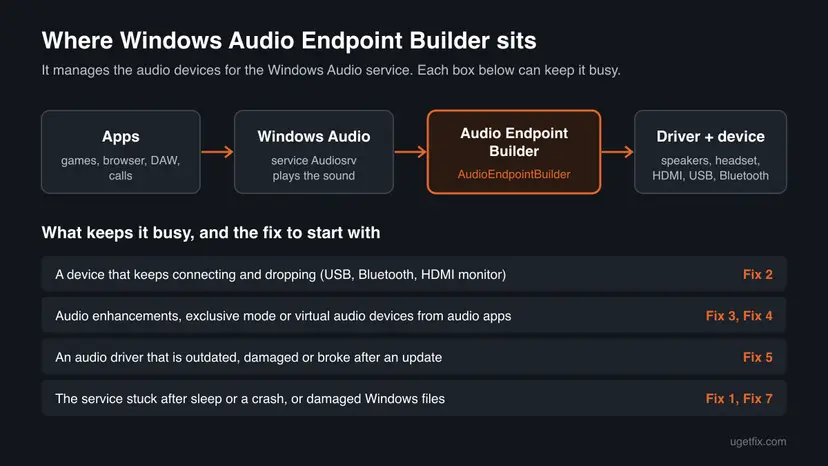
Windows Audio Endpoint Builder is a built-in Windows service with the service name AudioEndpointBuilder. Microsoft describes it in one line: it manages audio devices for the Windows Audio service. An audio endpoint is the device at the end of the chain that you actually hear or speak into: speakers, headphones, a headset, a monitor over HDMI, a USB microphone.
The service runs inside a shared process, so Task Manager names it Service Host: Windows Audio Endpoint Builder on the Processes tab and shows svchost.exe on the Details tab. It works together with Windows Audio (Audiosrv), which plays the sound itself. If Endpoint Builder stops, Windows Audio has no devices to play to, and the sound is gone.
| Name | Where you see it | What it is |
|---|---|---|
| Service Host: Windows Audio Endpoint Builder | Task Manager, Processes tab | The service in its shared svchost.exe process |
| Windows Audio Endpoint Builder | Services (services.msc) | The display name of the service |
AudioEndpointBuilder | Services, Properties; Command Prompt | The service name used in commands |
Windows Audio (Audiosrv) | Services | The service that plays sound and depends on Endpoint Builder |
| Service Host: Local Service (Network Restricted) | Task Manager, Processes tab | A shared process that can carry Windows Audio, so it often spikes together with Endpoint Builder |
When you plug in headphones, wake the PC or start a game, the service works for a few seconds while it finds and sets up the device. Load that stays for minutes, or comes back every few seconds, is not normal and has a cause you can remove.
Why Windows Audio Endpoint Builder uses high CPU, from most to least common
Most often a device keeps the service busy: a USB or Bluetooth headset with a loose connection, a monitor whose HDMI audio comes and goes, or a virtual audio device added by headset or game software. Next come audio enhancements and an audio driver that is outdated or damaged. Rarely the service itself is stuck or Windows files are damaged. Microsoft publishes no statistics; this order follows its audio help and the user reports we read.
| Cause | How often | How to tell | Fix |
|---|---|---|---|
| The service is stuck after sleep, a crash or a device change. | Often | The load started after waking the PC and a restart of the service stops it. | Fix 1 |
| A device that keeps connecting and dropping, or many unused outputs. | Most often | You hear the Windows connect sound again and again, or Sound lists outputs you never use. | Fix 2 |
| Audio enhancements, exclusive mode or virtual audio devices. | Often | The load started after installing headset, game or sound software. | Fix 3, Fix 4 |
| An outdated, damaged or freshly updated audio driver. | Sometimes | The load comes back after Fix 1 to Fix 4, or began right after a driver or Windows update. | Fix 5, Fix 6 |
| Damaged Windows system files. | Rarely | Other Windows parts fail too and SFC finds errors. | Fix 7 |
Microsoft does not publish a list of devices or drivers known to load this service, and we found no Microsoft page that ties its high CPU to one Windows update. Forum claims of such a link are left out.
How to fix Windows Audio Endpoint Builder high CPU usage
Fix 1 resets the two audio services in two minutes. Fix 2 to Fix 4 remove the device and effect trouble that keeps the service busy. Fix 5 deals with the driver. Fix 6 and Fix 7 are the general checks.
| What you see or have | Start with |
|---|---|
| The load started after waking the PC or out of nowhere. | Fix 1 |
| You hear the device connect sound again and again, or use a USB or Bluetooth headset. | Fix 2 |
| You installed headset, game or sound software that adds its own audio devices. | Fix 2, then Fix 3 |
| Games or a music program take over the sound card. | Fix 4 |
| It started after a driver or Windows update. | Fix 5, then Fix 6 |
Fix 1. Restart Windows Audio Endpoint Builder and Windows Audio in Services
2 minutesNo riskEveryone, first. Most of all when the load started after sleep or for no clear reason.
A service that got stuck while it set up a device keeps working on it. Microsoft's audio help restarts exactly these services, and a restart makes the service build its device list again from a clean state.
- Press Ctrl + Shift + Esc to open Task Manager. Select the CPU column and check that Service Host: Windows Audio Endpoint Builder is the busy one.
- Type services in the search box on the taskbar and open Services.
- Right-click Windows Audio Endpoint Builder and select Restart. Select Yes if Windows asks to restart dependent services too.
- Right-click Windows Audio and select Restart.
- Double-click each of the two services and check that Startup type is Automatic.
- Watch Task Manager for two minutes and play a sound.

The same from an administrator Command Prompt. Stopping Endpoint Builder also stops Windows Audio, so start both again. A short guide to any service: Check and restart Windows services.
Command Prompt (administrator)
net stop AudioEndpointBuilder /y
net start AudioEndpointBuilder
net start Audiosrv
It worked if: Both services show Running, the sound plays, and Endpoint Builder drops to near 0% CPU when nothing changes.
If not: If the load returns within minutes or after the next restart, something keeps feeding the service. Go to Fix 2.
Fix 2. Unplug or disable audio devices you do not use
10 minutesLow riskYou use a USB or Bluetooth headset, a monitor over HDMI or DisplayPort, a dock, or software that adds virtual audio devices.
Endpoint Builder manages every audio device Windows sees. A device that connects and drops many times a minute, or a long list of outputs from monitors and virtual devices, gives it work that never ends. Users report that the load stopped once they unplugged a faulty headset or disabled unused outputs.
- Unplug USB and Bluetooth audio devices one at a time and watch Task Manager for a minute after each. If the load stops, that device, its cable or its port is the cause.
- Plug the device into a different USB port, without a hub, and check again.
- Press Win + I and open System > Sound. Under Advanced, select More sound settings. On Windows 10, open System > Sound > Sound Control Panel.
- On the Playback tab, right-click an output you never use, for example a monitor output or a virtual device, and select Disable.
- Do the same on the Recording tab for inputs you never use.
- If you installed headset or game audio software that adds its own devices, close it or remove it as a test: Uninstall a program or app in Windows.
Disabled devices are hidden. Right-click an empty part of the Playback list, select Show Disabled Devices, then right-click the device and select Enable.
It worked if: Only the devices you use are listed, the sound plays, and the service stays quiet when nothing is plugged in or out.
If not: If one device brings the load back as soon as it is connected, update its driver as in Fix 5. If the load stays with all extra devices gone, go to Fix 3.
Fix 3. Turn off audio enhancements
3 minutesLow riskThe load started after a driver or sound software update, or the device has effects such as bass boost, virtual surround or room correction turned on.
Enhancements are effects the driver or sound software adds to the sound of a device. Microsoft says that having them on can cause audio issues and that turning them off may help. With them off, the device runs without the extra processing.
- Windows 11: select Start > Settings > Sound.
- In the Output section, select the device you use, such as your speakers or headphones.
- Scroll to Advanced settings and set Audio enhancements to Off.
- Windows 10: right-click the speaker icon on the taskbar and select Sounds, then open the Playback tab.
- Select your default device, select Properties, open the Enhancements tab, tick Disable all enhancements and select OK.
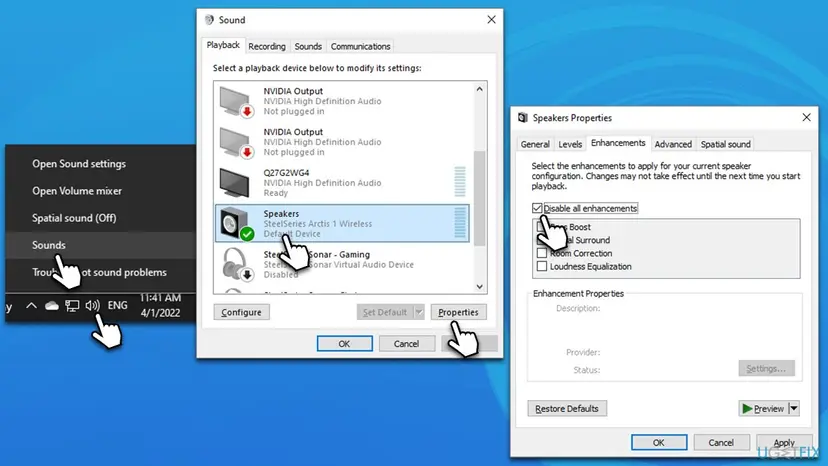
It worked if: The setting shows Off or the box is ticked, the sound still plays, and the service settles within a minute.
If not: If nothing changes, turn enhancements back on if you liked them and go to Fix 4.
Fix 4. Turn off exclusive mode and try another default format
5 minutesLow riskYou play games, use a music production program or a call app, and the load appears when one of them starts or closes.
Exclusive mode lets one app take full control of the device, and the device is handed back to Windows when the app lets go. A format the device handles badly can also cause trouble; Microsoft's audio help suggests trying another default format.
- Open Settings > System > Sound > More sound settings. On Windows 10, open Sound Control Panel from System > Sound.
- On the Playback tab, select your default device and select Properties.
- Open the Advanced tab.
- Under Exclusive Mode, untick Allow applications to take exclusive control of this device.
- Under Default Format, pick another value, select Test, then Apply and OK.
- Restart the app you use for games, music or calls and watch Task Manager.
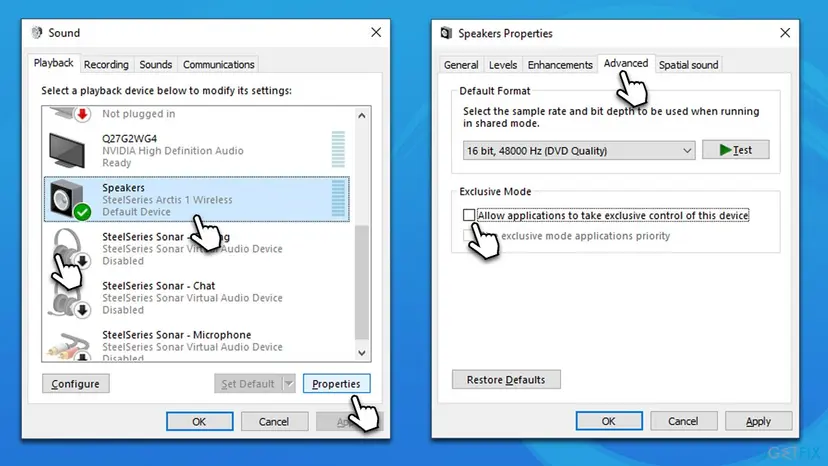
Some music programs need exclusive mode for low latency. If yours does, leave it on and try Fix 2 and Fix 5 instead. Restore Defaults on the same tab puts both settings back.
It worked if: The device plays in the new format and the service no longer spikes when a game or music program starts.
If not: If the load stays, the driver is the next suspect. Go to Fix 5.
Fix 5. Update, roll back or reinstall the audio driver
15 minutesLow riskThe load comes back after Fix 1 to Fix 4, or it began right after a driver or Windows update.
Endpoint Builder works with the device through its driver. A driver that keeps resetting the device or reports it again and again shows up as the service's CPU. Microsoft's order is update first, roll back after a bad update, then reinstall, then the generic Windows driver.
- Right-click Start and open Device Manager, then expand Sound, video and game controllers.
- If the load began after an update: right-click your audio device, select Properties > Driver > Roll Back Driver and follow the prompts.
- Otherwise right-click the device, select Update driver > Search automatically for drivers. If nothing is found, get the current driver from your PC or sound card maker's website.
- To reinstall: right-click the device, select Uninstall device, tick Attempt to remove the driver for this device and select Uninstall, then restart. Windows installs the driver again.
- To try the Windows driver: right-click the device, select Update driver > Browse my computer for drivers > Let me pick from a list of available drivers on my computer, pick High Definition Audio Device and select Next.
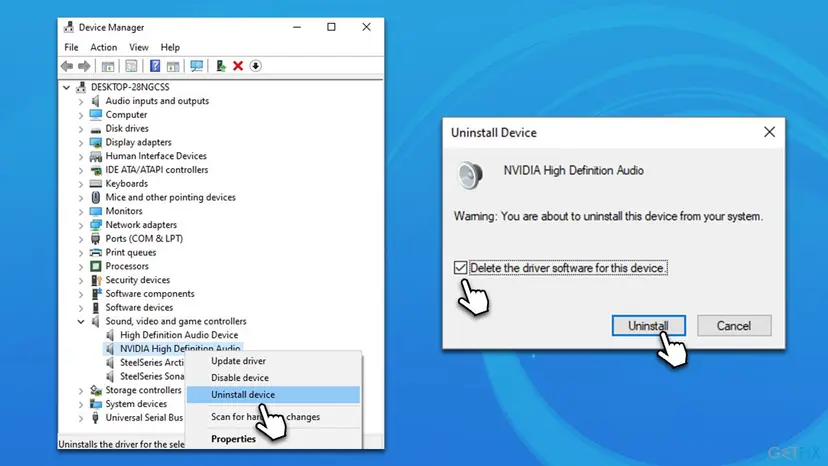
Device Manager in general, with screenshots of each route: Update, roll back or reinstall a driver. A PC with several audio devices, such as onboard sound and NVIDIA High Definition Audio for the monitor, may need the same steps on each one.
It worked if: The device works with the new, older or generic driver, and the service stays near 0% CPU.
If not: If every driver behaves the same, go to Fix 6.
Fix 6. Run the audio troubleshooter and install Windows updates
15 to 30 minutesNo riskThe fixes above did not help, or you want Windows to check the audio setup for you.
Microsoft's audio troubleshooter checks the audio services, devices and settings in one run. Windows updates replace audio components and inbox drivers, so a PC behind on updates can carry an old fault.
- Open the Get Help app from the Start menu, type audio troubleshooter and follow the questions. Microsoft points Windows 11 and Windows 10 users to this app first.
- On Windows 11 you can also open Settings > System > Troubleshoot > Other troubleshooters and select Run next to Audio.
- Press Win + I, open Windows Update and select Check for updates. Install everything offered.
- Restart the PC and watch Task Manager.
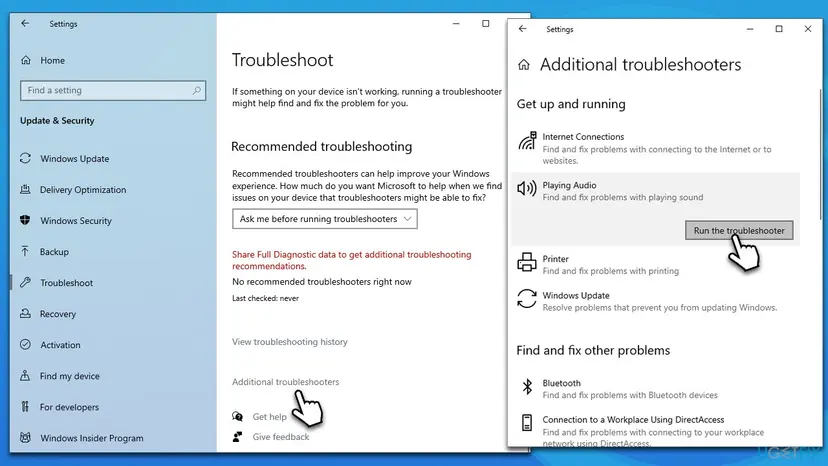
Windows 10 left support on 14 October 2025. Only PCs enrolled in Extended Security Updates still get fixes from Windows Update. On the others, the driver steps in Fix 5 matter more.
It worked if: The troubleshooter reports a problem it fixed, or Windows is up to date and the service stays quiet.
If not: If an update is the trigger, the steps to remove it as a test are here: How to uninstall a Windows update. Otherwise go to Fix 7.
Fix 7. Repair Windows system files with SFC and DISM
20 minutesNo riskThe load stays with all extra devices gone and a fresh driver, or other Windows parts fail too.
Windows Audio Endpoint Builder and its files are part of Windows. If they or the component store are damaged, the service can fail and restart in a loop, which shows as constant CPU. SFC and DISM replace damaged files with good copies.
- Open an elevated command window. Right-click Start and select Terminal (Admin), or type cmd in the search box, right-click Command Prompt and select Run as administrator. Select Yes when Windows asks for permission.
- Run DISM first. Type the command below and press Enter. DISM downloads clean copies of damaged components from Windows Update, so it can take several minutes. Wait until it says The operation completed successfully.
DISM.exe /Online /Cleanup-Image /RestoreHealth - Run System File Checker. In the same window, type the command below and press Enter. Do not close the window until the verification reaches 100%.
sfc /scannow - Read the result and restart. Compare the last message with the table below this guide, then restart the PC so that repaired files are loaded.
These steps were written for Windows 11 24H2 and 25H2. The full page with the other versions and what each result means: Run DISM and SFC to repair Windows system files
It worked if: SFC reports that it repaired corrupt files, or found no integrity violations, and the service settles after a restart.
If not: If files cannot be repaired, read the section on what to do when nothing helped.
Windows Audio Endpoint Builder still uses high CPU: where Windows writes the cause
If the services are restarted, the extra devices are gone, the driver is fresh and the load stays, read what Windows logged before you reinstall anything. Device and service trouble leaves a trail.
- System log: press Win + R, type
eventvwr.mscand open Windows Logs > System. Entries from Service Control Manager that name Windows Audio Endpoint Builder show when it stopped, hung or restarted. - Application log: under Windows Logs > Application, an Application Error that names AudioEndpointBuilder lists a faulting module. A DLL from a sound card, headset or audio software maker points to its driver or program.
- Device Manager: open View > Devices by connection and watch whether an audio device appears and disappears. That device, its cable or its port is the cause.
- Clean boot: start Windows with only Microsoft services to see whether third party audio software feeds the load: How to perform a clean boot in Windows.
- Repair install: as a last step, reinstall Windows over itself and keep files and apps: Reinstall Windows without losing files.
A headset, cable, dock or USB port that drops the connection is a hardware fault, even though the CPU load shows in Windows. If the load follows one device to every port and every PC, replace the device or its cable.
How to keep Windows Audio Endpoint Builder from using high CPU again
- Keep only the audio devices you use enabled, and disable monitor outputs you never listen to.
- Plug USB headsets straight into the PC rather than into a hub, and replace a cable that makes the device drop.
- Install audio drivers from your PC or sound card maker, and remove headset or game audio software you no longer use.
- Leave audio enhancements off unless you hear a difference you want.
- Leave both audio services on Automatic. Setting them to Manual or Disabled does not fix a fault and stops the sound.
Microsoft says that if you stop this service, audio devices and effects stop functioning properly, and services that depend on it cannot start. That is exactly what the reader above found: no CPU load, but no sound either.
Frequently asked questions
What is Windows Audio Endpoint Builder?
Windows Audio Endpoint Builder is a built-in Windows service, service name AudioEndpointBuilder, that manages audio devices for the Windows Audio service. It finds your speakers, headphones, microphones and HDMI outputs and keeps them ready for Windows Audio, which plays the sound. It runs in a shared svchost.exe process, which is why Task Manager calls it Service Host: Windows Audio Endpoint Builder. It is part of Windows 11 and Windows 10 and uses almost no CPU when nothing changes.
Can I disable Windows Audio Endpoint Builder?
Not on a PC that should play sound. Microsoft's description of the service says that if you stop it, audio devices and effects stop functioning properly, and services that depend on it cannot start. Windows Audio is one of them. A Microsoft guide for Windows Server lists it as OK to disable, but that is for servers with no sound. On your PC, restart it as in Fix 1 and remove the cause instead.
Is Service Host: Windows Audio Endpoint Builder a virus?
No, it is a normal Windows service that runs inside svchost.exe. Malware can copy the svchost.exe name, so check the location if you are unsure: in Task Manager, right-click Service Host: Windows Audio Endpoint Builder, select Go to details, then right-click svchost.exe and select Open file location. The real file is in C:\Windows\System32. If it opens anywhere else, run a full Microsoft Defender scan before any other fix.
What is the difference between Windows Audio and Windows Audio Endpoint Builder?
Windows Audio (Audiosrv) manages audio for Windows programs, in other words it plays the sound. Windows Audio Endpoint Builder (AudioEndpointBuilder) manages the audio devices that Windows Audio plays to. Windows Audio depends on Endpoint Builder, so stopping Endpoint Builder stops Windows Audio too. Both should be Running with the startup type Automatic on a normal PC, and Microsoft's audio help restarts both together.
How do I restart Windows Audio Endpoint Builder?
Open Services by typing services in the taskbar search box. Right-click Windows Audio Endpoint Builder, select Restart and confirm with Yes if Windows asks about dependent services. Then right-click Windows Audio and select Restart as well. From an administrator Command Prompt, run net stop AudioEndpointBuilder /y, then net start AudioEndpointBuilder and net start Audiosrv. Fix 1 has the full steps.
What is an audio endpoint in Windows 11?
An audio endpoint is the device at the end of the sound path: the speakers, headphones, headset, microphone or monitor that you hear or speak into. Windows lists each one as an output or input in Settings, System, Sound. There is no separate audio endpoint driver to download; each endpoint uses the driver of its sound card, USB device, Bluetooth device or graphics card, which you manage in Device Manager as in Fix 5.
What does AudioEndpointBuilder do in music production?
The same as on any PC: it manages the audio devices, including your audio interface, for the Windows Audio service. Music programs that use the Windows audio path go through it, and one that takes exclusive control of the device makes Windows hand the device over and back. If the service spikes when your music program starts or closes, try Fix 4 and keep the interface's driver current as in Fix 5. We could not confirm more detail from a Microsoft page.
Is Windows Audio Endpoint Builder different on Windows 10?
No. The service, its name AudioEndpointBuilder and its role are the same on Windows 10 and Windows 11. Only the Settings pages differ: Windows 11 has Settings, System, Sound with More sound settings, and Windows 10 has the Sound Control Panel link on the same page. Windows 10 left support on 14 October 2025, so only PCs in Extended Security Updates still get audio fixes from Windows Update.
Where can I download Windows Audio Endpoint Builder?
Nowhere, and you should not try. It is part of Windows, not a separate program, and a download site that offers it may hand you malware under a trusted name. If the service is missing or will not start, Windows can restore its own files: run SFC and DISM as in Fix 7. If that fails, a repair install keeps your files and apps and puts back every system file.
Is there a Spanish or Russian version of this page?
This page is in English only. In Windows set to another language the display name of the service is translated, but the service name AudioEndpointBuilder stays the same everywhere, so the commands in Fix 1 work in every language. The steps and the order of the fixes are the same, and the menu names follow your Windows language.
Sources
- Microsoft Support: Fix sound or audio problems in Windows (audio enhancements, drivers, restart audio services) (support.microsoft.com)
- Microsoft Learn: Security guidelines for system services in Windows Server 2016 (Windows Audio Endpoint Builder and Windows Audio descriptions) (learn.microsoft.com)
- Microsoft Q&A: Windows Audio Endpoint Builder high CPU usage (user report) (learn.microsoft.com)
Did this fix work?
One click, no account. It tells the next reader which guides are worth their time.
Questions and experiences: fix Windows Audio Endpoint Builder high CPU usage
Still broken, or found a fix we did not cover? Ask here: members and our editors answer. Reading is open; writing needs a free account.
…