
How to fix Windows boot error code 0xc0000229 (BlInitializeLibrary failed)

Prefer to fix it yourself? The manual steps follow.
- 9methods
- 15 to 90 minutes
- Intermediate
Applies to Windows 11 and Windows 10 PCs that stop at a black screen with BlInitializeLibrary failed 0xc0000229
9 methods in this guide
For some reason, my PC stopped working today. When I tried booting it up this morning, it failed to boot and showed error code 0xc0000229. I tried restarting several times, but the result is always the same. Could you help me?
BlInitializeLibrary failed 0xc0000229 appears in white text on a black screen right after the PC maker's logo, before Windows starts to load. The code means a consistency check failed, and it most often follows a freeze, a power loss or a changed BIOS setting. Reset the BIOS to its defaults and remove extra devices first.
The message comes from the Windows boot loader, and 0xc0000229 is Microsoft's STATUS_FAIL_CHECK: a consistency check failed. Your files are usually fine. Turn the PC off, unplug extra drives and USB devices, and load the BIOS defaults (Fix 1). Then check that the system disk shows in the BIOS (Fix 2), run Startup Repair (Fix 3) and rebuild the boot files (Fix 4).
| Error | White text on a black screen: BlInitializeLibrary failed 0xc0000229. The PC stops there or restarts into the same message. |
|---|---|
| Where it appears | Right after the PC or motherboard logo, before the Windows logo and the spinning dots. Users report that a Windows USB drive can stop at the same point. |
| Main cause | The boot loader could not start: a BIOS setting, a disk the firmware reads badly, damaged boot files after a freeze or power loss, or failing hardware. |
| Fastest fix | Load the BIOS defaults and disconnect extra devices (Fix 1), then reseat or check the system disk (Fix 2). |
| Also written as | B1InitializeLibrary failed, BI initializeLibrary failed, Bl initialize library failed, B1 initialize library failed, B1InitializedLibrary failed. The first letters are B and a lower case L. |
| What the code means | 0xC0000229 is STATUS_FAIL_CHECK, "A consistency check failed", in Microsoft's list of NTSTATUS values. |
| Related codes | 0xc00000bb (not supported), 0xc0000001 (unsuccessful), 0xc000009a (insufficient resources). Same message, same fixes. |
| Affects | Windows 11 and Windows 10 PCs, desktops and laptops. Windows 10 left support on 14 October 2025. |
| Vendor status | No Microsoft known issue or support article for this message. Microsoft documents only the status code. |
| Time to fix | 15 to 30 minutes for Fix 1 to 4. An hour or more when hardware must be tested or Windows reinstalled. |
Facts checked on 15 October 2026. Steps written for Windows 11 (25H2 and 26H2) and Windows 10 22H2.
What BlInitializeLibrary failed 0xc0000229 means
The message has two parts. BlInitializeLibrary is the name of a routine in the Windows boot loader, the code that runs after the firmware and before Windows itself. 0xc0000229 is the reason it gave up. Microsoft's list of NTSTATUS values names it STATUS_FAIL_CHECK with the text "A consistency check failed".
We could not find a Microsoft page that documents the message itself. What the code tells you is that the boot loader found something it did not expect while it set itself up: the firmware, the disk or its own files. On screen the lower case L looks like the digit 1, so most people search for B1InitializeLibrary failed. In other languages people simply describe it as the same error at every start.
| Code on screen | Microsoft's name | What it says |
|---|---|---|
0xc0000229 | STATUS_FAIL_CHECK | A consistency check failed |
0xc00000bb | STATUS_NOT_SUPPORTED | The request is not supported |
0xc0000001 | STATUS_UNSUCCESSFUL | The requested operation was unsuccessful |
0xc000009a | STATUS_INSUFFICIENT_RESOURCES | Insufficient system resources exist to complete the API |
All four codes stop the same boot loader at the same moment, so the fixes on this page apply to each of them. Only the order changes a little: with 0xc000009a, test the memory early (Fix 7).
Why BlInitializeLibrary fails: the causes, most common first
The boot loader depends on three things: the firmware that hands over to it, the disk it reads from and its own boot files. When the error seems to come out of nowhere, one of them changed without you noticing, often at the last shutdown. Users on Microsoft Q&A and the MSI forum report it after a game froze and the PC turned off, and on a new build with an NVMe drive.
| How often | Cause | Sign | Fix |
|---|---|---|---|
| Most often | A firmware setting or a connected device the boot loader does not expect | The message started after a BIOS change, a BIOS reset, a new part or a USB drive left plugged in | Fix 1 |
| Often | The system disk is read badly: a loose cable, an M.2 drive not seated, a failing SSD | The disk is sometimes missing in the BIOS, or Windows starts once in a while and then acts strangely | Fix 2, Fix 5 |
| Often | Boot files damaged by a freeze, a power loss or a forced shutdown | The PC froze or lost power during the last session | Fix 3, Fix 4 |
| Less often | Old firmware that does not work well with a newer disk or graphics card | A new build or a new part, and the BIOS is older than the part | Fix 6 |
| Rarely | Failing memory, motherboard or processor | A Windows USB drive also stops, or other errors keep changing | Fix 7 |
Where the cause is written
The boot loader stops before Windows can write a crash dump, so there is usually no log of the moment itself. These are the places that still help:
- The BIOS or UEFI setup: does it list the system disk, and is the boot mode UEFI? A disk that vanishes from this list is a hardware sign.
C:\Windows\System32\Logfiles\Srt\SrtTrail.txt: the log that Startup Repair writes in Fix 3. It names the problem it found, for example a boot configuration or a disk error.- Event Viewer > Windows Logs > System: if Windows starts again later, look for Disk, Ntfs and Kernel-Power events around the first failed start.
- What happened last: a freeze, a power cut, a BIOS update, a new drive or graphics card. The timing is often the best clue you have.
How to fix BlInitializeLibrary failed 0xc0000229
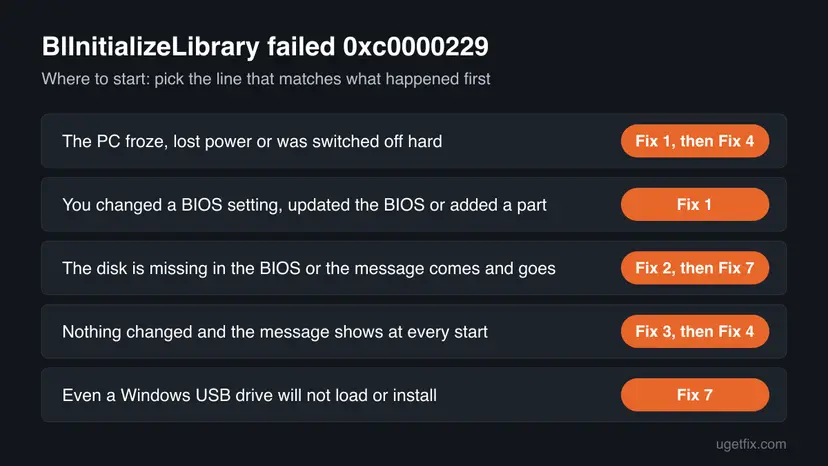
Start with Fix 1 and Fix 2: they cost nothing and touch no files. Fixes 3 to 5 repair the boot files and the disk from the recovery screen. Fix 6 and Fix 7 deal with firmware and hardware, and Fixes 8 and 9 are the last resort.
| What you see or what happened | Start with | Then |
|---|---|---|
| The PC froze, lost power or was switched off with the power button | Fix 1 | Fix 4 |
| You changed or updated the BIOS, or added a drive or a graphics card | Fix 1 | Fix 6 |
| The system disk is sometimes missing in the BIOS, or Windows starts now and then | Fix 2 | Fix 5 |
| Nothing changed and the message appears at every start | Fix 3 | Fix 4 |
| A Windows USB drive also stops or cannot install Windows | Fix 7 | Fix 6 |
Fix 1. Load the BIOS defaults and disconnect extra devices
10 minutesLow riskEveryone, first. Most of all when the message followed a freeze, a BIOS change or a new part.
The boot loader checks what the firmware hands over to it. A changed setting, an overclock or an extra drive with its own boot files can fail that consistency check; the defaults and a bare setup remove those variables.
- Shut the PC down completely. On a desktop, switch off the power supply for 30 seconds.
- Unplug every USB drive, memory card, external disk and dock. Keep only the keyboard, the mouse and one monitor.
- Turn the PC on and press the setup key shown on the logo screen, often Del, F2 or F10.
- Choose Load Optimized Defaults or Load Setup Defaults (the name depends on the maker).
- Check that Boot Mode is UEFI and that Windows Boot Manager on your system disk is first in the boot order.
- Select Save and Exit and watch whether the PC passes the logo.
Older advice says to clear the TPM and switch Secure Boot off. Do not: clearing the TPM can make BitLocker ask for its recovery key, and turning Secure Boot off lowers your protection without fixing the boot loader. Loading the defaults keeps both in their factory state.
It worked if: The PC passes the maker's logo and shows the Windows logo with the spinning dots.
If not: If the message is still there, check the system disk in Fix 2.
Fix 2. Check that the BIOS sees the system disk, and reseat it
15 minutesLow riskThe disk is sometimes missing in the BIOS, Windows starts now and then, or Fix 1 did not help.
BlInitializeLibrary reads its settings from the system disk. A drive that answers badly through a loose cable or a badly seated M.2 slot makes that read fail; in the MSI forum thread, support first asked the user to test another storage device.
- Open the BIOS setup and find the storage or boot page. Check that your system disk is listed by its model name.
- If it is missing, or appears only sometimes, shut the PC down and unplug it.
- On a desktop, reseat the SATA data and power cables, or take the M.2 drive out and push it back in firmly. Try another SATA port or M.2 slot.
- On a laptop, leave the inside to a repair shop unless the maker's manual shows how to open it.
- Start the PC again and check the BIOS list once more.
If the disk stays missing after this, it may be failing. Your files may still be readable from another PC, so copy them before any repair that writes to the disk: Back up your files (Windows Backup, File History, Time Machine)
It worked if: The BIOS lists the system disk every time, and the next start passes the message.
If not: If the disk is listed but the message stays, repair the boot from the recovery screen in Fix 3.
Fix 3. Run Startup Repair from the recovery screen or a Windows USB drive
20 minutesLow riskThe disk is visible in the BIOS and the message appears at every start.
Startup Repair checks the boot configuration and the system partition and fixes what it can. It runs from the recovery environment, which does not need the boot files that failed.
- Turn the PC on and, when the logo appears, hold the power button until it turns off. Do this twice; the third start opens Automatic Repair.
- If the recovery screen never appears, make a Windows 11 USB drive with the Media Creation Tool on another PC, boot from it with the boot menu key (often F8, F11 or F12) and select Repair your computer.
- Select Troubleshoot > Advanced options > Startup Repair.
- Pick your account if asked and wait until it finishes. Step by step: Run Startup Repair
- Restart and see whether the message is gone.
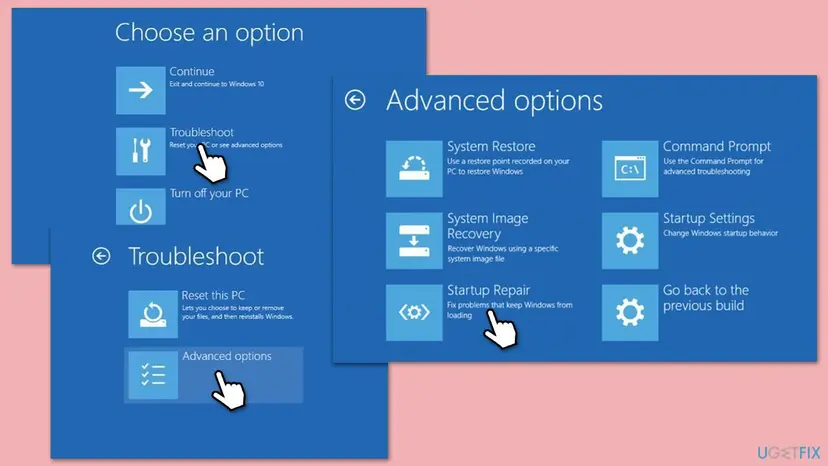
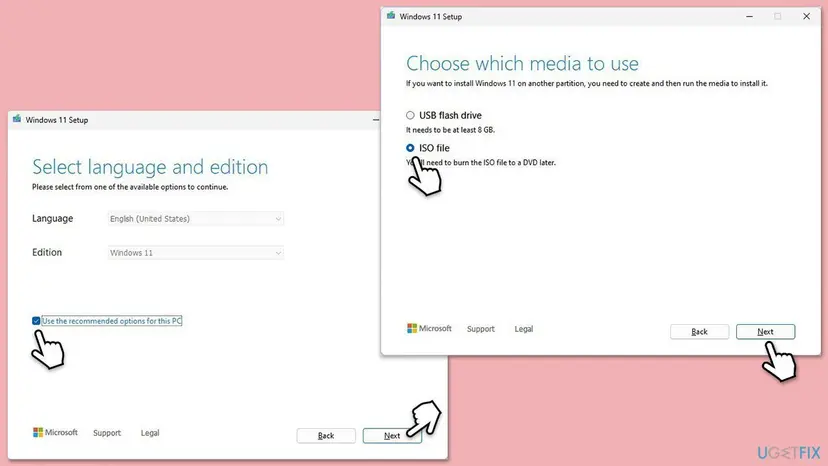
The recovery screen may ask for a BitLocker recovery key. With a Microsoft account, the key is listed at account.microsoft.com/devices/recoverykey. Look it up on a phone or another PC.
It worked if: Startup Repair reports that it repaired the PC, and the next start reaches the sign-in screen.
If not: If it says it could not repair the PC, note what SrtTrail.txt says and rebuild the boot files in Fix 4.
Fix 4. Rebuild the UEFI boot files with bcdboot
15 minutesLow riskStartup Repair failed, or the PC froze or lost power during the last session.
The boot loader reads its configuration and libraries from the small EFI system partition. If they were half written when the PC lost power, bcdboot writes a fresh copy from the Windows folder.
- Open Troubleshoot > Advanced options > Command Prompt from the recovery screen or the Windows USB drive.
- Type
diskpart, thenlist volume. Find the Windows volume (NTFS, the largest) and the small FAT32 volume, often labelled System. - Type
select volume 2with the number of the FAT32 volume, thenassign letter=Z, thenexit. - Find the Windows drive letter:
dir C:\Windows,dir D:\Windowsuntil one lists the folder. In recovery it is often notC:. - Run
bcdboot C:\Windows /s Z: /f UEFIwith that letter in place ofC:. - Type
exitand select Continue.
In the recovery Command Prompt (replace 2 and C: with your volume number and Windows drive):
diskpart
list volume
select volume 2
assign letter=Z
exit
bcdboot C:\Windows /s Z: /f UEFI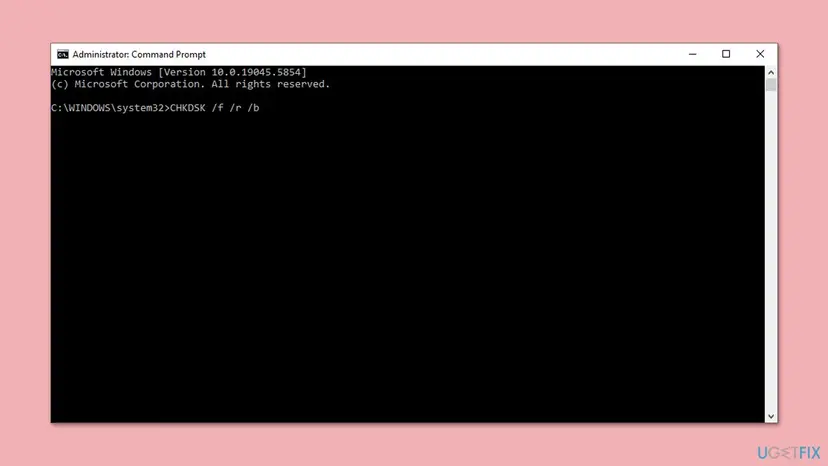
On a PC that starts in legacy BIOS mode, use bcdboot C:\Windows without /s and /f, and then bootrec /rebuildbcd. Users report Access is denied for bootrec /fixboot on newer PCs; on UEFI, bcdboot does that job.
It worked if: The command reports Boot files successfully created, and the PC starts without the message.
If not: If the message stays, check the disk in Fix 5.
Fix 5. Check the system disk for errors with CHKDSK
30 to 90 minutesLow riskThe PC lost power, the disk was slow before the error, or Startup Repair names a disk problem.
A file system damaged by a hard shutdown can make the boot loader read wrong data and fail its check. CHKDSK repairs the file system and, with /r, marks bad sectors.
- Open the recovery Command Prompt as in Fix 4.
- Find the Windows drive letter with
dir C:\Windowsanddir D:\Windows. - Run
chkdsk C: /f /rwith that letter. The/rpass can take an hour or more on a large disk. - Read the result, type
exitand select Continue. Step by step: Check a disk for errors (chkdsk)
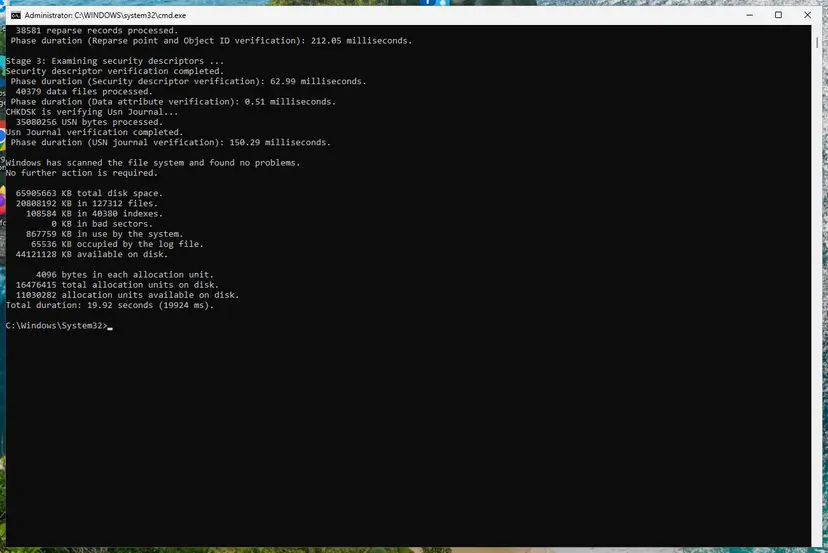
It worked if: CHKDSK reports that it made corrections or found no problems, and the next start reaches Windows.
If not: If CHKDSK reports bad sectors, back up the disk and plan to replace it. If it is clean, go to Fix 6.
Fix 6. Update the BIOS from the PC or motherboard maker
20 minutesRead the warningA new build, a new disk or graphics card, or a BIOS much older than your parts.
The boot loader works with what the firmware gives it. A newer BIOS can fix how it handles a newer disk or graphics card; in the MSI forum thread, the first advice was to flash the latest BIOS with M-Flash.
A BIOS update that is cut off by a power loss can leave the board unable to start. Your files are not touched, but your BIOS settings return to the defaults. Plug a laptop in, use the exact file for your model and never turn the PC off during the update.
- On another PC, open your PC or motherboard maker's support page and find your exact model.
- Download the latest BIOS file and read the maker's instructions that come with it.
- Copy the file to a USB drive formatted as the maker asks, often FAT32.
- Start the BIOS update tool from the setup screen (for example M-Flash on MSI boards, EZ Flash on ASUS, Q-Flash on Gigabyte) and pick the file.
- Wait until the PC restarts on its own, then load the defaults again as in Fix 1.
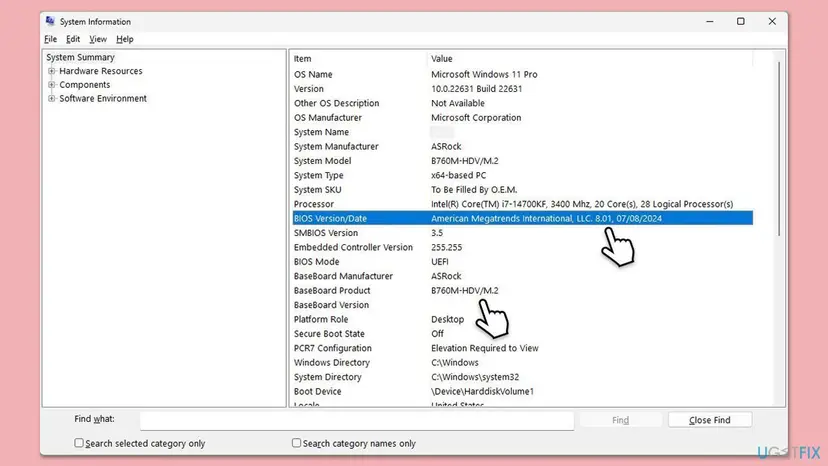
It worked if: The setup screen shows the new BIOS version, and the PC passes the logo without the message.
If not: If the message is the same with the newest BIOS, test the hardware in Fix 7.
Fix 7. Test the memory, the disk and the other parts
60 minutes or moreLow riskA Windows USB drive also stops, errors keep changing, the code is 0xc000009a, or nothing above helped.
If the boot loader of a USB drive fails too, the fault is in the PC and not in the Windows on the disk. In the MSI forum thread, a new SSD and a repaired motherboard did not help, and the user suspected the processor.
- Turn off any CPU or memory overclock and the memory profile (XMP or EXPO) in the BIOS.
- Start with one memory module, then the other, in the slot the board's manual marks as first.
- If you have a graphics card and the processor has graphics too, connect the monitor to the motherboard and remove the card for one test.
- Connect another disk with a fresh Windows, or try your disk in another PC.
- If Windows starts at all, test the memory with How to test your RAM with Windows Memory Diagnostic and check the disk with its maker's tool.
It worked if: You find the part without which the PC starts normally, or every test is clean.
If not: If a part is faulty, replace it or claim the warranty. If every test is clean, go to Fix 8.
Fix 8. Return Windows to an earlier state with System Restore
20 minutesRead the warningThe recovery screen opens, the hardware is fine and System Protection was on.
A restore point brings back drivers and system settings from before the first failed start. It does not rewrite the boot loader, so it helps only when a change inside Windows broke the start.
System Restore does not touch your documents and photos. It removes apps, drivers and updates installed after the restore point. Note them so you can install them again.
- Open the recovery screen as in Fix 3 and select Troubleshoot > Advanced options > System Restore.
- Pick your account and enter its password.
- Select a restore point dated before the first failed start, then Next and Finish.
- Do not turn the PC off while it restores. Step by step: Undo recent changes with System Restore
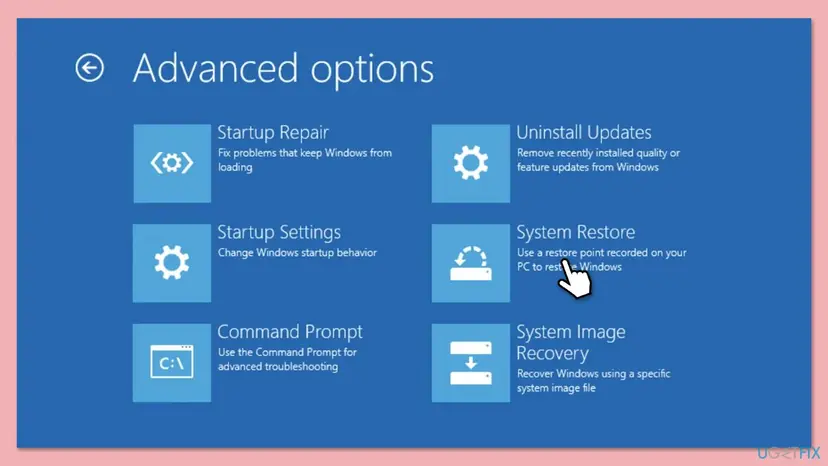
It worked if: Windows reports that System Restore completed successfully and starts to the sign-in screen.
If not: If there is no restore point or it fails, reinstall Windows in Fix 9.
Fix 9. Reinstall Windows and keep your files
60 to 90 minutesRead the warningEvery fix above failed, the hardware tests are clean and a Windows USB drive does load.
A reinstall writes a new boot loader, a new system partition and a fresh Windows. A Microsoft Q&A answer to this error points to Reset this PC with Keep my files.
Reset this PC with Keep my files keeps documents, pictures and the desktop, but removes the apps you installed. If Windows does not start, copy your files first from a Windows USB drive or by connecting the disk to another PC: Back up your files (Windows Backup, File History, Time Machine)
- In the recovery screen, select Troubleshoot > Reset this PC > Keep my files.
- Choose Cloud download for fresh files from Microsoft, or Local reinstall.
- If the reset cannot start, boot from the Windows USB drive from Fix 3 and install Windows from there.
- After the reinstall, install the chipset and storage drivers from your PC maker first. Full method: Reinstall Windows without losing files
It worked if: Windows starts to a fresh desktop with your files in place, and the message does not come back.
If not: If the message appears even during Windows Setup, the board, the processor or the memory is at fault. Contact your PC maker or a repair shop.
Still stuck at BlInitializeLibrary failed: what to collect and whom to ask
Support can help only with the facts around the failure, because the boot loader leaves no dump. Collect these once:
- The exact code after the message (0xc0000229, 0xc00000bb, 0xc0000001 or 0xc000009a) and a photo of the screen.
- What happened before the first failure: a freeze, a power cut, a BIOS update, a new part.
- Your BIOS version, the board or PC model and the system disk model.
- Whether a Windows USB drive loads, and the text of
SrtTrail.txtfrom Fix 3. - The CHKDSK and memory test results from Fix 5 and Fix 7.
| Where to ask | When |
|---|---|
| Your PC or motherboard maker's support | A Windows USB drive also fails, or the error began after a BIOS update or a new part |
| Your disk's maker or a repair shop | The disk disappears from the BIOS, or CHKDSK reports bad sectors |
| Microsoft Support | The hardware tests are clean and only the installed Windows fails |
How to keep BlInitializeLibrary failed from coming back
- Shut Windows down from the Start menu, and wait for a frozen PC as long as you can before you cut the power.
- Use a UPS on a desktop where power cuts are common.
- Write down your BIOS settings before a BIOS update and check them after it.
- Keep System Protection on for the system drive and a recent backup of your files.
- Leave USB drives and external disks plugged in at every start.
- Run an unstable overclock or memory profile on the PC you need every day.
- Ignore a disk that is sometimes missing in the BIOS or suddenly slow.
- Clear the TPM or turn Secure Boot off as a fix.
Windows 10 left support on 14 October 2025. A Windows 10 PC gets boot fixes only through Extended Security Updates, so moving to Windows 11 keeps them coming.
Frequently asked questions
What does BlInitializeLibrary failed 0xc0000229 mean?
It means the Windows boot loader could not set itself up and stopped before Windows began to load. BlInitializeLibrary is the name of the routine that failed, and 0xc0000229 is the reason. Microsoft's list of NTSTATUS values names that code STATUS_FAIL_CHECK, "A consistency check failed". In practice the boot loader found something it did not expect in the firmware, the disk or its own boot files.
Is B1InitializeLibrary failed the same error?
Yes. The message uses a lower case L after the B, and on the plain boot font it looks like the digit 1. B1InitializeLibrary, BI initializeLibrary, Bl initialize library and B1 initialize library failed are all the same message. People also type B1InitializedLibrary. The fixes on this page are the same for every spelling, on Windows 10 and Windows 11.
How do I fix B1InitializeLibrary failed on Windows 10?
The fixes are the same as on Windows 11, because the boot loader works the same way. Load the BIOS defaults and remove extra devices, check that the BIOS sees the system disk, then run Startup Repair and rebuild the boot files with bcdboot from the recovery Command Prompt. Windows 10 left support on 14 October 2025, so after the PC starts again, plan the move to Windows 11.
Does B1InitializeLibrary failed happen on Windows 11?
Yes. Windows 11 uses the same boot loader, so the message and the codes are the same. On Windows 11 the boot mode is UEFI, so the boot files sit on the small FAT32 system partition and Fix 4 rebuilds them with bcdboot and the /f UEFI switch. Newer Windows 11 builds may call Startup Repair Quick machine recovery on the recovery screen.
What is BlInitializeLibrary failed 0xc000009a?
It is the same message with another code. Microsoft names 0xc000009a STATUS_INSUFFICIENT_RESOURCES: there were not enough system resources to finish the request. At boot that points to memory more than to files, so remove any memory profile or overclock and test one memory module at a time (Fix 7) early. The other fixes on this page apply as well.
Why did the error appear out of nowhere?
It rarely comes out of nowhere; the change happened at the last shutdown or start. A game that froze and a PC that was turned off with the power button, a power cut, a BIOS that reset itself or a disk that began to fail can all leave the boot loader with something it does not expect. Users on Microsoft Q&A and the MSI forum report exactly these cases.
Will I lose my files?
Usually not. The message stops the boot loader, not the disk, so your documents and photos are normally still there. Fixes 1 to 7 do not touch personal files. System Restore removes only apps and drivers installed after the restore point, and Reset this PC with Keep my files keeps personal files. If the disk is failing, copy your files from another PC or a Windows USB drive before you repair anything.
Should I switch Secure Boot off or clear the TPM?
No. Some guides suggest it, but neither one repairs the boot loader. Clearing the TPM can make BitLocker ask for its recovery key at the next start, and a PC without Secure Boot is easier for boot level malware to attack. Load the BIOS defaults instead (Fix 1), which puts both back to the factory state the PC was built for.
Is BlInitializeLibrary failed a hardware problem?
Sometimes. If a Windows USB drive also stops, or Windows will not even install, the fault is in the PC and not in the installed Windows. In the MSI forum thread, a new SSD and a repaired motherboard did not help, and the user suspected the processor. A disk that vanishes from the BIOS, CHKDSK bad sectors or memory test errors also point to hardware.
What can I do if the PC restarts before I reach the recovery screen?
Interrupt the start twice: when the logo appears, hold the power button until the PC turns off. On the third start Windows should open Automatic Repair. If it hangs on Preparing Automatic Repair, as one user on Microsoft Q&A reports, make a Windows 11 USB drive with the Media Creation Tool on another PC, boot from it and select Repair your computer.
Sources
- Microsoft Learn: [MS-ERREF] NTSTATUS Values (learn.microsoft.com)
- Microsoft Q&A: BI initializeLibrary failed 0xc0000229 (learn.microsoft.com)
- MSI Global English Forum: B1InitializedLibrary failed 0xc0000229 (forum-en.msi.com)
Did this fix work?
One click, no account. It tells the next reader which guides are worth their time.
Questions and experiences: fix Windows boot error code 0xc0000229 (BlInitializeLibrary failed)
Still broken, or found a fix we did not cover? Ask here: members and our editors answer. Reading is open; writing needs a free account.
…