
How to fix "Windows cannot determine the settings for this device" (Code 34) in Windows

Prefer to fix it yourself? The manual steps follow.
- 6methods
- 5 to 45 minutes
- Intermediate
Applies to Windows 11 and Windows 10 PCs where a COM or LPT port, a USB serial adapter or an older expansion card shows Code 34 in Device Manager
6 methods in this guide
I got a message that my COM port 1 is not working. In Device Manager, the message says, "Windows cannot determine the settings for this device" (Code 34). This must mean something. How do I fix this?
Code 34 means Windows could not work out the resources a device should use, so the device needs its settings fixed by hand. It shows up mostly on COM ports and old expansion cards. Reinstall the device first, then set its resources on the Resources tab as Microsoft advises.
Code 34 means the device cannot be set up automatically and needs a forced configuration. For a USB serial adapter, uninstall it in Device Manager, plug it into another port and restart (Fix 1), then install the maker's driver (Fix 2). For a built-in COM or LPT port or an old card, read its address and IRQ from the BIOS setup or manual, then set the same values on the Resources tab (Fixes 3 and 4).
| Error | Windows cannot determine the settings for this device. Consult the documentation that came with this device and use the Resource tab to set the configuration. (Code 34). Microsoft's internal name is CM_PROB_NO_SOFTCONFIG. |
|---|---|
| Where it appears | In Device Manager, in the Device status box on the General tab of the device's Properties. Most often under Ports (COM & LPT). |
| Main cause | The device does not tell Windows which I/O range and IRQ it uses, so Windows cannot assign them. Microsoft says it requires a forced configuration. |
| Fastest fix | Uninstall the device, restart and select Action > Scan for hardware changes (Fix 1). For a built-in port, the Resources tab (Fixes 3 and 4). |
| Also written as | code 34, error code 34, error 34, 34 error, device manager code 34, COM port code 34, CM_PROB_NO_SOFTCONFIG. |
| Affects | Communications Port (COM1), Printer Port (LPT1), USB serial adapters and cables, older add-in cards. Windows 11 and Windows 10. |
| Vendor status | Documented by Microsoft as a device that needs manual configuration. Microsoft's fix is to set the hardware, then the Resources tab. No known issue listed on 15 October 2026. |
| Where the cause is shown | The Resources tab of the device: its Resource settings and the Conflicting device list. |
| Time to fix | 5 to 10 minutes for a reinstall. 20 to 45 minutes when you set the port in BIOS/UEFI setup and on the Resources tab. |
Facts checked on 15 October 2026. Steps written for Windows 11 (25H2 and 26H2) and Windows 10 22H2.
What "Windows cannot determine the settings for this device" (Code 34) means
Code 34 is a Device Manager problem code. Microsoft's driver documentation names it CM_PROB_NO_SOFTCONFIG and says it means the device requires a forced configuration. In plain words, Windows can see the device but cannot find out which hardware resources it uses, such as an I/O Range and an IRQ, so it does not start it.
Modern plug and play devices report their resources by themselves. Code 34 shows up on hardware that does not: built-in serial (COM) and parallel (LPT) ports, older add-in cards set by jumpers, and sometimes a USB serial adapter whose driver did not install cleanly. The device is listed with a yellow warning sign and does not work.
| What you see or type | What it means |
|---|---|
| Windows cannot determine the settings for this device. Consult the documentation that came with this device and use the Resource tab to set the configuration. (Code 34) | The full English message in the device's Device status box |
code 34, error code 34, error 34, 34 error, 34 | Short searches for the same Device Manager code |
kod 34, kode 34, codigo 34 | The same code searched in Polish, Indonesian or Spanish |
CM_PROB_NO_SOFTCONFIG | The code's name in Microsoft's driver documentation |
system 34 windows | Usually this Device Manager code, not a system error |
Code 34 is about settings, not about a fault. Device Manager lists the device, so Windows can see it. A port that is set correctly in the hardware and on the Resources tab works again.
Why Windows cannot determine the settings: the causes, most common first
Microsoft gives one reason for Code 34: the device needs manual configuration. What sits behind that differs by device. The table ranks the situations from the most common on today's PCs to the rarest, each with the fix to start with.
| How often | Cause | Sign | Fix |
|---|---|---|---|
| Most often | A USB serial adapter or a gadget with a virtual COM port has a half installed or wrong driver | Code 34 on COM3, COM4 or higher after plugging in a cable, programmer or board | Fix 1, Fix 2 |
| Often | A built-in COM or LPT port lost its automatic resources | Communications Port (COM1) or Printer Port (LPT1) shows Code 34 | Fix 3 |
| Less often | The port or card is set in the hardware to values Windows does not know, or the port is off in BIOS/UEFI setup | Use automatic settings is greyed out or does not help | Fix 4 |
| Less often | Old hidden COM port entries hold the numbers and resources | A program cannot open the port, or the COM number is marked as in use | Fix 5 |
| Rarely | A new driver from an update does not fit the device | Code 34 began right after a driver or Windows update | Fix 6 |
Read the device's Resources tab before you change anything
The Resources tab shows what Windows knows about the device. Two minutes there tell you which fix fits.
- Right-click Start and select Device Manager.
- Expand Ports (COM & LPT), or the category with the yellow warning sign.
- Right-click the device with Code 34 and select Properties. On the General tab, confirm the Device status ends with (Code 34).
- Open the Resources tab. Note whether Use automatic settings is ticked, greyed out or missing, and what the Conflicting device list says.
- Open the Driver tab and note the Driver Provider. Microsoft as provider on a USB serial adapter points to Fix 2.
A USB serial adapter usually has no Resources tab, because its resources come from the USB controller. For it, the fix is the driver: go straight to Fix 1 and Fix 2.
How to fix Code 34 in Device Manager
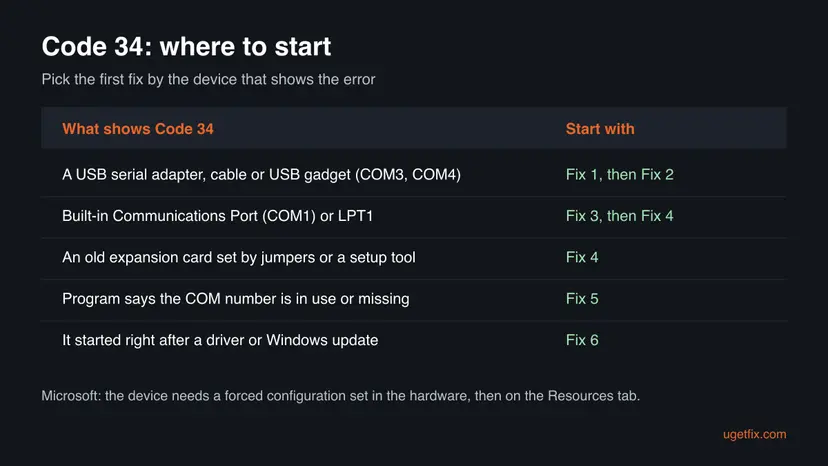
Restart the PC once with the device plugged in, then check Device manager again. If Code 34 is still there, pick a fix in the table. A USB adapter or cable starts with Fix 1; a built-in COM or LPT port starts with Fix 3. Each fix says what to try next.
| What you see or have | Start with | Then |
|---|---|---|
| A USB serial adapter, cable, programmer or board on COM3 or higher | Fix 1 | Fix 2 |
| Built-in Communications Port (COM1) or Printer Port (LPT1) | Fix 3 | Fix 4 |
| Use automatic settings is greyed out, or an old card set by jumpers | Fix 4 | Fix 5 |
| A program says the COM number is in use or cannot open the port | Fix 5 | Fix 3 |
| It started right after a driver or Windows update | Fix 6 | Fix 2 |
Fix 1. Uninstall the device and let Windows detect it again
10 minutesLow riskCode 34 is on a USB serial adapter, a cable or a board with a COM port, or you do not know the cause.
When Windows detects the device again, it builds the device entry and its settings from scratch. A half installed entry that never got its settings is replaced by a new one.
- Right-click Start and select Device Manager.
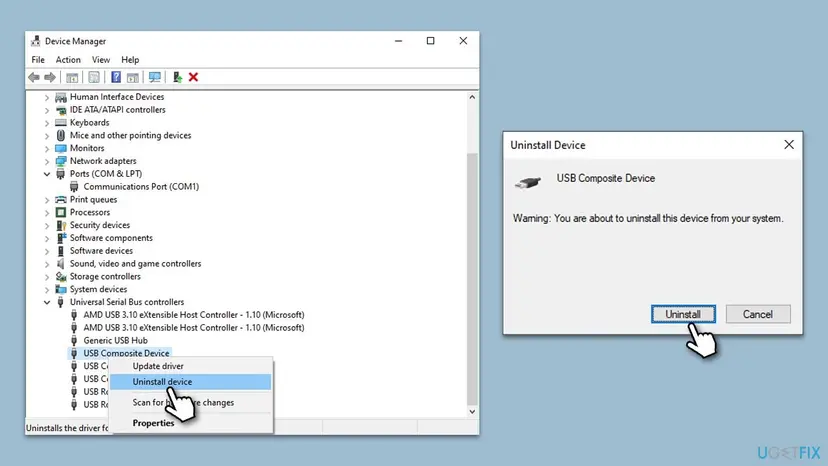
- Expand Ports (COM & LPT), or Universal Serial Bus controllers when the device is listed there.
- Right-click the device with Code 34 and select Uninstall device.
- If the box Attempt to remove the driver for this device is shown, leave it clear for now and select Uninstall.
- Unplug a USB device, restart the PC and plug it into a different USB port, straight into the PC and not into a hub.
- For a built-in port, open Device Manager after the restart and select Action > Scan for hardware changes.
- Open the device's Properties and read Device status.
All driver buttons with screenshots: Update, roll back or reinstall a driver
It worked if: The device comes back without a yellow sign, and Device status reads This device is working properly.
If not: If Code 34 comes back on a USB device, go to Fix 2. On a built-in port, go to Fix 3.
Fix 2. Install the driver from the adapter or device maker
15 minutesLow riskFix 1 did not help on a USB serial adapter, a cable or a board, or the Driver tab shows a generic driver.
A USB serial adapter gets its COM port from its own driver. When Windows picks a generic or wrong driver, the port is created without working settings. The maker's driver for the adapter's chip sets the port up correctly.
- In Device Manager, open the device's Properties, select the Details tab and choose Hardware Ids. The
VID_andPID_values name the adapter's maker and chip. - On the support page of the adapter, cable or board maker, download the driver for your Windows version.
- Run the installer as administrator and restart when it asks.
- If the download is a folder of files, right-click the device, select Update driver > Browse my computer for drivers and point to that folder.
- Unplug the adapter, plug it back in and check Ports (COM & LPT).
Drones, 3D printers, PLCs and development boards often need the maker's own USB driver or setup app before their COM port works. Install that software first, then plug the device in.
It worked if: The port appears under Ports (COM & LPT) with the maker's name, and This device is working properly.
If not: If Code 34 started right after a driver change, go to Fix 6. If the program still cannot open the port, go to Fix 5.
Fix 3. Let Windows set the resources on the Resources tab
5 minutesLow riskA built-in Communications Port (COM1) or Printer Port (LPT1) shows Code 34 and its Resources tab is there.
The message itself points to the Resource tab. When the port's resources were set by hand earlier, or the entry lost them, ticking Use automatic settings lets Windows take the values the firmware reports for the built-in port.
- In Device Manager, expand Ports (COM & LPT).
- Right-click the port with Code 34 and select Properties.
- Open the Resources tab.
- Tick Use automatic settings and select OK.
- Restart the PC and check Device status again.
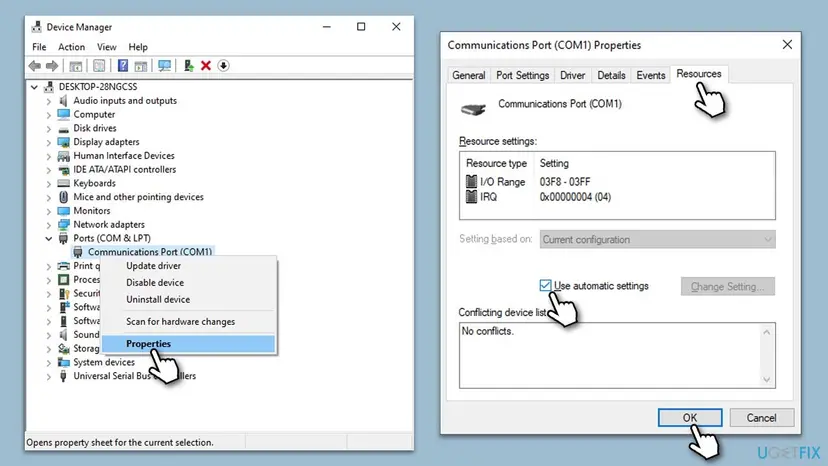
In the screenshot, COM1 uses the I/O range 03F8 - 03FF and IRQ 04 with no conflicts. Your values may differ.
It worked if: The Resource settings list shows an I/O range and an IRQ, the Conflicting device list says No conflicts, and the port works.
If not: If Use automatic settings is greyed out or Code 34 stays, go to Fix 4 and set the configuration by hand.
Fix 4. Set the port in BIOS/UEFI setup, then set the same values by hand on the Resources tab
30 minutesRead the warningFix 3 did not help, Use automatic settings is greyed out, or the device is an older card set by jumpers or a setup tool.
This is Microsoft's own resolution for Code 34: change the hardware settings with jumpers or the maker's utility, then use the Resources tab to set the forced configuration. Windows then uses the values the hardware really has.
Wrong values on the Resources tab or in BIOS/UEFI setup can take the port, or a device that shares its IRQ, out of action. Note every value before you change it, change one thing at a time, and use the BIOS Load defaults option only if you know your other settings.
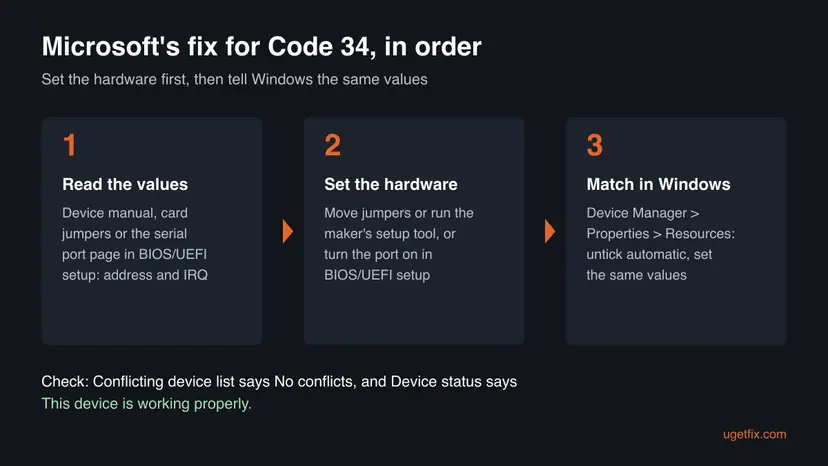
- Find the port's values: for a built-in port, restart into BIOS/UEFI setup and look for a page named Serial Port, COM Port, Super IO or Onboard Devices. For a card, read its jumpers and manual.
- In BIOS/UEFI setup, make sure the port is Enabled and note its address and IRQ. Save and exit.
- For a card, set the jumpers or run the maker's setup tool so the card uses free values.
- In Windows, open the device's Properties > Resources tab and clear Use automatic settings.
- In Setting based on, choose the configuration whose values match the hardware, or select a resource and choose Change Setting to type the value.
- Check that the Conflicting device list says No conflicts, select OK and restart.
The names of the BIOS/UEFI pages differ by PC and motherboard maker. Your PC maker's manual names the right page. Many new laptops have no built-in serial port at all; then the COM port with Code 34 belongs to a USB device, and Fixes 1 and 2 apply.
It worked if: The device status changes to This device is working properly, and the port keeps its values after a restart.
If not: If Windows reports a conflict, pick another free configuration. If the port still fails, go to Fix 5.
Fix 5. Remove hidden old COM ports that hold the numbers
10 minutesLow riskMany USB serial devices were plugged in over time, or a program says the COM number is in use or cannot open the port.
Every USB serial device you ever plugged in can leave a hidden entry with its own COM number. Removing the ones that are no longer present frees the numbers, so the device with Code 34 can be set up again without clashing.
- In Device Manager, select View > Show hidden devices.
- Expand Ports (COM & LPT). Greyed out entries are devices that are not plugged in now.
- Right-click each greyed out port you no longer use and select Uninstall device.
- Uninstall the port with Code 34 too, restart the PC and plug the device in again.
- To change a serial port's number, open its Properties > Port Settings > Advanced and choose a free number under COM Port Number.
Leave greyed out entries alone when you are not sure what they belong to. They do no harm, and Windows creates them again when that device is plugged in.
It worked if: Only the ports you use are listed, the device gets a COM number, and the program opens it.
If not: If Code 34 began after an update, go to Fix 6. Otherwise go to the next section.
Fix 6. Roll back the driver or undo the update that started it
15 minutesLow riskCode 34 began right after a driver update, a Windows update or an upgrade.
A new driver can create the port without the settings the old one gave it. Rolling back puts the driver that worked in its place; undoing the update or restoring the PC shows whether the update is the cause.
- In Device Manager, right-click the device with Code 34 and select Properties.
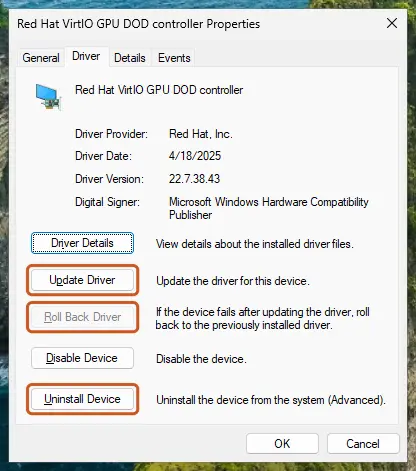
- Open the Driver tab and select Roll Back Driver, choose a reason and select Yes.
- Restart the PC and check Device status again.
- If the button is greyed out and a Windows update came first, uninstall that update: How to uninstall a Windows update
- Or go back to a restore point from before Code 34 appeared: Undo recent changes with System Restore
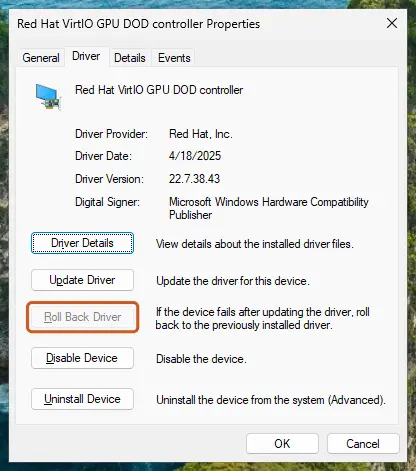
It worked if: The Driver Version on the Driver tab is the older one, and the device works again.
If not: If none of the six fixes cleared Code 34, read the next section.
Still Code 34: what to check and whom to ask
If the fixes did not clear Code 34, test the device on another PC first. That one test tells you whether the problem is the device or this PC's settings.
- The device name, its Hardware Ids from the Details tab and the Driver Provider and Driver Version from the Driver tab.
- What the Resources tab shows, including the Conflicting device list.
- The serial port page of your BIOS/UEFI setup, with its address and IRQ.
- Your Windows edition and version from Settings > System > About.
- Whether the device works on another PC.
| Where to ask | When |
|---|---|
| The adapter, cable or device maker | First, for a USB serial device: they publish the driver and know which chip it uses |
| The PC or motherboard maker | For a built-in COM or LPT port: they know the BIOS/UEFI settings of your model |
| Microsoft Support or Microsoft Q&A | If the device works on another PC and Code 34 stays here after Fixes 1 to 6 |
Code 34 is a settings code, not a fault code. Suspect the adapter or cable only if it fails on a second PC too. A cheap USB serial adapter with a copied chip may not work with the maker's current driver; then a different adapter is the lasting fix.
How to keep Code 34 from coming back
- Install the adapter or device maker's driver before you plug the device in.
- Plug a USB serial device into the same port each time, so it keeps its COM number.
- Write down the BIOS/UEFI port settings and the Resources tab values that work.
- Create a restore point before you install a driver or a big Windows update.
- Use third-party driver updater programs.
- Change values on the Resources tab without changing the hardware to match.
- Unplug a USB device while its driver installs.
- Turn off the serial port in BIOS/UEFI setup when you still use it.
Windows 10 left support on 14 October 2025. Makers of USB serial adapters may stop publishing drivers for it, so on Windows 10 a fix for a new adapter is less likely to arrive.
Frequently asked questions
What is Code 34 in Device Manager?
Code 34 is the Device Manager code for CM_PROB_NO_SOFTCONFIG. Its message is "Windows cannot determine the settings for this device. Consult the documentation that came with this device and use the Resource tab to set the configuration. (Code 34)". Microsoft says it means the device requires a forced configuration: Windows cannot work out which resources it uses. It appears most often on COM and LPT ports and old cards. Start with Fix 1 for a USB device and Fix 3 for a built-in port.
How do I fix Code 34 on a COM port?
It depends on the port. A COM3, COM4 or higher port usually belongs to a USB adapter or device: uninstall it in Device Manager, plug it into another USB port and restart (Fix 1), then install the maker's driver (Fix 2). A built-in Communications Port (COM1) needs its resources: tick Use automatic settings on the Resources tab (Fix 3), or set the port in BIOS/UEFI setup and match the values by hand (Fix 4).
What does Microsoft recommend for Code 34?
Microsoft says the device needs manual configuration. Its driver documentation tells you to change the hardware settings, by setting jumpers or running a vendor-supplied utility, and then use Device Manager's Resources tab to set the forced configuration. Its Device Manager help adds that the hardware documentation or vendor gives the instructions. Fix 4 on this page follows that order, with the BIOS/UEFI setup page for a built-in port.
Use automatic settings is greyed out. What now?
A greyed out Use automatic settings box means Windows cannot assign the resources for this device by itself. Then you need the forced configuration from Fix 4: read the port's address and IRQ in BIOS/UEFI setup or in the card's manual, then on the Resources tab choose a configuration that matches, or use Change Setting. Check that the Conflicting device list says No conflicts before you select OK.
Is Code 34 the same on Windows 11 and Windows 10?
Yes. The message, its meaning and the fixes are the same on Windows 11 and Windows 10, and Device Manager looks the same on both. Windows 10 left support on 14 October 2025, so makers of USB serial adapters may not publish new drivers for it. If no working driver exists for Windows 10, a newer adapter or moving to Windows 11 may be the lasting fix.
Is Code 34 a hardware problem?
Usually not. Code 34 says Windows does not know the device's settings, not that the device is broken. Most cases clear with a reinstall, the maker's driver or the right values on the Resources tab. Suspect the hardware only when the same adapter or cable also fails on a second PC, or when a built-in port does not appear in BIOS/UEFI setup at all.
What is the difference between Code 34, Code 12 and Code 28?
Code 34 means Windows cannot determine the device's settings and they must be set by hand. Code 12 means Windows found settings, but they clash with another device, so there are not enough free resources. Code 28 means no driver is installed for the device. So Code 34 needs a forced configuration, Code 12 needs another device's resources moved, and Code 28 needs a driver.
Will uninstalling the COM port delete my files or settings?
No files on the PC are deleted. Uninstall device removes only the device entry, and with the box ticked its driver too. Port settings such as the COM number, speed and resources may go back to their defaults, so note them first. A program that talks to the port may need its COM number set again after the port comes back.
Is error code 34 in a game or installer the same thing?
No. This page is about Code 34 in Windows Device Manager, shown in a device's Properties window. An "error 34" while installing a program, in a game or in a phone app is a different problem with its own causes, and the fixes here do not apply to it. The Windows error 0xc0000034 at startup is also a different error.
I searched in another language. Is this the right page?
Yes, if the message is in Device Manager. Searches such as "kod 34", "kode 34" or "codigo 34", and phrases such as "tidak bisa" (cannot) or "lampeggiando" (flashing), reach this page because the code is the same in every language of Windows. Only the text of the message is translated. The fixes and the Resources tab work the same, though the button names are in your Windows language.
Sources
- Microsoft Learn: Code 34, CM_PROB_NO_SOFTCONFIG (learn.microsoft.com)
- Microsoft Support: Error codes in Device Manager in Windows (support.microsoft.com)
Did this fix work?
One click, no account. It tells the next reader which guides are worth their time.
Questions and experiences: fix "Windows cannot determine the settings for this device" (Code 34) in Windows
Still broken, or found a fix we did not cover? Ask here: members and our editors answer. Reading is open; writing needs a free account.
…