
How to fix "Windows is still setting up the class configuration for this device. (Code 56)"

Prefer to fix it yourself? The manual steps follow.
- 7methods
- 5 to 60 minutes
- Intermediate
Applies to Windows 11 and Windows 10 PCs where a Wi-Fi, Ethernet or virtual network adapter shows Code 56 in Device Manager
7 methods in this guide
Hello. My Windows PC has no Internet and I see the "Windows is still setting up the class configuration for this device. (Code 56)" error in Device Manager. What do I do?
Code 56 means Windows loaded the network adapter's driver but never finished connecting it to the network stack, so the adapter has a yellow warning sign and no internet. Microsoft says it is often temporary. If a restart does not clear it, run Network reset first.
Code 56 means the adapter's driver is loaded but Windows never finished its network setup. Restart once, then run Network reset in Settings, which is Microsoft's own fix (Fix 1). If that does nothing, set the Network Setup Service back to Manual and start it (Fix 2). After a VPN, Hyper-V or VMware change, remove what that tool left behind (Fixes 3 and 4).
| Error | Windows is still setting up the class configuration for this device. (Code 56). Microsoft's internal name is CM_PROB_NEED_CLASS_CONFIG. |
|---|---|
| Where it appears | In Device Manager, in the Device status box of a network adapter's Properties. The adapter has a yellow warning sign and the PC has no internet on it. |
| Main cause | Windows' network settings are damaged, most often by a VPN, a virtual machine program or a virtual switch, so the last setup step for the adapter fails. |
| Fastest fix | Restart, then Settings > Network & internet > Advanced network settings > Network reset (Fix 1). |
| Also written as | code 56, windows code 56, error code 56, code 56 network adapter, CM_PROB_NEED_CLASS_CONFIG, "Windows todavía está estableciendo la configuración de clase para este dispositivo. (Código 56)". |
| Affects | Network adapters only in practice: Wi-Fi, Ethernet, USB tethering and VPN or virtual adapters. Windows 11 and Windows 10. |
| Vendor status | Microsoft documents Code 56 as often temporary and names Network reset as the fix when it stays. No Microsoft known issue for it was listed on 15 October 2026. |
| Where the cause is logged | C:\Windows\INF\setupapi.dev.log (lines starting with !!!) and the result of netcfg -q ms_tcpip in an admin Terminal. |
| Time to fix | 5 minutes for a restart and Network reset. 30 to 60 minutes when a service, a leftover virtual adapter or a repair install is the cause. |
Facts checked on 15 October 2026. Steps written for Windows 11 (25H2 and 26H2) and Windows 10 22H2.
What "Windows is still setting up the class configuration for this device" means
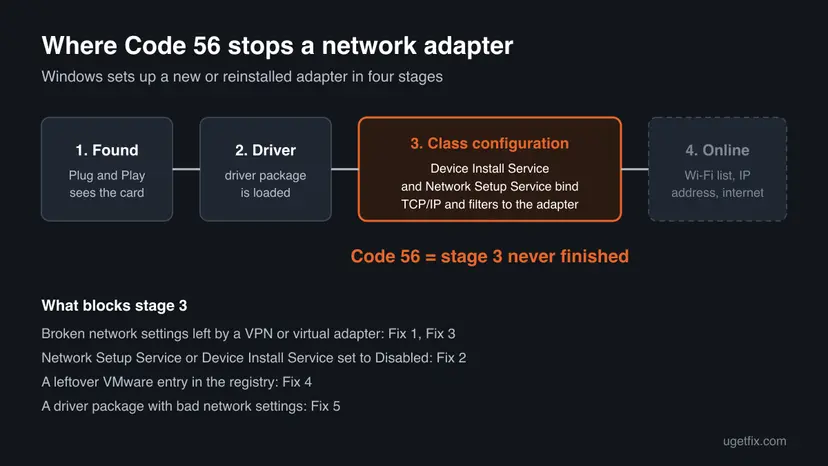
Code 56 is a Device Manager problem code. Microsoft's driver documentation names it CM_PROB_NEED_CLASS_CONFIG and shows one message for it: Windows is still setting up the class configuration for this device. (Code 56). In plain words, the driver for the device is installed, but a second setup step for its device class has not finished yet.
For network adapters that second step is big. Windows must register the adapter with the network stack and bind TCP/IP, the Microsoft client and any VPN or firewall filters to it. Microsoft says the code is often temporary: when the setup ends, the device restarts and the code goes away. When it stays, the adapter never comes online, which is why searches for "still setting up" and "code 56" come from people with no internet.
| What you see or type | What it means |
|---|---|
| Windows is still setting up the class configuration for this device. (Code 56) | The full English message in the adapter's Device status box |
code 56, windows code 56, code +56, error code 56 | Short searches for the same Device Manager code |
CM_PROB_NEED_CLASS_CONFIG | The code's name in Microsoft's documentation and in PowerShell output |
| Windows todavía está estableciendo la configuración de clase para este dispositivo. (Código 56) | The Spanish Windows message; the fixes on this page are the same |
| Настройка класса устройства продолжается. (Код 56) | The Russian Windows message; the same error |
Device Manager shows the adapter by its real name, so Windows has found the hardware and loaded a driver. Code 56 is a software setup problem. Do not buy a new card or reset the BIOS before you have tried the fixes below.
Why Code 56 stays: the causes, most common first
Microsoft names two reasons why a network adapter keeps Code 56: the driver's setup file has invalid network settings, or the system's network state is damaged. In practice the damage nearly always comes from software that adds its own adapters and filters to the network stack.
| How often | Cause | Sign | Fix |
|---|---|---|---|
| Most often | Damaged network settings after a VPN, a firewall or a network tool was installed or removed | Code 56 started right after that change | Fix 1, Fix 3 |
| Often | The Network Setup Service or Device Install Service is set to Disabled | Network reset changes nothing; the adapter's Properties tabs are mostly empty | Fix 2 |
| Often | A half-removed Hyper-V, WSL or VMware network part | You use or used virtual machines, WSL 2 or Docker | Fix 3, Fix 4 |
| Less often | A new driver package with bad network entries | Code 56 began after a driver update and only on that adapter | Fix 5 |
| Rarely | Damaged Windows system files or network registration | Every network adapter shows Code 56, including USB ones | Fix 6, Fix 7 |
The Network Setup Service (NetSetupSvc) does the actual network setup work for new adapters. Some users set it to Disabled to stop high CPU use. Nothing breaks until the next adapter or driver needs setting up, and then Code 56 appears and no restart clears it.
Check what is blocking the setup before you change anything
Three commands tell you in two minutes whether the network setup itself is stuck and whether a service is the reason. Right-click Start and select Terminal (Admin), then run them one by one.
- List the network adapters that have a problem and their problem code:
Get-PnpDevice -Class Net | Where-Object Status -ne 'OK' | Format-Table FriendlyName, Status, Problem, InstanceId - Look for
CM_PROB_NEED_CLASS_CONFIGin the Problem column. Note anyROOT\VMS_or VMware entries too: those are virtual adapters. - Test whether Windows' network setup answers at all:
netcfg -q ms_tcpip - A healthy PC replies that
ms_tcpipis installed. If you see error code: 0x800106d9, the network setup is stuck waiting for a restart that never helps. Go to Fix 2. - Check the two services Code 56 depends on:
Get-Service NetSetupSvc, DeviceInstall | Format-Table Name, Status, StartType - StartType should be Manual for both. Disabled on either one is your cause: go straight to Fix 2.
Windows writes each device install to C:\Windows\INF\setupapi.dev.log. Open it in Notepad, search for your adapter's name and read the lines that start with !!! near the time Code 56 began. A line saying the DeviceInstall service is not started points to Fix 2.
How to fix Code 56 on a network adapter
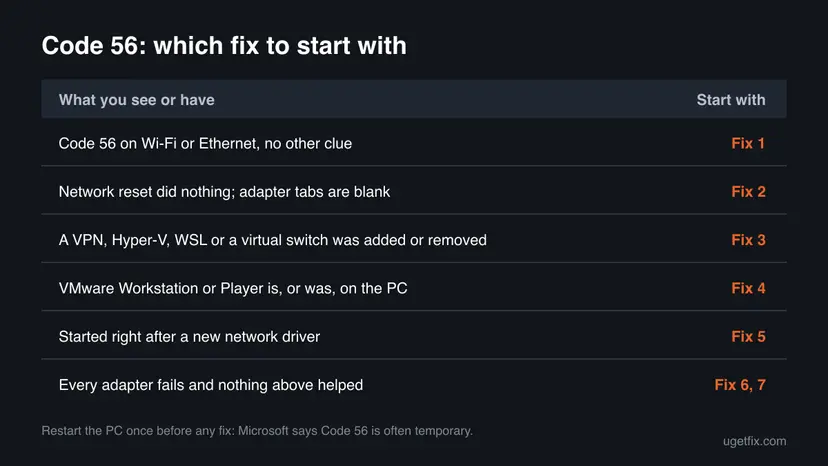
Restart the PC once first: Microsoft says Code 56 is often temporary and clears when the setup finishes. If it is still there, Fix 1 helps most readers. Each fix tells you what to try next. Keep the Wi-Fi password and any VPN login at hand, since several fixes remove network settings.
| What you see or have | Start with | Then |
|---|---|---|
| Code 56 on Wi-Fi or Ethernet, no other clue | Fix 1 | Fix 2 |
Network reset did nothing, or netcfg -q ms_tcpip shows 0x800106d9 | Fix 2 | Fix 3 |
| A VPN, Hyper-V, WSL 2 or Docker was added or removed before it started | Fix 3 | Fix 1 |
| VMware Workstation or Player is, or was, on the PC | Fix 4 | Fix 3 |
| It started right after a new network driver | Fix 5 | Fix 1 |
| Every adapter fails and nothing above helped | Fix 6 | Fix 7 |
Fix 1. Run Network reset in Settings
10 minutesLow riskCode 56 is still there after a restart, on any network adapter.
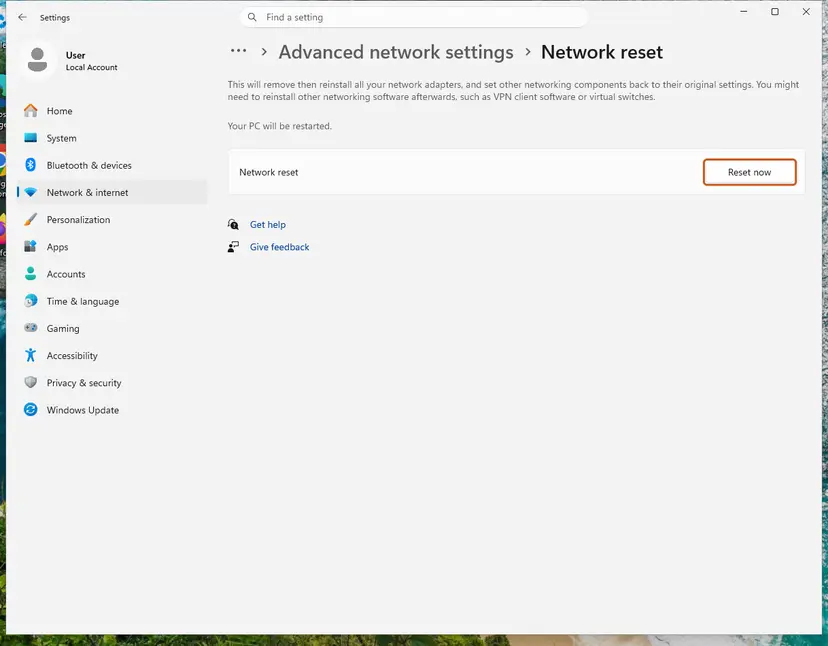
Microsoft's own advice for a network adapter that keeps Code 56 is to reset the network state with the Network reset button. It removes and reinstalls every network adapter and puts network components back to their defaults, so the class setup runs again from a clean start.
- Restart the PC once and check Device Manager again. If the yellow sign is gone, you are done.
- Open Settings > Network & internet > Advanced network settings and select Network reset. On Windows 10 it is Settings > Network & Internet > Status > Network reset.
- Select Reset now, then Yes. Windows restarts by itself after a few minutes.
- After the restart, open Device Manager and expand Network adapters. Check that the adapter has no yellow sign.
- Connect to your Wi-Fi again and set up your VPN again if you use one.
The command line resets (netsh winsock reset, netsh int ip reset) are part of the same procedure. They do not touch the adapter setup itself, so for Code 56 the Settings button matters most. Step by step: Reset the network and flush DNS
It worked if: The adapter shows This device is working properly in its Properties, and the Wi-Fi list or the cable connection comes back.
If not: If nothing changed, a service is probably blocking the setup. Go to Fix 2.
Fix 2. Set the Network Setup Service and Device Install Service back to Manual
10 minutesLow riskNetwork reset changed nothing, netcfg -q ms_tcpip shows 0x800106d9, or a tuning tool or guide told you to disable services.
The Device Install Service runs the second stage of every device install, and the Network Setup Service does the network part of it. If either one is Disabled, the class configuration can never run, and a restart does not help because a Disabled service does not start.
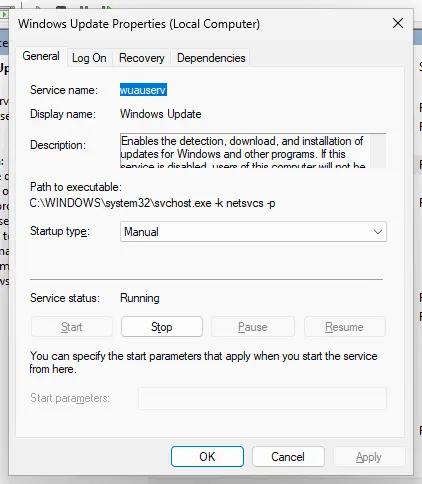
- Press Win + R, type
services.mscand press Enter. - Find Network Setup Service and double-click it.
- Set Startup type to Manual and select Apply, then Start.
- Do the same for Device Install Service.
- Open Device Manager, right-click the adapter with Code 56 and select Disable device, then Enable device.
- If the yellow sign stays, restart the PC.
The same in Terminal (Admin), one line after the other:
Set-Service NetSetupSvc -StartupType Manual
Start-Service NetSetupSvc
Set-Service DeviceInstall -StartupType Manual
If Hyper-V or WSL 2 is on the PC, check the Host Network Service (hns) too and set it to Manual if it is Disabled. More on the Services window: Check and restart Windows services
It worked if: Within seconds of the disable and enable, the adapter loses its yellow sign, and netcfg -q ms_tcpip now reports that ms_tcpip is installed.
If not: If both services were already on Manual, the block is a leftover virtual adapter. Go to Fix 3.
Fix 3. Remove the VPN or virtual adapter that broke the network setup
20 minutesLow riskCode 56 began after you installed, updated or removed a VPN, a firewall, Hyper-V, WSL 2 or Docker.
VPN clients and virtual machine tools add their own virtual adapters and filters to the same network setup that Code 56 is stuck in. A half-removed one can make every new setup fail, so removing it cleanly lets the real adapter finish.
- Open Control Panel > Programs > Uninstall a program.
- Select the VPN, firewall or network tool that came before the error and select Uninstall. Restart when it asks.
- In Device Manager, select View > Show hidden devices and expand Network adapters.
- Right-click any faded or warning-marked adapter that belongs to the removed tool, such as a TAP, WireGuard or Hyper-V entry, and select Uninstall device.
- If a Hyper-V entry will not go away, remove it by its ID from Terminal (Admin). Use the InstanceId from the check above, for example:
pnputil /remove-device "ROOT\VMS_VSMP\0000" - Restart the PC and check the real adapter in Device Manager.
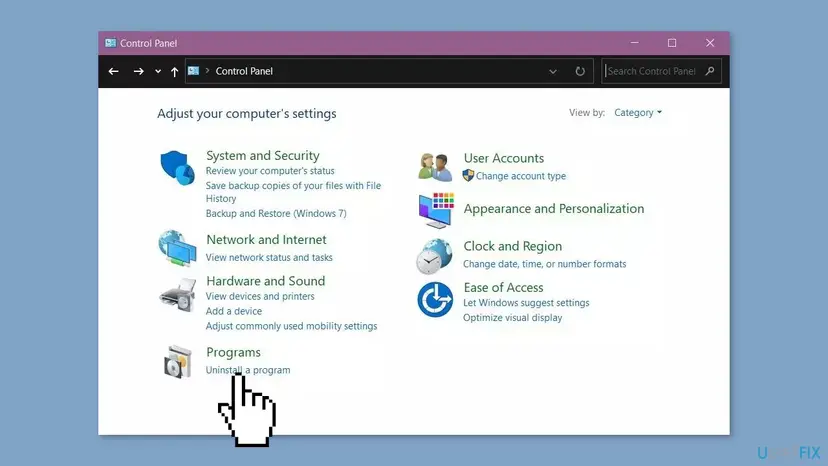
Some VPNs can only be removed from Control Panel, not from Settings. Step by step: Uninstall a program or app in Windows. Install the newest version of the VPN again only after the adapter works.
It worked if: The virtual adapters of the removed tool are gone, and the Wi-Fi or Ethernet adapter shows no yellow sign after the restart.
If not: If you use or used VMware, go to Fix 4. Otherwise run Fix 1 once more now that the tool is gone.
Fix 4. Delete the leftover VMware network entry from the registry
10 minutesRead the warningVMware Workstation or Player is on the PC, or was on it, and Code 56 stays after Fixes 1 to 3.
Users on Microsoft Q&A report that a broken VMware install leaves a network class entry in the registry that makes every network setup fail with Code 56. Removing that one key lets Windows finish the setup. It does nothing on a PC that never had VMware.
A wrong registry change can break Windows features. Back up first: Back up the registry before editing it. If VMware still works and you need it, uninstall and reinstall VMware instead of deleting the key by hand.
- Open Terminal (Admin) and check whether the key exists:
reg query "HKLM\SOFTWARE\Classes\CLSID\{3d09c1ca-2bcc-40b7-b9bb-3f3ec143a87b}" - If it says the system was unable to find the key, stop here: this fix is not for your PC.
- Save a copy of the key to your Desktop:
reg export "HKLM\SOFTWARE\Classes\CLSID\{3d09c1ca-2bcc-40b7-b9bb-3f3ec143a87b}" "%USERPROFILE%\Desktop\vmware-key.reg" - Delete the key:
reg delete "HKLM\SOFTWARE\Classes\CLSID\{3d09c1ca-2bcc-40b7-b9bb-3f3ec143a87b}" /f - Restart the PC, then check the adapter in Device Manager.
It worked if: After the restart the adapter loses Code 56 and connects. If anything else breaks, double-click vmware-key.reg on the Desktop to put the key back.
If not: If the key was not there or deleting it changed nothing, go to Fix 5.
Fix 5. Reinstall the network adapter driver from the PC or adapter maker
15 minutesRead the warningCode 56 began after a driver update, only on one adapter, and the setup services are fine.
Microsoft says a driver's setup file with invalid network entries can keep a NET-class device on Code 56. A different driver package from the PC or adapter maker replaces those entries, and removing the old package stops Windows from picking it again.
The adapter with Code 56 has no internet anyway, but removing its driver can also affect a working second adapter. Download the LAN or WLAN driver for your PC model on another device or adapter and copy it over on a USB stick before you start.
- In Device Manager, expand Network adapters, right-click the adapter with Code 56 and select Uninstall device.
- Tick Attempt to remove the driver for this device and select Uninstall.
- Restart the PC. Windows may install a basic driver of its own.
- Run the maker's driver installer you saved, then restart once more.
- If the code began after an update and the old driver worked, use Roll Back Driver on the Driver tab instead.
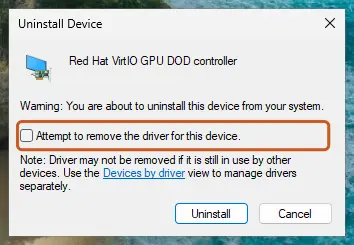
All driver buttons with screenshots: Update, roll back or reinstall a driver. A similar driver-level network problem with the adapter framework is covered in our NetAdapterCx.sys guide.
It worked if: The adapter appears once, with the maker's driver version on the Driver tab and This device is working properly in its status.
If not: If every adapter has Code 56, or it returns with any driver, go to Fix 6.
Fix 6. Repair Windows system files, or go back with System Restore
30 minutesLow riskEvery network adapter shows Code 56, or Fixes 1 to 5 did not help.
The network setup runs inside Windows components such as netcfgx.dll. DISM and SFC replace damaged copies of them, and System Restore takes the network registration back to a date before Code 56 without touching your files.
In Terminal (Admin), one after the other:
DISM.exe /Online /Cleanup-Image /RestoreHealth
sfc /scannow
Step by step with screenshots: Run DISM and SFC to repair Windows system files. DISM needs internet to fetch clean files; if no adapter works, connect with a USB cable to a phone's tethering or skip to System Restore.
- Press Win + R, type
rstruiand press Enter. - Choose a restore point from before Code 56 appeared.
- Select Scan for affected programs to see which apps and drivers will be removed.
- Select Next and Finish, and let Windows restart.
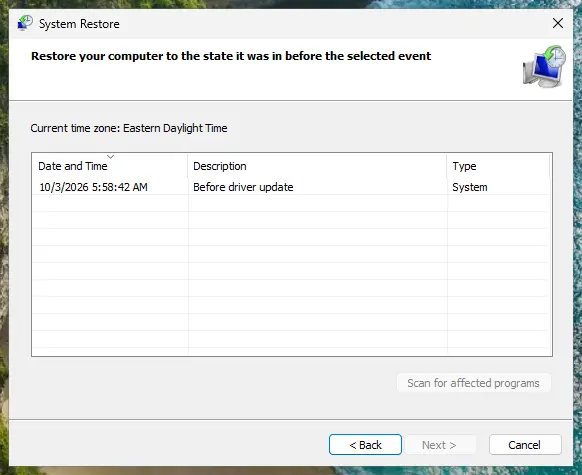
It worked if: SFC reports no integrity violations or says it repaired them, or System Restore reports success, and the adapter connects.
If not: Go to Fix 7 and repair Windows with an in-place reinstall that keeps your files.
Fix 7. Repair Windows with an in-place reinstall that keeps your files
60 minutes or moreLow riskNothing above worked and the adapter works in another PC or in a live USB system.
A repair install puts a fresh copy of Windows over the old one and registers the whole network stack again, while your files and apps stay. It is the last software fix before suspecting the hardware.
- Back up your important files first. Step by step: Reinstall Windows without losing files
- On Windows 11, open Settings > System > Recovery and select Reinstall now next to Fix problems using Windows Update.
- Without that option, or on Windows 10, run
setup.exefrom Windows installation media and choose Keep personal files and apps. - Let the PC restart several times until you reach the sign-in screen, then check the adapter in Device Manager.
The Windows Update route needs a working connection. Without one, make the installation USB stick on another PC with Microsoft's Media Creation Tool and run setup.exe from it.
It worked if: Windows starts with your files and apps in place, and the network adapter connects without Code 56.
If not: See the next section: at this point, test the hardware and contact the PC maker.
Still Code 56: what to check and whom to ask
If a repair install did not clear Code 56, collect what support needs to see before you ask. Most of it is in the three checks near the top of this page.
- The output of the
Get-PnpDevicecommand, which shows the problem code of every network adapter. - The result of
netcfg -q ms_tcpipand of theGet-Service NetSetupSvc, DeviceInstallcheck. - The lines starting with
!!!near the error time inC:\Windows\INF\setupapi.dev.log. - Your Windows edition and version from Settings > System > About.
- Every VPN, firewall, virtual machine program or network tool installed now or recently.
| Where to ask | When |
|---|---|
| Your PC or motherboard maker's support | First: they ship the tested network driver for your model |
| The VPN or virtual machine program's support | If Code 56 began after installing or removing their product |
| Microsoft Q&A or Feedback Hub, category Network and Internet | If every adapter fails on a clean Windows install |
Code 56 itself is a software code. Suspect the card only if it also fails in a live USB system or another PC, or if Device Manager shows other codes for it after a repair install. A USB Wi-Fi or Ethernet adapter is a cheap way to test.
How to keep Code 56 from coming back
- Remove VPN clients and virtual machine programs with their own uninstaller, then restart.
- Leave the Network Setup Service and Device Install Service on Manual.
- Get network drivers from the PC or adapter maker and keep the installer of the version that works.
- Create a restore point before installing a VPN, Hyper-V, WSL 2 or Docker.
- Disable Windows services to cut CPU use or speed up startup.
- Run two VPN clients side by side.
- Delete adapters or registry keys you do not recognise without a backup.
- Use third-party driver updater programs for network cards.
Windows 10 left support on 14 October 2025. VPN and adapter makers may stop testing new versions on it, so a PC that can run Windows 11 is less likely to meet this kind of setup failure after an update.
Frequently asked questions
What is Code 56 in Device Manager?
Code 56 is the Device Manager code for CM_PROB_NEED_CLASS_CONFIG. It means the device's driver is installed, but Windows has not finished the extra setup its device class needs. Microsoft says this is often temporary and the code clears when the setup ends. On network adapters it can stay, because the network part of the setup fails. Then the adapter has a yellow warning sign and no connection. Start with a restart and Network reset (Fix 1).
Why does my Wi-Fi adapter show Code 56 and no networks?
Because the adapter never finished its network registration. The driver is loaded, so Windows knows the card by name, but TCP/IP and the other network parts were never bound to it. The Wi-Fi list then stays empty or shows nothing useful. The fix is the same as for Ethernet: Network reset first, then check that the Network Setup Service is set to Manual (Fix 2), then remove VPN or virtual adapter leftovers (Fix 3).
How do I fix Code 56 on Windows 11?
Restart once, then open Settings > Network & internet > Advanced network settings > Network reset and select Reset now. That is Microsoft's own fix for a network adapter that keeps this code. If the code stays, open Services and set Network Setup Service and Device Install Service to Manual, then disable and enable the adapter. The steps are the same on Windows 10, only the Network reset path differs, as shown in Fix 1.
Is "Windows is still setting up the class configuration" a hardware problem?
Almost never. The message comes from Windows' setup after the driver has loaded, so the hardware has already been found and talked to. The usual causes are damaged network settings, a disabled setup service or a leftover VPN or VMware component. Suspect the card only if it fails the same way in a live USB system or another PC. Resetting the BIOS, which some guides suggest, does not touch the step where Code 56 stops.
Can a VPN cause Code 56?
Yes, it is one of the most common triggers. VPN clients add their own virtual adapters and network filters, and an install, update or uninstall that goes wrong can leave the network setup broken for every adapter. Uninstall the VPN from Control Panel, remove its leftover adapters in Device Manager with hidden devices shown, restart and run Network reset. Install the newest VPN version again only after the adapter works (Fix 3).
Does VMware cause "Windows is still setting up the class configuration"?
It can. Users on Microsoft Q&A report that a broken VMware Workstation or Player install leaves a network class entry under HKLM\SOFTWARE\Classes\CLSID with the ID {3d09c1ca-2bcc-40b7-b9bb-3f3ec143a87b}, and that deleting it clears Code 56. Check first whether the key exists, back it up and the registry, then delete it (Fix 4). On a PC that never had VMware, this key is not there and the fix does not apply.
What does netcfg error 0x800106d9 mean with Code 56?
It means Windows' network setup is waiting for a restart to finish an earlier change, and it refuses every new change until then. If the Network Setup Service is Disabled, the earlier change can never finish, so no restart clears the wait and every adapter setup ends in Code 56. Set the Network Setup Service to Manual, start it, then disable and enable the adapter (Fix 2).
Will Network reset delete my files or Wi-Fi passwords?
It does not touch your files. It removes and reinstalls every network adapter and puts network settings back to their defaults. You will have to join your Wi-Fi network again with its password, and VPN clients or virtual switches may need setting up again. A static IP address or custom DNS server you entered by hand is also reset, so note them before you start.
What are code56s and code56.net searches about?
We could not find a Windows component with those names. People who type code56s or code56.net are most likely looking for this Device Manager error, written without a space. If your adapter shows Windows is still setting up the class configuration for this device, this page is the right one. A website or program that uses those names is a separate subject not covered here.
I searched in Spanish or Russian. Is this the same error?
Yes. "Windows todavía está estableciendo la configuración de clase para este dispositivo. (Código 56)" in Spanish and "Настройка класса устройства продолжается. (Код 56)" in Russian are the same Code 56 in a translated Windows. The menu names differ by language, but the order of fixes is the same: restart, Network reset, the Network Setup Service, then VPN and virtual adapter leftovers.
Sources
Did this fix work?
One click, no account. It tells the next reader which guides are worth their time.
Questions and experiences: fix "Windows is still setting up the class configuration for this device. (Code 56)"
Still broken, or found a fix we did not cover? Ask here: members and our editors answer. Reading is open; writing needs a free account.
…