
Laptop lagging when charging in Windows 11 and 10: how to fix it

Prefer to fix it yourself? The manual steps follow.
- 7methods
- 2 to 45 minutes
- Easy
Applies to Windows laptops and 2-in-1 tablets that slow down only when the charger is connected
7 methods in this guide
Hello. When I plug in my laptop to charge, it starts lagging. The performance difference is significant. Is there a way to fix this issue?
A laptop that lags as soon as you plug it in is slowed down on purpose: by the power mode Windows uses on the charger, or by firmware that limits a weak or unknown charger. Check the Plugged in power mode first, then the charger.
Open Settings > System > Power & battery and set Power mode for Plugged in to Balanced or Best performance (Fix 1). Windows 11 keeps a separate mode for the charger and for battery. If it still lags, use the laptop's original charger of the right wattage and check that the BIOS shows the AC Adapter correctly (Fix 2). Then reset the power plans (Fix 3).
| Error | No error code: the laptop runs smoothly on battery and lags, stutters or drops frames as soon as the charger is plugged in |
|---|---|
| Where it appears | Everywhere at once: the mouse and windows, games, video calls. Some laptops also show a BIOS alert about the AC adapter at start-up |
| Main cause | A power-saving mode set only for Plugged in, or a charger that is too weak or not recognized, so the firmware limits the processor |
| Fastest fix | Set Power mode for Plugged in to Balanced or Best performance in Settings > System > Power & battery (Fix 1) |
| Also written as | Laptop lags when plugged in, laptop slows down while charging, laptop lagging after plugging in charger, laptop stutters when plugged in |
| Affects | Laptops of every brand (Dell, HP, Lenovo, ASUS, Acer, MSI) on Windows 11 (25H2, 26H2) and Windows 10 22H2 |
| Vendor status | Not a Windows bug. Dell documents BIOS versions on several Latitude and Precision models that misread docks and adapters, fixed by newer BIOS releases |
| Time to fix | 2 minutes for the power mode, 10 minutes for the charger checks, up to 45 minutes with a BIOS update |
| When it is hardware | The BIOS shows the adapter as Unknown or with the wrong wattage even with the original charger, or the charging light stays off |
Facts checked on 15 October 2026. Steps written for Windows 11 (25H2 and 26H2) and Windows 10 22H2.
Why a laptop lags when charging: what is really happening
A laptop should be at least as fast on the charger as on battery. When it lags only while plugged in, something is telling the processor or graphics chip to slow down at the moment power arrives. There are two places that can do that: Windows, through its power settings, and the laptop's own firmware, through what it reads from the charger.
Windows 11 keeps two power modes: one for Plugged in and one for On battery, as Microsoft's own page on power modes shows. If the Plugged in mode is set to Best power efficiency, the laptop is slower on the charger than off it. The firmware side is the charger itself: a laptop that cannot identify its adapter, or gets less power than it needs, limits its own speed to stay within that power.
- Lag starts the second you plug in
- A power mode or power plan for Plugged in, or the firmware reading the charger
- Lag starts after a few minutes on the charger
- More often heat, or background work that waits for the charger
- Only the touchpad or mouse jumps
- Users report electrical noise from the charger or an ungrounded outlet; try another outlet and the original charger
- A BIOS alert about the adapter at start-up
- The firmware does not accept the charger; see Fix 2 and Fix 5
Press Ctrl + Shift + Esc, open Performance and select CPU. Read Speed on battery, then plug in the charger and read it again after 30 seconds. A speed that drops a lot on the charger confirms the laptop is being slowed down, not overloaded.
What makes a laptop lag while plugged in, from most to least common
Most often it is the Plugged in power mode or a custom power plan that holds the processor back. Next comes the charger: a weaker replacement, a USB-C charger meant for a phone or tablet, or a worn cable or port that the BIOS reads as an unknown adapter. Less often it is old firmware, heat, or heavy background work.
| Cause | How common | What you see | Fix |
|---|---|---|---|
| Power mode for Plugged in set to Best power efficiency | Most common | Lag starts the moment you plug in; CPU speed drops in Task Manager | Fix 1 |
| Charger too weak, not original, or not recognized | Common | Slow charging, a BIOS alert, AC Adapter: Unknown or a low wattage in the BIOS | Fix 2 |
| Damaged or custom power plan | Common after tuning tools or old tweaks | Power mode cannot be changed, or settings look odd | Fix 3 |
| Maximum processor state for Plugged in set low | Less common | CPU never goes above a fixed speed on the charger | Fix 4 |
| Old BIOS, chipset or Intel Management Engine driver | Less common | A dock or charger works on one laptop but not another; the maker lists a fix | Fix 5 |
| Background work that waits for the charger, or heat | Less common | Lag builds up after a few minutes; fans are loud | Fix 6 |
| A BIOS setting changed by a tool or by hand | Rare | Nothing in Windows explains it | Fix 7 |
How to fix a laptop lagging when charging
Fix 1 takes two minutes and solves the most common cause. Fix 2 checks the charger, which the firmware reacts to. Fixes 3 and 4 clean up the Windows power settings. Fixes 5 to 7 are for laptops that still lag after that.
| What you see | Start with |
|---|---|
| Lag starts the moment you plug in, on any charger | Fix 1, then Fix 3 |
| You use a replacement, USB-C or borrowed charger | Fix 2 |
| A BIOS alert about the AC adapter at start-up | Fix 2, then Fix 5 |
| Power mode is greyed out or cannot be changed | Fix 3 |
| CPU speed is stuck at the same low number on the charger | Fix 4 |
| Lag builds up after some minutes and the fans get loud | Fix 6 |
| Only the touchpad or mouse pointer jumps on the charger | Fix 2 (another outlet and the original charger) |
Fix 1. Set the power mode for Plugged in to Balanced or Best performance
2 minutesNo riskEveryone, first of all readers whose laptop slows down the second the charger goes in.
Windows 11 stores one power mode for Plugged in and another for On battery. If someone, an app or a battery saver tip set the Plugged in mode to Best power efficiency, the laptop runs slower on the charger than off it.
- Plug in the charger.
- Press Win + I and open System > Power & battery.
- Find Power mode. On a laptop you see separate choices for Plugged in and On battery.
- Set Plugged in to Balanced or Best performance.
- Use the laptop for a minute and check whether the lag is gone.
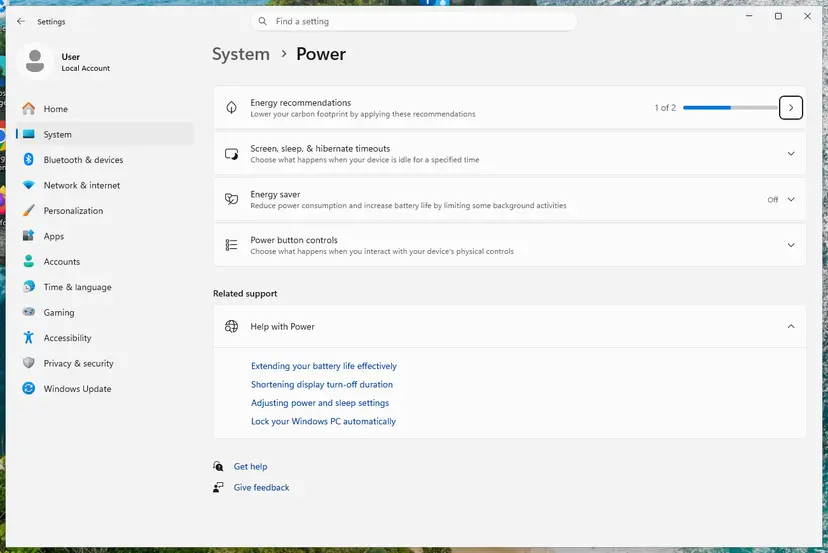
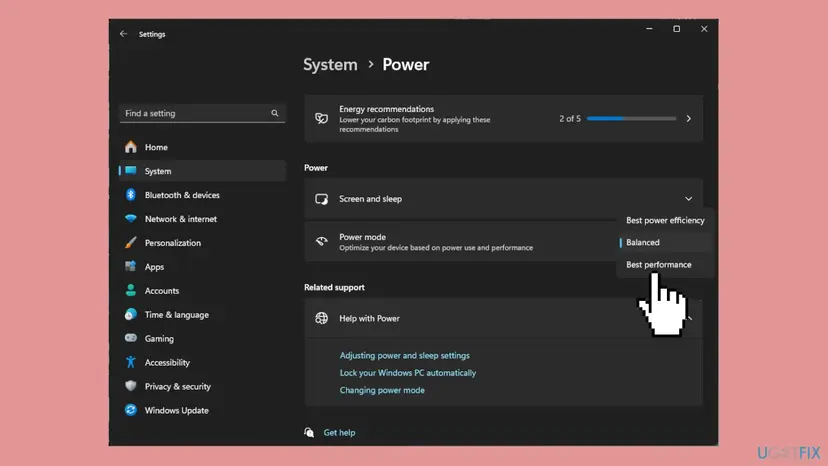
On Windows 10, select the battery icon on the taskbar with the charger connected and move the slider toward better performance. Microsoft notes the slider is not available on all Windows 10 PCs. Step by step for both versions: Change the power mode.
It worked if: The lag stops as soon as the setting changes, and the CPU speed in Task Manager stays the same plugged in and unplugged.
If not: If the setting was already right, check the charger in Fix 2. If Power mode cannot be changed, go to Fix 3.
Fix 2. Check that the laptop gets and recognizes the right charger
10 minutesLow riskReaders who use a replacement, USB-C, borrowed or older charger, and anyone who sees a BIOS alert about the adapter.
The firmware reads the charger's type and wattage. Dell notes that a charger shown as Unknown or with the wrong wattage means an incompatible or faulty charger or a bad port, and users of many brands report the laptop then limits its speed.
- Read the wattage on the charger's label and compare it with the one in your laptop's manual or on the maker's support page.
- If you have the original charger, use it, plugged straight into a wall outlet, not a power strip or a monitor.
- Check both ends of the cable and the laptop's port for damage or a loose fit.
- Shut down the laptop, press the power button and press the setup key at once, several times. On Dell it is F2; other brands often use F2, F10, F1 or Del.
- On the Overview, Main or Information page, read the AC Adapter line.
- If it says Unknown or a lower wattage than your charger, try another original charger of the right wattage.
- Select Exit without changing anything else.
A USB-C charger or dock may give less power than the laptop's own charger. Dell lists alerts such as Alert! A 15W AC power adapter has been detected. on several Latitude and Precision models with some Dell docks, and fixed them in newer BIOS versions (Fix 5).
If only the touchpad or mouse pointer jumps while charging, users report that an ungrounded outlet or a non-original charger causes it. Try a different wall outlet and the original charger before anything else.
It worked if: The BIOS shows the adapter with its real wattage, the battery charges normally, and the lag is gone on the charger.
If not: If the right charger is recognized and the laptop still lags, reset the power plans in Fix 3.
Fix 3. Reset the Windows power plans to their defaults
5 minutesLow riskReaders whose Power mode is greyed out, who used a tuning tool or old power tweaks, or for whom Fix 1 changed nothing.
Microsoft notes that the power mode cannot be changed while a custom power plan is selected. Dell notes that corrupted power settings cause odd behaviour and that resetting them makes Windows rebuild its power files with defaults.
- Select Start, type
cmd, right-click Command Prompt and select Run as administrator. - Run the three commands below one at a time, pressing Enter after each.
- Close the window and restart the laptop.
- Press Win + R, type
powercfg.cpland press Enter. - Select the Balanced plan.
- Go back to Fix 1 and set the Plugged in power mode again.
powercfg -restoredefaultschemes
powercfg -h off
powercfg -h on
The first command puts every power plan back to its defaults; the other two turn hibernation off and on again. Any custom plan you made is removed, so set your screen and sleep times again afterwards.
It worked if: Power mode can be changed again in Settings, and the laptop runs at full speed on the charger.
If not: If it still lags, look at the processor limits in Fix 4.
Fix 4. Check the maximum processor state for Plugged in
5 minutesLow riskReaders whose CPU speed stays at the same low number on the charger, and anyone who once followed a tip to cap the processor.
The power plan has its own Plugged in limit for how fast the processor may run. A low maximum, often left over from a battery or heat tip, caps the laptop on the charger only.
- Press Win + R, type
powercfg.cpland press Enter. - Next to the selected plan, select Change plan settings.
- Select Change advanced power settings.
- Expand Processor power management, then Maximum processor state.
- Set Plugged in to 100%.
- Expand Minimum processor state and make sure Plugged in is not set higher than you need; the default is fine.
- Select Apply, then OK.
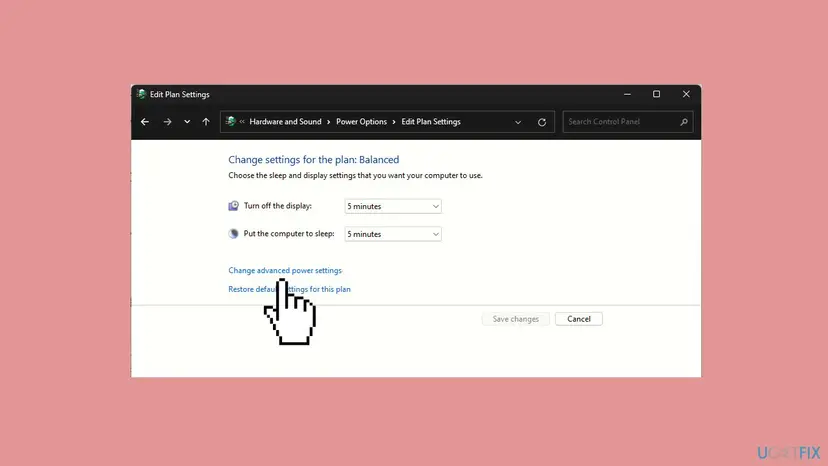
Some guides tell you to set the Plugged in maximum to 95% or 99%. That turns off the processor's boost and makes the laptop slower, though cooler. Use it only as a test if Fix 6 shows the laptop overheats on the charger, and set it back to 100% afterwards. On some laptops these options are hidden; the maker's own app then controls them.
It worked if: The CPU speed in Task Manager rises above the old cap when you open a heavy app on the charger.
If not: If the limits were already at 100%, update the firmware and drivers in Fix 5.
Fix 5. Update the BIOS, chipset and Intel Management Engine drivers from the laptop maker
30 minutesRead the warningReaders who saw a BIOS alert about the adapter or a dock, and owners of laptops with old firmware.
The firmware decides how much power the laptop may use from the charger. Dell documents BIOS versions that misread adapters and docks and fixes them in later releases, and notes that the Intel Management Engine Interface helps manage power delivery.
- Press Win + R, type
msinfo32and press Enter. - Note the System Manufacturer, System Model and BIOS Version/Date.
- Open the support page for that exact model on the maker's website, or use the maker's update app.
- If a newer BIOS is listed, read its notes, then install it with the original charger plugged in.
- Install the newest chipset driver, the graphics driver and, on Intel laptops, the Intel Management Engine Interface driver from the same page.
- Restart and test the laptop on the charger.
Keep the charger plugged in and do not turn the laptop off during the update. A cut in power can leave the laptop unable to start. Back up important files first with Back up your files (Windows Backup, File History, Time Machine), and know where your BitLocker recovery key is if the PC has one.
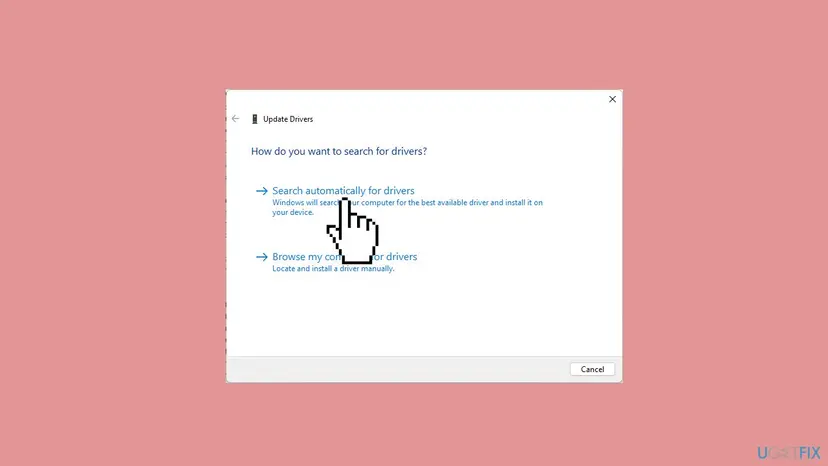
Device Manager steps with screenshots, including where Intel Management Engine Interface sits under System devices: Update, roll back or reinstall a driver.
It worked if: After the update and restart, the BIOS alert is gone and the laptop runs at the same speed on the charger as on battery.
If not: If nothing changes, look at heat and background work in Fix 6.
Fix 6. Find background work and heat that start on the charger
10 minutesLow riskReaders whose lag builds up after a few minutes on the charger, often with loud fans.
Some apps and Windows tasks hold heavy work such as syncing, updates and indexing until the laptop is on power. Charging also adds heat, and a hot laptop slows itself down. Task Manager shows which of the two you have.
- Plug in the charger and wait until the lag starts.
- Press Ctrl + Shift + Esc to open Task Manager.
- On Processes, sort by CPU, then by Disk, and note what sits at the top.
- Right-click an app you do not need right now and select End task. Leave anything named Windows or System alone.
- Open Performance > CPU and watch Speed for a minute: a speed that keeps falling while the fans run fast points to heat.
- Stop apps you never use from starting with Windows: Stop apps from opening at startup.
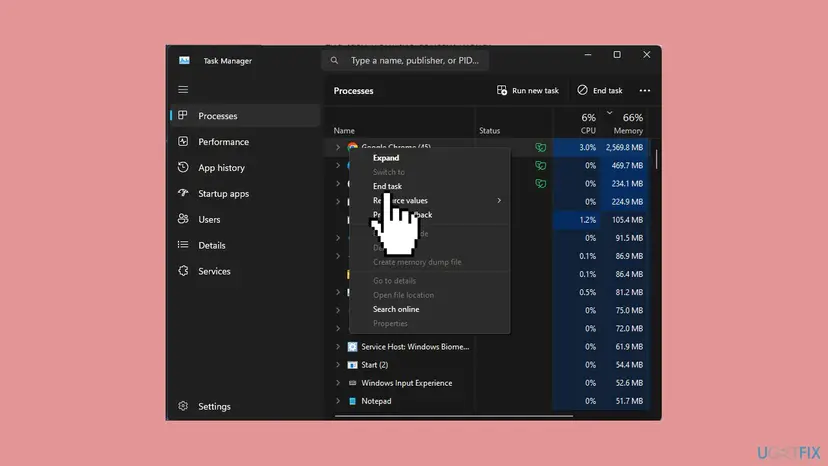
For heat, keep the vents free, use the laptop on a hard surface, and clean dust from the fans if you can do it safely. Apps that keep running in the background can be limited per app: Stop apps from running in the background.
It worked if: The lag goes away when the heavy app is closed, or the CPU speed stays steady once the laptop is cooler.
If not: If no app stands out and the laptop is not hot, reset the BIOS settings in Fix 7.
Fix 7. Load the BIOS default settings
10 minutesRead the warningReaders who changed BIOS options, used an undervolting or tuning tool, or for whom nothing else worked.
Power and performance options in the BIOS can be changed by tools or by hand and are invisible from Windows. Loading the defaults puts back the maker's own power behaviour on the charger.
Defaults also reset the boot order, the time, fan and charge settings, and on some laptops security options. If BitLocker is on, have the recovery key ready before you start. Note any setting you changed on purpose so you can set it again.
- Press Win + I and open System > Recovery.
- Next to Advanced startup, select Restart now.
- Select Troubleshoot > Advanced options > UEFI Firmware Settings, then Restart.
- Find the option to load defaults. It is often called Load Defaults, Restore Settings or Load Optimized Defaults, or sits on the F9 key.
- Confirm, then select Save and Exit.
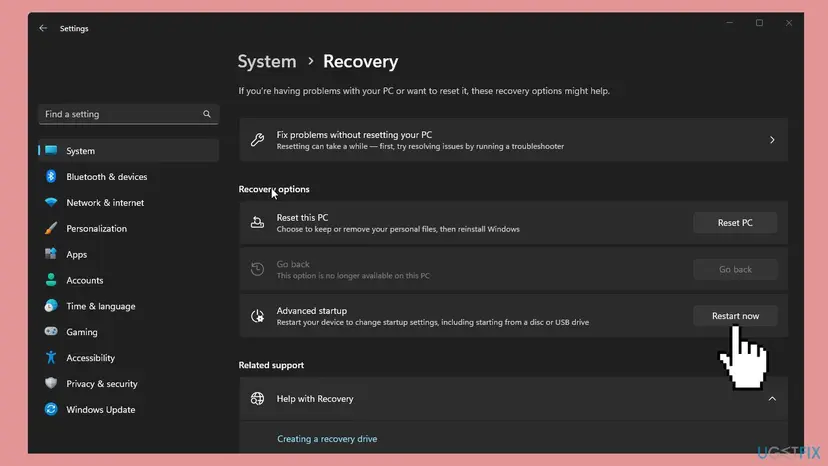
The names of these options differ between brands and models, and we could not confirm one path that works on every laptop. Your manual names the exact option.
It worked if: The laptop starts normally and runs at full speed on the charger.
If not: If it still lags, see the section below on when it is the charger or the board.
Laptop still lagging when charging: when it is the charger or the hardware
When the power settings are right and the firmware is up to date, the charger, the cable or the laptop's charging circuit is the most likely cause. These signs tell you which part.
- The BIOS shows the adapter as Unknown with the original charger: Dell names an incompatible or faulty charger or a charging port with a connection issue. Try a second original charger; if both read Unknown, the port or board needs service.
- The charging light stays off with the laptop off and plugged in: Dell says power is not reaching the laptop or the port has failed.
- The battery is old or swollen: a worn battery can change how the laptop handles power. Read its health with the battery report in our guide on a laptop battery stuck at 0%.
- The maker has a diagnostic test: run it from the BIOS or the support app and note any error code.
Give the laptop model and serial number, the charger's label wattage, what the BIOS shows on the AC Adapter line, and the CPU speed in Task Manager on battery and on the charger. Add any start-up alert word for word and the BIOS version from msinfo32.
How to keep a laptop from lagging on the charger
- Use the charger that came with the laptop, or one of the same wattage from the maker.
- Check the Plugged in power mode after big Windows updates and after installing tuning apps.
- Keep the BIOS and the maker's drivers up to date from its support page.
- Keep the vents clear and the laptop on a hard surface while it charges.
- Power a large laptop from a phone or tablet USB-C charger.
- Use old power tweaks that cap the processor and forget them.
- Install driver or tuning tools from download sites or video descriptions.
- Keep charging a battery that is swollen or gets hot.
Windows 10 left support on 14 October 2025. Every fix here still works on Windows 10 22H2, but a laptop that stays on it gets no new driver fixes through Windows Update.
Frequently asked questions
Why does my laptop lag when charging?
Because something slows it down when power arrives. Most often the power mode for Plugged in is set to Best power efficiency, since Windows 11 stores one mode for the charger and another for battery (Fix 1). Next most often the charger is too weak, not original, or not recognized by the firmware, which then limits the processor (Fix 2). Less often a custom power plan, a low processor limit, old firmware, heat or background work is the cause.
Why is my laptop lagging while charging but fine on battery?
Because the laptop uses different settings on each. Windows keeps separate power modes and processor limits for Plugged in and On battery, so a slow setting can apply to the charger only. The firmware also reacts to the charger: when it cannot identify it or gets less power than it needs, it limits speed. Check Fix 1 and Fix 4 for the Windows side and Fix 2 for the charger.
Why does my laptop start lagging when I plug it in?
If the lag starts the very second you plug in, it is a setting or the firmware, not overload. Open Settings > System > Power & battery and check Power mode for Plugged in (Fix 1). Then check in the BIOS whether the AC Adapter line shows your charger's real wattage (Fix 2). If the lag builds up over minutes instead, look at heat and background work (Fix 6).
How do I fix my laptop lagging when charging?
Work in this order. Set Plugged in to Balanced or Best performance in Settings > System > Power & battery (Fix 1). Use the original charger and check that the BIOS recognizes it (Fix 2). Reset the power plans with powercfg -restoredefaultschemes (Fix 3) and set Maximum processor state for Plugged in to 100% (Fix 4). Then update the BIOS and drivers from the maker (Fix 5).
Can a charger make my laptop slow?
Yes. A charger with less wattage than the laptop needs, a non-original charger, or a worn cable or port can make the firmware treat the adapter as unknown or too weak. Dell lists slow charging and an Unknown adapter in the BIOS as signs of this, and users of many brands report the laptop then runs slower. Use the original charger plugged straight into a wall outlet and check the AC Adapter line in the BIOS.
Why does my laptop lag in games when plugged in?
The same causes apply, but games show them first because they need full speed. Check the Plugged in power mode (Fix 1) and the charger (Fix 2). Gaming laptops need their own high-wattage charger; a USB-C charger often cannot feed them. Also check the maker's own control app for a quiet or battery mode, and update the graphics driver from the maker or the chip vendor (Fix 5).
Why does my laptop touchpad lag when charging?
When only the touchpad or the mouse pointer jumps or lags on the charger, users report electrical noise as the cause. It is often linked to an outlet without a ground or a non-original charger. Plug the original charger into a different wall outlet, away from power strips, and test again. If the whole laptop slows down, not just the pointer, follow Fix 1 and Fix 2 instead.
Does setting Best performance damage the battery?
No. Best performance changes how fast the processor may run, not how the battery charges. It uses more power and makes more heat, so the fans may run more and the battery drains faster when you unplug. Microsoft describes it simply as the mode that maximizes performance. On the charger, Balanced is usually enough to stop the lag; pick Best performance for games and heavy apps.
How to prevent a laptop from lagging?
Keep the power mode for Plugged in on Balanced or Best performance, use the original charger, and keep the BIOS and the maker's drivers up to date. Stop apps you do not use from starting with Windows (Stop apps from opening at startup) and keep the vents clear so the laptop does not slow down from heat. Check the power mode again after big Windows updates or after installing a tuning app.
Почему ноутбук лагает на зарядке?
This page is in English. The question asks why a laptop lags while charging. The answer is the same as above: check Power mode for Plugged in in Settings > System > Power & battery (Fix 1), then use the original charger and check that the BIOS recognizes it (Fix 2). Then reset the power plans (Fix 3). The steps work on Windows 10 and Windows 11 in any language.
Sources
Did this fix work?
One click, no account. It tells the next reader which guides are worth their time.
Questions and experiences: Laptop lagging when charging in Windows 11 and 10: how to fix it
Still broken, or found a fix we did not cover? Ask here: members and our editors answer. Reading is open; writing needs a free account.
…