
How to fix Windows update error 0x80070306?

Prefer to fix it yourself? The manual steps follow.
- 7methods
- 10 minutes to 2 hours
- Intermediate
Applies to Windows 11 24H2, 25H2 and 26H2: monthly cumulative updates and optional preview updates that end with Install error - 0x80070306 in Settings > Windows Update
7 methods in this guide
Windows 11 cumulative update won't install for me because it constantly fails after trying for a long time. I have been trying to install it for weeks to no avail. The error code produced is 0x80070306.
Install error 0x80070306 means a Windows 11 update downloaded but failed while Windows processed its packages. The code is Win32 error 774, a catch-all "one or more errors occurred", so the real cause is a few lines earlier in CBS.log. Check your build, skip a failed preview, then read the log.
0x80070306 is a summary code: something failed while the update's packages were processed. If the failing update is an optional preview, skip it and wait for the next monthly update (Fix 1). If the monthly update fails too, read CBS.log for the package that broke (Fix 2), then repair system files (Fix 3) or the optional feature the log names (Fix 4). A repair install that keeps your files is the last resort (Fix 7).
| Error | Install error - 0x80070306: Win32 error 774, ERROR_ERRORS_ENCOUNTERED, "One or more errors occurred while processing the request." |
|---|---|
| Where it appears | Settings > Windows Update, under the name of a cumulative or preview update, after it downloaded. Also in Update history and in C:\Windows\Logs\CBS\CBS.log. |
| Main cause | Windows cannot resolve or process one of the packages the update must change: a damaged system file, a broken optional feature, or a package record that is missing. |
| Fastest fix | Check the build with winver and skip a failed preview update (Fix 1). For a monthly update, read CBS.log (Fix 2). |
| Also written as | 80070306, 0x80070306 error, error 774, 0x306, -2147024122, Chyba instalace - 0x80070306, Erro de instalação - 0x80070306, Installationsfehler - 0x80070306, Errore di installazione - 0x80070306, Installatiefout - 0x80070306. |
| Affects | The reports we read are from Windows 11 24H2 (OS build 26100) and 25H2 (OS build 26200), with both monthly and preview updates. |
| Microsoft's status | No known issue and no official fix for this code that we could find. Microsoft documents only the generic meaning of error 774. |
| Time to fix | 10 minutes for Fix 1. About 30 minutes for the log and the repairs. 1 to 2 hours for a repair install. |
| Where the cause is logged | C:\Windows\Logs\CBS\CBS.log. Search for 80070306, then read the lines above it for Unable to resolve Package or , error. |
Facts checked on 15 October 2026. Steps written for Windows 11 (25H2 and 26H2) and Windows 10 22H2.
What install error 0x80070306 means
0x80070306 is an ordinary Windows system error in the eight-digit form that Windows Update prints. The first half, 0x8007, marks a Win32 error wrapped for the update components. The second half, 0306, is 774 in decimal. Microsoft's list of system error codes names 774 ERROR_ERRORS_ENCOUNTERED, with the text "One or more errors occurred while processing the request."
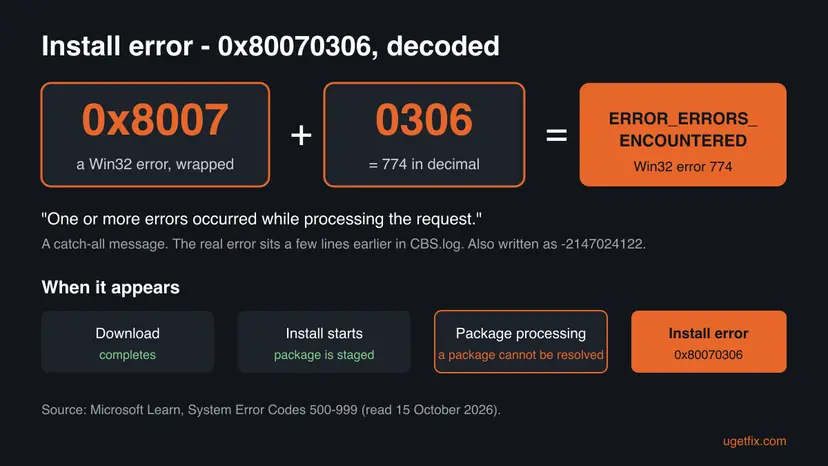
That text is a summary, not a reason. Windows returns it when a step inside the update failed and the installer gave up. The step that failed writes its own error in CBS.log a few lines earlier, and that is the line that tells you which fix you need.
| What you see | Where | What it tells you |
|---|---|---|
| Install error - 0x80070306 under an update name, with a Retry button | Settings > Windows Update | The update downloaded and the install failed. The page does not say why. |
| The same update listed as failed, with the code and a date | Settings > Windows Update > Update history | How often it failed. The date tells you where to look in CBS.log. |
| 0x80070306(-2147024122) | Some tools and logs print the code with its signed decimal value | The same error. -2147024122 is 0x80070306 read as a signed number. |
winver still shows the old OS build | Win + R, winver | Nothing from the update stayed on the PC. |
Error 0x80070302 is Win32 error 770 from the same block of codes and shows up on the same kind of PCs. If you see both, the fixes overlap: guide to error 0x80070302.
Which Windows updates fail with 0x80070306
The code is not tied to one update. People search it together with many KB numbers over more than a year, from the 2025 cumulative updates for 24H2 to the 2026 updates for 25H2. The two cases below are the ones we read in full. They are user reports, not statements by Microsoft.
| Update | Windows | What was reported | How it ended |
|---|---|---|---|
| KB5062660, the 2025-07 Cumulative Update Preview | Windows 11 24H2, OS build 26100.4770, x64 | Install error - 0x80070306 on every try (Microsoft Q&A) | An independent advisor answered that a preview is optional and can be skipped, and showed how to stop getting previews. |
| KB5079473, a monthly cumulative update | Windows 11 Home 25H2, OS build 26200.7623 | 0x80070306 after SFC, DISM, chkdsk and a reset of the update cache (Sysnative forums) | Solved after helpers repaired the store with per-PC scripts and the Wireless Display optional feature was removed. The PC then reached build 26200.8037. |
- Other KB numbers searched with this code include KB5053656, KB5058411, KB5062553, KB5063060, KB5070773, KB5077181, KB5077241, KB5089549 and KB5089573. We did not read a case for each, so we do not claim a cause for them.
- Windows 11 24H2 Home and Pro stopped getting monthly updates on 13 October 2026. On such a PC the lasting fix is a move to 25H2 or 26H2, which Fix 7 does in one step.
- Windows 10 left support on 14 October 2025. We found no Windows 10 report of this code.
Why Windows update error 0x80070306 happens, from most to least likely
Microsoft has not published a cause for this code in Windows Update. The ranking below follows the log lines in the solved case and what the code itself says: an earlier step failed. Each cause points to the fix that matches it.
| Cause | How often | How to tell | Fix |
|---|---|---|---|
| A package the update must change cannot be resolved: its record is missing or an optional feature is broken. | Most often in the logs we read | CBS.log shows Unable to resolve Package or 0x80070490 - ERROR_NOT_FOUND before the 0x80070306 line. | Fix 2, Fix 4 |
| Damaged system files or a damaged component store. | Often | SFC finds and repairs files, or DISM says the store is repairable. | Fix 3 |
| The failing update is an optional preview, or an old message for an update that a newer one already replaced. | Sometimes | The update name contains Preview, or Windows Update now offers a newer KB. | Fix 1 |
| A damaged download in the update cache, or a stuck update service. | Rarely | The log shows download or hash errors, not packages. | Fix 5, Fix 6 |
| Damage that no single repair reaches. | Last | Every fix above failed. | Fix 7 |
Free disk space, a clean boot and turning off the antivirus are the usual advice for this code. In the solved case the user had already reset the update cache and run SFC, DISM and chkdsk, and the update still failed. The fix came from the log line, not from general repairs.
How to fix install error 0x80070306 in Windows Update
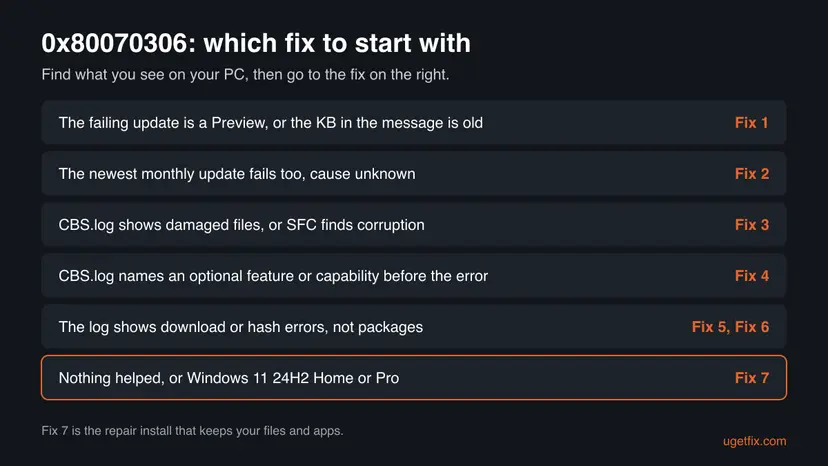
Fix 1 takes ten minutes and changes nothing, so everybody starts there. Fix 2 tells you which of the next fixes is yours. Fixes 3 to 6 repair one cause each. Fix 7 is the repair install, which rebuilds Windows and keeps your files and apps.
| What you see or have | Start with |
|---|---|
| The failing update has Preview in its name, or the message names an old KB. | Fix 1 |
| The newest monthly update fails with the same code, cause unknown. | Fix 2 |
| SFC finds damaged files, or DISM says the store is repairable. | Fix 3 |
| CBS.log names an optional feature or capability before the error. | Fix 4 |
| The log points at the download or the update services. | Fix 5 |
| You install updates from the Microsoft Update Catalog yourself. | Fix 6 |
| Windows 11 24H2 Home or Pro, or every other fix failed. | Fix 7 |
Fix 1. Check your build, skip a failed preview update and install the newest update
10 minutesNo riskAlways first, and above all when the failing update is a preview or a month or more old.
Preview updates are optional, non-security updates whose changes arrive in the next month's regular update. When only a preview fails with 0x80070306, skipping it costs nothing. The build number shows whether a newer update already replaced the failed one.
- Restart the PC once with Start > Power > Restart, so that pending update work can finish.
- Press Win + R, type
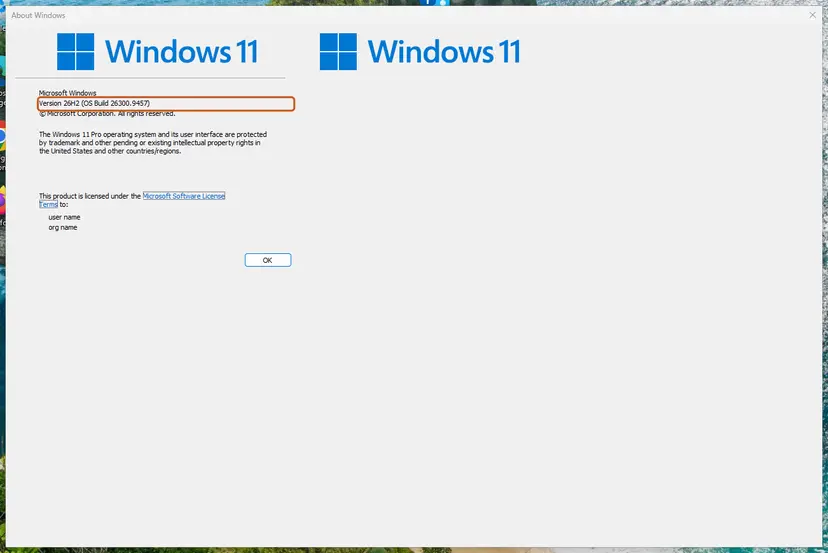
winverand press Enter. Note the version (24H2, 25H2 or 26H2) and the OS Build. - Open Settings > Windows Update > Update history and note the full name of the failed update and its KB number.
- If the name contains Cumulative Update Preview, you can skip it. Go to Settings > Windows Update and set Get the latest updates as soon as they're available to Off.
- If it is a regular monthly update, search its KB number on Microsoft Support. The page title gives the OS build it installs.
- If your build in
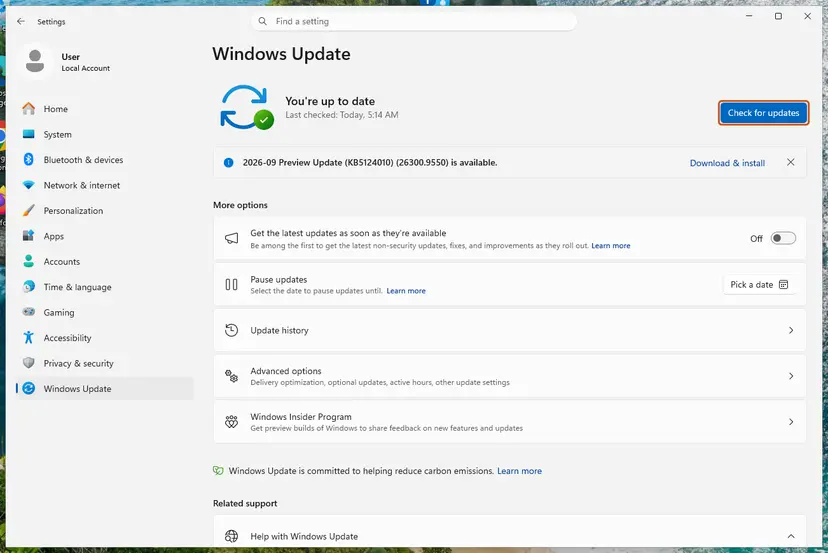
winveris the same or higher, the update is in place. If it is lower, select Check for updates and install what is offered now.
| You found | Meaning | Next |
|---|---|---|
| Only a preview update fails | The regular monthly updates are not blocked. | Skip it. Watch whether next month's regular update installs. |
| The build of the failed update or higher | The update installed. The failure entry is history. | Nothing to fix. |
| A lower build, and the newest monthly update also fails | The cause is on the PC. | Fix 2 |
| Windows 11 24H2 Home or Pro | No more monthly updates for this version since 13 October 2026. | Fix 7 |
It worked if: Either the preview is gone from the list and the next regular update installs, or winver shows the newest build and Windows Update says you are up to date.
If not: If a regular monthly update also fails with 0x80070306, read the log in Fix 2.
Fix 2. Find the failing package in CBS.log
15 minutesNo riskA regular monthly update fails with 0x80070306 and you want to know which of the next fixes is yours.
Error 774 only says that an earlier step failed. CBS.log, the log of the part of Windows that installs updates, records that earlier step. In the solved case it named the package Windows could not resolve.
- Right-click Start and select Terminal (Admin). On Windows 10, search for
cmdand select Run as administrator. - Copy the log to the desktop, so that you read a copy while Windows keeps writing the original.
copy %windir%\Logs\CBS\CBS.log %USERPROFILE%\Desktop\CBS-copy.log - List the lines that carry the code. Note the time of the last hit.
findstr /i /c:"80070306" %USERPROFILE%\Desktop\CBS-copy.log - List the lines that say which package could not be found.
findstr /i /c:"Unable to resolve" /c:"ERROR_NOT_FOUND" %USERPROFILE%\Desktop\CBS-copy.log - Open
CBS-copy.login Notepad, go to the time of the last hit and read 20 to 40 lines above it. Note every package, feature and file name.
The lines from the solved KB5079473 case, as the thread quotes them
Failed to get package store registry key to load all packages. [HRESULT = 0x80070490 - ERROR_NOT_FOUND]
Unable to resolve Package: @Foundation; skipping MFL processing for Update: CumulativeUpdate_KB5079473: HRESULT_FROM_WIN32(1168)| You find | It points to |
|---|---|
| A damaged or missing file, a hash mismatch, or "store corrupt" | Fix 3 |
Unable to resolve Package or 0x80070490, with the name of an optional feature or capability | Fix 4 |
Unable to resolve Package with no feature name you recognise | Fix 3, then ask for help with the log (see the end of this page) |
| Download, hash or service errors, not packages | Fix 5 |
| Nothing clear, or many errors at once | Fix 3, then Fix 7 |
Error 1168 and 0x80070490 are the same Windows error, ERROR_NOT_FOUND: Windows looked for a package record and it was not there. That is why a plain reset of the download cache does not help with this code.
It worked if: You have a package, feature or file name, or a clear error line, and you know which of Fix 3, Fix 4 or Fix 5 matches it.
If not: If nothing stands out, go to Fix 3. It is safe on every PC.
Fix 3. Repair system files and the component store with SFC and DISM
30 minutesLow riskThe log names damaged files, or you have no clear cause yet.
The update changes system files using the copies in the component store. In the solved case SFC found and repaired a damaged driver file before the update could go further. Repaired files remove one of the failures that end in error 774.
Run DISM RestoreHealth first and System File Checker second, then restart and try the update. Step by step:
- Open an elevated command window. Right-click Start and select Terminal (Admin), or type cmd in the search box, right-click Command Prompt and select Run as administrator. Select Yes when Windows asks for permission.
- Run DISM first. Type the command below and press Enter. DISM downloads clean copies of damaged components from Windows Update, so it can take several minutes. Wait until it says The operation completed successfully.
DISM.exe /Online /Cleanup-Image /RestoreHealth - Run System File Checker. In the same window, type the command below and press Enter. Do not close the window until the verification reaches 100%.
sfc /scannow - Read the result and restart. Compare the last message with the table below this guide, then restart the PC so that repaired files are loaded.
These steps were written for Windows 11 24H2 and 25H2. The full page with the other versions and what each result means: Run DISM and SFC to repair Windows system files
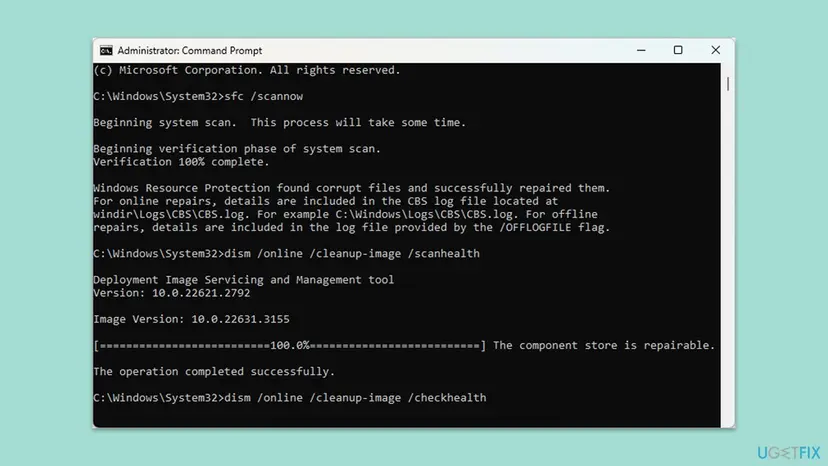
In the solved case DISM reported no store corruption and the update still failed, because the problem was a package record, not a file. If SFC and DISM come back clean, go to Fix 4 or Fix 7.
It worked if: SFC finds no integrity violations, DISM reports no component store corruption, and the update installs after the restart.
If not: If the update fails again, look in CBS.log for a feature name (Fix 4), or go to Fix 7.
Fix 4. Remove and add back the optional feature named in the log
15 minutesLow riskCBS.log names an optional feature or capability next to Unable to resolve Package or ERROR_NOT_FOUND.
Optional features, which Windows calls capabilities, are packages the cumulative update must update too. If one is half installed, the update cannot resolve it and fails. In the solved KB5079473 case, removing the Wireless Display feature let the update install.
- Right-click Start and select Terminal (Admin).
- List the installed optional features and save the list on the desktop.
DISM /Online /Get-Capabilities /Format:Table > %USERPROFILE%\Desktop\capabilities.txt - Open
capabilities.txtand find the feature that CBS.log named. Copy its full name, for exampleApp.WirelessDisplay.Connect~~~~0.0.1.0. - Remove that feature. This is the command from the solved case.
DISM /Online /Remove-Capability /CapabilityName:App.WirelessDisplay.Connect~~~~0.0.1.0 - Restart the PC, open Settings > Windows Update and select Check for updates.
- When the update has installed, add the feature back if you use it.
DISM /Online /Add-Capability /CapabilityName:App.WirelessDisplay.Connect~~~~0.0.1.0
Removing a feature turns off what it does until you add it back, for example casting to a wireless display. Do not remove features one by one to test. Use only names from your own CBS.log.
In the solved case the helpers also ran store repair scripts that they wrote for that one PC. Such a script is made from that PC's log and can harm another PC. Never run a script made for someone else.
It worked if: The update installs after the restart, and winver shows the new build. The feature works again after you add it back.
If not: If the log names a package that is not an optional feature, or the update still fails, collect the log for help (see the end of this page) or go to Fix 7.
Fix 5. Reset the Windows Update components and run the troubleshooter
15 minutesLow riskThe log points at the download or the update services, or you want the standard reset before a repair install.
A reset gives Windows Update an empty download cache and restarts its services, which clears a damaged download. It does not repair package records, so in the solved case it did not help. That is why it comes late here.
- Open Command Prompt as administrator. Type cmd in the search box, right-click Command Prompt and select Run as administrator. Select Yes when Windows asks for permission.
- Stop the update services. Type the commands below and press Enter after each one. If Windows says that other services depend on Cryptographic Services, it stops them too. A message that a service is not started is fine.
net stop wuauserv net stop bits net stop cryptsvc - Delete the download queue files. This clears the list of downloads that the Background Intelligent Transfer Service keeps. If Windows says it cannot find the files, continue.
del "%ALLUSERSPROFILE%\Application Data\Microsoft\Network\Downloader\qmgr*.dat" - Rename the update cache folders. Renaming keeps a copy in case you need it; Windows creates new, empty folders when the services start again. If you get Access is denied, a service is still running: repeat the previous step.
ren %systemroot%\SoftwareDistribution SoftwareDistribution.old ren %systemroot%\System32\catroot2 catroot2.old - Start the services again. Type the commands below and press Enter after each one. The requested service has already been started is fine: Windows started it on its own.
net start cryptsvc net start bits net start wuauserv - Restart and check for updates. Restart the PC. Then select Start > Settings > Windows Update > Check for updates. The first check can take longer than usual because everything is downloaded again.
These steps were written for Windows 11 and Windows 10 (the steps are the same). The full page with the other versions and what each result means: Reset Windows Update components
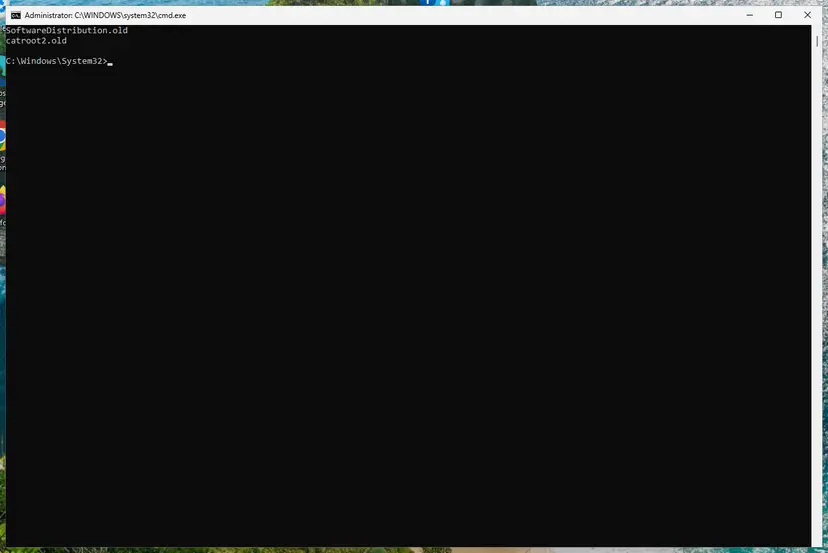
Then run the built-in troubleshooter once: Run the Windows Update troubleshooter. If the system drive is nearly full, free space first, because an update needs room to stage its files: Free up disk space and delete temporary files
It worked if: The update downloads again from the start and installs without the error.
If not: If it fails again with 0x80070306, the cause is a package, not the download. Go to Fix 4 or Fix 7.
Fix 6. Install the update by hand from the Microsoft Update Catalog
20 to 40 minutesLow riskYou want to rule out Windows Update itself, or you install updates from the catalog anyway.
A manual install skips the Windows Update download and service chain. If the manual install also fails with 0x80070306, you know for sure the cause is in the packages on the PC.
- Check your Windows version. Press Windows key + R, type winver and press Enter. Note the version (for example 25H2) and the OS build.
- Find the KB number. Open Settings > Windows Update. A failed or pending update is listed with its KB number; earlier ones are under Update history.
- Check the processor type. Open Settings > System > About and look at System type: an x64-based PC needs the x64 file, an ARM-based PC (for example Snapdragon) needs the arm64 file.
- Search the catalog. Open the Microsoft Update Catalog at catalog.update.microsoft.com in your browser, type the KB number (for example KB5124010) in the search box and press Enter.
- Pick the right row. Find the row whose title names your Windows version and your processor type (x64-based or arm64-based) and select Download on that row.
- Download every file listed. A window lists one or more .msu links. Download all of them into one empty folder, for example C:\packages. On Windows 11 24H2 and later the list can include earlier checkpoint updates that the new one needs.
- Install a single file. If there is only one file, double-click it and confirm the installation in the Windows Update Standalone Installer.
- Install several files with DISM. If there are several files, open an elevated Terminal or Command Prompt and run DISM with the newest file. DISM finds the other files in the same folder and installs them in the right order.
DISM /Online /Add-Package /PackagePath:C:\packages\<newest-file>.msu - Restart. Restart the PC when the installation finishes, then run winver again: the OS build should have changed.
These steps were written for Windows 11 24H2 and later; Windows 10 22H2. The full page with the other versions and what each result means: Install an update from the Microsoft Update Catalog
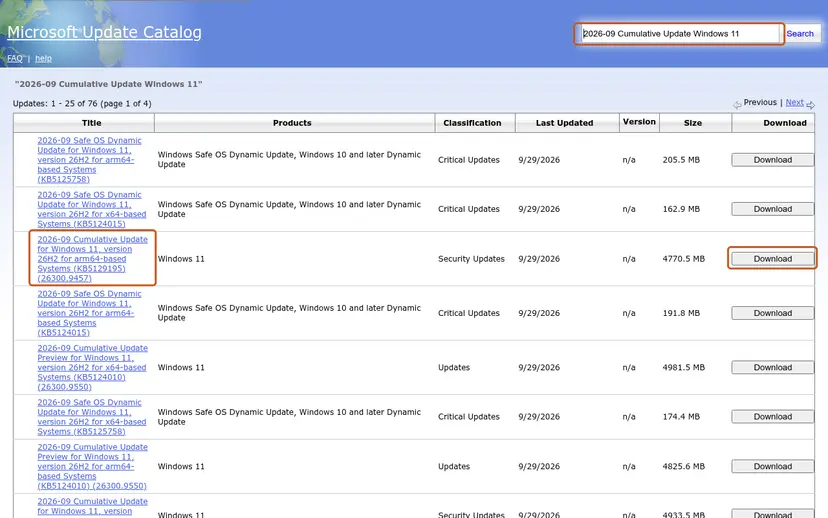
- More than one file. Windows 11 24H2 and later updates can list a checkpoint update first. Install the files in the order the catalog gives.
- The same error by hand. The download was never the problem. Go back to Fix 2 and read the log, or go to Fix 7.
It worked if: The installer says the update installed, and after the restart winver shows the new build.
If not: If the manual install fails with the same code, go to Fix 7.
Fix 7. Reinstall Windows over itself and keep your files and apps
1 to 2 hoursLow riskEvery other fix failed, the log names a package you cannot repair, or the PC runs Windows 11 24H2 Home or Pro.
A repair install writes a fresh copy of Windows with a new component store and new package records, and keeps apps, files and settings. It replaces exactly the records that error 774 failed on.
Both routes below are designed to keep your files, apps and settings. Copy your important files to another drive before you start all the same, and keep a laptop on mains power: Back up your files (Windows Backup, File History, Time Machine)
- Open Settings > System > Recovery.
- Next to Fix problems using Windows Update, select Reinstall now.
- Confirm, keep the PC on and let it restart as often as it needs.
- When Windows is back, run
winver, then select Check for updates in Windows Update.
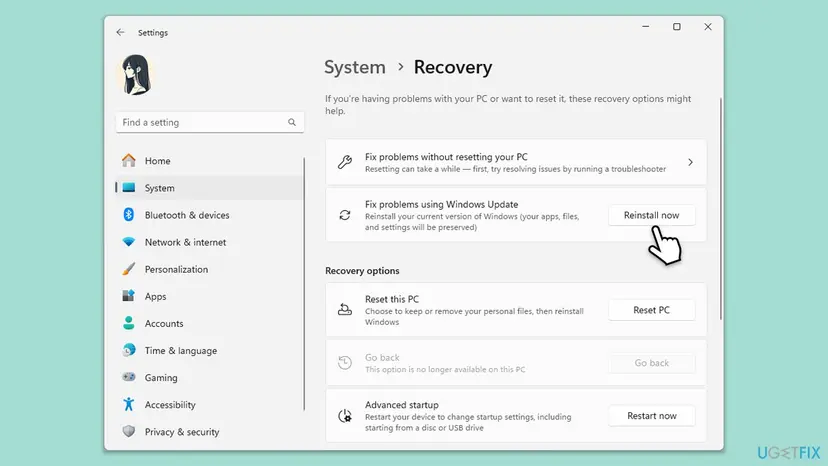
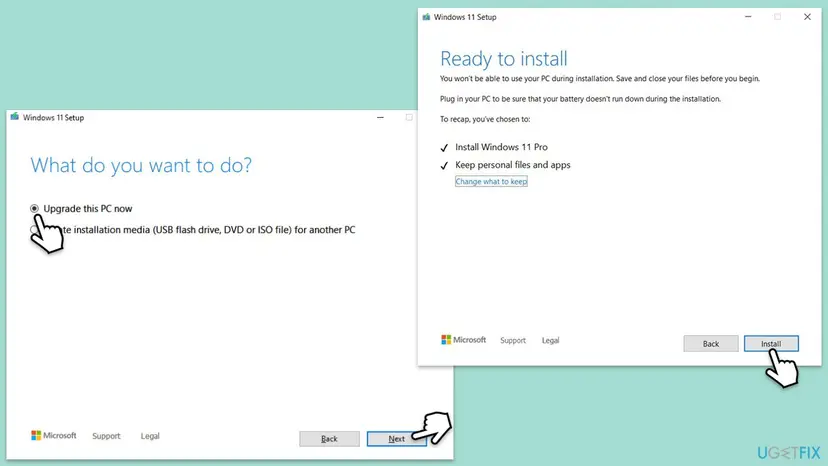
If Reinstall now is missing or fails, use installation media. Download the Windows 11 ISO from Microsoft's software download page, right-click it, select Mount and run setup.exe. On Ready to install, check that it says Keep personal files and apps before you select Install.
More reset options, including the ones that remove apps: Reinstall Windows without losing files
It worked if: winver shows a current build, Windows Update installs the newest update, and Update history shows no new 0x80070306 entry.
If not: If setup itself fails, collect the logs from the next section and ask for help with them.
If 0x80070306 is still there: the logs to read and what to send
When the log names a package that none of the fixes above reach, the next step is a person who reads CBS logs for a living. Microsoft Q&A and the Sysnative Windows Update forum both take such cases. Collect the log right after a failed attempt.
PowerShell (administrator): pack the CBS logs into one file on the desktop
Compress-Archive C:\Windows\Logs\CBS -f (Join-Path ([Environment]::GetFolderPath('Desktop')) 'CBS.zip')- What to send: CBS.zip, the output of
winver, the KB number, the dates from Update history and what you already tried. - One test with the antivirus paused. If you use an antivirus other than Microsoft Defender, pause it for one attempt and turn it back on right after: Turn off Microsoft Defender protection for a moment
- A work or school PC. Updates may come from your organization's server. Send the logs to the administrator before a repair install.
- Is it hardware? Nothing in the cases we read pointed at hardware. If SFC finds new damage after every repair, check the drive.
Windows shows the same code in every language: "Chyba instalace - 0x80070306" in Czech, "Erro de instalação - 0x80070306" in Portuguese, "Installationsfehler - 0x80070306" in German. Only the words around it change, and every fix on this page applies.
How to keep install error 0x80070306 from coming back
- Install the regular update each month, so the PC never needs a long chain of updates at once.
- Leave optional preview updates off unless you need a fix they bring.
- Restart soon after Windows asks, so the install can finish.
- Move from Windows 11 24H2 Home or Pro to 25H2 or 26H2.
- Keep a copy of your files on another drive before a repair install.
- Do not delete folders inside WinSxS to save space.
- Do not remove optional features or packages that no log names.
- Do not run repair scripts made for another PC.
- Do not use registry cleaners on the update components.
- Do not download Windows images or update files from sites other than Microsoft's.
Each point follows from what the code means. Error 774 appears when the update finds a package it cannot process. Anything that removes or damages package records or store files leaves the next update with the same problem.
Frequently asked questions
What does install error 0x80070306 mean?
It means a Windows update failed while Windows processed its packages. The code is Win32 error 774 in the form Windows Update uses. Microsoft names 774 ERROR_ERRORS_ENCOUNTERED, "One or more errors occurred while processing the request". That is a summary, so the reason is a few lines earlier in CBS.log. In the case we read in full, the earlier line said Windows could not resolve a package, and the fix was to remove a broken optional feature.
Can I just skip the update that fails with 0x80070306?
If it is a preview update, yes. Previews are optional, non-security updates, and their changes come in the next month's regular update. That is the answer an independent advisor gave on Microsoft Q&A for the 2025-07 preview KB5062660. A regular monthly update carries security fixes, so do not skip it for long. If next month's regular update fails with the same code, the cause is on the PC, and Fix 2 shows where to look.
Which updates fail with error 0x80070306?
We read two cases in full: the July 2025 preview KB5062660 on Windows 11 24H2 and the monthly update KB5079473 on Windows 11 25H2. People search the code with many other KB numbers too, including KB5062553, KB5058411, KB5070773 and KB5089549. The code follows the PC rather than one update. When one PC fails month after month, repair the PC instead of waiting for Microsoft to change the update.
What is 0x80070306(-2147024122)?
It is the same error written twice. -2147024122 is the value of 0x80070306 when a program reads it as a signed 32-bit number, and some logs and tools print both. The meaning does not change: Win32 error 774, "One or more errors occurred while processing the request". Every fix on this page applies, starting with the build check in Fix 1 and the log in Fix 2.
Is 0x80070306 a known issue that Microsoft is fixing?
We could not find it as a known issue. Microsoft documents only the generic meaning of error 774, and we found no statement that a later update fixes it. In the cases we read, the cause was on the individual PC: a package or optional feature Windows could not process. That is why the same PC can fail several updates in a row while other PCs install them without trouble.
I see "Chyba instalace - 0x80070306" or "Erro de instalação - 0x80070306". Is it the same error?
Yes. Windows prints the same code in every language, and only the words in front of it change. "Chyba instalace" is Czech, "Erro de instalação" is Portuguese, "Errore di installazione" is Italian, "Installatiefout" is Dutch and "Installationsfehler" is German, and all of them mean install error. The cause and every fix on this page are the same. Menu names in Settings are translated, but commands such as winver, DISM and sfc /scannow are typed the same way everywhere.
SFC and DISM say everything is fine. Why does the update still fail?
Because the problem can be a package record, not a file. SFC checks protected system files and DISM checks the component store, but neither rebuilds a missing package record or a half-installed optional feature. That was the situation in the solved KB5079473 case: DISM reported no corruption, and the update installed only after the Wireless Display feature was removed. Read CBS.log as in Fix 2 to find the package.
Will a repair install delete my files or programs?
Not when you keep personal files and apps. Reinstall now in Settings > System > Recovery and setup.exe from Windows 11 media are both built to keep your files, apps and settings. With setup.exe, check the Ready to install screen: it must say Keep personal files and apps before you select Install. Back up your important files anyway, because a repair install is a large operation, and some apps may ask you to sign in again.
Should I turn off my antivirus to fix 0x80070306?
Not for good. No case we read was solved by the antivirus, and the code points at package processing, not at blocked files. If you use an antivirus other than Microsoft Defender, you can pause it for one attempt and turn it back on right after, whatever the result. If the update still fails, the antivirus is not the cause, so continue with the log in Fix 2.
Sources
- Microsoft Learn: System Error Codes (500-999), ERROR_ERRORS_ENCOUNTERED 774 (0x306) (learn.microsoft.com)
- Microsoft Q&A: Install error - 0x80070306 with the 2025-07 Cumulative Update Preview KB5062660 for Windows 11 24H2 (user report and advisor answer) (learn.microsoft.com)
- Sysnative Forums: Windows 11 Build 26200, Update Error 0x80070306, KB5079473 (solved case with CBS.log lines) (sysnative.com)
Did this fix work?
One click, no account. It tells the next reader which guides are worth their time.
Questions and experiences: fix Windows update error 0x80070306
Still broken, or found a fix we did not cover? Ask here: members and our editors answer. Reading is open; writing needs a free account.
…