
How to fix Windows update error 0x80070433?

Prefer to fix it yourself? The manual steps follow.
- 6methods
- 5 to 45 minutes
- Intermediate
Applies to Windows 11 and Windows 10: Windows Update, the Windows Update service (wuauserv), BITS and any other service that fails to start with error 1075
6 methods in this guide
So today I saw an error message "There were some problems installing updates, but we'll try again later" and the error code provided is 0x80070433. Could you help me?
Error 0x80070433 is Windows error 1075: a service cannot start because a service it depends on does not exist or is marked for deletion. In Windows Update it means that the Windows Update service (wuauserv) or BITS names a missing service in its dependency list. List the dependencies with sc.exe qc wuauserv, then check that each name on the list is installed.
The update itself is not the problem. A service that Windows Update needs refuses to start, because one name in its dependency list points to a service that is not installed. Restart the PC once, then open an administrator command window and run sc.exe qc wuauserv and sc.exe qc bits. Check every name after DEPENDENCIES with sc.exe query (Fix 1). The result tells you whether to clean the list (Fix 2), switch a service back on (Fix 3) or restore a deleted one (Fix 4).
| Error | 0x80070433, the Windows Update form of system error 1075, ERROR_SERVICE_DEPENDENCY_DELETED: "The dependency service does not exist or has been marked for deletion." |
|---|---|
| Where it appears | In Settings > Windows Update after a failed update, in the Services window as Error 1075 when you start a service, and in a command window as "System error 1075 has occurred" after net start wuauserv. |
| Main cause | The dependency list of the Windows Update service or of BITS holds the name of a service that is no longer installed, or that is waiting to be deleted. |
| Fastest fix | Restart the PC, run sc.exe qc wuauserv, and test each name on the DEPENDENCIES line with sc.exe query (Fix 1). |
| Also written as | 0x80070433, 80070433, error 1075, system error 1075, 0x433, ERROR_SERVICE_DEPENDENCY_DELETED, "wuauserv cannot start". |
| Affects | Every Windows version with the Service Control Manager, Windows 11 and Windows 10 included. Any service can fail this way, not only Windows Update. |
| Microsoft's status | Not a bug in an update, so no patch removes it. Microsoft lists 0x80070433 as a start failure of BITS and tells you to make sure the dependency list of the service is correct. |
| Sibling codes | 0x8007042C (error 1068, a dependency failed to start), 0x80070422 (error 1058, the service is disabled), 0x80070424 (error 1060, the service itself does not exist). |
| Time to fix | About 5 minutes to find the missing name. One command to clean a list. About 30 minutes or more for System Restore or a repair install of Windows. |
| Where the cause is logged | Event Viewer, Windows Logs > System, source Service Control Manager, event 7003. It names the failing service and the service that is missing. |
Facts checked on 14 October 2026. Steps written for Windows 11 (25H2 and 26H2) and Windows 10 22H2.
What error 0x80070433 means in Windows Update
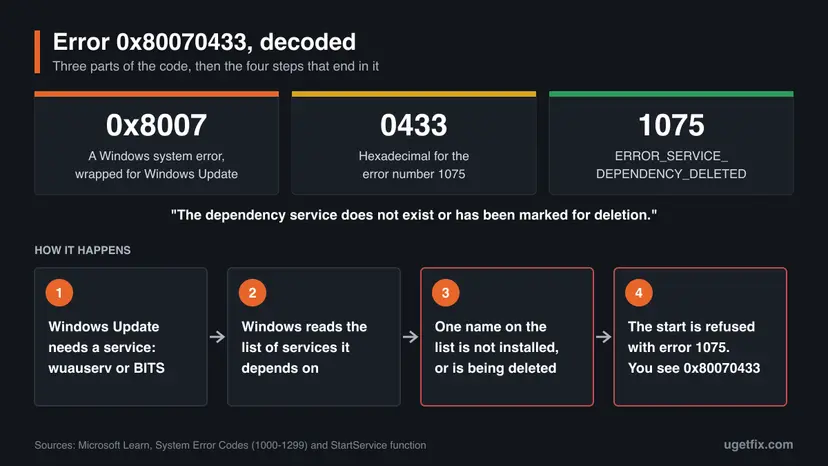
0x80070433 is not a code of its own. It is the ordinary Windows system error 1075 in the eight-digit form that Windows Update prints. Microsoft's list of system error codes gives 1075 the name ERROR_SERVICE_DEPENDENCY_DELETED and one line of text: "The dependency service does not exist or has been marked for deletion."
The first half of the code, 0x8007, says that a plain Windows error was wrapped into the format that update components use. The second half, 0433, is 1075 written in hexadecimal. Microsoft documents this wrapping in the HRESULT_FROM_WIN32 macro, so the same rule decodes every Windows Update code that starts with 0x8007.
| What you see | Where | What it tells you |
|---|---|---|
| Error code 0x80070433 next to a failed update or under a message that updates could not be installed | Settings > Windows Update (Windows 11) or Settings > Update & Security > Windows Update (Windows 10) | Windows Update could not start a service it needs. The page does not say which one. |
| "Windows could not start the (name) service on Local Computer. Error 1075: The dependency service does not exist or has been marked for deletion." | The Services window (services.msc), after Start | The service you tried to start is the one with the broken dependency list. |
| "System error 1075 has occurred." followed by the same sentence | Command Prompt, after net start wuauserv or net start bits | The same, in text form. This is the quickest way to test one service. |
Search results for 0x80070433 are full of general update advice. The precise meaning is narrower: one service names another service that Windows cannot find. Until that single name is found, clearing the update cache or installing the update by hand cannot work, because the service that would do the job does not start.
How service dependencies work, and where wuauserv keeps its list
Every Windows service is a record in the database of the Service Control Manager. Microsoft documents that this database lives in the registry under HKEY_LOCAL_MACHINE\SYSTEM\CurrentControlSet\Services, with one subkey for each installed service. The record can hold a list of services that must be started first. That list is the dependency list.
When something asks for a service, Windows goes through its list first. Microsoft's description of the StartService function names three different endings, and each one has its own code. Knowing which one you have saves time, because the repairs differ.
| State of the service on the list | Error | Windows Update code | Repair |
|---|---|---|---|
| It does not exist, or it has been marked for deletion | 1075, ERROR_SERVICE_DEPENDENCY_DELETED | 0x80070433 | Fix 1, then Fix 2 or Fix 4 |
| It exists but failed to start | 1068, ERROR_SERVICE_DEPENDENCY_FAIL | 0x8007042C | Fix 3 |
| The service you start is itself disabled | 1058, ERROR_SERVICE_DISABLED | 0x80070422 | Fix 3 |
| The service you start does not exist at all | 1060, ERROR_SERVICE_DOES_NOT_EXIST | 0x80070424 | Fix 4 |
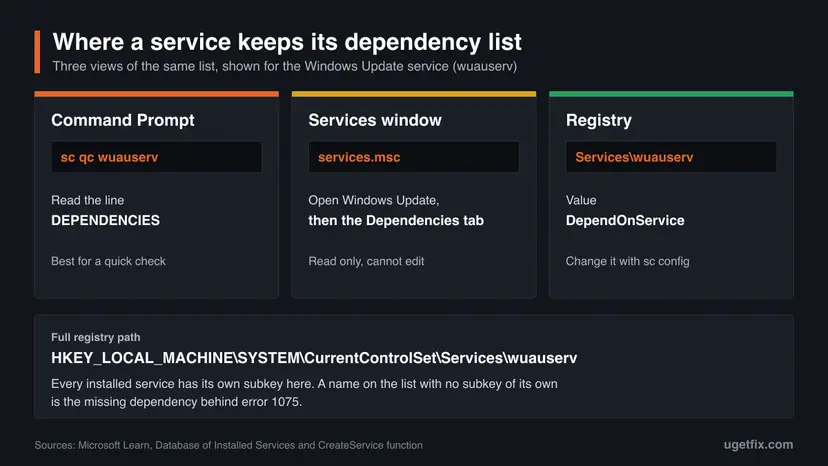
- In a command window:
sc.exe qc wuauserv. Microsoft's reference for theqccommand lists DEPENDENCIES among the fields it prints. - In the Services window: open the service and select the Dependencies tab. The tab shows the list, but it cannot change it.
- In the registry: the value
DependOnServicein the subkey of the service. Microsoft's documentation of theCreateServicefunction describes it as the services on which this service depends. A second value,DependOnGroup, holds groups of services. - In PowerShell:
Get-Service wuauserv -RequiredServices. Microsoft documents this switch as the way to get the services that a service requires.
Microsoft publishes no current table of the default dependencies of wuauserv for Windows 11 or Windows 10. Its only printed lists are for BITS on older systems: RpcSs and EventSystem on Windows Vista and Windows Server 2003, Rpcss alone on Windows XP. For a current PC, the reliable reference is a second, healthy PC with the same Windows version: run the same sc.exe qc command there and compare the two lines.
What causes 0x80070433, from most to least likely
By its definition the error has two possible causes only: the service named on the list is gone, or it is waiting to be deleted. What differs is how it got that way. Microsoft's own entry for this code, written for BITS, puts it in one sentence: a service that appears in the dependency list cannot be started, so make sure the list is correct.
| Cause | How to tell | Fix |
|---|---|---|
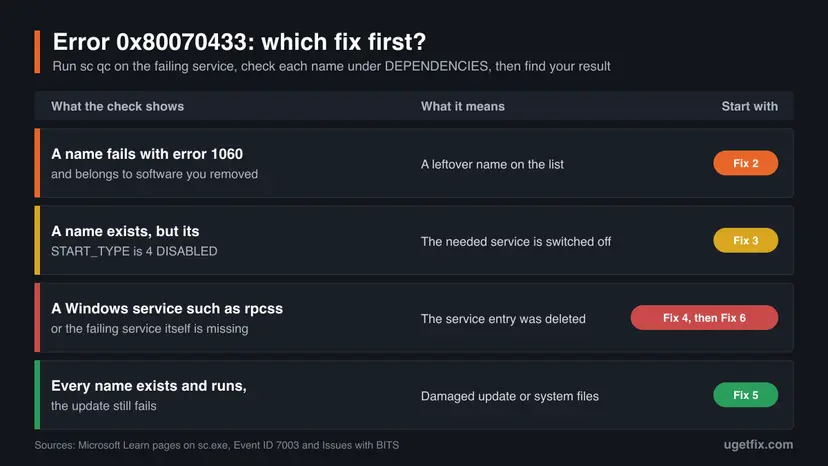
| A service was marked for deletion while it was still in use. Windows removes such a record only after the service stops and every program lets go of it, or at the next restart. | The error appeared right after you removed or updated a program, and the PC has not been restarted since. | Restart the PC (the first step of Fix 1) |
| The dependency list holds a leftover name. A program added its own service to the list of a Windows service and was later removed, or a tweak changed the list. | One name on the DEPENDENCIES line fails sc.exe query with error 1060 and is not a Windows service. | Fix 1, then Fix 2 |
| A Windows service was deleted: by a cleanup or tweaking tool, by a script meant to block updates, or by malware. | The missing name is a Windows service such as rpcss, or sc.exe query wuauserv itself answers with error 1060. | Fix 4, then Fix 6 |
| A dependency exists but is switched off. Strictly this belongs to the sibling codes, but Microsoft treats both with the same check. | sc.exe qc of the dependency shows START_TYPE as 4 DISABLED. | Fix 3 |
| The services are fine and the update files or system files are damaged. | Every name exists and runs, net start wuauserv works, and the update still fails. | Fix 5 |
Advice to change user account permissions, to set a Group Policy to Not Configured or to download the update from the Microsoft Update Catalog does not belong to this code. A standalone update package is installed through the same Windows Update service, so it stops at the same missing dependency.
How to fix Windows Update error 0x80070433
Fix 1 is the diagnosis and everybody starts there: it costs five minutes and changes nothing. Its result sends you to Fix 2, Fix 3 or Fix 4. Fix 5 and Fix 6 are the general repairs for the case where the dependency lists are healthy, or where nothing else brought a deleted service back.
| What you see or have | Start with |
|---|---|
| Only the code 0x80070433 in Windows Update, and you do not know which service fails. | Fix 1 |
| One name on the DEPENDENCIES line is not installed (error 1060), and it belongs to software you removed. | Fix 2 |
A name on the list exists, but its START_TYPE is 4 DISABLED, or Services shows Disabled. | Fix 3 |
The missing name is a Windows service, or wuauserv or bits itself is not installed. | Fix 4, then Fix 6 |
| Every dependency exists and runs, and the update still ends with 0x80070433. | Fix 5 |
| A work or school PC where the settings of services are greyed out. | Ask the administrator before any fix |
Fix 1. List the dependencies of the failing service and find the missing one
5 minutesNo riskAlways first: you see 0x80070433 or error 1075 and do not yet know which service name is broken.
Error 1075 always points at one name in one dependency list. Microsoft's own resolution for this situation starts the same way: read the list with sc qc, then compare it with the services that really exist. These commands only read.
- Restart the PC and try the update once more. A service that was marked for deletion is removed at restart, so a temporary case ends here.
- On Windows 11, right-click Start and select Terminal (Admin). On Windows 10, type
cmdin the search box and select Run as administrator. - Test the two services that Windows Update needs. The one that answers with "System error 1075 has occurred" is the failing service.
net start bits net start wuauserv - Print the configuration of the failing service and read the line DEPENDENCIES. Each name on it is one service that must exist.
sc.exe qc wuauserv - Check every name from that line, one at a time. Replace
rpcsswith the name you are checking.sc.exe query rpcss - A name that exists answers with its STATE, for example
4 RUNNING. A name that is not installed answers with error 1060: "The specified service does not exist as an installed service." That name is your missing dependency. - For every name that exists, read its start type and its own dependencies. Look at the line START_TYPE.
sc.exe qc rpcss - Write down the full DEPENDENCIES line and the name that failed. You need both in the next fix.
In Windows PowerShell the short word sc is an alias of another command, so sc qc wuauserv does nothing useful there. The full name sc.exe works the same in Command Prompt, PowerShell and Terminal, and it is how Microsoft writes the command in its current reference.
The same check as one script, for PowerShell opened as administrator. It reads the DependOnService value of the service and tests whether each name has its own subkey, which is how the Service Control Manager's database records an installed service.
PowerShell (administrator): list the dependencies and mark the missing ones
$svc = 'wuauserv'   # then run it again with 'bits'
$base = 'HKLM:\SYSTEM\CurrentControlSet\Services'
$list = (Get-ItemProperty "$base\$svc").DependOnService
if (-not $list) { "$svc has no dependency list" }
foreach ($name in $list) {
  if (Test-Path "$base\$name") {
    "{0}: exists, Start = {1}" -f $name, (Get-ItemProperty "$base\$name").Start
  } else {
    "{0}: MISSING" -f $name
  }
}| The script or the commands show | Meaning | Go to |
|---|---|---|
| A name with MISSING, or error 1060, and the name belongs to a program you removed | A leftover entry in the list | Fix 2 |
A name with MISSING that is a Windows service (rpcss, EventSystem and similar) | A Windows service was deleted | Fix 4 |
Start = 4, or START_TYPE 4 DISABLED | The dependency is installed but switched off | Fix 3 |
Error 1060 for wuauserv or bits itself | The service is gone, which is code 0x80070424 | Fix 4 |
All names exist with Start = 2 or Start = 3 | The lists are healthy | Fix 5 |
If the name on the list exists but will not start either, repeat the same check one level down: run sc.exe qc on that name and test its list. Microsoft notes that a dependency can also be a group of services, written with a + in front of the name. A group is satisfied when at least one of its members runs.
It worked if: You can name the failing service (for example wuauserv) and the one name on its dependency list that is not installed or is disabled.
If not: If every name exists and runs and both net start commands succeed, the dependency lists are not your problem any more. Go to Fix 5.
Fix 2. Remove a leftover name from the dependency list with sc.exe config
5 minutesRead the warningFix 1 found a name on the list that is not installed, and that name is not a Windows service.
This is the resolution Microsoft gives for a service that depends on a nonexistent service: set the list again with only the valid names. Once the dead name is off the list, nothing blocks the start of the service.
depend= does not remove one name. It overwrites the list with exactly what you type. If you leave out a real Windows service such as rpcss, the update service may start before the service it needs and fail in new ways. Export the registry key of the service first, and copy the old DEPENDENCIES line into a text file. How to export and restore a key: Back up the registry before editing it
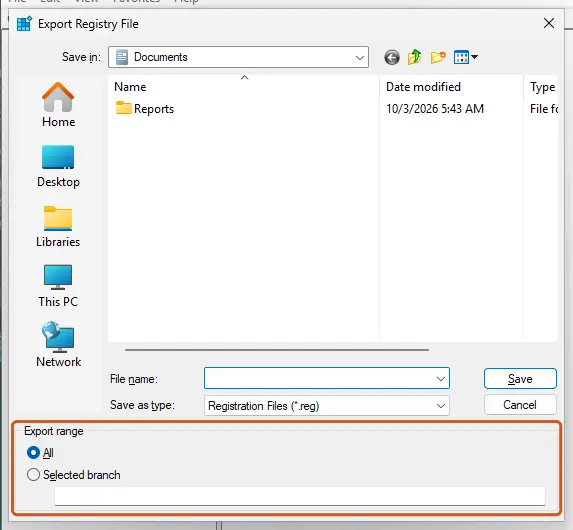
- In the administrator command window, save the key of the service to the desktop. For BITS, replace
wuauservwithbitsin both places.reg export "HKLM\SYSTEM\CurrentControlSet\Services\wuauserv" "%USERPROFILE%\Desktop\wuauserv-backup.reg" - Take the DEPENDENCIES line you wrote down in Fix 1 and cross out only the name that failed with error 1060.
- Set the list again with the names that are left, separated by forward slashes. The example keeps one valid name. With two names it would read
depend= rpcss/EventSystem.sc.exe config wuauserv depend= rpcss - Check the answer. Success reads
[SC] ChangeServiceConfig SUCCESS. - Print the configuration again and confirm that the dead name is gone and every real name is still there.
sc.exe qc wuauserv - Start the service.
net start wuauserv - Open Settings > Windows Update and select Check for updates.
- The space is part of the syntax. Microsoft's reference states that each option includes the equal sign and that a space is required between the option and its value:
depend= rpcss, neverdepend=rpcss. - Do not edit
DependOnServiceby hand. Microsoft's documentation of the services database says to use the functions of the Service Control Manager and not to modify the database directly.sc.exe configis that route. - An empty list. Microsoft's page says to enter a null value for
depend=when no valid name is left, but it does not print the syntax. We could not confirm it from a Microsoft page, and a Windows Update service with an empty list would be unusual. Compare with a healthy PC before you do that. - To undo: double-click the
.regfile from step 1, confirm the import and restart the PC.
Only a name that fails sc.exe query with error 1060 and that you can connect to a removed program. If the missing name is a Windows service, deleting it from the list hides the damage and leaves Windows without a service that other parts need too. That case is Fix 4.
It worked if: net start wuauserv answers that the Windows Update service was started successfully, and Windows Update checks for updates without 0x80070433.
If not: If the service now stops with another error, a second name on the list is switched off or damaged. Run Fix 1 again and continue with Fix 3.
Fix 3. Switch a disabled dependency back on
5 minutesLow riskFix 1 showed that a service on the list exists, but its start type is Disabled.
Microsoft's reference describes Disabled as a service that cannot be started until the start type is changed to another value. A disabled dependency therefore stops every service above it. Microsoft handles this case under the same entry as 0x80070433.
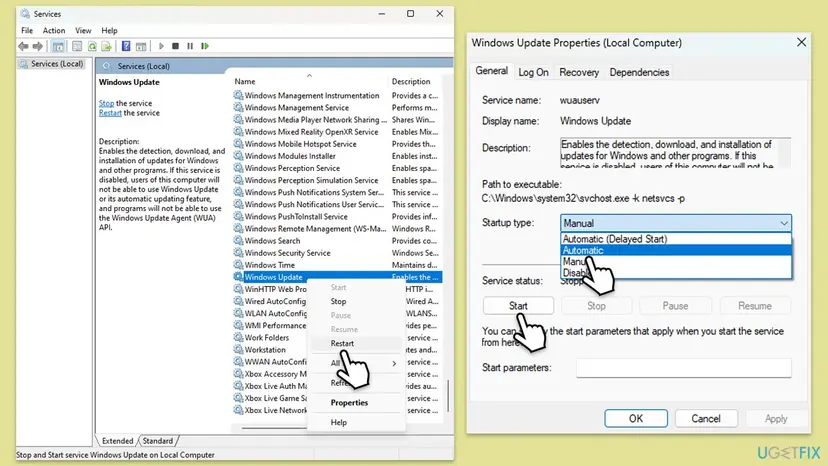
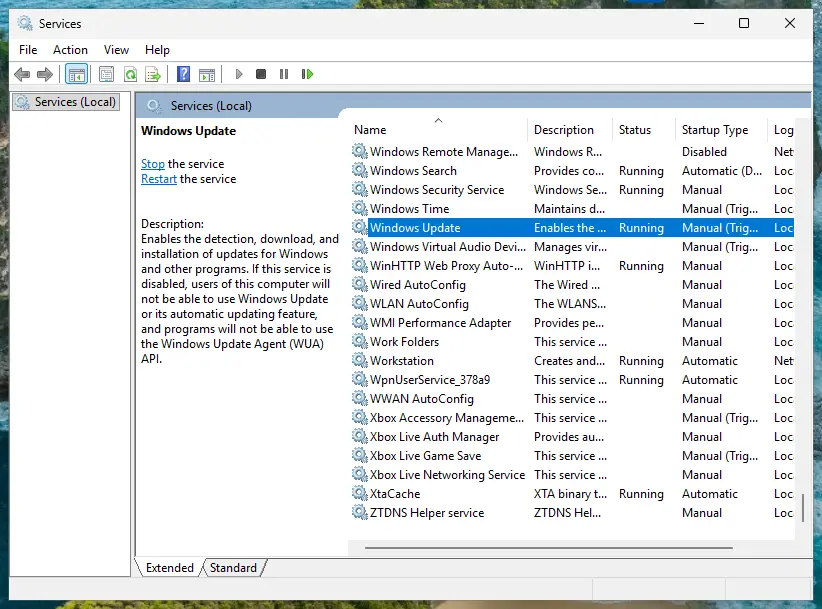
- Press Win + R, type
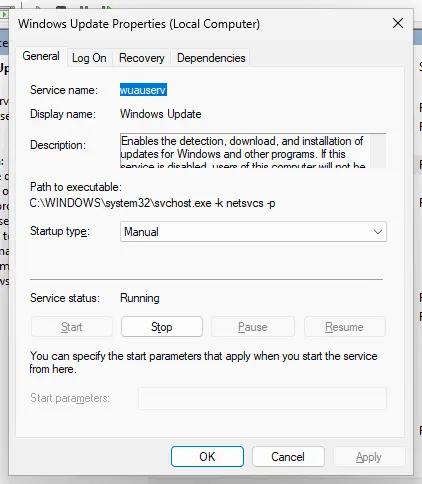
services.mscand press Enter. - Find the service by its display name. The table below gives the display names of the ones that matter for updates.
- Double-click it. On the General tab, open the Startup type list.
- Select the usual type from the table below: Automatic or Manual.
- Select Apply, then Start, then OK.
- Do the same for Windows Update and Background Intelligent Transfer Service if they show Disabled.
- Restart the PC and check for updates.
| Display name | Service name | Startup type |
|---|---|---|
| Windows Update | wuauserv | Manual |
| Background Intelligent Transfer Service | BITS | Manual |
| Update Orchestrator Service | UsoSvc | Manual, and Microsoft's recommendation is "Do not disable" |
| Windows Modules Installer | TrustedInstaller | Manual |
| Cryptographic Services | CryptSvc | Automatic |
| Remote Procedure Call (RPC) | RpcSs | Automatic |
| DCOM Server Process Launcher | DcomLaunch | Automatic |
| RPC Endpoint Mapper | RpcEptMapper | Automatic |
The same in a command window, for a service whose usual type is Manual: sc.exe config bits start= demand. For Automatic the value is auto. In the registry the start type is the value Start of the service's subkey, and Microsoft documents its numbers: 2 is Automatic, 3 is Demand (shown as Manual), 4 is Disabled.
- The Startup type list is greyed out, or you get Access is denied. Windows protects some of its services, and on a work PC an administrator's policy may hold the setting. Do not force it through the registry. Ask the administrator, or go to Fix 4.
- The setting returns to Disabled after a restart. Something on the PC sets it back: a tool that blocks updates, a privacy or tweaking utility, or malware. Remove the tool, and scan the PC: How to scan for malware with Microsoft Defender
- More about the Services window: Check and restart Windows services
It worked if: The Status column shows Running for the dependency, and the Windows Update service starts when you select Check for updates.
If not: If the service is not Disabled but missing from the list in Services, it was deleted. Go to Fix 4.
Fix 4. Bring back a deleted Windows service with System Restore
30 minutesRead the warningThe missing name is a Windows service, or wuauserv or BITS itself is no longer installed, and the PC has a restore point from before the error.
An installed service is a registry key. Microsoft states that System Restore reverts system files, registry settings and installed programs to the state of the restore point. A restore point made before the service was deleted therefore brings its key and its dependency list back.
Programs, drivers and Windows updates installed after the restore point are removed, and programs you uninstalled after it may come back. Your personal files are not affected. Before you start, note what you installed recently, and select Scan for affected programs in the wizard to see the exact list.
- Remember when the error first appeared: Windows Update lists failed attempts with their dates under Update history.
- Open System Restore with the steps below and pick a restore point dated before that day.
- Let Windows restart and finish the restore.
- Open an administrator command window and check that the service is back.
sc.exe query wuauserv sc.exe qc wuauserv - Run the check from Fix 1 once more, then select Check for updates.
- Open System Restore. Press Windows+R, type the command below and press Enter. You can also open Control Panel > Recovery > Open System Restore. If a first page opens, select Next.
rstrui.exe - Choose a restore point. Select a restore point from a time before the problem started. The Description often names the event, such as a driver or app install. If the one you need is missing, select Show more restore points (shown only when there are more).
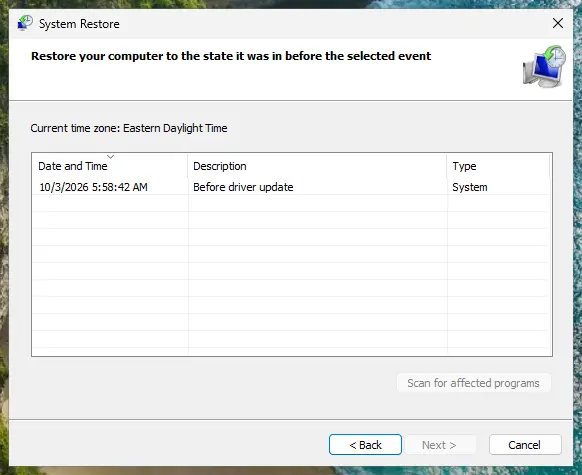
Pick a restore point from before the problem started. Screenshot: Windows 11 26H2. - See what will change. Select Scan for affected programs. The upper list shows programs and drivers that will be removed; the lower list shows those that might come back and may need to be reinstalled. Select Close.
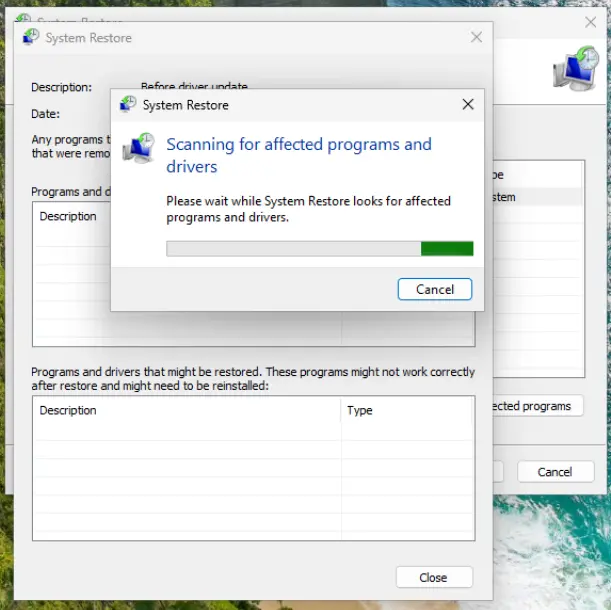
The scan lists programs and drivers the restore removes or brings back. Screenshot: Windows 11 26H2. - Start the restore. Select Next, check the summary and select Finish. Windows restarts and applies the restore point. Do not turn the PC off.
These steps were written for Windows 11 and Windows 10 (the steps are the same). The full page with the other versions and what each result means: Undo recent changes with System Restore
- No restore point from before the error. System Restore cannot help. Go to Fix 6, which rebuilds Windows and its services while keeping your files and apps.
- Registry files from the internet. In Microsoft's community forum, volunteers point users to
.regfiles on third-party sites that recreate the Windows Update service. We found no Microsoft page that offers such files. A file made for another Windows build can write wrong values, so we do not recommend it over Fix 6. - Find out what deleted the service. A service key does not vanish by itself. If you ran no cleanup or tweaking tool, scan the PC before you go on: How to scan for malware with Microsoft Defender
- Full steps and the recovery environment: Undo recent changes with System Restore
It worked if: sc.exe query shows the service again with a STATE line, and its DEPENDENCIES line contains only names that exist.
If not: If no restore point is old enough or the restore fails, repair Windows itself with Fix 6.
Fix 5. Repair the system files, then reset the Windows Update components
30 to 45 minutesLow riskFix 1 found every dependency installed and running, yet the update still ends with 0x80070433.
With healthy lists, what remains is a damaged file behind one of the services or a damaged update cache. DISM and System File Checker replace damaged Windows files, and the reset gives Windows Update a clean download store and restarts its services in the right order.
Microsoft describes System File Checker as a scan of protected system files that replaces corrupted files with a cached copy. A deleted service is a missing registry key, not a corrupted file. We could not confirm from Microsoft's documentation that DISM or SFC recreate a deleted service, so do not expect them to cure a name that fails with error 1060.
- Open an elevated command window. Right-click Start and select Terminal (Admin), or type cmd in the search box, right-click Command Prompt and select Run as administrator. Select Yes when Windows asks for permission.
- Run DISM first. Type the command below and press Enter. DISM downloads clean copies of damaged components from Windows Update, so it can take several minutes. Wait until it says The operation completed successfully.
DISM.exe /Online /Cleanup-Image /RestoreHealth - Run System File Checker. In the same window, type the command below and press Enter. Do not close the window until the verification reaches 100%.
sfc /scannow - Read the result and restart. Compare the last message with the table below this guide, then restart the PC so that repaired files are loaded.
These steps were written for Windows 11 24H2 and 25H2. The full page with the other versions and what each result means: Run DISM and SFC to repair Windows system files
Restart the PC after the scans. Then reset the update components. The last commands of that procedure are a test in themselves: if net start bits or net start wuauserv answers with "System error 1075 has occurred", a dependency is still broken and you are back at Fix 1.
- Open Command Prompt as administrator. Type cmd in the search box, right-click Command Prompt and select Run as administrator. Select Yes when Windows asks for permission.
- Stop the update services. Type the commands below and press Enter after each one. If Windows says that other services depend on Cryptographic Services, it stops them too. A message that a service is not started is fine.
net stop wuauserv net stop bits net stop cryptsvc - Delete the download queue files. This clears the list of downloads that the Background Intelligent Transfer Service keeps. If Windows says it cannot find the files, continue.
del "%ALLUSERSPROFILE%\Application Data\Microsoft\Network\Downloader\qmgr*.dat" - Rename the update cache folders. Renaming keeps a copy in case you need it; Windows creates new, empty folders when the services start again. If you get Access is denied, a service is still running: repeat the previous step.
ren %systemroot%\SoftwareDistribution SoftwareDistribution.old ren %systemroot%\System32\catroot2 catroot2.old - Start the services again. Type the commands below and press Enter after each one. The requested service has already been started is fine: Windows started it on its own.
net start cryptsvc net start bits net start wuauserv - Restart and check for updates. Restart the PC. Then select Start > Settings > Windows Update > Check for updates. The first check can take longer than usual because everything is downloaded again.
These steps were written for Windows 11 and Windows 10 (the steps are the same). The full page with the other versions and what each result means: Reset Windows Update components
- Restart the PC once more.
- Open Settings > Windows Update and select Check for updates.
- If the same update fails again, open Update history and note its KB number and the code next to it for the next section.
Windows 11 can also run its own update diagnosis from Settings > System > Troubleshoot > Other troubleshooters. It is quick and worth one try at this point, but it does not edit dependency lists: Run the Windows Update troubleshooter
It worked if: Both DISM and SFC finish without unrepaired files, the three services start without an error, and the update installs.
If not: If the services start but the update keeps failing with this code, or the scans cannot repair what they find, go to Fix 6.
Fix 6. Reinstall the current version of Windows and keep your files and apps
1 to 2 hoursLow riskA Windows service is deleted and no restore point brings it back, or every other fix left the error in place.
A repair install writes the Windows files and the Windows part of the registry again, the service records with their default dependency lists included. Microsoft describes it as reinstalling the same version of Windows while repairing system files and components and preserving apps, files and settings.
Both routes below are designed to keep your files, apps and settings. Copy your important files to another drive before you start all the same, and keep the PC on mains power and online. Microsoft asks for both during the whole process.
- Windows 11: select Start > Settings > System > Recovery.
- Under Fix problems using Windows Update, select Reinstall now.
- Choose whether the PC may restart by itself 15 minutes after the installation, then select OK.
- Windows Update downloads a repair version of the last update that installed successfully and installs it. Restart when it is done.

Reinstall now downloads through Windows Update. If wuauserv or BITS cannot start at all, the download cannot begin, and the button does not get you further. Microsoft also notes that the option is missing on PCs managed by a workplace and on Windows 11 versions older than the 2022 annual update. In those cases, and on Windows 10, use the installation media below.
- With installation media (Windows 11 and Windows 10): create installation media for your Windows version on Microsoft's software download page and connect it to the PC.
- Open File Explorer, select the drive with the media and open
setup.exefrom its root folder. Select Yes when Windows asks for permission. - Select Change what to keep.
- Select Keep personal files and apps, then Next. The edition on the media must match the edition that is installed.
- Select Install. The PC restarts several times.
- When Windows is back, run
sc.exe qc wuauservonce to see the restored list, then check for updates.
Microsoft ended support for Windows 10 on 14 October 2025. The repair install still works there, but Windows Update on Windows 10 no longer brings free security updates. All the reset options, including the ones that remove apps: Reinstall Windows without losing files
It worked if: After the reinstall, net start wuauserv works, the dependency list holds only installed services, and Windows Update downloads updates again.
If not: If the error returns soon after a repair install, something on the PC removes or disables the services again. Read the next section and collect the log entries.
If 0x80070433 is still there: read what Windows logged
Windows writes down the name it could not find. The Service Control Manager, the part of Windows that starts services, records every failed start in the System log. For this error it writes event 7003, and the event text names both sides: the service that could not start and the service it depends on.
- Right-click Start and select Event Viewer.
- Open Windows Logs, then System.
- Sort the list by the Source column and scroll to Service Control Manager.
- Look for Event ID 7003 with the level Error. Microsoft's reference gives its text as: "The (name) service depends on the following nonexistent service: (name)".
- Look also for Event ID 7001: a service depends on another service which failed to start. That one belongs to the sibling code 0x8007042C and to Fix 3.
- For the update side, build a readable update log in PowerShell. The file
WindowsUpdate.logappears on your desktop.Get-WindowsUpdateLog
| Log | Where | What to look for |
|---|---|---|
| System event log | Event Viewer, Windows Logs > System, source Service Control Manager | Events 7003 and 7001 with the two service names |
| Windows Update log | WindowsUpdate.log on the desktop, made by Get-WindowsUpdateLog | Lines with 80070433 and the time of the failed attempt |
| Servicing log | %windir%\Logs\CBS\CBS.log | What DISM and SFC found or could not repair in Fix 5 |
- What to send to support or post in Microsoft's forum: the output of
sc.exe qc wuauservandsc.exe qc bits, the text of event 7003 and your Windows version from Settings > System > About. Add what was installed or removed just before the error. - When it is not yours to fix: on a PC managed by a workplace or a school, services and their start types can be set by policy. A change you make is set back at the next policy refresh. Report the event text to the administrator.
- When something keeps undoing the repair: the service is disabled or deleted again after each restart. That is the work of a tool that blocks updates or of malware, not of Windows. Remove the tool and scan the PC before repeating the fix.
- Is it hardware? Nothing in Microsoft's description of error 1075 points at hardware. It describes a record in the services database. A failing drive can damage the registry, but then many other services and programs fail too, not one dependency.
The code is the same in every language version of Windows, only the sentence around it is translated. If the error stayed after a fix, run Fix 1 again: the name on the list may have changed, or a second list may be broken.
How to keep the dependency error from coming back
- Restart the PC after you remove a program that installed its own services, so services marked for deletion are really removed.
- Keep System Restore turned on for the Windows drive, so a restore point exists before the next big change.
- Export the key of a service before you change its configuration with sc.exe.
- Pause updates in Settings > Windows Update when you need quiet, not by disabling services.
- Compare with a healthy PC of the same Windows version before you change a dependency list.
- Do not run scripts or tools that disable or delete Windows services to block updates.
- Do not delete service keys in Registry Editor to clean up after a program. Use the program's uninstaller.
- Do not type sc.exe config depend= without the full list of names you want to keep.
- Do not import registry files for services that were made for another Windows build.
- Do not remove a Windows service from a dependency list to make an error message go away.
Each point follows from how the error is made. Microsoft documents that a deleted service stays marked for deletion until it stops and every handle to it is closed, or until the system restarts. It also documents that the services database is meant to be changed through the Service Control Manager only. Tools that edit the keys directly are how a list ends up naming a service that is no longer there.
Frequently asked questions
What does error 0x80070433 mean?
It means a Windows service could not be started because a service it depends on does not exist or has been marked for deletion. The code is the system error 1075, named ERROR_SERVICE_DEPENDENCY_DELETED, in the notation that Windows Update uses. Its first half, 0x8007, marks a wrapped Windows error, and 0433 is 1075 in hexadecimal. In Windows Update the failing service is usually the Windows Update service itself (wuauserv) or the Background Intelligent Transfer Service (BITS). The update is only the place where you notice it. The cause sits in the dependency list of the service.
Why can wuauserv not start with 0x80070433?
Because one name in the dependency list of wuauserv points to a service that Windows cannot find. Before it starts a service, Windows starts every service on that list. If a name on the list is not installed, the start is refused with error 1075 and nothing else is tried. Run sc.exe qc wuauserv in an administrator command window, read the DEPENDENCIES line and test each name with sc.exe query. The name that answers with error 1060 is the cause. If wuauserv has a clean list, run the same check for bits.
What are the default dependencies of the Windows Update service?
Microsoft does not publish a current list for Windows 11 or Windows 10, so we cannot quote one from a primary source. The only lists Microsoft prints are for BITS on older systems: RpcSs and EventSystem on Windows Vista and Windows Server 2003, and Rpcss alone on Windows XP. The practical answer is to read the list from a healthy PC that runs the same Windows version. Run sc.exe qc wuauserv and sc.exe qc bits there and compare the DEPENDENCIES lines with yours. Any name that appears only on the broken PC and fails sc.exe query is the one to remove.
Is 0x80070433 the same as 0x80070422 or 0x8007042C?
No, but they are close relatives and are often mixed up. Code 0x80070422 is error 1058: the service you start is disabled. Code 0x8007042C is error 1068: a dependency exists but failed to start, for example because it is disabled. Code 0x80070433 is error 1075: a dependency does not exist or is marked for deletion. A fourth one, 0x80070424, is error 1060: the service itself is not installed. Microsoft's troubleshooting table for BITS handles 0x80070433 and 0x8007042C in one row with one instruction, which is to make sure the dependency list of the service is correct.
Can I edit DependOnService in the registry by hand?
You can read it there, but you should change it with sc.exe config. The value DependOnService under HKEY_LOCAL_MACHINE\SYSTEM\CurrentControlSet\Services, in the subkey of the service, holds the list. Microsoft's documentation of the services database says to use the functions of the Service Control Manager and not to modify the database directly. The command sc.exe config with depend= does exactly that and takes effect in the database and the registry together. Whichever way you choose, export the key first, because the command replaces the whole list with what you type.
What does "marked for deletion" mean for a service?
It means the service was deleted while it was still running or while a program still had it open. Microsoft documents that the record is then only marked: it is removed after the service stops and all handles to it are closed, and if the service cannot be stopped, at the next system restart. During that time other services that depend on it cannot start and report error 1075. This is why one restart is the first step. After the restart the service is either gone for good, which leaves a dead name on a list, or the error has ended.
Will SFC or DISM fix error 0x80070433?
Only when the services are intact and damaged files are the real reason. System File Checker replaces corrupted protected system files with a cached copy, and DISM repairs the store those copies come from. A missing service is a deleted registry key, which is a different kind of damage. We could not confirm from Microsoft's documentation that either tool recreates a deleted service. Run the dependency check first. If a name fails with error 1060, use the list cleanup, System Restore or a repair install. If every name exists, DISM and SFC are the right next step.
Is error 0x80070433 caused by a virus?
Not by definition, and most cases have an ordinary cause: a program that was removed, a tweak, or a tool meant to stop updates. Microsoft's description of the error mentions only the missing dependency. Malware is one of the things that can delete or disable update services, though, because a PC without updates stays open to it. Two signs make a scan worthwhile: you changed nothing before the error, or a service you repaired is disabled or deleted again after a restart. In that case run a full scan before repeating the repair.
Does this error also appear on Windows 10, and is it worth fixing there?
Yes. The Service Control Manager and its error 1075 work the same on Windows 10 and Windows 11, and so do the sc.exe commands in this guide. Microsoft ended support for Windows 10 on 14 October 2025, so a repaired Windows Update on Windows 10 no longer delivers free security updates. The repair is still worth doing if other things on the PC need the same services, for example the Microsoft Store or app updates. One difference: the Reinstall now option exists only on Windows 11, so a repair install on Windows 10 needs installation media.
Sources
- Microsoft Learn: System Error Codes (1000-1299), ERROR_SERVICE_DEPENDENCY_DELETED 1075 (0x433) (learn.microsoft.com)
- Microsoft Learn: HRESULT_FROM_WIN32 macro (learn.microsoft.com)
- Microsoft Learn: StartService function (return codes for dependencies) (learn.microsoft.com)
- Microsoft Learn: Issues with BITS (0x80070433 and the dependency list) (learn.microsoft.com)
- Microsoft Learn: Event ID 7003, Service Start Operations (learn.microsoft.com)
- Microsoft Learn: Sc qc (learn.microsoft.com)
- Microsoft Learn: sc.exe config (learn.microsoft.com)
- Microsoft Learn: sc.exe query (learn.microsoft.com)
- Microsoft Learn: sc.exe delete (learn.microsoft.com)
- Microsoft Learn: DeleteService function (marked for deletion) (learn.microsoft.com)
- Microsoft Learn: Database of Installed Services (learn.microsoft.com)
- Microsoft Learn: CreateService function (DependOnService, DependOnGroup) (learn.microsoft.com)
- Microsoft Learn: QUERY_SERVICE_CONFIG structure (dependencies and groups) (learn.microsoft.com)
- Microsoft Learn: HKLM\SYSTEM\CurrentControlSet\Services Registry Tree (Start values) (learn.microsoft.com)
- Microsoft Learn: Get-Service (RequiredServices) (learn.microsoft.com)
- Microsoft Learn: Guidance on disabling system services on Windows Server 2016 (learn.microsoft.com)
- Microsoft Learn: Windows Update, additional resources (reset components manually) (learn.microsoft.com)
- Microsoft Learn: Fix Windows Update errors with DISM (CBS.log) (learn.microsoft.com)
- Microsoft Learn: Get-WindowsUpdateLog (learn.microsoft.com)
- Microsoft Learn: reg query (learn.microsoft.com)
- Microsoft Support: Use the System File Checker tool to repair missing or corrupted system files (support.microsoft.com)
- Microsoft Support: System Restore (support.microsoft.com)
- Microsoft Support: Fix issues by reinstalling the current version of Windows (support.microsoft.com)
- Microsoft Support: Reinstall Windows with the installation media (support.microsoft.com)
- Microsoft Support: How to back up and restore the registry in Windows (support.microsoft.com)
- Microsoft Q&A: Windows update error 0x80070433, System error 1075 has occurred (a user's report) (learn.microsoft.com)
- Geoff Chappell: Service Control Manager events in the event log (7001, 7003) (geoffchappell.com)
Did this fix work?
One click, no account. It tells the next reader which guides are worth their time.
Questions and experiences: fix Windows update error 0x80070433
Still broken, or found a fix we did not cover? Ask here: members and our editors answer. Reading is open; writing needs a free account.
…