
How to fix Windows update error 0x80070661?

Prefer to fix it yourself? The manual steps follow.
- 6methods
- 5 to 30 minutes
- Beginner
Applies to Windows 11 and Windows 10 PCs where Windows Update shows Install error - 0x80070661 next to Windows Subsystem for Linux Update, or wsl --update stops with a processor type message
6 methods in this guide
I wanted to apply the newest updates for my Windows Subsystem for Linux, but it failed with error code 0x80070661. I have tried to install it several times, but to no avail. Please advise, as I have never dealt with this before.
Error 0x80070661 means Windows tried to install a package built for another processor type. In Windows Update it nearly always hits the Windows Subsystem for Linux (WSL) kernel update, not Windows itself. Update WSL from the command line first, then check for updates again.
0x80070661 is Windows Installer error 1633: the package does not fit your processor type. In Windows Update it is almost always the Windows Subsystem for Linux kernel update. Open Terminal as administrator, run wsl --update and check for updates again (Fix 1). If that shows the same processor message, remove the old WSL kernel entry and update again (Fix 2). Your Windows itself is not damaged.
| Error | Install error - 0x80070661: Windows error 1633, ERROR_INSTALL_PLATFORM_UNSUPPORTED, "This installation package is not supported by this processor type. Contact your product vendor." |
|---|---|
| Where it appears | Settings > Windows Update, under Windows Subsystem for Linux Update with a kernel version such as 5.10.93.2. The same failure prints the text of error 1633 when you run wsl --update. |
| Main cause | The WSL kernel update package offered to the PC was built for another processor. In the March 2022 case it was the ARM64 package sent to Intel and AMD PCs. |
| Fastest fix | Run wsl --update in Terminal (Admin), then select Check for updates again (Fix 1). |
| Also written as | 0x80070661 error, error 0x80070661, install error - 0x80070661, 80070661, error 1633, 0x661, and the Windows 10 message "There were some problems installing updates, but we'll try again later" ending in (0x80070661). |
| Affects | Windows 10 (version 2004 and later) and Windows 11 with WSL installed. Any .msi installer built for another processor can show the same code. |
| Microsoft's status | The March 2022 WSL kernel update 5.10.93.2 was fixed on Microsoft's side within about a day, by the reports in Microsoft's WSL issue tracker. The issue was closed as a duplicate. |
| Time to fix | 5 minutes for Fix 1. About 15 minutes for Fixes 2 to 4. 30 minutes for the general repairs in Fix 6. |
| Data at risk | None. Your Linux distributions and their files stay in place when you update or reinstall the WSL kernel. |
Facts checked on 15 October 2026. Steps written for Windows 11 (25H2 and 26H2) and Windows 10 22H2.
What error 0x80070661 means
0x80070661 is a normal Windows error number in the eight-digit form that Windows Update prints. The first half, 0x8007, marks a Win32 error. The second half, 0661, is 1633 in decimal. Microsoft's list of system error codes names 1633 ERROR_INSTALL_PLATFORM_UNSUPPORTED: "This installation package is not supported by this processor type. Contact your product vendor."
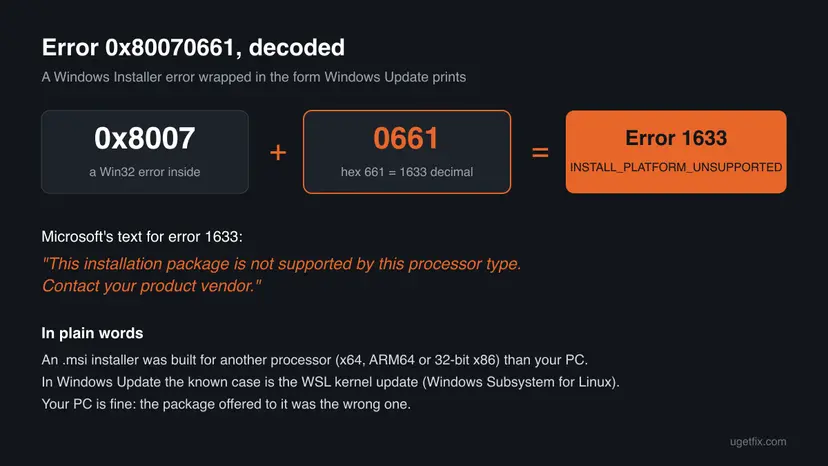
Error 1633 comes from Windows Installer, the engine that runs .msi packages. Each package says which processor it is for: x64 (most Intel and AMD PCs), ARM64 (Snapdragon and other ARM PCs) or 32-bit x86. When the package and the PC do not match, the installer stops before it changes anything.
| What you see | Where | What it tells you |
|---|---|---|
| Windows Subsystem for Linux Update - 5.10.93.2 with Install error - 0x80070661 | Settings > Windows Update on Windows 11 | The WSL kernel package did not fit the PC. Windows itself is not affected. |
| "There were some problems installing updates, but we'll try again later. If you keep seeing this and want to search the web or contact support for information, this may help: (0x80070661)" | Settings > Update & Security > Windows Update on Windows 10 | The same failure, worded the Windows 10 way. |
| "This installation package is not supported by this processor type. Contact your product vendor." | Terminal, after wsl --update | The same error 1633, printed as text instead of a code. |
| Error code 0x80070661 from a setup program | Visual C++ or another app installer | An .msi built for another processor. See Fix 5. |
Older guides treat 0x80070661 as a broken Windows Update and start with SFC, DISM and a cache reset. In the reports we read, Windows was healthy and only the WSL kernel package was wrong. That is why the WSL fixes come first on this page.
The March 2022 WSL kernel update that failed with 0x80070661
On 24 March 2022 Windows Update offered Windows Subsystem for Linux Update - 5.10.93.2 to Windows 10 and Windows 11 PCs. It failed on many of them with 0x80070661. Users then ran wsl --update as a workaround and got the processor type message instead. These are user reports in Microsoft's own WSL issue tracker on GitHub, issue 8184.
- Who was hit: Intel and AMD laptops on Windows 10 21H2 (build 19044) and Windows 11 21H2 (build 22000). One user wrote that the PC, an Intel one, seemed to get the ARM64 update.
- What was inside: the kernel package from the Microsoft Update Catalog holds
wsl_update_x64.msi, which in turn holds the license file and the Linux kernel file. - How it ended: by the next day users reported that Windows Update installed the kernel without errors. A WSL team member closed the issue as a duplicate.
- Later reports: a December 2025 comment on the same issue shows
wsl --updatestill failing with the processor message on one PC whose kernel file was missing. That case had no answer on the page.
So the code can come back with a later kernel package, and an old failed entry can stay in Windows Update after the fix. Both cases are covered by Fixes 1 to 4.
Why Windows update error 0x80070661 happens, from most to least likely
Microsoft has not written a support article for this code. The ranking below follows the error text, which is exact about the reason, and the reports in the WSL issue tracker. Each cause points to the fix that matches it.
| Cause | How often | How to tell | Fix |
|---|---|---|---|
| Windows Update offered a WSL kernel package for another processor, or an old failed entry is still listed. | Most often | The failed update is named Windows Subsystem for Linux Update. | Fix 1 |
| The old in-box kernel package is still installed and gets in the way of the new one. | Often | wsl --update prints the processor type message too. | Fix 2 |
| Windows Update keeps offering the same kernel although WSL updates itself in another way. | Sometimes | The same WSL entry fails after every check. | Fix 3 |
| You downloaded the wrong kernel file by hand. | Sometimes | You picked the x64 file on an ARM PC, or the other way round. | Fix 4 |
| Another .msi installer was built for another processor. | Rarely in Windows Update | The code comes from Visual C++ or an app setup, not from Windows Update. | Fix 5 |
| Windows Update itself is damaged. | Last | Other updates fail too, with other codes. | Fix 6 |
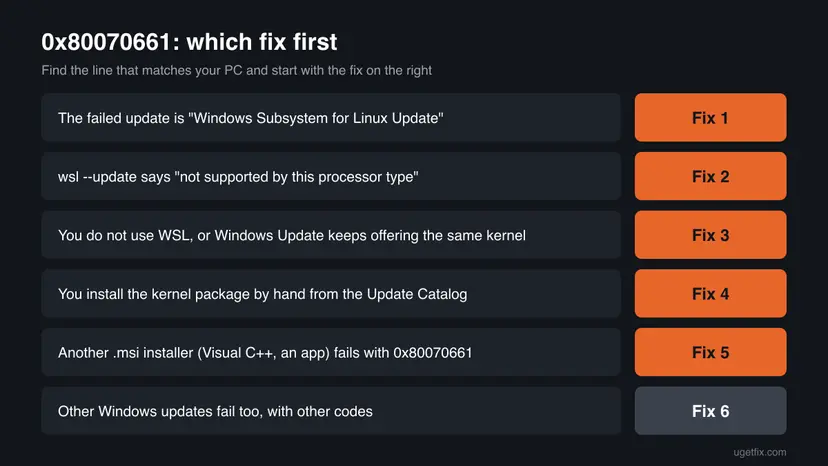
How to fix error 0x80070661 in Windows Update and WSL
Fix 1 takes five minutes and solves the common case. Fixes 2 to 4 handle a WSL kernel that still will not update. Fix 5 is for an app installer with the same code, and Fix 6 is the general Windows Update repair for when other updates fail too.
| What you see or have | Start with |
|---|---|
| The failed update is Windows Subsystem for Linux Update. | Fix 1 |
wsl --update says the package is not supported by this processor type. | Fix 2 |
| You do not use WSL much, or the same entry fails after every check. | Fix 3 |
| You want to install the kernel package by hand. | Fix 4 |
| Visual C++ or another app setup fails with 0x80070661. | Fix 5 |
| Other Windows updates fail too, with other codes. | Fix 6 |
Fix 1. Update WSL from the command line, then check for updates again
5 minutesNo riskAlways first, when the failed update in Windows Update is named Windows Subsystem for Linux Update.
The failing item is only the WSL kernel package. wsl --update gets the current WSL package for your processor without Windows Update. In the 2022 case, a wrong package was replaced on Microsoft's side, so a fresh try often just works.
- Restart the PC once with Start > Power > Restart.
- Right-click Start and select Terminal (Admin). On Windows 10, search for
PowerShell, right-click it and select Run as administrator. - See what WSL has now. Note the kernel version and whether automatic updates are on.
wsl --status - Update WSL and its kernel.
wsl --update - Wait until the installing step finishes. If it ends without an error, close the window.
- Open Settings > Windows Update and select Check for updates. The WSL entry should now install or disappear.
What a good result looks like (the text varies with the WSL version)
The most recent version of Windows Subsystem for Linux is already installed.Updating WSL replaces the kernel and the WSL program files. It does not touch your Linux distributions, such as Ubuntu, or the files inside them. You can check them afterwards with wsl -l -v.
It worked if: wsl --update ends without an error, and Windows Update shows no failed WSL entry after the next check.
If not: If wsl --update prints "This installation package is not supported by this processor type", go to Fix 2.
Fix 2. Remove the old WSL kernel update entry and update again
10 minutesLow riskwsl --update fails with the processor type message, or the WSL entry fails again after Fix 1.
On older setups the kernel comes as a separate program, Windows Subsystem for Linux Update. A user in the WSL issue tracker removed that program, ran wsl --update again and got no error. The new WSL package then brings its own kernel.
- Close every open WSL window, then run
wsl --shutdownin Terminal (Admin). - Open Settings > Apps > Installed apps (Windows 10: Settings > Apps > Apps & features).
- Type
Linuxin the search box. Find Windows Subsystem for Linux Update. - Select More (the three dots) > Uninstall and confirm. Do not remove your Linux distribution, such as Ubuntu.
- Go back to Terminal (Admin) and run
wsl --update. - Run
wsl --status. It should show a kernel version again.

WSL will not start until a kernel is back. Run wsl --update again. If it fails with the same message, install the kernel by hand with Fix 4 before you use WSL again. Your distributions are not removed in the meantime.
It worked if: wsl --update finishes without the processor message, and WSL starts your distribution as before.
If not: If wsl --update still fails, install the package by hand with Fix 4.
Fix 3. Stop Windows Update from offering the WSL kernel and update it yourself
5 minutesLow riskThe same WSL entry fails after every check, or you rarely use WSL.
Windows Update delivers the WSL kernel through the setting for other Microsoft products. wsl --status itself says that automatic kernel updates need Receive updates for other Microsoft products on. With it off, the failing kernel offer stops and you update WSL with wsl --update.
- Open Settings > Windows Update > Advanced options (Windows 10: Settings > Update & Security > Windows Update > Advanced options).
- Set Receive updates for other Microsoft products to Off.
- Go back to Windows Update and select Check for updates. The WSL kernel should no longer be offered.
- Once a month, run
wsl --updatein Terminal (Admin) to keep WSL current.
The same switch also stops updates for Microsoft Office and other Microsoft programs through Windows Update. If you rely on that, turn it back on after the next working WSL kernel update and keep the entry under watch.
Then the kernel update has nothing to update. Remove Windows Subsystem for Linux Update as in Fix 2, and Windows Update stops offering it. You can install WSL again later with wsl --install.
It worked if: Windows Update says you are up to date, and wsl --status shows that the kernel updates through wsl --update.
If not: If you still want the kernel from Windows Update, install it by hand with Fix 4 and turn the setting back on.
Fix 4. Install the WSL kernel package by hand from the Microsoft Update Catalog
15 minutesLow riskwsl --update fails on your PC, or you want the exact package Windows Update offered.
The catalog lists the kernel package for each processor. Picking the file that matches your PC by hand removes the mismatch that error 1633 complains about. This is the corrected version of the old manual download advice.
- Open Settings > System > About and read System type: x64-based processor or ARM-based processor.
- Open the Microsoft Update Catalog at
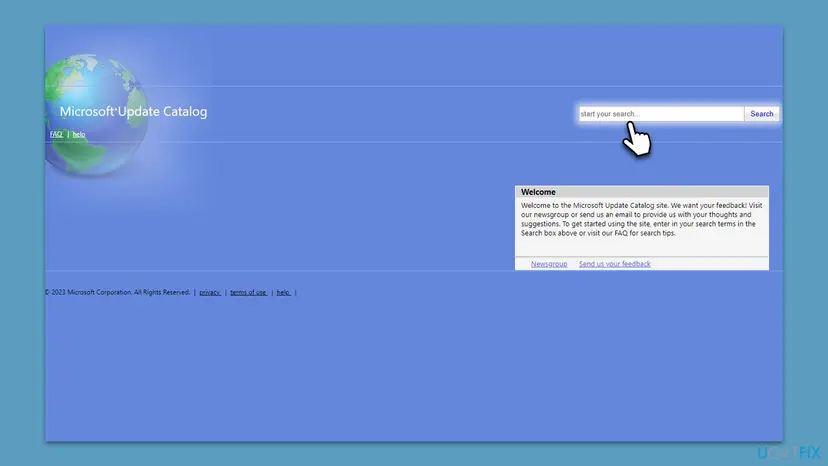
catalog.update.microsoft.comand search forwsl. - Pick the newest Windows Subsystem for Linux Update row for your processor (x64 or ARM64) and select Download.
- Unpack the downloaded
.cabfile into a new folder. Replace the file name with yours.mkdir C:\wslkernel expand -F:* "%USERPROFILE%\Downloads\<file name>.cab" C:\wslkernel - Open
C:\wslkerneland double-click the.msifile, for examplewsl_update_x64.msion an x64 PC. - Restart the PC, then run
wsl --statusto see the new kernel version.
Then this file is for another processor. Check System type again and download the other row. A 2022 catalog package sometimes held an older kernel than wsl --update installs, so try Fix 1 again later as well.
It worked if: The installer finishes, and after the restart wsl --status shows the new kernel version.
If not: If no file installs, see the section on what to do when the error stays, below the fixes.
Fix 5. Use the installer that matches your processor for other programs
10 minutesNo riskThe code comes from Visual C++ or another program's setup, not from Windows Update.
Error 1633 means the same thing for every .msi file: the package is for another processor. The most common mismatches are a 64-bit (x64) package on 32-bit Windows and an ARM64 package on an Intel or AMD PC.
- Open Settings > System > About and read System type.
- Go back to the download page of the program and pick the file for that system type: x64, ARM64 or x86 (32-bit).
- Run the new installer. If the program offers one installer for all processors, use that one.
- For the Visual C++ runtime, install the package that the program asks for. Step by step: How to repair Microsoft Visual C++ Redistributable and .NET Framework
| System type | Packages that fit |
|---|---|
| 64-bit operating system, x64-based processor | x64 and x86 packages. ARM64 packages do not fit. |
| 32-bit operating system | x86 packages only. |
| 64-bit operating system, ARM-based processor | ARM64 packages first. Many x86 and x64 programs also run, but we could not confirm this for every .msi file. |
It worked if: The program installs without a code, and it is listed in Installed apps.
If not: If the right package still fails, ask the program's maker, as Microsoft's error text suggests.
Fix 6. Reset Windows Update and repair system files
30 minutesLow riskOther Windows updates fail too, with other codes, or none of the WSL fixes changed anything.
Error 1633 itself does not point to damage in Windows. These general repairs are here only for a PC where Windows Update is also broken in other ways, which can hide the real WSL result.
- Reset the update services and the download cache with the library procedure below.
- Repair system files with DISM and System File Checker.
- Restart the PC and run
wsl --updateonce more in Terminal (Admin). - Open Settings > Windows Update and select Check for updates.
First reset the update services and the download cache. Step by step: Reset Windows Update components
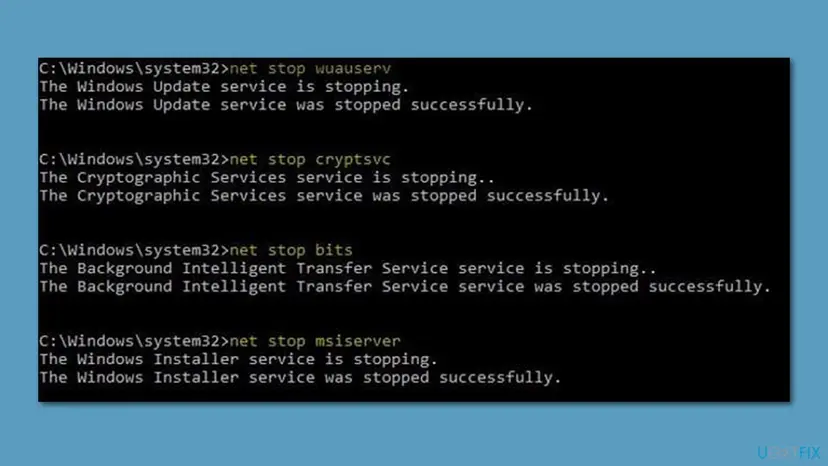
Then repair system files with DISM and System File Checker, restart and run wsl --update once more. Step by step: Run DISM and SFC to repair Windows system files
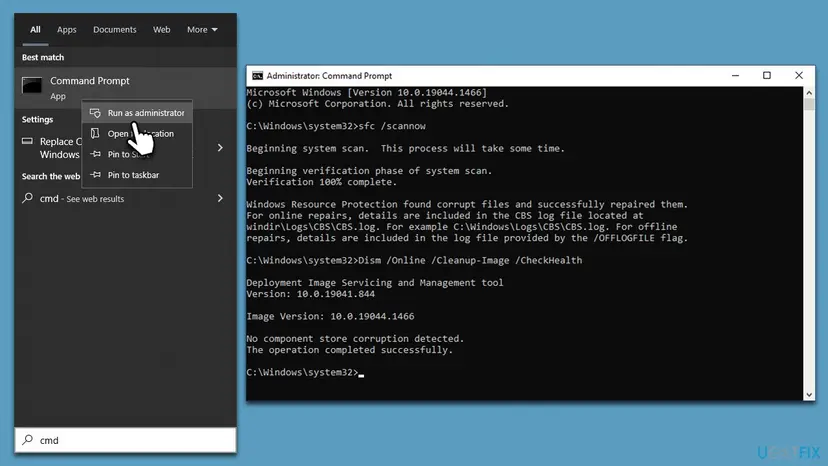
It worked if: Other updates install again, and the WSL entry either installs or can be handled with Fixes 1 to 3.
If not: If updates still fail with other codes, look up that code: it is a different problem.
If 0x80070661 is still there: what to check and where to report it
When every fix above fails, the package itself is most likely wrong for your PC again, as in March 2022. That is a fault on Microsoft's side, and the place to report it is the WSL issue tracker on GitHub, which the WSL team reads.
- What to collect: the output of
wsl --statusandwsl --update, the full name of the failed update in Update history, and your System type from Settings > System > About. - Check the tracker first. Search the open issues for
0x80070661or the processor message. If others report the same kernel version on the same day, waiting a day for Microsoft's fix is a real option. - One test with the antivirus paused. If you use an antivirus other than Microsoft Defender, pause it for one try of
wsl --updateand turn it back on right after: Turn off Microsoft Defender protection for a moment - A work or school PC. Updates may come from your organization. Send the details to the administrator before you remove anything.
- Is it hardware? No. Error 1633 is a check that runs before anything is installed, and nothing in the reports points at hardware.
Windows 10 left support on 14 October 2025. WSL still runs there, and these fixes are the same, but Windows 10 PCs without extended updates no longer get security fixes.
How to keep WSL updates from failing again
- Update WSL with
wsl --updateonce a month, even when Windows Update does it for you. It shows a failure right away instead of a silent entry in Update history. - Keep one source of WSL. The reports in the issue tracker suggest that an old in-box kernel entry next to the newer WSL package caused confusion. If you removed the old entry in Fix 2, do not install it again.
- Download by system type. Whenever you install a package by hand, read System type first and pick the matching file.
- Do not run cleanup tools on WSL folders. Deleting WSL or kernel files by hand can leave WSL with no kernel, which shows up as the kernel file not found message.
If WSL updates fail again with a new kernel version, start with Fix 1 the same day and check the tracker. A wrong package is usually replaced quickly once many people report it.
Another update code with its own specific cause is covered here: guide to Windows update error 0x80070306.
Frequently asked questions
What does error 0x80070661 mean?
It means an installer package does not fit your processor type. The code is Windows error 1633 in the form Windows Update prints. Microsoft names it ERROR_INSTALL_PLATFORM_UNSUPPORTED, with the text "This installation package is not supported by this processor type. Contact your product vendor." In Windows Update the known case is the Windows Subsystem for Linux kernel update. Windows itself is not damaged, so you do not need a repair install.
Is install error - 0x80070661 a problem with Windows Update itself?
Usually not. The failing item is one package, most often Windows Subsystem for Linux Update, and the rest of Windows Update works. In March 2022 the WSL kernel package 5.10.93.2 failed on many Intel and AMD PCs, while users report that their other updates installed normally. Run wsl --update first (Fix 1). Only when other updates fail too with other codes does a Windows Update repair make sense (Fix 6).
What does the Windows 10 message "There were some problems installing updates" with 0x80070661 mean?
It is the Windows 10 wording of the same failure. Windows 10 shows "There were some problems installing updates, but we'll try again later. If you keep seeing this and want to search the web or contact support for information, this may help: (0x80070661)". The fixes are the same as on Windows 11. Open PowerShell as administrator, run wsl --update, then select Check for updates again. WSL needs Windows 10 version 2004 or later.
I tried everything and it is still the same error. What now?
Then the package offered to your PC is most likely still the wrong one. Turn off Receive updates for other Microsoft products (Fix 3) so that Windows Update stops retrying, and keep WSL current with wsl --update. Check Microsoft's WSL issue tracker on GitHub for reports of the same kernel version. In March 2022 Microsoft replaced the faulty package within about a day, and users then reported that Windows Update installed it without errors.
Will fixing 0x80070661 delete my Ubuntu or other Linux files?
No. wsl --update and the kernel package replace the WSL kernel and program files only. Your distributions, such as Ubuntu or Debian, and the files inside them stay where they are. Do not uninstall the distribution itself in Installed apps, because that does delete its files. Only remove the entry named Windows Subsystem for Linux Update in Fix 2. Run wsl -l -v afterwards to see your distributions listed as before.
Can I just ignore the failed WSL update?
Yes, if WSL still works for you. The failed entry changes nothing on the PC, because error 1633 stops the installer before it writes files. Windows Update will keep retrying it, though, and the entry stays in Update history. To stop the retries, turn off Receive updates for other Microsoft products as in Fix 3, and update WSL yourself with wsl --update from time to time.
Why does Visual C++ show error 0x80070661?
Because the Visual C++ package you ran was built for another processor than your Windows. Error 1633 means the same for every .msi installer. Open Settings > System > About, read System type, and download the matching package: x64 for 64-bit Intel and AMD PCs, x86 for 32-bit Windows, ARM64 for ARM PCs. A 64-bit Windows can also take the x86 package, which some programs need in addition to the x64 one.
Does error 0x80070661 mean my PC is not supported?
No. It means the package is not supported on your processor type, not that your PC is too old. The same PC installs the right package without trouble. In the WSL case Windows Update offered the wrong package to Intel and AMD PCs, which is a fault on Microsoft's side. Check System type in Settings > System > About and use the package that matches, or let wsl --update pick it for you.
How do I fix 0x80070661 in the subsistema de Linux (WSL) on Spanish Windows?
This page is in English, but the steps are the same in Spanish Windows. The error comes from the Windows Subsystem for Linux (Subsistema de Windows para Linux) kernel update. Open Terminal (Admin), run wsl --update, then select Check for updates (Buscar actualizaciones) again. If wsl --update shows the processor type message, uninstall the entry Windows Subsystem for Linux Update in Installed apps and run wsl --update once more.
Sources
- Microsoft Learn: System Error Codes (1300-1699), ERROR_INSTALL_PLATFORM_UNSUPPORTED 1633 (0x661) (learn.microsoft.com)
- Microsoft Learn: Install WSL (requirements, wsl --install and wsl --update) (learn.microsoft.com)
- Microsoft WSL issue tracker on GitHub, issue 8184: Installation package is not supported by this processor type error when running wsl --update (user reports, March 2022 and December 2025) (github.com)
Did this fix work?
One click, no account. It tells the next reader which guides are worth their time.
Questions and experiences: fix Windows update error 0x80070661
Still broken, or found a fix we did not cover? Ask here: members and our editors answer. Reading is open; writing needs a free account.
…