
How to fix Windows Update error 0x800B010A?

Prefer to fix it yourself? The manual steps follow.
- 7methods
- 5 to 40 minutes
- Medium
Applies to Windows 11, Windows 10 and Windows 7: Windows Update, .NET Framework and Visual C++ installers, other signed setup files
7 methods in this guide
I've been struggling with the installation of the latest Windows updates because of the 0x800B010A error I keep getting. Are any fixes available for this?
Error 0x800B010A means Windows checked the signature on an update or installer and could not follow its certificates up to a root it trusts. The root list on the PC is out of date or cannot be refreshed. Make sure Windows can reach its root certificate server first, then retry the update.
0x800B010A is CERT_E_CHAINING: "A certificate chain could not be built to a trusted root authority." Windows does not have, and could not download, the root certificate the file was signed under. Turn off any proxy and check that the PC reaches ctldl.windowsupdate.com (Fix 1). If a policy blocks root updates, turn it back on (Fix 2). On an offline PC, copy the roots in from a connected one (Fix 3).
| Error | 0x800B010A, named CERT_E_CHAINING by Microsoft: "A certificate chain could not be built to a trusted root authority." |
|---|---|
| Where it appears | In Windows Update next to a failed update, and in the logs of signed installers such as the .NET Framework and Visual C++ redistributables. Developers see it from code signing tools as "signing failed with error 800b010a". |
| Main cause | The PC lacks the root certificate behind the signature, because it cannot reach Microsoft's root list at ctldl.windowsupdate.com or because automatic root updates are turned off. |
| Fastest fix | Turn off a manual proxy, check that Windows can download the root list with certutil -generateSSTFromWU, then retry the update (Fix 1). |
| Also written as | 800B010A, (0x800B010A), 0x800b010a, error 0x800b010a, Code 800B010A, and the decimal -2146762486 in some logs. |
| Affects | Windows 11, Windows 10 and, most often in reports, Windows 7 and PCs without internet access. |
| Microsoft's status | Not a known issue of one update. It is a trust check that works as designed: the fix is on the PC, its network path or its policy. |
| Close relatives | 0x800B0109 (root present but not trusted), 0x800B0101 (certificate outside its validity period, often a wrong clock), 0x800B010F (name mismatch), 0x80096004 (certificate signature cannot be verified). |
| Time to fix | 5 minutes for Fix 1, 10 to 15 minutes for Fix 2 or Fix 3, up to 40 minutes for the Windows 7 updates. |
Facts checked on 15 October 2026. Steps written for Windows 11 (25H2 and 26H2) and Windows 10 22H2.
What Windows Update error 0x800B010A means
Microsoft's list of security and setup error codes (Winerror.h) names 0x800B010A CERT_E_CHAINING. It describes it in one line: "A certificate chain could not be built to a trusted root authority." It is one of the 0x800B01 trust codes that Windows raises while it checks a digital signature.
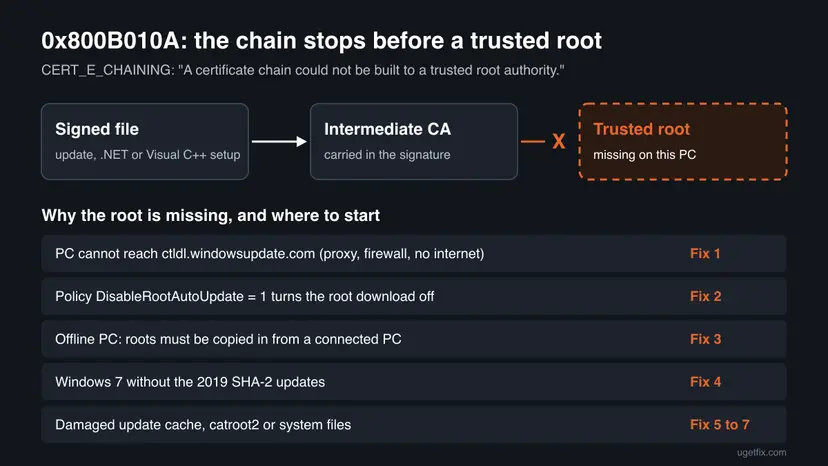
Every Windows update and every Microsoft installer is signed. The signing certificate was issued by an intermediate authority, and that one by a root authority. Windows accepts the file only when it can walk this chain up to a root in its Trusted Root Certification Authorities store. With 0x800B010A the walk stops: the root is not on the PC and Windows could not fetch it.
| What you see | Where | What it tells you |
|---|---|---|
| There were some problems installing updates, but we'll try again later. If you keep seeing this and want to search the web or contact support for information, this may help: (0x800B010A) | Settings > Update & Security > Windows Update on Windows 10 | An update was rejected at the signature check because its chain has no trusted root. |
| Download error - 0x800B010A or Install error - 0x800B010A next to an update | Settings > Windows Update on Windows 11 | The same failure in the Windows 11 layout. The update stays in the list and retries. |
| Code 800B010A under the failed updates | Control Panel > Windows Update on Windows 7 | The classic Windows 7 case: an old root list on a system that no longer gets updates. |
| 0x800b010a (A certificate chain could not be built to a trusted root authority.) | Setup logs of .NET Framework, Visual C++ and other installers | The installer's own signature check failed, often on an offline PC. |
Windows does not ship every root certificate. It downloads Microsoft's trusted root list from ctldl.windowsupdate.com when it needs a root it lacks. Microsoft's documentation says this needs HTTP on TCP port 80 and name resolution on port 53. Block that, and new roots never arrive.
Why Windows Update error 0x800B010A appears
The missing root is the result. What keeps the root from arriving decides the fix. From the most likely to the least likely:
| Cause | How often | How to tell | Fix |
|---|---|---|---|
A proxy, firewall or filter blocks ctldl.windowsupdate.com, so the root list is never downloaded. | Most often | A proxy is set, you are on a work or school network, or a security suite filters web traffic. | Fix 1 |
Automatic root certificate updates are turned off by policy (DisableRootAutoUpdate set to 1). | Often on managed and tweaked PCs | The registry value is present and set to 1. | Fix 2 |
| The PC has no internet access at all, so it never gets new roots. | Common with offline and lab PCs | The error shows in a .NET or Visual C++ setup on a PC that is not online. | Fix 3 |
| Windows 7 without the 2019 SHA-2 code signing updates. | Common on Windows 7 | Windows 7 SP1 and no KB4474419 in the installed updates. | Fix 4 |
A damaged update cache or signature catalog in catroot2. | Sometimes | One update fails, the roots download fine. | Fix 5, Fix 6 |
| Damaged system files or certificate store. | Rarely | Several signed programs and updates fail. | Fix 7 |
A wrong date or time on the PC gives a different code, 0x800B0101, and a VPN or proxy that swaps the server certificate tends to give 0x800B010F. If you see 0x800B010F, read our guide How to fix Windows Update error 0x800B010F.
How to fix Windows Update error 0x800B010A
Fixes 1 to 3 give Windows the root certificate it is missing, which solves most cases. Fix 4 is for Windows 7 only. Fixes 5 to 7 cover a damaged cache or damaged system files.
| What you see or have | Start with |
|---|---|
| A home PC with internet, the error in Windows Update. | Fix 1 |
| A work, school or tweaked PC, or Fix 1 shows the download is blocked. | Fix 2 |
| A PC with no internet, the error in a .NET or Visual C++ setup. | Fix 3 |
| Windows 7 with updates failing. | Fix 4, then Fix 1 |
| The roots download fine but one update still fails. | Fix 5, then Fix 6 |
| Several signed programs fail, not only updates. | Fix 7 |
Fix 1. Let Windows reach its root certificate server and refresh the roots
5 minutesLow riskEveryone, first. Especially when a proxy is set or a security suite filters web traffic.
Windows fetches a missing root from ctldl.windowsupdate.com over plain HTTP on port 80. A manual proxy or a web filter that blocks that host stops the fetch, and every signature that needs a new root fails with 0x800B010A.
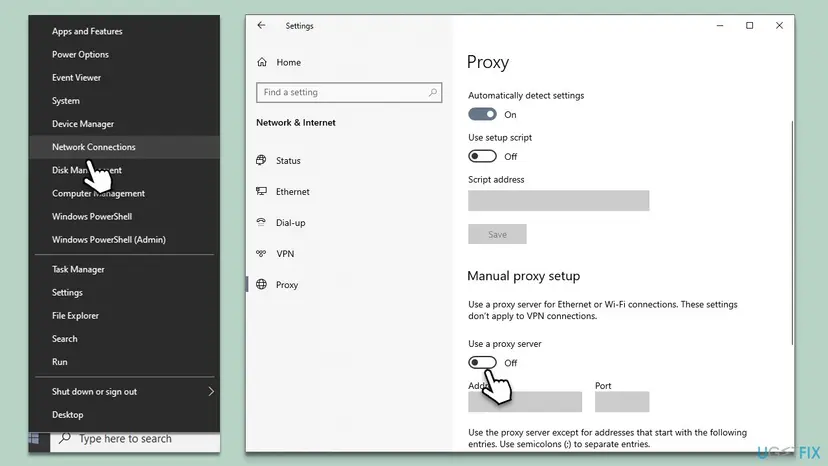
- Open Settings > Network & internet > Proxy. On Windows 10 open Settings > Network & Internet > Proxy.
- Under Manual proxy setup, turn off Use a proxy server unless your work or school requires it. Turn off Use setup script as well if you did not set it on purpose.
- Right-click Start and select Terminal (Admin). On Windows 10 select Windows PowerShell (Admin).
- Go to a folder you can write to with
cd $env:TEMP. - Run
certutil -generateSSTFromWU WURoots.sst. This downloads Microsoft's current root list into one file. - If the command ends with CertUtil: -generateSSTFromWU command completed successfully., the path to the root server is open. Restart the PC and select Check for updates again.
If certutil reports a network error, something between the PC and ctldl.windowsupdate.com blocks it. On a home PC check the security suite's web filter and the router's parental controls. On a work PC send the error to IT: the host must be allowed on port 80.
It worked if: certutil completes, and after a restart the update installs without 0x800B010A.
If not: If certutil works but the update still fails, check the policy in Fix 2. If the PC cannot reach the internet at all, go to Fix 3.
Fix 2. Turn automatic root certificate updates back on
10 minutesRead the warningA privacy tool, a tweak script or a company policy may have turned off root updates.
Microsoft documents the policy value DisableRootAutoUpdate under HKLM\SOFTWARE\Policies\Microsoft\SystemCertificates\AuthRoot: 0 enables the automatic update of trusted roots, 1 disables it. With 1, Windows never fetches a missing root and the chain stays broken.
This step changes the registry. Export the AuthRoot key before you change it, so you can import it back if something goes wrong. On a work or school PC do not change it yourself: the policy was set on purpose and comes back at the next policy refresh. Step by step: Back up the registry before editing it

- Right-click Start and select Terminal (Admin).
- Run
reg query "HKLM\SOFTWARE\Policies\Microsoft\SystemCertificates\AuthRoot" /v DisableRootAutoUpdate. - If the result shows ERROR: The system was unable to find the specified registry key or value., the policy is not set. This fix is not for you; go to Fix 3 or Fix 5.
- If it shows
DisableRootAutoUpdate REG_DWORD 0x1, runreg add "HKLM\SOFTWARE\Policies\Microsoft\SystemCertificates\AuthRoot" /v DisableRootAutoUpdate /t REG_DWORD /d 0 /f. - Restart the PC, run Fix 1 again to fetch the roots, and select Check for updates.
It worked if: The query shows 0x0, certutil -generateSSTFromWU completes, and the update installs.
If not: If the value goes back to 1 after a restart, a company policy or a tweak tool sets it. Ask IT, or undo the setting in the tool you used. Then try Fix 5.
Fix 3. Copy the root certificates in from a connected PC when the PC is offline
15 minutesLow riskThe PC has no internet, and a .NET Framework, Visual C++ or update installer fails with 0x800B010A.
An offline PC never gets new roots, so any installer signed under a newer root fails the chain check. The same root list Windows would download can be made on another PC and imported by hand.
- On a PC with internet, open Terminal (Admin) and run
certutil -generateSSTFromWU WURoots.sstin a folder you can find again. - Copy
WURoots.sstto a USB drive and plug it into the offline PC. - On the offline PC press Win + R, type
certlm.mscand select OK. Select Yes in the User Account Control prompt. - Expand Trusted Root Certification Authorities, right-click Certificates and select All Tasks > Import.
- Select Next, then Browse. Set the file type list to **Microsoft Serialized Certificate Store (*.sst)** and open
WURoots.sst. - Keep Place all certificates in the following store with Trusted Root Certification Authorities, select Next and Finish.
- Run the installer or the update again.
Microsoft's own tool for many offline PCs is certutil -syncWithWU \\<server>\<share>, which keeps the root list on a network share that the PCs read instead of ctldl.windowsupdate.com. That is set up by IT with the RootDirURL setting, not on a single home PC.
It worked if: The import wizard reports The import was successful. and the installer runs past its signature check.
If not: If the installer still fails, repair the .NET Framework and Visual C++ packages: How to repair Microsoft Visual C++ Redistributable and .NET Framework. Then try Fix 7.
Fix 4. Install the SHA-2 code signing updates on Windows 7
20 to 40 minutesLow riskThe PC runs Windows 7 SP1 and Windows Update fails.
Since 13 August 2019 Microsoft signs Windows 7 updates with SHA-2 only. Microsoft requires the servicing stack update KB4490628 and the SHA-2 update KB4474419 before any later update. Without them update signatures cannot be checked at all.
- Open Control Panel > Programs and Features > View installed updates and look for KB4474419 and KB4490628.
- If one is missing, download it from the Microsoft Update Catalog for Windows 7 for x64-based Systems or for x86, to match your PC.
- Install both. Microsoft says the order does not matter.
- Restart the PC before you install any other update.
- Run Fix 1 again so Windows also refreshes its roots, then check for updates.
Microsoft lists 80096010 and 80092004 as the codes of a Windows 7 PC without SHA-2 support. We could not confirm that these updates alone clear 0x800B010A, but no update released after August 2019 installs without them.
Windows 7 support ended on 14 January 2020, and the paid Extended Security Updates have ended too. A fixed update path does not make Windows 7 safe online. Plan the move to a supported Windows.
It worked if: Both KB numbers show under View installed updates, and Windows Update can check and install again.
If not: Run Fix 5 to clear the update cache, then try again.
Fix 5. Reset the Windows Update components and the catroot2 signature catalogs
10 minutesLow riskThe roots download fine (Fix 1 worked) but the same update keeps failing.
Windows keeps the downloaded update in SoftwareDistribution and the signature catalogs in catroot2. Renaming both and restarting Cryptographic Services makes Windows download the update and check its chain again, now with the fresh roots.
- Open Command Prompt as administrator. Type cmd in the search box, right-click Command Prompt and select Run as administrator. Select Yes when Windows asks for permission.
- Stop the update services. Type the commands below and press Enter after each one. If Windows says that other services depend on Cryptographic Services, it stops them too. A message that a service is not started is fine.
net stop wuauserv net stop bits net stop cryptsvc - Delete the download queue files. This clears the list of downloads that the Background Intelligent Transfer Service keeps. If Windows says it cannot find the files, continue.
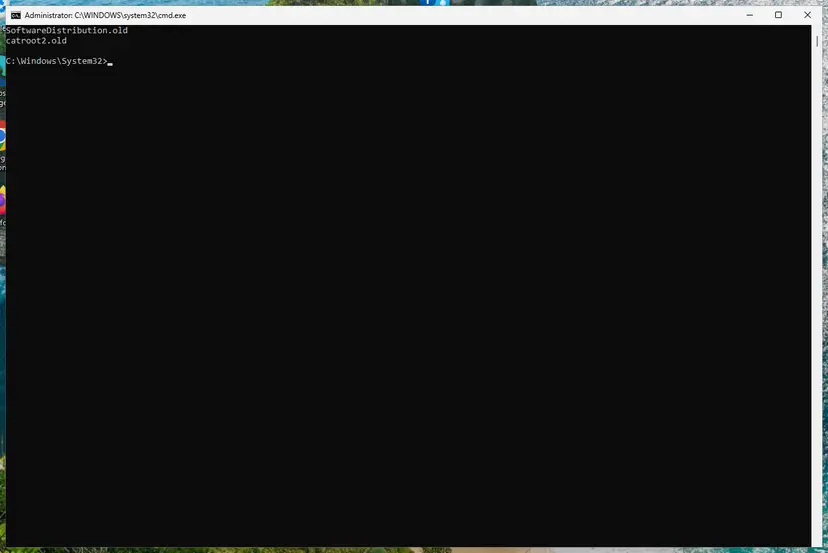
del "%ALLUSERSPROFILE%\Application Data\Microsoft\Network\Downloader\qmgr*.dat" - Rename the update cache folders. Renaming keeps a copy in case you need it; Windows creates new, empty folders when the services start again. If you get Access is denied, a service is still running: repeat the previous step.
ren %systemroot%\SoftwareDistribution SoftwareDistribution.old ren %systemroot%\System32\catroot2 catroot2.old - Start the services again. Type the commands below and press Enter after each one. The requested service has already been started is fine: Windows started it on its own.
net start cryptsvc net start bits net start wuauserv - Restart and check for updates. Restart the PC. Then select Start > Settings > Windows Update > Check for updates. The first check can take longer than usual because everything is downloaded again.
These steps were written for Windows 11 and Windows 10 (the steps are the same). The full page with the other versions and what each result means: Reset Windows Update components
It worked if: After the restart, Check for updates downloads the update again and it installs without 0x800B010A.
If not: Install the failing update from the Catalog, Fix 6.
Fix 6. Install the failing update by hand from the Microsoft Update Catalog
10 to 20 minutesLow riskOne KB keeps failing after Fix 1 and Fix 5.
The Catalog file comes through your browser, outside the Windows Update download path. Its installer checks the chain again on your disk, and with the roots now in place the check usually passes.
- Check your Windows version. Press Windows key + R, type winver and press Enter. Note the version (for example 25H2) and the OS build.
- Find the KB number. Open Settings > Windows Update. A failed or pending update is listed with its KB number; earlier ones are under Update history.
- Check the processor type. Open Settings > System > About and look at System type: an x64-based PC needs the x64 file, an ARM-based PC (for example Snapdragon) needs the arm64 file.
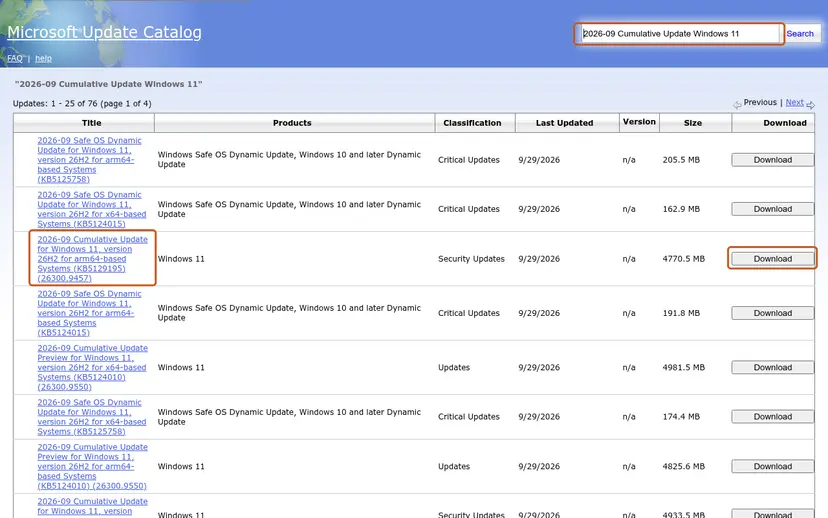
- Search the catalog. Open the Microsoft Update Catalog at catalog.update.microsoft.com in your browser, type the KB number (for example KB5124010) in the search box and press Enter.
- Pick the right row. Find the row whose title names your Windows version and your processor type (x64-based or arm64-based) and select Download on that row.
- Download every file listed. A window lists one or more .msu links. Download all of them into one empty folder, for example C:\packages. On Windows 11 24H2 and later the list can include earlier checkpoint updates that the new one needs.
- Install a single file. If there is only one file, double-click it and confirm the installation in the Windows Update Standalone Installer.
These steps were written for Windows 11 24H2 and later; Windows 10 22H2. The full page with the other versions and what each result means: Install an update from the Microsoft Update Catalog
It worked if: The installer finishes and the KB shows under Settings > Windows Update > Update history.
If not: If the Catalog installer stops with the same code, the roots are still missing: go back to Fix 1 and Fix 3. If several programs fail too, run Fix 7.
Fix 7. Repair system files and the certificate store with DISM and SFC
20 to 30 minutesLow riskSeveral signed programs and updates fail, or Fixes 1 to 6 did not help.
In rare cases a damaged crypto component or system file makes every chain check fail. DISM repairs the component store and SFC then restores damaged system files from it.
- Open an elevated command window. Right-click Start and select Terminal (Admin), or type cmd in the search box, right-click Command Prompt and select Run as administrator. Select Yes when Windows asks for permission.
- Run DISM first. Type the command below and press Enter. DISM downloads clean copies of damaged components from Windows Update, so it can take several minutes. Wait until it says The operation completed successfully.
DISM.exe /Online /Cleanup-Image /RestoreHealth - Run System File Checker. In the same window, type the command below and press Enter. Do not close the window until the verification reaches 100%.
sfc /scannow - Read the result and restart. Compare the last message with the table below this guide, then restart the PC so that repaired files are loaded.
These steps were written for Windows 11 24H2 and 25H2. The full page with the other versions and what each result means: Run DISM and SFC to repair Windows system files

It worked if: SFC reports that it found no problems or repaired them, and the update installs after a restart.
If not: Read the logs as shown in "If the error is still there".
If the error 0x800B010A is still there
The logs show which file failed the chain check and whose certificate it carries. That tells you which root is missing.
| Where the error showed | Log to read | What to look for |
|---|---|---|
| Settings > Windows Update | Run Get-WindowsUpdateLog in PowerShell as administrator. It writes WindowsUpdate.log to your desktop. | Search for 800B010A and note the KB number on the lines around it. |
| Windows 7 Windows Update | C:\Windows\WindowsUpdate.log | Search for 800B010A and note the update name. |
| .NET Framework or Visual C++ setup | The setup log the installer names in its error window, usually in %TEMP%. | Look for the line with A certificate chain could not be built to a trusted root authority and the file name before it. |
- Home PC, Fix 1 shows a blocked download: the block is outside Windows. Check the router, the security suite's web filter and any parental control service.
- Work or school PC: send IT the code, the KB number and the
certutil -generateSSTFromWUresult. Root updates and the proxy are set by policy there. - Home PC, nothing helped: reinstall Windows over itself and keep your files and apps: Reinstall Windows without losing files
- Windows 10: support ended on 14 October 2025. Only PCs in Extended Security Updates still get security updates, so check the PC is enrolled before you spend time on a failing update.
How to keep error 0x800B010A from coming back
- Keep automatic root certificate updates on, which is the Windows default.
- Allow
ctldl.windowsupdate.comon port 80 if you run a firewall or filtering proxy. - On offline PCs, import a fresh root list each time you bring in new installers.
- Do not run privacy or tweak scripts that turn off root updates without reading what they change.
- Do not install root certificates from sites other than Microsoft.
- Do not turn off your antivirus for good to get an update through.
Frequently asked questions
What does error 0x800B010A mean?
It means Windows could not build a certificate chain from a signed file up to a root it trusts. Microsoft names the code CERT_E_CHAINING and describes it as: a certificate chain could not be built to a trusted root authority. The file itself may be fine. What is missing is the root certificate on your PC, and the usual reason is that Windows could not download it from its root certificate server. Unblock that download first (Fix 1).
How do I fix 0x800B010A on Windows 7?
Install the two SHA-2 prerequisites, the servicing stack update KB4490628 and the SHA-2 update KB4474419, from the Microsoft Update Catalog, and restart (Fix 4). Then make sure the PC can reach ctldl.windowsupdate.com so it can refresh its roots (Fix 1). Keep in mind that Windows 7 support ended on 14 January 2020 and its paid security updates have ended too, so a working update path does not make it safe to use online.
Does 0x800B010A appear on Windows 10 and Windows 11?
Yes, less often than on Windows 7. On Windows 10 and Windows 11 the root list refreshes itself, so the error usually means something stops that refresh: a proxy, a web filter, a policy that turns off root updates, or no internet at all. Fix 1 tests the path in one command. Fix 2 checks the policy. The fixes are the same on both versions; only the Settings paths differ slightly.
Why does a .NET Framework or Visual C++ installer fail with 0x800B010A?
These installers check their own signature before they install. On a PC that is offline, or that has not refreshed its roots for a long time, the root behind a newer signature is missing, and the check fails with the same code. Import the root list from a connected PC (Fix 3) and run the installer again. If it then fails with a different error, repair the packages: How to repair Microsoft Visual C++ Redistributable and .NET Framework
What does signing failed with error 800b010a mean?
This message comes from code signing tools on a developer's PC, not from Windows Update. It has the same meaning: the tool could not build a chain from your signing certificate to a trusted root. Most often the intermediate certificate from your certificate authority is not installed on the signing PC, or its root is missing. Install the intermediate and root certificates your authority publishes, then sign again.
Is it safe to import root certificates by hand?
It is safe when the list comes from Microsoft. The command certutil -generateSSTFromWU downloads the same trusted root list Windows would fetch on its own, so importing it changes nothing Windows would not do itself. Never import a root certificate sent by a website, a pop-up or a stranger. A rogue root lets an attacker read and change your encrypted traffic.
Does the Windows Update troubleshooter fix 0x800B010A?
Rarely. The troubleshooter restarts update services and clears some pending downloads, but it does not fetch root certificates or change the policy that blocks them. Fix 1 and Fix 2 go straight at the cause. It cannot hurt to run it once, so if you want to try it anyway, here is how: Run the Windows Update troubleshooter
Is 0x800B010A the same as 0x800B010F or 0x803C010A?
No. 0x800B010F means the name on a certificate does not match the server. A VPN or proxy often causes it, and it has its own guide on this site. 0x800B010A is about a missing root in the chain. 0x803C010A is a different code family that this page does not cover. Check the exact digits on your screen before you choose a fix.
This page is in English. What if I searched in another language?
Some readers reach this page with searches such as esta dando esse erro, qué significa esto, tengo windows 7, como solucionarlo, voilà ce qui s'affiche and код ошибки. In each case the code 0x800B010A was on the screen. The meaning is the same in every language: Windows is missing a trusted root certificate. The fixes work the same on a Windows set to Spanish, Portuguese, French or Russian; only the menu names are translated.
Sources
- Microsoft Learn: COM Error Codes (Security and Setup), Winerror.h (learn.microsoft.com)
- Microsoft Learn: Configure trusted roots and disallowed certificates in Windows (learn.microsoft.com)
- Microsoft Support: 2019 SHA-2 Code Signing Support requirement for Windows and WSUS (support.microsoft.com)
Did this fix work?
One click, no account. It tells the next reader which guides are worth their time.
Questions and experiences: fix Windows Update error 0x800B010A
Still broken, or found a fix we did not cover? Ask here: members and our editors answer. Reading is open; writing needs a free account.
…