
How to fix Windows update error 0x800F0841?

Prefer to fix it yourself? The manual steps follow.
- 7methods
- 5 minutes to 2 hours
- Intermediate
Applies to Windows 11 25H2 and 26H2, Windows 10 22H2, Windows Server 2022: cumulative, security and .NET Framework updates that fail with 0x800f0841
7 methods in this guide
Hello. When I try to install Windows updates, I get the 0x800F0841 error. Is there a way to fix this?
Error 0x800f0841 is a servicing error: Windows downloaded the update but its installer, Component Based Servicing, could not apply it. It usually points to an unfinished restart or damaged servicing files, not to your connection. Restart properly and retry, then repair the store with DISM and SFC.
0x800f0841 means the Windows servicing stack failed while applying an update. Restart with Restart, not Shut down, twice, then select Check for updates (Fix 1). If it fails again, run DISM /Online /Cleanup-Image /RestoreHealth and sfc /scannow (Fix 2). If DISM says the source files could not be found, give it a Windows image as a repair source (Fix 3).
| Error | Install error - 0x800f0841 next to a cumulative, security or .NET Framework update in Settings > Windows Update. |
|---|---|
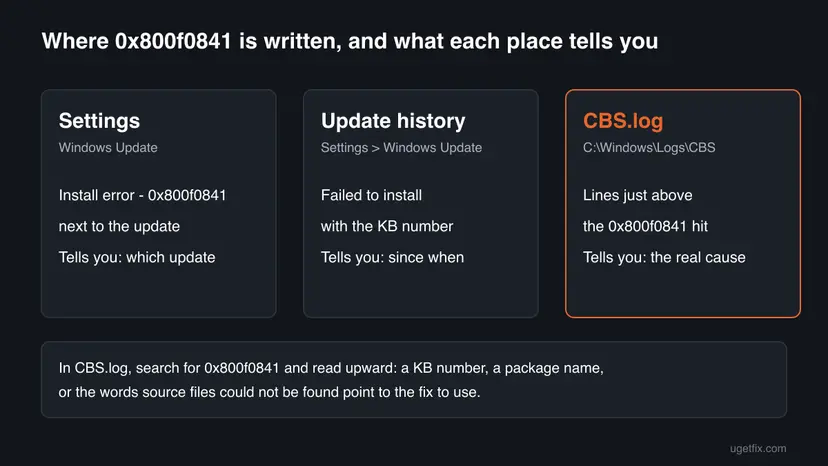
| Where it appears | Settings > Windows Update, Update history, Event Viewer, WSUS and patch tools, and C:\Windows\Logs\CBS\CBS.log. |
| Main cause | The servicing stack cannot finish the install: most often a restart that is still pending, then damaged files in the component store. |
| Fastest fix | Two full restarts, then Check for updates (Fix 1). Next, DISM RestoreHealth and SFC (Fix 2). |
| Also written as | 0x800F0841, 800f0841, error 0x800f0841, install error - 0x800f0841, Windows failed to install the following update with error 0x800F0841. |
| Affects | Windows 10 22H2 and Windows 11 cumulative updates, and .NET Framework cumulative updates on Windows Server 2022 in user reports. |
| Microsoft's status | Not a known issue. The code is not listed in Microsoft's Windows Update error reference, which covers only the Windows Update agent codes. |
| Where the cause is written | %windir%\Logs\CBS\CBS.log: search for 0x800f0841 and read the lines above it. |
| Time to fix | 5 to 15 minutes for Fix 1, 15 to 40 minutes for Fix 2 to Fix 4, 1 to 2 hours for Fix 7. |
Facts checked on 15 October 2026. Steps written for Windows 11 (25H2 and 26H2) and Windows 10 22H2.
What Windows update error 0x800f0841 means
The code has two parts. 0x800f is the prefix of Component Based Servicing (CBS), the part of Windows that installs updates, features and language packs. 0841 is the reason inside that family. So the download worked: the failure happened while Windows was applying the package to the system.
Microsoft's public list of Windows Update error codes covers the Windows Update agent, the 0x8024xxxx range, and does not include 0x800f0841. We could not confirm its internal name from a source, so this page does not guess it. What the code family tells you is enough to choose the right repairs.
| What you see | Where | What it tells you |
|---|---|---|
| Install error - 0x800f0841 | Settings > Windows Update, next to the update | The install step failed. Windows will retry later. |
| Windows failed to install the following update with error 0x800F0841 | Event Viewer, Windows Logs > System | The same failure, with the update's full name and KB number. |
| Your device is missing important security and quality fixes. | Top of Settings > Windows Update | The failed update is a security or quality update. Do not leave it for weeks. |
| 0x800f0841 in a job report | WSUS, Configuration Manager or a patch agent | The managed install hit the same CBS failure. |
The neighbouring code 0x800f0840 means the saved record of an update session is damaged. It has its own guide: Windows update error 0x800f0840. The first repairs overlap, but read the exact code before you follow a guide.
Why error 0x800f0841 appears
Microsoft has not published a list of causes for this one code. The order below comes from what the CBS family means and from two reports we read. In one, a Windows 10 22H2 home PC failed its cumulative updates twice. In the other, a Windows Server 2022 machine failed a .NET cumulative update with 0x800f0841 and its Windows update with 0x800f0831.
| Cause | How often | How to tell | Fix |
|---|---|---|---|
| A restart is still pending from an earlier update, so the servicing stack refuses or breaks off new work. | Most often | Restart required in Settings, or a repair tool says pending system changes need a reboot. | Fix 1 |
Files in the component store (C:\Windows\WinSxS) are damaged. | Often | The same update fails after two restarts. DISM or SFC report damage. | Fix 2 |
| DISM cannot download clean copies to repair the store. | Sometimes | DISM says the source files could not be found. | Fix 3 |
| A broken download in the update cache is used at every retry. | Sometimes | DISM and SFC are clean, the update fails at the same point. | Fix 4 |
| One package, often a .NET Framework cumulative update, fails while others install. | Sometimes | Update history shows only one KB with 0x800f0841. | Fix 5 |
| A service or driver from another program locks files during the install. | Rarely | The update installs after a clean boot. | Fix 6 |
The error stops one update. It does not delete documents or photos. The risk is running without the security fixes in that update.
Windows 10 left support on 14 October 2025. A Windows 10 22H2 PC without Extended Security Updates gets no new security updates, so 0x800f0841 there may be about an older update. Moving to Windows 11 is the lasting answer.
How to fix Windows update error 0x800f0841
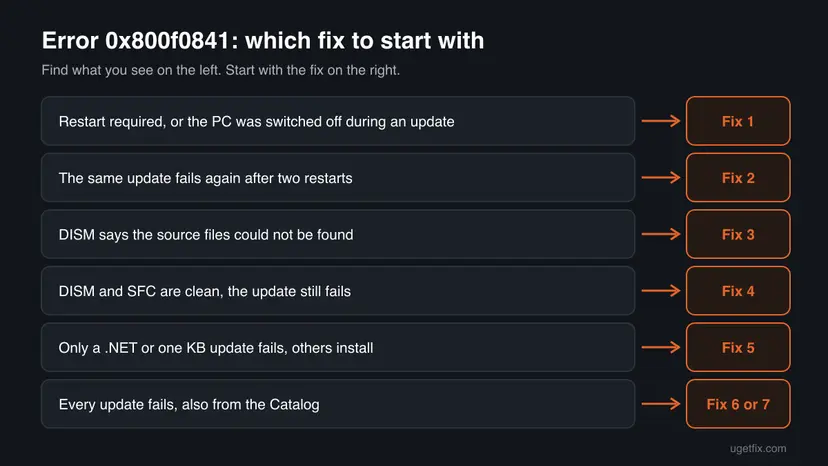
Fix 1 costs nothing and clears a pending restart. Fix 2 and Fix 3 repair the component store, including the case where DISM cannot find its source files. Fix 4 to Fix 7 are for one stubborn update, a program in the way, or a servicing stack that is too damaged to repair in place.
| What you see or have | Start with |
|---|---|
| Restart required in Settings, or the PC was switched off during an update | Fix 1 |
| The same update fails again after two restarts | Fix 2 |
| DISM reports that the source files could not be found | Fix 3 |
| DISM and SFC report no problems, the update still fails at the same point | Fix 4 |
| Only one KB fails, for example a .NET Framework cumulative update | Fix 5 |
| Other programs are installed that hook into the system, such as security suites or backup agents | Fix 6 |
| Every update fails, also when installed by hand | Fix 7 |
| A work or school PC that gets updates from the organization | Ask the administrator, with the KB number and CBS.log |
Fix 1. Restart the PC properly and check for updates again
5 to 15 minutesNo riskEveryone first, and above all when Settings shows Restart required or the PC was switched off during an update.
The servicing stack finishes some work only during a restart. While that work waits, new packages can fail with a CBS code. A full restart lets Windows complete it, and the retry starts from a clean state.
- Save your work and plug in a laptop.
- Open Start, select the power button and choose Update and restart if it is there, otherwise Restart. Do not use Shut down.
- Wait until Working on updates reaches 100 % and the sign in screen appears.
- Restart a second time, so that work that needs two restarts is done too.
- Open Settings > Windows Update and select Check for updates.
- Install what is offered and restart again when Windows asks.
Install the newest cumulative update Windows offers, not an older KB from a forum post. Cumulative updates contain all earlier fixes, so the newest one replaces the one that failed.
It worked if: Update history lists the update as Successfully installed.
If not: If it fails again with Install error - 0x800f0841, repair the component store with Fix 2.
Fix 2. Repair the component store with DISM and SFC
15 to 40 minutesNo riskThe same update still fails after two restarts.
0x800f0841 comes from the servicing stack, which reads its files from the component store. DISM RestoreHealth replaces damaged store files with clean copies, then SFC repairs system files from the repaired store. This is also the first repair Microsoft's community support gives for this code.
- Open an elevated command window. Right-click Start and select Terminal (Admin), or type cmd in the search box, right-click Command Prompt and select Run as administrator. Select Yes when Windows asks for permission.

Search for cmd and choose Run as administrator. Screenshot: Windows 11 26H2. - Run DISM first. Type the command below and press Enter. DISM downloads clean copies of damaged components from Windows Update, so it can take several minutes. Wait until it says The operation completed successfully.
DISM.exe /Online /Cleanup-Image /RestoreHealth
DISM /RestoreHealth running. Screenshot: Windows 11 26H2. - Run System File Checker. In the same window, type the command below and press Enter. Do not close the window until the verification reaches 100%.
sfc /scannow
sfc /scannow at 100%. Screenshot: Windows 11 26H2. - Read the result and restart. Compare the last message with the table below this guide, then restart the PC so that repaired files are loaded.

The result line tells you what SFC did. Screenshot: Windows 11 26H2.
These steps were written for Windows 11 24H2 and 25H2. The full page with the other versions and what each result means: Run DISM and SFC to repair Windows system files
Run DISM before SFC. SFC takes its clean copies from the component store, so it can only finish the job after DISM has repaired the store.
It worked if: DISM ends with The restore operation completed successfully., SFC finds no violations or repairs them, and after a restart the update installs.
If not: If DISM says the source files could not be found, go to Fix 3. If both tools are clean and the update still fails, go to Fix 4.
Fix 3. Give DISM a repair source when it cannot find the source files
30 to 45 minutes, most of it the downloadNo riskDISM says the store is repairable but then reports that the source files could not be found.
DISM normally downloads clean files through Windows Update, the same path that already fails. A Windows installation image of the same version supplies those files locally. This is the case one Windows 10 22H2 user described with 0x800f0841: repairable, but no source.
- Press Win + R, type
winverand press Enter. Note the version (for example 25H2 or 22H2) and whether the system is Home or Pro. - Download the ISO of the same Windows version and language from Microsoft's software download page.
- Right-click the ISO and select Mount. Note the drive letter, for example
F:. - Open Terminal (Admin) or Command Prompt as administrator.
- List the editions in the image and note the index of yours:
DISM /Get-WimInfo /WimFile:F:\sources\install.wim - Run the repair with that image as the only source, with your index in place of 1:
DISM /Online /Cleanup-Image /RestoreHealth /Source:wim:F:\sources\install.wim:1 /LimitAccess - When it finishes, run
sfc /scannow, then restart and select Check for updates.
The image must match the installed version and language. An older or different image gives DISM the wrong files, and it reports the same missing source again.
It worked if: DISM ends with The restore operation completed successfully. and the update installs after the restart.
If not: If DISM still cannot repair the store, skip to Fix 7. The ISO you downloaded is the one you need there.
Fix 4. Reset the Windows Update components
10 minutesLow riskDISM and SFC report no problems, and the update keeps failing at the same point.
Windows Update reuses the files it has already downloaded in SoftwareDistribution. If a package there is broken, every retry hands the same broken package to the servicing stack. Renaming that folder and catroot2 forces a fresh download.
- Open Command Prompt as administrator. Type cmd in the search box, right-click Command Prompt and select Run as administrator. Select Yes when Windows asks for permission.
- Stop the update services. Type the commands below and press Enter after each one. If Windows says that other services depend on Cryptographic Services, it stops them too. A message that a service is not started is fine.
net stop wuauserv net stop bits net stop cryptsvc - Delete the download queue files. This clears the list of downloads that the Background Intelligent Transfer Service keeps. If Windows says it cannot find the files, continue.
del "%ALLUSERSPROFILE%\Application Data\Microsoft\Network\Downloader\qmgr*.dat" - Rename the update cache folders. Renaming keeps a copy in case you need it; Windows creates new, empty folders when the services start again. If you get Access is denied, a service is still running: repeat the previous step.
ren %systemroot%\SoftwareDistribution SoftwareDistribution.old ren %systemroot%\System32\catroot2 catroot2.old - Start the services again. Type the commands below and press Enter after each one. The requested service has already been started is fine: Windows started it on its own.
net start cryptsvc net start bits net start wuauserv - Restart and check for updates. Restart the PC. Then select Start > Settings > Windows Update > Check for updates. The first check can take longer than usual because everything is downloaded again.
These steps were written for Windows 11 and Windows 10 (the steps are the same). The full page with the other versions and what each result means: Reset Windows Update components

It worked if: Windows Update downloads the update again, and it installs after the restart.
If not: If only this one update keeps failing, install it by hand with Fix 5.
Fix 5. Install the failing update by hand from the Microsoft Update Catalog
15 to 30 minutesLow riskOne KB keeps failing while other updates install. This is often a .NET Framework cumulative update.
A .msu file from the catalog goes straight to the installer, without the Windows Update download path. .NET Framework cumulative updates are separate packages with their own KB number, so you can install that one alone.
- Open Settings > Windows Update > Update history and note the KB number of the update that shows 0x800f0841.
- Check whether it is a Windows cumulative update or a Cumulative Update for .NET Framework. The name in Update history says which.
- Check your Windows version. Press Windows key + R, type winver and press Enter. Note the version (for example 25H2) and the OS build.
- Find the KB number. Open Settings > Windows Update. A failed or pending update is listed with its KB number; earlier ones are under Update history.
- Check the processor type. Open Settings > System > About and look at System type: an x64-based PC needs the x64 file, an ARM-based PC (for example Snapdragon) needs the arm64 file.
- Search the catalog. Open the Microsoft Update Catalog at catalog.update.microsoft.com in your browser, type the KB number (for example KB5124010) in the search box and press Enter.
- Pick the right row. Find the row whose title names your Windows version and your processor type (x64-based or arm64-based) and select Download on that row.
- Download every file listed. A window lists one or more .msu links. Download all of them into one empty folder, for example C:\packages. On Windows 11 24H2 and later the list can include earlier checkpoint updates that the new one needs.
- Install a single file. If there is only one file, double-click it and confirm the installation in the Windows Update Standalone Installer.
- Install several files with DISM. If there are several files, open an elevated Terminal or Command Prompt and run DISM with the newest file. DISM finds the other files in the same folder and installs them in the right order.
DISM /Online /Add-Package /PackagePath:C:\packages\<newest-file>.msu - Restart. Restart the PC when the installation finishes, then run winver again: the OS build should have changed.
These steps were written for Windows 11 24H2 and later; Windows 10 22H2. The full page with the other versions and what each result means: Install an update from the Microsoft Update Catalog
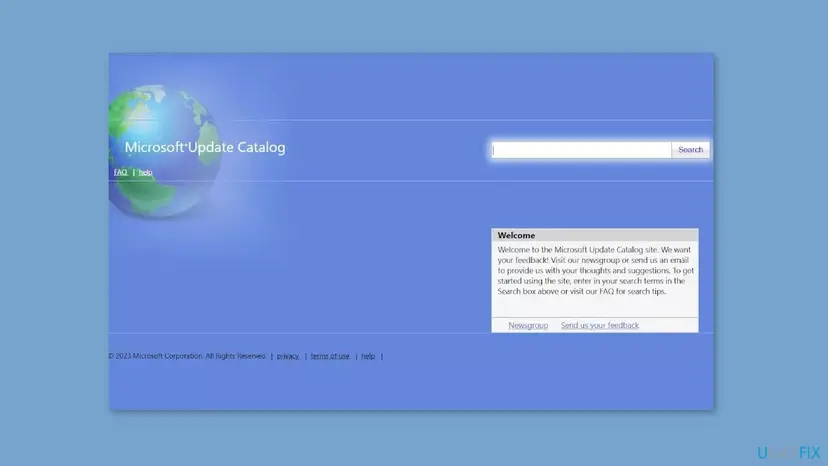
On Windows 11 24H2 and later, the catalog's download window can list a checkpoint update next to the cumulative update. Install the checkpoint first, then the update you came for.
It worked if: The Windows Update Standalone Installer finishes, and after the restart the KB shows as installed in Update history.
If not: If the standalone installer also fails with 0x800f0841, test with a clean boot in Fix 6.
Fix 6. Install the update after a clean boot
20 minutesLow riskSecurity suites, backup agents or other tools that hook into the system are installed, and Fix 1 to Fix 5 did not help.
A clean boot starts Windows with only Microsoft services. If a third party service holds a file that the servicing stack must replace, the install fails. Microsoft's community support suggests this test for 0x800f0841 after DISM and SFC.
- Open System Configuration. Select Search on the taskbar, type msconfig and select System Configuration from the results.
- Hide Microsoft services. On the Services tab, select the Hide all Microsoft services check box. Only services from other companies stay in the list.

With Hide all Microsoft services ticked, only third-party services stay in the list. Screenshot: Windows 11 26H2. - Disable the remaining services. Select Disable all, then select Apply.
- Open Task Manager. On the Startup tab of System Configuration, select Open Task Manager.
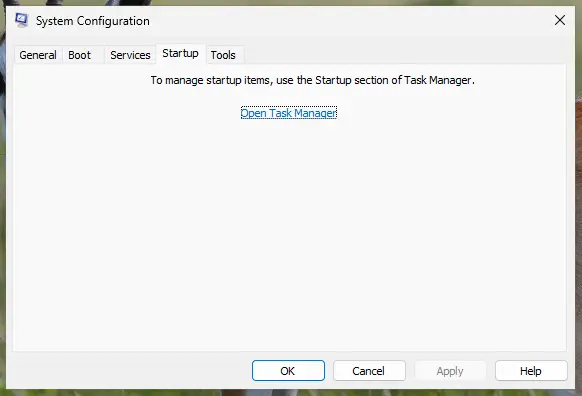
The Startup tab only links to Task Manager. Screenshot: Windows 11 26H2. - Disable the startup apps. On the Startup apps tab in Task Manager, select each item whose status is Enabled and select Disable. Write down or take a screenshot of the items you disable: you need the list to turn them back on.
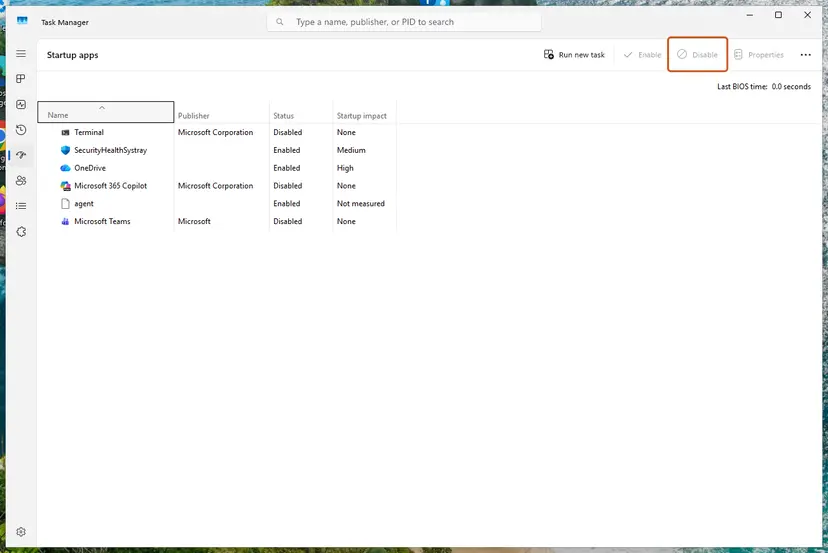
Select an app, then Disable. Screenshot: Windows 11 26H2. - Confirm the changes. Close Task Manager. On the Startup tab of System Configuration, select OK.
- Restart and test. Restart the PC. Windows now starts in a clean boot environment: try again the thing that failed (run the app, install the update, uninstall the program).
These steps were written for Windows 11 25H2 and 26H2. The full page with the other versions and what each result means: How to perform a clean boot in Windows
A clean boot is a test, not a setting to keep. When the update is installed, undo the clean boot so that your security software and other services start again.
It worked if: The update installs in the clean boot state. The program you turn back on last before it fails again is the one in the way.
If not: If it fails in the clean boot state too, the problem is inside Windows. Go to Fix 7.
Fix 7. Reinstall Windows over itself and keep your apps and files
1 to 2 hoursLow riskEvery update fails with 0x800f0841, also from the catalog, and Fix 1 to Fix 6 did not help.
A repair reinstall writes a fresh copy of the current Windows version, with a new component store and servicing stack. Your apps, files and settings stay.
- Open Recovery in Settings. Open Settings > System > Recovery. Next to Fix problems using Windows Update, select Reinstall now. This keeps your apps, files and settings.

Fix problems using Windows Update reinstalls the current version and keeps apps, files and settings. Screenshot: Windows 11 26H2. - Start the reinstall. Choose whether the PC may restart on its own 15 minutes after the installation, then select OK.
- Wait and restart. Windows Update downloads and installs a repair copy of your current Windows version. Keep the PC plugged in and online, and restart it when asked.
These steps were written for Windows 11 22H2 and later. The full page with the other versions and what each result means: Reinstall Windows without losing files
If Fix problems using Windows Update is missing or fails, open the ISO from Fix 3, run setup.exe, and keep the choice Keep personal files and apps.
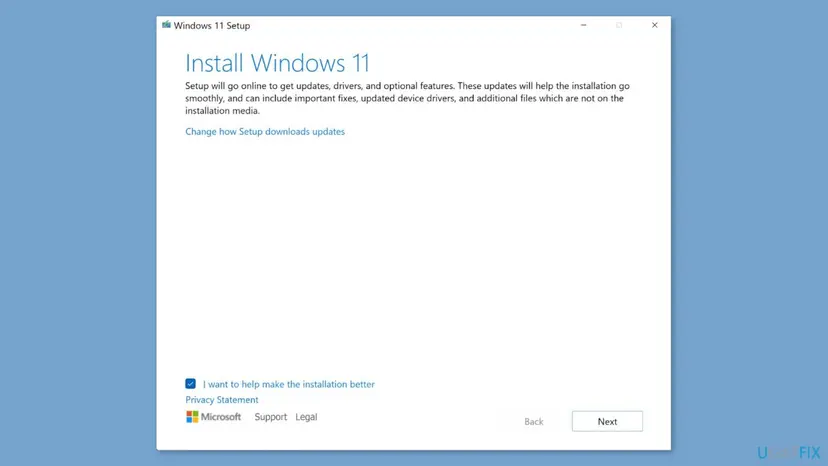
Your files are meant to stay, but a failed reinstall can leave Windows unable to start. Back up what you cannot lose first: Back up your files (Windows Backup, File History, Time Machine). Keep a laptop plugged in until it finishes.
It worked if: The PC starts into the same desktop with your apps and files, and the next update installs without 0x800f0841.
If not: Read the next section. The last resort is Reset this PC with Keep my files.
If error 0x800f0841 is still there
Read the servicing log before you try anything else. It names the package and often the file that failed, which settles whether you need a repair source, a single update or a reinstall.
- Press Win + R, type
%windir%\Logs\CBSand press Enter. - Copy
CBS.logto the Desktop and open the copy in Notepad. - Press Ctrl + F and search for
0x800f0841. Note the time of the last hit. - Read the lines above it. A KB number or package name shows which update failed. Words about missing source files point to Fix 3.
| Situation | What to do |
|---|---|
| Work or school PC, updates from WSUS, Configuration Manager, Intune or a patch agent | Send the administrator the code, the KB number, the build from winver and a copy of CBS.log. |
| Windows Server where a .NET update fails with 0x800f0841 and the OS update with 0x800f0831 | Repair the store first (Fix 2 and Fix 3). 0x800f0831 also points to missing store files, so both updates usually follow. |
| The repair reinstall is not offered or fails | Use Reset this PC with Keep my files and Cloud download: Reinstall Windows without losing files. Apps are removed, your files stay. |
The code itself does not point to hardware. Suspect the drive when the same damage returns after every repair, Windows reports disk errors, or the PC freezes during large copies. Check it with Check a disk for errors (chkdsk) and back up first if it finds bad sectors.
How to keep error 0x800f0841 from coming back
- Restart when Windows asks, and let Working on updates finish.
- Keep a laptop on the charger while updates install.
- Keep enough free space on the system drive for updates to unpack.
- Install the newest cumulative update instead of an old KB.
- Do not hold the power button while Windows says Working on updates.
- Do not delete files in
C:\Windows\WinSxSby hand to save space. - Do not use registry cleaners or update blocker tools that remove servicing data.
- Do not download update files from sites other than catalog.update.microsoft.com.
One user in the Microsoft Q&A thread said they had to switch the PC off improperly when an update hung. That is exactly how servicing files get damaged. If an update seems stuck, give it at least an hour before you cut the power.
Frequently asked questions
What is error 0x800f0841?
It is a Windows servicing error. The update was downloaded, but Component Based Servicing, the part of Windows that installs packages, could not apply it. The 0x800f prefix marks that family of codes. Microsoft's public Windows Update error list does not describe this exact code, and we could not confirm its internal name. In practice it follows a pending restart or a damaged component store, so a proper restart and DISM with SFC are the first steps.
What does install error - 0x800f0841 mean in Settings?
It means the install step of that update failed, not the download. Settings shows it next to the update, and Windows retries later. Because the retry uses the same files and the same component store, it usually fails again until something changes. Restart twice first, then repair the store with DISM and SFC. The update's KB number in Update history tells you which package to install by hand if only that one keeps failing.
Is 0x800f0841 a Windows Update error or a problem with my internet?
It is not an internet problem. Network and download failures use other codes, most of them in the 0x8024xxxx range of the Windows Update agent. The 0x800f prefix comes from the servicing stack, which works after the download. Checking your router or turning off a VPN will not help. Repair the servicing side instead: a full restart, DISM RestoreHealth and SFC, and a reset of the update cache.
Is 0x800f0841 the same as 0x800f0840?
No. They are neighbours in the same CBS family. 0x800f0840 means the saved record of an update session is damaged and has its own guide on this site. 0x800f0841 is a different reason inside the servicing stack. The first repairs overlap: a proper restart, DISM with SFC, and an update cache reset. Read the exact code in Update history or CBS.log so that you follow the guide that matches.
DISM says the source files could not be found. What now?
DISM wanted to download clean files through Windows Update and could not. Give it a local source instead. Download the ISO of the same Windows version and language, mount it, find your edition's index with DISM /Get-WimInfo, and run RestoreHealth with /Source pointing to install.wim and /LimitAccess. Fix 3 has the exact commands. Then run sfc /scannow, restart and check for updates.
Why does a .NET Framework update fail with 0x800f0841?
.NET Framework cumulative updates are installed by the same servicing stack as Windows updates, so a damaged store or a pending restart breaks them too. Users report a .NET cumulative update failing with 0x800f0841 on Windows Server 2022 while the Windows update on the same machine failed with 0x800f0831. Repair the store first, then install the .NET update by hand from the Microsoft Update Catalog if it still fails.
Can I skip the update that fails with 0x800f0841?
You can pause updates for a short time, but skipping security fixes leaves the PC exposed. Windows also keeps offering the newest cumulative update, which includes the one that failed, so the error comes back. Fix the cause instead. Fix 1 to Fix 4 take about an hour in total, and most PCs install the update after one of them.
Will I lose files if I reinstall Windows to fix this?
Not with the repair reinstall in Fix 7. Fix problems using Windows Update, and Windows Setup with Keep personal files and apps, reinstall the same version and keep apps, files and settings. Reset this PC with Keep my files is different: it keeps files but removes apps. Back up the files you cannot lose before any reinstall, and keep a laptop plugged in until it finishes.
What is this error, and what should I do now?
Some searches ask this in other languages, such as Arabic or Hindi. The answer is the same everywhere: Windows downloaded an update but could not install it, and nothing is wrong with your files. First restart the PC twice using Restart, then open Settings, Windows Update and select Check for updates. If the error comes back, follow Fix 2 on this page. The commands are typed the same way in every language of Windows.
Sources
- Microsoft Learn: Windows Update error code list by component (0x800f0841 is not listed) (learn.microsoft.com)
- Microsoft Q&A: Update download failure? Error 0x800f0841 (user report and community support answer) (learn.microsoft.com)
- Sysnative Forums: Windows Server 2022 .NET cumulative update with 0x800f0841 and OS update with 0x800f0831 (user report) (sysnative.com)
Did this fix work?
One click, no account. It tells the next reader which guides are worth their time.
Questions and experiences: fix Windows update error 0x800F0841
Still broken, or found a fix we did not cover? Ask here: members and our editors answer. Reading is open; writing needs a free account.
…