
How to fix Windows upgrade error 0xC1900101 - 0x30018?

Prefer to fix it yourself? The manual steps follow.
- 8methods
- 10 minutes to 2 hours
- Intermediate
Applies to Windows 10 22H2 and Windows 11 (24H2, 25H2, 26H2) upgrades through Windows Update, the Installation Assistant or setup.exe from an ISO
8 methods in this guide
- What the error means
- Why it appears
- Where the cause is written
- The fixes
- 1. Unplug extra devices
- 2. Update the drivers
- 3. Find the driver in the log
- 4. Remove security software
- 5. Free up disk space
- 6. Upgrade from a clean boot
- 7. Repair disk and system files
- 8. Update the BIOS
- If it is still there
- Keep it from coming back
- FAQ
Hi, I have been trying to upgrade Windows from 21H2 to 22H2 but to no avail. I keep receiving the 0xC1900101 - 0x30018 error. How do I fix this? Thanks in advance.
Error 0xC1900101 - 0x30018 means a Windows upgrade failed during its first restart and Setup put your old Windows back. Microsoft's own explanation is that a device driver stopped responding to setup.exe. Unplug everything except the mouse, keyboard and display first, then update the drivers Device Manager flags.
Shut down, unplug every device except the mouse, keyboard and display, undock a laptop, and run the upgrade again (Fix 1). Microsoft says 0xC1900101 - 0x30018 means a device driver stopped responding to Setup during the first restart. If it fails again, update or remove the drivers that Device Manager marks with a yellow sign (Fix 2), or find the exact driver in setupapi.dev.log (Fix 3).
| Error | 0xC1900101 - 0x30018, shown by Windows Setup as "The installation failed in the FIRST_BOOT phase with an error during SYSPREP operation". Windows Update shows only 0xC1900101. |
|---|---|
| Where it appears | After the first restart of a feature upgrade. The PC restarts, shows the upgrade progress, then rolls back and shows the error when your old Windows is back. |
| Main cause | Microsoft: "A device driver has stopped responding to setup.exe during the upgrade process." Usually a driver for an external device, a storage or display controller, or security software. |
| Fastest fix | Unplug all devices except mouse, keyboard and display, then run the upgrade again (Fix 1). Next, update the drivers (Fix 2). |
| Also written as | 0xc1900101-0x30018, 0xC1900101 0x30018, install error - 0xc1900101, or just 0x30018. |
| Affects | Upgrades to Windows 10 22H2 and Windows 11, and Windows 11 feature updates. Windows 10 left support on 14 October 2025. |
| Microsoft's status | A documented upgrade error, not a bug of one release. Microsoft lists it with five sibling codes that all point to drivers. |
| Where the cause is written | C:\$Windows.~BT\Sources\Rollback\setupapi\setupapi.dev.log. Microsoft names this log as the helpful one for extend code 0x30018. |
| Time to fix | 10 minutes for Fix 1 and Fix 2, plus 1 to 2 hours for each new upgrade attempt. |
Facts checked on 15 October 2026. Steps written for Upgrades from Windows 10 22H2 to Windows 11, and Windows 11 feature updates to 25H2 and 26H2.
What 0xC1900101 - 0x30018 means
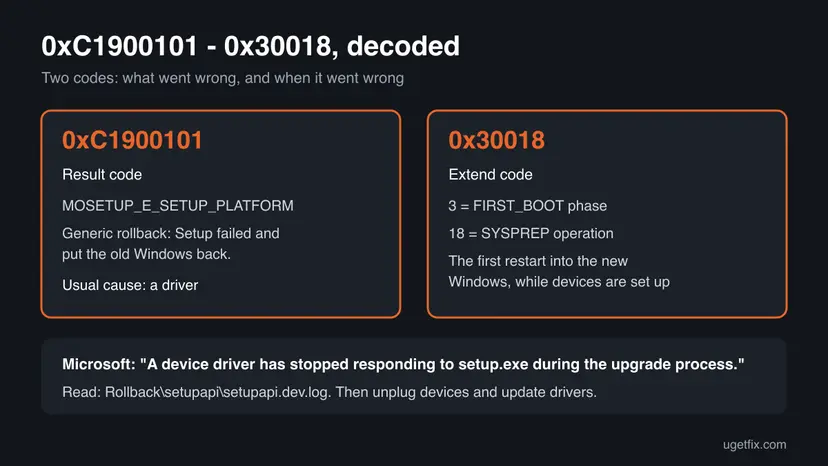
Windows Setup reports a failed upgrade with two codes joined by a dash. Microsoft calls the first one the result code, which says what went wrong, and the second one the extend code, which says in which phase and operation it happened.
| Part | What Microsoft's documentation says | What it tells you |
|---|---|---|
| 0xC1900101 | MOSETUP_E_SETUP_PLATFORM, "The Setup Platform has encountered an unspecified error." Microsoft calls it a generic rollback code that usually means an incompatible driver. | The upgrade did not finish and Windows went back to the version you had. Your files and apps stay as they were. |
| 0x30018 | Phase 3 is SP_EXECUTION_FIRST_BOOT. Operation 18 is SP_EXECUTION_OP_SYSPREP. | It failed during the first restart into the new Windows, while Setup was preparing the system and its devices. |
| The pair | "A device driver has stopped responding to setup.exe during the upgrade process." | Look for a driver: an attached device, a controller, or a security or encryption program that loads a driver. |
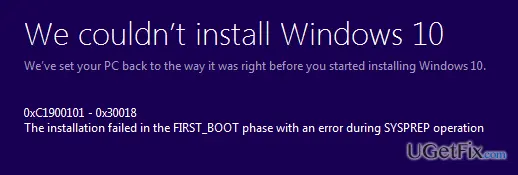
The full text on the screen reads: We couldn't install Windows 10. We've set your PC back to the way it was right before you started installing Windows 10. 0xC1900101 - 0x30018. The installation failed in the FIRST_BOOT phase with an error during SYSPREP operation.
Microsoft notes that some tools return only the result code. If Settings > Windows Update says the feature update failed with 0xC1900101 and nothing else, the extend code is still in the Setup logs and in Event Viewer. The fixes below apply to every 0xC1900101 failure that points to a driver.
Why the upgrade fails with 0xC1900101 - 0x30018
Microsoft gives one cause for this pair, a driver that stops responding, and lists the same first steps for all six 0xC1900101 codes it documents. The ranking below follows Microsoft's order of mitigations. Each cause points to a fix.
| Cause | How often | How to tell | Fix |
|---|---|---|---|
| A driver of an external device: USB drive, dock, card reader, printer, scanner, headset. | Most often | Anything other than mouse, keyboard and display is plugged in, or the laptop is docked. | Fix 1 |
| An outdated or broken driver inside the PC: storage controller, display, network, chipset. | Often | Device Manager shows a yellow exclamation mark, or the PC maker has newer drivers. | Fix 2, Fix 3 |
| Non-Microsoft antivirus or disk encryption software, which loads its own filter drivers. | Sometimes | A third-party security suite or encryption tool is installed. | Fix 4 |
| Too little free space for the upgrade. | Sometimes | Drive C has less than 20 GB free on 64-bit Windows. | Fix 5 |
| A startup program or service that conflicts with Setup. | Less often | The PC has many tray tools, RGB, tuning or backup utilities. | Fix 6 |
| File system errors, damaged system files or old firmware. | Rarely | chkdsk or DISM reports problems, or the BIOS is years old. | Fix 7, Fix 8 |
The reader above saw the error on a Windows 10 feature update. The same code appears on upgrades to Windows 11 and on Windows 11 feature updates, and the cause is the same: a driver on this PC, not the update file.
Where setupapi.dev.log and SetupDiag show the failing driver
You do not need the logs for Fix 1. Read them when the error comes back, because they name the driver. After a rollback, Setup keeps its files in the hidden folder C:\$Windows.~BT\Sources\Rollback. Microsoft lists three files there that help with 0xC1900101.
| File | Path | What it shows |
|---|---|---|
| Device install log | C:\$Windows.~BT\Sources\Rollback\setupapi\setupapi.dev.log | Which driver was being installed when Setup stopped. Microsoft says it helps most when the rollback happens during sysprep, which is extend code 0x30018. |
| Minidump | C:\$Windows.~BT\Sources\Rollback\setupmem.dmp | Present when the PC crashed with a blue screen during the upgrade. |
| Event logs | C:\$Windows.~BT\Sources\Rollback\*.evtx | Windows events saved during the failed attempt. Open them in Event Viewer. |
| Setup logs | setuperr.log and setupact.log in the Panther folder | Microsoft suggests these to locate the problem drivers for the sibling code 0x20017. |
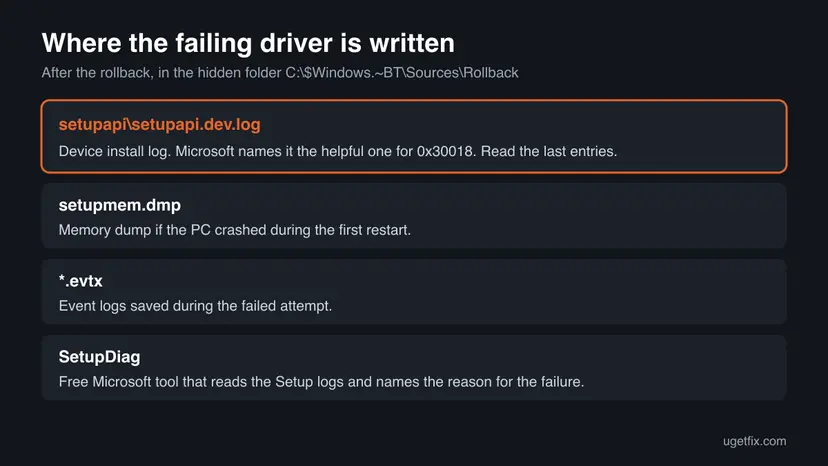
Microsoft also recommends SetupDiag, its free tool that reads the Setup logs and names the reason for an upgrade failure. Fix 3 shows how to use both.
How to fix Windows upgrade error 0xC1900101 - 0x30018
Fix 1 and Fix 2 are Microsoft's first mitigations for this code and solve it for most readers. Fix 3 finds the exact driver when you do not know it. Fix 4 to Fix 6 remove what loads extra drivers or blocks space. Fix 7 and Fix 8 come last because they rarely cause this code.
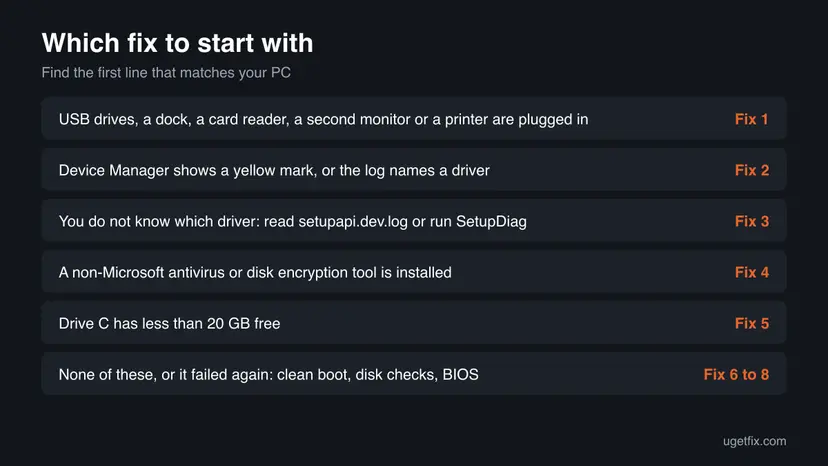
| What you see or have | Start with |
|---|---|
| Anything other than mouse, keyboard and display is plugged in, or the laptop is docked. | Fix 1 |
| Device Manager shows a yellow mark, or the PC maker offers newer drivers. | Fix 2 |
| It failed again and you do not know which driver. | Fix 3 |
| A non-Microsoft antivirus, firewall suite or disk encryption tool is installed. | Fix 4 |
| Drive C has less than 20 GB free. | Fix 5 |
| Everything above is done and the error stays. | Fix 6, then Fix 7 and Fix 8 |
Fix 1. Unplug every device except the mouse, keyboard and display
5 minutes, plus the upgradeNo riskEveryone, and first of all PCs with USB drives, a dock, a card reader, a printer or a second monitor attached.
Setup installs drivers for every connected device during the first restart. Microsoft's first mitigation for 0x30018 is to disconnect all peripherals except the mouse, keyboard and display, because one of their drivers is the usual one that stops responding.
- Shut down the PC.
- Unplug USB flash drives, external hard drives, memory cards, printers, scanners, webcams, headsets, game controllers and USB hubs.
- If the laptop sits in a docking station, undock it. Connect the charger directly.
- Disconnect a second monitor. Keep one display, the mouse and the keyboard.
- Start Windows and run the upgrade again: Settings > Windows Update > Check for updates, or
setup.exefrom the installation media. - When the upgrade finishes, plug the devices back in one at a time.
Microsoft also lists removing unused SATA devices for the sibling code 0xC1900101 - 0x20004. If the PC has an old second drive you do not need during the upgrade, disconnecting it is a safe test.
It worked if: The PC restarts several times, passes the stage where it failed before, and ends at the sign-in screen on the new version.
If not: If it rolls back again with the same code, update the drivers in Fix 2.
Fix 2. Update or remove the drivers that Device Manager flags
15 to 30 minutesLow riskDevice Manager shows a yellow exclamation mark, or the PC has not had driver updates for a long time.
Microsoft's second mitigation for 0x30018 is to get updated drivers from the hardware vendor. Its support page for 0xC1900101 adds two checks: run Windows Update a few times for driver updates, and fix any device that Device Manager marks with a yellow sign.
- Open Settings > Windows Update, select Check for updates and install everything. Repeat until nothing new appears.
- Open Advanced options > Optional updates and install the driver updates listed there.
- Right-click Start and select Device Manager. Expand each category and look for a yellow exclamation mark.
- Right-click a flagged device and select Update driver. If no newer driver is found, select Uninstall device for a device you do not need during the upgrade.
- On the PC or motherboard maker's support page, get the newest chipset, storage, display and network drivers for your model and install them.
- Restart and run the upgrade again.
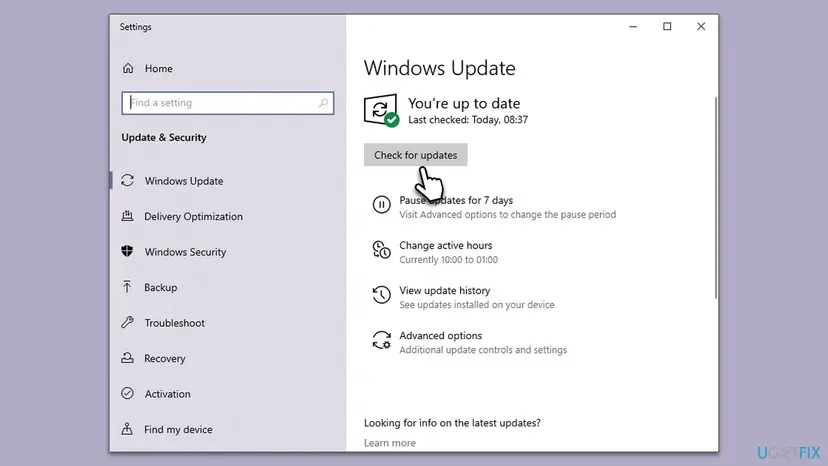
Step by step, with screenshots of Device Manager: Update, roll back or reinstall a driver
It worked if: Device Manager shows no yellow marks, Windows Update says you are up to date, and the upgrade passes the first restart.
If not: If you cannot tell which driver is at fault, read the log in Fix 3.
Fix 3. Find the failing driver in setupapi.dev.log or with SetupDiag
15 minutesNo riskThe upgrade failed again after Fix 1 and Fix 2 and you want the name of the driver.
For extend code 0x30018, Microsoft names the device install log in the Rollback folder as the helpful file. Its last entries show which driver Setup was installing when it stopped, so you fix one device instead of guessing.
- Press Win + R, paste
C:\$Windows.~BT\Sources\Rollback\setupapiand press Enter. If the folder is missing, a cleanup removed it, so run SetupDiag instead (step 6). - Copy
setupapi.dev.logto your desktop and open the copy in Notepad. - Press Ctrl + End to go to the end of the file. The last device entries come from the failed attempt.
- Look for lines that start with
!!!or containfailed, and note the device name and the.inffile just above them. - Update that driver from the device maker, or uninstall the device in Device Manager, then run the upgrade again.
- If the log does not help, download SetupDiag from Microsoft, run it in Terminal (Admin) and read
SetupDiagResults.login its folder.
Run SetupDiag from its folder in an administrator terminal:
SetupDiag.exe /Output:C:\SetupDiag\Results.logThe log format is technical and we found no published sample for 0x30018. The device name nearest the end of the file is the best lead. Our sister guide to 0x80042444 - 0x4002F shows how to read the other Setup logs.
It worked if: You have the name of one device or driver, and the upgrade passes once that driver is updated or the device is removed.
If not: If the log names a security or encryption product, go to Fix 4. If it names nothing clear, go to Fix 5.
Fix 4. Uninstall non-Microsoft antivirus and disk encryption software for the upgrade
15 minutesLow riskA non-Microsoft antivirus, firewall suite or disk encryption tool is installed.
Security and encryption software installs filter drivers that load early in the first restart. Microsoft's support page for 0xC1900101 says to remove third-party security software and lets Microsoft Defender protect the PC in the meantime.
- Make sure you have the installer and the licence key or account of the security product.
- Uninstall it from Settings > Apps > Installed apps, or with the maker's own removal tool if it offers one.
- Restart. Microsoft Defender turns on by itself when no other antivirus is installed.
- Run the upgrade again.
- When the new version runs, install the newest release of your security product again.
Step by step for removing a program: Uninstall a program or app in Windows. For disk encryption from another maker, decrypt the drive with that tool first, as its maker describes, because removing it while the drive is encrypted can lock your data.
It worked if: Windows Security shows Microsoft Defender as active, and the upgrade completes without a rollback.
If not: If the error stays, reinstall the product later and continue with Fix 5.
Fix 5. Free up at least 20 GB on drive C
10 to 20 minutesLow riskDrive C has less than 20 GB free, or the error alternates with 0xC190020e.
Microsoft's first step for all 0xC1900101 codes is enough free space: 16 GB for 32-bit Windows and 20 GB for 64-bit. With too little room, Setup can fail at any later step.
- Open Storage settings. Select Start > Settings > System > Storage. The top of the page shows how full the drive is and what uses the space.
- Open Cleanup recommendations. Under Storage management, select Cleanup recommendations.
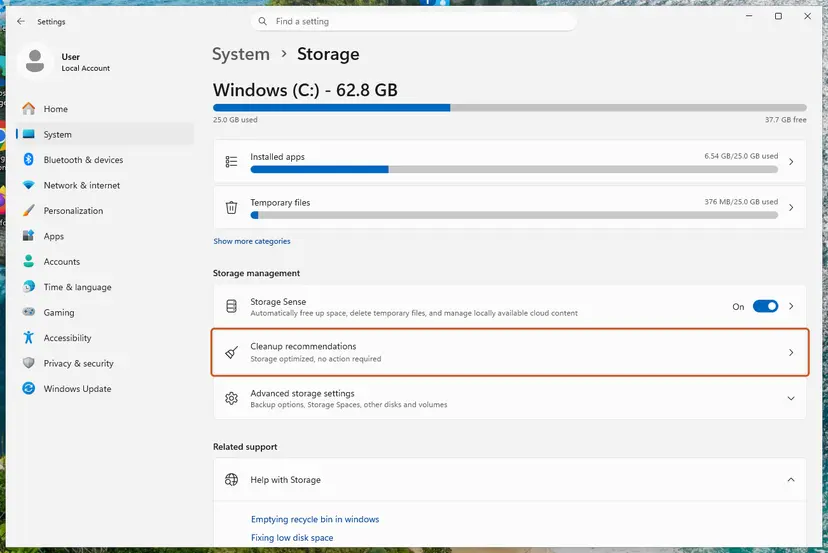
Settings, System, Storage: Cleanup recommendations is under Storage management. Screenshot: Windows 11 26H2. - Clean up what Windows suggests. Open each group (Temporary files, Large or unused files, Files synced to the cloud, Unused apps), check the items you do not need and select Clean up in that group.
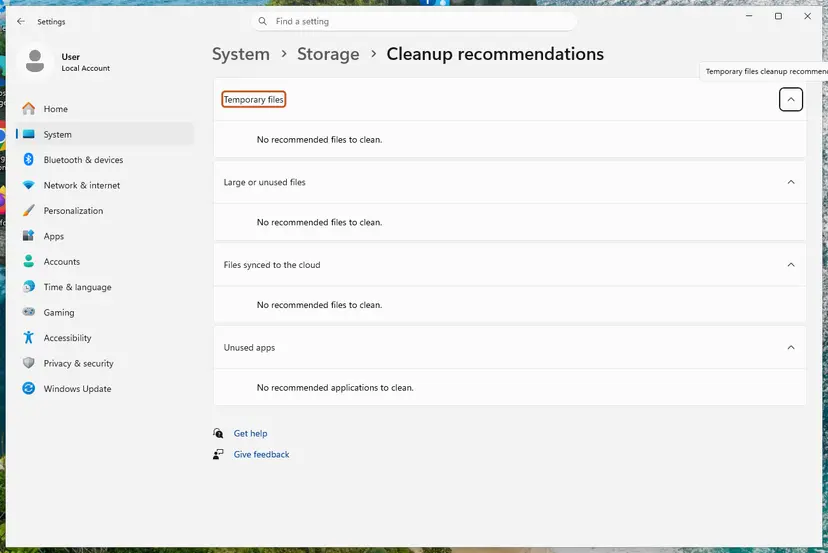
Cleanup recommendations groups the suggestions; on our test PC there was nothing to clean yet. Screenshot: Windows 11 26H2. - Delete more temporary files. Go back to Storage and select Temporary files. Windows lists the types it can remove with their size. Check the ones you do not need and remove them. Leave Downloads unchecked unless you have checked that folder.
These steps were written for Windows 11 (screenshots: 26H2). The full page with the other versions and what each result means: Free up disk space and delete temporary files
- Check the result in File Explorer > This PC: drive C should show 20 GB free or more.
- If space is short and the PC has a USB port, Microsoft notes that Setup can use an external USB drive of at least 8 GB, formatted NTFS, for the backup of the old Windows. Plug it in only for this, after Fix 1.
It worked if: Drive C shows 20 GB or more free, and the upgrade no longer stops on space.
If not: If space was not the problem, run the upgrade in a clean boot in Fix 6.
Fix 6. Run the upgrade from a clean boot, with updates downloaded during Setup
20 minutes, plus the upgradeLow riskFix 1 to Fix 5 are done and the PC has many startup programs or background services from other makers.
Microsoft says a rollback caused by driver conflicts can be solved by running Setup with a minimal set of drivers and startup programs, which a clean boot gives you. It also asks to accept "Download and install updates (recommended)" so Setup fetches new drivers.
- Open System Configuration. Select Search on the taskbar, type msconfig and select System Configuration from the results.
- Hide Microsoft services. On the Services tab, select the Hide all Microsoft services check box. Only services from other companies stay in the list.

With Hide all Microsoft services ticked, only third-party services stay in the list. Screenshot: Windows 11 26H2. - Disable the remaining services. Select Disable all, then select Apply.
- Open Task Manager. On the Startup tab of System Configuration, select Open Task Manager.
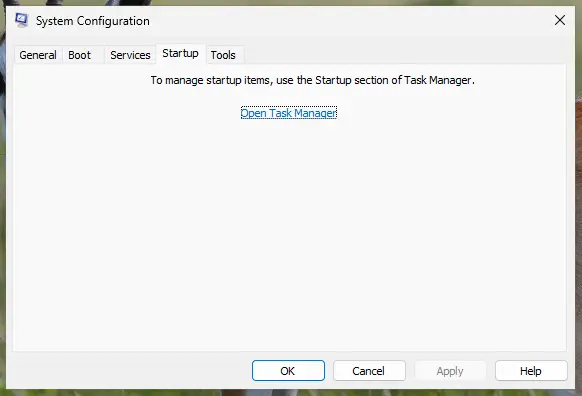
The Startup tab only links to Task Manager. Screenshot: Windows 11 26H2. - Disable the startup apps. On the Startup apps tab in Task Manager, select each item whose status is Enabled and select Disable. Write down or take a screenshot of the items you disable: you need the list to turn them back on.
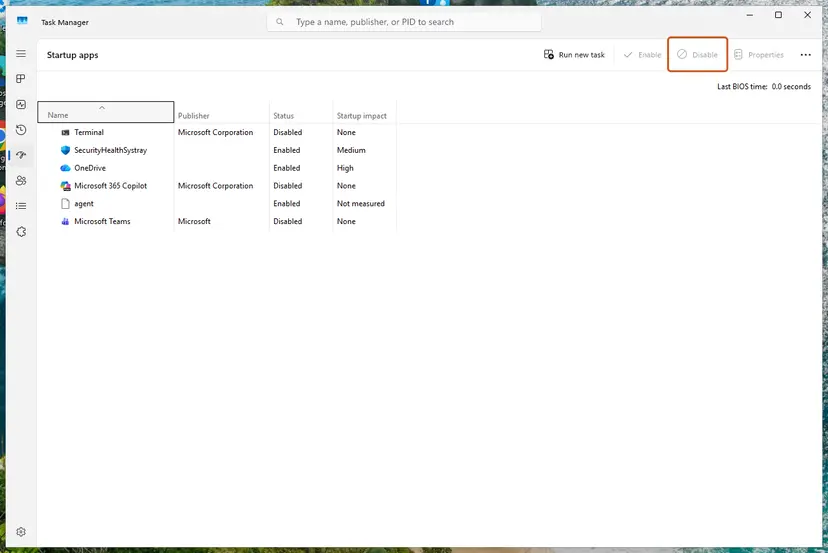
Select an app, then Disable. Screenshot: Windows 11 26H2. - Confirm the changes. Close Task Manager. On the Startup tab of System Configuration, select OK.
- Restart and test. Restart the PC. Windows now starts in a clean boot environment: try again the thing that failed (run the app, install the update, uninstall the program).
These steps were written for Windows 11 25H2 and 26H2. The full page with the other versions and what each result means: How to perform a clean boot in Windows
- In the clean boot, download the ISO from Microsoft's Download Windows 11 page, right-click it and select Mount.
- Double-click
setup.exeon the new drive. - When Setup asks about updates, choose to download and install updates. Microsoft's wording is "Download and install updates (recommended)", and newer media words it differently.
- Keep files and apps, and let the upgrade run.
- After the upgrade, undo the clean boot as the clean boot procedure describes.
It worked if: The upgrade from the ISO passes the first restart, and the clean boot settings can be undone on the new version.
If not: If it fails in a clean boot too, check the disk and system files in Fix 7.
Fix 7. Repair disk errors and system files
20 minutes to several hoursLow riskThe PC crashed or lost power often, or the error came back after all fixes above.
Microsoft's list for 0xC1900101 ends with repairing hard drive errors and restoring system files. File system damage or a broken component store can make Setup fail at the first restart, even with good drivers.
- Right-click Start and open Terminal (Admin).
- Type
chkdsk /f C:and press Enter. Answer Y to run the check at the next restart, then restart. - After the restart, open Terminal (Admin) again and run
DISM.exe /Online /Cleanup-image /Restorehealth. - Run
sfc /scannowwhen DISM has finished, restart and try the upgrade again.
With screenshots: Check a disk for errors (chkdsk) and Run DISM and SFC to repair Windows system files.
It worked if: chkdsk and DISM report that no problems were found or that they were fixed.
If not: If chkdsk reports bad sectors, back up and read the section on hardware below. Otherwise try Fix 8.
Fix 8. Update the BIOS or UEFI firmware
15 to 30 minutesRead the warningThe PC maker lists a newer BIOS for your model and every other fix failed.
Microsoft lists BIOS updates among the mitigations for its 0xC1900101 codes 0x20004 and 0x4000D. Old firmware can make a controller misbehave when the new Windows loads its drivers at the first restart.
Do not turn the PC off during the update, keep a laptop on its charger, and use only the file for your exact model from the maker's site. Back up your files first: Back up your files (Windows Backup, File History, Time Machine).
- Press Win + R, type
msinfo32and press Enter. - Note System Model, BaseBoard Product and BIOS Version/Date.
- On the PC or motherboard maker's support page for that model, compare the newest BIOS with yours.
- If a newer one exists, follow the maker's own instructions to install it.
- Start Windows and run the upgrade again.
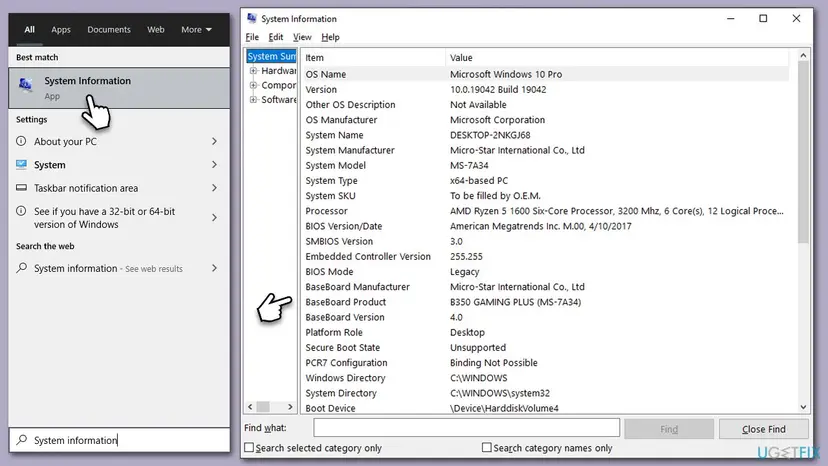
It worked if: System Information shows the new BIOS date, and the upgrade passes the first restart.
If not: If it still rolls back, read the next section and send the logs to support.
If error 0xC1900101 - 0x30018 is still there
When the upgrade still rolls back with every device unplugged and current drivers, the logs decide the next step. Read setupapi.dev.log and the SetupDiag result as in Fix 3 before you try again, because each new attempt replaces them.
| What you find | What to do |
|---|---|
| The log names one device or driver | Uninstall that device in Device Manager or disable it in the BIOS for the upgrade, then reinstall it on the new version. |
A blue screen during the upgrade, and setupmem.dmp exists | The crash names the driver. Update or remove it, or ask the PC maker. |
| chkdsk reports bad sectors | Copy your files off and replace the drive before you upgrade. |
| A work or school PC | Ask the IT department: their drivers or encryption may need a newer release. |
| You want Microsoft to look at it | Microsoft suggests collecting data with its TSS tool before you contact support. |
Microsoft notes that the sibling code 0x20017 can also come from a hardware failure. Signs are blue screens outside the upgrade, a device that disappears and comes back, and chkdsk or memory tests that report errors.
- What to send to support: both codes, the Windows version you upgrade from and to, and how you started the upgrade.
- Attach
setupapi.dev.log,setupact.log,setuperr.logand the SetupDiag result. - Name the hardware: PC model, BIOS version and any device the log mentions.
How to keep 0xC1900101 - 0x30018 from coming back
- Unplug docks and external devices before every feature upgrade.
- Install driver updates from Windows Update and the PC maker a few days before you upgrade.
- Keep 20 GB or more free on drive C.
- Let Setup download updates when it asks.
- Do not start an upgrade while a backup drive or a phone is connected.
- Do not keep two security suites installed at the same time.
- Do not install drivers from download sites that are not the device maker.
- Do not stay on Windows 10: it no longer gets security fixes.
Windows 10 left support on 14 October 2025. Microsoft says it no longer provides free software updates, technical help or security fixes for it, and recommends moving to Windows 11. If the upgrade fails on a Windows 10 PC, these fixes are the way to get there.
Frequently asked questions
What does error 0xC1900101 - 0x30018 mean?
It means a Windows upgrade failed during its first restart and Setup restored your previous Windows. Microsoft describes the pair as "A device driver has stopped responding to setup.exe during the upgrade process." The first code, 0xC1900101, is the generic rollback code. The second code, 0x30018, says the failure happened in the FIRST_BOOT phase during the SYSPREP operation. Your files and apps stay as they were. Start by unplugging devices and updating drivers.
What is error code 0xC1900101 on its own?
0xC1900101 is the result code MOSETUP_E_SETUP_PLATFORM. Its text is "The Setup Platform has encountered an unspecified error". Microsoft calls it a generic rollback code that usually points to an incompatible driver, and says it can appear at any stage of the upgrade except the first, downlevel phase. Windows Update often shows only this part. The second code, if you can find it in the Setup logs, says when it failed. For every 0xC1900101 code Microsoft recommends the same first steps: free space, Windows Update, drivers, unplugging hardware.
Is 0x30018 an error by itself?
No. 0x30018 is only the extend code, the second half of the error. In Microsoft's table, the first digit 3 is the FIRST_BOOT phase and the last two digits, 18, are the SYSPREP operation. It tells you when the upgrade failed, not why. The reason is in the first code, 0xC1900101, and in the logs. Microsoft also notes that its table of extend codes was written for Windows 10 version 1607 and might change, but this pair is still listed with the same meaning.
How do I fix 0xC1900101 - 0x2000c?
Use the same first steps, because Microsoft gives the same mitigations for it: disconnect every device except the mouse, keyboard and display, get updated drivers from the hardware maker, and accept downloading updates at the start of Setup. The difference is the moment. 0x2000c fails in the earlier SafeOS phase while the Windows image is applied, and Microsoft adds that disk corruption can cause it. So run chkdsk (Fix 7) earlier for that code.
What are 0xC19001e1 and 0xC1900104?
They are other Setup result codes, not variants of 0x30018. Microsoft lists 0xC19001e1 as MOSETUP_E_PROCESS_SUSPENDED, "The installation process was suspended", and 0xC1900104 as MOSETUP_E_PROCESS_TIMEOUT, "The installation process did not complete within the required time limit." Both mean Setup itself was stopped or ran too long. Keep the PC plugged in, awake and online during the upgrade, then run it again. If a driver hangs Setup, Fix 1 and Fix 2 still apply.
What does 0xC190020e mean?
0xC190020e is MOSETUP_E_INSTALLDISKSPACE_BLOCK: the PC does not have enough free space to install the upgrade. Microsoft asks for 16 GB free for 32-bit Windows and 20 GB for 64-bit Windows. Free space on drive C with Storage settings and Disk Cleanup, as in Fix 5, and run the upgrade again. Microsoft adds that Setup can use an external USB drive of at least 8 GB, formatted NTFS, to back up the old Windows when space is short.
Will I lose my files when the upgrade rolls back?
No, not in the normal case. The message says Windows set your PC back to the way it was right before the upgrade started, and the rollback restores your previous Windows with its files, apps and settings. Still, back up important files before the next attempt, because each attempt rewrites system files and restarts several times. A backup also protects you if you later update the BIOS or remove encryption software.
Why does Windows Update keep offering the same failed upgrade?
Because the PC still qualifies for the feature update, and Windows Update retries it until it succeeds or you pause updates. Each retry hits the same driver, so the same 0xC1900101 comes back. Pause updates in Settings > Windows Update while you work through the fixes, then resume. Running setup.exe from a Microsoft ISO after a clean boot, as in Fix 6, gives you more control over the attempt.
Can a driver updater program fix this error?
Microsoft's advice is to get updated drivers from the hardware vendor and through Windows Update. Those two sources give you the drivers the PC maker tested for your model. A tool that installs drivers from other places can add the kind of driver that stops responding at the first restart. If you do not know which driver is at fault, read setupapi.dev.log or run SetupDiag (Fix 3) instead of updating everything.
This page is about 0xC1900101 - 0x30018: what about other languages?
The error codes are the same in every language, so this guide applies to messages such as installationsfel - 0xc1900101 or errore 0xc1900101. Only the text around the code is translated. Look for the two codes on your screen or in Settings > Windows Update > Update history, and use the fixes in the same order. Readers who wrote a search in another language without a code should first find the code in Update history.
Sources
- Microsoft Learn: Windows 10 upgrade resolution procedures (0xC1900101 - 0x30018, rollback logs, modern setup error codes) (learn.microsoft.com)
- Microsoft Learn: Windows 10 upgrade error codes (result codes and extend codes, phase and operation tables) (learn.microsoft.com)
- Microsoft Support: Get help with Windows upgrade and installation errors (0xC1900101 errors, free space, Windows 10 end of support) (support.microsoft.com)
Did this fix work?
One click, no account. It tells the next reader which guides are worth their time.
Questions and experiences: fix Windows upgrade error 0xC1900101 - 0x30018
Still broken, or found a fix we did not cover? Ask here: members and our editors answer. Reading is open; writing needs a free account.
…