
How to fix the winscomrssrv.dll error in Windows 10 and Windows 11

Prefer to fix it yourself? The manual steps follow.
- 6methods
- 5 to 15 minutes, plus a full malware scan
- Medium
Applies to Windows 10 and Windows 11 PCs that show a RunDLL box saying There was a problem starting winscomrssrv.dll after sign-in
6 methods in this guide
Every time I boot my Windows 10 laptop, I get a pop-up titled RunDLL that says "There was a problem starting winscomrssrv.dll." I tried restarting, but that did nothing. I wonder what it is and how I can get rid of it.
The RunDLL box "There was a problem starting winscomrssrv.dll" means a startup entry still tells Windows to load a DLL that is no longer on the disk, most often because security software deleted it. Windows itself is not damaged. Delete that entry with Microsoft's free Autoruns tool, then run a full Microsoft Defender scan to make sure nothing else is left.
Your PC is not missing a Windows file. A Run key or a scheduled task still starts rundll32.exe with winscomrssrv.dll, and that file was already removed. Run Autoruns64.exe as administrator, type winscomrssrv into the Filter box and delete every matching entry (Fix 1). Do the same for startupchecklibrary and srvhost, restart, then run a full Microsoft Defender scan (Fix 5). Do not download the DLL from a DLL site.
| Error | A window titled RunDLL with "There was a problem starting" and the path to winscomrssrv.dll, then "The specified module could not be found." and an OK button. |
|---|---|
| Where it appears | On the desktop shortly after you sign in, at every start of Windows, before you open any program yourself. |
| Main cause | A leftover startup entry: a Run key value or a scheduled task still starts rundll32.exe with a winscomrssrv.dll that an antivirus or a cleanup already deleted. |
| Fastest fix | Filter for winscomrssrv in Autoruns and delete the entry (Fix 1). It takes about 5 minutes. |
| Also written as | winscomrssrv dll error, winscomrssrv dll could not be found, there was a problem starting winscomrssrv dll. |
| Names found with it | startupchecklibrary and srvhost. The earlier version of this guide found entries with these names next to winscomrssrv; they are removed the same way. |
| Error code behind the text | "The specified module could not be found." is the Windows text of error 126, ERROR_MOD_NOT_FOUND (0x8007007E): the DLL is not at the path given. |
| Affects | Windows 10 and Windows 11. The RunDLL box and every fix on this page are the same on both. |
| Vendor status | Not a Windows bug and not a Windows file. We found no Microsoft documentation of winscomrssrv.dll, so no Windows update or repair brings it back. |
| Time to fix | 5 minutes with Autoruns, plus the time of a full Defender scan, which depends on how much is on your disk. |
Facts checked on 16 October 2026. Steps written for Windows 11 (25H2 and 26H2) and Windows 10 22H2.
What "There was a problem starting winscomrssrv.dll" means
RunDLL is the title of the error box of rundll32.exe, the Windows program that "loads and runs 32-bit dynamic-link libraries (DLLs)", as Microsoft's command reference describes it. A DLL cannot start by itself. A program that wants code inside a DLL to run at sign-in registers a command of this shape in a startup location:
rundll32.exe <folder>\winscomrssrv.dll,<function name>When you sign in, Windows runs that command. Rundll32 looks for the DLL, does not find it, and shows the box. Each part of the message tells you something:
- RunDLL in the title names the host program. It does not tell you which program created the entry.
- There was a problem starting is followed by the full path of the DLL. Note the folder, because it differs from PC to PC and it is the trail to follow.
- The specified module could not be found. is the standard Windows text for error 126,
ERROR_MOD_NOT_FOUND. A module here is the DLL file: it is not at that path. - OK only closes the box. It returns at the next start, because the entry that asks for the file is still there.
The earlier version of this guide traced the box to a leftover of malware that security software had already removed. That fits the message: something deleted winscomrssrv.dll, but the Run key or task that loads it at sign-in stayed behind. We could not confirm which program the file belonged to.
Why the winscomrssrv.dll RunDLL error appears: causes ranked
| How common | Cause | What you notice | Fix |
|---|---|---|---|
| Most often | Security software removed winscomrssrv.dll but not the entry that loads it | The box at every sign-in; the folder in the path is empty or does not exist | Fix 1, or Fix 2 and Fix 3 by hand |
| Often | The same program left more than one entry, under names such as startupchecklibrary or srvhost | After you delete one entry, a second RunDLL box with another DLL name appears | Fix 1 with all three names |
| Sometimes | The entry sits in a place you did not look, such as a Startup folder shortcut | Autoruns is not at hand and the Run keys look clean | Fix 4 |
| Sometimes | The program that placed the file is still active and writes the entry again | The entry comes back after you delete it | Fix 5 |
| Rarely | Nothing you can find matches the name | Autoruns shows no entry with winscomrssrv | Fix 6 |
Damaged Windows system files are not on this list. winscomrssrv.dll is not part of Windows, so System File Checker and DISM have no copy of it to restore. Bringing the file back is also not the goal: the program it belonged to is the one you want gone.
Why you should not download winscomrssrv.dll from a DLL site
A search for "winscomrssrv dll could not be found" leads to sites that offer the file for download. Putting a file with that name back into the folder would stop the box only by giving the old startup entry something to load again.
Whatever DLL you place at that path, rundll32 loads it at each start with your rights. A file from an unknown site under the name of a malware leftover is the last thing you want started automatically. Delete the entry instead, which removes the reason the box appears.
- Do not copy a winscomrssrv.dll from another PC or a DLL site.
- Do not rename another DLL to winscomrssrv.dll to silence the box: Microsoft notes that rundll32 can only call functions from a DLL written for it, and the entry stays either way.
- Do delete the startup entry, then let a malware scan check what else the program left.
How to fix the winscomrssrv.dll RunDLL error
Fix 1 finds the entry wherever Windows keeps it and works for most readers. Fixes 2, 3 and 4 check the same places by hand if you cannot run Autoruns. Fix 5 makes sure the program behind the file is gone, and Fix 6 is for a box whose source you cannot find.
| What you see or have | Start with |
|---|---|
| The RunDLL box with winscomrssrv.dll at every sign-in | Fix 1 |
| You cannot download or run Autoruns on this PC | Fix 2, then Fix 3 |
| A second RunDLL box with startupchecklibrary or another name | Fix 1 with that name |
| The Run keys and tasks look clean, the box still appears | Fix 4 |
| The entry comes back after you delete it | Fix 5 |
| Nothing anywhere names winscomrssrv | Fix 6 |
Fix 1. Delete the winscomrssrv startup entry with Autoruns
5 to 10 minutesLow riskEveryone who sees the RunDLL box. It finds the entry in Run keys, scheduled tasks and startup folders in one search.
Task Manager shows only part of what starts with Windows. Microsoft's Autoruns lists the Run and RunOnce keys, startup folders, scheduled tasks and services, filters them by name, and deletes an entry with one click.
First get Autoruns running with administrator rights. It needs no installation.
- Click OK on the RunDLL box and note the folder in the path it shows.
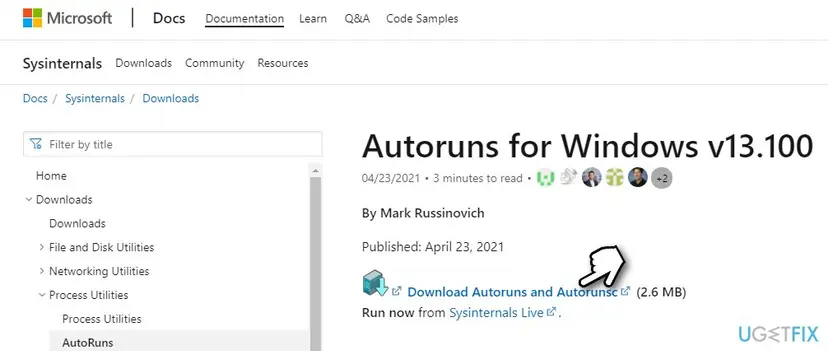
- Open Microsoft's Autoruns page at
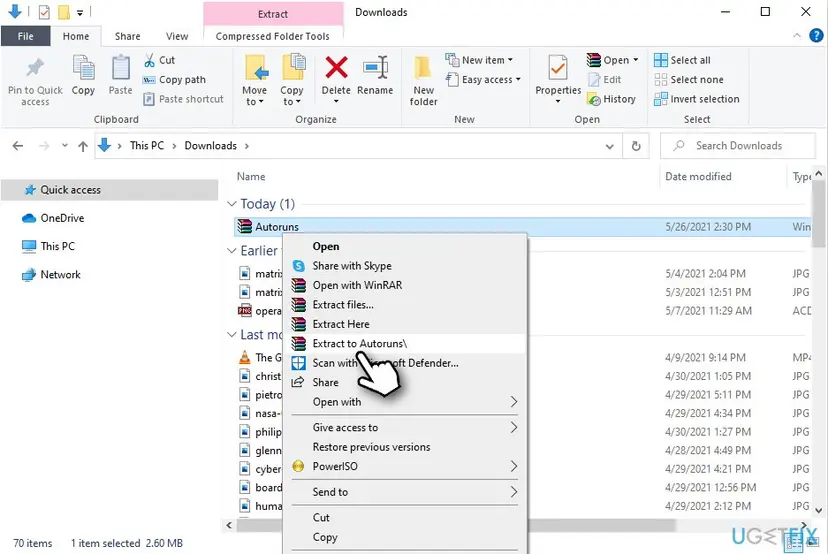
learn.microsoft.com/sysinternals/downloads/autorunsand click Download Autoruns and Autorunsc (version 14.3, 3 MB). - Open your Downloads folder, right-click Autoruns.zip, choose Extract All and click Extract.
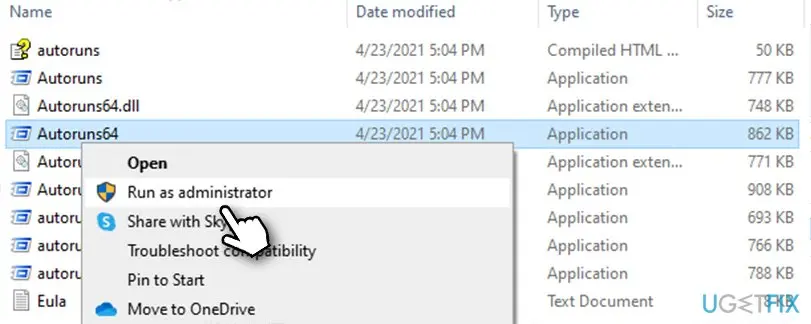
- In the extracted folder, right-click Autoruns64.exe on any Windows 11 PC or 64-bit Windows 10, or Autoruns.exe on 32-bit Windows 10, and choose Run as administrator.
- Click Yes in User Account Control, then Agree on the licence terms, and wait until the list stops filling.
Then find and delete every entry that loads the missing file:
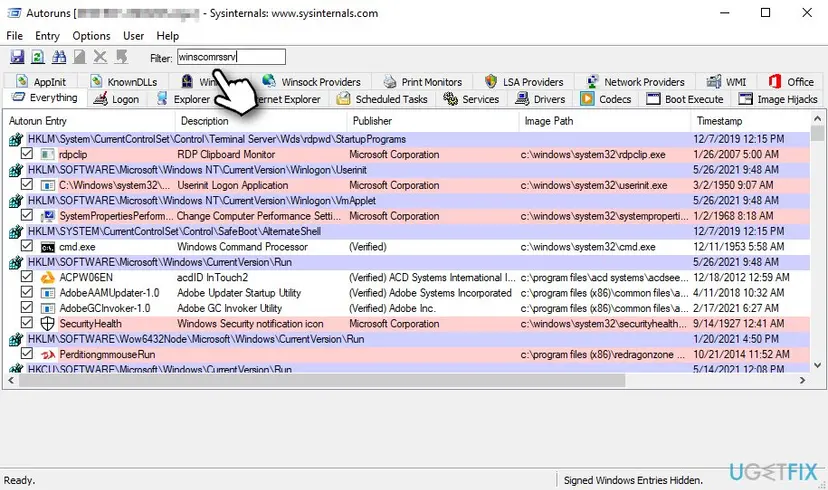
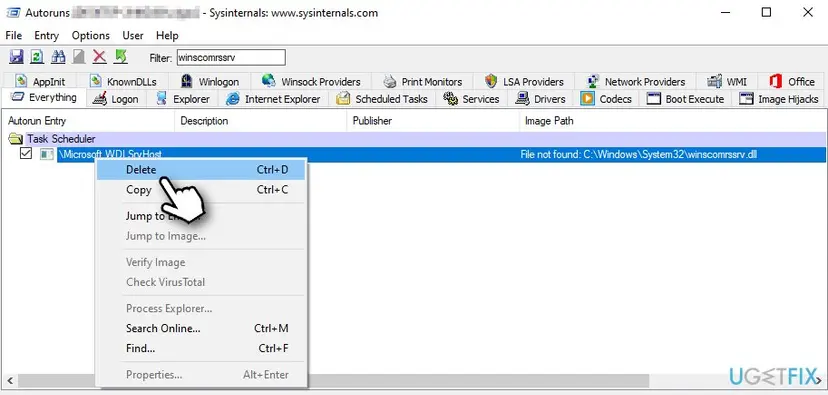
- Type
winscomrssrvinto the Filter box above the list, on the Everything tab. Matching lines appear at once, most often under a Logon key or among Scheduled Tasks. - Right-click each matching line, choose Delete and confirm. Clearing its check box would only disable it.
- Clear the filter and repeat with
startupchecklibrary, then withsrvhost. - Close Autoruns and restart the PC.
svchost.exe is a real Windows process and Autoruns lists many services that use it. Delete only lines whose name or path says srvhost, with an r, and leave every svchost line alone. When in doubt, select the line and use Jump to Entry to see where it lives before you delete it.
It worked if: No line in Autoruns names winscomrssrv, startupchecklibrary or srvhost any more, and no RunDLL box appears after the restart.
If not: If the box still appears, check by hand with Fix 2 and Fix 3. If the deleted entry came back, go to Fix 5.
Fix 2. Delete the scheduled task that runs rundll32 with winscomrssrv.dll
5 to 10 minutesLow riskYou cannot use Autoruns, or Autoruns listed the entry under Scheduled Tasks and you want to see the task itself.
A scheduled task can be set to start at logon and run rundll32.exe with a DLL path. Task Scheduler shows that command on the task's Actions tab, so you can match it to the path in the RunDLL box.
- Press Win, type Task Scheduler and open it.
- Click Task Scheduler Library in the left pane. The tasks at this top level are the first to check.
- Click a task, open its Actions tab at the bottom and read the Details column.
- Look for
rundll32together withwinscomrssrv,startupchecklibraryor the folder from the RunDLL box. - Right-click a matching task, choose Delete and click Yes.
- Expand the other folders in the library and check their tasks the same way. Microsoft's own tasks under Microsoft > Windows do not point to these names.
- Close Task Scheduler and restart the PC.
Before you delete, the Triggers tab shows when the task runs. A task that runs At log on matches a box that appears right after sign-in.
It worked if: No task in the library runs rundll32 with winscomrssrv.dll, and the box does not come back after the restart.
If not: If you found no such task, the entry is probably a Run key value: go to Fix 3.
Fix 3. Find and delete the Run key value with Registry Editor
10 minutesRead the warningAutoruns is not an option and Task Scheduler shows no matching task, or you want to confirm the Run key is clean.
Windows starts every command listed in the Run and RunOnce keys at sign-in. Searching the registry for the file name finds the value that still names winscomrssrv.dll, wherever it is, without reading every key by hand.
Deleting the wrong value can stop a real program from starting. Export the registry before you change it so you can import it back. Step by step: Back up the registry before editing it.
- Press Win + R, type
regedit, press Enter and click Yes. - Click File > Export, choose All under Export range, name the file and click Save.
- Click Computer at the top of the left pane, then press Ctrl + F.
- Type
winscomrssrv, tick Data and Values, and click Find Next. - When a value is found, read its Data. If it names winscomrssrv.dll and sits in a key ending in
RunorRunOnce, right-click the value, choose Delete and click Yes. - Press F3 to find the next match and repeat step 5 until Registry Editor says it has finished searching.
- Search again for
startupchecklibrary, then close Registry Editor and restart.
The two Run keys that matter most are below. A match elsewhere, for example in a list of recently opened files, does not start anything and can stay.
HKEY_CURRENT_USER\Software\Microsoft\Windows\CurrentVersion\Run
HKEY_LOCAL_MACHINE\SOFTWARE\Microsoft\Windows\CurrentVersion\Run
It worked if: The search finishes without a Run or RunOnce value that names winscomrssrv.dll, and the box is gone after the restart.
If not: If the registry is clean and the box still appears, check startup apps and the Startup folders in Fix 4.
Fix 4. Check startup apps and the Startup folders for a rundll32 entry
5 minutesLow riskThe Run keys and scheduled tasks look clean, but the RunDLL box still appears at every sign-in.
A shortcut in a Startup folder can also run rundll32.exe with a DLL path. Task Manager lists such entries, and its Command line column shows which DLL each one loads.
- Press Ctrl + Shift + Esc to open Task Manager.
- On Windows 11 click Startup apps; on Windows 10 open the Startup tab.
- Right-click a column header and tick Command line.
- Find the entry whose command line names
winscomrssrv.dllorstartupchecklibrary.dll, select it and click Disable. - Press Win + R, type
shell:startupand press Enter. Delete any shortcut that runs rundll32 with one of those names. - Repeat step 5 with
shell:common startup, then restart the PC.
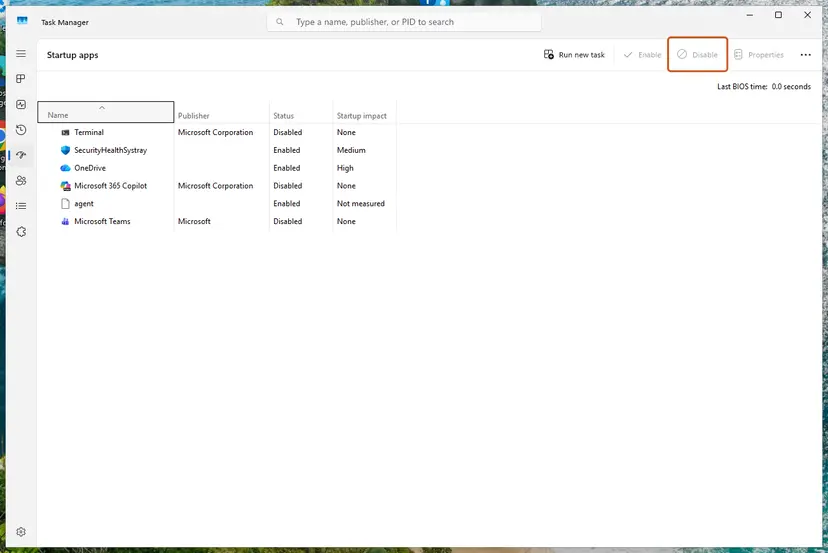
Disabling here stops the box. To remove the entry for good, delete it afterwards in Autoruns (Fix 1) once you can run it. Step by step for this screen: Stop apps from opening at startup.
It worked if: No startup app or shortcut loads winscomrssrv.dll, and the RunDLL box stays away after the restart.
If not: If nothing here matches either, find the source with a clean boot in Fix 6.
Fix 5. Run a full and an offline Microsoft Defender scan
30 minutes or moreLow riskEveryone who found entries named startupchecklibrary or srvhost, and anyone whose winscomrssrv entry came back after deletion.
An entry that loads a deleted DLL is only a leftover, but a program that left three such entries may have left other parts too. A full scan checks every file; the offline scan runs before Windows starts, where active malware cannot interfere.
- Open Windows Security. Select Start, type Windows Security and open the app.
- Open Virus & threat protection. Select Virus & threat protection. Under Current threats you see when the last scan ran, how long it took and how many files it checked.
- Run a quick scan. Select Quick scan. If Windows Security thinks a deeper scan is needed, it tells you when the quick scan is done.
- Open Scan options. If the quick scan finds nothing and you still suspect an infection, select Scan options under Current threats.
- Run a full scan. Select Full scan and start it. It checks every file and program on the device, so it takes much longer than a quick scan. Leave the PC on until it ends.
- Or scan one folder. To check only a download or a USB drive, select Custom scan in Scan options and choose the folder. You can also right-click a file or folder in File Explorer and select Scan with Microsoft Defender. On Windows 11 you may have to select Show more options first.
- Read Protection history. Go back to the first page of Windows Security and select Protection history. Select a card to expand it and see the details.
These steps were written for Windows 11 25H2 and 26H2, Windows 10 22H2. The full page with the other versions and what each result means: How to scan for malware with Microsoft Defender
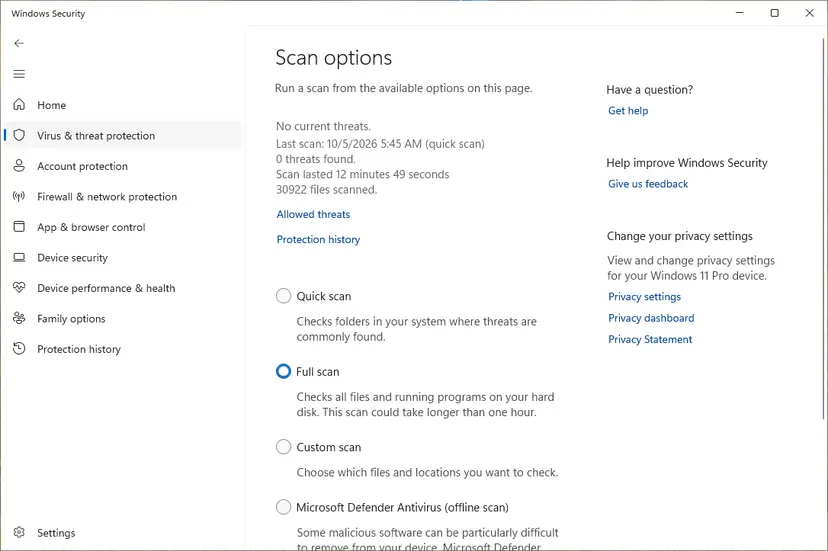
- Offline scan: on the same Scan options page choose Microsoft Defender Antivirus (offline scan) and click Scan now. Save your work first, because the PC restarts.
- Afterwards: open Protection history, remove or quarantine what was found, and run Fix 1 again, since a removed program can leave a new entry pointing to its deleted file.
It worked if: The scan ends with no threats, or with every threat removed, and no deleted entry comes back after a restart.
If not: If you use another antivirus, run its full scan too. If entries still return, use Fix 6 to find what writes them.
Fix 6. Find the program behind the box with a clean boot
15 to 30 minutesLow riskAutoruns and the manual checks found no entry with winscomrssrv, yet the RunDLL box still appears.
A clean boot starts Windows with Microsoft services only and no startup apps. If the box disappears, one of the turned-off items starts it, and turning them back on in small groups shows which one.
- Open System Configuration. Select Search on the taskbar, type msconfig and select System Configuration from the results.
- Hide Microsoft services. On the Services tab, select the Hide all Microsoft services check box. Only services from other companies stay in the list.
- Disable the remaining services. Select Disable all, then select Apply.
- Open Task Manager. On the Startup tab of System Configuration, select Open Task Manager.
- Disable the startup apps. On the Startup apps tab in Task Manager, select each item whose status is Enabled and select Disable. Write down or take a screenshot of the items you disable: you need the list to turn them back on.
- Confirm the changes. Close Task Manager. On the Startup tab of System Configuration, select OK.
- Restart and test. Restart the PC. Windows now starts in a clean boot environment: try again the thing that failed (run the app, install the update, uninstall the program).
These steps were written for Windows 11 25H2 and 26H2. The full page with the other versions and what each result means: How to perform a clean boot in Windows
- After the clean boot, sign in and wait a minute. Note whether the RunDLL box appears.
- If it does not, turn half of the services and startup items back on, restart and check again.
- Keep halving the group that brings the box back until one item is left.
- Delete that item in Autoruns (Fix 1) instead of leaving it disabled, then return to a normal start.
It worked if: The box is absent in a clean boot and returns only with one specific service or startup item turned on.
If not: If the box appears even in a clean boot, follow the checks under the next heading and ask for help with the list they produce.
If the winscomrssrv.dll box still appears: find where the entry lives
Autoruns comes with a command-line twin, Autorunsc, that writes every startup entry to a file you can search or send to someone who helps you. The switches below are from Microsoft's Autoruns page: all entry types, CSV output, signature checks and Microsoft entries hidden.
- Press Win, type
cmd, right-click Command Prompt and choose Run as administrator. - Type
cdand the path of your extracted Autoruns folder, for examplecd %USERPROFILE%\Downloads\Autoruns, and press Enter. - Run this command. On 32-bit Windows 10 use
autorunscinstead ofautorunsc64:autorunsc64 -a * -c -m -s > "%USERPROFILE%\Desktop\autoruns.csv" - Accept the licence if asked, then open
autoruns.csvfrom your desktop and search it forwinscomrssrvandrundll32.
- A match in the file: its location column tells you where the entry is. Delete it there, or in Autoruns.
- No match: the box is not started by an autostart entry. Note the exact path the box shows and the time it appears, then ask on Microsoft Q&A or your antivirus maker's forum with the CSV attached.
- Not hardware: a failing disk or memory does not produce this message. It is always a command that asks for a missing DLL.
The same kind of leftover shows up with other names. Our guide to the AutoIt Error Line 0 box covers a startup entry that asks for a missing script instead of a DLL.
How to keep the winscomrssrv.dll error from coming back
- After your antivirus removes a threat, open Autoruns and look for entries whose file is gone.
- Keep Microsoft Defender or your antivirus on, with real-time protection and current updates.
- Install programs only from their makers' own sites, and look at startup apps now and then.
- Download winscomrssrv.dll or any missing DLL from a DLL site.
- Delete startup entries by a name that only looks similar, such as svchost.
- Keep clicking OK on the box and ignore it: the program behind it may still have other parts on the PC.
If the box appeared on Windows 10, keep in mind that Windows 10 left support on 14 October 2025. Without Extended Security Updates it no longer receives security fixes, which matters most on a PC where malware was already found.
Frequently asked questions
What is winscomrssrv.dll?
It is not a Windows file. We found no Microsoft documentation of a DLL with this name, and the earlier version of this guide traced it to malware that security software had already removed. What you see is the RunDLL box of rundll32.exe, the Windows host for DLLs, reporting that a startup entry asked it to load winscomrssrv.dll and the file was not there. The fix is to delete that entry, for example with Autoruns in Fix 1, not to find the file.
Is winscomrssrv.dll a virus?
The RunDLL box itself is harmless: it only shows that a file is missing. The name, though, belongs to a leftover the earlier version of this guide linked to malware, and the entries found with it, startupchecklibrary and srvhost, look like parts of the same program. Delete all three entries, then run a full and an offline Microsoft Defender scan as in Fix 5. If the scan finds nothing and the entries stay away after a restart, the PC is clean of that program.
How do I fix "winscomrssrv.dll could not be found"?
Remove the order to load it, not the missing file. The message "The specified module could not be found" is Windows error 126: the DLL is not at the path in the startup entry. Run Autoruns as administrator, type winscomrssrv into the Filter box and delete the matching line (Fix 1). If you cannot use Autoruns, check Task Scheduler (Fix 2) and search the registry for the name (Fix 3). Restart afterwards to confirm the box is gone.
What about "There was a problem starting startupchecklibrary.dll"?
It is the same kind of message with a different DLL name, and the earlier version of this guide found startupchecklibrary next to winscomrssrv on the same PCs. A startup entry asks rundll32 to load a startupchecklibrary.dll that no longer exists. Fix it the same way: type startupchecklibrary into the Autoruns filter and delete every matching line, or search the registry for the name as in Fix 3. Then run the Defender scan in Fix 5, since two leftovers point to one program.
Will SFC or DISM fix the winscomrssrv.dll error?
No. System File Checker and DISM repair files that belong to Windows, from Windows' own store of good copies. winscomrssrv.dll was never part of Windows, so they have nothing to restore, and restoring it is not what you want anyway. The earlier version of this guide listed them, but they do not touch the startup entry that causes the box. Use them only if you have other signs of damaged Windows files, which is a separate problem.
Why does the box come back after I click OK or restart?
Because clicking OK closes the box but leaves the entry that opens it. At every sign-in Windows reads its startup locations again and runs every command in them, including the one that tells rundll32 to load winscomrssrv.dll. Restarting therefore brings the box back each time. It stops only when the Run key value, scheduled task or Startup shortcut is deleted, which is what Fixes 1 to 4 do.
Is it safe to delete the winscomrssrv entry?
Yes. The entry points to a file that no longer exists, so nothing on your PC can be using it. Deleting it removes only the command that fails at sign-in. Take care with similar names: srvhost is a leftover, while svchost is a real Windows process that you must not touch. If you edit the registry by hand, export it first as Fix 3 explains, so you can undo a mistake.
I deleted the entry, but the error came back. What now?
Then something on the PC writes the entry again, and that program is the real problem. Run a full scan and then an offline scan with Microsoft Defender (Fix 5), remove what it finds, and delete the entry once more in Autoruns. If it still returns, use a clean boot (Fix 6) to find the item that recreates it, and export the startup list with Autorunsc as described under the still-broken heading to ask for help.
Does this fix work on Windows 11 as well as Windows 10?
Yes. The RunDLL box, Autoruns, Task Scheduler, Registry Editor and Microsoft Defender work the same way on both. Where a menu differs, this page gives both paths: Windows 11 has a Startup apps page in Task Manager, Windows 10 a Startup tab. On Windows 11 and 64-bit Windows 10, run Autoruns64.exe; only 32-bit Windows 10 needs Autoruns.exe.
Comment réparer ou como resolver isso: how do I fix this box in other languages?
This page is in English, and the fix is the same in every language of Windows. The RunDLL box about winscomrssrv.dll means a startup entry loads a DLL that was deleted. Download Autoruns from Microsoft, run it as administrator, type winscomrssrv into the Filter box and delete the matching entry. Repeat with startupchecklibrary and srvhost, restart the PC, then run a full Microsoft Defender scan.
Sources
- Microsoft Learn: Autoruns v14.3 (Sysinternals; autostart locations, Delete and disable, Autorunsc switches) (learn.microsoft.com)
- Microsoft Learn: rundll32 command reference (loads and runs 32-bit DLLs) (learn.microsoft.com)
- Microsoft Open Specifications MS-ERREF: Win32 error codes (126, ERROR_MOD_NOT_FOUND, The specified module could not be found) (learn.microsoft.com)
Did this fix work?
One click, no account. It tells the next reader which guides are worth their time.
Questions and experiences: fix the winscomrssrv.dll error in Windows 10 and Windows 11
Still broken, or found a fix we did not cover? Ask here: members and our editors answer. Reading is open; writing needs a free account.
…