
How to fix "WLAN Extensibility Module has stopped" network error in Windows

Prefer to fix it yourself? The manual steps follow.
- 7methods
- 10 to 30 minutes
- Easy to medium
Applies to Windows 11 and Windows 10 PCs with Intel, MediaTek or Realtek Wi-Fi adapters
7 methods in this guide
Hello. My Windows PC is not connecting to the internet, and I get the "WLAN extensibility module has stopped" error. Is there a way to fix this?
"WLAN Extensibility Module has stopped" is a Windows event that says the Wi-Fi maker's helper file, named in the Module Path, quit. If your internet works and it only appears at shutdown or sleep, you can ignore it. If Wi-Fi drops at the same moment, do a clean install of the Wi-Fi driver from your PC maker first.
The message comes from the Wi-Fi driver package, not from Windows itself. The file in Module Path (for example IntelIHVRouter10.dll, mtkihvx.dll or Rtlihvs.dll) belongs to your Wi-Fi adapter's maker. Download that maker's Wi-Fi driver from your PC maker's support page, uninstall the adapter in Device Manager, restart and install the download (Fix 1). If the problem began after an update, roll the driver back (Fix 2).
| Error | "WLAN Extensibility Module has stopped. Module Path: C:\Windows\system32\<file>.dll". A second form reads "WLAN Extensibility Module has failed to start" with an error code. |
|---|---|
| Where it appears | In Event Viewer, as a Warning from source WLAN-AutoConfig, Event ID 10002, often under Custom Views > Administrative Events. It is not a pop-up. |
| Main cause | The Wi-Fi maker's IHV Extensions DLL crashed or was stopped, most often because of a faulty, mixed or replaced Wi-Fi driver. |
| Fastest fix | Clean install of the Wi-Fi driver from your PC or adapter maker (Fix 1). |
| Also written as | "WLAN extensibility module has stopped unexpectedly", "WLAN extensibility module has failed to start", and searches with the DLL name, such as intelihvrouter08.dll or mtkihvx.dll. |
| Files named in it | IntelIHVRouter04.dll to IntelIHVRouter14.dll (Intel), mtkihvx.dll (MediaTek), Rtlihvs.dll (Realtek), IWMSSvc.dll (older Intel PROSet). |
| Is it harmful? | Only when Wi-Fi drops or fails to connect at the same time. A single entry at shutdown, sleep or when Wi-Fi is turned off is usually harmless. |
| Vendor status | No Microsoft or Intel article lists it as a known bug with a fixed version. The DLL is part of the adapter driver, so its maker's driver updates are the fix. |
| Time to fix | 10 to 20 minutes for a driver reinstall. Have the driver downloaded first: you may be offline during it. |
Facts checked on 15 October 2026. Steps written for Windows 11 (25H2 and 26H2) and Windows 10 22H2, read against Microsoft Learn driver documentation and Intel Community.
What "WLAN Extensibility Module has stopped" means
Windows connects to Wi-Fi through its own service, WLAN AutoConfig. Microsoft lets the maker of the Wi-Fi adapter add a helper file to it, called the IHV Extensions DLL (IHV means independent hardware vendor). Microsoft Learn says this DLL handles the maker's own security methods, checks the maker's profile settings and configures the driver before each connection.
Windows loads the DLL when it first detects the Wi-Fi adapter it belongs to. The event you found says that this helper has stopped. The full text, as it appears in Event Viewer, looks like this:
Event 10002, WLAN-AutoConfig (the file name differs by PC):
WLAN Extensibility Module has stopped.
Module Path: C:\Windows\system32\IntelIHVRouter10.dll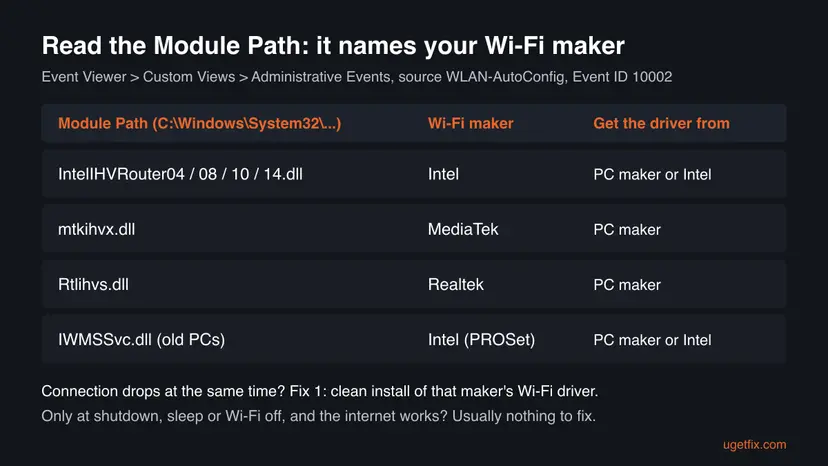
- "has stopped" means the module was running and ended. Look at what happened to your Wi-Fi at the same minute.
- "has failed to start" means Windows could not load it at all. Error code 126 is the Windows code for a module that could not be found, so the driver's file is missing. Error code 87 means a parameter was wrong, which points to a damaged driver install.
- "stopped unexpectedly" is the same event as people retell it. Microsoft's wording is the one above.
The module stops whenever its adapter goes away: at shutdown, sleep, flight mode or when you disable Wi-Fi. If the entries line up with those moments and your internet works, there is nothing to fix.
Why the WLAN Extensibility Module stops
Most often the Wi-Fi driver is the problem: a buggy version, or a mix of files after Windows Update installed a generic driver over the PC maker's one. Less often power saving turns the adapter off and the module stops with it. Rarely the WLAN AutoConfig service or the network settings are damaged.
| Cause | How often | How to tell | Fix |
|---|---|---|---|
| Faulty or damaged Wi-Fi driver package. | Most often | Wi-Fi drops at the same minute as the event, or the event says "failed to start". | Fix 1 |
| A new driver version brought the bug. | Often | It began after a Windows or driver update. | Fix 2, then Fix 5 |
| Power saving turns the adapter off. | Sometimes | Drops after idle time, on battery, or after waking from sleep. | Fix 3 |
| WLAN AutoConfig is stopped or stuck. | Sometimes | No Wi-Fi networks are listed at all. | Fix 4 |
| Damaged network settings. | Rarely | Wi-Fi connects but has no internet, and the driver is fresh. | Fix 6 |
| The maker's extension itself keeps crashing. | Rarely | Every driver version gives the same event and drops. | Fix 7 |
The DLLs named here are installed by the Wi-Fi driver, into C:\Windows\System32. Microsoft Learn shows that the driver's INF file sets this up through an ExtensibilityDLL value under the adapter's IHVExtensions registry key.
How to find the event and the Module Path
- Right-click Start and select Event Viewer.
- Open Custom Views > Administrative Events.
- Select Filter Current Custom View on the right, type
10002in the event ID box and select OK. - Open an entry with source WLAN-AutoConfig and read the Module Path line.
- Compare the time with the moment your Wi-Fi dropped.
Write down the file name. It tells you which maker's driver you need in Fix 1. The adapter's own name is under Network adapters in Device Manager, for example "Intel(R) Wi-Fi 6 AX201".
How to fix "WLAN Extensibility Module has stopped"
Fixes 1 and 2 deal with the driver, the cause for most readers. Fix 3 is for drops after idle time or sleep. Fixes 4 to 6 repair Windows' side. Fix 7 is a registry change for when nothing else helps.
| What you see | Start with |
|---|---|
| Wi-Fi drops at the same minute as the event. | Fix 1 |
| It started after a Windows or driver update. | Fix 2, then Fix 5 |
| "Failed to start" with error code 126 or 87. | Fix 1 |
| Drops after sleep, idle time or on battery. | Fix 3 |
| No Wi-Fi networks are listed at all. | Fix 4, then Fix 1 |
| The event appears only at shutdown, and Wi-Fi works. | Nothing to fix |
Fix 1. Do a clean install of the Wi-Fi driver from your PC maker
15 minutesLow riskWi-Fi drops or will not connect when the event appears, or the event says "failed to start".
The module is a file of the Wi-Fi driver package, installed by its INF file. Removing the package and installing one complete version replaces the DLL, its registry values and the driver together, so the parts match again.
- Find the adapter's name in Device Manager > Network adapters and the file name from the event.
- Download the newest Wi-Fi (WLAN) driver for your model from your PC maker's support page. For Intel adapters you can also use Intel's own Wi-Fi driver download.
- Save the file to the desktop. You will be offline in the next steps.
- In Device Manager, right-click the Wi-Fi adapter (not the Ethernet one) and select Uninstall device.
- Tick Attempt to remove the driver for this device and select Uninstall.
- Restart the PC, then run the driver file you downloaded and restart once more.
- Or reinstall the driver. Select Uninstall Device. Tick Attempt to remove the driver for this device only if you want Windows to delete the driver package too, then select Uninstall.
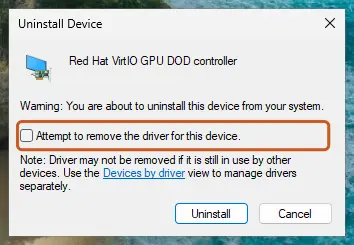
Tick the checkbox only to delete the driver package as well. Screenshot: Windows 11 26H2. - Restart. Restart the PC. Windows detects the device again and installs a driver for it.
These steps were written for Windows 11 24H2 and later. The full page with the other versions and what each result means: Update, roll back or reinstall a driver
Laptop makers often ship a Wi-Fi driver tested with their hardware. If their newest one still gives the event, try the chip maker's newer driver. Avoid third-party driver updater programs.
It worked if: Wi-Fi stays connected, and new 10002 entries appear only at shutdown or sleep, if at all.
If not: If the drops began after an update, go to Fix 2. If they come after sleep, go to Fix 3.
Fix 2. Roll back the Wi-Fi driver to the previous version
5 minutesLow riskThe event and the drops began after a Windows Update or a driver update.
A new driver version can bring a bug in its extension DLL. Going back to the version that worked restores the older DLL too.
- Open Device Manager. Right-click Start and select Device Manager.
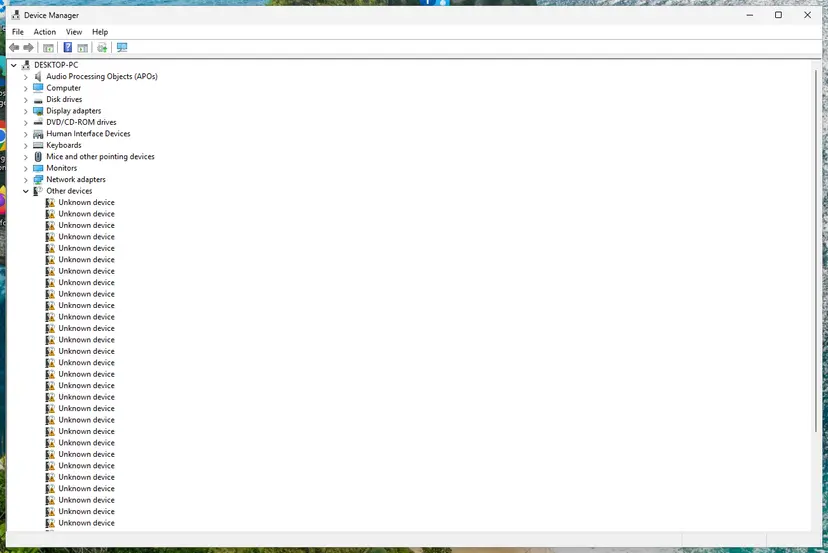
Device Manager lists devices by category; a yellow warning sign marks a device with a problem. Screenshot: Windows 11 26H2. - Open the device's Driver tab. Expand the category (for example Display adapters), right-click the device, select Properties and open the Driver tab. Driver Date and Driver Version show what is installed now.
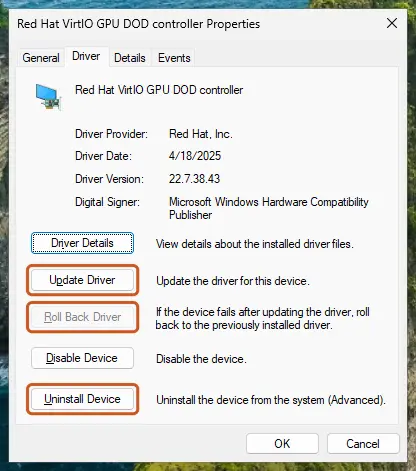
The Driver tab holds all three actions: update, roll back, uninstall. Screenshot: Windows 11 26H2. - Update the driver. Select Update Driver and let Windows search automatically. To use a driver you downloaded from the device maker, select Browse my computer for drivers instead and point to the unpacked folder.
- Or roll back the driver. If the problem started after a driver update, select Roll Back Driver, choose a reason and select Yes. The button is greyed out when Windows has no earlier driver to return to.
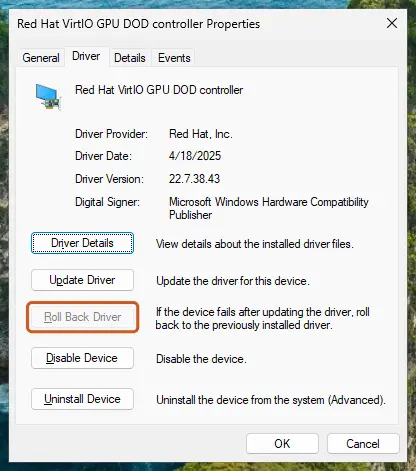
Roll Back Driver is greyed out here because there is no earlier driver. Screenshot: Windows 11 26H2.
These steps were written for Windows 11 24H2 and later. The full page with the other versions and what each result means: Update, roll back or reinstall a driver
Open the Wi-Fi adapter's Driver tab and use Roll Back Driver. If the button is greyed out, Windows kept no older version: install an older driver from the PC maker's page instead. Step by step: Update, roll back or reinstall a driver
It worked if: The Driver Version on the Driver tab changes, and the drops stop.
If not: If Windows Update installs the new driver again, go to Fix 5. If the old driver drops too, go to Fix 3.
Fix 3. Stop Windows from turning off the Wi-Fi adapter to save power
5 minutesNo riskDrops come after idle time, on battery, or after the PC wakes from sleep.
Windows loads the module when the adapter arrives and the module stops when the adapter goes away. When power saving switches the adapter off, the module stops with it, and some drivers do not recover cleanly.
- Right-click Start and select Device Manager.
- Expand Network adapters, right-click the Wi-Fi adapter and select Properties.
- Open the Power Management tab.
- Untick Allow the computer to turn off this device to save power and select OK.
- Plug in a laptop and test the connection for a while.
Some drivers have no Power Management tab. On those PCs the setting is in the maker's own utility or not available, and you can skip this fix.
It worked if: Wi-Fi stays up after idle time and after sleep.
If not: If the drops continue, go to Fix 4.
Fix 4. Restart the WLAN AutoConfig service and set it to Automatic
2 minutesNo riskNo Wi-Fi networks are listed, or the Wi-Fi icon shows no adapter after the event.
WLAN AutoConfig (service name WlanSvc) is the Windows service that runs the maker's module. Restarting it reloads the module without a full restart.
- Open Services. Press Windows+R, type the command below and press Enter. You can also type Services in the search box on the taskbar and open the app.
services.msc - Find the service. The list is sorted by Name. Click any row and type the first letter of the service to jump to it. Check the Status column (Running or empty) and the Startup Type column.
- Restart the service. Right-click the service and select Restart. If the service is not running, select Start instead. Wait until the progress window closes.
- Open its properties to change the startup type. Only if your guide says so: double-click the service. The General tab shows the Service name (used in commands), the Startup type and the Service status.
- Set the startup type and apply. Choose the type from the Startup type list (Automatic, Automatic (Delayed Start), Manual or Disabled), select Apply, then Start if the service should run now, and OK.
These steps were written for Windows 11 and Windows 10 (the steps are the same). The full page with the other versions and what each result means: Check and restart Windows services
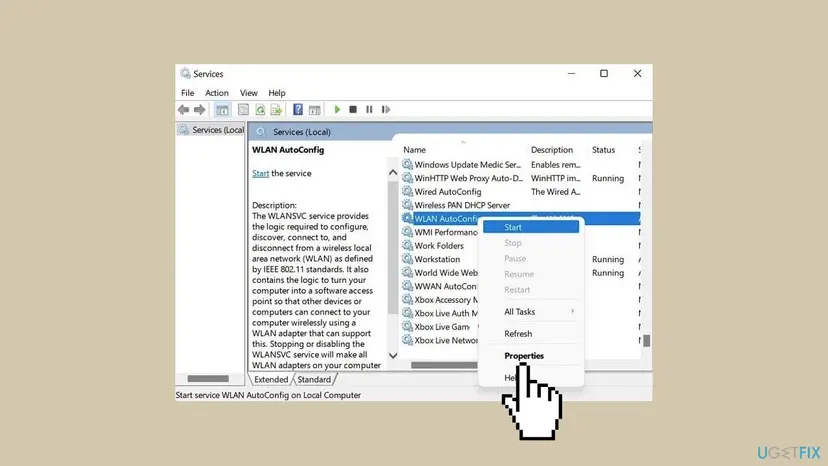
Find WLAN AutoConfig, select Restart (or Start), then open Properties and check that Startup type is Automatic.
It worked if: The service shows Running, and the list of Wi-Fi networks returns.
If not: If the service stops again by itself, the driver is the cause: go back to Fix 1.
Fix 5. Stop Windows Update from replacing your Wi-Fi driver
5 minutesLow riskFix 1 or Fix 2 worked, but a later update brings the event back.
Windows Update can install a different Wi-Fi driver over the PC maker's one, which mixes package parts again. This policy stops it offering drivers at all.
- Open the Local Group Policy Editor. Step by step: Open the Local Group Policy Editor
- Go to Computer Configuration > Administrative Templates > Windows Components > Windows Update > Manage updates offered from Windows Update.
- Double-click Do not include drivers with Windows Updates.
- Select Enabled, then OK, and restart the PC.
Group Policy is in Windows Pro, Enterprise and Education only. Do not use the policy Prevent installation of devices that match any of these device IDs for this: it blocks the Wi-Fi adapter itself from installing, not only its updates.
With this policy on, update drivers yourself from the PC maker's page from time to time.
It worked if: Windows Update no longer lists driver updates, and the Wi-Fi driver version stays the same.
If not: If the event returns with the same driver version, the update was not the cause: go to Fix 6.
Fix 6. Reset the network settings and the network stack
10 minutesLow riskThe driver is fresh and the service runs, but Wi-Fi still drops or has no internet.
Stored network settings and the network stack survive a driver reinstall. Resetting them removes damaged settings that can keep the connection failing after the module restarts.
- Open an elevated command window. Right-click Start and select Terminal (Admin), or type cmd in the search box, right-click Command Prompt and select Run as administrator. Select Yes when Windows asks for permission.
- Flush the DNS cache. Type the command below and press Enter. Windows forgets the website addresses it looked up earlier and asks for them again.
ipconfig /flushdns - Reset Winsock. Type the command below and press Enter. It returns the Windows sockets catalog to its default state.
netsh winsock reset - Reset TCP/IP. Type the command below and press Enter. If you entered an IP address or DNS server by hand, note it first: you may need to enter it again.
netsh int ip reset - Get a new IP address. Run these two commands one after the other. The connection drops for a moment between them.
ipconfig /release ipconfig /renew - Restart the PC. Restart Windows so the Winsock and TCP/IP resets take effect, then test the connection. If it still does not work, continue with the network reset below.
- Open Network reset. Open Settings > Network & internet > Advanced network settings and select Network reset.
- Reset now. Select Reset now, then Yes to confirm. Windows removes and reinstalls all network adapters and restarts the PC.
- Reconnect. After the restart, connect to your Wi-Fi network again (you will need its password) and reinstall or reconfigure VPN software if it stopped working.
These steps were written for Windows 11 24H2 and later. The full page with the other versions and what each result means: Reset the network and flush DNS
The full network reset removes saved Wi-Fi networks and VPN adapters. Write down your Wi-Fi password and VPN settings first. Full guide: Reset the network and flush DNS
It worked if: After the restart, the PC joins your Wi-Fi and stays connected.
If not: If the event and the drops continue on every driver version, go to Fix 7.
Fix 7. Remove the maker's extension from the registry
10 minutesRead the warningEvery driver version gives the same event and drops, and the fixes above did not help.
Microsoft Learn says the extension adds the maker's own security methods on top of Windows. Standard home Wi-Fi with WPA2 or WPA3 is handled by Windows itself, so without the extension the crashing DLL is no longer loaded.
A wrong change in the registry can stop network adapters from working. Back up the registry before you start: Back up the registry before editing it. You may lose the maker's extra Wi-Fi features. We could not confirm that every adapter connects without its extension, so test it and undo the change if Wi-Fi stops.
- Press Win + R, type
regeditand select OK.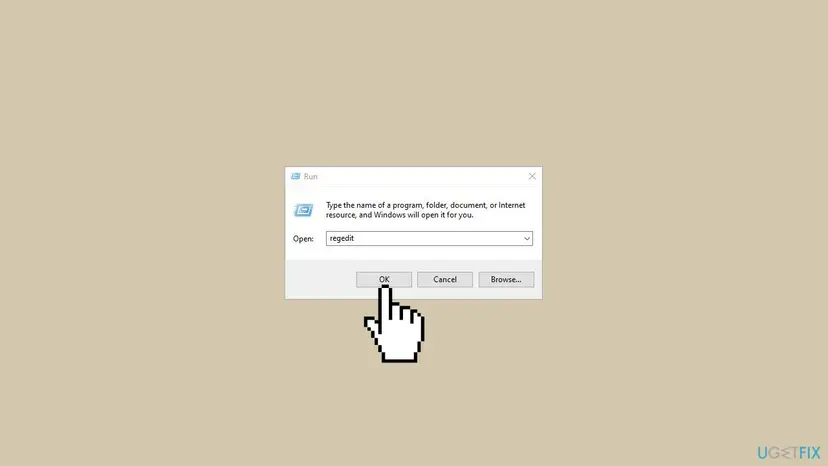
The Run dialog opening Registry Editor (Windows 10 shown, the same on Windows 11). - Go to this key:
HKEY_LOCAL_MACHINE\SYSTEM\CurrentControlSet\Control\Class\{4d36e972-e325-11ce-bfc1-08002be10318} - Open the numbered subkeys (
0000,0001and so on) until DriverDesc shows your Wi-Fi adapter's name. - Inside it, find the IHVExtensions key. On most PCs it is under Ndi, and its ExtensibilityDLL value names the DLL from the event.
- Right-click IHVExtensions, select Export and save the file.
- Right-click IHVExtensions again, select Delete and confirm.
- Restart the PC and test the Wi-Fi.
To undo it, double-click the exported file and restart, or reinstall the Wi-Fi driver as in Fix 1. A driver reinstall also puts the key back on its own.
It worked if: No more 10002 entries name the DLL, and Wi-Fi stays connected.
If not: If Wi-Fi stops working, restore the export. Then read the next section: the adapter may be failing.
If the WLAN Extensibility Module keeps stopping
The event says that the module stopped, not why. Two more logs show what happened around it.
| Where to look | What to look for |
|---|---|
| Event Viewer > Applications and Services Logs > Microsoft > Windows > WLAN-AutoConfig > Operational | Disconnect events at the same minute, with a reason such as the adapter being removed. |
| Event Viewer > Windows Logs > System | Warnings from the Wi-Fi driver itself (source named after the driver) just before 10002. |
| Device Manager > Wi-Fi adapter > General tab | A Device status other than "This device is working properly". |
| Settings > Windows Update > Update history | A driver or Windows update installed on the day the problem began. |
- What to send to support. The PC model, the Wi-Fi adapter name, the driver version and date, the Module Path, and the times of the 10002 entries.
- Test without the PC's Wi-Fi. Connect a phone hotspot, or a network cable. If those work and only your router drops, the router may be the cause.
- When it is hardware. If Wi-Fi drops with every driver, after a reset and with several networks, the adapter or its antenna cable may be failing. A USB Wi-Fi adapter is a cheap test and a lasting workaround.
How to keep the WLAN Extensibility Module from stopping
- Install Wi-Fi drivers from your PC maker or the chip maker.
- Keep the driver file you know works, in case you need to reinstall.
- Check Update history when Wi-Fi problems start after an update.
- Note the date of the first 10002 entry: it points to what changed.
- Do not use third-party driver updater programs.
- Do not install two Wi-Fi driver packages over each other.
- Do not block the Wi-Fi adapter with a device installation policy.
- Do not delete registry keys without an export.
If you use Windows 10, note that it left Microsoft support on 14 October 2025. Wi-Fi makers still publish some Windows 10 drivers, but new fixes come first for Windows 11.
Frequently asked questions
What is the WLAN Extensibility Module?
It is a DLL from the maker of your Wi-Fi adapter that plugs into the Windows Wi-Fi service, WLAN AutoConfig. Microsoft calls it the IHV Extensions DLL. It handles the maker's own security methods, checks the maker's profile settings and configures the driver before each connection. Windows loads it when it detects the adapter. The file is installed with the Wi-Fi driver and lives in C:\Windows\System32, for example IntelIHVRouter10.dll on Intel adapters.
Is "WLAN Extensibility Module has stopped" harmful?
Not by itself. It is a Warning in Event Viewer, not a crash of Windows. The module stops whenever the Wi-Fi adapter goes away, for example at shutdown, sleep, in flight mode or when you turn Wi-Fi off. If the entries match those moments and your internet works, ignore them. It matters only when your Wi-Fi drops or fails to connect at the same minute. Then the driver package is the usual cause, and Fix 1 is the place to start.
How do I fix "WLAN Extensibility Module has stopped. Module Path: C:\Windows\system32\IntelIHVRouter10.dll"?
The file belongs to the Intel Wi-Fi driver, so the fix is a clean reinstall of that driver. Download the newest WLAN driver for your model from your PC maker's support page, or Intel's own Wi-Fi driver. In Device Manager, uninstall the Intel Wi-Fi adapter with Attempt to remove the driver for this device ticked, restart, then install the download. The same steps apply to IntelIHVRouter04.dll, IntelIHVRouter08.dll and IntelIHVRouter14.dll. If it started after an update, roll the driver back instead.
What is mtkihvx.dll in the Module Path?
mtkihvx.dll is the extension file of a MediaTek Wi-Fi driver. MediaTek Wi-Fi chips sit in many laptops, so the driver usually comes from the laptop maker's support page rather than from MediaTek. When the event names mtkihvx.dll and your Wi-Fi drops at the same time, uninstall the MediaTek adapter in Device Manager with its driver, restart and install the laptop maker's newest WLAN driver. If the problem started after an update, roll the driver back first.
What is Rtlihvs.dll and why does it fail to start with error code 126?
Rtlihvs.dll belongs to a Realtek Wi-Fi driver. "WLAN Extensibility Module has failed to start" with error code 126 means Windows could not find the module it was told to load. The driver's settings point to a file that is missing, which happens after a partial uninstall or a mixed driver update. A clean install of the Realtek Wi-Fi driver from your PC maker puts the file and the settings back together (Fix 1).
What does error code 87 mean with "failed to start"?
Error code 87 is the Windows code for "The parameter is incorrect". With this event it means Windows found the module but could not start it with the settings it was given. That points to a damaged or mixed driver install rather than a missing file. Remove the Wi-Fi adapter in Device Manager with its driver, restart and install one complete driver package from your PC maker (Fix 1).
Does "WLAN Extensibility Module has stopped" happen on Windows 11?
Yes. The module system has been part of Windows Wi-Fi since Windows Vista and is the same in Windows 10 and Windows 11. Users report it on Windows 11 with Intel, MediaTek and Realtek adapters, often after a driver update. The fixes on this page apply to both versions. On Windows 11 the Power Management tab and the Device Manager steps look the same as on Windows 10.
Will running the network troubleshooter fix it?
Rarely. The troubleshooter can restart the adapter and reset some settings, but it does not replace the Wi-Fi driver package that holds the module. That is why this page starts with a clean driver reinstall. If you want a quick restart of everything Wi-Fi related without a driver change, restart the WLAN AutoConfig service (Fix 4) or reset the network settings (Fix 6).
Should I delete the IHVExtensions registry key?
Only as a last step, and only after a registry backup and an export of the key. Deleting it stops Windows loading the maker's extension, so a crashing DLL can no longer take the connection down. Standard WPA2 and WPA3 home networks are handled by Windows itself, but the maker's extra features may stop. We could not confirm that every adapter connects without it. Reinstalling the Wi-Fi driver puts the key back.
Sources
- Microsoft Learn: Native 802.11 IHV Extensions DLL Overview (learn.microsoft.com)
- Microsoft Learn: Installing Native 802.11 IHV Extensions (INF and IHVExtensions registry values) (learn.microsoft.com)
- Intel Community: Wi-Fi disconnects with "WLAN Extensibility Module has stopped" in the event log (Event ID 10002, WLAN-AutoConfig) (community.intel.com)
Did this fix work?
One click, no account. It tells the next reader which guides are worth their time.
Questions and experiences: fix "WLAN Extensibility Module has stopped" network error in Windows
Still broken, or found a fix we did not cover? Ask here: members and our editors answer. Reading is open; writing needs a free account.
…