
How to fix Xbox app error 0x80131522 in Windows?

Prefer to fix it yourself? The manual steps follow.
- 8methods
- 10 to 40 minutes
- Intermediate
Applies to Windows 11 and Windows 10; the Xbox app, Gaming Services, Game Pass games and other apps installed from Microsoft Store
8 methods in this guide
I am trying to install the Xbox app on Windows, but every time I get the 0x80131522 error. Can you help me?
Error 0x80131522 stops the Xbox app, or another app, from installing through Microsoft Store. The code is Microsoft's .NET error COR_E_TYPELOAD: a program could not load a part it needs, usually because two components are out of step after an update. Start by updating Microsoft Store and every app in its Library, then restart.
0x80131522 is the .NET code COR_E_TYPELOAD: the code that installs the app could not find or load a part it needs. On a PC this almost always means Microsoft Store, the Xbox app and their helper packages are on mismatched versions. Update the Store and every app in Library > Get updates, restart and install again (Fix 1). If it fails, clear and repair the Store (Fix 2), then remove old Xbox app copies (Fix 3).
| Error | 0x80131522, .NET name COR_E_TYPELOAD (the TypeLoadException): a type or assembly could not be found or loaded. |
|---|---|
| Where it appears | When you install the Xbox app from Microsoft Store, and sometimes when the Store installs another app or a game. Readers report the text "We weren't able to install the app (0x80131522)". |
| Main cause | Microsoft Store, the Xbox app or one of their helper packages are on different versions after a partial update, so one cannot load a part of the other. |
| Fastest fix | Microsoft Store > Library > Get updates, restart, install the Xbox app again (Fix 1). |
| Also written as | 0x80131522, 0X80131522, 80131522, COR_E_TYPELOAD, System.TypeLoadException. |
| Affects | Windows 11 and Windows 10. Xbox Support says some Xbox app features need Windows 10 22H2 or newer. |
| Microsoft's status | No Xbox Support page for this code. Microsoft documents it only as the .NET error COR_E_TYPELOAD, which is a general code, not a known Xbox bug with a patch. |
| Where the cause is logged | Event Viewer > Windows Logs > Application (.NET Runtime and Application Error entries), and the AppXDeployment-Server log for Store installs. |
| Time to fix | About 10 minutes for Fix 1 and Fix 2. Up to 40 minutes when Windows updates or system files must be repaired. |
Facts checked on 15 October 2026. Steps written for Windows 11 (25H2 and 26H2) and Windows 10 22H2.
What error code 0x80131522 means
Codes that start with 0x8013 come from .NET, the runtime that many Microsoft programs are written on. Microsoft's .NET documentation says that TypeLoadException uses the HRESULT COR_E_TYPELOAD, which has the value 0x80131522, and that it is thrown when the runtime "cannot find the assembly or the type within the assembly, or cannot load the type".
In plain words: a program asked for a piece of code by name, and the piece was missing or did not match. In the Xbox app and Microsoft Store, the program that asks is the installer code of the Store or the app, and the missing piece usually sits in another package that is older or newer than expected. That is why updates and repairs of the Store fix it far more often than anything else.
- HRESULT
- 0x80131522 (also typed 0X80131522 and 80131522)
- .NET name
COR_E_TYPELOAD, raised asSystem.TypeLoadException- Microsoft's text
- The exception that is thrown when type-loading failures occur.
- What the reader sees
- Looks like something went wrong. We weren't able to install the app (0x80131522)
- Xbox Support page for the code
- None. We could not find one on 15 October 2026.
The code does not point at your account, your network or your hardware. It points at software parts that do not fit together. Bring Microsoft Store and its packages to the same, current version first, and only then try deeper repairs.
Why 0x80131522 appears: the causes, ranked
Most often the Store or a helper package updated half way. Less often an old copy of the Xbox app is left behind and clashes with the new one. Rarely Gaming Services, the Store install services, .NET itself or Windows system files are damaged.
| Cause | How often | How to tell | Fix |
|---|---|---|---|
| Microsoft Store or one of its packages is behind or half updated. | Most often | Library shows pending updates, or the code also hits other apps. | Fix 1 |
| The Store's cache or its own app data is damaged. | Often | The Store opens slowly, shows blank pages, or every install fails. | Fix 2 |
| An old Xbox app or Xbox Console Companion copy is still registered. | Sometimes | Only the Xbox app fails; other Store apps install. | Fix 3 |
| Gaming Services is broken. | Sometimes | The Xbox app opens, but games will not install. | Fix 4 |
| A Store or Xbox service was set to Disabled by a tweak tool. | Rarely | Installs stay at Pending or stop at once. | Fix 5 |
| .NET, app registrations or Windows system files are damaged. | Rarely | Other programs also crash with .NET errors. | Fix 6 to Fix 8 |
The column "How often" is our reading of the code's meaning and of the reports we read. Microsoft publishes no numbers for this error.
How to fix Xbox app error 0x80131522 in Windows 11 and Windows 10
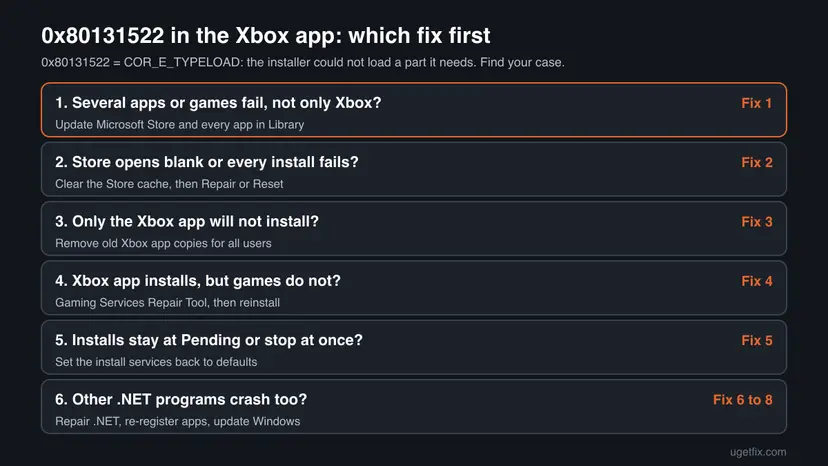
Fixes 1 to 3 bring the Store and the Xbox app back in step, which is what clears this code for most people. Fix 4 is for games. Fixes 5 to 8 are short, generic repairs for when the parts of Windows that run the Store are damaged. Paths are given for Windows 11 and Windows 10 where they differ.
| What you see or have | Start with |
|---|---|
| The Xbox app will not install, and the Store has pending updates. | Fix 1 |
| The Store opens blank, or every app fails to install. | Fix 2 |
| Only the Xbox app fails; other apps install fine. | Fix 3 |
| The Xbox app works, but games will not install. | Fix 4 |
| Installs stay at Pending, or you used a tool that turns off services. | Fix 5 |
| Other programs also crash with .NET errors. | Fix 6, then Fix 7 and Fix 8 |
Fix 1. Update Microsoft Store and every app in Library, then restart
10 minutesLow riskEveryone should start here, and especially when the Store shows pending updates or other apps also fail.
COR_E_TYPELOAD means one piece of code asked for a part that was missing or a different version. An update of the Store, the Xbox app and their helper packages puts all of them on matching versions, so the part is where the installer expects it.
- Close the Xbox app if it is open.
- Open Microsoft Store and select Library at the bottom left.
- Select Get updates and wait until every item is updated, the Store itself too.
- Select Start > Power > Restart. A restart loads the new versions.
- Open Microsoft Store, search for Xbox and select Install on the app by Microsoft Corporation.
- The Store will not update itself: go to Fix 2 and clear its cache first.
- You also see pending Windows updates: install them now (Fix 8). Store packages sometimes wait for them.
It worked if: Library shows no pending updates, and the Xbox app installs and opens.
If not: Go to Fix 2 and clear the Store cache, then repair the Store.
Fix 2. Clear the Microsoft Store cache, then repair or reset the Store
5 to 10 minutesLow riskFix 1 did not help, the Store will not update, or every Store install fails.
The Store keeps a cache and its own app data. When that data still points at old package versions, the installer keeps asking for parts that are no longer there. wsreset clears the cache, and Repair or Reset rebuilds the Store's data. Microsoft staff on Microsoft Q&A give Repair, then Reset, as the first step for failed Store downloads.
- Press Win + R, type
wsreset.exeand select OK. - Wait. A blank window opens, closes by itself, and Microsoft Store opens.
- Try the install. If it fails, open Settings > System > System components on Windows 11, or Settings > Apps > Apps & features on Windows 10.
- Next to Microsoft Store, select the three dots and Advanced options.
- Select Terminate, then Repair. Try the install again.
- Still failing: select Reset and sign in to the Store again.

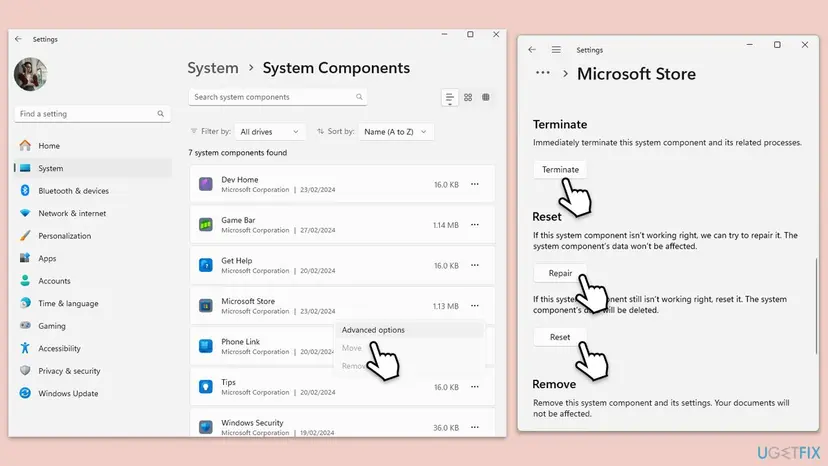
Reset signs you out of the Store on this PC. Your purchases and Game Pass belong to your Microsoft account and stay. Every screen: Reset the Microsoft Store
It worked if: The Store opens normally, Library > Get updates runs without errors, and the Xbox app installs.
If not: If other apps now install but the Xbox app still fails, go to Fix 3.
Fix 3. Remove old Xbox app copies for every user, then install the Xbox app again
15 minutesRead the warningOnly the Xbox app fails with 0x80131522, while other Store apps install. Also when the PC once had the old Xbox Console Companion app.
The current Xbox app is the package Microsoft.GamingApp. The older Xbox Console Companion is Microsoft.XboxApp. When an old or half installed copy is still registered, the new install can try to load parts from it and fail. Removing every copy gives the Store a clean start.
Other people who use the PC will have to install the Xbox app again and sign in. Your games are separate packages and stay on the drive. Cloud saves stay with your Xbox account.
- Close Microsoft Store, the Xbox app and any game.
- Right-click Start and select Terminal (Admin). On Windows 10 select Windows PowerShell (Admin). Select Yes.
- Run the first command below. It lists every Xbox app copy for every account.
- Read the Name column. Remove only
Microsoft.GamingAppand, if it is listed,Microsoft.XboxApp, with the second and third commands. - Run the first command again. It should no longer list those two names.
- Restart the PC, open Microsoft Store and install Xbox again.
Terminal (Admin): list the Xbox app copies, then remove them for all users
Get-AppxPackage -AllUsers -Name 'Microsoft.GamingApp','Microsoft.XboxApp' | Select-Object Name, Version, PackageFullName
Get-AppxPackage -AllUsers -Name 'Microsoft.GamingApp' | Remove-AppxPackage -AllUsers
Get-AppxPackage -AllUsers -Name 'Microsoft.XboxApp' | Remove-AppxPackage -AllUsers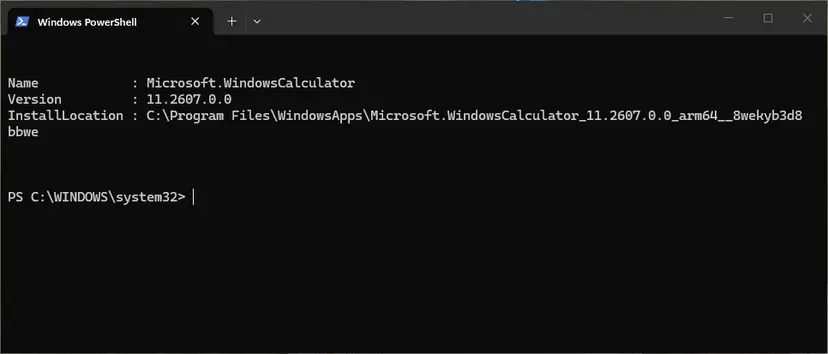
- Do not remove other Xbox packages such as the Xbox Identity Provider or the Game Bar. The old version of this page removed everything with Xbox in its name, which also breaks sign-in and the Game Bar.
- Red text when you remove: the app is still running. Restart and run the command before you open anything.
- Uninstall from Settings instead, with screenshots: Uninstall a program or app in Windows
It worked if: The list command shows no Xbox app copy, and after the restart the Store installs the Xbox app without the code.
If not: If the Xbox app now installs but games fail, go to Fix 4. If it still fails, go to Fix 5.
Fix 4. Run the Gaming Services Repair Tool, then reinstall Gaming Services
10 to 20 minutesLow riskThe Xbox app installs and opens, but games will not install or start, or the app says Gaming Services needs attention.
Gaming Services is a separate package that installs and runs every Xbox game on the PC. When its parts do not match the Xbox app, game installs fail. Xbox Support lists its repair tool among the first steps for games that will not install from the Xbox app.
- Open the Xbox app, select your profile picture and then Support.
- Select Gaming Services Repair Tool, then Start Troubleshooting, and follow what it reports.
- Restart the PC and try the game again.
- If it still fails, close the Xbox app and Microsoft Store and open Terminal (Admin) as in Fix 3.
- Run the command below. It removes Gaming Services for all users.
- Install it again from the Gaming Services page in Microsoft Store, then restart.
Terminal (Admin): remove Gaming Services
Get-AppxPackage -AllUsers Microsoft.GamingServices | Remove-AppxPackage -AllUsers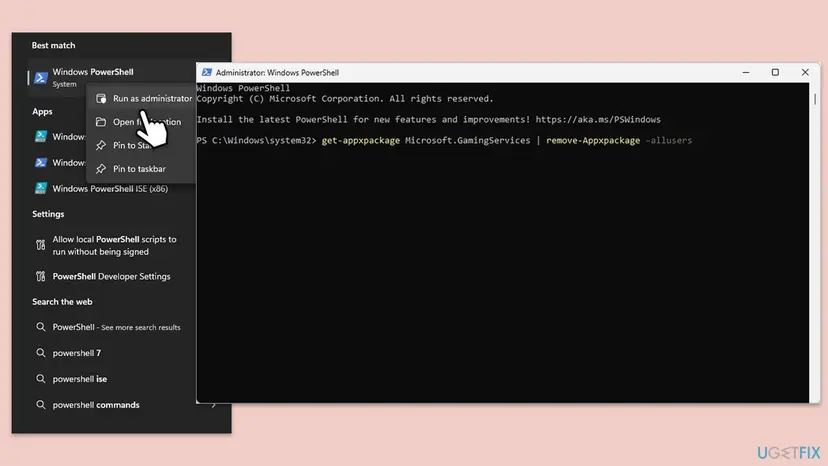
The old version of this page also deleted two Gaming Services registry keys. We dropped that step: the package removal above is enough for most PCs, and a registry edit without a backup can do more harm than the error.
It worked if: The repair tool reports no problem, or Gaming Services installs again, and the game installs.
If not: Go to Fix 5 and check that the Store and Xbox services are not disabled.
Fix 5. Check that the Store and Xbox services can start
5 minutesLow riskInstalls stay at Pending or stop at once, or someone used a tool that turns off Windows services.
The Store hands the install to background services. If one is Disabled, the installer cannot reach the part it needs and fails with a load error instead of a clear message.
- Press Win + R, type
services.mscand press Enter. - Find Microsoft Store Install Service. Its Startup Type should not be Disabled. If it runs, right-click it and select Restart.
- Check Gaming Services, Windows Update, Xbox Live Auth Manager, Xbox Live Game Save and Xbox Live Networking Service the same way.
- If one shows Disabled, double-click it, set Startup type to Manual, select Apply, then Start.
- Restart the PC and try the install again.
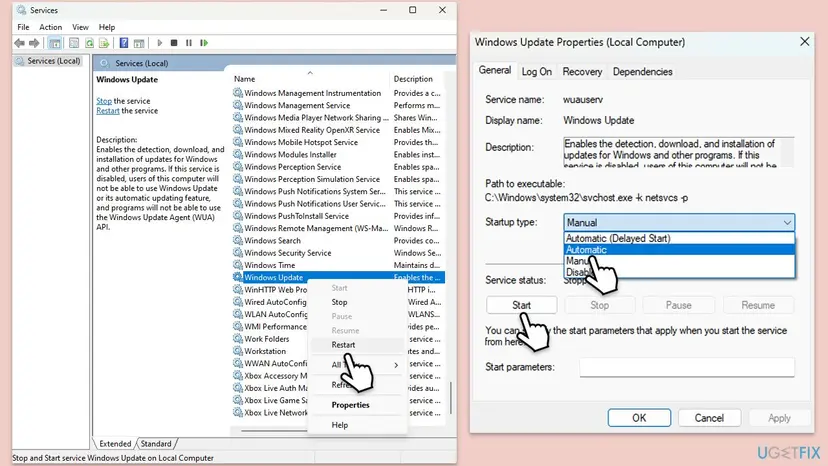
The older version of this page set every service to Automatic. Manual is Windows' own default for most of them, and they start when the Store needs them. Step by step: Check and restart Windows services
It worked if: No service on the list is Disabled, and the install finishes.
If not: Go to Fix 6 if other programs also crash, or Fix 7 if only the Store fails.
Fix 6. Repair .NET Framework and the Visual C++ runtimes
15 to 30 minutesLow riskOther programs on the PC also crash with .NET or TypeLoadException errors, not only the Store.
0x80131522 is a .NET code. Store apps carry most of their own runtime, so this is rarely the cause for the Xbox app alone. When several desktop programs fail with the same code, a damaged .NET Framework is the shared part, and Microsoft's repair tool fixes it.
- Run the .NET Framework Repair Tool. Download the Microsoft .NET Framework Repair Tool and run NetFxRepairTool.exe. The wizard looks for setup problems, asks for your consent before it applies fixes, then repairs the installed .NET Framework versions. The tool is in English only.
- Turn on .NET Framework 3.5 if a program asks for it. Select Start, search for Windows Features and open it. In Turn Windows features on or off, select the .NET Framework 3.5 (includes .NET 2.0 and 3.0) check box and select OK. Windows downloads the files, so stay online.
- Restart and test. Restart the PC and start the program that showed the error.
These steps were written for Windows 11 25H2 and 26H2, Windows 10 22H2. The full page with the other versions and what each result means: How to repair Microsoft Visual C++ Redistributable and .NET Framework
It worked if: The repair tool reports that it fixed or found no problem, and the other programs start.
If not: Go to Fix 7 and re-register Microsoft Store and the Xbox app.
Fix 7. Re-register Microsoft Store and the Xbox app
5 minutesLow riskThe Store or the Xbox app is on the disk but will not open, or the install starts and fails at once.
Every Store app is registered to your account. A damaged registration can point the installer at the wrong folder. Re-registering reads the app's manifest again without downloading anything.
Re-register Microsoft.WindowsStore first, then Microsoft.GamingApp if it is installed. Use a normal PowerShell window, not an administrator one, so the apps are registered to your account. Step by step: How to re-register Microsoft Store apps with PowerShell
Windows PowerShell (not admin): re-register Microsoft Store
Get-AppxPackage Microsoft.WindowsStore | ForEach-Object { Add-AppxPackage -DisableDevelopmentMode -Register "$($_.InstallLocation)\AppXManifest.xml" }The old version of this page re-registered every app on the PC at once. That takes long and prints many red errors that mean nothing. One or two apps are enough here.
It worked if: The command ends without red text, the Store opens, and the install runs.
If not: Go to Fix 8 and install Windows updates, then repair system files.
Fix 8. Install Windows updates, then repair system files
20 to 40 minutesLow riskNothing above helped, Windows has pending updates, or you are on a Windows 10 version older than 22H2.
The app package system and parts of the Store live in Windows itself. Xbox Support says Windows 10 22H2 or newer is required for some Xbox app features. An update and a system file repair replace damaged Windows parts that the installer loads.
- Press Win + I and open Windows Update. On Windows 10 open Update & Security > Windows Update.
- Select Check for updates and install everything that is offered, optional updates too.
- Restart the PC.
- Run DISM and SFC as shown in the procedure below, restart, and try the install again.
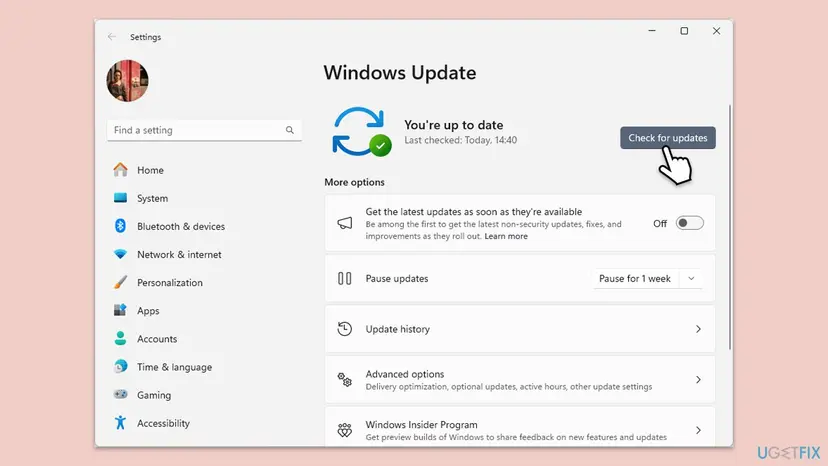
Repair system files: Run DISM and SFC to repair Windows system files. Windows 10 left support on 14 October 2025. The Xbox app still installs there, but a PC with no updates can keep an old app platform. When an update will not install: Install an update from the Microsoft Update Catalog
It worked if: Windows reports that it is up to date, SFC finds no remaining problems, and the Xbox app installs.
If not: Read the logs as shown below and contact Xbox Support with what they say.
If 0x80131522 is still there: read the logs
A TypeLoadException names the part that could not be loaded. Microsoft's documentation says its message "contains more detailed information that can help you identify the cause". Windows keeps that message in its logs.
- Make the error appear once more and note the time.
- Press Win + R, type
eventvwr.mscand press Enter. - Open Windows Logs > Application and look for Error entries from .NET Runtime or Application Error at that time. Read the type or file name in the text.
- For Store installs, also open Applications and Services Logs > Microsoft > Windows > AppXDeployment-Server > Microsoft-Windows-AppXDeploymentServer/Operational.
- If the entry names a package, remove and reinstall that package as in Fix 3.
- What to send to Xbox Support: the log text, the Windows edition and build from Settings > System > About, and which fixes you tried.
- On a work or school PC: policies can block the Store. Ask the administrator.
- It is not a hardware fault. The code is about software parts that do not match. A failing drive gives other errors.
How to keep 0x80131522 from coming back
- Let Microsoft Store update apps automatically, and run Library > Get updates before you install the Xbox app or a large game.
- Do not close the PC or the Store while the Store updates itself.
- Keep Windows updated. On Windows 10, stay on 22H2.
- Avoid tweak tools that turn off Windows or Xbox services.
The code returns when the Store and its packages drift apart again. A PC that updates them together, and a Windows build that still gets updates, keeps the parts in step.
Frequently asked questions
What does error code 0x80131522 mean?
It is Microsoft's .NET code COR_E_TYPELOAD, raised as a TypeLoadException. Microsoft's documentation says it is thrown when the runtime cannot find an assembly or a type in it, or cannot load the type. In the Xbox app and Microsoft Store, it means the code that installs the app asked for a part that was missing or did not match. The usual reason is that the Store and its packages are on different versions after a partial update, which Fix 1 and Fix 2 solve.
How do I fix 0x80131522 when I install the Xbox app?
Open Microsoft Store, select Library and Get updates, and let everything update, the Store too. Restart the PC and install the Xbox app again. If it still fails, clear the Store cache with wsreset.exe and use Repair, then Reset, in the Store's Advanced options. If only the Xbox app fails, remove old copies of Microsoft.GamingApp and Microsoft.XboxApp for all users and install again, as in Fix 3.
Why does 0x80131522 appear, and is it my fault?
It appears because two software parts on the PC do not fit together, not because of something you did. A Store update that stopped half way, an old copy of the Xbox app, or a damaged service are the common reasons. The page is in English, but the steps are the same in any Windows language: the menu names are translated, and the commands stay the same. If you searched for this error in Spanish or Vietnamese, start with Fix 1.
Will reinstalling the Xbox app delete my games or saves?
No. Each game is its own package, so removing the Xbox app leaves games on the drive. Saves that sync to the Xbox network belong to your account. Removing Gaming Services also leaves games installed, but they will not start until Gaming Services is back. Removing a game itself is different: its local data on this PC goes with it, so let the cloud sync finish first.
How do I do step 3 of the fix?
In Fix 3, step 3 runs the first command in an administrator Terminal. Right-click Start, select Terminal (Admin) or Windows PowerShell (Admin) on Windows 10, and select Yes. Copy the first line of the code box, paste it with a right-click and press Enter. It prints a table with Name, Version and PackageFullName. Nothing is removed yet. Only the next commands remove the Xbox app, and only for the names they list.
Does the Windows Store Apps troubleshooter fix 0x80131522?
Sometimes it helps on Windows 10, but it is not the fix for this code. The troubleshooter checks Store settings and can reset the Store's cache. It does not update packages or remove old copies, which is what clears a load error. On Windows 10 you find it under Settings > Update & Security > Troubleshoot > Additional troubleshooters. Run it after Fix 2 if you like, but do not stop there.
Is 0x80131522 a .NET Framework problem?
The code comes from .NET, but that does not mean .NET Framework is broken. Store apps carry most of their own runtime, so the code usually points at the Store or the Xbox app, not at the .NET Framework installed in Windows. Repair .NET (Fix 6) when other desktop programs also crash with .NET errors. If only the Store and the Xbox app fail, Fixes 1 to 3 are the right place to start.
Can 0x80131522 appear on an Xbox console?
Google suggests searches for Xbox One and Series X with this code, but we found no Xbox Support page that lists 0x80131522 for consoles. This page covers Windows PCs. On a console, restart it fully, check the Xbox status page and use Xbox Support's console install guide. If the code appears there, write it down with the game's name and send it to Xbox Support.
I tried everything and the error is still there. What now?
Read the logs. Open Event Viewer, then Windows Logs > Application, and find the .NET Runtime or Application Error entry at the time of the error. It names the type or file that could not be loaded. Also check the AppXDeployment-Server Operational log for the package name. Remove and reinstall that package, or send the log text, your Windows build and the fixes you tried to Xbox Support.
Sources
- Microsoft Learn: TypeLoadException Class (HRESULT COR_E_TYPELOAD, 0x80131522) (learn.microsoft.com)
- Xbox Support: Fix gaming issues with the Xbox app for PC and handhelds (support.xbox.com)
- Microsoft Q&A: error in Microsoft Store (staff answer: repair or reset Microsoft Store) (learn.microsoft.com)
Did this fix work?
One click, no account. It tells the next reader which guides are worth their time.
Questions and experiences: fix Xbox app error 0x80131522 in Windows
Still broken, or found a fix we did not cover? Ask here: members and our editors answer. Reading is open; writing needs a free account.
…