
How to fix Xbox app error 0x87e0000f in Windows?

Prefer to fix it yourself? The manual steps follow.
- 8methods
- 5 to 40 minutes
- Beginner to intermediate
Applies to Windows 11 and Windows 10; the Xbox app for PC, Gaming Services, Microsoft Store and PC Game Pass games such as Starfield, Call of Duty and Doom: The Dark Ages
8 methods in this guide
When I try to download any game through the Xbox app (I also have a Game Pass subscription), I always receive error code 0x87e0000f at around 50 to 60 %. How can I fix this?
Error 0x87e0000f stops a game or app download in the Xbox app for PC, often halfway through. Xbox Support ties it to a service outage, a download that needs to be cancelled and started again, or a partial install that has to be uninstalled first. Bethesda Support adds that it usually means the Xbox app is out of date.
0x87e0000f means a game download or install in the Xbox app could not finish. Cancel it, check the Xbox status page and start it again (Fix 1). If it returns, update the Xbox app and Gaming Services in Microsoft Store > Library (Fix 2). If one game keeps stopping, uninstall its partial install and install it fresh (Fix 3). Then run the Gaming Services Repair Tool (Fix 4).
| Error | 0x87e0000f (Xbox Support writes it as 87E0000F) when a game or app download or install stops in the Xbox app for PC. |
|---|---|
| Where it appears | In the Xbox app's install queue or on the game's page, often after the progress bar has passed halfway. The same code exists on Xbox One and Xbox Series consoles. |
| Main cause | An out-of-date Xbox app, a partial install left on the drive, or a short Xbox service problem. Less often a damaged Gaming Services or Store cache. |
| Fastest fix | Cancel the download, check the Xbox status page and install again (Fix 1), then update the Xbox app in Microsoft Store > Library (Fix 2). |
| Also written as | 0x87E0000F, 87E0000F, 87e0000f, (0x87e0000f), "Error code: 0x87e0000f". Sometimes mistyped as 0x87e000f. |
| Affects | Windows 11 and Windows 10 PCs with the Xbox app, and Xbox One and Series consoles. Reports name large Game Pass titles such as Call of Duty, Starfield and Doom: The Dark Ages. |
| Vendor status | Known error with its own Xbox Support page. Bethesda Support says it typically means the Xbox app is not up to date. No fixed version is named. |
| Time to fix | 5 minutes for a retry or app update. 15 to 40 minutes when Gaming Services is repaired or a large game must download again. |
Facts checked on 16 October 2026. Steps written for Windows 11 (25H2 and 26H2) and Windows 10 22H2.
What error code 0x87e0000f means in the Xbox app
0x87e0000f is a download and install error. Xbox Support titles its page "Error 87E0000F occurs when downloading a game or app on Xbox or PC". On a Windows PC it appears in the Xbox app while a game downloads, and in many reports it stops at the same point, often between 50 and 60 %.
The Xbox app shows the error in a Store-style message. The older version of this page quoted it this way:
Something unexpected happened. Reporting this problem will help us to understand it better. You can wait a bit and try again or restart your device. That may help. Error code: 0x87e0000f
- Code
- 0x87e0000f (also 0x87E0000F, 87E0000F)
- Shown by
- The Xbox app for PC and Microsoft Store on Windows 11 and Windows 10, and Xbox consoles
- When
- While a game or app downloads or installs, not while it runs
- Parts involved
- The Xbox app, Gaming Services, the Store download system and the install drive
Codes that start with 0x87E0 all come from the install side of Xbox PC gaming, but each ending is a different case. If your code ends in 0005, read our 0x87e00005 guide. Codes with E5 in that place appear when a game starts, not while it installs.
Why the Xbox app shows 0x87e0000f: the causes, ranked
Xbox Support lists five possible meanings, three of them for consoles only. For a PC, the vendor answers point at the Xbox app version, a partial install and the service. The order below follows those answers, then the reports on Microsoft Q&A.
| Cause | How often | How to tell | Fix |
|---|---|---|---|
| The download stalled or the Xbox service had a short problem. | Often, and quick to rule out | It failed once, or the Xbox status page shows an alert. | Fix 1 |
| The Xbox app or Gaming Services is out of date. | Often (Bethesda Support names this first) | Microsoft Store > Library lists updates for Xbox or Gaming Services. | Fix 2 |
| A partial install of the game is left on the drive. | Often when one game fails at the same point | The game shows as installed or queued but will not finish. | Fix 3 |
| Gaming Services is damaged or half updated. | Sometimes, when every game fails | All Xbox app installs end in the same code. | Fix 4, then Fix 5 |
| The Store cache or the Xbox app's own data is damaged. | Sometimes | Other Store apps fail to download too. | Fix 6 |
| The install drive is short of space or unsuitable. | Less often | The error comes late in a big download, or only on one drive. | Fix 7 |
| Windows is old or has damaged system files. | Rarely | Windows 10 older than 22H2, or other Windows features fail. | Fix 8 |
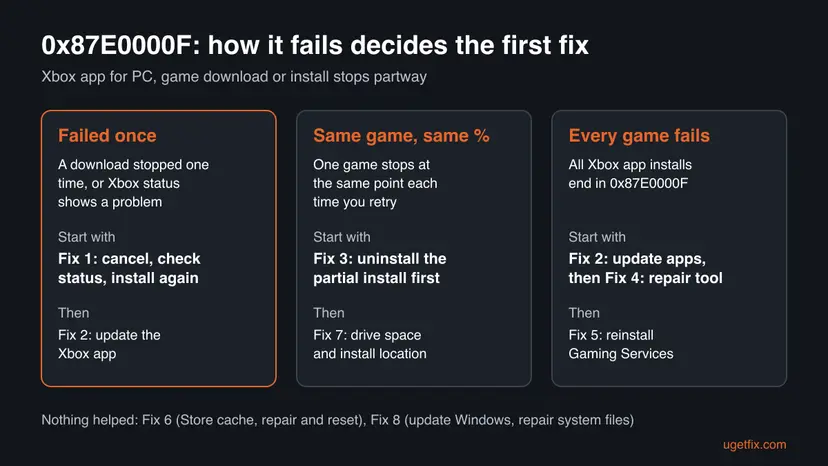
How to fix error 0x87e0000f in the Xbox app on Windows 11 and Windows 10
Fixes 1 to 3 follow what Xbox Support and Bethesda Support say about this code and clear most cases. Fixes 4 to 6 repair Gaming Services, the Store and the Xbox app. Fixes 7 and 8 deal with the drive and Windows itself.
| What you see or have | Start with |
|---|---|
| 0x87e0000f once, or the Xbox status page shows an alert. | Fix 1 |
| Microsoft Store > Library lists updates for Xbox or Gaming Services. | Fix 2 |
| One game stops at the same percent every time. | Fix 3 |
| Every game in the Xbox app fails with 0x87e0000f. | Fix 4, then Fix 5 |
| Store apps that are not games fail to download too. | Fix 6 |
| The game is very large or installs to a second or external drive. | Fix 7 |
Fix 1. Cancel the download, check the Xbox status and install again
5 minutesLow riskThe error appeared once, or right after the PC slept or lost the internet during the download. This is the first step for everyone.
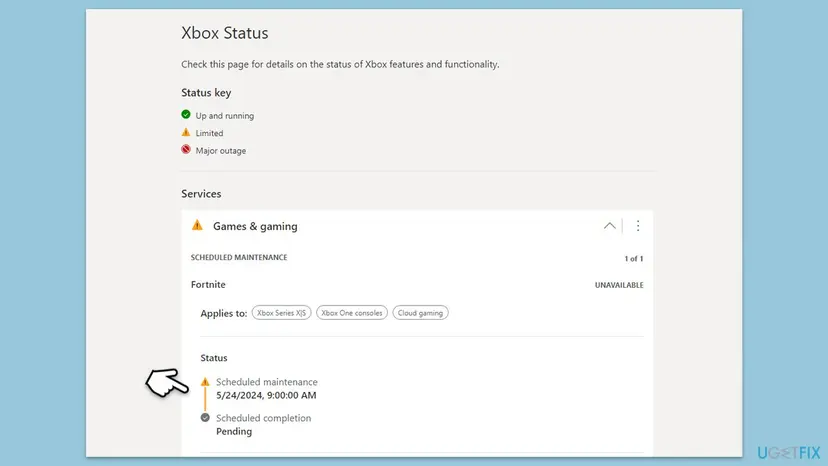
Xbox Support lists a temporarily unavailable Xbox service and a download that must be cancelled and downloaded again among the meanings of 87E0000F. A fresh start clears a stalled download, and the status page tells you when waiting is the only fix.
- Open the Xbox status page at
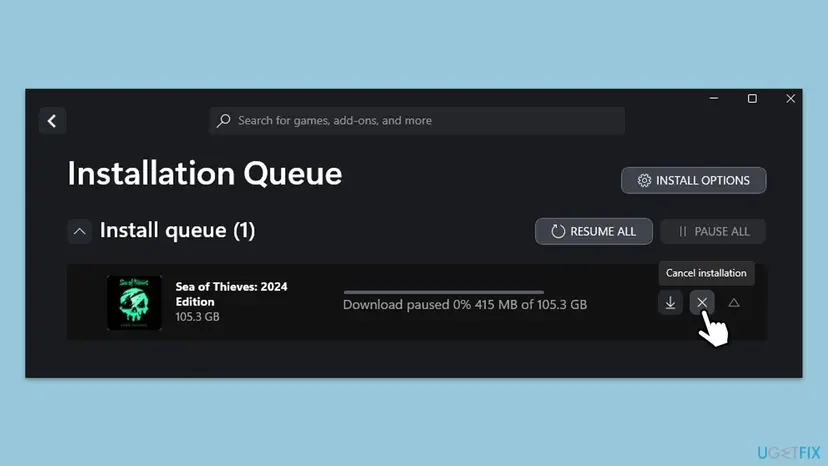
support.xbox.com/xbox-live-status. If a service shows an alert, wait until it is up and running again. - Open the Xbox app and go to the install queue (the download icon at the top or the bottom left).
- Select the X (Cancel installation) next to the game.
- Close the Xbox app fully, then restart the PC with Start > Power > Restart.
- Open the Xbox app, check that the profile picture shows the account that owns the game or Game Pass, and select Install again.
It worked if: The download passes the point where it stopped and the game installs.
If not: If 0x87e0000f comes back, go to Fix 2.
Fix 2. Update the Xbox app and Gaming Services in Microsoft Store
5 minutesLow riskThe error repeats, or the Store Library shows updates waiting. Bethesda Support names this as the usual cause.
Bethesda Support says error 0x87e0000f typically means the Xbox app for PC is not fully up to date. Gaming Services, which does the install, updates the same way, and an old copy of either can stop a new game.
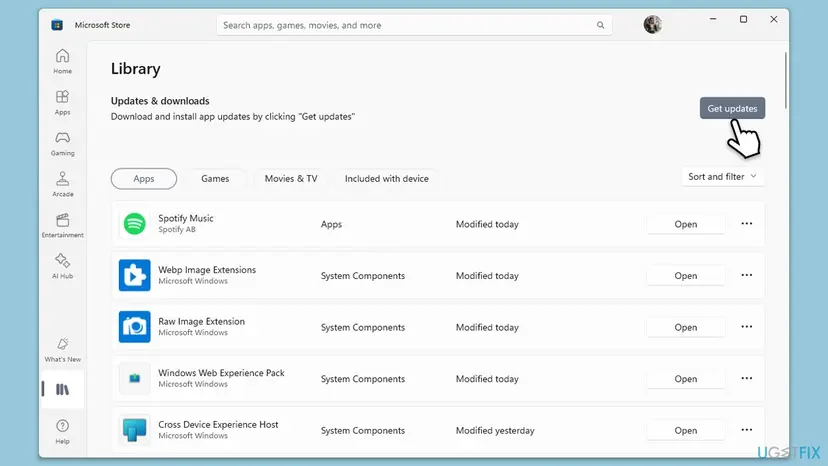
- Open Microsoft Store.
- Select Library at the bottom left.
- Under Updates & downloads, select Get updates.
- If Xbox or Gaming Services is listed, select Update (or Update all) and wait until it finishes.
- Restart the PC, open the Xbox app and install the game again.
It worked if: Library shows no pending updates for Xbox or Gaming Services, and the download finishes.
If not: If one game still stops at the same point, go to Fix 3. If every game fails, go to Fix 4.
Fix 3. Uninstall the partial game install, then install the game fresh
10 minutes plus the downloadLow riskOne game fails again and again at the same point, or it shows as installed or queued but never finishes.
Xbox Support names this case for PCs: a partial game or app installation that first needs to be uninstalled. While the broken part stays on the drive, every new attempt runs into it and stops with the same code.
- Open the Xbox app and cancel the game in the install queue if it is still there.
- In My Library (or Installed), right-click the game, or select its three dots, and choose Uninstall if it is offered.
- Press Win + I and open Apps > Installed apps (on Windows 10 Apps > Apps & features). If the game is listed, select it and Uninstall.
- Open the drive you install to in File Explorer. If an empty or half-filled folder of the game is left in the
XboxGamesfolder, delete that game's folder only. - Restart the PC, open the Xbox app and select Install on the game.
Xbox PC games with cloud saves keep them on your account, so uninstalling the game does not remove them. If a game keeps local saves or mods, copy that folder first.
It worked if: The game downloads from the start and installs without stopping at the old point.
If not: If every game fails, or this one still stops, go to Fix 4.
Fix 4. Run the Gaming Services Repair Tool
5 to 10 minutesLow riskEvery game fails with 0x87e0000f, or Fixes 1 to 3 did not help.
Bethesda Support recommends the Gaming Services Repair Tool when updating the Xbox app does not clear 0x87e0000f. Gaming Services does the actual install of Xbox PC games, and the tool repairs or reinstalls it.
- Open the Xbox app and select your profile picture at the top.
- Select Support.
- Select Gaming Services Repair Tool, then Start Troubleshooting.
- Let it run and follow what it reports. It may reinstall Gaming Services by itself.
- Restart the PC and install the game again.
Microsoft also offers the tool as a separate download on its Gaming Services Repair Tool page, which Bethesda Support links to. Use it if the Xbox app itself will not open.
It worked if: The tool reports Gaming Services as repaired or healthy, and the download finishes.
If not: If the code returns or the tool will not run, go to Fix 5.
Fix 5. Remove Gaming Services with PowerShell and install it again
10 minutesLow riskThe repair tool did not help or could not run, or Gaming Services will not update in Microsoft Store.
A half-updated Gaming Services package fails every install. Removing it for all users and installing a fresh copy from Microsoft Store replaces it completely. Installed games stay on the drive.
- Close the Xbox app and Microsoft Store.
- Right-click Start and select Terminal (Admin). On Windows 10 select Windows PowerShell (Admin). Select Yes.
- Paste the first command below and press Enter.
- Paste the second command and press Enter. Microsoft Store opens on the Gaming Services page.
- Select Get or Install and wait until it is done.
- Restart the PC, open the Xbox app and install the game again.
Terminal (Admin): remove Gaming Services
Get-AppxPackage -AllUsers Microsoft.GamingServices | Remove-AppxPackage -AllUsersTerminal (Admin): open Gaming Services in Microsoft Store
start ms-windows-store://pdp/?productid=9MWPM2CQNLHNIt worked if: Gaming Services shows as installed in Microsoft Store and Xbox app downloads finish.
If not: If the Store itself will not download Gaming Services or other apps, go to Fix 6.
Fix 6. Clear the Microsoft Store cache, then repair or reset the Xbox app and the Store
5 to 10 minutesLow riskStore apps that are not games fail too, or the Xbox app opens with missing content.
Xbox PC games download through the Store's download system. A damaged Store cache stops every download, and the Xbox app's own data can keep a failed install stuck.
Clear the cache with wsreset.exe, then use Repair and, if needed, Reset on Microsoft Store. Step by step: Reset the Microsoft Store
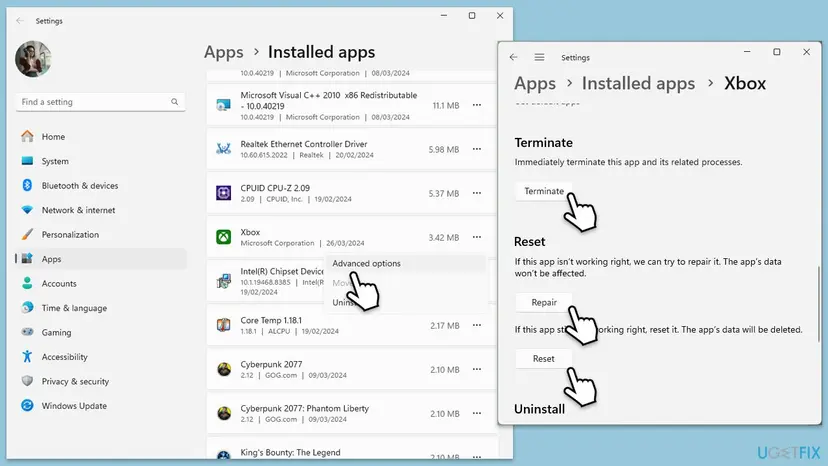
- Press Win + I and open Apps > Installed apps. On Windows 10 open Apps > Apps & features.
- Find Xbox, select the three dots and Advanced options.
- Select Terminate, then Repair. Try the install.
- If it still fails, come back and select Reset, then sign in to the Xbox app again.
- Do the same for Gaming Services if it shows Advanced options.
On recent Windows 11 builds, Microsoft Store is listed under Settings > System > System components. Every screen for any app: How to repair or reset an app in Windows
It worked if: Microsoft Store downloads apps again and the Xbox app finishes the game install.
If not: If the Store will not open at all, re-register it with How to re-register Microsoft Store apps with PowerShell, then go to Fix 7.
Fix 7. Check the install drive: free space and where the game goes
5 to 15 minutesLow riskThe game is very large, the error comes late in the download, or you install to a second or external drive.
The game has to fit on the chosen drive with room to unpack. A drive that fills up, or an external drive that disconnects, stops the install partway, which matches the reports of failures at 50 to 60 %.
- Open File Explorer > This PC and check free space on the game drive. You need more than the size the Xbox app shows for the game.
- Right-click the drive, select Properties and check File system. A FAT32 drive cannot hold files larger than 4 GB, so use an NTFS drive.
- In the Xbox app, select your profile picture > Settings > Install options and set an internal drive as the default.
- If you use an external drive, keep it plugged in for the whole install, or install to the internal drive to test.
- Select Install again and pick that drive.
To make room: Free up disk space and delete temporary files. To check the drive for errors: Check a disk for errors (chkdsk)
It worked if: The game installs on the internal drive without stopping.
If not: If it fails on every drive, go to Fix 8.
Fix 8. Update Windows and repair system files
20 to 40 minutesLow riskNothing above worked, Windows updates are waiting, or Windows 10 is older than 22H2.
The Xbox app and Gaming Services expect a current Windows. Damaged system files can also break the install service that every Store and Xbox download uses.
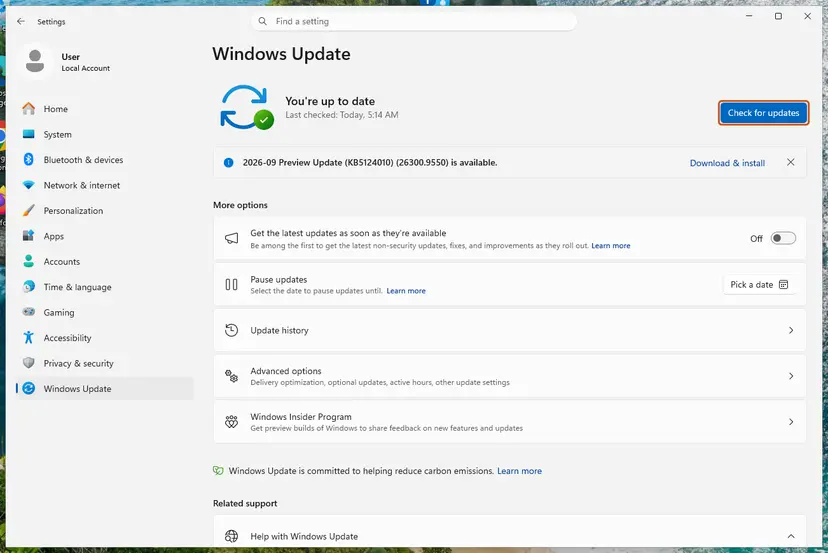
- Press Win + I and open Windows Update (on Windows 10 Update & Security > Windows Update).
- Select Check for updates, install everything offered and restart.
- Check Settings > System > About. Windows 10 must be version 22H2.
- Run a system file check: Run DISM and SFC to repair Windows system files
- Restart and install the game again.
It worked if: Windows says you are up to date, the file check finds nothing left to fix, and the game installs.
If not: Read "If 0x87e0000f is still there" below.
If 0x87e0000f is still there
The Xbox app shows only the code. Windows writes the detailed reason when the install package fails, so look there before you contact support.
- Try the install once more and note the time it fails.
- Open Windows PowerShell and run
Get-AppxLog | Out-GridView. Look for red entries at that time. - In Event Viewer (
eventvwr.msc), open Applications and Services Logs > Microsoft > Windows > AppXDeployment-Server > Microsoft-Windows-AppXDeploymentServer/Operational and check the same time. - Note any line that names a folder, a drive or a package.
- What to send to Xbox Support: the code, the game, the percent where it stops, the drive, your Windows version from Settings > System > About, and the fixes you tried.
- When it may be hardware: installs fail only on one drive, chkdsk reports errors, or large file copies to that drive fail too.
- When it is the account: the same game installs for another Microsoft account on the same PC. Then check the licence and Game Pass status on yours.
How to keep 0x87e0000f from coming back
- Update the Xbox app and Gaming Services in Microsoft Store > Library before you start a big download.
- Check the Xbox status page when a download fails for no clear reason.
- Install games on an internal NTFS drive with space to spare for updates.
- Do not let the PC sleep or shut down while a game is downloading.
- Cancel and uninstall a failed install before you try again, so no partial copy is left behind.
Windows 10 left support on 14 October 2025. The Xbox app still runs on Windows 10 22H2, but a PC that gets no updates can fall behind what new games and Gaming Services expect.
Frequently asked questions
What does error code 0x87e0000f mean on Xbox?
It means a game or app could not finish downloading or installing. Xbox Support lists five possible reasons. The console needs a system update, the Xbox service is temporarily unavailable, or the console cannot reach the Xbox network. The download may need to be cancelled and started again, or on a PC a partial install must be uninstalled first. Bethesda Support adds that on PC it typically means the Xbox app is not fully up to date. So start with a retry, then an app update, then removing the partial install.
How do I fix 0x87e0000f on Xbox One or Xbox Series X?
Xbox Support gives four console steps. Press the Xbox button and open Profile & system > Settings > System > Updates & downloads to install any system update. Check the Xbox status page for alerts. Test the connection under Settings > General > Network settings > Test network connection. Then cancel the download in My games & apps > Ready to install > Queue, with the Menu button and Cancel, and install the game again from the Store. The rest of this page is about the Xbox app on a Windows PC.
Why does 0x87e0000f appear at 50 or 60 percent?
Microsoft does not explain why the download stops at a given point. Readers who see it at the same percent every time usually have a partial install left on the drive, or a game that does not fit on the chosen drive once it unpacks. Remove the partial install with Fix 3 and check free space and the drive with Fix 7. If every game stops, the cause is more likely the Xbox app or Gaming Services, so use Fixes 2, 4 and 5.
Is 0x87e0000f a Microsoft Store error too?
Yes, it can show in Microsoft Store as well as in the Xbox app, because Xbox PC games come through the Store's download system and are installed by Gaming Services. Xbox Support says the code appears when you download and install a game or an app. If Store apps that are not games also fail, start with Fix 6 and clear the Store cache. If only games fail, the Xbox app and Gaming Services fixes come first.
Does 0x87e0000f mean the Xbox servers are down?
Sometimes. A temporarily unavailable Xbox service is one of the reasons Xbox Support gives. Open the Xbox status page at support.xbox.com/xbox-live-status. If a service shows an alert, wait until it is back up and try again; nothing on your PC will fix it sooner. If every service is up and running, the cause is on your PC, so continue with Fix 2.
Will uninstalling the game or Gaming Services delete my saves?
Usually not. Xbox PC games with cloud saves keep them on your Microsoft account, so they return when you install the game again. Removing Gaming Services does not uninstall your games either, although they will not start until it is installed again. If a game keeps local saves or mods outside the cloud, copy that folder before you uninstall it, as a general precaution.
The Call of Duty or Starfield download fails with 0x87e0000f. Is it the game?
Rarely. The code comes from the install, not from the game, and reports name many large titles, including Call of Duty, Starfield and Doom: The Dark Ages. Bethesda Support's own answer for its games is to update the Xbox app and then run the Gaming Services Repair Tool, the same as Fixes 2 and 4. Big games also need a lot of free space, so check the drive with Fix 7 before you start again.
Does 0x87e0000f happen on Windows 11 and Windows 10 alike?
Yes. The fixes are the same on both, and the steps give both menu paths where they differ. On Windows 10 make sure you run version 22H2. Windows 10 left support on 14 October 2025, so a Windows 10 PC no longer gets fixes, which can leave it behind what new Xbox app and Gaming Services versions expect over time.
What is Fehlercode 0x87e0000f?
Fehlercode is German for error code, so it is the same 0x87e0000f error. The Xbox app and Microsoft Store show the same code in every language, and the fixes on this page work the same way on a German Windows. The menu names on your screen will be in German, but their order is the same. Xbox Support also has its page about 87E0000F in other languages.
Sources
Did this fix work?
One click, no account. It tells the next reader which guides are worth their time.
Questions and experiences: fix Xbox app error 0x87e0000f in Windows
Still broken, or found a fix we did not cover? Ask here: members and our editors answer. Reading is open; writing needs a free account.
…