
How to fix Xbox app error 0x87e50028 when launching games in Windows?

Prefer to fix it yourself? The manual steps follow.
- 9methods
- 5 to 60 minutes
- Intermediate
Applies to Windows 11 and Windows 10 22H2 or later; the Xbox app for PC, Gaming Services and PC Game Pass games such as Starfield, Forza Horizon 5 and Fallout 4
9 methods in this guide
- What the error means
- Why it appears
- The fixes
- 1. Check account and restart
- 2. Check the game's requirements
- 3. Update and repair the game
- 4. Repair Gaming Services
- 5. Check the Xbox services
- 6. Repair the Xbox app and Store
- 7. Reinstall the game
- 8. Update Windows and drivers
- 9. Check the game drive
- Still broken
- Prevent it
- FAQ
I recently got Game Pass, and the first game I tried to play was Starfield. Unfortunately, I instantly got a pop-up message saying that the game was not supported, followed by "Something went wrong launching your game. Error code: (0x87e50028)". What does that mean, and how do I get rid of it?
Error 0x87e50028 is a launch failure in the Xbox app: you press Play and get "Something went wrong launching your game" instead of the game. Microsoft publishes no meaning for the code, so start with the account and the game's requirements, then let the Xbox app repair the game.
0x87e50028 means the Xbox app could not start the game; Microsoft gives no other meaning. Sign in to the Xbox app and Microsoft Store with the account that owns the game or Game Pass, then restart (Fix 1). If a "not supported" message came first, check the game's requirements (Fix 2). Then select the game, Manage > Files > Check for updates and Verify and repair (Fix 3).
| Error | 0x87e50028 in the Xbox app: "Something went wrong launching your game." |
|---|---|
| Where it appears | In an Xbox app dialog right after you press Play on an installed PC game. Some readers first see a message that the game is not supported. |
| Main cause | Not published by Microsoft. The launch check fails: the account or licence cannot be validated, the PC does not meet the game's requirements, or the game's files or Gaming Services are damaged. |
| Fastest fix | Same Microsoft account in the Xbox app and Microsoft Store, then restart (Fix 1). Then Manage > Files > Verify and repair (Fix 3). |
| Also written as | 0x87E50028, 0X87E50028, 87e50028, "Error code: (0x87e50028)". It is not the same code as 0x87e50029, which the Xbox app labels as missing or corrupted game files. |
| Affects | Windows 11 and Windows 10 with the Xbox app. Reports name Starfield, Forza Horizon 5 and Fallout 4. |
| Vendor status | No Xbox Support article for this code in our check on 16 October 2026. Xbox Support's general launch steps for the Xbox app apply. |
| Requirement | PC Game Pass needs Windows 10 22H2 or later and the Xbox app, says Xbox Support. Each game adds its own minimum hardware. |
| Time to fix | 5 minutes for the account check and restart. 10 to 20 minutes for a repair. Up to an hour when a large game must download again. |
Facts checked on 16 October 2026. Steps written for Windows 11 (25H2 and 26H2) and Windows 10 22H2.
What Xbox app error 0x87e50028 means when a game will not launch
The Xbox app runs a few checks before it hands control to a PC game: your account and licence, the installed files, and the Windows parts the game needs. When one of them fails at launch, the app shows a dialog instead of the game. Readers quote it like this:
Something went wrong launching your game. Error code: (0x87e50028)
Microsoft does not say what 0x87e50028 means. It is not in Microsoft's published error lists, and no Xbox Support page names it. The code belongs to the same 0x87E5 group as other Xbox app launch codes, but that tells you only that the launch failed, not why. Any page that gives this code one exact cause is guessing.
- Code
- 0x87e50028 (also typed 0x87E50028, 87e50028)
- Shown by
- The Xbox app for PC, when you press Play
- Official meaning
- None published. We could not confirm one.
- Often comes after
- A message that the game is not supported on this PC
The reader's question on this page adds an important clue: the game was reported as not supported before 0x87e50028 appeared. That points to the PC itself, a Windows version or hardware part below the game's minimum, rather than to a broken install. Fix 2 checks exactly that.
Why the Xbox app shows 0x87e50028: the causes, ranked
Because the code has no published meaning, the order below is our reading of Xbox Support's launch steps and of what readers report. Microsoft gives no numbers for it. Each cause is tied to the fix that tests it, so you can stop as soon as one works.
| Cause | How often | How to tell | Fix |
|---|---|---|---|
| The licence cannot be checked: the Xbox app and Microsoft Store use different accounts, Game Pass has lapsed, or Xbox services are down. | Most often | Several games fail at launch, or the error came after a new Game Pass sign-up. | Fix 1 |
| The PC is below the game's minimum: Windows older than 22H2, too little video memory, or an old DirectX feature level. | Often, when a "not supported" message came first | The game never started on this PC. | Fix 2 |
| Files of the game are missing, damaged or waiting for an update. | Often | The game worked before, or an update stopped half way. | Fix 3, then Fix 7 |
| Gaming Services, the Windows part that installs and starts Xbox PC games, is damaged or stopped. | Sometimes | Every Xbox game fails, or installs also stop. | Fix 4, then Fix 5 |
| The Xbox app or Microsoft Store is damaged. | Sometimes | The app shows missing content or will not sign in. | Fix 6 |
| Windows, the graphics driver or the game drive is the problem. | Rarely | Only after the fixes above fail. | Fix 8, then Fix 9 |
How to fix Xbox app error 0x87e50028 when launching games in Windows 11 and 10
Fix 1 and Fix 2 cost nothing and rule out the account and the PC. Fix 3 is the repair Xbox Support suggests for a game that is installed but will not launch. Fixes 4 to 6 repair the Xbox side of Windows, and Fixes 7 to 9 are for a game or a PC that still fails after that.
| What you see or have | Start with |
|---|---|
| 0x87e50028 on a game you just got through a new Game Pass subscription. | Fix 1 |
| A message that the game is not supported, then 0x87e50028. | Fix 2 |
| The game worked before, or an update was interrupted. | Fix 3 |
| Every Xbox PC game fails to launch, not just one. | Fix 4, then Fix 5 |
| The Xbox app itself crashes, shows missing content or will not sign in. | Fix 6 |
| Verify and repair finished, and the code came back. | Fix 7 |
| The game sits on an external drive or a drive with disk errors. | Fix 7, then Fix 9 |
Fix 1. Check the account, Game Pass and Xbox status, then restart the PC
5 minutesNo riskEveryone, first. It matters most right after a new Game Pass sign-up or a change of Microsoft account.
Xbox Support says the game's permissions are validated at launch, so the Xbox app and Microsoft Store must be signed in with the account that bought the game or Game Pass. A mismatch, a lapsed plan or an Xbox outage stops the launch even when the install is fine.
- Open the Xbox status page. If a service shows an alert, wait until it clears and try again.
- In the Xbox app, select your profile picture and check which account is signed in.
- Open Microsoft Store, select your profile picture and check that it is the same account. Sign out and in again if it is not.
- Open Microsoft account, Subscriptions and check that your Game Pass is active. Xbox Support notes that Game Pass for Console does not include PC games.
- Close the game, the Xbox app and any other launcher the game uses, such as the EA app. Press Ctrl + Alt + Del, open Task Manager, select what will not close and select End task.
- Restart the PC, open the Xbox app and press Play again.
If you play offline, the licence check needs one online launch first. Xbox Support covers that in its page on offline mode for Windows.
It worked if: The game starts, or the code changes to another one that you can look up.
If not: If a "not supported" message came before the code, go to Fix 2. Otherwise go to Fix 3.
Fix 2. Check that the game supports your PC and Windows version
10 minutesNo riskThe Xbox app said the game is not supported before 0x87e50028 appeared, or the game has never started on this PC.
A "not supported" message means the game reads your PC as below its minimum. Repairs cannot change that, so compare the PC with the game's own requirements before you spend time on reinstalls.
- Press the Search button, type About your PC and open it. Note the Version, Processor, Installed RAM and System type.
- If the version is older than 22H2, update Windows (Fix 8). Xbox Support says PC Game Pass needs Windows version 22H2 or later.
- Open Settings > System > Display > Advanced display, then Display adapter properties. Note Adapter Type and Dedicated Video Memory. On Windows 10 the link is Advanced display settings.
- Press Win + R, type
dxdiagand press Enter. Note the DirectX version on the System tab and the feature levels on the Display tab. - In the Xbox app, search for the game, open its page and select the More tab to read its system requirements.
- Compare each line. One part below the minimum is enough for the game to refuse to start.
- Windows N edition: Xbox Support says these editions may need the free Media Feature Pack before some games run.
- Free space: check Settings > System > Storage. The Xbox app itself needs at least 150 MB, plus room for the game and its updates.
- A part is below the minimum: no software fix changes that. The game needs other hardware, or you can play it through cloud gaming if your plan includes it.
It worked if: Every line of your PC meets or beats the game's minimum, or you know which part does not.
If not: If the PC meets the requirements and the code stays, go to Fix 3.
Fix 3. Update and repair the game in the Xbox app
10 to 20 minutesLow riskThe game is installed and the PC meets its requirements, but it will not launch.
Xbox Support's own step for a game that is installed but will not launch is to check for updates and then run Verify and repair. A pending update or a damaged file can stop the launch check, and the repair downloads only what is missing.
- Close the game and open the Xbox app.
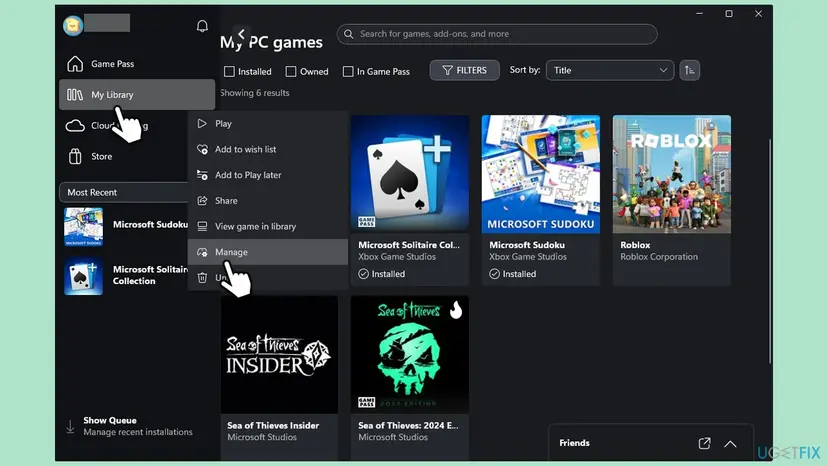
- Select My Library and then the game.
- Select the More options button (three dots), then Manage, then the Files tab.
- Select Check for updates and let any update finish.
- If the game still does not launch, select Verify and repair on the same page and wait for it to finish.
- Press Play again.
The same check in Steam, the EA app and other launchers: How to verify game files in Steam, Epic Games, Xbox app, EA app, Battle.net and GOG Galaxy
It worked if: The Files page reports the update or the repair as done, and the game opens.
If not: If several games fail, go to Fix 4. If only this game fails, go to Fix 7.
Fix 4. Run the Gaming Services Repair Tool, then reinstall Gaming Services
10 to 20 minutesLow riskEvery Xbox PC game fails to launch, installs also stop, or Fix 3 did not help.
Gaming Services is the Windows part that installs and starts Xbox PC games. Xbox Support says its repair tool can often fix launch, install and update problems, and a clean reinstall replaces a package that the tool cannot fix.
- Open the Xbox app, select your profile picture and then Support.
- Select Gaming Services Repair Tool, then Start Troubleshooting, and follow what it reports.
- Restart the PC and try the game. If the code returns, close the Xbox app and Microsoft Store.
- Right-click Start and select Terminal (Admin). On Windows 10 select Windows PowerShell (Admin). Select Yes.
- Run the command below. It removes Gaming Services for all users of the PC.
- Restart the PC, then install Gaming Services again from the Gaming Services page in Microsoft Store.
Terminal (Admin): remove Gaming Services
Get-AppxPackage -AllUsers Microsoft.GamingServices | Remove-AppxPackage -AllUsers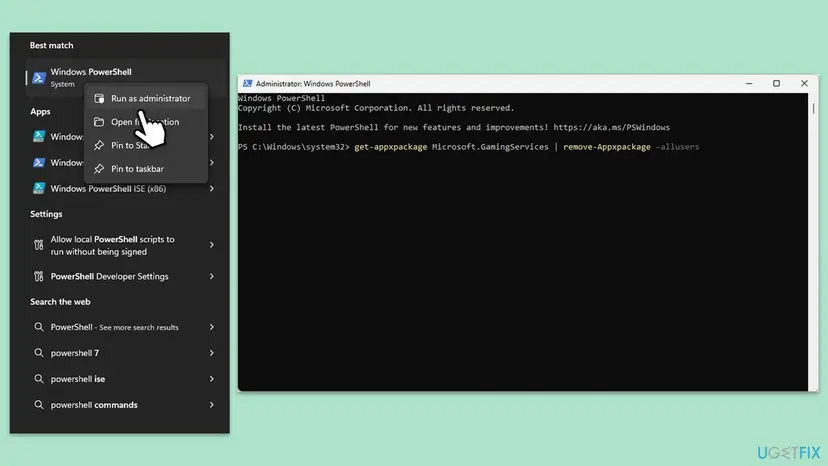
Your games stay installed while Gaming Services is gone, but none will start until it is back. The old version of this page also deleted two Gaming Services registry keys. We left that out, because removing and reinstalling the package does not need it.
It worked if: The repair tool reports no problem, or Gaming Services installs again, and the game launches.
If not: Go to Fix 5 and check that the Xbox services can start.
Fix 5. Check that Gaming Services and the Xbox Live services can start
5 minutesLow riskA tuning tool or a guide has turned off Windows services, or the launch fails at sign-in.
The launch uses background services: Gaming Services starts the game, and Xbox Live Auth Manager handles the sign-in that validates your licence. A service set to Disabled cannot start when the Xbox app asks for it.
- Press Win + R, type
services.mscand press Enter. - Find Gaming Services. Right-click it and select Restart. If Restart is grey, go to the next step.
- Double-click the service. If Startup type shows Disabled, set it to Manual, select Apply and then Start.
- Check Xbox Live Auth Manager, Xbox Live Game Save and Xbox Live Networking Service the same way.
- Restart the PC and launch the game from the Xbox app.
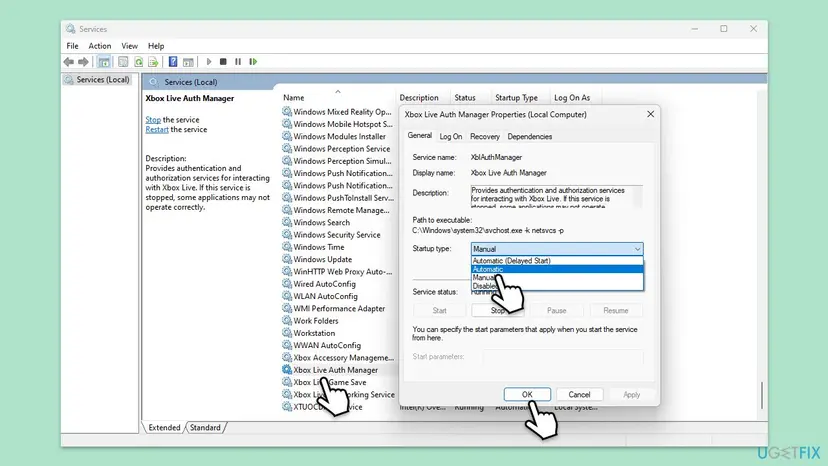
The old version of this page set these services to Automatic. Manual is enough: they start when the Xbox app needs them. Every screen: Check and restart Windows services
It worked if: No Xbox service shows Disabled, and the game launches.
If not: Go to Fix 6 and repair the Xbox app and Microsoft Store.
Fix 6. Repair or reset the Xbox app and Microsoft Store
10 minutesLow riskThe Xbox app crashes, shows missing content, will not sign in, or the Manage page does not open.
The launch check runs inside the Xbox app, and the licence comes through Microsoft Store. If either app's own files or settings are damaged, Repair rebuilds them without touching your games, and Reset starts the app clean.
- Close the Xbox app and Microsoft Store.
- Press Win + I and open Apps > Installed apps. On Windows 10 open Apps > Apps & features.
- Find Xbox, select the three dots or the entry, then Advanced options.
- Select Terminate, then Repair, and try the game.
- If it still fails, come back and select Reset, then sign in to the Xbox app again.
- Repair Microsoft Store the same way. On Windows 11 it is listed under Settings > System > System components.
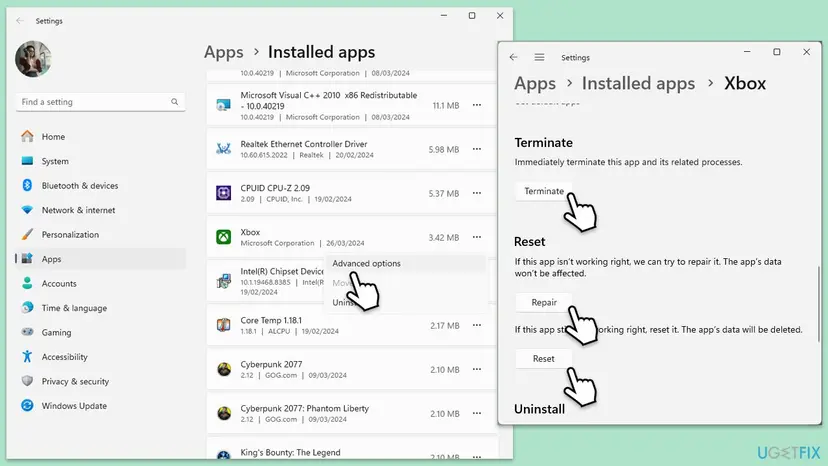
There is no separate Xbox Live app to repair any more: the sign-in parts live in the Xbox app and the services of Fix 5. Every screen: How to repair or reset an app in Windows. For the Store cache and the Store reset: Reset the Microsoft Store
It worked if: The Xbox app opens normally, the sign-in works, and the game launches.
If not: Go to Fix 7 and install the game again.
Fix 7. Uninstall the game and install it again on an internal drive
15 to 60 minutes, depending on the game's size and your connectionRead the warningVerify and repair finished and the code came back, or the game sits on an external or non-default drive.
When the game's folder is damaged or on a drive that was disconnected, a repair has nothing sound to start from. A clean install on an internal drive writes every file again and registers the game with Gaming Services from scratch.
Most Xbox PC games keep saves in the cloud, but not all of them. Let the Xbox app finish syncing. If the game keeps local saves or mods, copy that folder first: Back up your files (Windows Backup, File History, Time Machine)
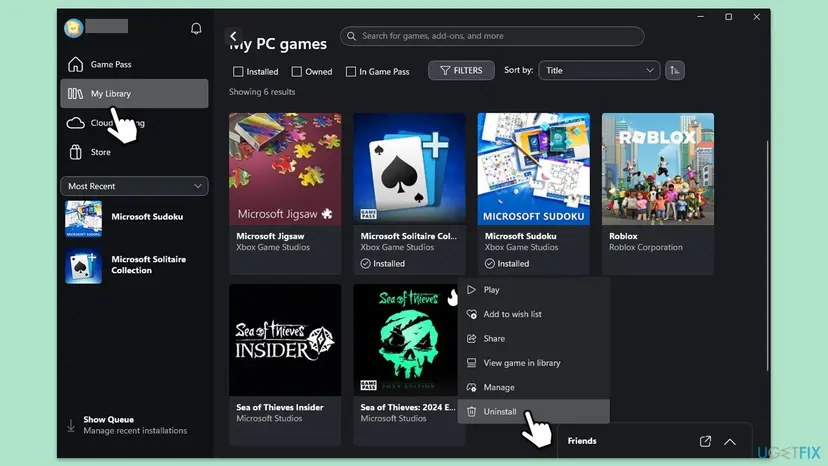
- Open the Xbox app, select My Library, then the game.
- Select the More options button, then Uninstall, and confirm.
- Select your profile picture, then Settings, then Install options.
- Under Change where this app installs games by default, pick an internal drive with enough free space, and a folder if asked.
- Restart the PC, open the Xbox app, select the game and select Install.
- Leave the PC on and awake until the install is done, then press Play.
It worked if: The install finishes with no error, and the game launches.
If not: If the install itself stops with a code, go back to Fix 4. If it installs and still will not launch, go to Fix 8.
Fix 8. Update Windows and the graphics driver
10 to 30 minutesLow riskWindows is older than 22H2, updates are waiting, or the graphics driver has not been updated for months.
Xbox Support lists both updates among its launch steps. New games and new Gaming Services builds expect a current Windows, and a game can refuse to start on an old graphics driver.
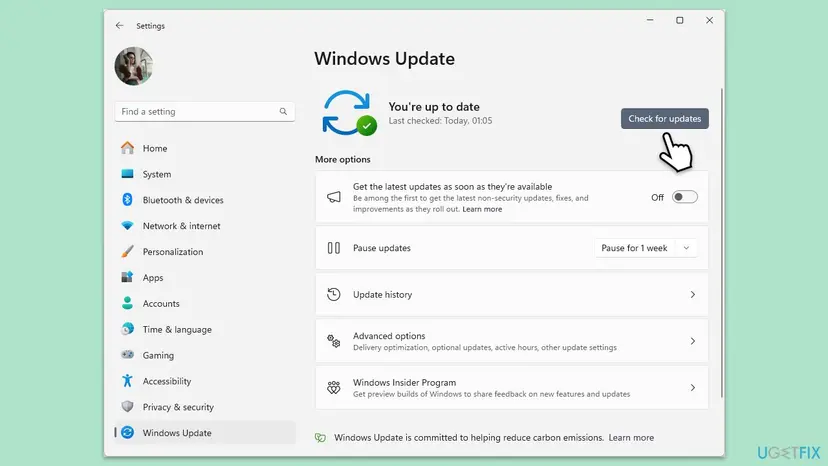
- Press Win + I. On Windows 11 select Windows Update. On Windows 10 select Update & Security.
- Select Check for updates and install what is offered, including optional updates if listed.
- Restart the PC.
- Install the newest graphics driver from your card maker's site or its own app, then restart again.
Windows 10 left support on 14 October 2025. It still runs the Xbox app if it is on 22H2, but it no longer gets regular updates. Driver steps in Windows: Update, roll back or reinstall a driver
It worked if: Windows Update shows you are up to date, the new driver is installed, and the game launches.
If not: Go to Fix 9 and check the drive the game is on.
Fix 9. Check the game drive for file system errors
5 minutes for a scan, longer for a repair at restartLow riskThe game breaks again after a clean install, or other large files on the same drive fail too.
File system errors on the game drive can damage the game's files again after every repair. A disk check finds and fixes them, which ends the cycle of repairs that do not hold.
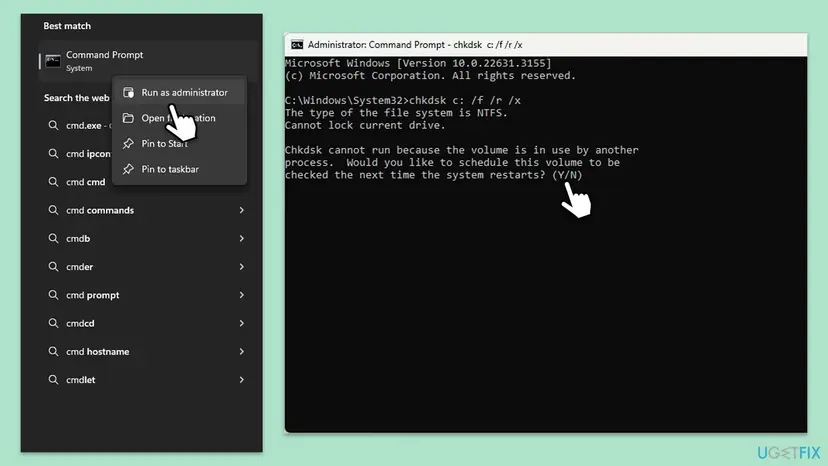
- Right-click Start and select Terminal (Admin), or Command Prompt (Admin) if your PC lists it. Select Yes.
- Run
chkdsk D: /scan, with the letter of your game drive in place of D. - If it reports errors, run
chkdsk D: /f. For the system drive C, answer Y and restart the PC to let the check run. - Install the game again if the check repaired anything.
Every switch and what the result means: Check a disk for errors (chkdsk)
It worked if: chkdsk reports no problems, or it repairs them, and the reinstalled game launches.
If not: Read "If 0x87e50028 is still there" below.
If 0x87e50028 is still there
The Xbox app does not write a public log that explains 0x87e50028. Windows does record a game that starts and then crashes, so look there to tell a launch block from a crash.
- Make the error appear once more and note the time.
- Press Win + R, type
eventvwr.mscand press Enter. - Open Windows Logs > Application and look for Error entries at that time that name the game's file.
- An entry there means the game started and crashed. No entry means the Xbox app blocked the launch, which points back to Fix 1, Fix 2 and Fix 4.
- Third-party antivirus: Xbox Support says it can cause launch errors. Pause it for one test launch and turn it back on at once: Turn off Microsoft Defender protection for a moment
- When it is the hardware: the "not supported" message stays after Windows and the driver are updated, or Fix 2 shows a part below the minimum. No repair changes that.
- What to send to Xbox Support: the exact code, the game, whether a "not supported" message came first, your Windows version from About your PC, and the fixes you tried.
- A sister code: if your dialog says some game files are missing or corrupted, read our guide on Xbox app error 0x87e50029.
How to keep 0x87e50028 from coming back
- Use one Microsoft account for the Xbox app, Microsoft Store and your Game Pass plan.
- Read a game's requirements on its More tab in the Xbox app before you install it, especially on an older PC or a laptop.
- Keep Windows on 22H2 or later, and keep the Xbox app and Gaming Services updated through Microsoft Store.
- Let installs and updates finish. Do not shut down, sleep or disconnect the PC during a download.
- Install games on an internal drive, or on an external one that stays connected.
- Do not turn off Gaming Services or the Xbox Live services with tuning tools.
Most of these take a minute once and save you a repair later. The account rule matters most: Xbox Support ties the launch to the account that owns the game.
Frequently asked questions
What does Xbox error code 0x87e50028 mean?
It means the Xbox app could not start the game you selected. Microsoft has not published a more exact meaning: the code is not on any Microsoft error list we could find, and no Xbox Support page names it. In practice it appears with the message "Something went wrong launching your game" right after you press Play. The usual reasons are an account or licence check that fails, a PC below the game's minimum, or damaged game files or Gaming Services. Fixes 1 to 4 test those in order.
Why does the Xbox app say the game is not supported before showing 0x87e50028?
Because the game reads your PC as below its minimum. That can be a Windows version older than 22H2, which Xbox Support names as the minimum for PC Game Pass, too little video memory, or an older DirectX feature level. Compare the PC's values in About your PC and dxdiag with the requirements on the game's More tab in the Xbox app (Fix 2). If one part falls short, no repair or reinstall will start the game, and only other hardware or cloud gaming helps.
Can I fix 0x87e50028 for Starfield on PC Game Pass?
Yes, with the same steps as for any Xbox PC game, if your PC meets Starfield's requirements. The reader's question on this page is about Starfield on a new Game Pass plan, with a "not supported" message before the code. So check the game's requirements on its More tab first (Fix 2). Then make sure the Xbox app and Microsoft Store use the account that holds Game Pass (Fix 1), and run Check for updates and Verify and repair on the game's Manage page (Fix 3).
Does 0x87e50028 mean my Game Pass subscription has a problem?
It can, but the code itself does not say so. Xbox Support says the game's permissions are checked at launch, and that installing Game Pass games needs an active plan. Game Pass for Console does not cover PC games. Open your Microsoft account's Subscriptions page and check that your plan is active and includes PC games. Then check that the Xbox app and Microsoft Store are signed in with that same account, and restart the PC (Fix 1).
Will Verify and repair or a reinstall delete my saves?
Verify and repair does not touch your saves. It compares the game's own files with the official copy and replaces only the ones that are missing or damaged. A reinstall removes the game folder. Most Xbox PC games keep saves in the cloud with your account, so they return after you sign in. Some games also keep local saves or mods on the PC. Let the cloud sync finish and copy any local save folder before you uninstall.
Is 0x87e50028 the same as 0x87e50029 or 0x87e50037?
No. They share the 0x87E5 start, which other Xbox app launch problems also use, but each number is its own code. The Xbox app's message for 0x87e50029 says some game files are missing or corrupted, and we have a separate guide for it. We could not find an official meaning for 0x87e50028 or 0x87e50037. If your dialog shows a different number, use that guide or search the exact code, because the first fix can differ.
What does "launch the game from Xbox Live Auth" have to do with this error?
People search it because the launch depends on the Xbox sign-in. Xbox Live Auth Manager is the Windows service that handles that sign-in, and the Xbox app uses it to validate your licence when you press Play. You do not launch a game from the service itself. If the service is set to Disabled, the check cannot run. Fix 5 shows how to open Services and make sure Xbox Live Auth Manager and Gaming Services can start.
I tried every fix and 0x87e50028 is still there. What now?
Find out whether the game starts at all. Check Event Viewer under Windows Logs and Application for an error that names the game's file at the time you pressed Play. An entry means the game crashed after it started, so the game's maker or a graphics driver is the next step. No entry means the Xbox app blocked it: recheck the account and the requirements. Pause a third-party antivirus for one test, then contact Xbox Support with the code and your Windows version.
What if I searched this error in another language or with a short question?
This page is in English and covers one error: 0x87e50028 in the Xbox app for PC, shown when a game will not launch. People reach it with short searches such as "what is this", "ok but like", the Italian "come risolvo" or the Russian "что делать". The answer is the same in every case. Check the account and Game Pass, then the game's requirements, then select the game in the Xbox app and use Manage, Files, Check for updates and Verify and repair.
Sources
- Xbox Support: Fix gaming issues with the XBOX app for PC and handhelds (support.xbox.com)
- Xbox Support: How to find out if a game will play on your Windows device (support.xbox.com)
Did this fix work?
One click, no account. It tells the next reader which guides are worth their time.
Questions and experiences: fix Xbox app error 0x87e50028 when launching games in Windows
Still broken, or found a fix we did not cover? Ask here: members and our editors answer. Reading is open; writing needs a free account.
…