
How to fix Xbox app error "Content failed to load" in Windows?

Prefer to fix it yourself? The manual steps follow.
- 8methods
- 5 to 40 minutes
- Intermediate
Applies to Windows 11 and Windows 10: the Xbox app for PC, PC Game Pass, Microsoft Store and Gaming Services
8 methods in this guide
Some of the games I own in the Xbox app are not accessible for some reason. Instead of the "Install" button it says "Content failed to load", which stops me from downloading these games. How can I fix this?
"Content failed to load" is the Xbox app telling you it could not fetch the install or purchase details of a game, so the Install button never appears. It is often temporary or an account mix-up, not a broken PC. Check the Xbox status, restart the app and the PC, and confirm the game or Game Pass is on the account you are signed in with.
The message sits where the Install or Play button should be, on a game page of the Xbox app for PC. The app could not load that game's offer for your account. Start with Xbox Support's own steps: check the Xbox status, make sure you are signed in, restart the PC and try again (Fix 1). Then check that the game or Game Pass is on that same account (Fix 2), update the Xbox apps (Fix 3) and run the Gaming Services Repair Tool (Fix 4).
| Error | Content failed to load. A text in place of the Install button, with a warning sign. There is no error code. |
|---|---|
| Where it appears | On a game's page in the Xbox app for PC and in the PC Game Pass catalog, mostly on games you own or that are included with Game Pass. |
| Main cause | The app could not get the game's licence or offer for your account: a passing Xbox service problem, a mixed-up sign-in, or out of date or damaged Xbox components on the PC. |
| Fastest fix | Check the Xbox status page, sign out and back in, restart the PC and open the game page again (Fix 1). |
| Also written as | "Content failed to load", "This content failed to load.", "content failed to load try again" and "failed to load content". It is the same message. |
| Affects | The Xbox app on Windows 11 and Windows 10, PC Game Pass, and games from other publishers sold through it. |
| Microsoft's status | Xbox Support has no page for this exact text. Its page for games that will not install from the Xbox app covers it, and its first steps are the Xbox status, the sign-in and a restart. |
| Not the fix | Re-registering every Windows app with one PowerShell line, or deleting Gaming Services registry keys. Older guides, ours included, suggested both. |
| Time to fix | A few minutes when the cause is temporary or the account. 20 to 40 minutes when Gaming Services or Store data must be repaired. |
Facts checked on 15 October 2026. Steps written for Windows 11 (25H2 and 26H2) and Windows 10 22H2.
What "Content failed to load" means in the Xbox app
Every game page in the Xbox app for PC asks Microsoft's servers what you may do with that game on this account: install it, play it, buy it or join Game Pass for it. The green button shows the answer. When that request fails, the app writes Content failed to load with a warning sign in the button instead.
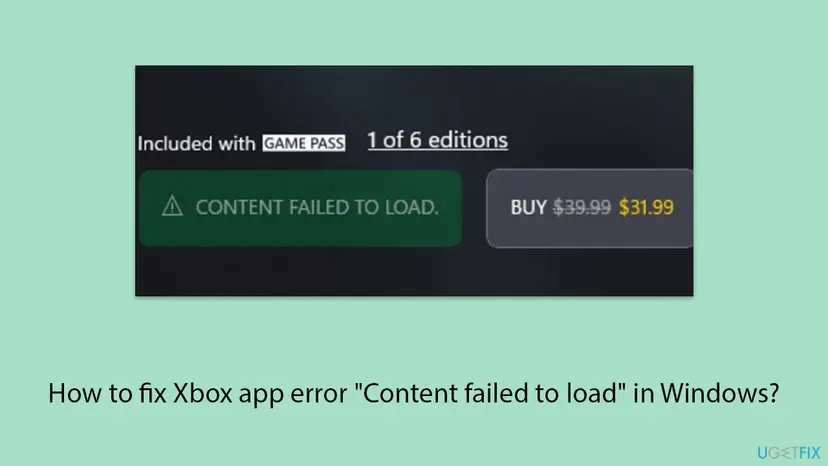
- It is not an install error. Nothing was downloaded yet. The app simply does not know what to offer you, so you cannot start the download.
- There is no error code in the button. Some users see a code elsewhere at the same time. In one Microsoft Q&A report, the install first failed with 0x00000000 and Microsoft Store then showed 0x80072F8F for the same game.
- Spellings people search: "content failed to load", "this content failed to load.", "content failed to load try again" and "xbox app failed to load content". All describe this button.
Why the Xbox app says "Content failed to load": the causes, most common first
Microsoft names no single cause for this text. The ranking follows Xbox Support's steps for games that will not install from the Xbox app, answers in the Microsoft Q&A thread about it, and what users report. Each cause has its own fix.
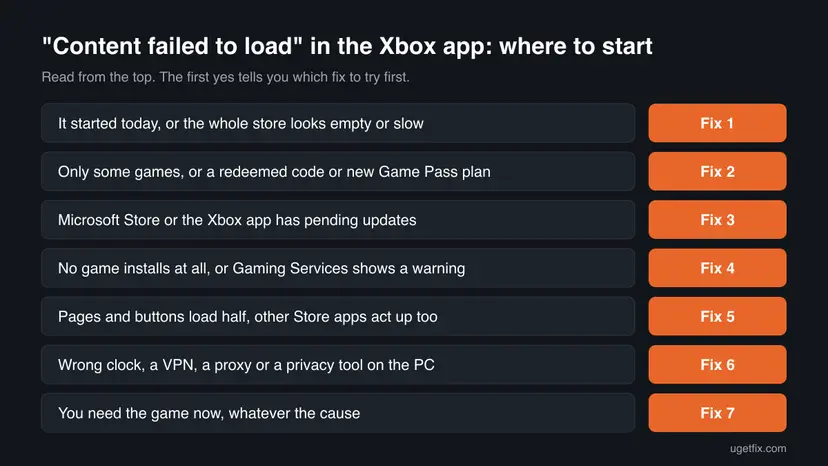
| How often | Cause | Sign | Fix |
|---|---|---|---|
| Most often | A passing Xbox service problem, or an app that needs a restart | It started suddenly, other pages load slowly too | Fix 1 |
| Often | The game or Game Pass is not on the account the app uses | Only some games, a redeemed code, a new plan, or two Microsoft accounts | Fix 2 |
| Often | An out of date Xbox app, Gaming Services or Microsoft Store | Library in Microsoft Store shows pending updates | Fix 3 |
| Less often | Broken Gaming Services | No game installs at all, or the app warns about Gaming Services | Fix 4 |
| Less often | Damaged Microsoft Store or Xbox app data | Store pages also load half or show errors | Fix 5 |
| Rarely | A wrong clock, a VPN, a proxy or a blocked Xbox service | You use a VPN, an ad blocker or a PC optimizer | Fix 6 |
| Rarely | Damaged Windows system files | Several Store apps fail, not only Xbox | Fix 8 |
How to fix "Content failed to load" in the Xbox app on Windows 11 and Windows 10
Fix 1 is for everyone and takes a few minutes. Fixes 2 and 3 check the account and the updates. Fixes 4 and 5 repair the Xbox parts of Windows. Fix 6 removes blocks, Fix 7 gets the game another way, and Fix 8 repairs Windows. Steps are written for Windows 11, with the Windows 10 path where it differs. Windows 10 left support on 14 October 2025.
| What you see or have | Start with |
|---|---|
| It started today, and the same game page worked before. | Fix 1 |
| Only some games show it, or you just redeemed a code or changed your Game Pass plan. | Fix 2 |
| Microsoft Store shows updates waiting for Xbox or Gaming Services. | Fix 3 |
| No game installs from the Xbox app at all. | Fix 4 |
| Microsoft Store itself loads pages badly too. | Fix 5 |
| You use a VPN, a proxy, an ad blocker or a PC optimizer. | Fix 6 |
| You need the game now and will fix the app later. | Fix 7 |
Fix 1. Check the Xbox status, sign in again and restart the PC
5 to 10 minutesNo riskEveryone, first, and above all when the message appeared suddenly.
Xbox Support's page for games you cannot install or launch from the Xbox app starts with exactly this: check the Xbox status, verify that you are signed in and restart your device. The game page loads its offer from Xbox services, so a service problem or a stale sign-in shows up as this button.
- Open the Xbox status page. If a service shows an alert, wait until it clears and skip the rest.
- In the Xbox app, select your profile picture at the top left and check that your gamertag is shown. If you see Sign in, sign in.
- Close the Xbox app. Press Ctrl + Shift + Esc, find Xbox under Processes and select End task if it still runs.
- Restart the PC from Start > Power > Restart, not with shutdown and power on.
- Open the Xbox app, go to the game page again and wait a few seconds for the button to load.
It worked if: The button shows Install, Play or a price instead of Content failed to load.
If not: If the status page is green and you are signed in, go to Fix 2.
Fix 2. Use one account in Microsoft Store and the Xbox app, and check that you own the game
5 to 10 minutesNo riskOnly some games show the message, you redeemed a code, your Game Pass plan changed, or you have more than one Microsoft account.
The button is filled from the licence on the account the app uses. In the Microsoft Q&A thread about this message, the advice to a user who redeemed a code was to check the game at account.microsoft.com/services: if it is missing or expired, it is a licence problem, not the PC. Xbox Support also lists checking your Game Pass membership.
- Sign in at account.microsoft.com/services and check that your Game Pass plan is active and includes PC games.
- For a game you bought or redeemed, check that it appears on that account. Note which email address it is on.
- Open Microsoft Store, select your profile picture and check the email. If it differs, select Sign out and sign in with the account that owns the game.
- Open the Xbox app, select your profile picture and do the same. Both apps must show the same account.
- Restart the PC and open the game page again.
A game bought for Xbox consoles only does not install on PC. The Xbox app can still list it in your collection. Check the game's Store page for PC among the supported devices before you go further.
It worked if: Both apps show the same account, the game is listed on it, and its page shows Install.
If not: If the account is right and the game is on it, go to Fix 3.
Fix 3. Update the Xbox app, Gaming Services and Microsoft Store
5 to 15 minutesNo riskMicrosoft Store shows pending updates, or the PC was offline or unused for weeks.
The game page in the Xbox app depends on Microsoft Store and Gaming Services under the hood. When one of them is older than the others, pages can load without their buttons. Updating all three brings them back in step.
- Open Microsoft Store and select Library at the bottom left.
- Select Get updates and wait until Xbox, Gaming Services and Microsoft Store are updated.
- Press Win + I, open Windows Update and select Check for updates. Install what is offered. On Windows 10: Update & Security > Windows Update.
- Restart the PC and open the game page in the Xbox app.
If Get updates itself fails with an error, our guide to Microsoft Store error 0x80073CF8 covers a Store that will not update apps.
It worked if: Library shows no pending updates for the Xbox apps, and the game page loads its Install button.
If not: If no game installs at all, go to Fix 4.
Fix 4. Run the Gaming Services Repair Tool, then reinstall Gaming Services
10 to 20 minutesLow riskNo game installs from the Xbox app, or the app shows a warning about Gaming Services.
Gaming Services is the Windows component that installs and runs Xbox games on PC. Xbox Support built a repair tool for it into the Xbox app. In the Microsoft Q&A thread about this message, removing and reinstalling Gaming Services was among the advanced steps.
- Open the Xbox app, select your profile picture and then Support.
- Select Gaming Services Repair Tool and then Start Troubleshooting. Follow what it reports.
- Restart the PC and try the game page again.
- If it still fails, close Microsoft Store and the Xbox app. Right-click Start and select Terminal (Admin). On Windows 10: Windows PowerShell (Admin).
- Run the command below to remove Gaming Services.
- Install it again from the Gaming Services page in Microsoft Store and restart the PC.
Remove Gaming Services (Terminal or PowerShell as administrator)
Get-AppxPackage Microsoft.GamingServices | Remove-AppxPackage -AllUsers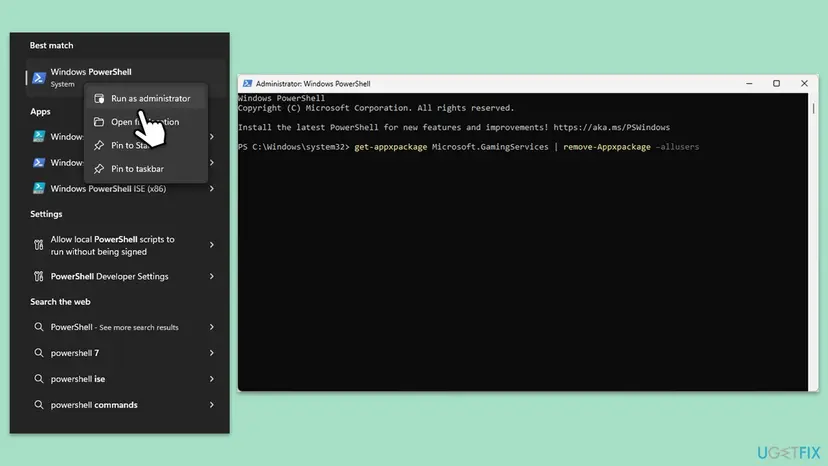
The old version of this page also deleted two Gaming Services keys from the registry. We dropped that step. If Gaming Services will not install again, our guide to Xbox app error 0x80073CFB covers a package that refuses to install.
It worked if: The repair tool reports no problem, or Gaming Services installs again, and the game page shows Install.
If not: If Store pages also load badly, go to Fix 5.
Fix 5. Reset the Microsoft Store cache, then repair or reset the Xbox app
10 minutesLow riskMicrosoft Store also loads pages half or shows errors, or Fixes 1 to 4 did not help.
The Xbox app keeps local data about your games and their offers, and Microsoft Store keeps its own cache. When that data is damaged, a game page can keep showing the old failed state. Clearing the Store cache and repairing the app makes both fetch it fresh.
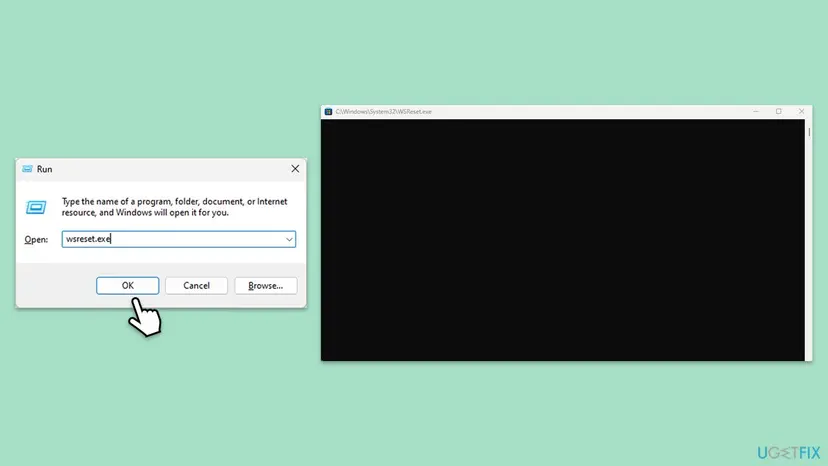
- Press Win + R, type
wsreset.exeand press Enter. A blank window opens, closes by itself, and Microsoft Store opens. - Press Win + I, open Apps > Installed apps (Windows 10: Apps > Apps & features), find Xbox, select the three dots and Advanced options.
- Select Terminate, then Repair. Open the game page again.
- If it still fails, come back and select Reset. It signs you out of the app and deletes its local data. Your installed games stay.
- Do the same for Microsoft Store and Gaming Services if they are listed with Advanced options. Restart the PC.
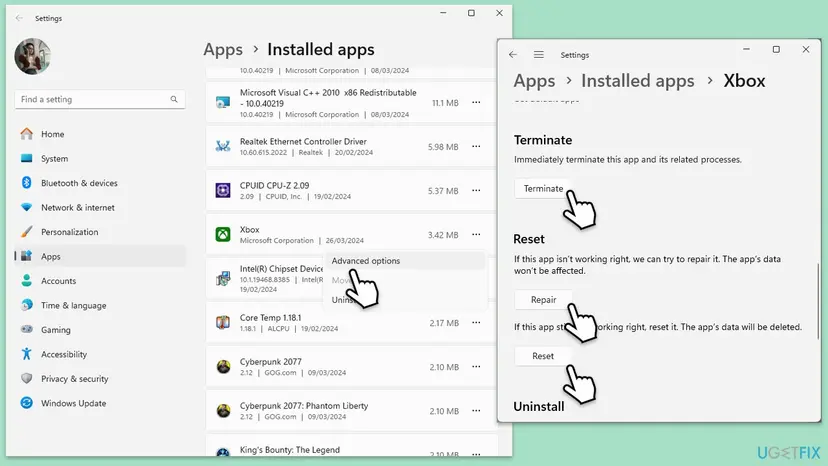
The same steps with screenshots for any app: How to repair or reset an app in Windows. The full Store reset: Reset the Microsoft Store
It worked if: Store pages load normally and the Xbox game page shows Install.
If not: Go to Fix 6 if you use a VPN, a proxy or a tool that changes Windows settings.
Fix 6. Correct the clock and remove what blocks Xbox: VPN, proxy and disabled Xbox services
15 to 25 minutesLow riskThe clock is wrong, Microsoft Store shows 0x80072F8F, or you use a VPN, a proxy, an ad blocker or a PC optimizer.
Secure connections to Xbox fail when the clock is off, and an answer in the Microsoft Q&A thread linked 0x80072F8F with this message to date, time and region settings. Privacy tools and optimizers can also disable Xbox services or add a proxy, which stops the game page while websites still open.
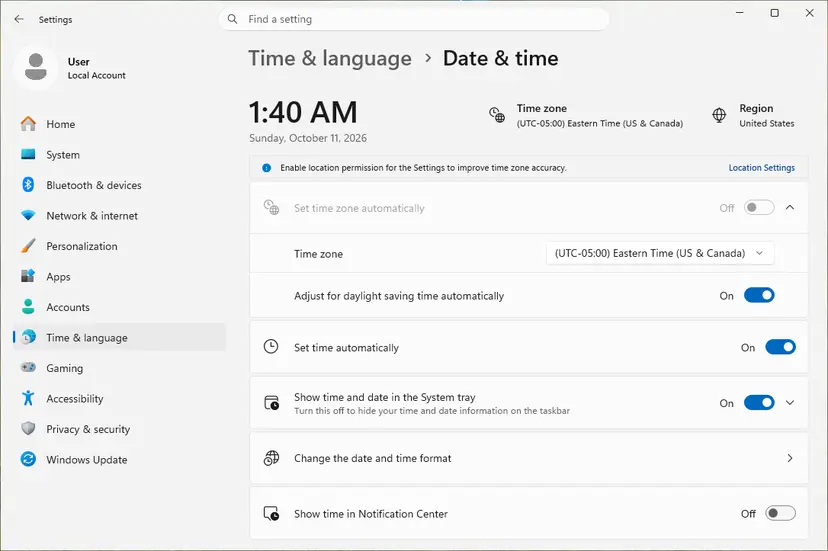
- Press Win + I and open Time & language > Date & time. Turn on Set time automatically and Set time zone automatically, then select Sync now.
- In Time & language > Language & region, check that Country or region is where you live.
- Disconnect any VPN and close its app. Open the game page once without it.
- Open Network & internet > Proxy and turn off Use a proxy server unless your work or school needs it.
- Press Win + R, type
services.mscand press Enter. - Open Gaming Services, Xbox Live Auth Manager and Microsoft Store Install Service one by one. If Startup type says Disabled, set it to Manual, select Apply, then Start and OK.
- Restart the PC and open the game page again.
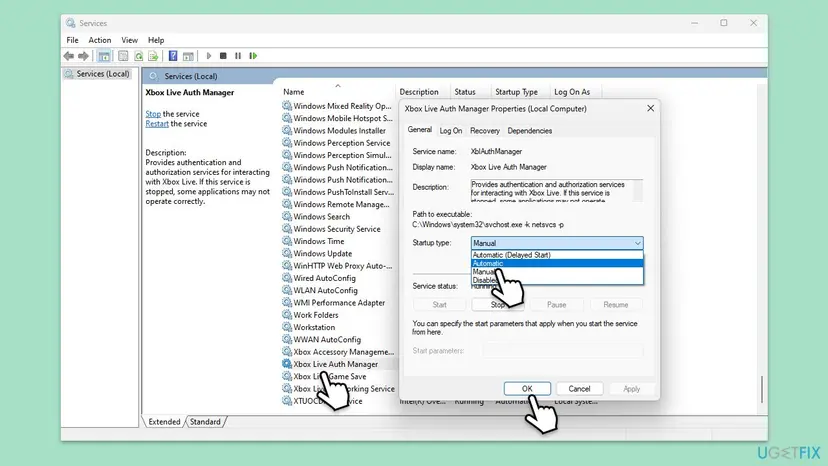
- Do not set every service to Automatic. The old version of this page said so. Manual is enough: the service starts when an app asks for it. Steps with screenshots: Check and restart Windows services
- A phone hotspot test: connect the PC to your phone's hotspot and open the game page once. If it loads there, the block is in your home network, such as a router with DNS filtering.
- Security software: if you use a third-party antivirus or firewall suite, pause it for one test and turn it back on right after: Turn off Microsoft Defender protection for a moment
It worked if: The clock matches your phone, no Xbox service shows Disabled, and the game page shows Install.
If not: If you need the game now, use Fix 7. Otherwise go to Fix 8.
Fix 7. Install the game from Microsoft Store or xbox.com instead
5 minutes plus the downloadNo riskYou need the game now, and the Xbox app keeps showing the message for it.
Microsoft Store and the Xbox app sell and install the same PC games with the same account. When only the Xbox app's page fails, the Store page often still loads its Get or Install button. This is a workaround: it does not repair the Xbox app.
- Open Microsoft Store from the Start menu, signed in with the account that owns the game.
- Search for the game and open its page. Check that the edition is the PC one.
- Select Install or Get and wait for the download to start.
- When it is done, start the game from the Start menu or from Library in Microsoft Store.
- If Microsoft Store fails for the same game with an error code, note the code: it says more than the Xbox app's message.
A code such as 0x80072F8F points back to the clock and network checks in Fix 6. Other codes have their own fix, such as our guide to Microsoft Store error 0x80073CF1.
It worked if: The game downloads from Microsoft Store and appears in the Xbox app as installed.
If not: If the Store fails too, go to Fix 8 and then read "If it is still there" below.
Fix 8. Repair Windows system files with SFC and DISM
15 to 30 minutesLow riskSeveral Store apps fail, not only the Xbox app, and Fixes 1 to 6 did not help.
Microsoft Store and Gaming Services rely on Windows components that SFC and DISM check and replace. This rarely is the cause of this message, so it comes last, but it rules out a damaged Windows before you contact support.
- Open an elevated command window. Right-click Start and select Terminal (Admin), or type cmd in the search box, right-click Command Prompt and select Run as administrator. Select Yes when Windows asks for permission.

Search for cmd and choose Run as administrator. Screenshot: Windows 11 26H2. - Run DISM first. Type the command below and press Enter. DISM downloads clean copies of damaged components from Windows Update, so it can take several minutes. Wait until it says The operation completed successfully.
DISM.exe /Online /Cleanup-Image /RestoreHealth
DISM /RestoreHealth running. Screenshot: Windows 11 26H2. - Run System File Checker. In the same window, type the command below and press Enter. Do not close the window until the verification reaches 100%.
sfc /scannow
sfc /scannow at 100%. Screenshot: Windows 11 26H2. - Read the result and restart. Compare the last message with the table below this guide, then restart the PC so that repaired files are loaded.

The result line tells you what SFC did. Screenshot: Windows 11 26H2.
These steps were written for Windows 11 24H2 and 25H2. The full page with the other versions and what each result means: Run DISM and SFC to repair Windows system files
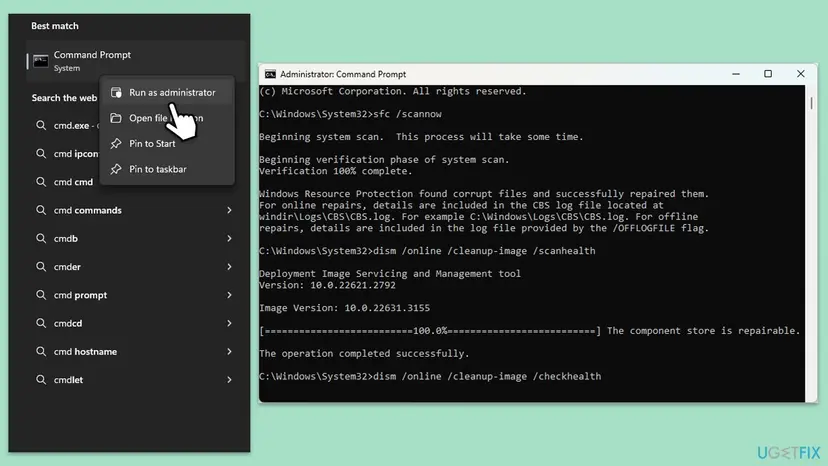
It worked if: SFC reports no problems or that it repaired them, and after a restart the game page loads.
If not: Collect the facts listed under "If it is still there" and contact Xbox Support.
If "Content failed to load" is still there: what to check and what to send Xbox Support
Microsoft documents no log file for this message. What helps support is a clear picture of where it fails, so gather these facts first.
- The account test: does the same game install on another PC or a console with your account? In the Q&A thread, the game installed on a friend's PC with the same account, which showed the problem was the user's PC.
- The Store test: does Microsoft Store install the same game (Fix 7), and if not, which error code does it show?
- The network test: does the page load on a phone hotspot with any VPN off?
- The versions: your Windows version (press Win + R, type
winver) and the Xbox app version from its Settings. - Event Viewer: press Win + X, select Event Viewer and open Windows Logs > Application. Note errors at the time you opened the game page that name Xbox, Gaming Services or Store. We could not confirm one event that always appears for this message.
Some guides, our old one included, re-register every Store app with one PowerShell line. In the Q&A thread, a user who ran a similar re-register script reported that afterwards nothing worked and the Xbox app would not even download again. Use the targeted steps above instead.
If the game installs with your account elsewhere but not on this PC after Fix 8, contact Xbox Support at support.xbox.com/contact-us with the facts above.
How to keep "Content failed to load" from coming back
- Use one Microsoft account for Microsoft Store, the Xbox app and your Game Pass plan.
- Let Microsoft Store update Xbox, Gaming Services and itself. Check Library > Get updates after a big Windows update.
- Keep Set time automatically and Set time zone automatically on.
- Look at the Xbox status page first when the message appears out of nowhere.
- Do not let optimizer tools disable Xbox or Store services if you play on PC.
- Do not re-register all Windows apps with one PowerShell line to fix one game page.
- Do not delete Gaming Services registry keys by hand.
- Do not turn off Windows Defender Firewall to make the Xbox app work.
Frequently asked questions
Why does it say "Content failed to load" on the Xbox app?
Because the Xbox app could not load what you may do with that game on your account, so it shows this text where the Install or Play button should be. Most often the cause is a passing Xbox service problem or a stale sign-in, fixed by a check of the Xbox status page, a fresh sign-in and a restart (Fix 1). Next come an account that does not own the game or hold Game Pass (Fix 2) and out of date Xbox apps (Fix 3).
How do I fix "Content failed to load" in the Xbox app on PC?
Go in order. Check the Xbox status page, sign in again and restart the PC (Fix 1). Make sure Microsoft Store and the Xbox app use the account that owns the game or pays for Game Pass (Fix 2). Update Xbox, Gaming Services and Microsoft Store from Library > Get updates (Fix 3). If no game installs, run the Gaming Services Repair Tool from the Xbox app's Support page (Fix 4). Then reset the Store cache and repair the Xbox app (Fix 5).
Why does Xbox Game Pass say "Content failed to load" on a game I should have?
The game page checks your Game Pass plan on the account the app is signed in with. If the plan expired, belongs to another Microsoft account, or does not include PC games, the button cannot load. Sign in at account.microsoft.com/services, check the plan and its email address, and use that same account in Microsoft Store and the Xbox app (Fix 2). Games also leave Game Pass over time, so check that the title is still in the PC catalog.
Is "Content failed to load" the same as an install error?
No. An install error comes after the download started and usually carries a code. This message appears before anything starts: the app does not know whether to offer Install, Play or Buy. Users sometimes see both on the same game. In one Microsoft Q&A report, an install failed with 0x00000000, the button then turned into Content failed to load, and Microsoft Store showed 0x80072F8F for the same game.
Can I install the game without the Xbox app?
Often yes. Microsoft Store sells and installs the same PC games with the same account. Open the game's page in Microsoft Store and select Install or Get (Fix 7). The game then shows up in the Xbox app as installed. If the Store also fails, it usually shows an error code, which tells you more than the Xbox app's message does.
What does "content failed to load" mean with Ubisoft games in the Xbox app?
The message is the same as for any other game, and the fixes are the same: account, updates, Gaming Services and Store data. Some games from Ubisoft and other publishers also need the publisher's own launcher and account after they are installed. We could not confirm a cause of this message that is specific to Ubisoft games, so start with Fix 1 and Fix 2.
Will resetting the Xbox app delete my games or saves?
No. Reset in Settings deletes only the Xbox app's own data and signs you out of it. Installed games stay where they are. Cloud saves of games that support them stay on Xbox servers. Try Repair first, which keeps the app's data, and use Reset only if Repair does not help (Fix 5).
Should I run the PowerShell command that re-registers all Windows apps?
We do not advise it for this message. It touches every Store app on the PC to fix one game page. In the Microsoft Q&A thread about this message, a user who ran a similar re-register script reported that afterwards nothing worked and the Xbox app would not download again. The targeted steps, Gaming Services reinstall (Fix 4) and repair or reset of the Xbox app (Fix 5), do the same job with less risk.
Is the Xbox network down when I see "Content failed to load"?
Sometimes. The game page loads its offer from Xbox services, so an outage shows up as this message on many pages at once. Open the Xbox status page at support.xbox.com before you change anything. If a service shows an alert, wait for it to clear and try again. If everything is green, the cause is on your account or PC, and Fix 2 is next.
Sources
- Xbox Support: Fix gaming issues with the Xbox app for PC and handhelds (I can't install or launch a PC game from the Xbox app) (support.xbox.com)
- Xbox Support: Gaming Services Repair Tool for PC (support.xbox.com)
- Microsoft Q&A: Can't install a game on either the Xbox App or Windows Store (user report and answers) (learn.microsoft.com)
Did this fix work?
One click, no account. It tells the next reader which guides are worth their time.
Questions and experiences: fix Xbox app error "Content failed to load" in Windows
Still broken, or found a fix we did not cover? Ask here: members and our editors answer. Reading is open; writing needs a free account.
…