
How to fix xlive.dll missing or not found error in Windows?

Prefer to fix it yourself? The manual steps follow.
- 6methods
- 5 to 30 minutes
- Easy
Applies to Windows 11 and Windows 10, PC games that use Games for Windows - LIVE (GTA IV before 2020, Fallout 3, Batman: Arkham, Dark Souls PtDE, Fable III, Street Fighter IV and others)
6 methods in this guide
Hi. I just installed the GTA game, and it refuses to start. Instead I get the error "The program can't start because xlive.dll is missing from your computer." What is this, and how do I fix it?
xlive.dll is the main library of Games for Windows - LIVE (GFWL), Microsoft's old PC gaming service, and only games built on it ask for it. Many of those games have since been patched to run without it, while the rest still need Microsoft's GFWL software. Update the game first; if it still uses GFWL, install the redistributable that Microsoft still hosts.
xlive.dll belongs to Microsoft's Games for Windows - LIVE, not to Windows itself, so SFC and Windows Update will not bring it back. On Steam, update or reinstall the game: GTA IV, Fallout 3 GOTY, the Batman: Arkham games and others no longer need GFWL (Fix 1). For a disc copy or a game that still uses GFWL, install Microsoft's own redistributable (Fix 2). Never download xlive.dll from a DLL site.
| Error | "The code execution cannot proceed because xlive.dll was not found." Older wording: "The program can't start because xlive.dll is missing from your computer." |
|---|---|
| Where it appears | In a small System Error window the moment you start an older PC game, before the game window opens. The title bar names the game's .exe file. |
| Main cause | The game was built for Games for Windows - LIVE and the GFWL redistributable is not installed. A new PC or a clean Windows install does not include it. |
| Fastest fix | Steam: let the game update to its build without GFWL (Fix 1). Other copies: install Microsoft's GFWL software from Microsoft's own link (Fix 2). |
| Also written as | xlive dll, xlive.dll missing, xlive.dll not found, xlivedll, xlive.dill, xlive.ddl, x live dll, xlive dll introuvable (French). |
| The file | Microsoft's GFWL runtime library, last versions 3.5.x. On 64-bit Windows it sits in C:\Windows\SysWOW64, not next to the game. |
| Vendor status | Microsoft closed the PC Marketplace in August 2013. Many publishers removed GFWL from their Steam versions. GFWL sign-in still worked in 2025 for games that need it. |
| Do not | Download xlive.dll from a DLL site, copy it from another PC, or run regsvr32 on it. A lone DLL without the rest of GFWL does not make the game work. |
| Time to fix | About 5 minutes to install GFWL. 10 to 30 minutes when Steam downloads a new build of a large game. |
Facts checked on 14 October 2026. Steps written for Windows 11 (25H2 and 26H2) and Windows 10 22H2.
What xlive.dll is and what "xlive.dll was not found" means
xlive.dll is the core library of Games for Windows - LIVE, the service Microsoft launched on 29 May 2007 to bring Xbox LIVE sign-in, achievements, multiplayer and copy protection to PC games. A game built on GFWL loads xlive.dll the moment it starts. When Windows cannot find the file, it stops the game before its first window and shows a System Error box.
- Windows 11 and Windows 10 wording
- "The code execution cannot proceed because xlive.dll was not found. Reinstalling the program may fix this problem."
- Older wording
- "The program can't start because xlive.dll is missing from your computer. Try reinstalling the program to fix this problem."
- Who makes it
- Microsoft, as part of the Microsoft Games for Windows - LIVE Redistributable. It is not a Windows system file and not part of the game itself.
- Latest versions
- PCGamingWiki lists Redistributable 3.5.95.0 and Marketplace client 3.5.67.0 as the last releases. Microsoft's own setup version file reports 3.5.0089.0 for the setup program.
- Which games
- Only games built on GFWL: GTA IV and Episodes from Liberty City before March 2020, Fallout 3, Batman: Arkham Asylum and City, Dark Souls: Prepare to Die Edition, Fable III, Street Fighter IV, Dead Rising 2, Resident Evil 5, Bulletstorm and others.
So the message does not mean Windows is damaged. It means the game expects a Microsoft component that is not on the PC, or that a replacement file the game relied on is gone. Every spelling people search for, from xlive dll and xlivedll to xlive.dill, xlive.ddl and the French xlive dll introuvable, points to this same file.
System File Checker restores files that Windows itself ships. xlive.dll was never part of Windows 10 or Windows 11, so sfc /scannow has nothing to restore, and Windows Update does not install GFWL. The fix is the game's own update or Microsoft's GFWL software.
Where xlive.dll belongs: SysWOW64, not the game folder
Microsoft's redistributable installs xlive.dll as a shared 32-bit system file. Microsoft's documentation explains that on 64-bit Windows the %windir%\System32 folder is reserved for 64-bit programs, and that a 32-bit program's access to System32 is redirected to %windir%\SysWOW64. Users of the GFWL installer report exactly that: the file lands in SysWOW64 and System32 stays empty.
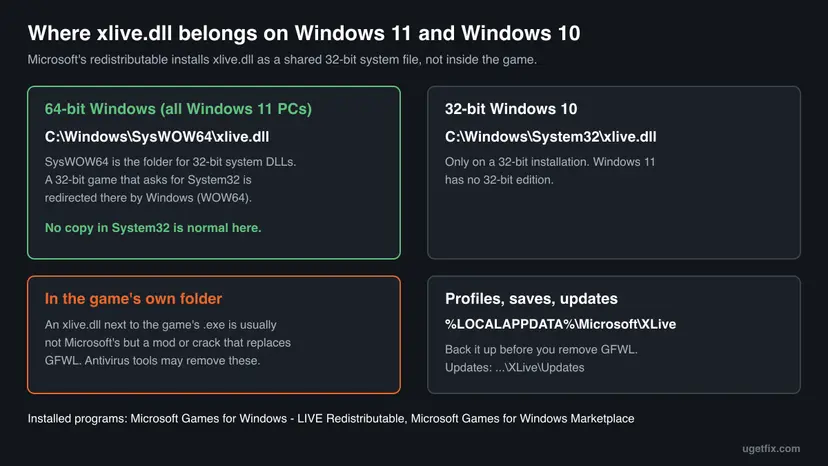
| Place | What a file there means |
|---|---|
C:\Windows\SysWOW64\xlive.dll | The genuine GFWL runtime on 64-bit Windows. If it is here and the game still says it is missing, see Fix 3 and Fix 4. |
C:\Windows\System32\xlive.dll | Normal only on 32-bit Windows 10. On 64-bit Windows a copy here was put in by hand and is not used by 32-bit games. |
| The game's own folder, next to its .exe | Not from Microsoft. Usually a community replacement that bypasses GFWL, or a crack. Windows looks here first, so it overrides the system copy. |
%LOCALAPPDATA%\Microsoft\XLive | GFWL profiles, saves and downloaded game updates. Not the DLL, but worth a backup before you remove GFWL. |
Microsoft's DLL search order explains the last two rows: for a normal desktop program, Windows checks the folder the program was started from before the system folders. That is why an xlive.dll dropped into a game folder takes over, and why removing it brings the error back.
Games for Windows - LIVE today: what Microsoft and the publishers changed
Most advice about xlive.dll is from 2012 or 2013, when GFWL was still sold. Since then the service has been half retired, and that changes which fix applies to you.
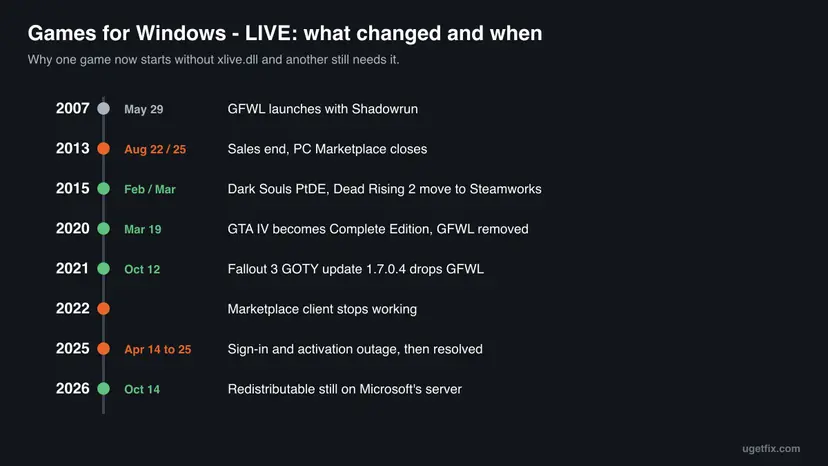
- August 2013. Xbox Support announced that the PC Marketplace would stop selling GFWL games on 22 August 2013 and close on 25 August 2013, while the GFWL service itself would continue.
- Publishers patched their Steam versions. Rockstar says the March 2020 update to GTA IV: Complete Edition "removes the previous requirement for Games for Windows Live". Bethesda's Fallout 3 GOTY update 1.7.0.4 of 12 October 2021 "no longer installs Games for Windows Live dependencies".
- Others followed. PCGamingWiki lists Batman: Arkham Asylum and City, Dark Souls: Prepare to Die Edition, Dead Rising 2, Resident Evil 5, BioShock 2, DiRT 3 and others whose Steam versions dropped GFWL.
- The Marketplace client is dead. PCGamingWiki reports it non-functional since 2022, but games can still sign in to GFWL through the in-game overlay.
- Sign-in still works. PCGamingWiki editors reported an activation and profile outage from 14 April 2025 that was generally resolved by 25 April 2025.
On 14 October 2026 we checked Microsoft's short link go.microsoft.com/fwlink/?LinkID=201134. It still redirects to gfwlivesetup.exe (642,712 bytes) on Microsoft's download.gfwl.xboxlive.com server, and the file names Microsoft Corporation as its publisher and "Microsoft Games for Windows - LIVE Game Setup" as its description.
What causes the xlive.dll missing or not found error, from most to least common
The cause is almost always about GFWL being absent, not about Windows being broken. Ranked by how often each one fits what readers describe:
| Cause | How common | Typical sign | Fix |
|---|---|---|---|
| The game still uses GFWL and the redistributable was never installed on this PC | Most common | New PC, clean Windows, a disc copy, or a game that kept GFWL | Fix 2 |
| An old build of a game that has since dropped GFWL | Common | Steam copy of GTA IV, Fallout 3 or Batman that has not updated, or was downgraded for mods | Fix 1 |
| GFWL installed badly or only in part | Less common | Setup failed with 0x80070005, or SysWOW64 has no xlive.dll after setup | Fix 3 |
| An antivirus removed a replacement xlive.dll from the game folder | Less common | The error began after a scan or an alert; a mod used to work | Fix 4 |
| The game's own GFWL setup step never ran | Rare | The game was copied from another PC or drive instead of installed | Fix 5 |
| A cracked game or a DLL from a download site | Rare, but risky | The file came with a repack, or you added it by hand | Fix 6 |
Unless other programs also fail or Windows reports disk errors, there is no reason to suspect hardware here. The error only names a component the game needs.
How to fix the xlive.dll missing or not found error
Fix 1 removes the need for xlive.dll on games whose publisher dropped GFWL. Fix 2 installs Microsoft's GFWL software for games that still need it, and Fix 3 repairs a failed install. Fix 4 and Fix 5 cover a file an antivirus removed and a game copied instead of installed. Fix 6 is for a file that came from an untrusted place.
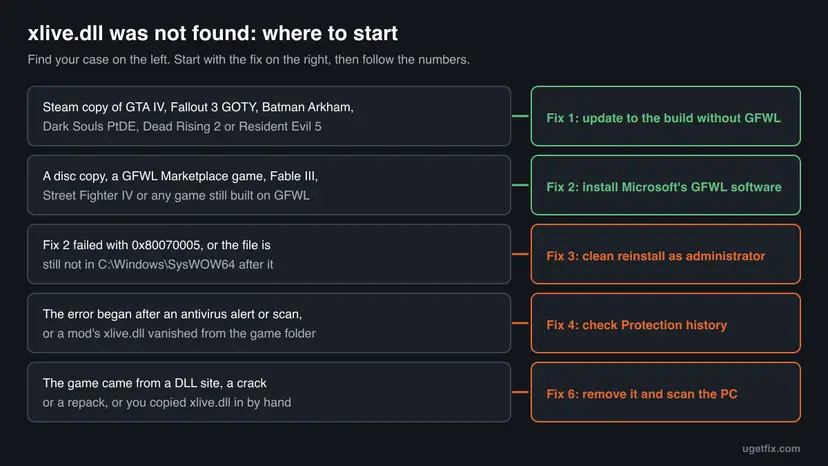
| What you see or have | Start with |
|---|---|
| A Steam copy of GTA IV, Fallout 3 GOTY, Batman: Arkham, Dark Souls PtDE, Dead Rising 2 or Resident Evil 5 | Fix 1 |
| A disc copy, Fable III, Street Fighter IV, or any game whose store page still lists Games for Windows - LIVE | Fix 2 |
| Fix 2 ended with 0x80070005, or SysWOW64 still has no xlive.dll | Fix 3 |
| The error began after an antivirus alert, or a mod stopped working | Fix 4 |
| The game folder was copied from another PC or an old drive | Fix 5 |
| The file came from a DLL site, a crack or a repack | Fix 6 |
Fix 1. Update the game to its version without Games for Windows - LIVE
10 to 30 minutesLow riskYour copy is on Steam or the Rockstar Games Launcher and the publisher removed GFWL.
These publishers rebuilt their games without GFWL, so the current build never asks for xlive.dll. An old, half-updated or downgraded install still contains the GFWL executable, and that is the one throwing the error.
| Game | What changed |
|---|---|
| Grand Theft Auto IV and Episodes from Liberty City | Merged into GTA IV: Complete Edition in March 2020; GFWL replaced by the Rockstar Games Launcher |
| Fallout 3: Game of the Year Edition | Update 1.7.0.4, 12 October 2021: GFWL dependency removed |
| Batman: Arkham Asylum and Arkham City | GFWL and SecuROM removed from the Steam version |
| Dark Souls: Prepare to Die Edition | Moved to Steamworks on 16 February 2015 |
| Dead Rising 2 and Off the Record | Moved to Steamworks on 17 March 2015 |
| Resident Evil 5, BioShock 2, DiRT 3, Red Faction: Guerrilla, Super Street Fighter IV: Arcade Edition | Moved to Steamworks or re-released without GFWL |
- Open Steam and go to your Library. Find the game.
- Right-click it, select Properties, then the Betas tab. Make sure None is selected, so you are on the current build. Some games keep an opt-in branch with GFWL, such as gfwl for FlatOut: Ultimate Carnage.
- Close the window. If Steam shows an update for the game, let it finish.
- Bethesda advises a clean reinstall for Fallout 3. Right-click the game, select Manage > Uninstall, then install it again from the Library.
- For the other games, verify the files so Steam replaces old executables. Step by step: How to verify game files in Steam, Epic Games, Xbox app, EA app, Battle.net and GOG Galaxy
- Start the game from Steam or, for GTA IV, from the Rockstar Games Launcher when it asks you to sign in.
A full reinstall deletes mods and files you added to the game folder. Copy them elsewhere first. Users who downgrade GTA IV or Fallout 3 for older mods report that the old build needs GFWL again, so on a downgraded install use Fix 2 instead.
GTA IV owners with a physical copy and the activation key from the manual can add the game to the Rockstar Games Launcher, Rockstar says, and get the same GFWL-free Complete Edition.
It worked if: The game starts without the System Error window and never asks for xlive.dll again.
If not: If your game is not in the table, or a fresh install still asks for xlive.dll, it still uses GFWL: go to Fix 2.
Fix 2. Install Microsoft's Games for Windows - LIVE software
5 to 10 minutesLow riskYour game still uses GFWL: a disc copy, Fable III, Street Fighter IV and similar titles.
xlive.dll is installed by Microsoft's GFWL Redistributable, which a new or reinstalled Windows does not have. Microsoft's own setup program still downloads and installs it, putting xlive.dll where the game expects it.
- Close the game. In Settings > Apps > Installed apps (Windows 10: Apps & features), look for Microsoft Games for Windows - LIVE Redistributable and Microsoft Games for Windows Marketplace. If either is there, go to Fix 3 instead.
- In your browser, open Microsoft's link
https://go.microsoft.com/fwlink/?LinkID=201134. It downloads gfwlivesetup.exe. - Microsoft's server delivers the file over plain HTTP, so the browser may warn that the download is insecure. Keep it only when the address bar or download list shows
download.gfwl.xboxlive.com. - Right-click gfwlivesetup.exe and select Properties > Details. The company should read Microsoft Corporation and the description Microsoft Games for Windows - LIVE Game Setup. If not, delete the file.
- Run gfwlivesetup.exe and select Yes in the User Account Control prompt. It downloads the redistributable from Microsoft and installs it.
- When setup says it is done, restart the PC.
- Start the game. GFWL's in-game sign-in appears; PCGamingWiki notes the first sign-in for a game can sit for 5 to 10 minutes before it completes.
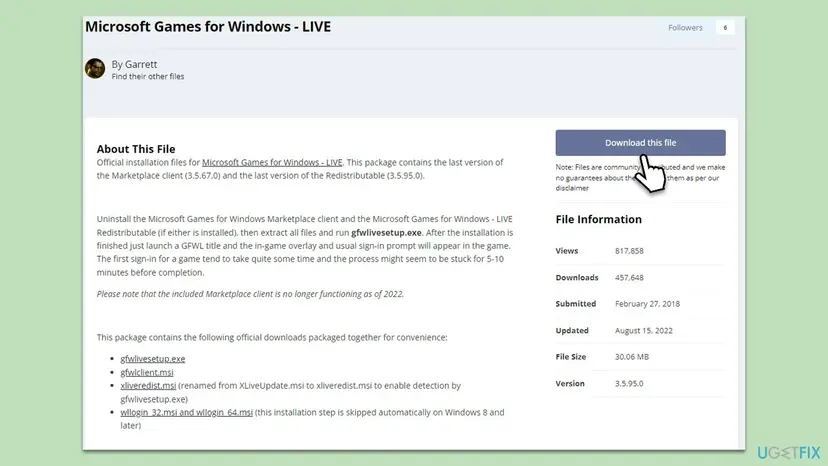
If Microsoft's setup cannot download the parts, PCGamingWiki keeps a package of the same official Microsoft installers, shown above. Its instructions are to extract all files and run gfwlivesetup.exe from that folder, and its editors note that xliveredist.msi can also be run on its own. Check each file's Details tab as in step 4 before you run it.
To confirm the file arrived, open PowerShell and run:
Get-Item C:\Windows\SysWOW64\xlive.dll | Select-Object -ExpandProperty VersionInfoThe included Marketplace client opens but does nothing: PCGamingWiki says it has not worked since 2022, so ignore it. If the in-game sign-in fails and your Microsoft account uses two-step verification, PCGamingWiki suggests signing in with an app password instead.
It worked if: PowerShell shows a FileVersion of 3.5.x for xlive.dll, and the game starts and shows the GFWL sign-in or a local profile prompt.
If not: If setup fails with an error code, or xlive.dll is still not in SysWOW64, go to Fix 3.
Fix 3. Remove the old GFWL parts and reinstall as administrator
10 minutesLow riskGFWL setup failed, ended with 0x80070005, or the file is still missing after Fix 2.
Setup skips parts it thinks are already there, so a half-installed redistributable stays broken. Error 0x80070005 means access denied, which a Microsoft Q&A thread shows stopping the GFWL download. Removing both components and running setup elevated in Windows 7 mode is the reinstall PCGamingWiki describes for Windows 8 and later.
- Back up
%LOCALAPPDATA%\Microsoft\XLiveto another folder. It holds GFWL profiles and saves for some games. - Uninstall Microsoft Games for Windows - LIVE Redistributable, then Microsoft Games for Windows Marketplace. Step by step: Uninstall a program or app in Windows
- Restart the PC.
- Right-click gfwlivesetup.exe from Fix 2 and select Properties > Compatibility.
- Select Run this program in compatibility mode for and choose Windows 7. Select Run this program as an administrator, then OK. Step by step: How to run a program as administrator or in compatibility mode
- Run gfwlivesetup.exe again and let it finish. Restart the PC once more.
- Check
C:\Windows\SysWOW64for xlive.dll with the PowerShell command from Fix 2, then start the game.
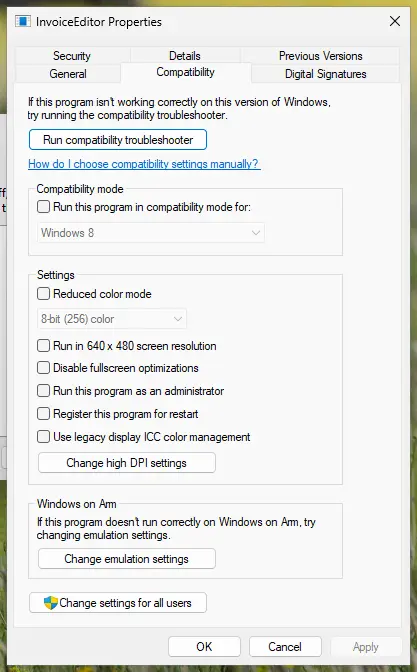
- Setup still says access denied. Pause your antivirus for the length of the install only, then turn it back on: Turn off Microsoft Defender protection for a moment. Users report that security tools sometimes block the GFWL download.
- xlive.dll is in SysWOW64 but not in System32. That is correct on 64-bit Windows. Do not copy it to System32.
It worked if: Setup completes without an error code and xlive.dll appears in C:\Windows\SysWOW64 with a 3.5.x version.
If not: If the file is there and the game still reports it missing, a copy in the game folder may be overriding it: see Fix 4 and Fix 6.
Fix 4. Check whether your antivirus removed xlive.dll from the game folder
5 minutesLow riskThe error began after a scan or an alert, or a mod that replaced GFWL stopped working.
Community mods for games such as GTA IV and Fallout 3 drop their own xlive.dll into the game folder to skip GFWL. Security tools may flag that replacement, quarantine it, and the game then reports xlive.dll as not found.
- Open Windows Security from the Start menu and select Virus & threat protection.
- Under Current threats, select Protection history.
- Open the entry whose Affected items path ends in
xlive.dllinside the game's folder. Note the detection name and the path. - If the detection names a trojan, a stealer or a backdoor, do not restore it. Select Remove and go to Fix 6.
- If it was a mod you installed on purpose, do not restore the quarantined copy. Get the mod again from the page you first took it from, or drop the mod and use Fix 1 or Fix 2.
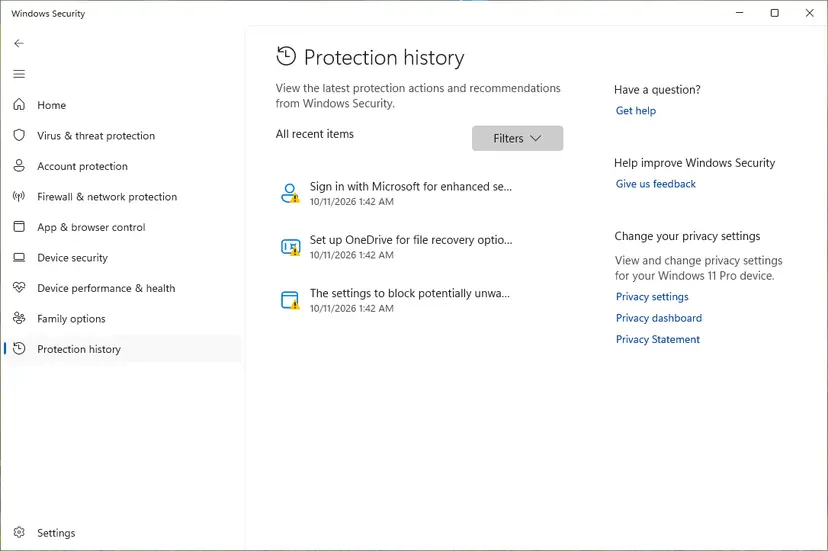
A mod's xlive.dll is not made by Microsoft and turns off GFWL features such as achievements and online play. Only use one from a mod you chose and trust, and never restore a quarantined DLL whose origin you do not know.
It worked if: You know whether the antivirus took the file, and the game starts once the genuine GFWL install or the game's GFWL-free build is in place.
If not: If Protection history shows nothing for xlive.dll, the antivirus did not take it: go back to Fix 2, or try Fix 5.
Fix 5. Reinstall a disc or copied game so its own setup installs GFWL
15 to 30 minutesLow riskThe game folder was copied from another PC or drive, or the setup was cancelled.
GFWL games normally run Microsoft's redistributable during their own setup or first Steam launch. A users' report on Microsoft Q&A describes Steam running a GFWL step when Batman: Arkham City first started. A folder copied by hand skips that step, so xlive.dll never arrives.
- Copy your saves out first: the game's save folder, often under
Documents\My Games, and%LOCALAPPDATA%\Microsoft\XLive. - Uninstall the game. Step by step: Uninstall a program or app in Windows
- Restart the PC.
- Install the game again from its disc or store, and accept every extra component it offers, including Games for Windows - LIVE.
- If you install from Steam, start the game once from Steam so its first-run steps complete.
- Start the game and check that the System Error window is gone.
Some disc versions carry an old GFWL release. If the game then reports that GFWL needs an update, or signing in fails, run Microsoft's setup from Fix 2 on top: it brings the redistributable to the latest version.
It worked if: The game's installer completes its Games for Windows - LIVE step and the game opens without the xlive.dll error.
If not: If the installer skips GFWL or fails, install it yourself with Fix 2 and Fix 3.
Fix 6. Remove an xlive.dll from a DLL site or a crack, and scan the PC
20 to 60 minutesLow riskYou downloaded xlive.dll from a DLL site, or the game came from a crack or repack.
A lone xlive.dll from a download site is not Microsoft's package and cannot replace the rest of GFWL. Cracked games often ship a modified xlive.dll in the game folder, and you cannot tell what else such a file does.
- Delete any xlive.dll you placed in the game folder, in
C:\Windows\System32or inC:\Windows\SysWOW64by hand. Leave a SysWOW64 copy that Fix 2 installed. - Right-click any remaining xlive.dll and select Properties > Details. A genuine copy from Fix 2 sits in SysWOW64 and shows a 3.5.x file version.
- Run a full scan with Microsoft Defender. Step by step: How to scan for malware with Microsoft Defender
- If the scan finds threats, run a Microsoft Defender Antivirus (offline scan) from Scan options as well.
- Install the genuine software with Fix 2, or get a legitimate copy of the game and use Fix 1.
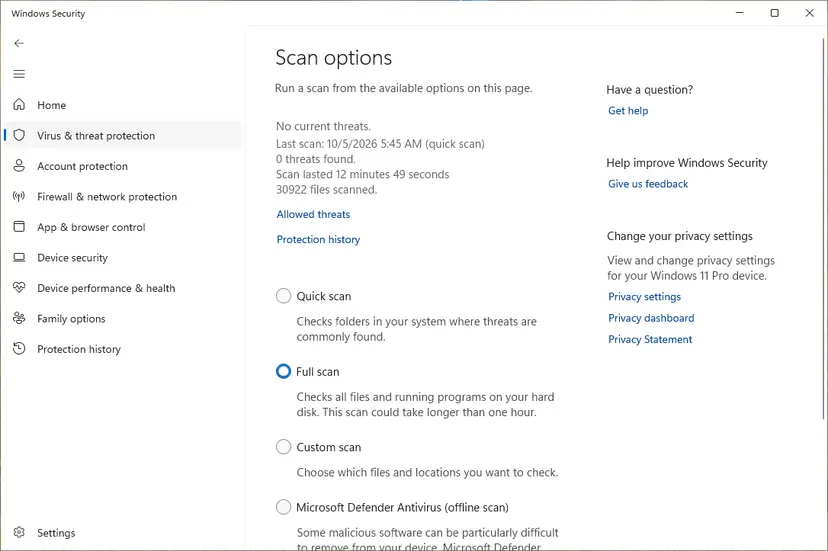
It worked if: The scan ends with no threats, the only xlive.dll left is Microsoft's copy in SysWOW64, and the game starts.
If not: If the scan finds malware it cannot remove, follow the steps in the still-broken section below before you use the PC for anything sensitive.
xlive.dll download: why a DLL site is the wrong fix
Searches for xlive.dll download and xlive dll download lead to sites that offer the file on its own. Microsoft does not publish xlive.dll as a separate download; it ships only inside the GFWL redistributable. A single DLL from elsewhere has three problems:
- It does not work alone. GFWL also installs other components and services that xlive.dll calls. Without them the game crashes later or cannot sign in.
- You cannot check where it came from. A DLL site has no way to prove the file is Microsoft's, and a DLL runs inside the game with your permissions.
- It hides the real fix. Many games no longer need the file at all after their own update (Fix 1).
Community projects such as XLiveLess replace xlive.dll with a stub so a game runs without GFWL, losing achievements and online play. PCGamingWiki points to them for unresolved cases. They are not Microsoft software, and we do not link them; use one only if you accept that trade-off.
If the xlive.dll error is still there: what to check and what to send
Collect these facts before you ask the publisher or a forum for help. They answer the first questions anyone will ask.
- Run
Test-Path C:\Windows\SysWOW64\xlive.dllin PowerShell. True means the redistributable is installed; False means Fix 2 did not finish. - Look in the game's folder, next to its .exe, for an xlive.dll and note its size and the file version on its Details tab.
- If gfwlivesetup.exe failed, note the error code. Users on Microsoft Q&A report that its failure window links to a log folder, and the log ends with the code, for example
Download Error: 0x80070005. - Note the game's store and version: Steam, disc, Rockstar Games Launcher, and any Steam beta branch selected.
- Note whether the game starts but sign-in fails. That is a different problem, with its own GFWL error codes, and the publisher's or PCGamingWiki's game page is the place to look.
- Publisher support is the right address for a Steam game that still asks for GFWL after Fix 1: the update is theirs.
- This is not a hardware fault. No disk, memory or GPU problem produces this exact message for one game.
- Windows 10 left support on 14 October 2025. GFWL games still run on it, but keep it patched or move to Windows 11.
If a game that dropped GFWL for Steamworks now asks for a Steam file instead, see steam_api.dll missing or not found.
How to keep the xlive.dll error from coming back
- Keep Steam versions of patched games on the default branch, not a GFWL beta, unless you need it.
- Install Microsoft's GFWL software once on a new PC before you play an older GFWL game.
- Back up
%LOCALAPPDATA%\Microsoft\XLivewith your saves. - Keep the game's own installer or disc handy: it also carries the game's GFWL setup step.
- Download xlive.dll from a DLL site or copy it between PCs.
- Put xlive.dll into System32 on 64-bit Windows.
- Run
regsvr32on xlive.dll: registering one file does not install the rest of GFWL. - Restore a quarantined xlive.dll whose origin you do not know.
Frequently asked questions
What is xlive.dll?
xlive.dll is the main library of Microsoft's Games for Windows - LIVE, the PC gaming service launched in 2007. Games built on GFWL load it at start for sign-in, achievements, multiplayer and copy protection. It is installed by the Microsoft Games for Windows - LIVE Redistributable, not by Windows and not by the game itself. On 64-bit Windows the genuine file is in C:\Windows\SysWOW64. If no game on your PC uses GFWL, nothing on the PC needs the file.
Why does GTA IV say xlive.dll was not found?
Because that copy of GTA IV is a build that still uses Games for Windows - LIVE. Rockstar removed the GFWL requirement in March 2020, when Steam copies of GTA IV and Episodes from Liberty City became GTA IV: Complete Edition. An up-to-date Steam or Rockstar Games Launcher copy does not need xlive.dll. If you see the error, the install is old, incomplete or downgraded for mods. Update or reinstall it as in Fix 1, or install GFWL with Fix 2 for a downgraded copy.
Is it safe to download xlive.dll from a DLL website?
No. Microsoft distributes xlive.dll only inside its GFWL redistributable, so a single file from a DLL site is not Microsoft's package and you cannot verify it. It also does not work on its own, because GFWL installs other parts that xlive.dll relies on. Use Microsoft's link in Fix 2 instead; it still downloads the official setup program from Microsoft's server. If you already added a downloaded copy, remove it and scan the PC as in Fix 6.
Is there a 64-bit xlive.dll?
We found no 64-bit xlive.dll from Microsoft. On 64-bit Windows, which includes every Windows 11 PC, the redistributable puts its 32-bit xlive.dll in C:\Windows\SysWOW64, the folder Microsoft reserves for 32-bit system DLLs. Users report that System32 then has no copy, which is normal. Microsoft's file system redirector sends a 32-bit game's request for System32 to SysWOW64. Do not copy the file into System32 by hand.
Where do I put xlive.dll?
You should not need to put it anywhere by hand. Microsoft's GFWL setup installs it to C:\Windows\SysWOW64 on 64-bit Windows or C:\Windows\System32 on 32-bit Windows 10. An xlive.dll in a game's own folder is usually a mod or a crack that replaces GFWL, and Windows loads it before the system copy. If a guide tells you to drop a downloaded xlive.dll into the game folder, install the genuine software with Fix 2 instead.
Does Games for Windows - LIVE still work in 2026?
Partly. The PC Marketplace closed in August 2013 and its client stopped working in 2022, according to PCGamingWiki. The redistributable and in-game sign-in still work: on 14 October 2026 Microsoft's download link still served the setup program, and PCGamingWiki reports that an April 2025 activation outage was resolved by 25 April. Games that still use GFWL can install it and sign in, or use a local profile for offline play.
Will SFC or DISM fix the xlive.dll error?
No. System File Checker and DISM repair the files that Windows itself installs, and xlive.dll is not one of them. It comes from Microsoft's separate GFWL redistributable. Running sfc /scannow does no harm, but it will report nothing to fix for this file. Use the game update in Fix 1 or the GFWL install in Fix 2. The same is true of Windows Update and driver updates.
What does xlive dll introuvable mean?
It is the French version of the same error: "introuvable" means "not found". Windows set to French shows that xlive.dll could not be found, and the cause and fixes are exactly the ones on this page. Update the game to a build without Games for Windows - LIVE if one exists (Fix 1), or install Microsoft's GFWL software (Fix 2). The French message does not point to a different file or a different problem.
Do I need the Games for Windows Marketplace client?
No. The setup program installs it alongside the redistributable, but PCGamingWiki reports that the Marketplace client has not worked since 2022 and you cannot buy or download games through it. Games do not need it to start. What they need is the redistributable, which contains xlive.dll, and the in-game GFWL overlay that appears when the game starts. You can ignore the Marketplace window or close it.
Will I lose my saves if I reinstall GFWL or the game?
Reinstalling GFWL does not normally delete saves, but back them up first to be safe. Copy the game's own save folder, often under Documents\My Games, and %LOCALAPPDATA%\Microsoft\XLive, which PCGamingWiki lists as the GFWL data folder. Some GFWL games tie saves to your gamertag, so sign in with the same profile afterwards. A Steam reinstall of a GFWL-free build may not read old GFWL-bound saves for every game.
Sources
- Microsoft download link for gfwlivesetup.exe (redirect checked) (go.microsoft.com)
- Microsoft Learn: File System Redirector (System32 and SysWOW64) (learn.microsoft.com)
- Microsoft Learn: Dynamic-link library search order (learn.microsoft.com)
Did this fix work?
One click, no account. It tells the next reader which guides are worth their time.
Questions and experiences: fix xlive.dll missing or not found error in Windows
Still broken, or found a fix we did not cover? Ask here: members and our editors answer. Reading is open; writing needs a free account.
…