
How to fix "You do not have sufficient rights to perform this operation" error in Windows?

Prefer to fix it yourself? The manual steps follow.
- 8methods
- 2 minutes for most readers, 15 minutes when the disk is read-only or a policy blocks it
- Intermediate
Applies to Formatting USB flash drives, SD and microSD cards, external and second internal disks in File Explorer, Disk Management, format and DiskPart on Windows 11 and Windows 10
8 methods in this guide
I have full administrative privileges on my Windows, and despite that, I can't format any drives because of the "You do not have sufficient rights to perform this operation" error. How do I fix this?
Windows shows "You do not have sufficient rights to perform this operation" when a format of a USB drive, SD card or second disk is refused. Most often the tool did not run with administrator rights, or the disk is set to read-only. Format the drive in Disk Management first (Fix 1); it runs elevated and usually gets past the message.
Press Win + X, open Disk Management, right-click the drive and select Format (Fix 1). Disk Management runs with administrator rights, so the refusal from File Explorer usually does not repeat. If it still fails, check the Lock switch on an SD card or adapter (Fix 3), then clear the read-only attribute with DiskPart (Fix 4). On a work PC a policy may block writing to removable drives (Fix 5).
| Error | "You do not have sufficient rights to perform this operation." The format tool in Command Prompt says "Access Denied as you do not have sufficient privileges. You have to invoke this utility running in elevated mode." |
|---|---|
| Where it appears | When you select Format for a USB flash drive, SD card, external disk or second internal disk in File Explorer, or run format in a normal Command Prompt. |
| Main cause | The format ran without administrator approval. Next most common: the disk is read-only (lock switch or DiskPart attribute). |
| Fastest fix | Format the drive in Disk Management (Win + X > Disk Management), Fix 1. |
| Also written as | you don't have sufficient rights to perform this operation, you do not have sufficient privilege(s) to perform this operation, you do not have sufficient access rights to perform this operation, Cannot open volume for direct access. |
| Affects | Windows 11 25H2 and 26H2, Windows 10 22H2 and older versions back to Windows 7. Windows 10 left support on 14 October 2025. |
| Microsoft's status | Not a bug. Microsoft support answers point to formatting from an elevated window or from Disk Management. DiskPart can show and clear a disk's read-only attribute. |
| Data on the drive | Every fix that formats erases the drive. A read-only drive can still be read: copy your files off first. |
| Time to fix | 2 minutes with Disk Management. About 15 minutes with DiskPart or a policy change. |
Facts checked on 15 October 2026. Steps written for Windows 11 (25H2 and 26H2) and Windows 10 22H2.
What "You do not have sufficient rights to perform this operation" means
The message comes from Windows when it refuses to write a new file system to a drive. You see it right after you select Format and Start, before anything is erased. Nothing on the drive has changed at that point.
What Windows shows
You do not have sufficient rights to perform this operation.The same refusal has other wordings, depending on the tool. People search all of them, and they share the causes below:
| Where you see it | Wording |
|---|---|
| File Explorer, Format window | You do not have sufficient rights to perform this operation. |
format E: in a normal Command Prompt | Access Denied as you do not have sufficient privileges. You have to invoke this utility running in elevated mode. |
chkdsk or format on a locked or protected volume | Cannot open volume for direct access. |
| Searches and translations | you do not have sufficient privilege to perform this operation, you don't have sufficient privileges to perform this operation |
Being signed in as an administrator is not enough. Windows starts File Explorer and every Command Prompt with standard rights, and formatting a disk needs the full administrator rights you approve in the User Account Control prompt. The same rule causes error 740 in DISM.
Why Windows says you don't have sufficient privileges to perform this operation
Most often the format ran without administrator approval. Less often the disk itself is read-only. Rarely a policy, the account type, file system damage or a failing drive is behind it. Each cause has its own fix:
| Cause | How common | Sign | Fix |
|---|---|---|---|
| Format started without administrator rights | Most often | File Explorer or a normal Command Prompt refuses | Fix 1, Fix 2 |
| Lock switch on an SD card, adapter or USB stick | Often with cards | Files open but nothing can be saved or deleted | Fix 3 |
| Read-only attribute on the disk | Less often | attributes disk in DiskPart says Read-only : Yes | Fix 4 |
| Policy that denies writing to removable disks | Work and school PCs | Every USB drive fails, other PCs format it | Fix 5 |
| Your account is a standard user | Shared or family PCs | Windows asks for a password instead of Yes | Fix 6 |
| File system damage | Rarely | Drive shows as RAW or asks to be formatted | Fix 7 |
| Failing flash memory or disk | Rarely | Fails on every PC and with every tool | Fix 8 |
A Microsoft Q&A user who saw this message was trying to format a protected virtual drive created by Office, not the disk they meant. In Disk Management, match the drive by its size and label before you format anything.
How to fix "You do not have sufficient rights to perform this operation" when formatting
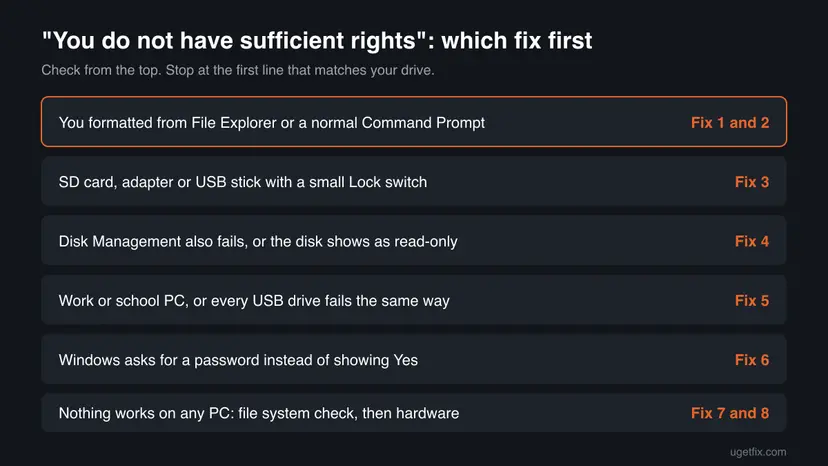
Start with Fix 1. It works for most readers and takes two minutes. Every fix that formats erases the drive, so copy anything you need off it first.
| What you see or have | Start with |
|---|---|
| You selected Format in File Explorer | Fix 1 |
You typed format in Command Prompt and saw "invoke this utility running in elevated mode" | Fix 2 |
| SD card, microSD in an adapter, or a USB stick with a switch | Fix 3 |
| Disk Management also refuses, or files cannot be deleted | Fix 4 |
| Work or school PC, or every USB drive fails | Fix 5 |
| Windows asks for a user name and password | Fix 6 |
| The drive shows as RAW and you want to keep its files | Fix 7 |
| It fails on every PC | Fix 8 |
Fix 1. Format the USB drive or SD card in Disk Management
2 minutesRead the warningEveryone who saw the message in File Explorer. This is the fix in most cases.
Disk Management runs with full administrator rights after your approval, unlike File Explorer. Microsoft support answers to this exact message suggest it first.
Copy every file you need to another disk first. Then check the drive by size and label, because formatting the wrong one erases it.
- Right-click Start (or press Win + X) and select Disk Management. Select Yes if User Account Control asks.
- Find your drive in the list at the top. Match it by Capacity and the volume name.
- Right-click the drive's volume and select Format.
- Type a Volume label, pick a File system (exFAT for a USB stick or SD card used on other devices, NTFS for a Windows-only disk) and keep Perform a quick format ticked.
- Select OK, then OK again at the warning that all data will be erased.
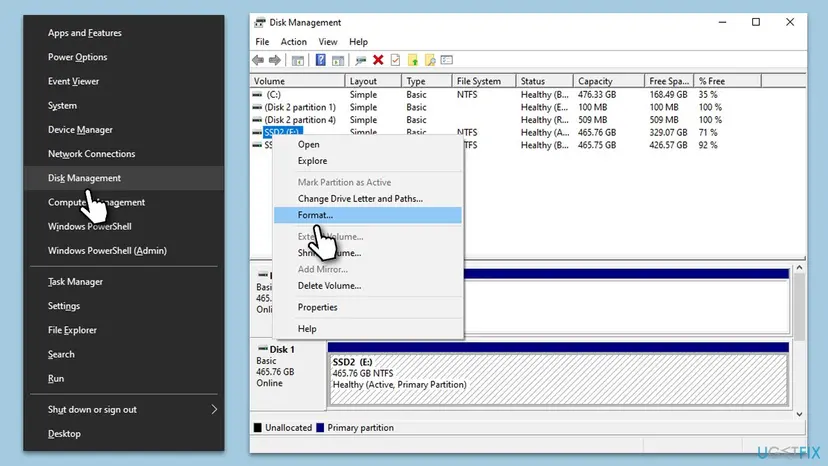
If the volume shows as Unallocated with no drive letter, right-click it and select New Simple Volume instead. The wizard creates a partition, gives it a letter and formats it.
It worked if: The status changes to Formatting, then Healthy, and the drive appears in File Explorer with the new label.
If not: If Disk Management shows the same message or Format is greyed out, check the lock switch (Fix 3), then go to Fix 4.
Fix 2. Run format in Terminal (Admin) or Command Prompt as administrator
2 minutesRead the warningYou typed format in Command Prompt and saw "you do not have sufficient privileges", or you prefer commands.
The format command checks the rights of the window it runs in. A normal window has standard rights, so it answers "You have to invoke this utility running in elevated mode."
The command erases the drive you name. Confirm the letter in File Explorer or Disk Management, and never type the letter of your Windows drive.
- Close the window that showed the error.
- Windows 11: right-click Start and select Terminal (Admin). Windows 10: select Windows PowerShell (Admin). Select Yes.
- Check that the title bar starts with Administrator:.
- Type the command below, with your drive letter instead of
E:, and press Enter./FS:sets the file system,/V:the label,/Qa quick format.format E: /FS:exFAT /V:USB /Q - Press Enter when asked to insert a disk, and Y if asked to dismount the volume.
- Wait for Format complete.
Step by step with screenshots of an elevated window: How to run a program as administrator or in compatibility mode.
It worked if: The window prints Format complete and the size of the new volume.
If not: If it says Cannot open volume for direct access, or that the media is write protected, go to Fix 3 and Fix 4.
Fix 3. Check the lock switch on an SD card, adapter or USB stick
1 minuteNo riskYou format an SD or microSD card in an adapter, or a USB stick that has a small slider.
A full-size SD card and most microSD adapters have a Lock slider. In the lock position the card can be read but not written, and Windows refuses to format it.
- Select Safely Remove Hardware in the taskbar and remove the card or stick.
- Find the slider on the left side of the SD card or adapter, or on the side of the USB stick.
- Push it up, away from Lock, toward the contacts.
- Insert it again and try Fix 1.
- If the slider is loose or the laptop's card reader ignores it, try a USB card reader or another USB port.
Some built-in card readers misread a worn or loose slider as locked. A different reader is a quick test before you blame the card.
It worked if: You can create a new file on the drive, and Disk Management formats it without the message.
If not: If there is no switch or it is already unlocked, go to Fix 4.
Fix 4. Clear the read-only attribute and format the disk with DiskPart
10 minutesRead the warningDisk Management also refuses, or files on the drive cannot be deleted.
A disk can carry a read-only attribute that blocks every write, including a format. Microsoft documents attributes disk in DiskPart to show and clear it.
clean removes every partition on the selected disk. Copy your files off first, and select the disk by its size. Selecting the wrong disk number erases that disk.
- Open Terminal (Admin) as in Fix 2.
- Start DiskPart and list the disks. Note the number of your drive by its size.
diskpart list disk - Select the disk and show its attributes. Replace 2 with your number.
select disk 2 attributes disk - If Read-only says Yes, clear it.
attributes disk clear readonly - Erase the disk, create one partition, format it and give it a letter.
clean create partition primary format fs=exfat quick label=USB assign - Type
exitand close the window.
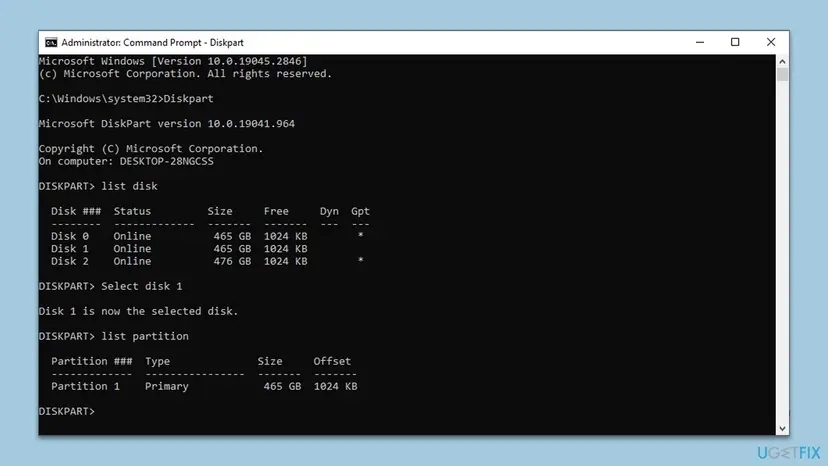
The old version of this guide ran format right after select disk. That fails, because DiskPart formats a volume or partition, not a whole disk. create partition primary gives it one to format.
It worked if: DiskPart says Disk attributes cleared successfully, then DiskPart successfully formatted the volume, and the drive appears in File Explorer.
If not: If Read-only says Yes again after you unplug and reconnect the drive, the drive locks itself: go to Fix 8. If a policy is set, go to Fix 5.
Fix 5. Check the policy that denies write access to removable disks
5 minutesLow riskEvery USB drive fails on this PC but formats on another, or the PC belongs to a work or school.
Windows has policies that block writing to removable disks. When one is on, no tool can format a USB drive, whatever your account.
- Press Win + R, type
gpedit.mscand select OK. Windows 11 and 10 Home do not include this editor. - Go to Computer Configuration > Administrative Templates > System > Removable Storage Access.
- Look at Removable Disks: Deny write access and All Removable Storage classes: Deny all access.
- If one says Enabled on your own PC, double-click it, select Not Configured and select OK.
- Check the same folder under User Configuration.
- Apply the change in Terminal (Admin), then reconnect the drive.
gpupdate /force
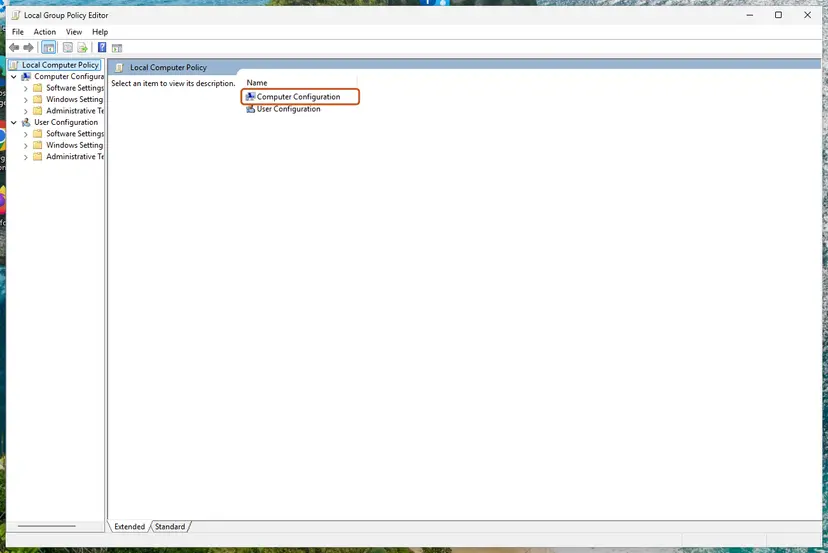
If Settings > Accounts > Access work or school lists an organization, the policy is set by its IT team and comes back after a change. Ask them; do not try to work around it.
How to open and change a policy, with screenshots: Open the Local Group Policy Editor.
It worked if: After gpupdate and reconnecting, Disk Management formats the drive.
If not: If both policies say Not Configured, go to Fix 6.
Fix 6. Check that your account is an administrator
5 minutesLow riskWindows asks for a user name and password instead of showing Yes, or Disk Management will not open.
A standard account cannot approve a format. The fix is an administrator's approval or a change of account type, not more rights for the window.
- In a normal Command Prompt, run the command below and look at Local Group Memberships.
net user %username% - If it lists
*Administrators, your account is an administrator: go back to Fix 1 and select Yes in the prompt. - If it lists only
*Users, ask the person with an administrator account to sign in. - Windows 11: they open Settings > Accounts > Other users. Windows 10: Settings > Accounts > Family & other users.
- They select your account, then Change account type, choose Administrator and select OK.
- Sign out and in again, then repeat Fix 1.
The old version of this guide enabled the built-in Administrator with net user administrator /active:yes. That needs administrator rights already, and leaves a powerful account switched on. Changing the account type is the safe way.
It worked if: Windows shows a Yes and No prompt when you open Disk Management, and the format goes through.
If not: If the account is an administrator and every check above passed, go to Fix 7.
Fix 7. Check the drive's file system with chkdsk
5 to 30 minutesLow riskYou want to keep the files on the drive, or it shows errors when you open it.
Damage to the file system can stop Windows from locking the volume. chkdsk repairs it so the drive opens or formats normally.
- Open Terminal (Admin) as in Fix 2.
- Check the drive, with its own letter. The old guide checked
C:, which is your Windows drive and not the one that fails.chkdsk E: /f - Type Y if chkdsk asks to dismount the volume.
- Read the summary at the end, then try Fix 1.
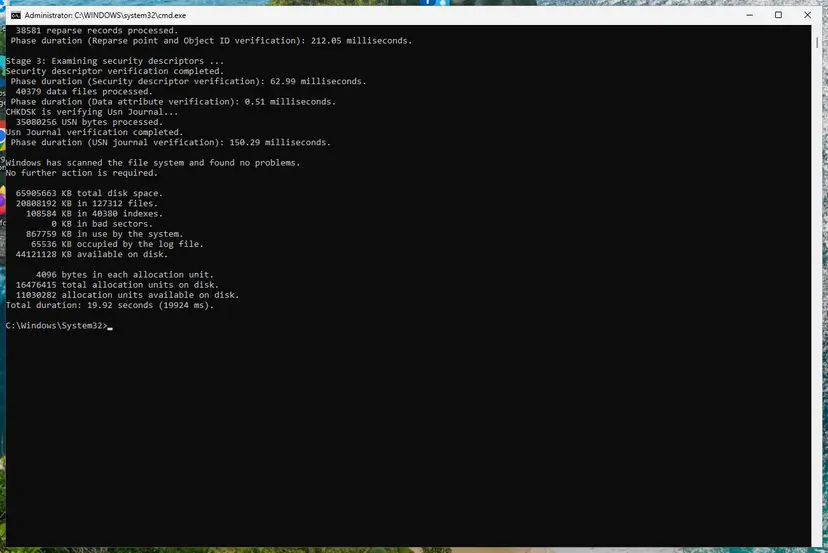
If chkdsk says it is not available for RAW drives, the file system is unreadable and only a format makes the drive usable. Recover the files first if they matter. More about chkdsk: Check a disk for errors (chkdsk).
It worked if: chkdsk ends with Windows has scanned the file system and found no problems, or with a list of what it fixed.
If not: If chkdsk also says Cannot open volume for direct access on a drive that is not locked, go to Fix 8.
Fix 8. Test the drive on another PC and replace it when it locks itself
10 minutesNo riskEvery fix failed, or the read-only attribute returns after each reconnect.
Worn flash memory in USB sticks and SD cards often switches to read-only to protect the data still on it. No Windows setting can undo that.
- Plug the drive into another PC and try Fix 1 there.
- Try another USB port and cable. Use a port on the PC itself, not a hub.
- For an internal disk, shut the PC down, unplug it and check that the data and power cables sit firmly.
- Look on the maker's website for its own format or repair tool for your model.
- If it fails everywhere, copy your files off while it still reads, and replace the drive.
It worked if: On another PC the drive either formats, which points back to this PC's settings, or fails the same way, which points to the drive.
If not: A drive that fails on every PC is worn out. Keep the files, retire the drive.
If you still do not have sufficient rights to format the drive
Collect these facts from the PC where the format fails. They decide between settings and hardware, and they are what a support forum or the maker will ask for:
- The exact wording and the tool: File Explorer, Disk Management,
formator DiskPart. - The DiskPart
attributes diskoutput for the drive: Read-only and Current Read-only State. net user %username%: whether your account is in*Administrators.- Whether the drive formats on another PC.
winver: your Windows version and build.
| Result | What it means | Next step |
|---|---|---|
| Formats on another PC | A setting on this PC | Fix 5 and Fix 6 |
| Read-only returns after reconnecting | The drive locks itself | Fix 8 |
| Fails on every PC and every tool | Worn or damaged drive | Copy files, replace it |
| Disk shows No Media or 0 bytes | The controller has failed | Replace it; recovery needs a lab |
How to avoid the sufficient rights error next time
- Format drives from Disk Management or a window whose title starts with Administrator:.
- Use Safely Remove Hardware before you pull a USB drive or card out.
- Keep the SD card slider unlocked unless you want it read-only.
- Keep a copy of anything on a drive that starts to fail or turns read-only.
- Switch User Account Control off to avoid the prompt. It weakens Windows for every program.
- Enable the hidden built-in Administrator account for everyday work.
- Run
cleanin DiskPart without checking the disk number by its size.
Frequently asked questions
Why do I get "You do not have sufficient rights to perform this operation" when I am an administrator?
Because Windows does not give programs your full rights by default. File Explorer and a normal Command Prompt run with standard rights, and formatting a disk needs the rights you approve in the User Account Control prompt. Disk Management asks for that approval when it opens, which is why formatting there usually works. If the format still fails in Disk Management, the cause is the drive, not your account: a lock switch, a read-only attribute or a policy.
What does "you do not have sufficient privileges" mean in Command Prompt?
It is the format command's own wording of the same refusal. The full text is "Access Denied as you do not have sufficient privileges. You have to invoke this utility running in elevated mode." It means the window has no administrator rights. Close it, open Terminal (Admin) or Command Prompt with Run as administrator, select Yes, check that the title bar starts with Administrator:, and run the format command again.
How do I format an SD card that says I do not have sufficient rights?
Check the Lock slider on the card or the microSD adapter first. In the lock position the card can be read but not written, and Windows refuses to format it. Push the slider toward the contacts, insert the card again and format it in Disk Management. If the slider is unlocked, try another card reader, then clear the read-only attribute with DiskPart as Fix 4 describes. A card that stays read-only on every reader is usually worn out.
Can I fix the error without losing the files on the drive?
Formatting always erases the drive, so copy your files off first. A drive that refuses to format can usually still be read, so copying works even when the format does not. If the drive shows as RAW and cannot be opened, run chkdsk with the drive's letter as Fix 7 describes, or use recovery software before any format. Only format once every file you need is safe on another disk.
Why does every USB drive fail on one PC but format on another?
A setting on that one PC blocks writing to removable disks. Look at the policies Removable Disks: Deny write access and All Removable Storage classes: Deny all access under Removable Storage Access in the Local Group Policy Editor. On a work or school PC the IT team sets them, and they come back after you change them. Ask the IT team in that case rather than working around the policy.
Is "Insufficient access rights to perform the operation" the same error?
No, it is usually a different message. That wording appears in Active Directory tools on business networks, when an account may not change a user, group or object. It has nothing to do with formatting a drive. This page covers the format refusal on a home or office PC. For the directory message, the network's administrator has to grant the right permission.
Should I enable the hidden Administrator account to format the drive?
No. The command net user administrator /active:yes itself needs administrator rights, so it does not help a standard user. On an administrator account it adds nothing, because selecting Yes in the User Account Control prompt already gives full rights. It also leaves a powerful account switched on. Change your account type to Administrator, as Fix 6 describes, if you really need more rights.
Does the error mean my USB drive is broken?
Usually not. Most readers get past it by formatting in Disk Management or by unlocking a card. Signs of a failing drive are different: the read-only attribute returns every time you reconnect it, it fails on every PC, or Disk Management shows No Media or a size of 0 bytes. Then copy your files while it still reads and replace the drive.
The message is in my language or another one. Do the same fixes apply?
Yes. The message is translated into every Windows language, and the causes and fixes are the same. Questions like "how to fix this" in Hindi, Portuguese or Arabic lead to the same answer: format the drive in Disk Management, check the lock switch, then clear the read-only attribute. The menu names in your Windows are the translated ones, but their place in the menus is the same.
Sources
- Microsoft Q&A: Error "You do not have sufficient rights to perform this operation" while trying to format the hard drive (learn.microsoft.com)
- Microsoft Q&A: Trying to format an external drive, "You do not have sufficient rights to perform this operation" (learn.microsoft.com)
- Microsoft Learn: attributes disk (DiskPart) (learn.microsoft.com)
Did this fix work?
One click, no account. It tells the next reader which guides are worth their time.
Questions and experiences: fix "You do not have sufficient rights to perform this operation" error in Windows
Still broken, or found a fix we did not cover? Ask here: members and our editors answer. Reading is open; writing needs a free account.
…