
How to fix "You might need to take action in another window" in Windows?

Prefer to fix it yourself? The manual steps follow.
- 7methods
- 1 to 15 minutes
- Easy
Applies to Desktop apps (EXE or MSI installers) installed from Microsoft Store on Windows 11 and Windows 10, such as Epic Games Launcher and Wondershare Filmora
7 methods in this guide
Hello. I tried downloading an app through the Microsoft Store, but it says "You might need to take action in another window" and it is not installing. Is there any way to fix this?
"You might need to take action in another window" is not an error. Microsoft Store has started the publisher's own installer, and that installer is waiting for you to answer a User Account Control prompt. Find the prompt on the taskbar or behind the Store, select Yes, and the install continues.
The Store is waiting for you, not broken. It has launched the app's own installer, and Windows is asking Do you want to allow this app to make changes to your device? in a User Account Control prompt you cannot see. Look for a flashing button on the taskbar, press Alt + Tab, select the prompt and choose Yes (Fix 1). If there is no prompt anywhere, restart the install with the Store in front (Fix 2).
| Error | Not an error code. A status line in Microsoft Store: You might need to take action in another window. The install does not move until you act. |
|---|---|
| Where it appears | Under the Install button on the app's page in Microsoft Store, and next to the item in Library, right after you press Install on a desktop app. |
| Main cause | The app's EXE or MSI installer is waiting for a User Account Control (UAC) prompt that opened behind the Store, on the taskbar or on another screen. |
| Fastest fix | Find the prompt with Alt + Tab or the flashing taskbar button and select Yes (Fix 1). |
| Also written as | you might take action in another window, we need to take action, you might need to take action in another window meaning, and in Indonesian searches the same line with artinya (meaning). |
| Which apps show it | Desktop apps whose Store page says Provided and updated by the publisher. Users report it with Epic Games Launcher and Wondershare Filmora among others. |
| Affects | Microsoft Store on Windows 11 and Windows 10. Windows 10 lost support on 14 October 2025, so its Store gets fewer fixes. |
| Microsoft's status | Expected behaviour, not a known issue. Microsoft Store policy requires these installers to run silently, but a UAC dialog is allowed. |
| Time to fix | Under a minute when the prompt is found. About 5 to 15 minutes when the Store or the installer has to be restarted. |
Facts checked on 15 October 2026. Steps written for Microsoft Store on Windows 11 (25H2 and 26H2) and Windows 10 22H2.
What "You might need to take action in another window" means
Microsoft Store sells two kinds of apps. Store packages (MSIX) install quietly for your account. Desktop apps are different: the publisher hands the Store a normal .exe or .msi installer, and the Store page says Provided and updated by that publisher. When you press Install on such an app, the Store downloads the installer and starts it.
Microsoft's rules for these installers require a silent install, with one exception. In Microsoft's words: "a User Account Control (UAC) dialog is allowed." So the one window that may appear is the UAC prompt, and the Store tells you about it with You might need to take action in another window.
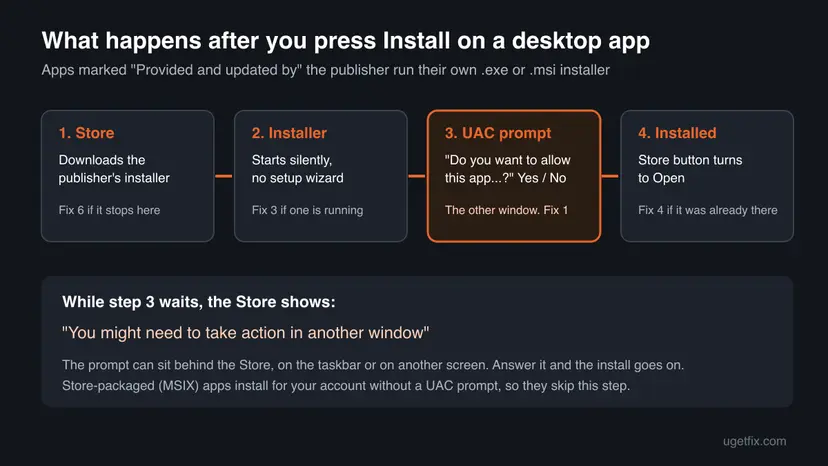
| What you see | What it means | Start with |
|---|---|---|
| The message, and a taskbar button flashes | The UAC prompt is open but not in front | Fix 1 |
| The message, and nothing flashes anywhere | The prompt was missed, or it opened on another screen | Fix 1, then Fix 2 |
| The message stays after you selected Yes | The installer is stuck or another installer runs | Fix 3 |
| The message, and the app is already in Start | The installer found an older copy and stopped | Fix 4 |
| The message and no prompt ever, on every app | UAC is turned off or the account is not an administrator | Fix 5 |
Why the install waits: the causes, most common first
Microsoft publishes no ranking. The order below is ours, from the reports on Microsoft Q&A (the main thread has more than 700 "same question" votes) and from how the Store starts these installers.
| How often | Cause | What to do |
|---|---|---|
| Most often | The UAC prompt opened behind the Store window or only as a flashing taskbar button | Fix 1 |
| Often | You selected No, closed the prompt or it timed out, so the installer quit and the Store kept the old status | Fix 2 |
| Less often | Another installer, or an earlier copy of this one, is still running and blocks the new one | Fix 3 |
| Less often | The app is already installed from the publisher's website, so the installer waits or stops | Fix 4 |
| Rarely | UAC is set to Never notify, or you use a standard account without an administrator password | Fix 5 |
| Rarely | The Store's own cache or app is damaged and shows an old status | Fix 6 |
Nothing has gone wrong yet when you see it. The Store simply cannot show the prompt itself, because Windows draws UAC prompts outside the app. Answer the prompt and the install goes on.
How to fix "You might need to take action in another window"
Fix 1 finishes the install for most readers in under a minute. Fixes 2 and 3 restart an install that lost its prompt. Fixes 4 and 5 cover PCs where the prompt cannot appear, and Fixes 6 and 7 are for a damaged Store or an app that will not install from it.
| What you see or have | Start with |
|---|---|
| A button flashes on the taskbar after you press Install. | Fix 1 |
| You have two monitors, a TV or several desktops. | Fix 1 |
| You selected No or closed a prompt by mistake. | Fix 2 |
| The message stays even after you selected Yes. | Fix 3 |
| You installed the same app from its website before. | Fix 4 |
| No UAC prompt ever appears on this PC, or you have a child or standard account. | Fix 5 |
| Every Store install hangs, not only this app. | Fix 6 |
| The Store keeps failing on this one app. | Fix 7 |
Fix 1. Find the hidden User Account Control prompt and select Yes
1 minuteNo riskYou just pressed Install and the message appeared within a few seconds.
The installer runs from the Store in the background, so Windows often cannot bring its prompt to the front. Users and installer vendors report that the prompt then shows only as a flashing taskbar button. Once you answer it, the installer continues on its own.
- Look at the taskbar. A button that flashes or is highlighted, often with a blue and yellow shield, is the prompt. Select it.
- If nothing flashes, press Alt + Tab and look for a window called User Account Control.
- Still nothing: press Win + D to show the desktop. The prompt may be under the Store window.
- If you use a second monitor, a TV or several desktops, check each one. Win + Tab shows all desktops.
- Read the prompt. It asks Do you want to allow this app to make changes to your device? and names the publisher. Check that the publisher matches the app you chose.
- Select Yes. If Windows asks for a password or PIN, enter the one of an administrator account.
- Go back to Microsoft Store and wait. The status changes to installing, then to Open.
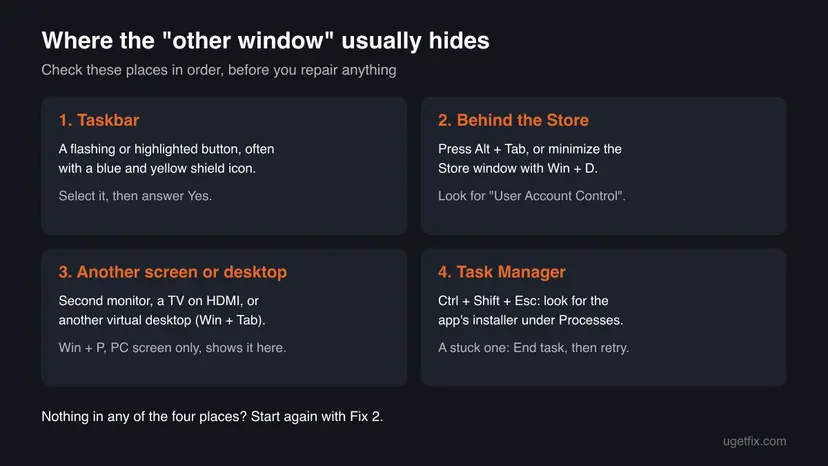
The prompt is most likely to come to the front when the Store window is active. After you press Install, leave the mouse alone for 10 to 20 seconds instead of switching to a browser or a game.
It worked if: The Store shows the install progress and then the Open button. The app appears in Start.
If not: If you selected No or closed the prompt, or no prompt is anywhere, go to Fix 2. If the message stays after Yes, go to Fix 3.
Fix 2. Cancel the install, close the Store and press Install again
3 minutesNo riskYou missed or refused the prompt, or the message stays and nothing is waiting anywhere.
When you select No, Windows Installer ends the install with "The user canceled installation" (code 1602). The Store window may not notice and keeps the old status. A clean start gives the installer a new prompt, this time with the Store in front.
- In Microsoft Store, open Library and cancel the app if it is still listed as downloading or installing.
- Close the Store window with the X.
- Windows 11: select Start > Settings > System > System components, then the three dots next to Microsoft Store > Advanced options. Windows 10: Settings > Apps > Apps & features > Microsoft Store > Advanced options.
- Under Terminate, select Terminate.
- Open Microsoft Store again, search for the app and press Install.
- Keep the Store window in front and answer the prompt with Yes as soon as it appears.
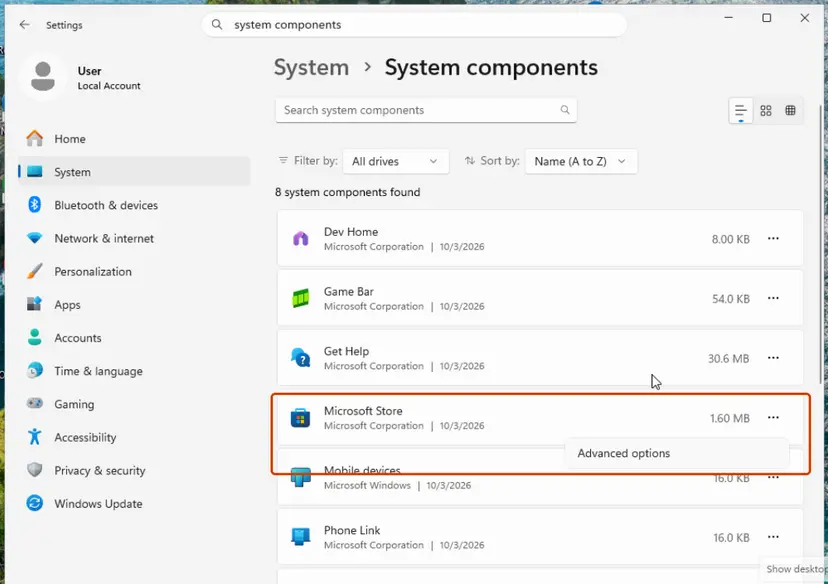
Stopping the Store this way does not remove apps or sign you out. The same page also has Repair and Reset; leave them for Fix 6.
It worked if: A fresh UAC prompt appears within a few seconds of Install, and after Yes the Store shows the progress.
If not: If the message returns at once with no prompt, an older installer still runs: go to Fix 3.
Fix 3. End a stuck installer in Task Manager
3 minutesLow riskThe message stays after you selected Yes, or you started the same app twice.
Windows Installer runs one MSI install at a time. It refuses a second one with code 1618: "Another installation is already in progress." A copy of the installer from an earlier attempt, or another program's update, can hold that slot while the Store waits.
- Open Task Manager. Press Ctrl + Shift + Esc. Task Manager opens on the Processes page. On Windows 10, if you see only a short list of apps, select More details.
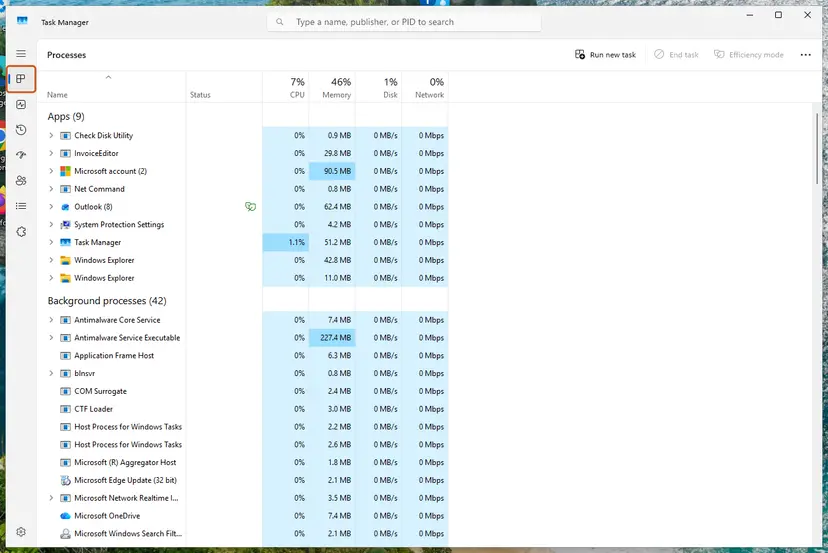
Task Manager opens on the Processes page, with your open apps listed under Apps. Screenshot: Windows 11 26H2. - End the frozen app. Under Apps, select the app that is not responding, then select End task at the top. You can also right-click the app and select End task.
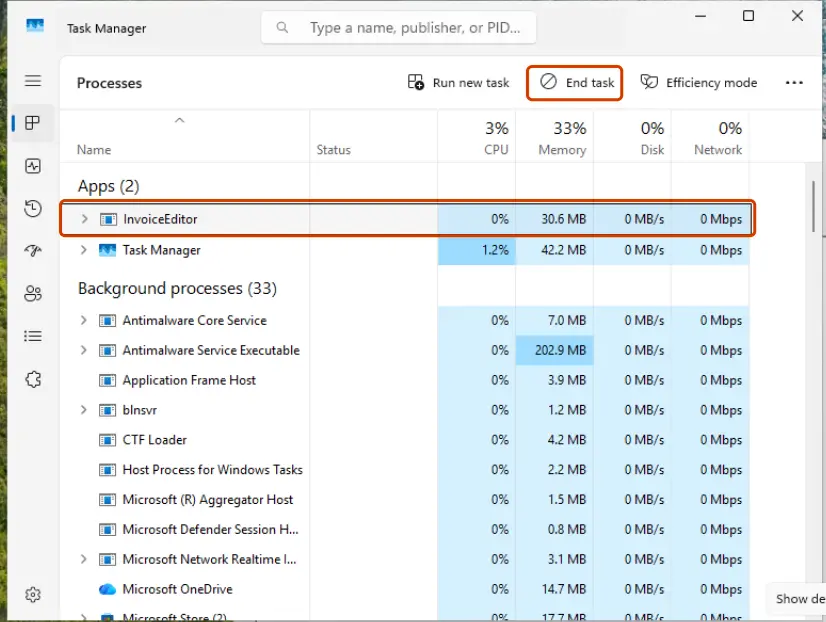
Select the frozen app, then End task. Screenshot: Windows 11 26H2.
These steps were written for Windows 11 and Windows 10 (the steps are the same). The full page with the other versions and what each result means: Close a frozen app (Task Manager, Force Quit)
- Under Processes, look for the app's installer. It often has the app's name with Setup, Installer or Install in it.
- Look also for Windows Installer in the list. If you are not installing anything else, it is left over from an earlier try.
- Select the item and End task. Do not end Microsoft Store processes you do not recognise while an update of the Store runs.
- Restart the PC if the installer comes back by itself, then do Fix 2 again.
It worked if: After the leftover installer is gone, a new Install in the Store shows a UAC prompt and finishes.
If not: If Task Manager shows no installer and the app is in Start anyway, go to Fix 4.
Fix 4. Check whether the app is already installed
2 minutesLow riskYou installed the same app from the publisher's website before, or a family member did.
The Store starts the publisher's installer, and that installer sees the copy already on the PC. Some installers then wait for an answer in a hidden window or quit, and the Store keeps showing the message. Users on Microsoft Q&A report finding the app already in Start.
- Select Start and type the app's name. If it opens, the app is installed and you can ignore the message.
- To let the Store manage it, open Settings > Apps > Installed apps (Windows 10: Apps & features).
- Find the app, select the three dots and Uninstall. Keep the app's data folder if its installer asks.
- Restart the PC, then install the app from the Store again and answer the prompt.
Some programs delete their settings, projects or game files when you uninstall them. Back up anything you made with the app first, or keep the website copy and skip the Store install. All the ways to remove a program: Uninstall a program or app in Windows
It worked if: Either the app opens and you no longer need the Store install, or a clean install from the Store finishes after Yes.
If not: If no UAC prompt appears for any app on this PC, go to Fix 5.
Fix 5. Set User Account Control back to the default and use an administrator
5 minutesLow riskNo UAC prompt ever appears, every desktop app hangs, or you use a child or standard account.
The installer needs administrator rights. With UAC at Never notify, Windows shows no prompt at all. On a standard account, Microsoft's default asks for an administrator's credentials, so the prompt waits for a password you may not have.
- Open Control Panel > System and Security > Change User Account Control settings.
- Move the slider to Notify me only when apps try to make changes to my computer (default) and select OK.
- Restart the PC if the slider was at the bottom before.
- Check your account type in Settings > Accounts > Your info. It says Administrator under your name, or nothing on a standard account.
- On a standard account, ask the person who owns the administrator account to type their password in the prompt, or to install the app.
Microsoft says the Never notify level "isn't recommended due to security concerns". Every program could then change Windows without asking you. Keep the default level; the prompt it shows is what lets the Store install finish.
It worked if: Pressing Install in the Store now brings up a UAC prompt, and the install completes after Yes or the administrator's password.
If not: If the prompt appears but the Store still hangs on every app, the Store itself is the problem: go to Fix 6.
Fix 6. Clear the Store cache with wsreset, then repair or reset the Store
5 minutesLow riskEvery Store install hangs, or the message stays on an app that is already installed and working.
The Store keeps its own record of what it is installing. When that record is stale, the page keeps the message long after the installer has ended. Clearing it with wsreset.exe makes the Store read the real state again. Several users on Microsoft Q&A report that wsreset ended the message for them.
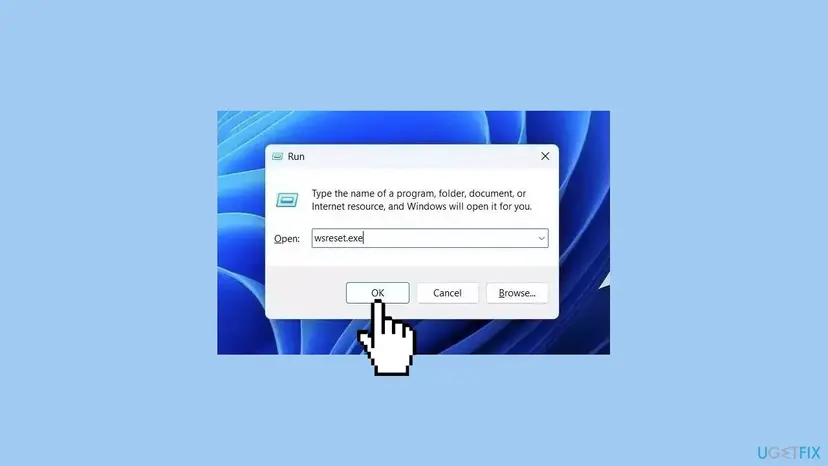
- Press Win + R, type
wsreset.exeand select OK. - A blank window opens. Wait until it closes and Microsoft Store opens by itself.
- Install the app again and watch for the prompt, as in Fix 1.
- If installs still hang, repair the Store and then reset it: Reset the Microsoft Store
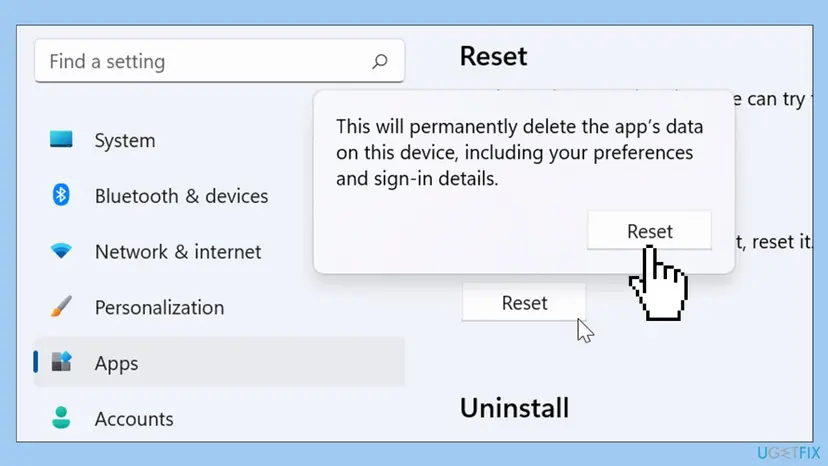
It worked if: The Store opens with a fresh cache, the old status is gone, and a new install shows the prompt and finishes.
If not: If the Store will not open after a reset, repair it with How to repair or reset an app in Windows. If only this one app keeps failing, go to Fix 7.
Fix 7. Install the app with winget or from the publisher's website
10 minutesLow riskOne app keeps failing from the Store while other apps install fine.
A desktop app in the Store is the same installer the publisher offers elsewhere. Windows Package Manager (winget) can fetch it from the Store source and runs it in a console window, where you see its progress and errors.
- Open the app's page in the Store, select Share and Copy link. The ID is the part of the link after
/detail/. - Select Start, type Terminal or PowerShell and open it.
- Run the command below with the ID you copied. Accept the Store agreement if winget asks for it.
- Answer the UAC prompt with Yes when it appears.
- If winget fails too, download the installer from the publisher's own website and run it.
Install a Store app by its ID (replace the ID):
winget install --id XP99XXXXXXXXXX --source msstoreMicrosoft documents -i (--interactive) to show the installer's own windows and -h (--silent) to hide them. A version from the website and one from the Store can conflict, so keep only one. If the install ends with an error code, that code is what to search for next.
It worked if: winget prints the download and install progress and ends with "Successfully installed", or a website installer finishes and the app appears in Start.
If not: If every way fails with an error, read the section below about where the real cause is written.
If the install still waits: where to find the real cause
The Store shows no log for desktop installers. The installer writes its result to Windows, and two places show it. A different Store message, "An error occurred while performing this action. Please try again later", is a Store failure rather than a waiting prompt: start with Fix 6 for it.
- Event Viewer: press Win + R, type
eventvwr.msc, open Windows Logs > Application and look for MsiInstaller entries at the time of the install. Code 1602 means the install was cancelled, 1618 means another install was running, 1603 is a fatal error inside the installer. - The publisher's log: many installers keep a log in
%TEMP%. Press Win + R, type%TEMP%and sort by date. - Another account: sign in with a second administrator account and install there. If it works, the problem is in your profile, not in Windows.
- Work or school PC: if a password prompt names another account, an organization manages the PC and only its admin can approve installs.
For a desktop app, the publisher supports the installer, because the Store only hands it over. Send them the app name, the Windows version and the MsiInstaller code from Event Viewer. For the Store itself, use the Get Help app.
The old version of this guide suggested removing the Store with Get-AppxPackage -allusers WindowsStore | Remove-AppxPackage. We left it out: the installer waiting for a prompt has nothing to do with the Store package, and removing it can leave the PC without a Store. For another Store install failure with a code, see error 0x80073CF3.
How to avoid the message next time
- Stay on the Store window for a few seconds after Install on a desktop app.
- Read the publisher name in the UAC prompt before you select Yes.
- Install each program from one place only, the Store or the website.
- Keep UAC at its default level.
- Do not set UAC to Never notify to skip prompts.
- Do not start the same install twice while the first one waits.
- Do not remove the Store with PowerShell to fix one app.
- Do not select Yes on a prompt that names a publisher you did not choose.
Frequently asked questions
What does "You might need to take action in another window" mean?
It means the Store has started a desktop app's own installer, and that installer is waiting for you in a window the Store cannot show. In almost every case the window is a User Account Control prompt that asks whether the app may make changes to your device. The message is not an error. Find the prompt on the taskbar or with Alt + Tab, select Yes, and the install continues. If no prompt is anywhere, cancel and press Install again with the Store window in front.
Why does Microsoft Store say I might need to take action in another window?
Because the app is not a Store package but a normal EXE or MSI program, marked Provided and updated by its publisher. Microsoft's Store policy requires these installers to run silently, with one exception: a User Account Control dialog is allowed. The Store cannot draw that dialog itself, since Windows shows UAC prompts outside apps, so it tells you to look for another window instead. Store-packaged apps install for your account without that prompt, which is why you see the message only with some apps.
Where is the other window?
Most often it is a flashing button on the taskbar, because the installer started in the background and Windows did not bring its prompt to the front. Press Alt + Tab or Win + D to find it. On a PC with a second monitor, a TV or several virtual desktops, it can open on the other screen, so check each one with Win + Tab. If none of these shows it, open Task Manager with Ctrl + Shift + Esc and look for the app's installer under Processes.
I selected No by mistake. How do I get the prompt back?
You start the install again. Selecting No cancels the installer, which Windows Installer records as code 1602, the user canceled installation. The Store page may still show the old message. Cancel the item in Library, close the Store, end it with Terminate in its Advanced options and open it again. Then press Install and keep the Store in front until the prompt appears, and select Yes this time. Fix 2 has the exact steps for Windows 11 and Windows 10.
Is it safe to select Yes in the prompt?
It is safe when the prompt names the app and publisher you just chose in the Store. Desktop apps in the Store must have installers signed with a certificate from a trusted authority, and the prompt shows that publisher. If the prompt names a program or publisher you did not choose, select No, because something else is asking for administrator rights. Microsoft's standard prompt reads Do you want to allow this app to make changes to your device, followed by the program name and the verified publisher.
Why does it happen with Epic Games Launcher and Filmora?
Both are desktop programs that the Store installs with the publisher's own installer, and users on Microsoft Q&A name them among the apps that show the message. The installer needs administrator rights to put files in Program Files, so a UAC prompt appears. Nothing is wrong with these apps or with your Store. Answer the prompt as in Fix 1. If the Store install keeps failing, the same programs can be installed from the publisher's website, but keep only one copy.
Does turning off UAC fix it?
Turning UAC off removes the prompt, but we do not recommend it, and Microsoft says the Never notify level isn't recommended due to security concerns. Every program could then change Windows without asking you. On a standard account it can even make things worse, because admin requests then fail without a prompt. If your PC never shows a prompt, set the slider back to the default level as in Fix 5 instead, and answer the prompt when it appears.
The message stays even after I selected Yes. What now?
Then the installer itself is stuck or another install blocks it. Windows Installer allows one MSI install at a time and refuses a second one with code 1618, another installation is already in progress. Open Task Manager, end the leftover installer or Windows Installer process, and start the install again from the Store. If the app turns out to be in Start already, it was installed earlier and you can ignore the message, or uninstall the old copy and install it from the Store.
What does "you might need to take action in another window" mean in Indonesian (artinya)?
This page is in English, but the meaning is the same in every language: the Store is waiting for you to answer a window it cannot show, usually the User Account Control prompt. In Indonesian it means that you may need to take an action in another window. Look for a flashing button on the taskbar or press Alt + Tab, open the prompt and select Yes, called Ya in Indonesian Windows. Then the installation continues in Microsoft Store.
I tried everything and it still does not work. What should I check?
Check Event Viewer under Windows Logs, Application, for MsiInstaller entries at the time of the install. They hold the installer's result code, which tells you whether the install was cancelled, blocked or failed inside the program. Then try another administrator account, and install with winget or from the publisher's website as in Fix 7. If it fails everywhere with the same code, contact the app's publisher with that code, because the Store only passes their installer on.
Sources
- Microsoft Learn: App package requirements for MSI/EXE app (silent install required, UAC dialog allowed) (learn.microsoft.com)
- Microsoft Learn: Microsoft Store Policies version 7.20 (requirements for EXE and MSI installers) (learn.microsoft.com)
- Microsoft Learn: How User Account Control works (secure desktop, elevation prompts) (learn.microsoft.com)
Did this fix work?
One click, no account. It tells the next reader which guides are worth their time.
Questions and experiences: fix "You might need to take action in another window" in Windows
Still broken, or found a fix we did not cover? Ask here: members and our editors answer. Reading is open; writing needs a free account.
…