
Your credentials could not be verified: how to fix it in Windows?

Prefer to fix it yourself? The manual steps follow.
- 7methods
- 2 to 30 minutes
- Medium
Applies to Windows 11 and Windows 10 PCs that sign in with a Windows Hello PIN, face or fingerprint, with a Microsoft account, a local account or a work account
7 methods in this guide
I can't seem to log into my Windows account. It keeps showing the "Your credentials could not be verified" error message every time. Please help, I don't know what to do.
Your credentials could not be verified appears on the Windows sign-in screen when Windows Hello cannot check your PIN, face or fingerprint, most often because the PIN data on the PC is damaged. Your password and files are usually fine. Select Sign-in options, sign in with the password, then set up a new PIN.
The message means Windows Hello could not check your PIN, face or fingerprint against the data stored on this PC. On the sign-in screen select Sign-in options, pick the key icon and type your account password (Fix 1). If the PIN is still refused once you are in, delete the damaged PIN data in the Ngc folder and set up a new PIN (Fix 4). On a work PC, contact IT.
| Error | Your credentials could not be verified. Often followed by Something went wrong and your PIN isn't available with a status code such as 0xc00000bb or 0xc000006d. |
|---|---|
| Where it appears | On the Windows 11 or Windows 10 sign-in or lock screen, right after you type a PIN or use face or fingerprint sign-in. Users report it most often after a Windows update and restart. |
| Main cause | Damaged Windows Hello PIN data in the Ngc folder. On work PCs with Windows Hello for Business, a missing certificate in the domain's NTAuth store. |
| Fastest fix | Sign-in options, then the key icon and your password (Fix 1). Then a new PIN with I forgot my PIN (Fix 2) or a cleared Ngc folder (Fix 4). |
| Also written as | your credential could not be verified, credentials could not be verified, your credentials couldn't be verified, windows hello credentials could not be verified, windows login credentials could not be verified. |
| Not the same as | The PIN is incorrect (a wrong PIN) and You've entered an incorrect PIN several times (the A1B2C3 lockout). Those are about wrong tries, not damaged data. |
| Affects | Windows 11 and Windows 10 with a Windows Hello PIN, face or fingerprint. Windows 10 left support on 14 October 2025. |
| Microsoft's status | Microsoft documents the message for Windows Hello for Business with status 0xc00000bb and a certificate fix. For home PCs its Q&A staff point to the Ngc folder (checked 15 October 2026). |
| Time to fix | 2 minutes with the password. 15 to 30 minutes with Safe Mode and a cleared Ngc folder. |
Facts checked on 15 October 2026. Steps written for Windows 11 (25H2 and 26H2) and Windows 10 22H2 with a Windows Hello PIN, read against Microsoft's PIN reset page, Microsoft's Windows Hello for Business troubleshooting article and a Microsoft Q&A staff answer.
What "Your credentials could not be verified" means in Windows
The message comes from the Windows sign-in screen, not from a website or an app. You type your PIN or look at the camera, and Windows answers Your credentials could not be verified. It means Windows Hello could not check what you gave it against the sign-in data kept on this PC.
It does not say that your PIN is wrong. A wrong PIN gives The PIN is incorrect. Try again. instead. This message says the check itself failed. That is why the correct PIN keeps failing, and why changing your Microsoft account password online often does not help.
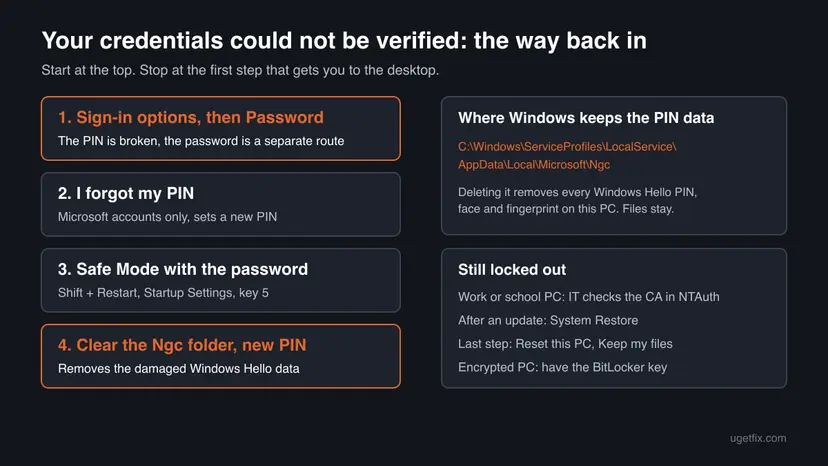
| What you see | What it means | Start with |
|---|---|---|
| Your credentials could not be verified. after a PIN | Windows Hello could not check the PIN data | Fix 1, then Fix 4 |
| Something went wrong and your PIN isn't available with a status code | The PIN data is damaged or missing | Fix 1, then Fix 4 |
| Status 0xc00000bb on a work or school PC | Windows Hello for Business certificate problem, Microsoft documents it | Fix 5 |
| The message after a fingerprint or face | Windows Hello biometrics depend on the same PIN data | Fix 1, then Fix 4 |
| Your device is offline. Please sign in with the last password used on this device. | The password check needs the last password this PC saw | Fix 1 with the old password |
The message is about the sign-in data only. Nothing in this guide deletes your documents, except the last resort in Fix 7, and even that one keeps your personal files when you choose Keep my files.
What causes the credentials could not be verified error, from the most common
Every Windows Hello sign-in, PIN, face or fingerprint, unlocks a key stored for your account on this PC. Microsoft's Q&A staff describe the common home case: the local Windows Hello PIN data becomes corrupted, often after an update, and then even correct details fail. The ranking below is our reading of Microsoft's pages and user reports, not a statistic.
| How often | Cause | Typical sign | Fix |
|---|---|---|---|
| Most often | Damaged Windows Hello PIN data in the Ngc folder | Started after an update or a forced power off. The right PIN fails. | Fix 1, Fix 4 |
| Often | The PIN was never accepted on this PC after a password change online | Password works, PIN does not | Fix 2 |
| Often | Face or fingerprint data broke with the PIN data | Message right after a fingerprint or face scan | Fix 4 |
| Less often | Work or school PC: the issuing CA certificate is missing in the NTAuth store | Status 0xc00000bb, several users at once | Fix 5 |
| Rarely | Damaged system files or user profile after an update | Even the password fails, also in Safe Mode | Fix 6, Fix 7 |
The message is a Windows sign-in error. It does not mean that someone changed your password or got into your account. If you are worried, check the recent activity of your Microsoft account from another device.
How to fix "Your credentials could not be verified" in Windows
The fixes start with what takes a minute and changes nothing. You are done when Windows accepts a new PIN at the next lock with Win + L.
| Your situation | Start with | Then |
|---|---|---|
| You know the account password | Fix 1 | Fix 4 |
| Microsoft account, password forgotten | Fix 2 | Fix 1 |
| Password also refused at the normal sign-in screen | Fix 3 | Fix 4 |
| You are signed in but the PIN cannot be set up again | Fix 4 | Fix 6 |
| Work or school PC, status 0xc00000bb | Fix 5 | Contact IT |
| It started right after a Windows update | Fix 3 and Fix 4 | Fix 6 |
| Nothing signs in, not even Safe Mode | Fix 7 | Still there section |
Fix 1. Sign in with your account password from Sign-in options
2 minutesLow riskEveryone who knows the password of the account. This is the fix for most readers.
The error belongs to Windows Hello. A password sign-in does not use the damaged PIN data, so it is the way in, and it gives you a session to set up a new PIN.
- Select OK on the message.
- Under the PIN box select Sign-in options.
- Select the key icon for Password.
- Type the account password. For a Microsoft account this is the password of that account online, not the PIN.
- Press Enter and wait for the desktop.
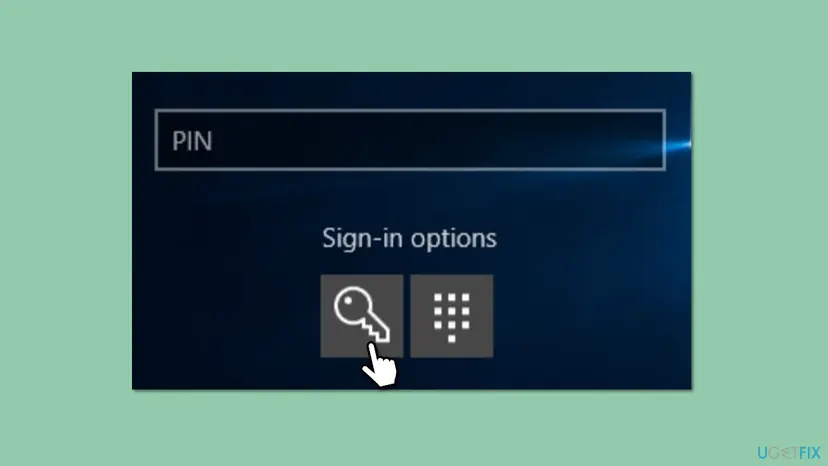
If Windows answers Your device is offline. Please sign in with the last password used on this device, type the password this PC last accepted, not a new one you set online. Microsoft's Q&A answer gives the same advice. Our guide to the device is offline message covers that case in full.
No key icon? The account is set to Windows Hello only. Try Safe Mode in Fix 3, which allows the password. Once signed in, open Settings > Accounts > Sign-in options and turn off For improved security, only allow Windows Hello sign-in for Microsoft accounts on this device under Additional settings.
It worked if: You reach the desktop without the PIN box.
If not: Forgot the password of a Microsoft account? Use Fix 2. Password refused although it is right? Use Fix 3.
Fix 2. Reset the PIN or the Microsoft account password from the sign-in screen
5 minutesLow riskYou sign in with a Microsoft account and do not know the password, or you want a new PIN straight away.
Microsoft's reset proves who you are through the account itself and writes a new PIN. It replaces the PIN setup that can no longer be verified.
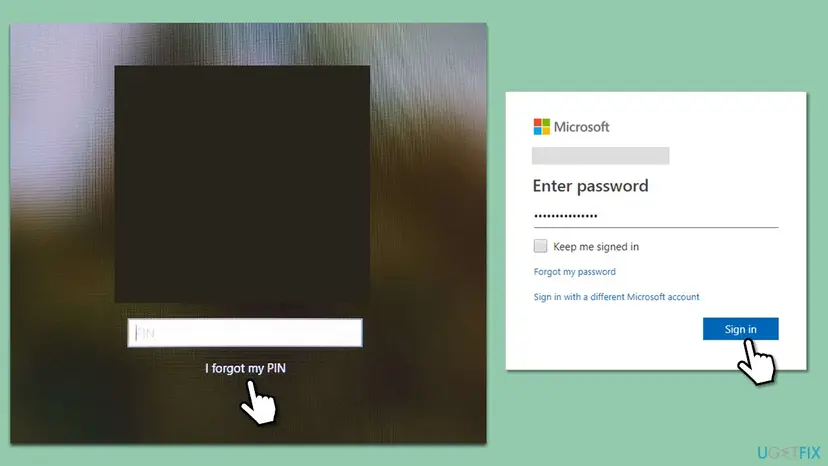
- On the sign-in screen, under the PIN box, select I forgot my PIN. Microsoft says this link exists only for Microsoft accounts, not for local accounts.
- Type your Microsoft account password and confirm the security code Microsoft sends.
- Enter a new PIN twice and select OK.
- Forgot the password too? At the sign-in screen select I forgot my password, or reset it from any browser at
account.live.com/ResetPassword.aspx. - Local account without a PIN link: select the password arrow, select OK, then Reset password, and answer your security questions.
It worked if: Windows accepts the new PIN and opens the desktop.
If not: If setting the new PIN fails with We weren't able to set up your PIN, the old PIN data blocks it: clear it with Fix 4.
Fix 3. Start Windows in Safe Mode and sign in with the password
10 minutesLow riskThe normal sign-in screen refuses the PIN and the password, or shows no password option.
Microsoft's Q&A staff recommend Safe Mode here because it skips the PIN requirement and lets you sign in with the password only. You need that session to clear the PIN data in Fix 4.
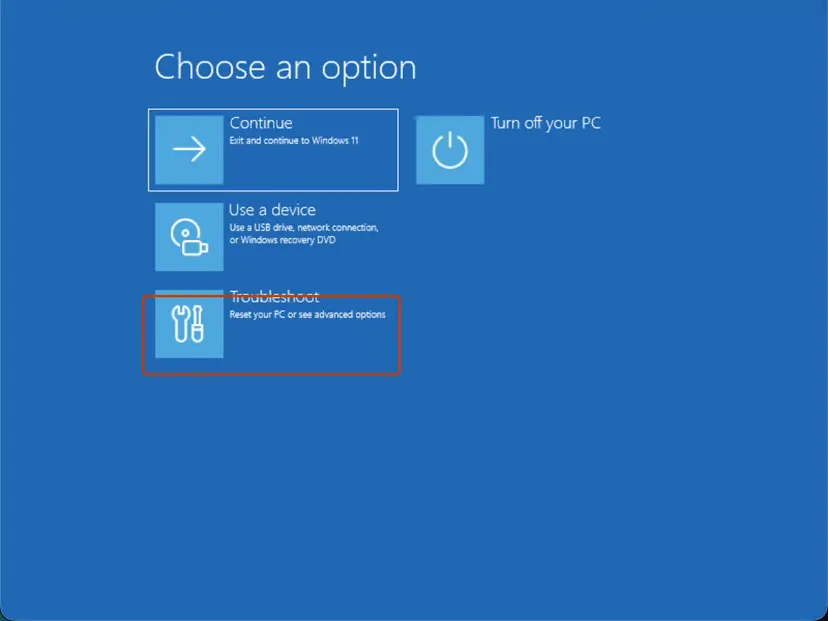
- On the sign-in screen select the Power icon, hold Shift and select Restart.
- Select Troubleshoot > Advanced options > Startup Settings > Restart.
- Press 5 or F5 for Enable Safe Mode with Networking.
- Sign in with the account password. Step by step with screenshots: Start Windows or a Mac in Safe Mode.
If the drive is encrypted, Windows may ask for the BitLocker recovery key on the way. For a Microsoft account you find it at your account's device page from another device.
It worked if: Windows opens a black desktop with Safe Mode in the corners.
If not: If Safe Mode also refuses the password, go to Fix 6, then Fix 7.
Fix 4. Clear the damaged PIN data in the Ngc folder and set up a new PIN
10 minutesRead the warningYou are signed in with the password (Fix 1 or Fix 3) and an administrator, and the PIN still fails or cannot be set up again.
The Ngc folder holds the Windows Hello data of every account on the PC. Microsoft's Q&A staff say deleting it removes the corrupted PIN data, after which you set up a fresh PIN.
Clearing Ngc removes every Windows Hello PIN, face and fingerprint on this PC, for all accounts. Everyone signs in with their password once and sets them up again. Make sure you know your password before you start. Your files stay.
- Open File Explorer, select View > Show > Hidden items (Windows 10: View > Hidden items).
- Go to
C:\Windows\ServiceProfiles\LocalService\AppData\Local\Microsoft. - Open the Ngc folder and delete everything inside it. If Explorer refuses with an access message, use the commands below.
- Restart the PC normally and sign in with the password.
- Open Settings > Accounts > Sign-in options, select PIN (Windows Hello) > Set up and choose a new PIN.
- Set up face or fingerprint again in the same place if you use them.
Explorer often blocks the folder because only a system account owns it. Then press Win, type cmd, select Run as administrator and run these three lines. They take ownership, give administrators access and remove the folder. Windows creates a new Ngc folder when you set up the next PIN.
takeown /f C:\Windows\ServiceProfiles\LocalService\AppData\Local\Microsoft\Ngc /r /d y
icacls C:\Windows\ServiceProfiles\LocalService\AppData\Local\Microsoft\Ngc /grant administrators:F /t
rd /s /q C:\Windows\ServiceProfiles\LocalService\AppData\Local\Microsoft\NgcMicrosoft's staff answer says only to delete the folder. The ownership commands are standard Windows tools added by us for the access message. On Windows in another language, /d y takes that language's word for yes.
It worked if: The new PIN works at the next lock with Win + L, without the error.
If not: If the PIN cannot be set up even after the folder is gone, repair Windows with Fix 6.
Fix 5. Work or school PC: let IT fix the Windows Hello for Business certificate
5 minutes for you, IT time on topLow riskA PC joined to a company domain, often with status 0xc00000bb, and often several users at once.
Microsoft documents this exact message with Something went wrong and your PIN isn't available (status: 0xc00000bb, substatus: 0x0). The cause is that the issuing CA certificate is missing in the NTAuth store of the domain controller and the client.
- Sign in with your domain password from Sign-in options, as in Fix 1, so you can keep working.
- Send IT the full text of the message and the status code.
- IT publishes the issuing CA certificate to NTAuth, with the two commands Microsoft gives below, run with domain admin rights.
certutil -dspublish -f IssuingCA.cer NTAuthCA
certutil -enterprise -addstore NTAuth IssuingCA.cer
IssuingCA.cer stands for the certificate file of the CA that issued the Windows Hello for Business certificates. Do not clear the Ngc folder on a managed PC without asking IT: your company may enrol the PIN again through its own policy.
It worked if: After the certificate replicates and policy refreshes, the PIN works again for every user.
If not: IT can also ask Microsoft support with the status and substatus codes.
Fix 6. Undo a recent update with System Restore
20 minutesLow riskThe error started right after a Windows update or a driver install, and Fix 4 did not help.
Users report this error appearing after updates. A restore point from before the update brings back the system files and settings without touching your documents. It works from the recovery screen, so you do not need to sign in.
From the sign-in screen: Power, hold Shift, Restart, then Troubleshoot > Advanced options > System Restore. Step by step: Undo recent changes with System Restore.
- Open System Restore. Press Windows+R, type the command below and press Enter. You can also open Control Panel > Recovery > Open System Restore. If a first page opens, select Next.
rstrui.exe - Choose a restore point. Select a restore point from a time before the problem started. The Description often names the event, such as a driver or app install. If the one you need is missing, select Show more restore points (shown only when there are more).
- See what will change. Select Scan for affected programs. The upper list shows programs and drivers that will be removed; the lower list shows those that might come back and may need to be reinstalled. Select Close.
- Start the restore. Select Next, check the summary and select Finish. Windows restarts and applies the restore point. Do not turn the PC off.
- Check the result. After sign-in Windows reports whether the restore succeeded. Check whether the problem is gone.
These steps were written for Windows 11 and Windows 10 (the steps are the same). The full page with the other versions and what each result means: Undo recent changes with System Restore
It worked if: Windows starts with the state before the update and accepts the PIN or the password.
If not: No restore point, or the restore failed? Go to Fix 7.
Fix 7. Reset this PC and keep your files
1 to 2 hoursRead the warningNo account signs in, not even in Safe Mode, and System Restore did not help. This is the last resort.
A reset reinstalls Windows and builds the sign-in system from scratch. With Keep my files your personal files stay and your apps go. Microsoft's Q&A staff name it as the last step for this error.
Your files stay, but installed apps and settings are removed. On an encrypted PC you need the BitLocker recovery key. If another account still signs in, copy your files out first: Back up your files (Windows Backup, File History, Time Machine).
From the sign-in screen: Power, hold Shift, Restart, then Troubleshoot > Reset this PC > Keep my files. Step by step: Reinstall Windows without losing files.
- If that did not help: Reset PC. Back in Settings > System > Recovery, next to Reset this PC, select Reset PC. This keeps your personal files but removes installed apps and settings.
- Choose Keep my files. Select Keep my files. Do not select Remove everything.
- Choose where Windows comes from. Select Cloud download to download a fresh copy of Windows, or Local reinstall to use the files already on the PC (faster, but may not include the latest updates).
- Reset. Review the summary and select Reset. The PC restarts several times.
These steps were written for Windows 11 22H2 and later. The full page with the other versions and what each result means: Reinstall Windows without losing files
It worked if: Windows starts fresh, you sign in with your account and set up a new PIN.
If not: If the reset fails or no account signs in afterwards, collect the status code and contact Microsoft support as the next section explains.
If you still cannot sign in: what to check and who can help
- The status code: write down the full line under the message, for example
status: 0xc000006d, substatus: 0xc0070005. Support needs it, and 0xc00000bb points to the work PC case in Fix 5. - Event Viewer: once you are in, open
eventvwr.mscand look in Applications and Services Logs > Microsoft > Windows > HelloForBusiness > Operational for errors at the time of the failed sign-in. - Microsoft account: if the password itself is refused, recover the account from another device at
account.live.com/ResetPassword.aspx. Microsoft says its support agents cannot send reset links. - Work or school PC: contact IT with the message and the status code.
- Local account, no known password, no other administrator: there is no supported way around it. The way back is Fix 7.
The older version of this page told you to run net user administrator /active:yes and icacls.exe /reset from the recovery Command Prompt. We could not confirm that they work on the installed Windows from there, and icacls /reset with no path does nothing useful. Tools that bypass the sign-in screen also weaken the PC's security.
How to stop the credentials could not be verified error from coming back
- Know your account password and use it at sign-in now and then. It is the way in when Windows Hello fails.
- Let updates finish. Do not force the PC off during an update restart or at the sign-in screen.
- Keep a second administrator account on the PC with its own password. Step by step: Create a new user account to test a problem.
- Save the BitLocker recovery key where you can reach it from another device.
- Keep restore points on so Fix 6 has something to go back to.
Frequently asked questions
What does "Your credentials could not be verified" mean?
It means Windows Hello could not check the PIN, face or fingerprint you gave against the sign-in data stored on this PC. It is not the same as a wrong PIN, which shows The PIN is incorrect. Most often the local PIN data is damaged, so even the right PIN fails. Sign in with your password from Sign-in options, then set up a new PIN or clear the Ngc folder.
What does "your credentials could not be verified" artinya (mean in Indonesian)?
Artinya: kredensial Anda tidak dapat diverifikasi. The sentence means Windows could not verify your sign-in details, usually your PIN. This page is in English. In short: select Sign-in options, choose the key icon and type your account password. Once you are in, set up a new PIN in Settings, Accounts, Sign-in options, or clear the Ngc folder as Fix 4 shows.
What is "No se pudieron comprobar sus credenciales" in English?
It is the Spanish text of the same Windows message: Your credentials could not be verified. Windows in Spanish shows it on the sign-in screen in the same situation, and the fixes are the same in every language. Use Opciones de inicio de sesión to sign in with the password, then set up a new PIN. This page itself is in English.
Why does my correct PIN say my credentials could not be verified?
Because the problem is not the PIN you type but the data Windows checks it against. Your PIN unlocks a key stored for your account on this PC. If that stored data is damaged, for example after an update or a forced power off, the check fails even with the right digits. A new PIN after clearing the Ngc folder replaces the damaged data.
Will deleting the Ngc folder delete my files?
No. The Ngc folder holds only Windows Hello sign-in data: PINs, and the keys behind face and fingerprint sign-in. Your documents, pictures and apps are elsewhere. What you lose is the PIN, face and fingerprint setup for every account on the PC, so each user must sign in with the password once and set them up again. Know your password before you start.
Can I fix this error without the password?
With a Microsoft account, yes: select I forgot my PIN or I forgot my password on the sign-in screen and verify yourself with a code, or reset the password from any browser. With a local account you can answer your security questions or use a password reset disk. Without either and with no other administrator, the only supported route is Reset this PC with Keep my files.
Does this error happen with Windows Hello fingerprint and face sign-in?
Yes. Searchers report the same message after a fingerprint or face scan. Face and fingerprint sign-in in Windows Hello rely on the same stored data as the PIN, so damage there breaks all three. Sign in with the password, clear the Ngc folder, set up a new PIN, then add face or fingerprint again in Settings, Accounts, Sign-in options.
Is the error different on Windows 11 and Windows 10?
The message and the fixes are the same. Only some menu names differ: Windows 11 shows Hidden items under View, Show in File Explorer and Reset this PC under System, Recovery. Windows 10 has Hidden items directly on the View tab and Recovery under Update and Security. Windows 10 left support on 14 October 2025, so it no longer gets security fixes.
What does status 0xc00000bb mean with this message?
Microsoft documents it for work and school PCs that use Windows Hello for Business. The full text reads Something went wrong and your PIN isn't available (status: 0xc00000bb, substatus: 0x0). The cause is a missing issuing CA certificate in the NTAuth store of the domain controller and the client. Only your IT department can fix it, with the certutil commands in Fix 5.
Sources
- Microsoft Learn: "Your credentials could not be verified" error when logging on to Windows with Windows Hello for Business (status 0xc00000bb, NTAuth cause, certutil fix) (learn.microsoft.com)
- Microsoft Support: Change or reset your PIN in Windows (I forgot my PIN only for Microsoft accounts, password reset routes) (support.microsoft.com)
- Microsoft Q&A: Entering PIN says credentials could not be verified on Windows PC (Microsoft external staff answer: Safe Mode, Ngc folder, Reset this PC) (learn.microsoft.com)
Did this fix work?
One click, no account. It tells the next reader which guides are worth their time.
Questions and experiences: Your credentials could not be verified: how to fix it in Windows
Still broken, or found a fix we did not cover? Ask here: members and our editors answer. Reading is open; writing needs a free account.
…