
Your device is offline. Try a different sign-in method: how to fix it in Windows?

Prefer to fix it yourself? The manual steps follow.
- 7methods
- 2 to 30 minutes
- Easy
Applies to Windows 11 and Windows 10 PCs that sign in with a Microsoft account and a Windows Hello PIN or a password
7 methods in this guide
Hello. When I try to sign in to my Windows PC using the password, I receive this message: "Your device is offline. Try a different sign-in method." What should I do?
The Your device is offline sign-in message means Windows wanted to check your Microsoft account online and could not reach the internet, while your files stay safe. Connect the PC to a network from the sign-in screen first, then try the PIN or the password again.
Windows could not reach Microsoft to check your account, so it refuses the PIN or the new password. Connect the PC from the network icon in the lower right corner of the sign-in screen, using Wi-Fi, a cable or a phone hotspot, and sign in again (Fix 1). If you changed the password recently, type the old one, the last one used on this PC (Fix 2).
| Error | Your device is offline. Try a different sign-in method. Users also quote a related line: Your device is offline. Please sign in with the last password used on this device. |
|---|---|
| Where it appears | On the Windows sign-in or lock screen, under the PIN or password box, right after you press Enter. Often after a restart, a password change or a trip. |
| Main cause | The PC has no working internet at the sign-in screen, while Windows needs to check the Microsoft account or the PIN online. |
| Fastest fix | Join Wi-Fi, plug in a cable or use a phone hotspot from the network icon on the sign-in screen (Fix 1). |
| Also written as | your device is offline try a different method, device is offline try a different sign in method, your PC is offline, unavailable because the device is offline. |
| Affects | Windows 11 and Windows 10 with a Microsoft account. Local accounts do not need the internet to sign in. Windows 10 left support on 14 October 2025. |
| Microsoft's status | Not a bug with a patch. Microsoft's sign-in help says I forgot my PIN works only for Microsoft accounts and points to the password when that option is missing (checked 15 October 2026). |
| Time to fix | 2 minutes when the PC can get online. 15 to 30 minutes when you need Safe Mode with Networking or a password reset from another device. |
Facts checked on 15 October 2026. Steps written for Windows 11 (25H2 and 26H2) and Windows 10 22H2 with a Microsoft account, read against Microsoft Support and Microsoft Q&A.
What "Your device is offline. Try a different sign-in method" means
A Microsoft account lives online. Windows keeps a copy of the last password that worked on this PC, so most days you can sign in without the internet. Some sign-ins still need Microsoft's servers: a password you changed online, a PIN that has to be set up or reset, or an account Windows wants to check again.
When such a check is needed and the PC has no working connection at that moment, Windows shows Your device is offline. Try a different sign-in method. It is telling you two things: it cannot reach Microsoft, and the option you just used will not work until it can.
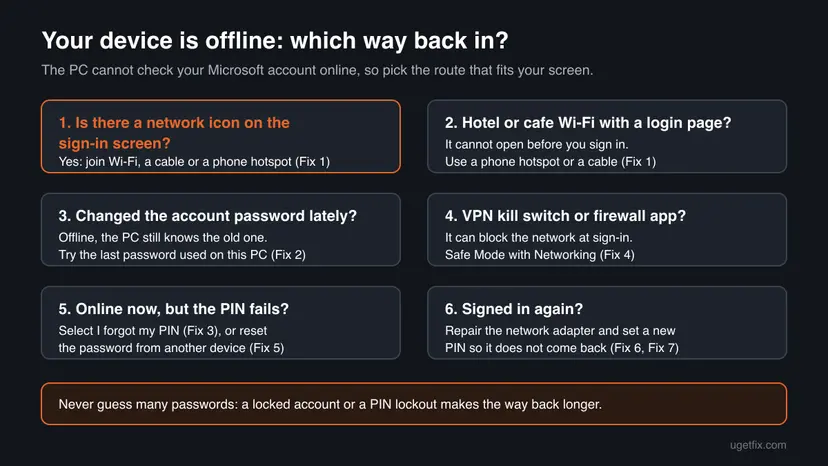
| What you see | What it means | Start with |
|---|---|---|
| Your device is offline. Try a different sign-in method. after the PIN | The PIN needs an online check that cannot happen now. | Fix 1, then Fix 2 |
| The same line after the password | Windows does not know this password offline. Often it is a new password. | Fix 1, then Fix 2 |
| Please sign in with the last password used on this device (users' wording) | Windows only has the old password stored. | Fix 2 |
| Your credentials could not be verified in Safe Mode | Users report it after many tries or in Safe Mode without a network. | Fix 4, then Fix 5 |
The message only blocks this sign-in. It does not delete your profile, your files or your account. Do not reset Windows before you have tried the fixes below.
What causes "Your device is offline" at sign-in, from the most common
Microsoft does not publish a list of causes for this message. The ranking below is our reading of Microsoft's sign-in help and the reports on Microsoft Q&A, not a statistic.
| How often | Cause | Typical sign | Fix |
|---|---|---|---|
| Most often | No connection at the sign-in screen: Wi-Fi forgotten, router off, cable out, flight mode on | The network icon on the sign-in screen shows no connection. | Fix 1 |
| Often | A Wi-Fi with a login page (hotel, airport, cafe) that cannot open before you sign in | Connected, but no internet. Users on Microsoft Q&A describe this on holiday. | Fix 1 |
| Often | The Microsoft account password was changed online, and the PC only knows the old one | The new password is refused, the old one may still work. | Fix 2, Fix 5 |
| Less often | A VPN kill switch or another network tool blocks the connection when its app is signed out | Users report it right after a VPN app signed them out. | Fix 4 |
| Less often | A forgotten or damaged PIN that Windows wants to reset online | The PIN fails even with a working network. | Fix 3, Fix 7 |
| Rarely | A network adapter or driver that does not start | No Wi-Fi networks listed at all, even next to the router. | Fix 4, Fix 6 |
Many wrong tries can lock the PIN or make Microsoft ask for extra checks on the account. Try each password you know once, then move to the next fix.
How to fix "Your device is offline. Try a different sign-in method"
Start with what takes two minutes and changes nothing. You are done when Windows opens your desktop with your usual PIN or password.
| Your situation | Start with | Then |
|---|---|---|
| No Wi-Fi or cable connected at the sign-in screen | Fix 1 | Fix 2 |
| Hotel, airport or cafe Wi-Fi with a login page | Fix 1 (phone hotspot) | Fix 2 |
| You changed the Microsoft account password recently | Fix 2 | Fix 5 |
| You forgot the PIN and the PC is online | Fix 3 | Fix 2 |
| A VPN or firewall app was running when it started | Fix 4 | Fix 1 |
| No password works at all | Fix 5 | Still locked out section |
| You are signed in again and want it gone for good | Fix 6 | Fix 7 |
Fix 1. Connect the PC to the internet from the sign-in screen
2 minutesLow riskEveryone. It is the fix for most readers, because the message appears when Windows cannot reach Microsoft.
The PIN or the new password can be checked only online. Once the PC has a working connection, Windows can talk to Microsoft and the same sign-in goes through.
- On the sign-in screen, select the network icon in the lower right corner.
- If Airplane mode is on, turn it off. Turn on Wi-Fi if it is off.
- Pick your Wi-Fi network, type its key and select Connect.
- No home Wi-Fi? Plug in a network cable from the router, or turn on the hotspot on your phone and connect to it.
- Wait 30 seconds until the icon shows a connection, then type your PIN or password again.
A Wi-Fi with a login page needs a browser, and there is no browser before you sign in. A user on Microsoft Q&A was stuck exactly like this on holiday. Use a phone hotspot or a cable instead, then join the hotel Wi-Fi after you are in.
If the router has been off or acting up, restart it and wait two minutes before you try again. The full check of the connection from the desktop is here: How to check your internet connection in Windows.
It worked if: Windows accepts the PIN or the password and opens your desktop.
If not: If there is no network icon or no Wi-Fi network is listed, go to Fix 4. If the PC is online and the password is still refused, go to Fix 2.
Fix 2. Sign in with the password last used on this PC
2 minutesLow riskThe PC cannot get online, or you changed the Microsoft account password on another device recently.
Offline, Windows can only compare your typing with the password it stored the last time you signed in here. A password changed online reaches the PC only after it signs in with an internet connection.
- On the sign-in screen select Sign-in options.
- Select the key icon for the password.
- Type the password you used the last time you signed in to this PC, even if you changed it since.
- Press Enter once. If it fails, check Caps Lock and the keyboard layout code (such as ENG) on the screen, then try one more time.
Microsoft's help says the same: when I forgot my PIN is not offered, you sign in with your password, then reset the PIN in Settings. If the key icon is missing, Windows Hello only sign-in is on. You can turn it off later in Settings > Accounts > Sign-in options under Additional settings.
It worked if: The desktop opens. The next time the PC is online, Windows picks up your new password.
If not: If the old password is refused too, get the PC online (Fix 1 or Fix 4) and use the new one, or reset it with Fix 5.
Fix 3. Reset the PIN with I forgot my PIN once the PC is online
5 minutesLow riskThe PC is online now, you sign in with a Microsoft account, and the PIN still fails or you forgot it.
The reset proves who you are with the Microsoft account and sets a new PIN on this PC. Microsoft notes this option exists only for Microsoft accounts, not for local accounts.
- Make sure the PC is connected (Fix 1).
- Under the PIN box select I forgot my PIN. If the PC has several accounts, pick yours.
- Enter your Microsoft account password and the security code Microsoft sends to your phone or email.
- Type a new PIN twice and select OK.
If I forgot my PIN is not on the screen, Microsoft says to select Sign-in options, sign in with the password and reset the PIN from Settings > Accounts > Sign-in options (Fix 7).
It worked if: The new PIN opens the desktop, and the offline line does not appear.
If not: If the reset fails with an offline message, the PC is not really online: try a phone hotspot (Fix 1) or Fix 4.
Fix 4. Start in Safe Mode with Networking to get past a VPN or network tool
10 minutesLow riskA VPN with a kill switch, a firewall app or another network tool blocks the connection at sign-in, or no Wi-Fi network shows up.
Safe Mode with Networking starts Windows with its own network drivers and without most third party apps. A Microsoft support moderator on Microsoft Q&A suggests it for exactly this case: the VPN does not run, so the PC can go online and check the account.
- On the sign-in screen, hold Shift, select the Power icon and select Restart.
- Select Troubleshoot > Advanced options > Startup Settings > Restart.
- Press 5 or F5 for Enable Safe Mode with Networking.
- Connect to Wi-Fi or a cable from the network icon, then sign in with your password.
- In Safe Mode, turn off the kill switch in the VPN app or uninstall it, then restart normally.
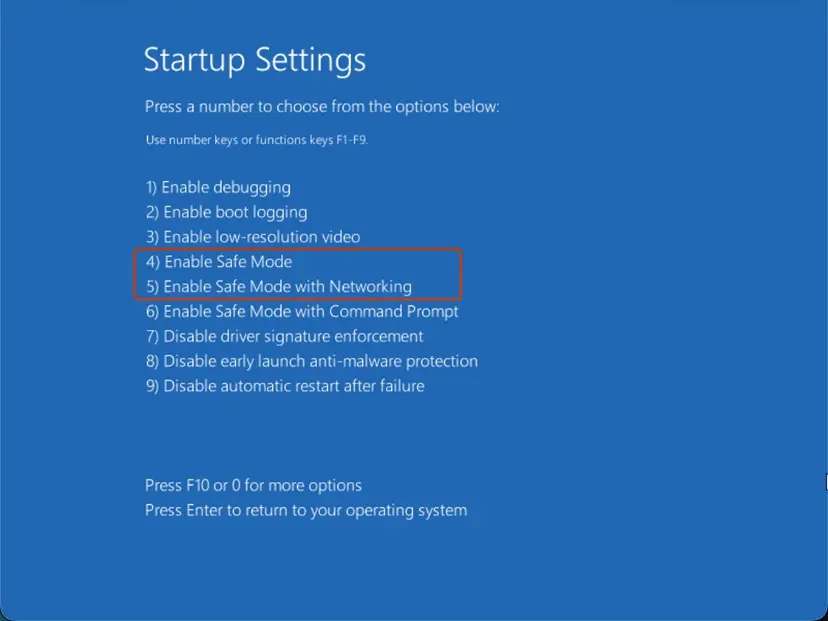
More on Safe Mode and how to leave it: Start Windows or a Mac in Safe Mode. To remove the VPN app from Safe Mode: Uninstall a program or app in Windows.
It worked if: You reach the desktop in Safe Mode, and after a normal restart the PIN works again.
If not: If Safe Mode says Your credentials could not be verified, the password itself is not accepted: reset it with Fix 5.
Fix 5. Reset the Microsoft account password from another device
10 minutesLow riskNo password you know works, or you think the account was locked or its password was changed.
A fresh password set online is the one Microsoft will accept. As soon as the PC is online at the sign-in screen, Windows checks it against Microsoft and lets you in.
- On a phone or another computer, open Microsoft's account recovery page at
account.live.com/password/reset. - Enter the email, phone number or Skype name of the account and select Next.
- Confirm with the code Microsoft sends and set a new password.
- Get the PC online with Fix 1 or Fix 4.
- Sign in with the new password. You can also select I forgot my password on the sign-in screen while online.
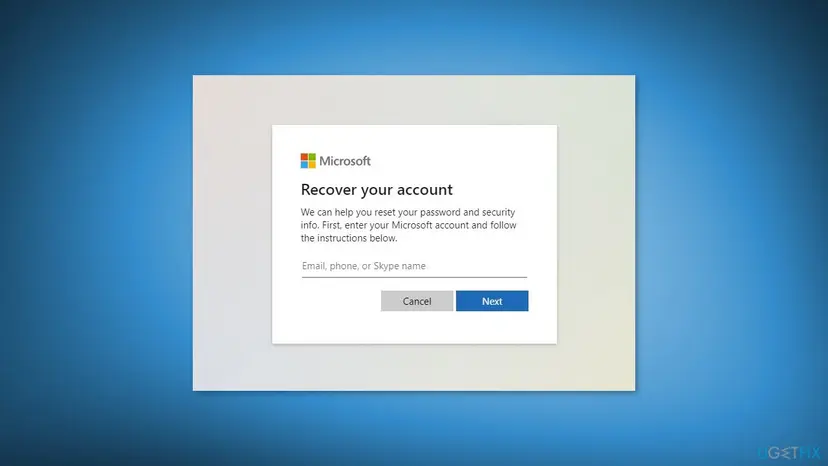
A PC that stays offline still knows only the old password. Set the new one, then make sure the PC is connected before you type it, or it shows the same offline message.
It worked if: Windows accepts the new password and opens the desktop.
If not: If Microsoft cannot verify you, use its recovery form. If the PC still cannot get online, read the section below.
Fix 6. Repair the network adapter once you are signed in
10 minutesLow riskYou got in with the old password or Safe Mode, but Wi-Fi or Ethernet was missing or unreliable.
If the adapter fails to start, the next sign-in that needs Microsoft will hit the same message. Turning the adapter off and on, then resetting the network, gives it a clean start.
- Press Win + X and select Device Manager.
- Expand Network adapters, right-click your Wi-Fi or Ethernet adapter and select Disable device.
- Right-click it again and select Enable device.
- If the adapter has a yellow mark, update or reinstall its driver: Update, roll back or reinstall a driver.
- If the connection still drops, reset the network: Reset the network and flush DNS.
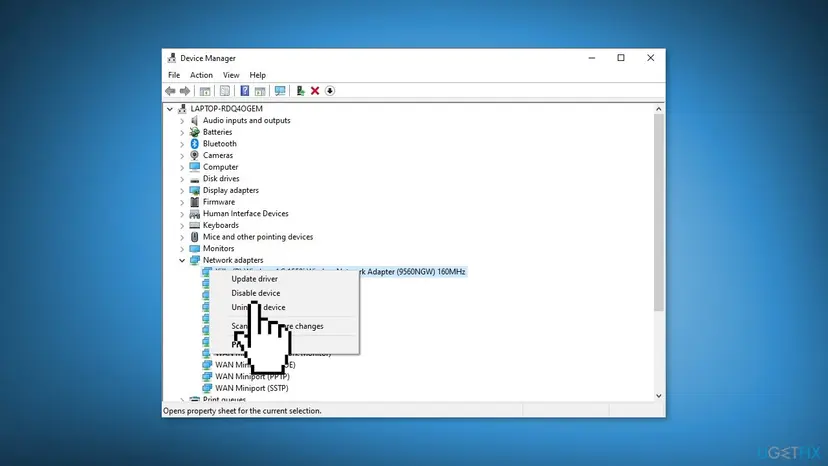
It worked if: The PC connects to Wi-Fi or Ethernet at every start, and the sign-in screen shows a connection.
If not: If no adapter is listed at all, the hardware may be off or faulty: see the section below.
Fix 7. Set a new PIN, or use a local account if you are often offline
10 minutesRead the warningYou are signed in and want the message gone for good, or the PC is often used without internet.
A new PIN replaces a damaged one. A local account signs in with a password stored on the PC only, so it never needs Microsoft at the sign-in screen.
- Open Settings > Accounts > Sign-in options.
- Expand PIN (Windows Hello) and select I forgot my PIN or Remove, then set up a new PIN while the PC is online.
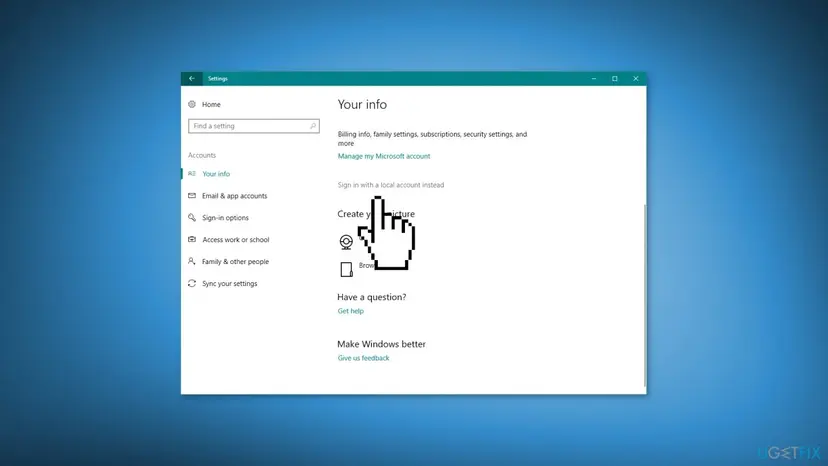
- If you prefer a local account, open Settings > Accounts > Your info and select Sign in with a local account instead.
- Type your current password, choose a local user name and password, and select Sign out and finish.
Your files stay, but settings sync, OneDrive sign-in and Store app sign-in move to each app. On a PC encrypted with BitLocker or device encryption, back up the recovery key from your Microsoft account first.
It worked if: The new PIN or the local password works at every sign-in, online or not.
If not: If the link to a local account is missing, Windows 11 may hide it in some builds; we could not confirm which. Create a separate local account instead: Create a new user account to test a problem.
If you still cannot sign in: what to check and who can help
When the PC cannot get online and no stored password works, there are only a few supported ways left. Try them in this order and stop guessing passwords in between.
- Another account on the PC: select it in the lower left corner of the sign-in screen. From there you can copy your files: Back up your files (Windows Backup, File History, Time Machine).
- Work or school PC: contact IT. The account and the sign-in rules are managed by the organization.
- Network hardware: if no Wi-Fi network appears even in Safe Mode with Networking, check the Wi-Fi key or switch on the laptop and try a USB network adapter or a cable.
- Last resort: reset Windows from the recovery screens. It can keep or remove files depending on your choice, and needs the BitLocker recovery key on an encrypted PC: Reinstall Windows without losing files.
Some forum answers create a new administrator with net user from a recovery USB. On Microsoft Q&A a moderator noted that this can change the recovery system instead of your Windows, and the user saw no new account. It also weakens the PC's security. Use the supported routes above.
How to stop "Your device is offline" from coming back
- After a password change, sign in to the PC once while it is online, so it stores the new password.
- Before a trip, sign in once at home, and keep a phone hotspot as your way online at hotels.
- Keep your Microsoft account recovery info current: a phone number and a second email make Fix 5 quick.
- Check your VPN's kill switch settings so it does not block all traffic when the app signs you out.
- Know your account password, not only the PIN, and use it at sign-in now and then.
- On a PC used mostly offline, consider a local account (Fix 7).
Frequently asked questions
What does "Your device is offline" mean on Windows 11?
It means Windows tried to check your Microsoft account or your PIN online at the sign-in screen and could not reach the internet. Windows 11 and Windows 10 show the same message. Connect the PC from the network icon in the lower right corner of the sign-in screen and sign in again. If you cannot get online, try the password you used the last time you signed in to this PC.
Why does my computer say I'm offline when I'm not?
Being connected to Wi-Fi is not the same as reaching the internet. A hotel or cafe Wi-Fi with a login page, a router without internet, or a VPN kill switch can leave the PC connected but cut off from Microsoft. Use a phone hotspot or a cable to test. If the PC is really online and still says offline, start in Safe Mode with Networking, which runs without most third party network tools.
Why does Windows not accept my new Microsoft account password?
Because the PC learns a new password only when it signs in online. Offline, it still compares your typing with the password stored the last time you signed in here. Type the old password, or get the PC online and then type the new one. After one online sign-in, Windows keeps the new password for later offline sign-ins.
Can I sign in to Windows without the internet?
Yes, in most cases. A Microsoft account signs in offline with the last password that worked on this PC, and a working PIN also works offline. The internet is needed when the password was changed online, when the PIN has to be reset, or when Windows wants to check the account again. A local account never needs the internet to sign in.
What does "Try a different sign-in method" mean?
It means the option you just used, usually the PIN, cannot work right now. Select Sign-in options under the box and pick the key icon for the password. If there is no key icon, Windows Hello only sign-in is turned on for the account, and you need the PC online to reset the PIN or sign in.
What does "unavailable because the device is offline" mean?
It is a similar message that some Windows options and Microsoft apps show when a feature needs the internet and the PC has none. For sign-in, the answer is the same as on this page: get the PC online with Wi-Fi, a cable or a phone hotspot, then try again. If you see it inside an app after you are signed in, check the connection first.
My computer is offline, how do I fix it after I sign in?
Open Settings > Network & internet and check whether Wi-Fi or Ethernet is connected. Restart the router, turn the adapter off and on in Device Manager, and reset the network if it still drops. Our step by step check of the connection is here: How to check your internet connection in Windows. A PC that connects reliably will not show the offline sign-in message again.
Will a factory reset fix "Your device is offline"?
It would let you set up the PC again, but it is the last option, not the first. Your files can be lost, and an encrypted PC needs the BitLocker recovery key. In most cases getting online with a phone hotspot, using the last password or resetting the account password from another device solves the sign-in without touching your files.
What does "gimana cara ngatasin ini" mean here?
It is Indonesian for "how do I fix this". This page is in English. In short: connect the PC to the internet from the network icon on the sign-in screen, using Wi-Fi, a cable or a phone hotspot. Then sign in again. If that fails, type the last password you used on this PC.
Sources
- Microsoft Support: Change or reset your PIN in Windows (I forgot my PIN only for Microsoft accounts, password via Sign-in options, reset a Microsoft account password from the sign-in screen) (support.microsoft.com)
- Microsoft Q&A: "Your device is offline, try a different sign-in method" (VPN kill switch case, moderator advice on Safe Mode with Networking and recovery commands) (learn.microsoft.com)
- Microsoft Q&A: Your device is offline, try a different sign in method (user stuck on a Wi-Fi with a login page) (learn.microsoft.com)
Did this fix work?
One click, no account. It tells the next reader which guides are worth their time.
Questions and experiences: Your device is offline. Try a different sign-in method: how to fix it in Windows
Still broken, or found a fix we did not cover? Ask here: members and our editors answer. Reading is open; writing needs a free account.
…