
How to fix "You're offline. Check your connection" on YouTube?

Prefer to fix it yourself? The manual steps follow.
- 9methods
- 5 to 20 minutes
- Easy
Applies to Windows 11, Windows 10; YouTube in Google Chrome, Microsoft Edge, Mozilla Firefox and Opera
9 methods in this guide
- What the message means
- Why it appears
- The fixes
- 1. Test a private window
- 2. Check for an outage
- 3. Run the troubleshooters
- 4. Clear browser cache
- 5. Update the browser
- 6. Turn off extensions
- 7. Check DNS servers
- 8. Check VPN and proxy
- 9. Pause security for a test
- Still broken: next steps
- Keep it from coming back
- FAQ
I use a Windows laptop and recently YouTube started telling me "You're offline. Check your connection," which is clearly not the case. I can use the internet fine, be it within the browser or other apps that need the internet. I am not sure what is going on but I'd like to fix this as soon as possible.
YouTube says you are offline while your Windows PC loads other sites and apps without trouble. Start by opening YouTube in a private window with extensions off. That one test tells you whether the fault sits in the browser or in the network.
YouTube cannot reach its own services from this browser, although the PC is online. Open YouTube in a private window with extensions off (Fix 1). If it plays there, an extension, the cache or the browser version is the cause (Fixes 4 to 6). If it still says you're offline, check YouTube's status (Fix 2), then the network troubleshooters (Fix 3) and your DNS servers (Fix 7).
| Error | Connect to the Internet. "You're offline. Check your connection." Shown on the YouTube page in the browser. |
|---|---|
| Where it appears | In the YouTube page of a desktop browser on Windows (Chrome, Edge, Firefox, Opera), while other sites and apps still connect. |
| Main cause | YouTube's page cannot reach its services, although the PC is online. Google's help names the browser (cache, cookies, extensions, version), DNS settings and the connection as the places to check. It does not document this exact text. |
| Fastest fix | Open YouTube in a private window with extensions off (Fix 1). If it plays, switch off the ad blocker or extension that broke it (Fix 6). |
| Time to fix | About 2 minutes for Fix 1. Up to 20 minutes if you go through the DNS and network fixes. |
| Risk | Low. The fixes change browser settings and, in Fix 7, the DNS servers of one connection. Both can be undone. |
| Not covered | The YouTube app on a phone or a TV. Google's help has separate steps for those: update the app, restart the device, or unplug a TV for 30 seconds. |
Facts checked on 16 October 2026. Steps written for Windows 11 (25H2 and 26H2) and Windows 10 22H2, with the Chrome, Edge and Firefox menus as their vendors describe them.
What "You're offline. Check your connection" means on YouTube
The page shows the heading Connect to the Internet and the line "You're offline. Check your connection." instead of the video list or the player. The words say that YouTube believes there is no internet. In your case that is wrong: other sites and apps work, so the connection itself is usually fine.
Google's help page "Troubleshoot YouTube video errors" lists the usual playback errors, such as "An error has occurred" and "Connection to server lost". It does not list this exact text, and we found no Google page that explains what triggers it. We therefore do not claim a single cause. What the page does give is the list of things to check when YouTube fails in a browser, and the fixes below follow that list.
If YouTube is the only thing that fails, the fault is between the browser and YouTube, not between the PC and the internet. That is why the first fix compares two browser sessions before you touch any network setting.
| What you see | What it points to |
|---|---|
| Other sites and apps load, only YouTube says you're offline. | A browser problem or a YouTube-side problem (Fixes 1 to 6). |
| YouTube works in a private window or another browser. | Extensions, the cache or the browser version (Fixes 4 to 6). |
| Every site and app is slow or fails, not only YouTube. | The connection itself (Fix 3), or DNS (Fix 7). |
| Other people report the same error right now. | A fault on YouTube's side. Wait (Fix 2). |
Why YouTube says you're offline when the internet works
Google's troubleshooting page for video errors names the places where a browser can fail to get YouTube's data: the internet connection, the signed-in state, the browser version, cached data, extensions that block ads, and DNS servers. Each cause below matches one of those places, and each has its own fix.
| Cause | How to tell | Fix |
|---|---|---|
| A browser extension, such as an ad blocker, blocks requests that the YouTube page needs. | YouTube loads in a private window with extensions disabled. | Fix 1, Fix 6 |
| Cached data or cookies in the browser are old or damaged. | Another browser loads YouTube. The private window also works. | Fix 4 |
| The browser is out of date. | Another, newer browser loads YouTube. | Fix 5 |
| YouTube has a fault of its own. | Many users report YouTube errors at the same time. | Fix 2 |
| The connection has a fault that only some pages show. | Pages load slowly or fail from time to time. | Fix 3 |
| The DNS servers set for your connection are wrong or were changed by another program. | Several sites or apps fail, not only YouTube. | Fix 7 |
| A VPN or a manual proxy sits between the browser and YouTube. | The error began after you turned the VPN on or changed proxy settings. | Fix 8 |
| Security software interferes with the connection. | Nothing else explains it, and the error began after a security update. | Fix 9 |
The old version of this guide also named outdated network drivers and corrupted system files. Google's page does not list them for this problem, so they are not fixes here. If the fixes below fail on every browser, How to check your internet connection in Windows tests the Windows side step by step.
How to fix "You're offline. Check your connection" on YouTube
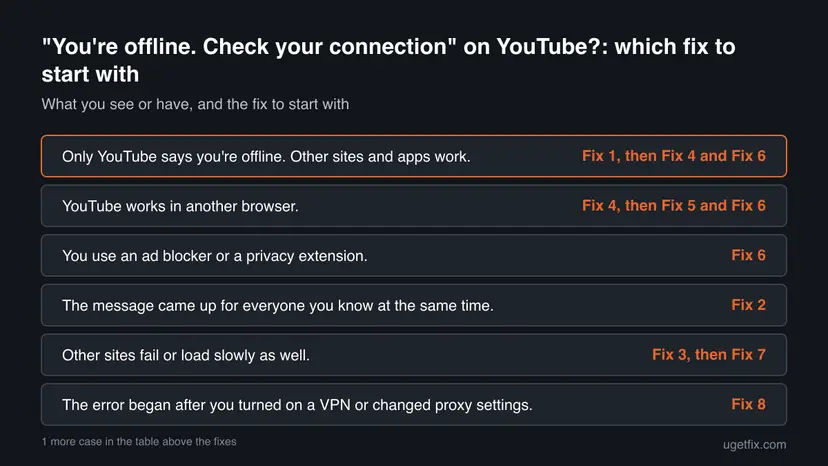
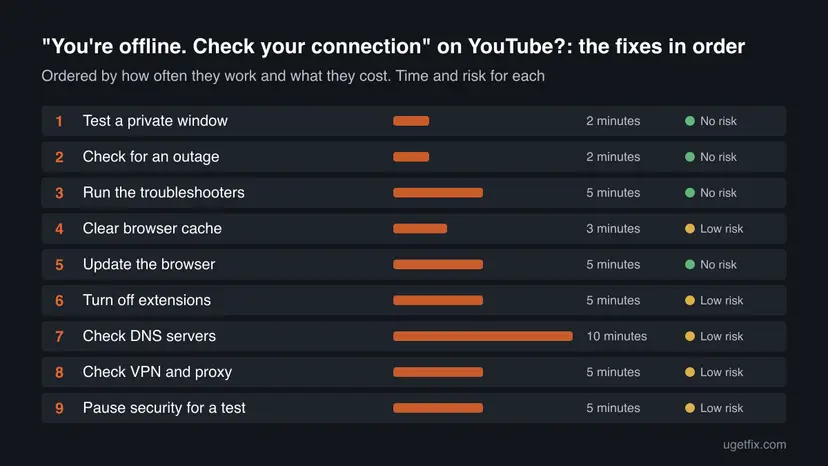
Fixes 1 and 2 find out where the problem sits and cost nothing. Fixes 3 to 6 repair the browser and the connection. Fixes 7 to 9 deal with DNS, VPN and security software. Reload YouTube after each fix.
| What you see or have | Start with |
|---|---|
| Only YouTube says you're offline. Other sites and apps work. | Fix 1, then Fix 4 and Fix 6 |
| YouTube works in another browser. | Fix 4, then Fix 5 and Fix 6 |
| You use an ad blocker or a privacy extension. | Fix 6 |
| The message came up for everyone you know at the same time. | Fix 2 |
| Other sites fail or load slowly as well. | Fix 3, then Fix 7 |
| The error began after you turned on a VPN or changed proxy settings. | Fix 8 |
| Nothing else helped. | Fix 9, then the section on what to check next |
Fix 1. Open YouTube in a private window and another browser
2 minutesNo riskOther sites and apps work, and only YouTube says you're offline.
Google's help suggests opening YouTube in an incognito window with all extensions disabled to see if the problem continues. A private window starts without your saved data and, by default, without extensions, so one test separates a browser fault from a network fault.
- Press Ctrl + Shift + N in Chrome or Edge (Edge calls it an InPrivate window and also uses Ctrl + Shift + N), or Ctrl + Shift + P in Firefox. Opera also uses Ctrl + Shift + N.
- Open
youtube.comin that window and play a video. - If your browser allows extensions in private windows, make sure they are off for this test.
- Then open YouTube in a second browser you have installed, such as Edge if you normally use Chrome.
YouTube works in the private window: go to Fix 4 and Fix 6. It works only in the other browser: go to Fix 4 and Fix 5. It fails everywhere: go to Fix 2 and Fix 3.
It worked if: YouTube plays in the private window or in the other browser, and this tells you which browser fix to use next.
If not: If YouTube says you're offline in every browser, go to Fix 2 to check YouTube's side, then Fix 3.
Fix 2. Check whether YouTube has an outage
2 minutesNo riskThe error shows in every browser, or it appeared suddenly with no change on your PC.
Google's help says that during rare service interruptions YouTube may load a reduced version of the page, and that most such problems are temporary. If the fault is on YouTube's side, no setting on your PC will fix it, so you should know before you change anything.
- Reload the page with F5. Google says to select Reload in the error message or use the browser's refresh button.
- Open a site that collects user reports of outages, such as Downdetector, and look at the YouTube page.
- Check the graph for a peak of reports in the last hours.
- If many users report problems, wait and try again later, as Google advises.
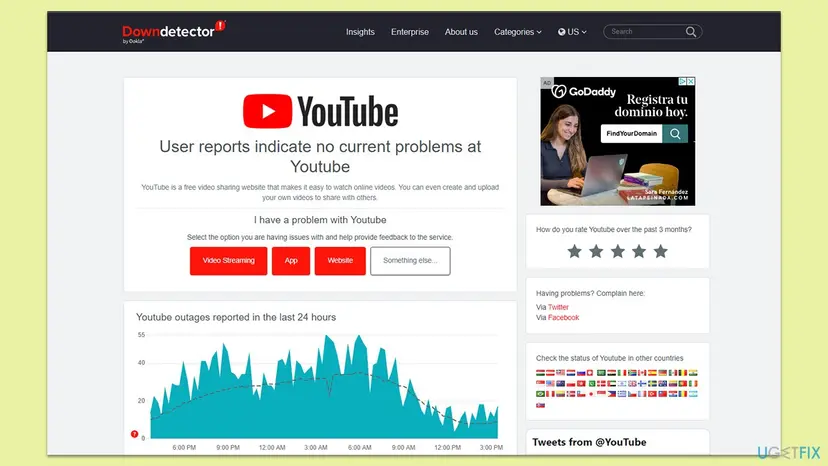
Sites like Downdetector count what users report. Many reports at once means a widespread fault is likely. A flat graph does not prove YouTube is fine.
It worked if: The graph is flat, or YouTube works again after a short wait.
If not: If there is no outage and the error stays, go on to Fix 3.
Fix 3. Run the Windows network troubleshooters
5 minutesNo riskOther sites or apps are slow or fail from time to time, or you want to rule out the connection.
The built-in troubleshooters scan the network settings and connections of the PC and offer a fix for what they find. Google's help lists the connection as the first thing to check, and these tools test it without changing anything until you accept a suggestion.
- Check the connection status. Select Start > Settings > Network & internet. The status of your connection is at the top of the page. Select Properties next to the network name to see its details.
- Check that Wi-Fi is on and connected. Select the Network, Sound or Battery icon on the right side of the taskbar. Make sure Wi-Fi is turned on and that your network shows Connected below its name.
- Run the Network troubleshooter. Open the Get Help app and type connect to network and internet in the search bar. Select Run network diagnostics and complete the steps it offers.
These steps were written for Windows 11 25H2 and 26H2. The full page with the other versions and what each result means: How to check your internet connection in Windows
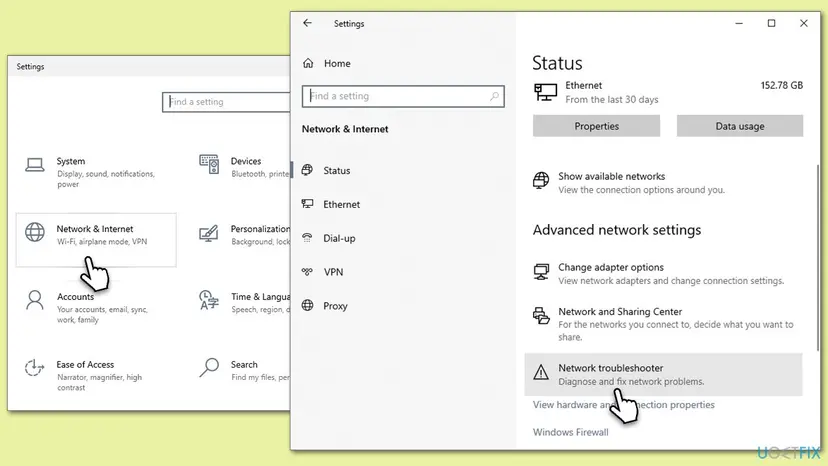
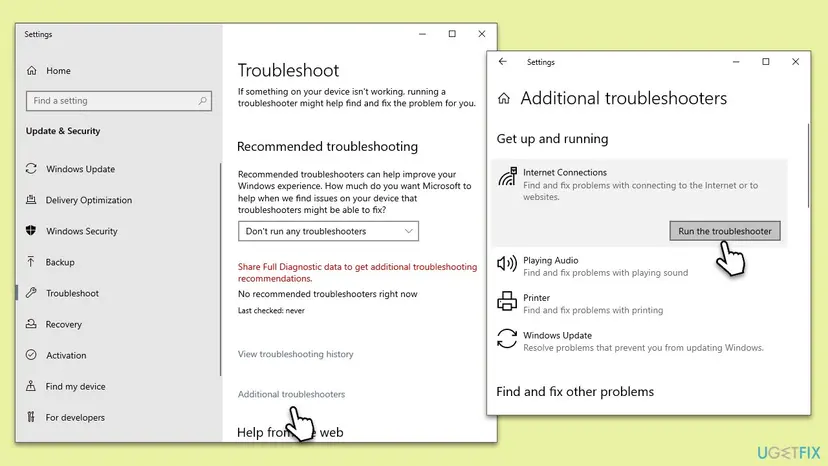
- Type Troubleshoot in the Windows search box and press Enter.
- Open Other troubleshooters (called Additional troubleshooters in Windows 10).
- Find Internet Connections and select Run (Run the troubleshooter in Windows 10).
- Let the scan finish and follow the suggestion, if it finds one.
It worked if: The troubleshooter reports that it found and fixed a problem, or that it found none.
If not: If it finds nothing, the connection is probably fine. Continue with Fix 4.
Fix 4. Clear cookies and cached files in the browser
3 minutesLow riskYouTube works in a private window or another browser, but not in your usual one.
Google's help tells you to clear the browser's cache and cookies when YouTube misbehaves. Old or damaged data from a previous visit can keep the page from loading its content. The private window in Fix 1 starts without that data, which is why it can succeed where the normal window fails.
- Open Delete browsing data. Press Ctrl + Shift + Delete. Or select More (the three dots at the top right) > Delete browsing data.
- Choose how far back to delete. Select a time range at the top, such as Last hour. To clear everything, open More next to the ranges and choose All time.
- Choose what to delete. Check Cached images and files. Check Cookies and other site data too if a site will not sign you in. Uncheck anything you want to keep.
- Delete the data. Select Delete from this device.
These steps were written for Chrome for Windows (screenshot: Windows 11 26H2). The full page with the other versions and what each result means: Clear the browser cache and cookies
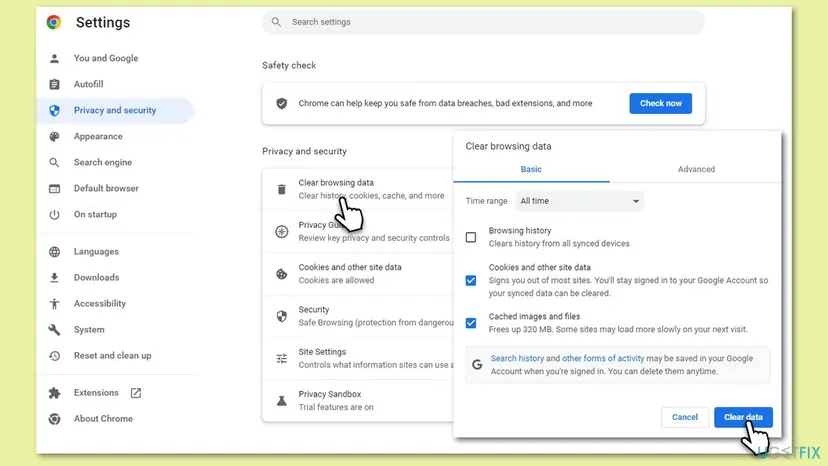
Clearing cookies signs you out of most sites. Your YouTube watch history and subscriptions stay in your Google account.
It worked if: After you reload YouTube and sign in again, the page loads without the message.
If not: If the message is still there, update the browser (Fix 5), then turn off extensions (Fix 6).
Fix 5. Update the browser
5 minutesNo riskYouTube works in a newer browser, or it has been a long time since your browser updated.
Google's help asks you to make sure you use the latest version of a compatible browser such as Chrome, Firefox or Safari. YouTube changes its page often, and an old browser can fail to run the new code, which can show up as an error page.
- In Google Chrome, open the menu (three vertical dots), then Help, then About Google Chrome. Wait for the update and select Relaunch.
- In Microsoft Edge, open Settings and more (three horizontal dots), then Help and feedback, then About Microsoft Edge. Restart the browser when it asks.
- In Mozilla Firefox, open the menu, select Help, then About Firefox. Firefox checks for updates by itself. If one is found, select Restart to update Firefox.
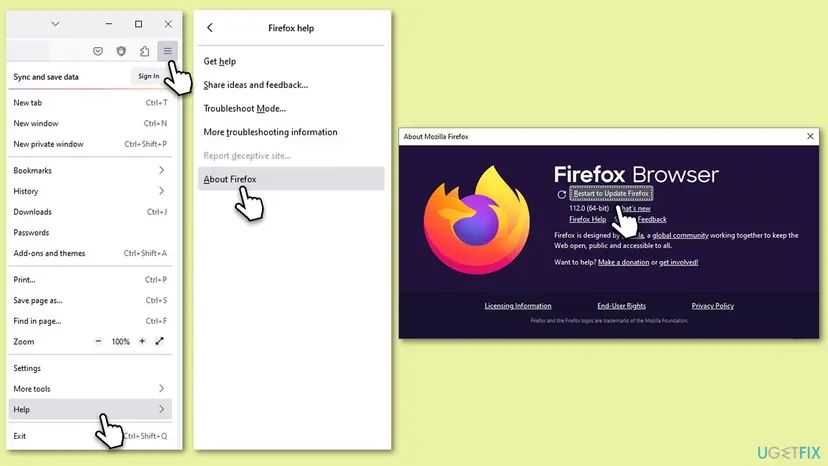
It worked if: The About page says the browser is up to date, and YouTube loads normally after the restart.
If not: If the browser is current and the message stays, turn off extensions (Fix 6).
Fix 6. Turn off ad blockers and other extensions
5 minutesLow riskYouTube plays in a private window with extensions disabled, or you use an ad blocker.
Google's help tells you to check whether extensions that block ads affect playback, and to turn off ad blockers if YouTube shows an error. An extension can block requests the page needs, so YouTube can believe it has lost its connection.
- Open the extensions page of your browser: type
chrome://extensionsin Chrome,edge://extensionsin Edge,about:addonsin Firefox oropera://extensionsin Opera. - Switch off every ad blocker first, including a built-in one such as the Opera ad blocker.
- Reload YouTube. If it works, switch the other extensions back on one at a time, reloading each time.
- When YouTube fails again, you have found the extension. Keep it off, or add an exception for
youtube.comin its settings.
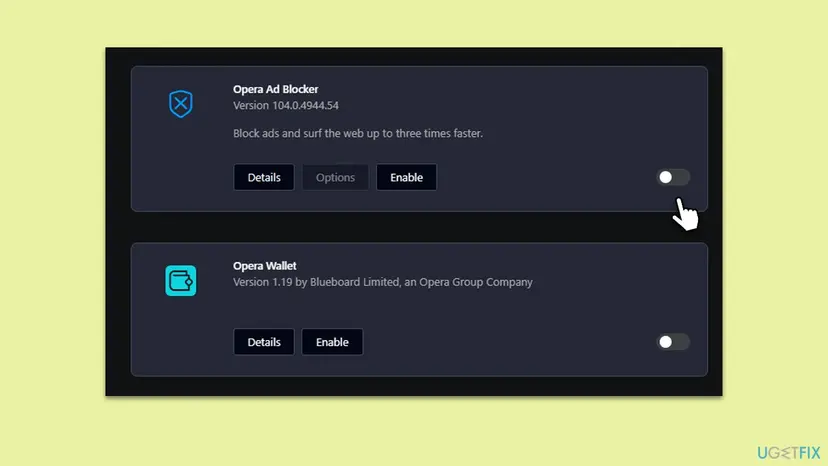
It worked if: YouTube loads without the message once the faulty extension is off.
If not: If no extension is the cause, check your DNS servers (Fix 7).
Fix 7. Check the DNS servers of your connection
10 minutesLow riskOther sites or apps fail too, or another program may have changed your DNS settings.
Google's help says to confirm that you use your preferred DNS servers and that no third party application has changed them. Wrong DNS servers can make some sites fail while others open. Google Public DNS gives two addresses you can use as a test.
- Open Control Panel, then Network and Internet, Network and Sharing Center, Change adapter settings.
- Right-click your Wi-Fi or Ethernet connection and select Properties.
- On the Networking tab, select Internet Protocol Version 4 (TCP/IPv4) and select Properties.
- Write down any addresses already in the DNS fields, so you can restore them.
- Select Use the following DNS server addresses and enter
8.8.8.8as the preferred server and8.8.4.4as the alternate server. - Select OK, close the windows and reload YouTube.
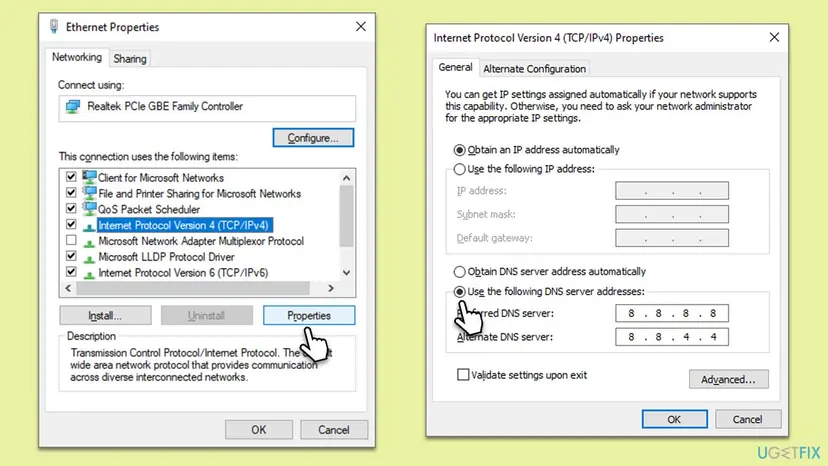
To go back, open the same window and select Obtain DNS server address automatically, or enter the addresses you wrote down. Google says this returns you to your provider's servers.
It worked if: YouTube and other sites load, and the message does not return after a browser restart.
If not: Set the DNS back as it was and go to Fix 8.
Fix 8. Turn off a VPN and check the proxy
5 minutesLow riskThe error began after you connected a VPN or changed proxy settings.
A VPN or a proxy sends your traffic through another server, and the old version of this guide named both as a possible cause. They are not on Google's list for this error, so use this fix as a test: if YouTube works without them, the cause is found.
- Disconnect the VPN in its own app, then reload YouTube.
- Open Settings, then Network & internet, then Proxy.
- Switch off Use a proxy server under Manual proxy setup, unless your workplace requires it.
- Reload YouTube.
A proxy on a managed PC is usually set by the administrator. Ask before you change it.
It worked if: YouTube loads with the VPN off and the manual proxy off.
If not: Turn the VPN back on if you need it, and go to Fix 9.
Fix 9. Pause Windows Security for one test
5 minutesLow riskEvery other fix failed and the error began after a security update or a new security program.
Security software can block connections that a page needs. This is the last fix because it lowers your protection for a moment. Pause real-time protection once, test YouTube, and turn it on again right away.
- Open Windows Security. Select Start, type Windows Security and open the app.
- Open the protection settings. Select Virus & threat protection, then under Virus & threat protection settings select Manage settings.
- Switch off Real-time protection. Set Real-time protection to Off and select Yes when Windows asks for permission.
- Do the task right away. Run the install or repair your guide describes now. Real-time protection turns back on by itself after a short while.
- Turn it back on. When the task is done, set Real-time protection back to On instead of waiting.
These steps were written for Windows 11 and Windows 10 (the steps are the same). The full page with the other versions and what each result means: Turn off Microsoft Defender protection for a moment
Do not leave the protection off. If the test shows that the security program causes the error, add an exception for your browser instead of leaving it off. A third-party security suite has its own pause option in its tray icon.
It worked if: YouTube loads while protection is paused, which points at the security program.
If not: If it still says you're offline, turn protection back on and read the section on what to check next.
If YouTube still says you're offline: what to check next
When every fix failed, sort the problem by what else fails. The table gives the next move for each case.
| What you see | What it means | What to do |
|---|---|---|
| YouTube fails in every browser, other sites work. | A YouTube-side fault or a DNS problem on your connection. | Wait and check Fix 2 again, then repeat Fix 7. |
| Many sites and apps fail or are slow. | The connection is the problem, not YouTube. | Restart the modem and router, then run the checks in How to check your internet connection in Windows. |
| Only your Windows account fails. A second account works. | A setting or profile of your account. | Create a new browser profile and test YouTube in it. |
| Nothing explains the error and other fixes failed. | The network stack of Windows may be stuck. | Run the commands in Reset the network and flush DNS, then restart. |
The network reset in Settings removes and reinstalls every network adapter, and VPN clients may need setting up again, so run the commands first and the full reset last. Windows 10 22H2 no longer gets security updates (support ended on 14 October 2025), so on that system an old browser or driver is more likely to be a problem.
How to keep the offline message from coming back
- Keep your browser up to date, so YouTube's current page runs on it.
- Add
youtube.comto the exceptions of your ad blocker instead of leaving the blocker fully off, if you want to keep it. - Write down your DNS settings before you change them, and set them back to automatic when a test ends.
- Test in a private window first the next time, before you change a network setting.
- Do not clear all browser data for every small error. Use the private window test first.
- Do not stack a VPN, a custom DNS and a manual proxy and then forget which one you set.
- Do not leave real-time protection off after a test.
- Do not install a program that promises to repair YouTube or your connection.
If the message returns every few weeks, note what changed before it came back: a browser update, a new extension, a VPN or a security update. The change is usually the cause.
Frequently asked questions
What does "You're offline. Check your connection" mean on YouTube?
It is the text of an error page that YouTube shows when its page cannot reach YouTube's services. It literally says that you have no internet. Google's help does not document the exact wording, so we cannot name one trigger. When other sites work, the useful reading is that something between your browser and YouTube blocks the data: an extension, old cached data, an old browser, DNS settings or an outage. The first fix tests this with a private window.
Why does YouTube say I am offline when my internet works?
YouTube checks its own access to its services, not whether the PC is online. A browser extension such as an ad blocker, damaged cached data, an old browser or wrong DNS servers can block that access while other sites still load. Google's help lists these places to check for video errors. Open YouTube in a private window with extensions off first, and the result shows whether the cause is in the browser.
Is YouTube down when it says you're offline?
It can be, but usually it is not. Google says that during rare service interruptions YouTube can load a reduced page, and that most such problems are temporary. Check a user report site such as Downdetector for a peak of reports, and try YouTube on another device on the same network. If another device plays videos, the fault is on your PC or in your browser, not on YouTube's side.
Will clearing the cache and cookies fix the message?
It can. Google's help tells you to clear the browser's cache and cookies when YouTube fails, because old or damaged data can keep the page from loading. Try a private window first. If YouTube works there, clearing the data in your normal browser is likely to help. You will be signed out of most sites, but your watch history and subscriptions are kept in your Google account.
Can an ad blocker cause the message?
Yes, it is one of the causes Google names. Its help page asks you to check whether extensions that block ads affect playback and to turn off ad blockers when YouTube shows an error. Switch the blocker off, reload the page, and if YouTube works, add an exception for youtube.com or keep the blocker off for the site. Built-in blockers, such as the one in Opera, count too.
Should I change my DNS to 8.8.8.8?
Only as a test. Google's help asks you to confirm that you use your preferred DNS servers and that no other program changed them. Google Public DNS uses 8.8.8.8 and 8.8.4.4, and Google says you can return to your provider's servers by choosing automatic addresses. If the change does not help, set it back. Fix 7 shows the steps and how to undo them.
Does the same message appear in the YouTube app on a phone or TV?
The wording can be similar, but the fixes differ. Google's help says to update the YouTube app, restart the device, or reinstall the app on a phone. On a TV, unplug the device, wait at least 30 seconds and plug it back in, and check the app store for updates. This guide covers YouTube in a browser on Windows.
Does Windows need an update to fix this?
Google's page does not list a Windows update for this error, so it is not a fix here. Keeping Windows current is good practice, and Windows 10 22H2 has been out of support since 14 October 2025. Browser updates matter more for this problem, which is why Fix 5 covers them. If the error began right after a Windows update, test the fixes in order anyway.
Why do I see "you re offline" and "you are offline" on other sites too?
Searches like "you re offline" and "you are offline" cover many apps and pages, because "offline" messages are common. This guide is about YouTube in a browser on Windows. If another site shows the same words, the likely cause is the connection or DNS, so follow Fix 3 and Fix 7. If only YouTube fails, follow Fix 1 first.
Sources
- YouTube Help: Troubleshoot YouTube video errors (support.google.com)
- Google Public DNS: Get started (change DNS server settings) (developers.google.com)
Did this fix work?
One click, no account. It tells the next reader which guides are worth their time.
Questions and experiences: fix "You're offline. Check your connection" on YouTube
Still broken, or found a fix we did not cover? Ask here: members and our editors answer. Reading is open; writing needs a free account.
…