
How to remove red crosshair in the middle of the screen in Windows?

Prefer to fix it yourself? The manual steps follow.
- 6methods
- 1 to 10 minutes
- Easy
Applies to Gaming monitors with a built-in crosshair (AOC, ASUS, MSI, Acer, Gigabyte, Samsung, Huawei, LG and others) connected to a Windows 11 or Windows 10 PC; MSI gaming laptops
6 methods in this guide
I've got an AOC monitor and in the middle, I see a scope crosshair-like red circle, which is undoubtedly very annoying and I have no clue where it came from or how to turn it off. My system otherwise works with no problems.
A red cross or circle fixed in the middle of the screen is almost always an aiming crosshair that the monitor draws by itself, a gaming feature that one press of a monitor button turns on. Windows is not involved, so no driver or update removes it. Take a screenshot first: if the crosshair is missing from the picture, switch it off on the monitor.
Your PC is fine. The monitor is drawing its own aiming mark, which AOC calls Dial Point. On an AOC monitor, close the monitor menu and press the Dial Point button once (Fix 1). On ASUS, MSI, Acer, Gigabyte or Samsung, set the crosshair item in the monitor's gaming menu to off (Fix 2). Only if the crosshair shows up in a screenshot is a Windows program drawing it (Fix 5 and Fix 6).
| Error | No error message. A red cross, circle or dot stays in the exact middle of the screen, on top of the desktop, every window and every game. |
|---|---|
| Where it appears | On the monitor's panel, not in Windows. It is missing from screenshots and is there with any device plugged into the monitor. |
| Main cause | The monitor's built-in crosshair was switched on, usually by one press of a button on the monitor while its menu was closed. |
| Fastest fix | AOC: press the Dial Point button once with the menu closed (Fix 1). Other brands: turn the crosshair item off in the monitor's gaming menu (Fix 2). |
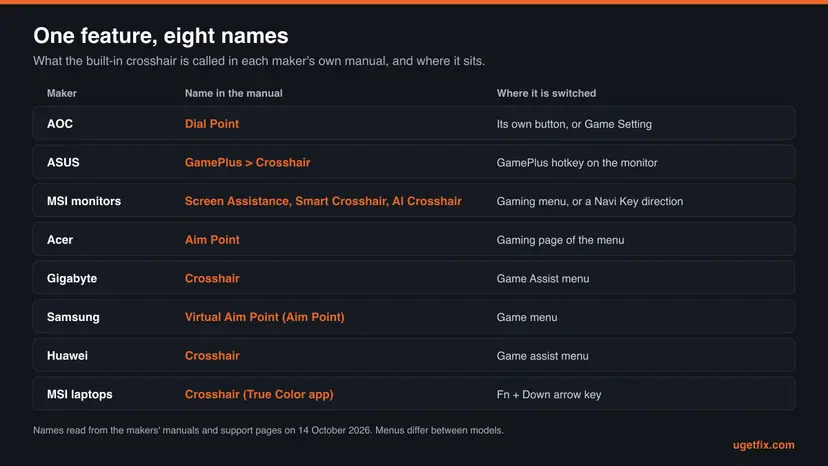
| Also called | Red cross, red target, red circle, red dot, scope, bullseye, aim point. In the manuals: Dial Point (AOC), GamePlus Crosshair (ASUS), Screen Assistance, Smart Crosshair or AI Crosshair (MSI), Aim Point (Acer), Virtual Aim Point (Samsung), Crosshair (Gigabyte, Huawei, LG). |
| Affects | Any Windows version, and consoles too, because the monitor adds the mark after the picture has left the PC. Windows 10 and Windows 11 behave the same. |
| Maker's status | Not a defect. AOC's manuals describe it as a function that "places an aiming indicator in the center of screen" for first person shooter games. |
| Not the cause | Graphics drivers, Windows Update, malware, dead pixels or a damaged panel. None of the makers' manuals lists the crosshair as a fault. |
| When it is software | The crosshair is visible in a screenshot, or you use an MSI gaming laptop, where Fn + Down arrow toggles a crosshair from the True Color app. |
| Time to fix | A few seconds with the right button. Up to 10 minutes if the monitor menu has to be searched or reset. |
Facts checked on 14 October 2026. Steps written for the monitor menus described in the makers' manuals (AOC, ASUS, MSI, Acer, Gigabyte, Samsung, Huawei), and Windows 11 (25H2 and 26H2) and Windows 10 22H2 for the two software fixes.
What the red cross in the middle of the screen is
Many gaming monitors can draw an aiming mark in the centre of the panel. It is meant for shooter games that hide the game's own crosshair. AOC's manual for the CU34G4 puts it this way: the Dial Point function "places an aiming indicator in the center of screen for helping gamers to play First Person Shooter (FPS) games with accurate and precise aiming".
The mark is added inside the monitor, after the picture has arrived from the PC. That is why it sits on top of everything, does not move with any window, and stays the same in every program. It is also why nothing you change in Windows makes it go away.
| Maker | Name in the manual | Source we read |
|---|---|---|
| AOC | Dial Point, with the options Off, On and on newer models Dynamic | User manuals of the 24G2SPE and 24G2SPAE, CU34G4, PD27 and G2590FX |
| ASUS | GamePlus, with the functions Crosshair, Timer, FPS Counter and Display Alignment | ASUS support FAQ "What is ASUS GamePlus?" |
| MSI monitors | Screen Assistance (PRO series), Smart Crosshair (MAG 275CQPF), AI Crosshair (MAG 276QE27 and 276QP42) | Three MSI user guides |
| Acer | Aim Point: "Show an Aim point on the screen for shooting games" | User guide of the Nitro XF273 |
| Gigabyte | Crosshair, in the Game Assist menu | User guide of the GO27Q24G and the OSD Sidekick guide |
| Samsung | Virtual Aim Point, on some models Aim Point | User guide of the 2025 gaming monitor series |
| Huawei | Crosshair, in the Game assist menu | Huawei support article for MateView monitors |
| LG | Crosshair | LG product page. We could not read the menu path in an LG manual. |
Readers describe it as a red cross, a red crosshair, a red circle, a target, a scope or a bullseye. The shape depends on the monitor and on the style that was chosen in its menu. Samsung's manual, for example, offers several aim point styles and the colours Red, Blue and White. All of them are switched off in the same place.
The test that tells a monitor crosshair from a Windows one
Before you touch any setting, find out who draws the mark. A screenshot answers it in ten seconds. Windows can only capture the picture that it sends to the monitor. Whatever the monitor adds afterwards is never part of that picture.
- Press Print Screen, or press Windows logo key + Shift + S and capture the full screen.
- Open the picture. In Windows 11 a capture made with Windows logo key + Shift + S is saved to your Screenshots folder. A Print Screen picture is on the clipboard: paste it into Paint with Ctrl + V.
- Look at the middle of the picture. If you view it on the same monitor, the real crosshair still covers that spot, so drag the picture's window to a corner of the screen first.
- No crosshair in the picture: the monitor draws it. Go to Fix 1 or Fix 2.
- A crosshair in the picture that moves along with the window: a program in Windows draws it. Go to Fix 5 or Fix 6.
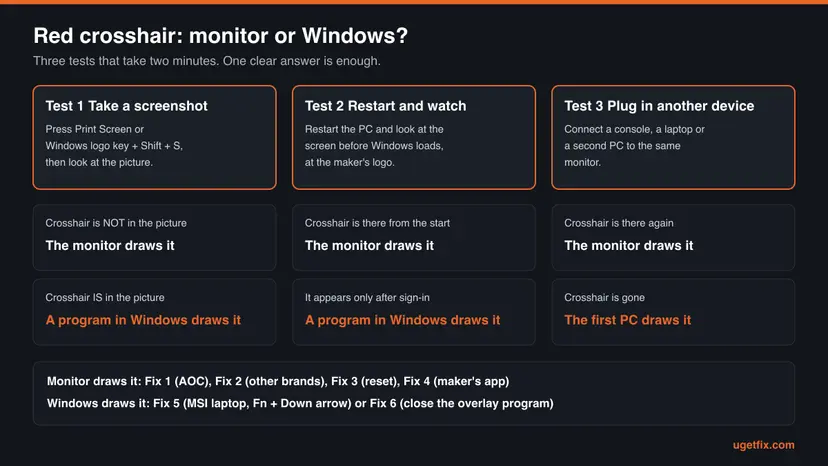
| Test | The monitor draws it if | A Windows program draws it if |
|---|---|---|
| Restart the PC and watch the screen before Windows loads, while the PC maker's logo is shown. | The crosshair is there from the first second. | The crosshair appears only after you sign in. |
| Plug another device into the same monitor: a console, a laptop or a second PC. | The crosshair is there with that device too. | The crosshair is gone with the other device. |
| Move the PC's picture to another screen, such as a TV or a second monitor. | The crosshair stays behind on the first monitor. | The crosshair follows the picture to the other screen. |
Some guides suggest pulling the video cable and looking at the monitor's "no signal" screen. None of the manuals we read says whether the crosshair is still drawn there, so we do not rely on that test. A second device on the same monitor gives a clear answer on every model.
Why there is a red crosshair on your screen, from most to least common
Most often a button on the monitor was pressed by accident. On AOC monitors the crosshair has a button of its own, and the manuals say that one press with the menu closed shows or hides it. Dusting the monitor, moving it or feeling for the power button is enough. Less often a setting or a shortcut key was changed on purpose by someone else. Rarely the mark comes from software.
| Cause | How often | How to tell | Fix |
|---|---|---|---|
| The Dial Point button on an AOC monitor was pressed. | Most often | AOC monitor, red mark in the centre, not in a screenshot. | Fix 1 |
| The crosshair item of another brand's menu is on, or a shortcut key of the monitor opens it. | Often | ASUS, MSI, Acer, Gigabyte, Samsung, Huawei or LG gaming monitor. Not in a screenshot. | Fix 2 |
| You cannot find the item, or it comes back after you switch it off. | Sometimes | The menu is in a language or layout you do not know, or the mark returns after each power cycle. | Fix 3 |
| The monitor's buttons do not react or are locked. | Sometimes | Nothing happens when you press the buttons, or the menu will not open. | Fix 4 |
| An MSI gaming laptop: the crosshair key was pressed. | MSI laptops | The mark is on the laptop's own screen. The True Color app is installed. | Fix 5 |
| A crosshair overlay program runs in Windows. | Rarely | The crosshair is in the screenshot and is gone on the sign-in screen. | Fix 6 |
Updating Windows, updating the graphics driver and a clean boot are listed on many pages for this problem. They cannot work for a mark that the monitor draws, because the PC never sees it. A clean boot is useful only in the rare software case, and a quicker route is in Fix 6.
The reports under Microsoft's own community questions point the same way. In one thread marked as the same question by more than 100 people, the answer voted most helpful says the mark is a monitor feature and does not appear in screenshots. Those are users' reports, not a statement from Microsoft, but they match what the manuals describe.
How to remove the red crosshair from the middle of the screen
Fixes 1 to 4 are done on the monitor and cover almost every case. Fix 1 is for AOC, the brand most readers of this page have. Fixes 5 and 6 are the only two that run in Windows, and they apply only when the test above pointed at software.
| What you see or have | Start with |
|---|---|
| An AOC monitor with a red cross or circle in the centre. | Fix 1 |
| An ASUS, MSI, Acer, Gigabyte, Samsung, Huawei or LG monitor, and the crosshair is not in a screenshot. | Fix 2 |
| You switched it off and it returned, or you cannot find the item in the menu. | Fix 3 |
| The monitor's buttons do nothing, are broken or are out of reach. | Fix 4 |
| An MSI gaming laptop with the mark on its own screen. | Fix 5 |
| The crosshair is visible in a screenshot. | Fix 6 |
Fix 1. Press the Dial Point button on an AOC monitor
10 secondsNo riskYou have an AOC monitor and the crosshair does not appear in a screenshot.
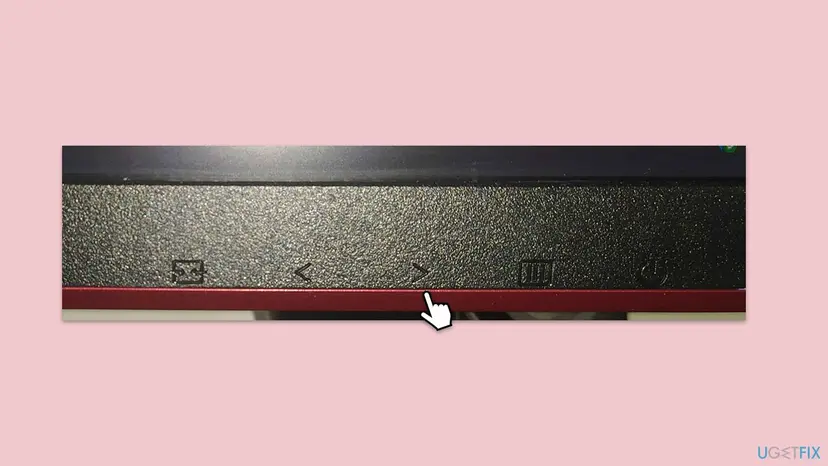
AOC gives the crosshair a button of its own. The manuals of the 24G2SPE, CU34G4 and PD27 all say the same sentence: when there is no on-screen menu, press the Dial Point button to show or hide Dial Point. The press that turned it on turns it off.
- Make sure the monitor's own menu is closed. If it is open, wait until it disappears or press the Source/Exit button.
- Find the row of buttons on the monitor. The manuals number them from 1 to 5 but do not say on which edge they sit, so look along the bottom edge and behind the lower right corner.
- Press the Dial Point button once. On the 24G2SPE and 24G2SPAE it is button 3, marked >. On the PD27 it is button 2, the Down key.
- If a small Dial Point menu opens instead (the G2590FX works this way), press Left or Right to set it to off.
- Wait a few seconds. The mark disappears and stays away.
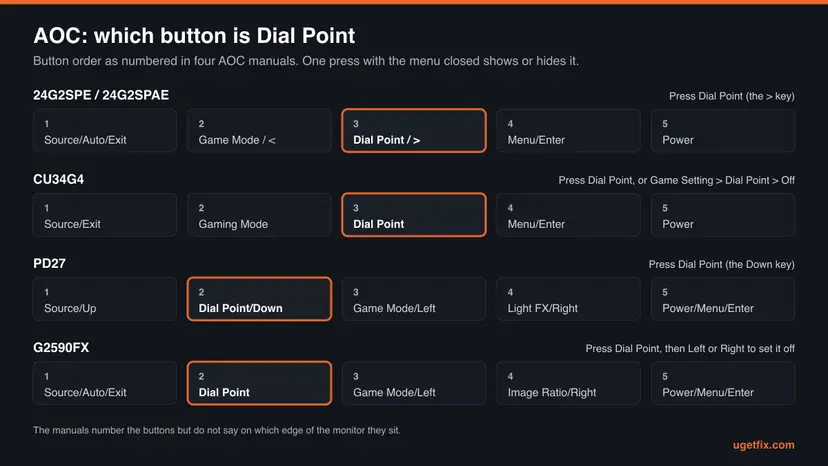
| Model | Dial Point button | Also in the menu |
|---|---|---|
| 24G2SPE, 24G2SPAE | Button 3, Dial Point/>. One press shows or hides it. | The Game Setting table of this manual does not list it. Use the button. |
| CU34G4 | Button 3, Dial Point. One press shows or hides it. | Game Setting > Dial Point: Off, On, Dynamic |
| PD27 | Button 2, Dial Point/Down. One press shows or hides it. | Not read in this manual |
| G2590FX | Button 2, Dial Point. Opens a small menu, then Left or Right sets it on or off. | Dial Point: On, Off |
The printing next to the buttons is the fastest guide: look for the words Dial Point or a small target symbol. Press each arrow key once with the menu closed and watch the centre of the screen. On models with a menu entry, press Menu/Enter, open Game Setting and set Dial Point to Off.
It worked if: The red mark disappears at once and does not come back after the monitor is switched off and on.
If not: If no button reacts at all, the buttons may be locked: go to Fix 4. If the mark returns later, go to Fix 3.
Fix 2. Turn the crosshair off in the menu of an ASUS, MSI, Acer, Gigabyte, Samsung or Huawei monitor
2 to 5 minutesNo riskYour monitor is not an AOC and the crosshair does not appear in a screenshot.
On these brands the crosshair is an item in the monitor's gaming menu, and several of them also let a shortcut key open it. Setting the item to its off value stops the monitor from drawing the mark, whatever the PC does.
- Find the control on the monitor. Most gaming monitors have one small joystick behind the lower edge or on the back, which you press to open the menu and tilt to move.
- Open the menu and look for the gaming page. Its name is in the table below.
- Open the crosshair item and choose the value that switches it off: Off, None or the empty style.
- Leave the menu and wait until it closes.
- Switch the monitor off and on once to check that the setting was saved.
| Maker and model we read | Control | Path and value |
|---|---|---|
| ASUS (GamePlus models of the VG, PG, XG and MG series) | The GamePlus hotkey on the monitor, then the 5-way key up or down | GamePlus > Crosshair. The switch for the whole feature is System Setup > GamePlus. ASUS notes that the menu arrangement varies by model. |
| MSI MAG 276QE27, 276QP42 | Navi Key: press the middle to open the menu | Gaming > AI Crosshair > Icon > None |
| MSI MAG 275CQPF | Navi Key | Gaming > Smart Crosshair > Icon > None |
| MSI PRO MP341CQ | Navi Key | Professional > Screen Assistance > None |
| Acer Nitro XF273 | The toggle button on the back of the bezel, which works like a joystick | Gaming > Aim Point > Off |
| Gigabyte GO27Q24G | Control button: press it for the Main menu, then move it right | Game Assist > Crosshair. The manual says you select the crosshair type here. It does not print the name of the off entry. |
| Samsung 2025 gaming series (S27FG50, S32FG50, S27DG60 and others) | The multi-directional button, which opens the Function Key Guide | Game > Virtual Aim Point > Off |
| Huawei MateView, MateView GT, MateView SE | Five-way joystick, then the right arrow for Menu | Game assist > Crosshair |
MSI's guides say that moving the Navi Key up, down, left or right with the menu closed opens a preset function, and the list of functions that can sit on a direction includes Smart Crosshair or AI Crosshair. Samsung lists Virtual Aim Point among the functions of its Custom Key. If the mark keeps returning, give that direction another function: on MSI in the Navi Key menu, on Samsung under System > Setup Custom Key.
- LG. LG's product pages name the feature Crosshair and note that it is unavailable while the FPS Counter is active. We could not read the menu path in an LG manual, so look for a game settings page in the monitor menu.
- BenQ, Dell and Alienware, HP, ViewSonic and others. We did not confirm their menu names from a primary source. The item is normally called Crosshair, Aim Point or Game Assist and sits on the gaming page. If you cannot find it, try the menu reset in Fix 3.
- The menu is in another language. The crosshair entry usually shows small crosshair pictures instead of words, which makes it easy to spot. Most menus also have a language item with a globe or the word English.
It worked if: The centre of the screen is clear while the menu is closed, also after the monitor was switched off and on.
If not: If you cannot find the item or the mark returns, reset the monitor's menu with Fix 3.
Fix 3. Reset the monitor's menu to its factory settings
5 minutesRead the warningYou cannot find the crosshair item, the menu is confusing, or the crosshair returns after you switched it off.
The default menus pictured in the manuals show the crosshair item at its off value: Acer's guide prints Aim Point as Off, and MSI's guides list None first. A reset returns the menu to those defaults, so it should remove the mark without the need to find the item, but no manual says so in these words. The same reset also clears your own picture settings.
Brightness, contrast, colour temperature, picture mode, overdrive and saved gamer profiles go back to the factory values. Take a photo of each menu page with your phone first if you tuned them. Nothing on the PC is touched: files, programs and Windows settings stay as they are. MSI's guide adds that the menu language is kept.
- Take phone photos of the menu pages whose values you want to keep.
- Open the monitor's menu with its menu button or joystick.
- Go to the reset item named in the table below and confirm it.
- Wait until the picture returns. Some monitors go dark for a moment.
- Check the centre of the screen, then set your brightness and picture mode again.
| Maker | Reset item | What the manual says it does |
|---|---|---|
| AOC | Extra > Reset > Yes (on the CU34G4 the item is in the settings page as Reset: No/Yes) | "Reset the menu to default." |
| MSI | Settings > Reset > YES | "Users can Reset and restore settings to original OSD Default in any mode." |
| Acer | Reset ALL Settings on the information page of the menu | Not described further in the Nitro XF273 guide |
| Gigabyte | Settings > Reset All | "Restore the monitor to its factory default settings." |
| Samsung | Support > Reset All | "Return all the settings for the product to the default factory settings." |
If the crosshair comes back days later without anyone touching the menu, look at where the monitor's buttons are. A single press is all it takes on AOC, and a nudge of the joystick can be enough on brands with shortcut directions. The section on prevention below lists what to change.
It worked if: The crosshair is gone and the monitor shows its factory picture settings.
If not: If the buttons do not react and the menu never opens, go to Fix 4.
Fix 4. Release the monitor's key lock or use the maker's Windows app
5 to 10 minutesLow riskThe monitor's buttons do nothing, the menu will not open, or a button is broken.
A locked menu ignores every key, including the one that hides the crosshair. AOC documents a key lock that is easy to set by accident. When a button is physically broken, some makers offer a Windows app that changes the same monitor settings with the mouse.
- AOC PD27 and G2590FX: with the menu closed, press and hold the Down button for 10 seconds. The manual says this sets or releases the lock of the on-screen menu.
- AOC CU34G4: switch the monitor off. Press and hold the MENU button, then press the power button to turn the monitor on. The same steps set the lock and release it.
- Try the Dial Point button or the menu again.
- If a button is broken, install the maker's own app from the monitor's support page and look for the crosshair setting there.
- If nothing works and the monitor is under warranty, contact the maker's service with the model and serial number.
| Maker | App | What its documentation says |
|---|---|---|
| Gigabyte | OSD Sidekick | Has a Game Assist page with a CROSSHAIR setting that is set to ON to activate the function. The monitor must be connected to the PC with a USB cable as well as the video cable. |
| ASUS | DisplayWidget Center | Controls the monitor with mouse clicks and has a GamePlus section with Crosshair. For Windows 10 and Windows 11, 64-bit. The page does not describe an off switch. |
| AOC | G-Menu | AOC calls it one place to set the gaming visual settings. Its download page does not say whether Dial Point is among them, so we could not confirm this route. |
Acer's guide explains that the monitor option DDC/CI "allows the monitor settings to be set through the software on the PC", and AOC's menu has the same switch under Extra. If a maker's app cannot find the monitor, check in the monitor menu that DDC/CI is on. That needs working buttons, so it helps only when one key is broken and the others work.
It worked if: The buttons react again, or the crosshair setting in the maker's app is off and the centre of the screen is clear.
If not: If the monitor ignores both the buttons and the app, it needs service. See the section "If the crosshair is still there" for what to send.
Fix 5. Press Fn + Down arrow on an MSI gaming laptop
10 secondsNo riskThe crosshair is on the built-in screen of an MSI gaming laptop.
MSI's notebook user guide lists a key combination named Crosshair among the Fn keys: it enables or disables the Crosshair function, which is provided by the True Color application. The arrow keys sit under the right hand, so the combination is easy to press by accident.
- Hold the Fn key.
- Press the Down arrow key once, then release both keys.
- Look at the centre of the screen. The crosshair should be gone.
- If nothing changes, open the True Color app from the Start menu and look for the crosshair setting there.
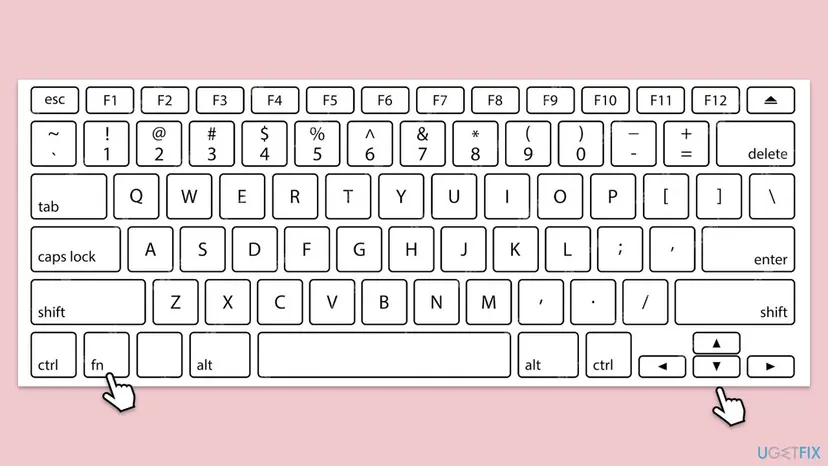
- The neighbouring arrow keys do other things. In the same table of MSI's guide, Fn with the Up arrow is Cooler Boost, which runs the fans at full speed, Fn with the Left arrow switches play and pause, and Fn with the Right arrow forces Sleep State. Loud fans or a sleeping laptop after a wrong press are these keys, not a fault.
- The function needs True Color. MSI writes that the True Color application must be installed to use the crosshair. If you do not want the feature at all, removing that app takes the crosshair with it. Removing a program is shown here: Uninstall a program or app in Windows
- Other laptop brands. We found no maker's document that describes a crosshair key on laptops of other brands. If your laptop is not an MSI, run the screenshot test and go to Fix 6.
The guide we read is MSI's general notebook guide, in a copy published by a retailer for the Crosshair A16 HX. Key layouts differ between MSI models, and MSI does not say whether this crosshair shows in a screenshot. If Fn + Down arrow does nothing on your model, check the Fn key table in the user guide of your exact laptop on MSI's support page.
It worked if: The crosshair disappears as soon as you release the keys, and returns only if the combination is pressed again.
If not: If the combination changes nothing, a different program draws the mark. Go to Fix 6.
Fix 6. Close the overlay program that draws the crosshair in Windows
5 to 10 minutesLow riskThe crosshair is visible in a screenshot, or it appears only after you sign in to Windows.
A crosshair that Windows can capture is drawn by a program. Crosshair overlays are sold for exactly this purpose: HudSight on Steam, for example, draws a crosshair over any game and has a key binding that toggles its visibility. Closing the program removes the mark.
- Look at the notification area at the right end of the taskbar, including the hidden icons behind the small arrow. Right-click any icon of a gaming or crosshair tool and choose its exit command.
- If no icon gives it away, open Task Manager and end the suspect program as shown below.
- Watch the centre of the screen after each program you end. The one whose end removes the mark is the source.
- Open that program's settings and switch its crosshair off, or change the key that toggles it, if you want to keep the program.
- If you do not need the program, uninstall it.
- Open Task Manager. Press Ctrl + Shift + Esc. Task Manager opens on the Processes page. On Windows 10, if you see only a short list of apps, select More details.
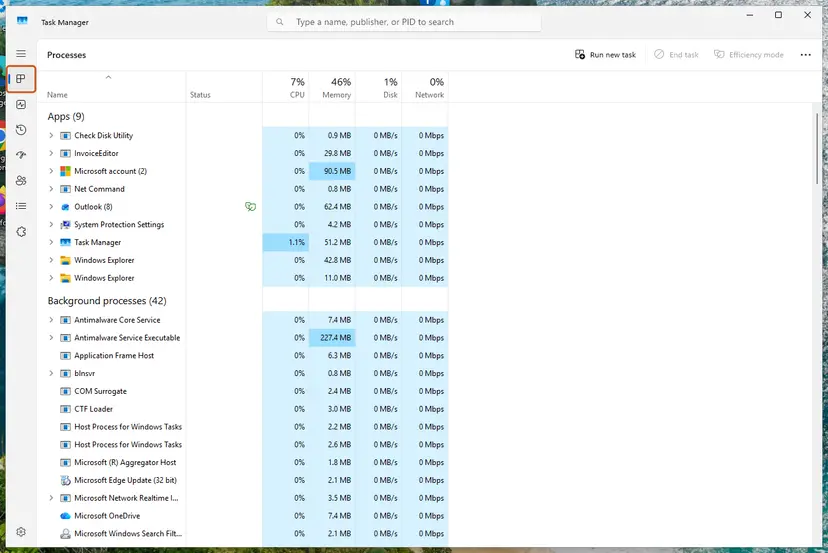
Task Manager opens on the Processes page, with your open apps listed under Apps. Screenshot: Windows 11 26H2. - End the frozen app. Under Apps, select the app that is not responding, then select End task at the top. You can also right-click the app and select End task.
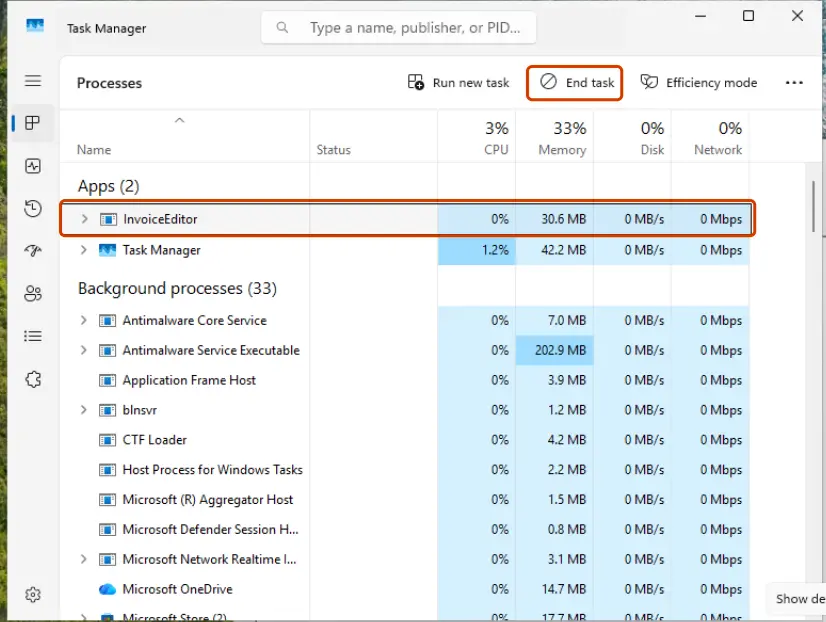
Select the frozen app, then End task. Screenshot: Windows 11 26H2.
These steps were written for Windows 11 and Windows 10 (the steps are the same). The full page with the other versions and what each result means: Close a frozen app (Task Manager, Force Quit)
- What to look for. A crosshair overlay bought on Steam, a tool that came with a gaming mouse, keyboard or laptop, or a game trainer. On Steam the overlay shows as a running title in your library.
- It returns after every restart. The program starts with Windows. Turn off its startup entry: Stop apps from opening at startup
- Remove it for good. Uninstall the program from Settings > Apps > Installed apps: Uninstall a program or app in Windows
- You cannot find it. A clean boot starts Windows without third-party services and startup apps. If the crosshair is gone in a clean boot, turn the items back on in groups until it returns: How to perform a clean boot in Windows
HudSight's developer states that the tool can also draw through a Microsoft Game Bar extension. We could not confirm from a Microsoft page how such a widget is closed, so we give no steps for it here. Ending or uninstalling the overlay program itself, as above, removes its widget too.
It worked if: The crosshair disappears the moment the program is closed, and a new screenshot shows a clean centre.
If not: If the crosshair stays with every third-party program closed, repeat the screenshot test. A mark that is missing from the picture belongs to the monitor: go back to Fix 1 or Fix 2.
If the crosshair is still there: what to check and what to send to support
A monitor crosshair leaves no trace in Windows. There is no log entry and no Event Viewer record to read, because the PC never knows the mark exists. The place where the truth is written is the monitor's own menu, and the document that explains it is the user manual of your exact model.
- Read the model name on the label on the back of the monitor. It is longer than the name on the front, for example 24G2SPAE and not just AOC 24G2.
- Open the maker's support page for that model and download the user manual, a PDF.
- Search the PDF for the words crosshair, aim, dial point, game assist and hotkey.
- Follow the page that describes the buttons. It is usually titled Hotkeys, Navi Key, Function Key Guide or External controls.
- If the manual's steps do not work on your monitor, contact the maker's service.
- What to send to the maker's support: the model and serial number from the label, a phone photo of the screen that shows the mark, the result of the screenshot test, and which buttons react.
- When it is hardware: the mark has no clean shape, is not in the exact centre, or looks like a line, a blotch or a group of dots. A built-in crosshair is a sharp symbol in the middle. Anything else that a screenshot does not show is a panel or cable problem, and the maker's troubleshooting table is the place to start.
- When a button is stuck: the crosshair or a small menu flickers on and off by itself. A key that is pressed in permanently needs service. Until then, the maker's app from Fix 4 may let you switch the feature off.
- When it is not your monitor at all: the mark follows the picture to a second screen and is in every screenshot. That is the software case of Fix 6.
No maker's manual we read describes a crosshair that switches itself on without a key press or a shortcut. Users report it on forums for a few models, but we found no confirmation or firmware note from a maker. If Fix 3 does not hold and no shortcut key is assigned, treat it as a faulty button and ask for service.
How to keep the crosshair from coming back
- Learn which key on your monitor is the crosshair key, so that an accidental press takes one second to undo.
- On MSI monitors, set the Navi Key direction that opens the crosshair to another function or to OFF in the Navi Key menu.
- On Samsung monitors, check which function is assigned under System, Setup Custom Key.
- Switch the monitor off before you dust or move it, so that touching the buttons changes nothing.
- Keep the user manual PDF of your exact model. It names every button.
- Do not reinstall Windows, reset the PC or roll back drivers for a mark that is missing from screenshots.
- Do not lock the monitor's menu to protect it unless you remember how to unlock it. A locked menu also blocks the key that hides the crosshair.
- Do not pay for a repair before you have tried the monitor's reset. A built-in crosshair is a setting, not damage.
- Do not install unknown crosshair tools from download sites to cover or replace the mark. They add a second overlay and do not remove the first.
On an MSI laptop the lasting fix is to know the combination. Fn with the Down arrow toggles the crosshair, and the True Color app provides it. If the keys get pressed by accident often, removing True Color ends the feature, at the price of the app's colour presets.
Frequently asked questions
Why is there a red crosshair in the middle of my screen?
Because your monitor is drawing it. Many gaming monitors have a built-in aiming mark for shooter games, and one press of a button on the monitor switches it on. AOC calls the feature Dial Point, ASUS has it in GamePlus, Acer calls it Aim Point and Samsung calls it Virtual Aim Point. The monitor adds the mark after the picture has left the PC, so it sits on top of the desktop, every program and every game. Windows did not put it there, and nothing is wrong with your PC or with the panel.
How do I get rid of the red crosshair on an AOC monitor?
Press the Dial Point button on the monitor once while the monitor's menu is closed. AOC's manuals state that this button shows or hides Dial Point. On the 24G2SPE and 24G2SPAE it is the third button, marked with a right arrow. On the PD27 it is the second button, the Down key. On the G2590FX the button opens a small menu, and the Left or Right key then sets Dial Point to off. On models such as the CU34G4 you can also open the menu and set Game Setting, Dial Point to Off.
Is the red cross on my monitor a virus or a sign of a broken screen?
No. A built-in crosshair is a sharp symbol in the exact centre of the screen, and it is a documented feature that the makers advertise. Malware cannot draw on your monitor without also being visible in a screenshot, and dead pixels do not form a clean cross or circle. Take a screenshot and look at it: if the mark is missing from the picture, the monitor draws it and one button removes it. Only a mark that is off-centre, blurred or made of lines and blotches points at the panel or the cable.
Why does the crosshair not show in a screenshot?
A screenshot holds the picture that Windows sends to the monitor. The monitor's crosshair is added later, inside the monitor, so Windows never sees it. That makes the screenshot the quickest test there is. Press Print Screen, or press the Windows logo key with Shift and S, and open the result. A clean centre means the monitor is the source, and the fix is on its buttons. A crosshair in the picture means a program in Windows draws it, and the fix is to close that program.
How do I remove a red crosshair on the screen in Windows 11?
The steps are the same in Windows 11 and Windows 10, because in most cases Windows has no part in it. Run the screenshot test first. If the crosshair is not in the picture, switch it off on the monitor: the Dial Point button on AOC, or the crosshair item in the gaming menu of other brands. If the crosshair is in the picture, open Task Manager with Ctrl, Shift and Esc, end the overlay program that draws it and uninstall it if you do not need it. No Windows setting controls a monitor's crosshair.
Will updating Windows or the graphics driver remove the crosshair?
No, not when the monitor draws it. Updates and drivers change the picture that the PC produces, and the crosshair is added after that picture has reached the monitor. The same is true for a clean boot, a system file check and a Windows reset. These steps appear in many older guides, but none of the monitor makers' manuals mentions them for this feature. A clean boot is of use only in the rare case where a screenshot shows the crosshair, because then a program that starts with Windows draws it.
Why does the crosshair keep coming back?
Because the key that switches it on keeps getting pressed. On AOC monitors one press of the Dial Point button is enough while the menu is closed. MSI monitors open preset functions when the Navi Key is moved in a direction, and the crosshair can be one of them. Samsung monitors have a Custom Key that can be set to Virtual Aim Point. Check where the buttons are and what brushes against them, then give the shortcut another function in the monitor's menu. A crosshair that flickers on and off points at a stuck button.
Can I change the colour or position of the crosshair instead of turning it off?
Yes, on many models. MSI's guides say that users can select the colour and position of the crosshair, with White, Red and Auto as colours on the MAG models. Samsung's manual offers several styles, the colours Red, Blue and White, an automatic colour mode and a Reset Position item. ASUS GamePlus has four crosshair types. Huawei lets you move the mark with the joystick's arrow keys after the menu is closed. AOC's CU34G4 has the values Off, On and Dynamic. The manual of your model lists what it supports.
How do I remove the crosshair on a monitor brand that is not listed here?
Open the monitor's menu and look on the gaming page for an item named Crosshair, Aim Point, Game Assist or similar, then set it to off. We confirmed the names for AOC, ASUS, MSI, Acer, Gigabyte, Samsung and Huawei from their own manuals, and for LG from its product pages. For BenQ, Dell, HP and ViewSonic we could not read a primary source, so we name no path. A factory reset of the monitor's menu should switch the crosshair off too, because the default menus in the manuals we read show it off, but it also clears your picture settings. The user manual of your exact model shows where the reset is.
Why is there a crosshair on my MSI laptop screen?
Because the key combination Fn and Down arrow was pressed. MSI's notebook user guide lists it as Crosshair: it enables or disables the Crosshair function provided by the True Color application. Press the same combination once more and the mark disappears. The other arrow keys have Fn functions too, which explains side effects that users notice after a wrong press: Fn with the Up arrow runs the fans at full speed, and Fn with the Right arrow puts the laptop to sleep. Layouts differ between models, so check the guide of your laptop.
Sources
- Microsoft Support: Use Snipping Tool to capture screenshots (support.microsoft.com)
- Microsoft Q&A, users' reports: how to get rid of the crosshair stuck on my screen (learn.microsoft.com)
- AOC: LCD Monitor User Manual 24G2SPE/24G2SPAE (Hotkeys, Game Setting, Extra) (aoc.com)
Did this fix work?
One click, no account. It tells the next reader which guides are worth their time.
Questions and experiences: remove red crosshair in the middle of the screen in Windows
Still broken, or found a fix we did not cover? Ask here: members and our editors answer. Reading is open; writing needs a free account.
…