How to fix
“System” process high CPU – how to fix
on Windows
Resolve high CPU usage caused by the "System" process on Windows 10 and Windows 11 seamlessly. Expert-tested solutions await, fixed in minutes!


What causes “System” process high CPU – how to fix?
- Driver incompatibility
- Driver corruption
- Overloaded drives
- Conflicting programs
- High resource usage from other processes
Repairs Windows system files, removes malware, and restores a clean OS state — without reinstalling.
Hello. I just recently bought a new Windows 10 laptop with a pre-installed operating system. Generally, everything works fine. However, I have noticed that a process called "System" usually takes around 20% of CPU usage, which I find to be too much. The problem solves itself when I reboot the laptop, although it comes back later. Is there anything I can do to fix this?
Windows Processes are necessary for any operating system for it even to be able to run. Each of those processes varies in importance and has different tasks that they undertake. "System" process (Ntoskrnl.exe) is one of those that are crucial, as it handles various device drivers. To be precise, it loads drivers from various manufacturers that require a higher level of permission on Windows 10.
Users started complaining about high CPU[ref en-2] usage by System process years ago, and it does not seem like that issue is going away, as new threads keep showing up on the official Microsoft forums and other portals. According to user reports, some of them experience a slight increase in resource usage (typically 5%-20%), while others claim that the CPU usage of the process can go as high as 70%.
Without a doubt, such behavior is abnormal, as most of the time, the process remains at 1% or below resource usage, and it is supposed to stay that way for the most part.
The main reason for the "System" process high CPU usage is some sort of issue with drivers, be it incompatibility, corruption, etc. However, this might not always be the case, as overloaded drives or conflicting programs might also be at fault. Therefore, in order to fix the high CPU usage of the System process, you will have to apply several solutions until the right one helps you.
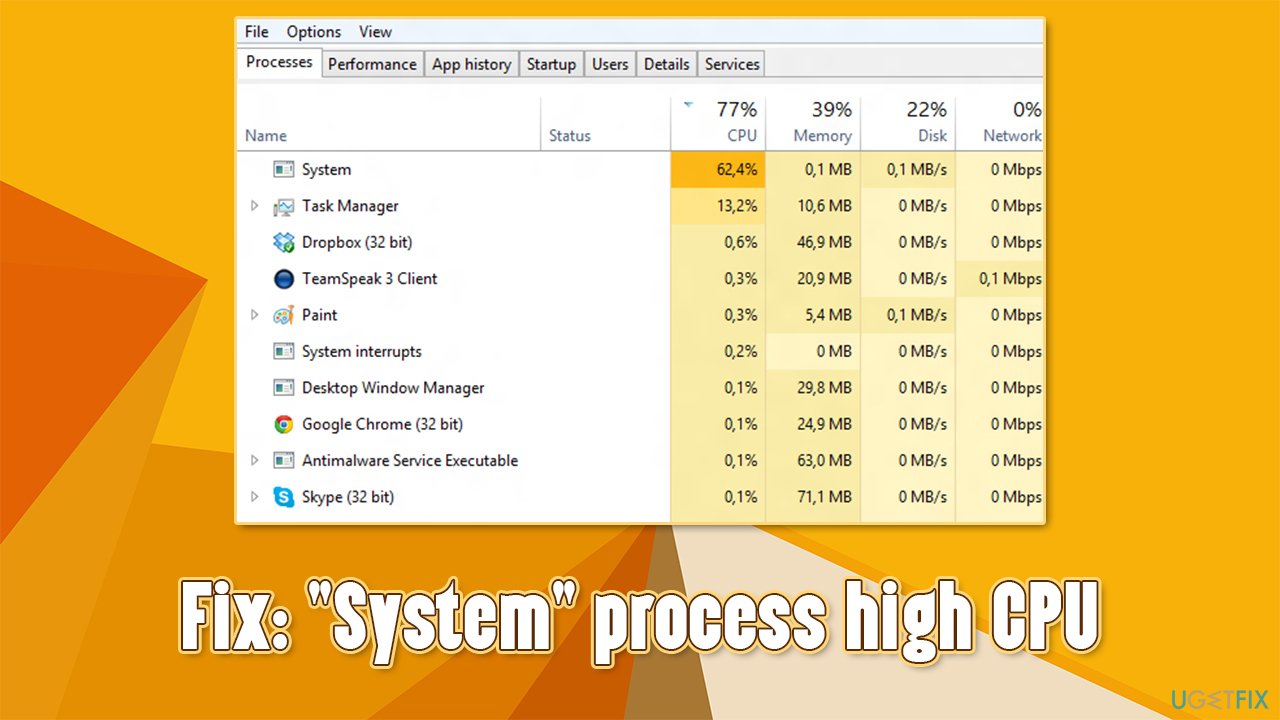
It is also worth noting that high CPU usage among various processes is common on Windows 10 - they include:
- System Interrupts
- Antimalware Service Executable
- IAStorDataSvc
- Modern Setup Host
- Runtimebroker, etc.
Before you attempt to apply the fixes provided below, we highly recommend you try an automatic solution - [d1]. This repair software can quickly identify and fix the most common Windows errors, BSODs,[ref en-1] malware[ref en-3] damage, corrupted system files, or other issues in just a few minutes.
Solution 1. Run Program Compatibility Troubleshooter
Compatibility issues might cause processes to consume unusually high CPU. Thus, you should try running Program Compatibility Troubleshooter and see if that brings any results:
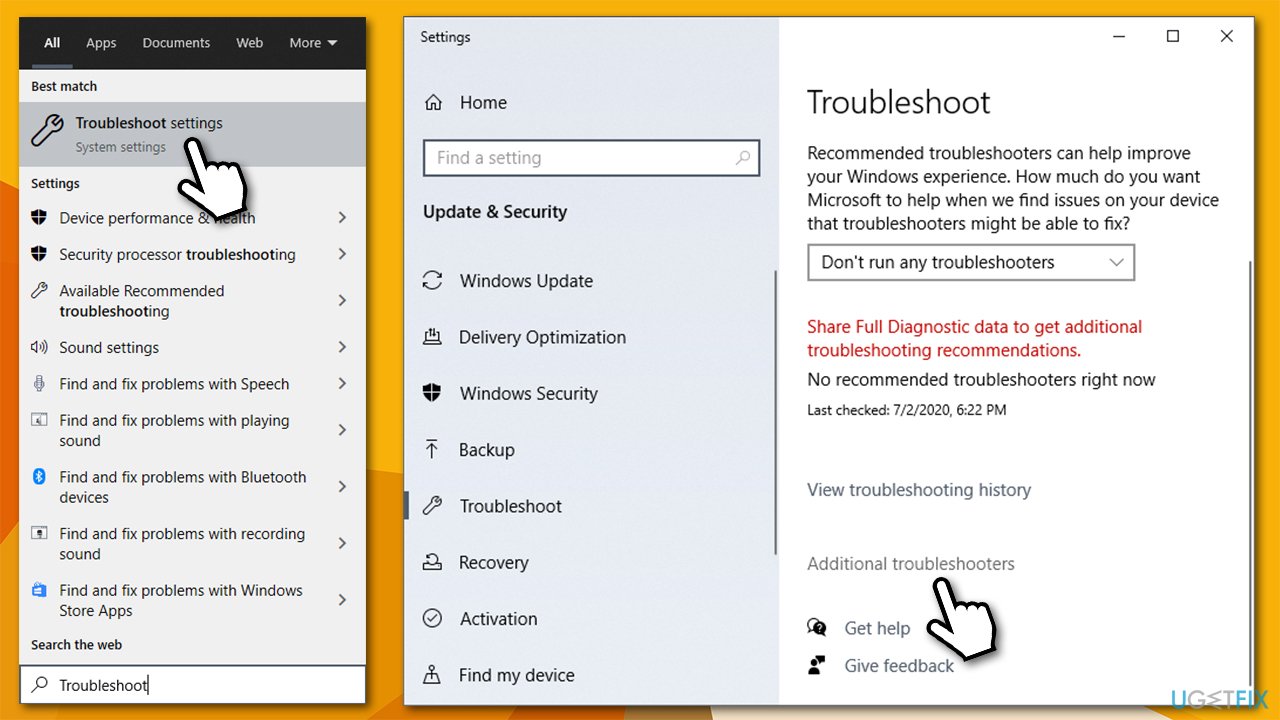
- Type in Troubleshoot in Windows search and press Enter
- If you can't see troubleshooters listed on the left, click Additional troubleshooters
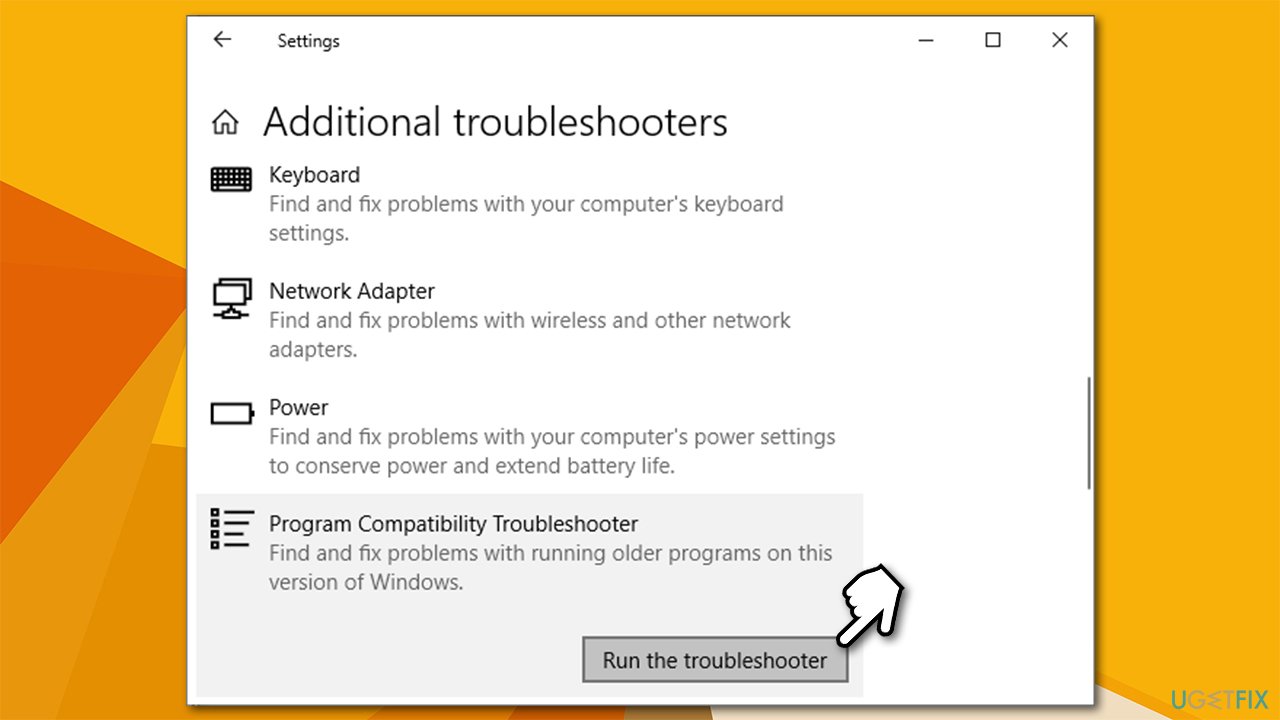
How to fix system process high cpu run compatibility troubleshooter - Locate Program Compatibility troubleshooter and click Run the Troubleshooter
How to fix system process high cpu run compatibility troubleshooter2 - Wait till Windows completes the scan and reports findings
- Apply the suggested fixes.
Solution 2. Scan for hardware changes
Some users said that scanning hardware for changes helped them fix the high CPU usage of System process.
- Right-click on Start and pick Device Manager
- At the top of the window click on Scan for driver changes.
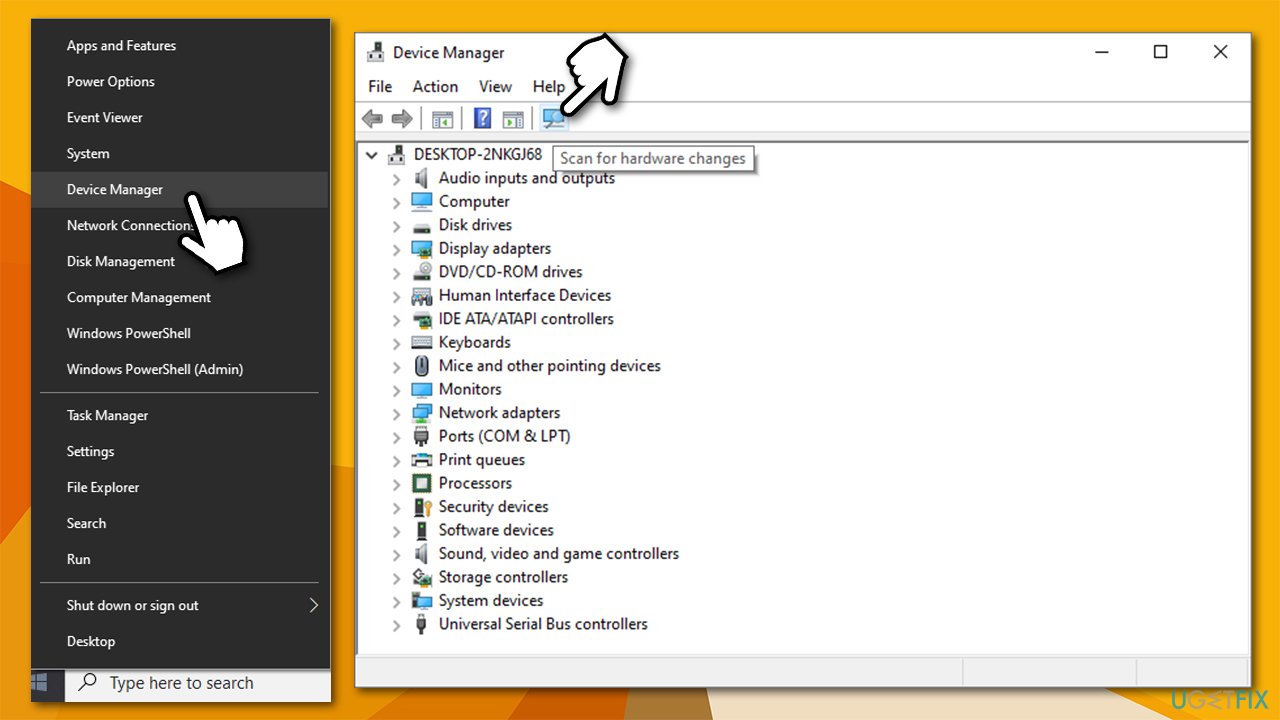
How to fix system process high cpu scan hardware for changes
Solution 3. Reinstall graphics drivers
Since one of the main reason why the System process might be using too much CPU is driver changes/corruption, you should uninstall the drivers:
- Right-click on Start and pick Device Manager
- Expand the Display adapters section
- Right-click on your graphics card and select Uninstall Device
- In the prompt, tick the Delete the driver software for this device option
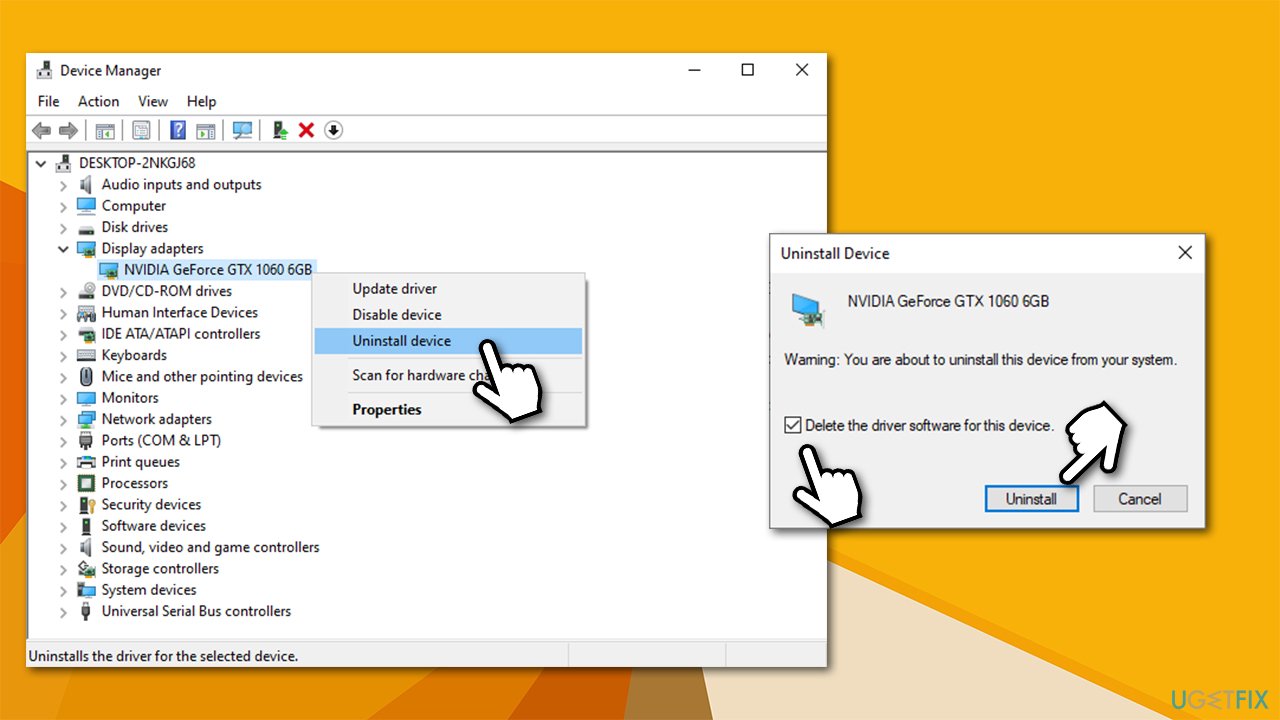
How to fix system process high cpu reinstall drivers - Click Uninstall
- Reboot your computer.
Once the PC boots back, you will have to install new drivers for your GPU. It is not a secret that the Device manager is far from an optimal solution, especially when it comes to graphics card drivers. Therefore, you either should visit the manufacturer's website and download the drivers from there or employ an automatic updater such as [rev id="DriverFix"] to ensure that correct software is installed.
Solution 4. Use Disk Cleanup
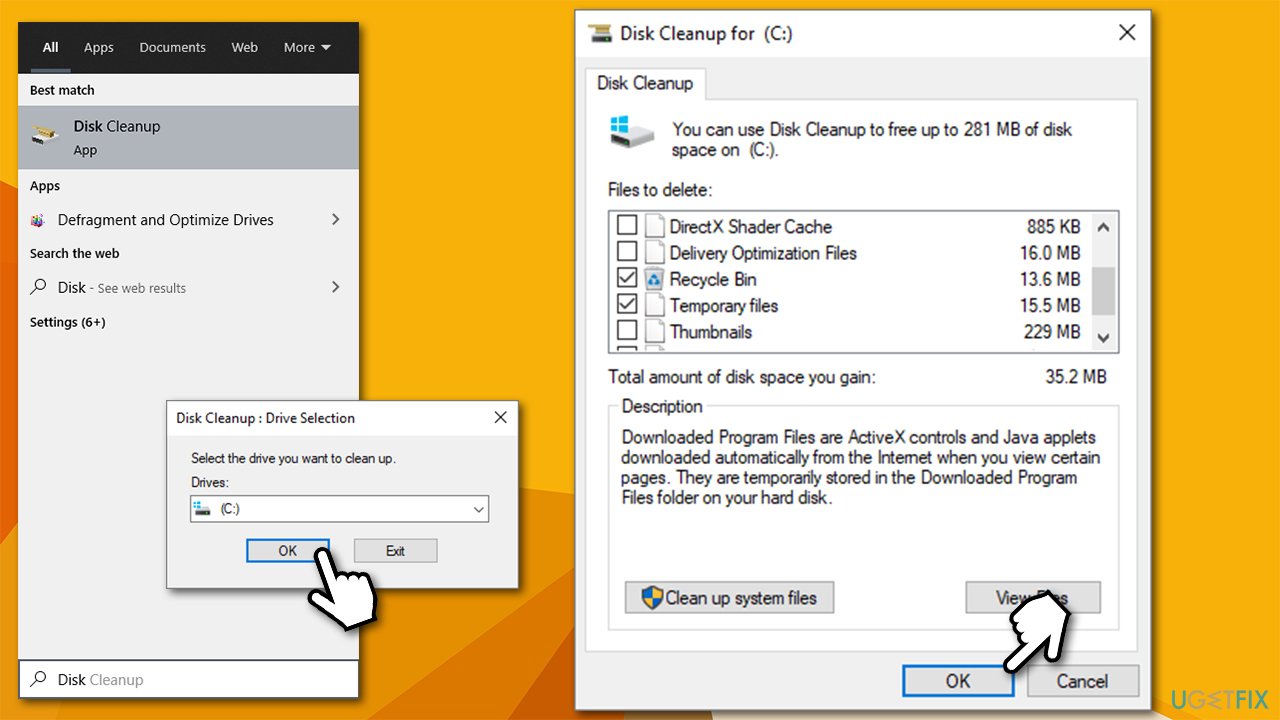
- Type in Disk Cleanup in Windows search and press Enter
- Select your main drive (C: by default)
- Select the sections you want to delete and press OK.
How to fix system process high cpu run disk cleanup
Solution 5. Change settings in Nvidia Control Panel
According to users, tweaking settings within the Nvidia Control Panel helped them solve the issue. Apparent, high CPU usage System process can often occur on systems that are running two or more GPUs.
- Type in Nvidia Control Panel in Windows search and press Enter
- Click Manage 3D settings
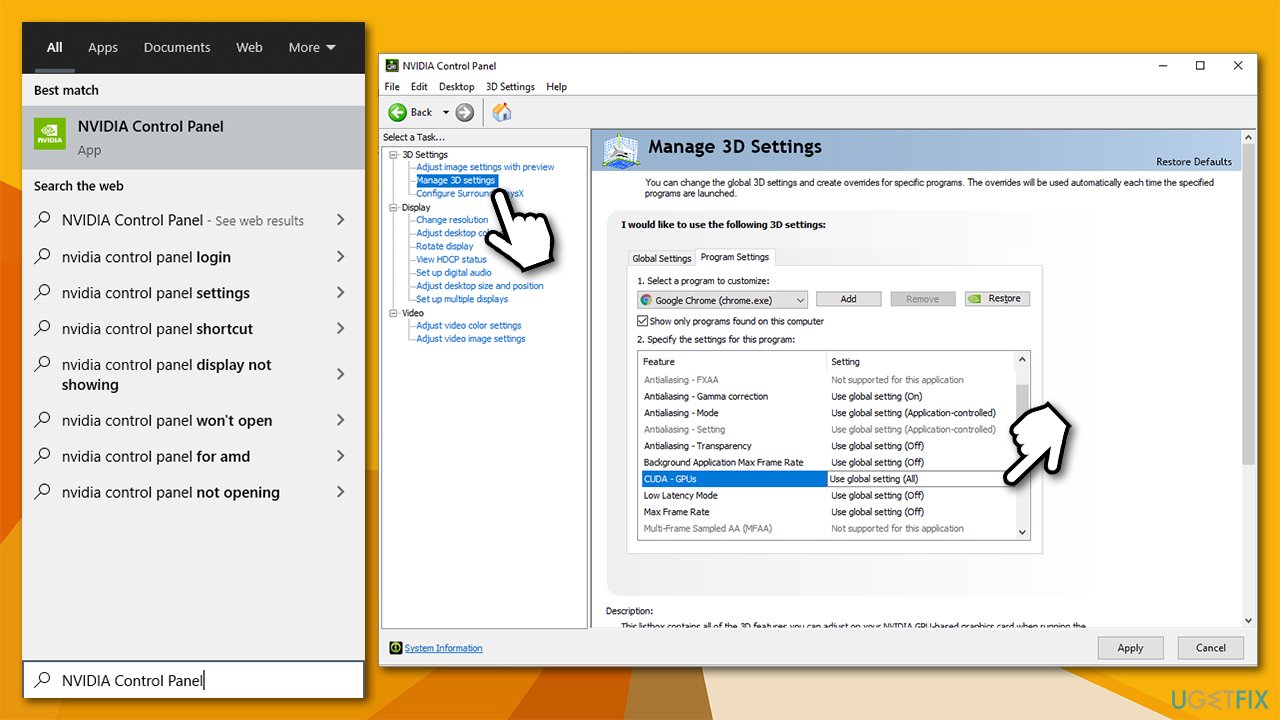
How to fix system process high cpu change nvidia settings - Go to Program Settings
- Select the program that is most commonly running in the background, e.g., Google Chrome
- In the GPUs section, pick your graphics card instead of the default setting.
Solution 6. Uninstall Conexant Audio software on Lenovo laptops
If you are using a Lenovo laptop, you should Uninstall Conexant audio drivers, as they are no longer supported and might be causing all types of issues, including high CPU of the System process.
Bottom line
To address the high CPU usage of the System process, you can try updating or reinstalling drivers, checking for overloaded drives, and identifying conflicting programs. If these solutions do not resolve the issue, consider using an automatic solution or further troubleshooting.
Frequently asked questions
The 'System' process may use high CPU due to driver issues, hardware conflicts, or background services consuming excessive resources. It's important to check for outdated drivers and running processes.
You can reduce CPU usage by updating your drivers, disabling unnecessary startup programs, or checking for Windows updates that may resolve underlying issues.
Yes, you can use the Task Manager to identify services by going to the 'Details' tab and checking the 'System' process for associated services, or use Resource Monitor for a more detailed view.




Report an issue
What's wrong with this guide? We review every report and update or remove content.
Report received — thank you. We'll review and fix it.
You need a free account to submit a report.
Be the first to comment