
How to fix "Sorry, something went wrong and Word was unable to start" error in Windows?

Prefer to fix it yourself? The manual steps follow.
- 7methods
- 5 to 45 minutes
- Intermediate
Applies to Microsoft Word in Microsoft 365, Office 2024, Office 2021, Office 2019 and Office 2016 for Windows
7 methods in this guide
I can't launch Word at all because of the error "Sorry, something went wrong and Word was unable to start." What can I do to fix this issue?
Sorry, something went wrong and Word was unable to start. is a small Microsoft Word 16.0 box that appears instead of Word, usually with a number such as (2), (24) or (36). It means Word stopped while loading itself, its add-ins or its settings. Restart the PC first, then run Quick Repair on Office.
Microsoft lists the fixes in this order: restart the PC and sign back in (Fix 1), then repair Office from Installed apps > Modify, with Quick Repair first and Online Repair second (Fix 2). If Word still refuses, hold Ctrl while you open it, or run winword /a. When it starts that way, an add-in or Word's saved settings are the cause (Fix 3 and Fix 4). Removing and reinstalling Office is the last step.
| Error | Sorry, something went wrong and Word was unable to start. followed by a number in brackets, for example (2), (4), (6), (24) or (36), and an OK button. |
|---|---|
| Where it appears | In a small window titled Microsoft Word 16.0 right after you open Word or double-click a document. Word itself never opens. |
| Main cause | Damaged Office program files after an update or a broken install. Less often an add-in, a damaged Word settings key in the registry, or another program that clashes with Word. |
| Fastest fix | Restart the PC (Fix 1), then Quick Repair of Office (Fix 2). Both are Microsoft's first steps for this message. |
| Also written as | Something went wrong and Word was unable to start (2), Sorry something went wrong and Word was unable to start 24, Microsoft Word 16.0 error, Word something went wrong. |
| Affects | Word in Microsoft 365, Office 2024, 2021, 2019 and 2016 on Windows 11 and Windows 10. They all report themselves as version 16.0. |
| Microsoft's status | Not a known bug of one build. Microsoft's support page for the Something went wrong startup error lists restart, repair and reinstall, most common first. It does not explain the numbers in brackets. |
| Time to fix | 5 minutes for a restart and Quick Repair. 20 to 45 minutes for Online Repair or a reinstall. |
Facts checked on 15 October 2026. Steps written for Microsoft 365, Office 2024, 2021, 2019 and 2016 on Windows 11 (25H2 and 26H2) and Windows 10 22H2, read against Microsoft's documentation.
What "Sorry, something went wrong and Word was unable to start" means
You open Word from the Start menu, from the taskbar or by double-clicking a document. Instead of the Word window, a small box appears with the title Microsoft Word 16.0 and one sentence: Sorry, something went wrong and Word was unable to start. Under it there is a number in brackets, such as (36). Select OK and the box closes, and Word does not open.
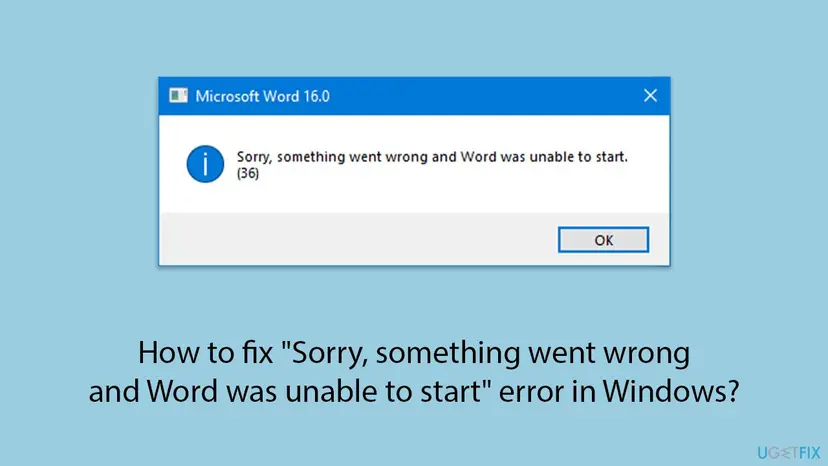
The message tells you only that Word stopped before its window was ready. At that point Word has loaded its program files, its add-ins, its global templates and its settings from the registry. A fault in any of these four stops the start, and each has its own fix below.
| Part of the message | What it is | What it tells you |
|---|---|---|
| Microsoft Word 16.0 | The window title. Office 2016, 2019, 2021, 2024 and Microsoft 365 all carry version 16.0, which is also the number in Word's registry path. | Nothing about the cause. It does not mean that your Office is old. |
| Sorry, something went wrong and Word was unable to start. | Word's general startup failure message. | Word, not Windows, gave up. |
| (2), (4), (6), (24), (36) | An internal number that Word adds. | Microsoft publishes no list of these numbers. The fixes are the same for every number. |
People search for (2), (4), (6), (24) and (36) separately. We found no Microsoft document that explains any of them, and Microsoft's own support pages for this message give one list of fixes for all. Note the number anyway: if it changes after a fix, something in the start has changed.
What causes Word to be unable to start, from the most common to the rare
Microsoft's support page for the Something went wrong startup error lists restart, repair and reinstall, and says it lists the most common solutions first. Its Word troubleshooting article adds updates, a start without add-ins and a reset of Word's registry settings. The ranking below follows that order.
| How often | Cause | Typical sign | Fix |
|---|---|---|---|
| Most often | A stuck process or a half-finished Office update | It started after a Windows or Office update, or after the PC woke from sleep. | Fix 1 |
| Often | Damaged Office program files | Excel or PowerPoint also misbehave, or an update was interrupted. | Fix 2, Fix 5 |
| Often | An add-in or a global template that fails to load | Word starts with Ctrl held down or with winword /a. | Fix 3 |
| Less often | Damaged Word settings in the registry (the Data or Options key) | Word starts with /a, and no add-in is to blame. | Fix 4 |
| Less often | Another program clashes with Word | Word starts after a clean boot. | Fix 6 |
| Rarely | A damaged Windows user profile | Word starts in a second Windows account on the same PC. | Still broken section |
| Rarely | An Office install that repair cannot save | Online Repair fails or changes nothing. | Fix 7 |
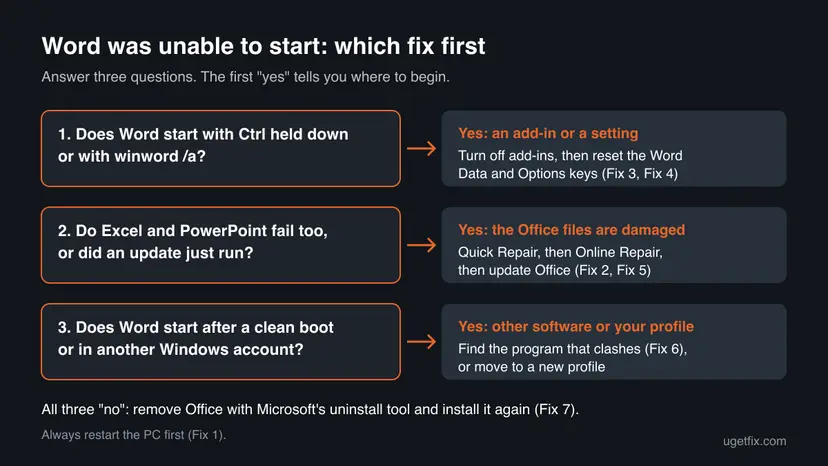
If Word opens normally but a single file shows Sorry, something went wrong and the document can't open, the document is damaged, not Word. Microsoft's way to save its text is in the FAQ below.
How to fix "Word was unable to start" in Windows 11 and Windows 10
The fixes are ordered the way Microsoft orders them: the most common solutions first, the slow ones last. After each fix open Word from the Start menu. When the Word start screen appears instead of the message, you are done.
| Your case | Start with | Then |
|---|---|---|
| It started after an update, or you do not know why | Fix 1 | Fix 2 |
| Excel, PowerPoint or Outlook fail as well | Fix 2 | Fix 5, Fix 7 |
| Word opens when you hold Ctrl | Fix 3 | Fix 4 |
| You installed a new program, a plug-in for Word or a PDF tool | Fix 3 | Fix 6 |
| Nothing above helped | Fix 6 | Fix 7 |
Fix 1. Restart the PC, sign back in and open Word again
3 minutesNo riskEveryone, first. Above all when the message appeared after an update or after the PC woke from sleep.
It is the first solution on Microsoft's page for this message: wait a few minutes, restart, sign back in and restart the app. A restart ends any Word process that hung in the background and lets a waiting Office update finish.
- Select OK in the message and close any other Office app that is open.
- Wait a few minutes. An Office update that runs in the background needs that time to finish.
- Select Start > Power > Restart. Do not use Shut down, which on many PCs does not fully restart Windows.
- Sign in to Windows again.
- Open Word from the Start menu, not from a document, so that a damaged file cannot be the trigger.
If Word is frozen and the box does not close, end the process in Task Manager first: Close a frozen app (Task Manager, Force Quit).
It worked if: Word shows its start screen with recent documents and templates.
If not: If the same message returns, repair Office with Fix 2.
Fix 2. Repair Office: Quick Repair first, Online Repair second
5 to 30 minutesLow riskThe message stays after a restart, or other Office apps misbehave too.
Microsoft's second solution for this message is to repair Office. Quick Repair detects and replaces corrupted files, and Online Repair reinstalls the program files to make sure everything gets fixed. Your documents and settings stay where they are.
- Open Installed apps. Right-click the Start button and select Installed apps.
- Find Microsoft 365 or Office. Find your Microsoft 365 or Office product in the list. If you have a standalone app such as Visio or Project, search for it by its own name.
- Open the repair window. Select the three dots next to the product and select Modify.
- Start with Quick Repair. In the repair window, select Quick Repair, then Repair. It is the faster option: it finds damaged files and replaces them.
- Finish and test. Follow the instructions on the screen until the repair is done. Restart the PC if you are asked to, then open the app that had the problem.
- Run Online Repair if the problem is still there. Open the same repair window again and select Online Repair, then Repair. Microsoft recommends this option to make sure everything gets fixed. It takes longer than Quick Repair.
These steps were written for Windows 11 25H2 and 26H2. The full page with the other versions and what each result means: How to repair Microsoft 365 or Office
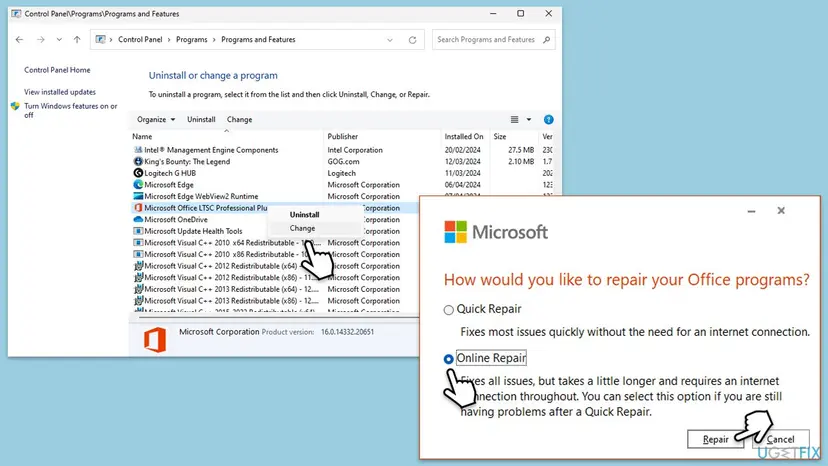
Microsoft notes that the repair works on the entire Office suite, even if only Word fails. If you have a standalone Word, look for it under its own name in the list. Online Repair needs an internet connection for the whole run.
It worked if: The repair window reports that it is done, and Word opens after the restart that follows.
If not: If Online Repair finishes and the message stays, check add-ins and settings with Fix 3.
Fix 3. Start Word without add-ins (Ctrl key or winword /a)
5 minutesNo riskRepair did not help, or you recently installed a program that adds a tab or a button to Word.
Microsoft describes the /a switch as a tool to find where the problem is: it stops add-ins and global templates from loading and locks the settings files. A Microsoft moderator also suggests holding Ctrl while opening Word, which starts it in safe mode. If Word opens either way, the cause is in what was skipped.
- Close the message.
- Hold down Ctrl and double-click the Word shortcut, or select it in the Start menu while you hold Ctrl.
- If Word asks whether to start in safe mode, select Yes.
- If Word does not open, press Win + R to open the Run box.
- Type this and press Enter:
winword /a
When Word opens this way, turn off the add-ins one at a time. Select File > Options > Add-ins, choose COM Add-ins in the Manage box and select Go. Clear the check box of one add-in, restart Word normally and repeat until the message stops. The one you cleared last is the culprit: update it or remove it.
After a failed start Word may say Word couldn't start last time. Safe mode could help you troubleshoot the problem. That is the same safe mode. Accept it, and use the add-in list above while Word is open.
It worked if: Word opens in safe mode or with /a. After you turn off the right add-in, it also opens the normal way.
If not: If Word opens with /a but all add-ins are already off, its saved settings are the suspect: Fix 4. If it does not open even with /a, go to Fix 5.
Fix 4. Reset Word's settings: delete the Word Data and Options registry keys
10 minutesRead the warningWord starts with winword /a but not normally, and turning off add-ins did not help.
Microsoft explains that most frequently used Word options live in the Word Data registry subkey, and that deleting it is a common troubleshooting step. Word rebuilds the key with default settings at the next start. If that is not enough, Microsoft's next step is the Word Options key.
Word resets the list of recently used files and many settings you changed in Options. Your documents are not touched. Export each key before you delete it, as the steps say, so that you can put it back with a double-click. A wrong deletion elsewhere in the registry can break Windows: Back up the registry before editing it.
- Close Word and every other Office app.
- Press Win + R, type
regeditand press Enter. Select Yes in the User Account Control prompt. - Go to this key:
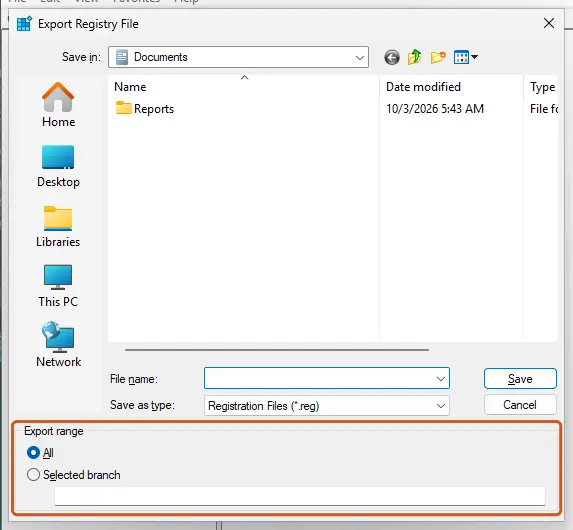
HKEY_CURRENT_USER\Software\Microsoft\Office\16.0\Word\Data - Right-click Data, select Export, name the file
Wddata.regand save it to the desktop. - Right-click Data again, select Delete and confirm with Yes.
- Close Registry Editor and open Word.
If Word now opens, the damaged Data key was the cause. If not, double-click Wddata.reg on the desktop, select Yes and OK to restore it, and reset the Options key the same way.
- Close all Office apps and open Registry Editor again.
- Go to this key:
HKEY_CURRENT_USER\Software\Microsoft\Office\16.0\Word\Options - Right-click Options, select Export and save it to the desktop as
Wdoptn.reg. - Right-click Options, select Delete and confirm with Yes.
- Close Registry Editor and open Word. If nothing changed, double-click Wdoptn.reg to put the key back.
It worked if: Word opens normally, with default settings and an empty list of recent files.
If not: Restore both keys from the .reg files on the desktop and go to Fix 5.
Fix 5. Update Office and Windows
10 to 20 minutesLow riskWord still fails, or Office has not been updated for a while.
Microsoft's Word troubleshooting article puts updates first, because important and recommended updates replace out-of-date files and fix known faults. Office updates come for the whole suite, so you can start the update from Excel or PowerPoint while Word refuses to open.
- Open Excel or PowerPoint and create a blank file.
- Select File > Account.
- Under Product Information select Update Options > Update Now.
- Wait for the message that Office is up to date, then close it.
- Open Settings > Windows Update, select Check for updates and install what is offered.
- Restart the PC and open Word.
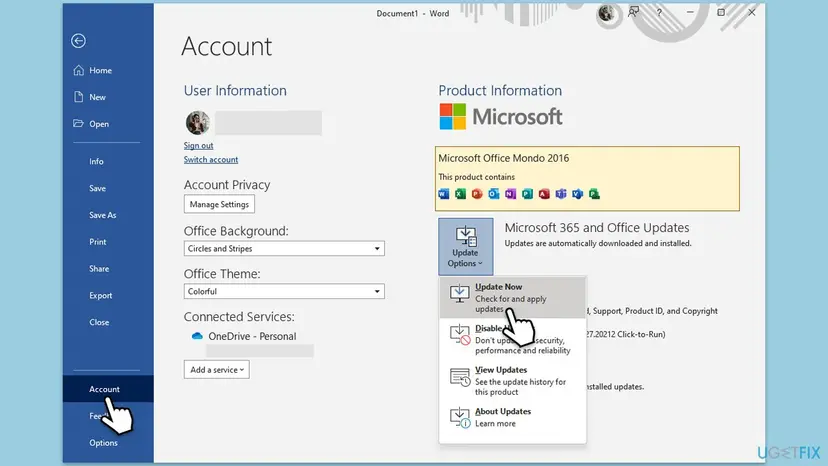
If Update Options is missing, your employer or school manages Office updates. Ask the IT department which version you should have.
It worked if: Office reports that updates were installed or that it is up to date, and Word opens after the restart.
If not: If no Office app opens, skip to Fix 7. Otherwise test for a clash with other software in Fix 6.
Fix 6. Find a program that clashes with Word: clean boot
15 minutesLow riskWord fails even with /a, and you recently installed a program that hooks into Office, such as a PDF tool, a backup tool or a screen reader.
A Microsoft moderator advises starting Windows in a reduced mode to see whether Windows or something on it causes the failure. A clean boot does that while keeping the PC usable: it starts Windows without other companies' services and startup apps.
- Open System Configuration. Select Search on the taskbar, type msconfig and select System Configuration from the results.
- Hide Microsoft services. On the Services tab, select the Hide all Microsoft services check box. Only services from other companies stay in the list.
- Disable the remaining services. Select Disable all, then select Apply.
- Open Task Manager. On the Startup tab of System Configuration, select Open Task Manager.
- Disable the startup apps. On the Startup apps tab in Task Manager, select each item whose status is Enabled and select Disable. Write down or take a screenshot of the items you disable: you need the list to turn them back on.
- Confirm the changes. Close Task Manager. On the Startup tab of System Configuration, select OK.
- Restart and test. Restart the PC. Windows now starts in a clean boot environment: try again the thing that failed (run the app, install the update, uninstall the program).
These steps were written for Windows 11 25H2 and 26H2. The full page with the other versions and what each result means: How to perform a clean boot in Windows

If Word opens after the clean boot, turn the services and startup apps back on in small groups and restart each time. The group that brings the message back holds the program. Update it, contact its maker or remove it with Uninstall a program or app in Windows.
It worked if: Word opens in the clean boot, and the message returns only with one program active.
If not: If Word fails in the clean boot too, undo the clean boot as the procedure explains and go to Fix 7.
Fix 7. Remove Office with Microsoft's uninstall tool and install it again
30 to 45 minutesLow riskOnline Repair did not help, the repair failed, or every Office app shows the message.
Microsoft's third solution for this message is a full uninstall with its uninstall troubleshooter and a fresh install. It removes what a repair leaves behind. Your documents are not part of Office and stay on the PC.
- Make sure you know the Microsoft account or work account that holds your Office licence. You sign in with it after the install.
- Open Microsoft's page Something went wrong error when you try to start a Microsoft 365 app and select Uninstall.
- If the browser asks to open Get Help, select Open.
- Follow the prompts and restart the PC when asked.
- Sign in at office.com with the account that holds the licence and install Office again.
- Open Word and sign in.
Microsoft says its uninstall troubleshooter cannot uninstall Office 2024 yet, and that it needs Windows 10 or later. Remove Office 2024 from Installed apps instead: Uninstall a program or app in Windows. If the new install fails, Microsoft suggests the Office offline installer, which avoids proxy, firewall, antivirus and connection problems.
It worked if: The new Office installs, activates with your account, and Word opens normally.
If not: If a freshly installed Word shows the message too, the cause is outside Office. See the next section.
If Word is still unable to start: what to check next
A clean install of Office that still fails points away from Office: to your Windows profile, to Windows itself, or to the account and licence. These checks tell the three apart without changing more on the PC.
- Try a second Windows account. Word's settings and add-ins are stored per user. If Word opens in a new account, your profile is damaged, and you can move your files to the new one: Create a new user account to test a problem.
- Look at Event Viewer. Open Event Viewer > Windows Logs > Application right after the message and look for an Error entry from the time of the failure that names
WINWORD.EXE. The faulting module named in it often points to an add-in or another program. - Check Windows system files. If Windows also shows other faults, run the system file check: Run DISM and SFC to repair Windows system files.
- Test the licence. Sign in at office.com and open a document in Word for the web. If that fails too, the problem is the account or the subscription, and a sign-in error such as [Something went wrong [7q6ch]](/fix/how-to-fix-something-went-wrong-error-tag-7q6ch-in-microsoft-office/) has its own guide.
On a PC that an employer or school manages, do not delete registry keys or uninstall Office yourself. Send IT the full text of the message with its number, the time it happened, and whether Word opens with winword /a.
While you wait, Word for the web at office.com opens and edits the same documents, so the work does not have to stop.
How to keep Word from failing to start again
Most startup failures follow an interrupted update or a new add-in. A few habits keep both under control.
- Let Office updates finish. Do not shut the PC down while Office is updating, and restart when Windows asks you to.
- Install few Word add-ins, and keep them current. Each add-in loads at every start. Remove the ones you no longer use under File > Options > Add-ins.
- Keep Windows updated. Windows 10 left support on 14 October 2025, so a Windows 10 PC no longer gets fixes for the parts Office relies on. Windows 11 25H2 and 26H2 do.
- Keep the exported .reg files from Fix 4 until you are sure Word works, then delete them.
- Save documents to OneDrive or another backup. A Word that cannot start then never blocks your files: open them in Word for the web.
Frequently asked questions
What does the number in "Word was unable to start (2)" or "(24)" mean?
We could not find a Microsoft document that explains these numbers. Users report (2), (4), (6), (24) and (36) with the same sentence, and Microsoft's support pages give the same fixes whatever the number is. So treat the number as a reference, not as a diagnosis. Restart the PC, repair Office, then test Word without add-ins. Write the number down anyway: if it changes after a fix, something in the start has changed, which helps support.
Why does the error window say Microsoft Word 16.0?
16.0 is the internal version number of current Office. Office 2016, Office 2019, Office 2021, Office 2024 and Microsoft 365 all use it, and the registry path that Microsoft gives for Word's settings ends in 16.0 too. So a Microsoft Word 16.0 error is not a sign that your Office is old or the wrong version. It is the same Word startup failure that this page fixes, and the fixes are the same for every one of these editions.
Will I lose my documents if I repair or reinstall Office?
No. Quick Repair, Online Repair and the uninstall troubleshooter work on the Office program files, not on your documents in Documents, Desktop, OneDrive or anywhere else. What a reinstall can change is the sign-in: you need the account that holds the licence to activate Office again. Fix 4 is different: deleting the Word Data and Options keys resets your recent file list and Word options, but not your documents.
Word says "Word couldn't start last time. Safe mode could help you troubleshoot the problem." What should I do?
Select Yes. Word has noticed that its last start failed and offers to open without add-ins and custom settings. If it opens in safe mode, go to File > Options > Add-ins, choose COM Add-ins and turn them off one at a time until Word starts normally again. If Word fails even in safe mode, the add-ins are not the cause: repair Office with Fix 2 or reset Word's registry settings with Fix 4.
Word opens, but one document says "Sorry, something went wrong and the document can't open". Is that the same error?
No. That message means Word works and one file is damaged. Microsoft's way to rescue its text is to insert the file into a new document. Select File > New > Blank Document, then on the Insert tab select Object > Text from File, pick the damaged document and select Insert. This leaves out the last paragraph mark, which holds the document's formatting information and is often the damaged part.
Do I need the Microsoft Support and Recovery Assistant?
Not any more as a separate download. Microsoft's current page for this error starts its uninstall troubleshooter through the Get Help app, from the Uninstall button on the page. The older Support and Recovery Assistant download that many guides still describe is not part of that page. Use Microsoft's current page, which is linked in Fix 7, and remember that the tool cannot remove Office 2024 yet.
Excel and PowerPoint work. Why does only Word fail?
Because Word loads things that the other apps do not: its own add-ins, its global templates and its own settings key in the registry. A fault in any of these stops Word alone. That is why Fix 3 and Fix 4 matter most in this case. If winword /a opens Word, the cause is in that Word-only part, and a full repair or reinstall of Office would not have touched it.
Can I still edit my documents while Word will not start?
Yes. Sign in at office.com with the account that holds your Office licence and open the document in Word for the web. It reads and saves .docx files, and files stored in OneDrive open directly. For a file on the PC, upload it to OneDrive first. Word for the web does not depend on the desktop program, its add-ins or its registry settings, so the startup error does not affect it.
What does "cara mengatasi" sorry something went wrong and Word was unable to start mean?
Cara mengatasi is Indonesian for how to fix. People who use Windows in Indonesian search for the same Word message, and the fixes are the same in every language. Only the menu names on screen differ. This page is in English: start with a restart, then Quick Repair of Office, then start Word with Ctrl held down. The commands winword /a and regedit and the registry paths are the same in every language.
Sources
- Microsoft Support: "Something went wrong" error when you try to start a Microsoft 365 app (support.microsoft.com)
- Microsoft Support: How to troubleshoot problems that occur when you start or use Word (support.microsoft.com)
- Microsoft Q&A: How to fix error something went wrong and Word was unable to start (6), moderator answer (learn.microsoft.com)
Did this fix work?
One click, no account. It tells the next reader which guides are worth their time.
Questions and experiences: fix "Sorry, something went wrong and Word was unable to start" error in Windows
Still broken, or found a fix we did not cover? Ask here: members and our editors answer. Reading is open; writing needs a free account.
…