
Windows 11 calendar not opening on second monitor: click the clock on any screen

Prefer to fix it yourself? The manual steps follow.
- 5methods
- 5 to 30 minutes
- Easy
Applies to Windows 11 24H2, 25H2 and 26H2; older Windows 11 builds get only the workarounds
5 methods in this guide
I have a double-monitor setup and I've noticed that I can't view the calendar on my second one. Why is that? Can I get it back somehow? I am running Windows 11.
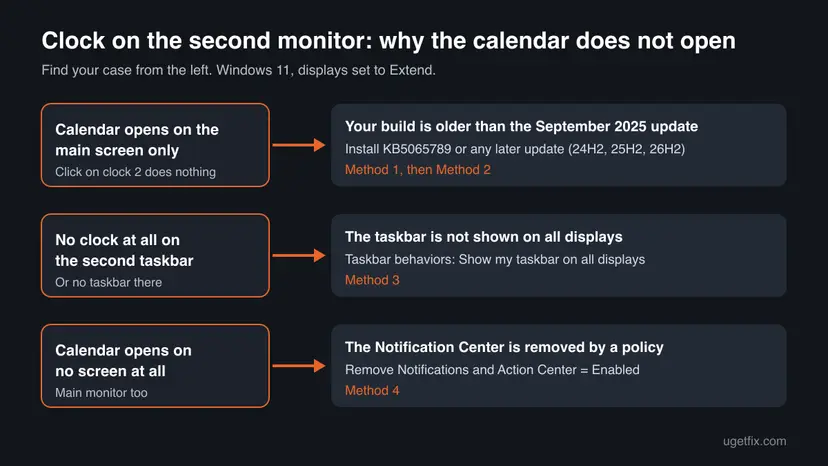
For years Windows 11 opened the clock and calendar flyout only from the main monitor's taskbar. Microsoft changed that with the September 2025 update KB5065789: the Notification Center, which holds the calendar, now opens on secondary monitors too. Install that update or a later one first, then restart Windows Explorer if the click still does nothing.
Yes, on an updated PC. Microsoft added it in the September 2025 update KB5065789 for Windows 11 24H2 and 25H2, rolled out gradually, and every later cumulative update carries it. Install the latest updates (Method 1) and restart Windows Explorer (Method 2). On an older build, press Win + N or move the main display to the screen you use.
| What it is | The Notification Center flyout that opens when you click the date and time on the taskbar. The calendar is part of it. |
|---|---|
| Safe to change | Yes. Updating Windows and changing taskbar or display settings touches no files and can be set back in Settings. |
| What you gain | Calendar, notifications and Focus on the screen you are working on, without moving the mouse back to the main monitor. |
| Side effect | None measurable. Moving the main display moves new windows and some app pop-ups to that screen. |
| Fixed in | KB5065789, 29 September 2025, OS builds 26100.6725 and 26200.6725 (24H2 and 25H2), as a gradual rollout. |
| Before the fix | With Extend these displays, Microsoft called the primary-only calendar "by design". With Duplicate, it opened on any monitor. |
| Calendar opens nowhere | The policy Remove Notifications and Action Center is on. It removes the calendar on every screen. |
| Comes back | No. Once the update has reached the PC, the second clock keeps working after restarts. |
Facts checked on 15 October 2026. Steps written for Windows 11 24H2, 25H2 and 26H2 with two displays set to Extend; behaviour checked against Microsoft's KB5065789 release note and Microsoft Learn.
What the clock and calendar flyout on a second monitor is in Windows 11
In Windows 11 the calendar is not a separate pop-up. It is the lower part of the Notification Center, the panel that opens when you select the date and time in the system tray. Microsoft Learn states it plainly: "the calendar in Windows 11 is part of the Notifications and Action Center".
When Windows 11 shipped in 2021, the taskbar on a second screen did not even show a clock. A clock came later, but clicking it still opened nothing on that screen. Microsoft's KB5065789 release note now says: "The Notification Center functionality is now available on secondary monitors."
| Name | What it is | Where it opens |
|---|---|---|
| Notification Center with calendar | The panel opened by the date and time in the tray; notifications on top, calendar below. | On any monitor after KB5065789; before it, on the main monitor only. |
| Clock on the second taskbar | The time and date shown in the tray of a secondary taskbar. | Shown when the taskbar is on all displays. |
| Clock in the Notification Center | A large clock with seconds above the calendar, turned on with Show time in Notification Center. | Inside the flyout; added with the August 2025 update KB5064081. |
| Calendar app (Outlook) | A separate mail and calendar program with your appointments. | In its own window, on any screen. |
| Duplicate mode | Both screens show the same picture. | The flyout appears on both, because they are one image. |
What you gain by opening the calendar on the second monitor and what it costs
This is a comfort change, not a speed change. The Notification Center is drawn by Windows Explorer whichever screen you click, so there is no memory or processor saving. What changes is how often you move the mouse across screens to read the date or a notification.
| Way | What you gain | What it costs |
|---|---|---|
| Install KB5065789 or later | The real feature: the flyout opens on the screen you clicked. | A restart; the rollout is gradual, so it may arrive days after the update. |
| Restart Windows Explorer | Picks up the new behaviour without a full restart. | Open File Explorer windows close for a moment. |
| Press Win + N | Opens the Notification Center and calendar from the keyboard on any build. | On older builds it still opens on the main monitor. |
| Make the second screen the main display | The calendar opens where you work. | New windows and some pop-ups open there too. |
| Duplicate these displays | The flyout appears on both screens. | You lose the extra desktop space; both screens show the same picture. |
| A third-party clock app | A clock on every taskbar on old builds. | Extra software in the taskbar; may break after a Windows update. |
Microsoft Learn's page "Taskbar calendar doesn't open in Windows 11" (updated February 2026) still says the calendar opens only on the primary monitor in Extend mode "by design". The newer KB5065789 release note shows that this changed.
Who should change these settings when using multiple screens, and who can leave them
Most people with two or three monitors only need the update. The other changes are for PCs that cannot get it yet, or for screens arranged in an unusual way.
- You work mostly on the second screen and reach for its clock several times a day.
- Your PC runs Windows 11 24H2 or later but has not installed updates since September 2025.
- The second taskbar shows no clock at all.
- The calendar opens on no screen, which points to a policy, not to the monitor.
- Your PC is managed by work or school: the update timing and the policy are set by IT, so ask them.
- You hoped for better performance: nothing measurable changes.
- You are still on Windows 10, which left support on 14 October 2025; this page is about Windows 11.
- The second screen is a TV or projector you use for slides only.
How to open the calendar from the clock on a second monitor
The methods go from the real fix to the workarounds. Method 1 installs the update that adds the feature and Method 2 makes Explorer pick it up. Method 3 is for a second taskbar with no clock, Method 4 for a calendar that opens nowhere. Method 5 is for PCs that cannot get the update yet.
Method 1. Install the September 2025 update KB5065789 or any later Windows update
15 to 30 minutesLow riskYour PC runs Windows 11 24H2, 25H2 or 26H2 and the second clock opens nothing.
The feature is part of Windows itself. Microsoft shipped it in KB5065789, and every later cumulative update includes earlier changes, so any current update brings it.
- Press Win + R, type
winverand press Enter. Note the version (24H2, 25H2 or 26H2) and the OS build. - Press Win + I and open Windows Update.
- Select Check for updates, then Download & install all or Install all.
- Optional: turn on Get the latest updates as soon as they're available to receive gradual rollouts sooner.
- Restart the PC when Windows asks.
- Select the date and time on the second monitor's taskbar.
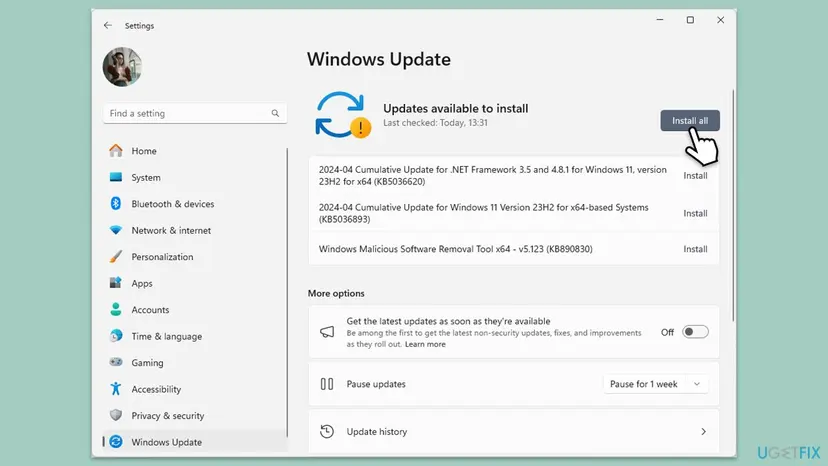
Microsoft says a gradual rollout means "users receive the update at different times". A PC with the update installed may still need a few days before the second clock responds.
It worked if: Clicking the date and time on the second taskbar opens the Notification Center and calendar on that screen.
If not: If the update is installed and the click still does nothing, go to Method 2.
Method 2. Restart Windows Explorer so the taskbar picks up the change
1 minuteLow riskThe update is installed but the second clock still opens nothing or opens the flyout on the main screen.
Windows Explorer draws every taskbar and its clock. Restarting it rebuilds the secondary taskbars with the current behaviour, without signing out or restarting the PC.
- Press Ctrl + Shift + Esc to open Task Manager.
- Find Windows Explorer under Processes and select it.
- Select Restart task. The taskbars disappear for a few seconds and come back.
- Click the date and time on the second monitor.
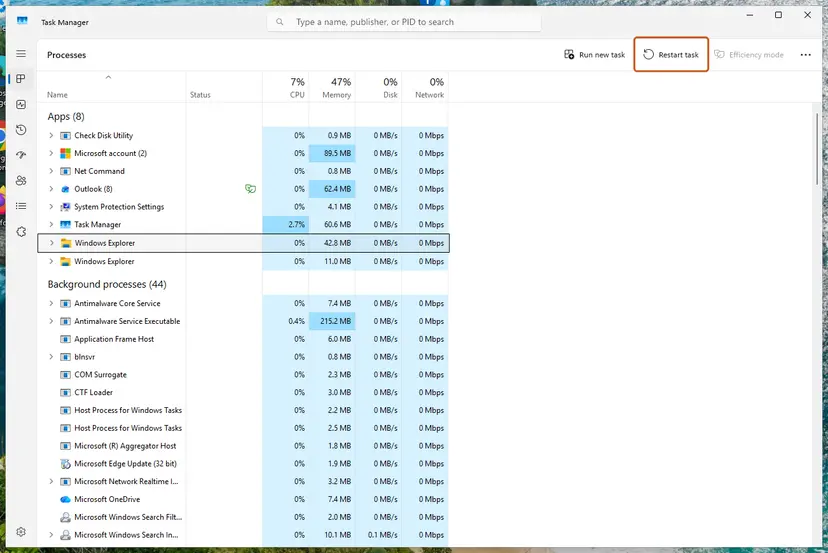
Step by step, with the Windows 10 variant: Restart File Explorer
It worked if: The taskbars reload and the second clock opens the calendar on its own screen.
If not: If the second taskbar has no clock at all, go to Method 3; if the calendar opens nowhere, go to Method 4.
Method 3. Show the taskbar and its clock on all displays
2 minutesNo riskThe second monitor has no taskbar, or its taskbar shows no date and time.
There is nothing to click when the taskbar is shown on the main monitor only. Turning on the taskbar for all displays adds the tray clock that opens the flyout.
- Right-click an empty part of the taskbar and select Taskbar settings.
- Expand Taskbar behaviors.
- Tick Show my taskbar on all displays.
- Check the second screen: its taskbar now shows the date and time on the right.
To add the large clock with seconds above the calendar, right-click the clock, select Adjust date & time and turn on Show time in Notification Center. It needs KB5064081 (August 2025) or later.
It worked if: A clock appears in the tray of the second taskbar and opens the calendar when clicked on an updated PC.
If not: If the clock is there but opens nothing, return to Method 1 and check the build number.
Method 4. Check the Remove Notifications and Action Center policy when the calendar opens nowhere
5 minutesLow riskThe calendar does not open from any clock, including the one on the main monitor.
Microsoft Learn explains that when this policy is enabled, the calendar does not open at all, because it lives inside the Notification Center that the policy removes.
- Press Win + R, type
gpedit.mscand press Enter. - Open User Configuration > Administrative Templates > Start Menu and Taskbar.
- Double-click Remove Notifications and Action Center.
- If it is Enabled, set it to Not Configured and select OK.
- Repeat steps 2 to 4 under Computer Configuration > Administrative Templates > Start Menu and Taskbar.
- Restart the PC and click the clock.
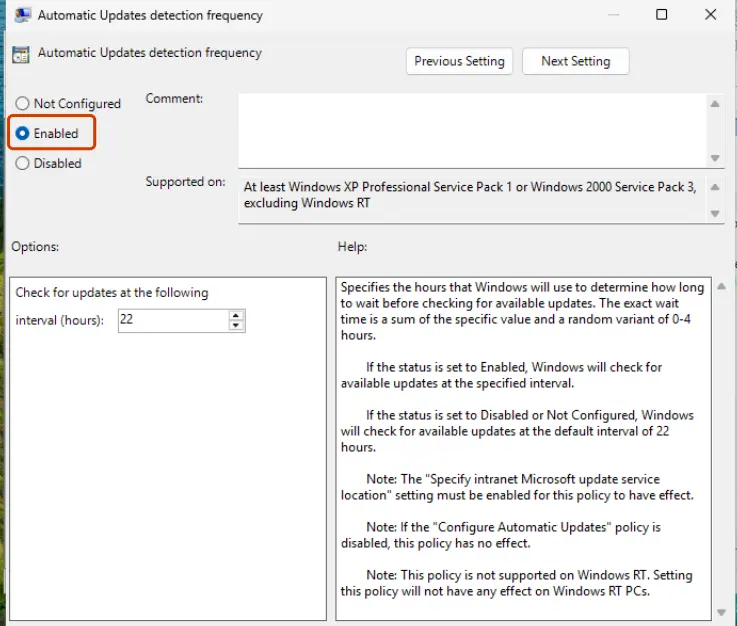
How to open the editor, and what to do on Windows 11 Home, which has none: Open the Local Group Policy Editor
On a PC managed with Intune the policy can come from your organisation. Microsoft's check: Settings > Accounts > Access work or school > your account > Info > Create report, then search the report for the policy name. Ask IT to change it.
It worked if: The policy shows Not Configured and the clock opens the Notification Center with the calendar again.
If not: If the policy was already Not Configured, see the section on what to do when it still does not open.
Method 5. Workarounds when the PC cannot get the update yet
2 minutesNo riskYour PC runs Windows 11 23H2 or older, or the rollout has not reached it yet.
Without the update, Windows opens the flyout on the primary monitor only. These ways either bring the flyout to you by keyboard or make the screen you use the primary one.
- Press Win + N to open the Notification Center and calendar without reaching for the clock.
- Or make your working screen the main one: Settings > System > Display, select that monitor and tick Make this my main display.
- Or, if both screens can show the same picture, choose Duplicate these displays in the same page; the calendar then opens on any monitor.
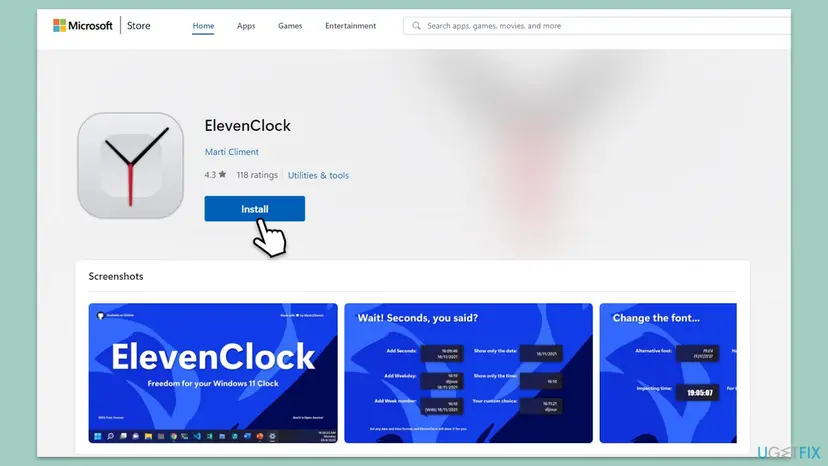
Before Microsoft added the feature, many users installed a third-party clock such as ElevenClock from the Microsoft Store to get a clock on every taskbar. It adds the clock; we could not confirm that it opens the calendar on the second screen.
It worked if: The calendar opens on the screen you work on, by keyboard or because that screen is now the main display.
If not: If none of this suits you, install the latest updates as soon as your PC can take them (Method 1).
What to do when the calendar still does not open from the second monitor
If you are on a current build, the taskbar is on all displays, the policy is not set and Explorer has been restarted, a few checks remain.
- Check the build again with
winver. A build below 26100.6725 or 26200.6725 does not have the feature. - Disconnect and reconnect the second monitor, or press Win + P and choose Extend again.
- Sign out and back in, which reloads the taskbars with your settings.
- If the PC is managed, ask IT whether updates or the gradual rollout are held back.
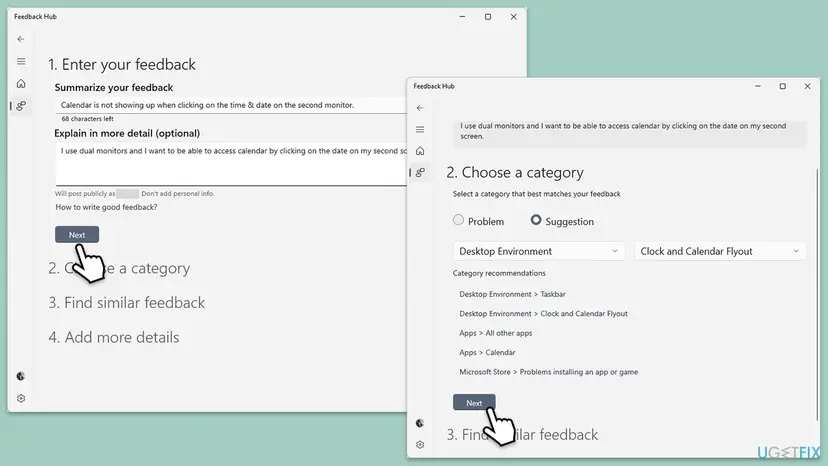
If it still fails, report it to Microsoft in the Feedback Hub, as a Problem under Desktop Environment > Clock and Calendar Flyout. Name your build and how the screens are connected.
How to put the taskbar, display and policy settings back
Nothing on this page deletes data. Each change is a setting that you can switch back the same way, and the update itself is part of normal Windows servicing.
- Taskbar on all displays: Taskbar behaviors > clear Show my taskbar on all displays.
- Main display: Settings > System > Display, select the old monitor and tick Make this my main display.
- Duplicate: press Win + P and select Extend again.
- Policy: set Remove Notifications and Action Center back to Enabled if your organisation requires it.
- Clock in the Notification Center: turn off Show time in Notification Center under Time & language > Date & time.
- Update: an update can be removed in Windows Update > Update history > Uninstall updates, but you lose its security fixes too: How to uninstall a Windows update.
Myths about the calendar on a second monitor
- "Windows 11 can never open the calendar on a second screen." That was true until September 2025. KB5065789 added it for 24H2 and 25H2, and later updates carry it.
- "It is a driver or monitor fault." No. It was a design limit of the taskbar, and the display driver plays no part in where the flyout opens.
- "You need a third-party app." Not on an updated PC. Apps were the only way before the update; now they only add styling.
- "Turning off notifications removes the calendar." No. Microsoft says turning off notifications keeps the Notification Center working; only the removal policy hides the calendar.
- "Running SFC fixes it." System file repair cannot add a feature that the installed build does not have.
Frequently asked questions
Why is the Windows 11 calendar not opening on my second monitor?
Because your PC does not have the September 2025 update yet, or its gradual rollout has not reached you. Before KB5065789, Windows 11 opened the Notification Center, and with it the calendar, only on the primary monitor when displays were set to Extend. Microsoft described that as by design. Since KB5065789 for Windows 11 24H2 and 25H2, the date and time on any monitor opens the flyout on that monitor. Install all updates, restart, and restart Windows Explorer if the click still does nothing.
Which Windows 11 update adds the calendar on a secondary monitor?
KB5065789, released on 29 September 2025 as an optional preview update for OS builds 26100.6725 (24H2) and 26200.6725 (25H2). Its release note says the Notification Center functionality is now available on secondary monitors, opened by selecting the date and time in the system tray. The change then went into the monthly security updates that followed, and Windows 11 26H2 came later still. Because it is a gradual rollout, some PCs receive the behaviour a few days after installing the update.
Why does the calendar not open on Windows 11 at all, even on the main screen?
Most often because the policy Remove Notifications and Action Center is enabled. Microsoft Learn explains that the calendar is part of the Notification Center, so removing that panel also removes the calendar. Open gpedit.msc and check the policy under User Configuration and Computer Configuration, Administrative Templates, Start Menu and Taskbar. On a work or school PC it may come from Intune; ask IT. Turning off notifications is different and does not hide the calendar. If the policy is not set, restart Windows Explorer.
Why won't the calendar open when I click the clock on the taskbar?
If the click does nothing on the second monitor only, your build predates the September 2025 update. If it does nothing on every monitor, check the Remove Notifications and Action Center policy (Method 4). If the taskbar froze, restarting Windows Explorer in Task Manager usually brings the click back within seconds. You can always open the same panel with Win + N, which helps you tell a broken clock from a removed Notification Center: if Win + N also opens nothing, the policy is the likely cause.
Why won't the calendar show on Windows 11 even though notifications open?
The calendar may be collapsed. Recent Windows 11 builds add an arrow at the bottom of the Notification Center that folds the calendar away, leaving only a small clock and the notifications. Select that arrow to expand the calendar again. If you meant the Calendar app with your appointments, that is a separate program, such as Outlook, and the taskbar flyout does not show its events. The flyout shows the month and lets you start a Focus session.
Can I make the calendar open on the second monitor without the update?
Not from that monitor's clock. Without KB5065789 Windows opens the flyout on the primary display only. You have three workarounds. Press Win + N to open it by keyboard. Make your working screen the main display in Settings, System, Display. Or choose Duplicate these displays, which shows the flyout on both screens but gives up the extra desktop. A third-party clock app adds a clock to every taskbar, but we could not confirm that it opens the calendar there.
Does the second monitor's taskbar show a clock in Windows 11?
Yes, when the taskbar is shown on all displays. Open Taskbar settings, expand Taskbar behaviors and tick Show my taskbar on all displays. The first Windows 11 release showed no clock on secondary taskbars, which is why many people installed third-party clocks in 2021 and 2022. Current builds show the date and time on each taskbar, and after the September 2025 update that clock also opens the calendar on its own screen.
What is the best setup for using multiple screens with the Windows 11 taskbar?
For most people: displays set to Extend, the taskbar shown on all displays, and Windows 11 updated past September 2025 so every clock opens its own calendar. Make the screen you look at most the main display, because new windows and some pop-ups open there. If you want the larger clock with seconds above the calendar, turn on Show time in Notification Center. None of this changes performance; it only saves mouse trips between screens.
Does Windows 10 have the same problem with the calendar on a second monitor?
This page is about Windows 11, where the limit was introduced and later lifted. Windows 10 22H2 left support on 14 October 2025 and gets security fixes only through Extended Security Updates, so it receives no taskbar features. The old version of this page said Windows 10 opens the calendar from the clock on any monitor; we did not re-test that for this update. Moving to Windows 11 and installing the latest updates gives you a calendar on every monitor.
Sources
- Microsoft Support: September 29, 2025, KB5065789 (OS Builds 26200.6725 and 26100.6725) Preview (support.microsoft.com)
- Microsoft Learn: Taskbar calendar doesn't open in Windows 11 (learn.microsoft.com)
- Windows Latest: Windows 11's Notification Center opens on secondary display, gets a clock and more (4 October 2025) (windowslatest.com)
Did this fix work?
One click, no account. It tells the next reader which guides are worth their time.
Questions and experiences: Windows 11 calendar not opening on second monitor: click the clock on any screen
Still broken, or found a fix we did not cover? Ask here: members and our editors answer. Reading is open; writing needs a free account.
…