
How to clear the print queue when a document is stuck?

Prefer to fix it yourself? The manual steps follow.
- 6methods
- 3 to 5 minutes for the queue and spooler steps, 15 to 20 minutes if the printer is added again
- Intermediate
Applies to Any printer on Windows 11 or Windows 10, USB or network, whatever the brand, when a print job will not print or will not cancel
6 methods in this guide
My printer's queue is stuck and won't clear on Windows 10. It is stuck on the "deleting" process, and restarting the PC does not help at all. Any other tips on how to fix this?
A document stuck in the print queue blocks every job behind it, so the queue looks frozen even after a restart. Cancel the jobs first, and if one stays on Deleting, stop the Print Spooler, empty its PRINTERS folder and start the service again. Only the waiting documents are removed.
Open Settings, Printers & scanners, select the printer, choose Open print queue and cancel every job (Method 1). If a job stays or shows Deleting, stop the Print Spooler in Services, delete all files in C:\Windows\System32\spool\PRINTERS and start the service again (Method 3). A restart alone often fails because the waiting jobs are stored as files in that folder.
| What it is | The Windows print queue: the list of jobs the Print Spooler holds before the printer takes them. One stuck job at the front blocks every job behind it. |
|---|---|
| Safe to clear | Yes. Cancelling jobs, restarting the Print Spooler and deleting the files in C:\Windows\System32\spool\PRINTERS are steps Microsoft itself gives for jobs stuck in the queue. |
| What you gain | A queue that moves again, so the next document prints. Nothing else on the PC changes. |
| Side effect | Every document that was waiting is gone and must be sent again. Printers, drivers and settings stay. |
| Where to find it | Settings > Bluetooth & devices > Printers & scanners > Open print queue on Windows 11, Settings > Devices > Printers & scanners > Open queue on Windows 10. |
| Created by | The Print Spooler service, which stores each waiting job as files in the PRINTERS folder under C:\Windows\System32\spool. |
| Comes back | Only when something blocks a job again: a printer fault, a lost connection or a damaged driver. Emptying the folder does not remove that cause. |
| Time | 3 to 5 minutes for Methods 1 to 4. About 15 to 20 minutes when the printer is removed and added again (Method 6). |
Facts checked on 16 October 2026. Steps written for Windows 11 (25H2 and 26H2) and Windows 10 22H2, with the queue, spooler and folder steps read from Microsoft Support.
What the print queue, the Print Spooler and the PRINTERS folder are
When you press Print, the app does not talk to the printer. It hands the job to the Windows Print Spooler, which Microsoft describes as the service that handles print jobs. The spooler keeps each waiting job and sends the jobs to the printer one after another.
The print queue is the list of those jobs that you see in the Print Queue window. The jobs themselves wait as files in C:\Windows\System32\spool\PRINTERS. This is why a stuck job survives a restart of the PC: the file is still on the disk when the spooler starts again.
| Part | What it is | Where you act on it |
|---|---|---|
| Print queue | The list of waiting jobs in the Print Queue window. | Right-click a job and select Cancel (Method 1). |
| Print Spooler | The Windows service that handles the jobs. | Services, then Restart (Method 2). |
| PRINTERS folder | Where the waiting jobs are stored as files. | Delete the files inside, never the folder (Methods 3 and 4). |
| The printer's own memory | A job the printer has already received. | The printer's panel and a power cycle (Method 5). |
| Printer entry and driver | How Windows knows this printer. | Remove and add the printer again (Method 6). |
The queue belongs to Windows, not to the printer maker. The same steps apply to HP, Canon, Epson, Samsung, Brother, Kodak, Xerox, Lexmark, Zebra and every other brand that prints through the Windows spooler.
Why a print job gets stuck and stays on Deleting
Microsoft publishes no list of causes and no statistics, so the order below is our reading of its printing help. The cancelled job shows Deleting until the spooler has removed it. When the spooler is waiting on a damaged job file or a printer that does not answer, that status never ends. This explanation is ours, not a Microsoft statement.
| Cause | What you see | Start with |
|---|---|---|
| A job file the spooler cannot finish or remove. | One job stays on Deleting or Printing, and Cancel changes nothing. | Method 2, then Method 3 |
| The spooler service itself is hung. | Jobs will not cancel and the Services window will not stop the service. | Method 4 |
| The printer is off, in error or lost from the network. | Jobs wait with Offline or Error, and a new job joins the line. | Method 5 |
| A damaged printer entry or driver. | The queue clears, but every new job gets stuck again. | Method 6 |
The waiting jobs are files on the disk. A restart stops and starts the spooler, and the spooler reads the same files again. That is why Microsoft's own steps for a queue that Cancel cannot clear are to stop the service and delete the files in the folder.
What clearing the queue gets you and what each method costs
Clearing the queue does not make a printer faster or a PC lighter. The gain is simple: a stuck job stops blocking the ones behind it. The cost is that waiting documents disappear, so print them again from the app.
| Method | What you get | What it costs | Time |
|---|---|---|---|
| 1. Cancel in the queue | Removes jobs one by one, nothing else touched. | Fails on a job stuck on Deleting. | 2 minutes |
| 2. Restart the spooler | A fresh service, often enough for a hung job. | Jobs that sit as files can load again. | 2 minutes |
| 3. Empty the PRINTERS folder | Removes every waiting job file, the usual cure for a stuck queue. | All waiting documents are lost. | 5 minutes |
| 4. Command Prompt | Does the same when Services will not stop the spooler. | Needs an administrator account and exact commands. | 5 minutes |
| 5. Restart printer and PC | Clears a printer that froze mid-job. | Does not remove a damaged job file. | 5 minutes |
| 6. Add the printer again | Rebuilds the printer entry and driver. | The printer is unavailable for a while. | 15 to 20 minutes |
Times are our estimates for a normal PC. If you only need one more document out of the queue, Method 1 costs the least. If a job has been on Deleting for several minutes, go to Method 3.
When to empty the spooler folder and when Cancel is enough
Most people only need the first step of the list that fits their case. Deleting the folder files is the stronger measure, so use it when the gentle ones have failed.
- A job stays on Deleting after you cancel it.
- The job comes back after you restart the PC.
- Several old jobs sit in the queue and none of them leaves.
- Cancel does nothing and restarting the spooler in Services does not help.
- One large document is still printing. Wait for it before you decide it is stuck.
- The printer is shared from another PC. The jobs are on that PC, so clear the queue there.
- You can resend only some documents. Note which ones were waiting first, because they will be deleted.
- The status says Offline. Fix the connection first (Method 5), then check the queue.
How to clear the print queue when a document is stuck
The methods run from the gentlest to the strongest. Methods 1 to 3 solve most stuck queues. Method 4 is the same reset from the command line for when Services will not stop the spooler. Methods 5 and 6 deal with the printer and its Windows entry.
| What you see | Start with |
|---|---|
| One or two jobs, and Cancel removes them. | Method 1 |
| A job stays on Deleting, or it returns after a restart. | Method 3 |
| The queue looks frozen but nothing was cancelled yet. | Method 2, then Method 3 |
| Services will not stop the Print Spooler, or says access denied. | Method 4 |
| The status is Offline or Error, or the printer froze while printing. | Method 5 |
| The queue clears but every new job gets stuck again. | Method 6 |
Method 1. Cancel the jobs from the print queue
2 minutesNo riskEveryone, first. It is the cheapest way to clear one or two documents.
Microsoft lists cancelling every job from Settings as the first step for jobs stuck in the queue. It removes only what you cancel and touches nothing else on the PC.
- Press Win + I and open Bluetooth & devices > Printers & scanners. On Windows 10, open Devices > Printers & scanners.
- Select your printer, then select Open print queue. On Windows 10 the button is Open queue.
- In the Print Queue window, open the Printers menu and check that the right printer is ticked.
- Right-click each job and select Cancel. Repeat until the list is empty.
- Wait one minute and look at the list again.
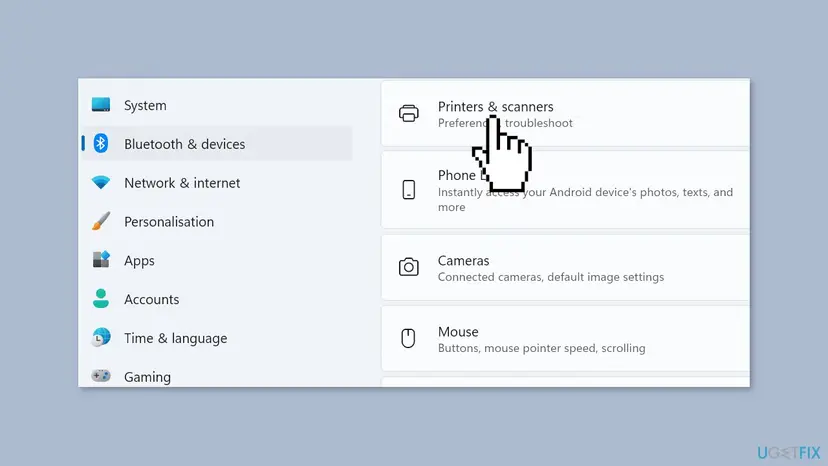
It worked if: The list in the Print Queue window is empty, and a short test page prints.
If not: If a job stays, shows Deleting or comes back, go to Method 2 and then Method 3.
Method 2. Restart the Print Spooler service
2 minutesLow riskThe queue seems frozen, or Cancel is slow, and you have not touched the service yet.
Microsoft says restarting the Print Spooler can resolve temporary printing problems. A restart is quicker than deleting files, so try it before the folder method.
- Press Win + R, type
services.mscand press Enter. - Scroll down and find Print Spooler.
- Right-click Print Spooler and select Restart.
- Open the print queue as in Method 1 and look at the list.
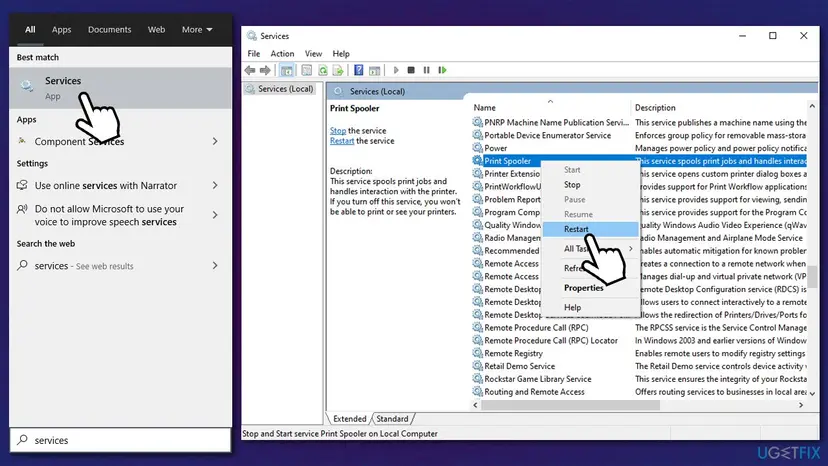
Step by step, with screenshots, for any service: Check and restart Windows services.
It worked if: Print Spooler shows Running again and the stuck job is gone from the queue.
If not: If the job is still listed, or shows Deleting, the file is the problem. Go to Method 3.
Method 3. Stop the spooler and delete the files in the PRINTERS folder
5 minutesLow riskA job stays on Deleting, or returns after a restart. This is the method that clears most queues that will not clear.
Waiting jobs are stored as files in the PRINTERS folder, and the spooler reads them again each time it starts. Microsoft's step for a queue that Cancel cannot clear is to stop the service, delete those files and start it again.
Only the documents waiting to print are deleted, so send them again afterwards. Printers, drivers and settings stay. Delete the files inside the folder, never the PRINTERS folder itself.
- Press Win + R, type
services.mscand press Enter. - Right-click Print Spooler and select Stop. Leave the window open.
- Press Win + E to open File Explorer and go to
C:\Windows\System32\spool\PRINTERS. - If Windows says you need permission to open the folder, select Continue.
- Press Ctrl + A to select everything in the folder, then press Delete. Shift + Delete skips the Recycle Bin.
- Go back to Services, right-click Print Spooler and select Start.
- Open the print queue and check that it is empty.
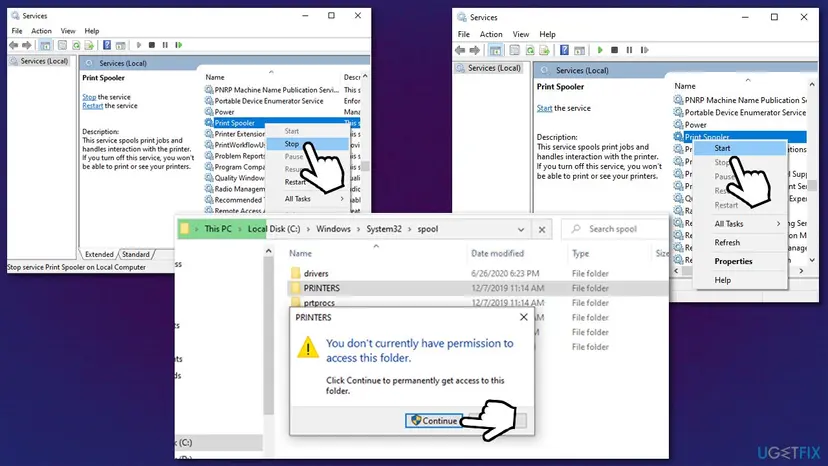
It worked if: The folder is empty, Print Spooler shows Running, and the queue lists no jobs.
If not: If Services will not stop the spooler or the files will not delete, use Method 4. If the queue is empty and the next job sticks at once, go to Method 5.
Method 4. Do the same reset with Command Prompt
5 minutesLow riskYou could not restart or stop the spooler in Services, or you prefer three commands to clicking.
The three commands stop the Print Spooler, delete the files in the PRINTERS folder and start the service again. They do what Method 3 does, and net stop can stop a service that the Services window struggles with.
Run Command Prompt as administrator, with the administrator's password ready. The commands delete only files inside the PRINTERS folder, the same files as in Method 3.
- Type
cmdin the Windows search box. - Right-click Command Prompt and select Run as administrator.
- If User Account Control appears, select Yes.
- Paste the three commands below and press Enter after each one.
Command Prompt (administrator)
net stop spooler
del /F /S /Q "%windir%\System32\spool\PRINTERS\*.*"
net start spooler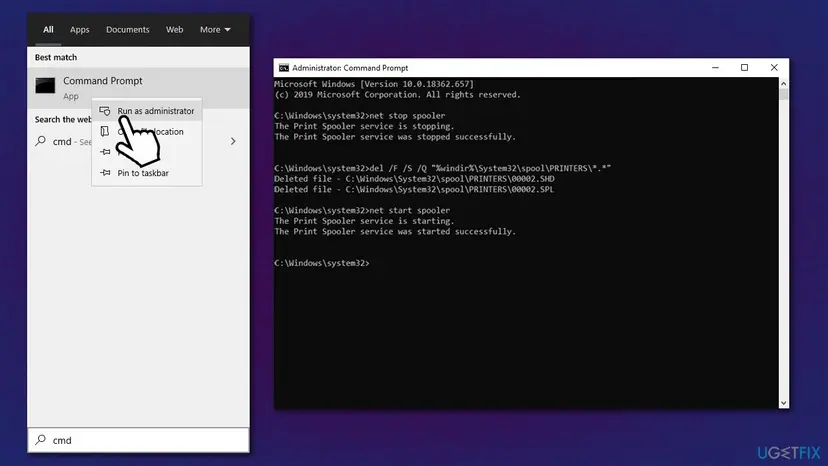
It worked if: The window prints that the Print Spooler service was stopped and started, and the queue is empty.
If not: If you see Access is denied, the window was not opened as administrator. Close it and start again from step 2.
Method 5. Restart the printer and the PC, then check the printer itself
5 minutesNo riskThe queue is empty but nothing prints, the status reads Offline or Error, or the printer froze in the middle of a page.
A job that the printer already received lives in the printer, not in Windows, so emptying the folder cannot remove it. Microsoft's last step for stuck jobs is to turn the printer off for at least 60 seconds and restart the PC.
- Turn the printer off with its Power button. If it does not react, pull the plug out of the socket.
- Wait at least 60 seconds.
- Turn the printer on and wait until it is ready.
- Restart the PC with Start > Power > Restart.
- Print one short test document.
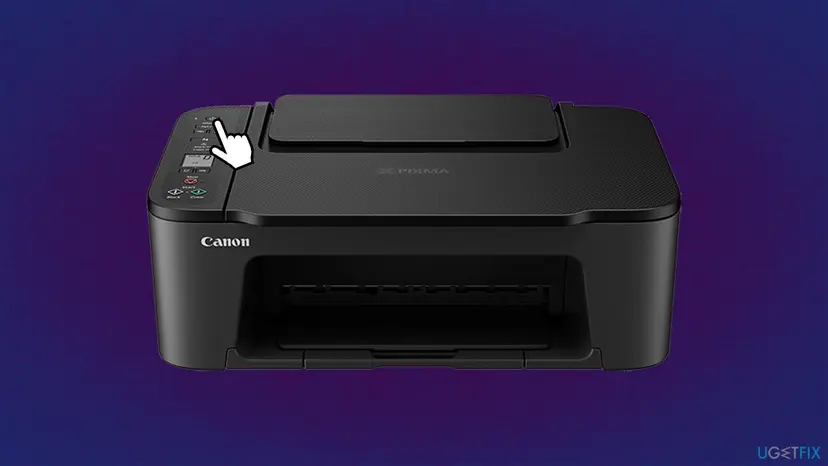
If the printer shows a paper, ink or cover warning on its own panel, fix that first. The printer menu usually has a Cancel or Stop button for a job it is holding, and the manual of your model names it.
It worked if: The printer is ready, the status in Windows no longer reads Offline or Error, and the test page prints.
If not: If the test prints but the next real job sticks again, the printer entry or the driver is the likely cause. Go to Method 6.
Method 6. Remove the printer, reinstall the driver and add the printer again
15 to 20 minutesLow riskThe queue clears and then every new job gets stuck, or the printer has been installed for years through several driver changes.
A damaged printer entry or driver makes each new job fail in the same place. Removing the printer and its driver and adding it again gives Windows a fresh start. Microsoft also tells you to install the latest driver from the maker's website.
- Open Settings > Bluetooth & devices > Printers & scanners. On Windows 10, open Devices > Printers & scanners.
- Select your printer and select Remove device.
- Remove the old driver with the library steps below, then restart the PC.
- Download the latest driver for your exact model from the printer maker's website.
- Back in Printers & scanners, select Add device on Windows 11 or Add a printer or scanner on Windows 10.
- Wait until Windows finds the printer and installs it, then print a test page.
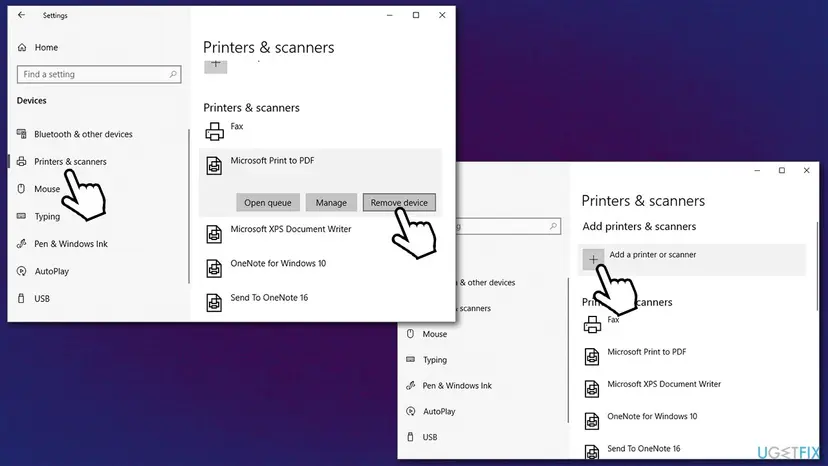
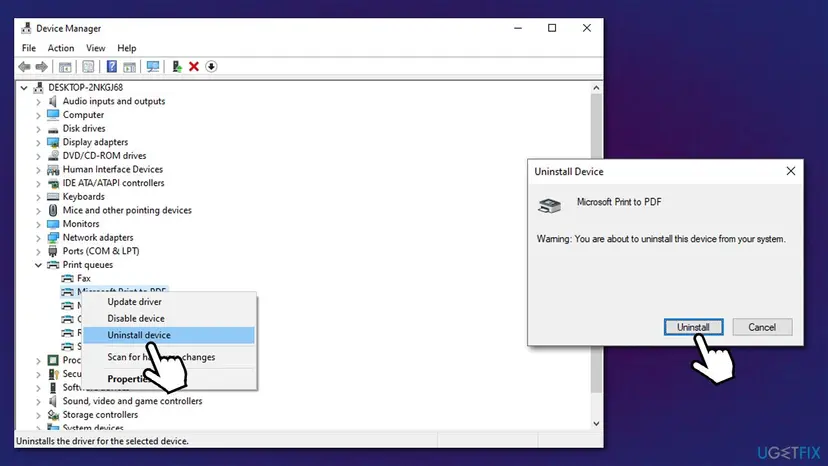
The driver part in full, with screenshots: Update, roll back or reinstall a driver.
It worked if: The printer appears again in Printers & scanners, the queue is empty and a new job prints and leaves the queue.
If not: If every new job still sticks, check the PrintService log described in the next section, and try the printer on another PC.
The queue is cleared and jobs still get stuck: where to look next
If the queue is empty, the printer is ready and new jobs still stick, look at what Windows wrote down before you reinstall more. The spooler keeps its own log, and it often names the printer, the driver or the job that failed.
- The PrintService log. Press Win + R, type
eventvwr.mscand open Applications and Services Logs > Microsoft > Windows > PrintService > Admin. Errors there name the printer or driver. We could not confirm that this log is enabled by default, so if it is empty, right-click it and check that it is turned on. - Another app. Print a page from Notepad. If that prints and one program's documents keep sticking, the problem is in that program or that file, not in Windows.
- A shared printer. If the printer is connected to another PC, the stuck jobs are on that PC. Clear its queue there with Methods 1 to 3.
- The spooler stops by itself. See our guides on Print Spooler high CPU and the Documents are waiting message.
If the printer cannot print its own test page from its menu with no PC connected, the fault is in the printer. No change in Windows clears that. Contact the maker's support with the model and the message on its panel.
How to undo it and put everything back
Deleted jobs cannot be restored, and nothing is worth backing up first: the job files are temporary. Send the documents again from the program that made them. The other changes in this guide are easy to put back.
| What you changed | How to put it back |
|---|---|
| Cancelled jobs or deleted the files in the PRINTERS folder. | Print the documents again from the app. Check that you did not delete the folder itself. |
| Stopped the Print Spooler and forgot to start it. | Open Services, right-click Print Spooler and select Start. Nothing prints while it is stopped. |
| Ran the three Command Prompt commands. | net start spooler starts the service again if the last command did not run. |
| Removed the printer and its driver. | Add the printer again as in Method 6, and check the default printer and your print settings. |
After any of these steps, open Services and look at Print Spooler. The status must read Running. If an app says there are no printers, a stopped spooler is the first thing to check.
Myths about stuck print queues
Most advice on this topic is copied from one page to the next. This is what Microsoft's pages support and what they do not.
- "A restart always clears the queue." No. The jobs are files on the disk, so a job that is stuck can load again after a restart. That is why this guide ends with the folder method.
- "Delete the PRINTERS folder." No. Delete the files inside it. Microsoft's step says to delete all files in the folder, and the folder itself must stay.
- "It only happens with some brands." The queue belongs to Windows, so it can happen with any printer maker.
- "You need a cleaner or a repair program." Every step in this guide uses Windows tools. Microsoft's steps for stuck jobs do not call for extra software.
- "You must reinstall Windows." A stuck queue is a spooler and file problem. Reinstalling Windows is far beyond what Microsoft gives for it.
Frequently asked questions
How do I clear the print queue in Windows 10?
Open Settings, Devices, Printers & scanners, select the printer and choose Open queue. Right-click each job and select Cancel. If a job stays, stop the Print Spooler in Services, delete all files in C:\Windows\System32\spool\PRINTERS and start the service again. Those are Microsoft's steps for jobs stuck in the queue. Windows 10 left support on 14 October 2025, but the queue works the same on Windows 11, where the path is Bluetooth & devices.
How do I clear the print queue when it is stuck on Deleting?
A job stuck on Deleting means the cancel did not finish, so use Method 3. Stop the Print Spooler in Services, open C:\Windows\System32\spool\PRINTERS, delete the files inside and start the spooler again. If Services will not stop the spooler, run net stop spooler in an administrator Command Prompt first. After that the job is gone, because the spooler has no file left to read.
Why does my printer queue not delete or clear?
Usually a job file in the spooler folder is damaged or the printer is not answering, so the spooler cannot finish removing the job. Cancel then leaves it on Deleting. Microsoft does not publish a list of causes, so this is our reading. The fix is the same either way: stop the Print Spooler, empty the PRINTERS folder and start the service again. If new jobs still stick afterwards, look at the printer and driver.
How do I clear a Samsung printer queue?
The queue is kept by Windows, not by the Samsung printer, so the steps are the same as for any brand. Cancel the jobs in the print queue, and if one stays, stop the Print Spooler, delete the files in the PRINTERS folder and start it again. If the printer itself still holds a job, switch it off for at least 60 seconds, as Microsoft says. Menu names on the printer panel differ by model, so check the manual.
How do I clear an Epson printer queue?
Epson printers print through the same Windows spooler as every other brand. Open the print queue, cancel each job and, if one will not go, stop the Print Spooler, empty C:\Windows\System32\spool\PRINTERS and start the service again. If the Epson printer is offline or shows an error, fix that first with Method 5. Our guide does not cover the Epson utility's own status window, because we could not confirm what it does with Windows jobs.
How do I clear a Kodak printer queue in Windows 10?
Use the Windows steps, because the stuck jobs are in the Windows spooler and not in the Kodak printer. Open Settings, Devices, Printers & scanners, select the Kodak printer and open the queue. Cancel the jobs. If they stay, stop the Print Spooler, delete the files in the PRINTERS folder and start it again. If new Kodak jobs keep sticking, remove the printer and add it again with the maker's current driver (Method 6).
Is it safe to delete the files in the spool PRINTERS folder?
Yes, when you delete only the files inside it and the Print Spooler is stopped. Microsoft gives this step for a print queue that Cancel cannot clear. You lose the documents that were waiting to print, so send them again. Printers, drivers and settings stay. Do not delete the PRINTERS folder itself, and do not delete other folders under spool. Start the Print Spooler again when you finish.
Will restarting the PC clear the print queue?
Sometimes, but often not. The waiting jobs are stored as files, and the spooler reads them again when it starts. That is why users report that a restart changes nothing for a job stuck on Deleting. Restart the printer and the PC when the printer froze or went offline, and use the folder method when a specific job will not leave the queue.
Can I clear the print queue from the command line?
Yes. Open Command Prompt as administrator and run net stop spooler, then del /F /S /Q "%windir%\System32\spool\PRINTERS\*.*", then net start spooler. The first command stops the Print Spooler, the second deletes the job files and the third starts the service again. This is the same reset as Method 3, so it also removes every document that was waiting. Use it when Services will not stop the spooler.
The queue clears but new print jobs get stuck again. What now?
Then the stuck job was a symptom, not the cause. Check the printer first: paper, ink, cover and connection, and restart it as in Method 5. If it prints a test page from its own menu, remove the printer and add it again with the maker's current driver (Method 6). Look at the PrintService log for the failing printer or driver, and try printing a page from Notepad to rule out one program.
Sources
- Microsoft Support: Fix print job stuck in queue errors in Windows (support.microsoft.com)
- Microsoft Support: Fix print spooler service not running errors in Windows (support.microsoft.com)
- Microsoft Support: View a printer's print queue in Windows (support.microsoft.com)
Did this fix work?
One click, no account. It tells the next reader which guides are worth their time.
Questions and experiences: clear the print queue when a document is stuck
Still broken, or found a fix we did not cover? Ask here: members and our editors answer. Reading is open; writing needs a free account.
…