
DesktopWindowXamlSource: what the empty taskbar window is and how to remove it

Prefer to fix it yourself? The manual steps follow.
5 methods in this guide
Hello. I noticed an empty window named DesktopWindowXamlSource on my Windows taskbar. What is it and how do I remove it?
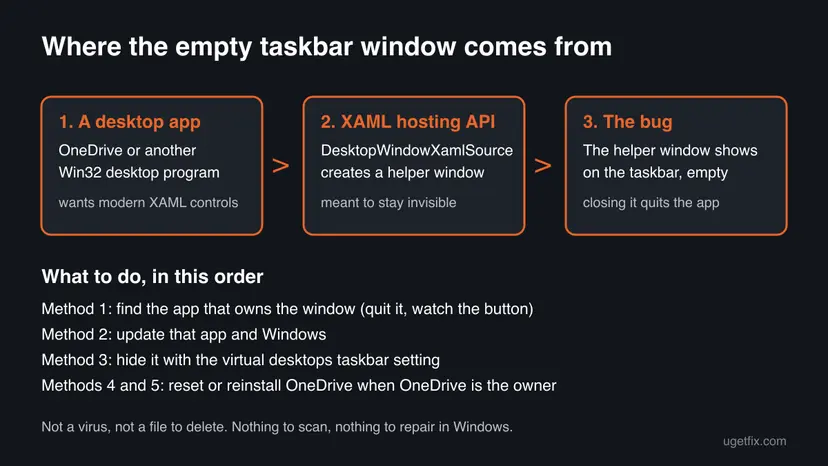
DesktopWindowXamlSource is a hidden helper window that a desktop app such as OneDrive uses for its modern interface, and on the taskbar it is a display bug, not a virus. Do not close it, because that quits the app. Find the owning app, update it, or hide the button with one setting.
It is the name of a hidden window from Microsoft's XAML hosting interface, which desktop apps use to show modern controls. It is safe, it is not a file, and there is nothing to delete. Closing the empty button quits the app that owns it, usually OneDrive. Start with Method 1 to find that app, then update it (Method 2) or hide the button with the virtual desktops setting (Method 3).
| What it is | A helper window of the Windows XAML hosting interface (Windows.UI.Xaml.Hosting.DesktopWindowXamlSource), which lets a Win32, WPF or Windows Forms app show modern XAML controls. |
|---|---|
| Safe to | Hide, yes. Close, only if you accept that the app that owns it closes too. There is nothing to delete or disable in Windows. |
| What you gain | A clean taskbar, and a shutdown that no longer waits for an empty window. No speed, memory or disk gain. |
| Side effect | Closing the button quits its app (OneDrive stops syncing). Hiding it with Method 3 also hides windows from other virtual desktops. |
| Created by | The app that uses the interface. In the reports we read it is OneDrive; users also name other apps. |
| Location | No file and no process of its own. It is a window inside the running app's process. |
| Comes back | Yes, each time the app starts, until the app or Windows is fixed. |
| Seen on | Mostly Windows 10 (build 19044 and 19045) since late 2021 and in January 2023 after a OneDrive update, by reports on Microsoft's tracker and Q&A. |
| Virus? | No. The name is a Microsoft class name. A virus would not need it, and the window holds nothing. |
Facts checked on 15 October 2026. Steps written for Windows 11 (25H2 and 26H2) and Windows 10 22H2, read against Microsoft Learn and the Microsoft XAML issue tracker.
What DesktopWindowXamlSource is and why it shows as an empty window
DesktopWindowXamlSource is a class name from Microsoft's programming interface for Windows apps. Microsoft Learn describes it as the class that "enables a non-UWP desktop application (for example, a WPF or Windows Forms application) to host UWP controls" in a window. Developers call this XAML Islands.
To make that work, Windows creates a small helper window that carries the title DesktopWindowXamlSource. It is meant to stay invisible. On some Windows 10 builds it appears on the taskbar as a button with no picture and no content, and clicking it does nothing.
| Name | What it is | Related to the empty window? |
|---|---|---|
| DesktopWindowXamlSource | The XAML hosting class and the title of its helper window. | Yes, this is the button you see. |
Desktop Window Manager (dwm.exe) | The Windows process that draws all windows on screen. | No. It is a different thing with a similar name. |
OneDrive (OneDrive.exe) | The sync app that, in the reports we read, owns the empty window. | Yes, closing one closes the other. |
| XAML Islands | The developer name for desktop apps that host XAML controls. | Yes, the bug is in this feature. |
A user on Microsoft Q&A found that closing the empty window closed OneDrive, and closing OneDrive removed the window. The bug report on Microsoft's XAML tracker says the same: "closing this blank window will also cause the entire process to exit".
What you gain by removing the window and what it costs
The empty window uses no measurable resources of its own: it is part of an app that runs anyway. Removing it gives you a tidy taskbar and, for some users, a shutdown without a waiting window. Each way of removing it has a different price.
| What you do | What you gain | What it costs |
|---|---|---|
| Close the button (right-click, Close window). | The button is gone at once. | The owning app quits. OneDrive stops syncing until you start it again. |
| Update the app and Windows (Method 2). | A lasting fix when a newer version corrects the bug. | A few minutes and a restart. Not every update fixes it. |
| Hide it with the virtual desktops setting (Method 3). | The button stays hidden while the app keeps running. | The taskbar no longer shows windows from your other virtual desktops. |
| Reset OneDrive (Method 4). | A clean start of OneDrive's settings. | OneDrive syncs all files again. Users report it did not always help. |
| Reinstall OneDrive (Method 5). | Fresh program files. | 10 to 20 minutes, a sign in and a full resync. |
| Delete files, run SFC or antivirus scans. | Nothing for this window. | Time. There is no file to delete and no damaged Windows file behind it. |
We found no Microsoft page that ties this window to slowness, memory use or crashes. If your PC is slow, the cause is somewhere else.
Who should remove the window and who can leave it
The window does no harm. Whether to act depends on how much it bothers you and whether you rely on the app that owns it.
- The empty button takes space on a busy taskbar every day.
- Shutdown or restart stops at a screen that lists DesktopWindowXamlSource.
- You are not sure what it is and want to confirm it belongs to OneDrive or another known app.
- You do not use virtual desktops, so Method 3 costs you nothing.
- It appears only now and then and goes away after a restart.
- You were going to close it to save memory. It saves nothing and stops OneDrive.
- You were going to delete a DesktopWindowXamlSource file. There is no such file.
- Someone tells you to run a cleaner or registry tool for it. The window is not a registry problem.
How to remove the empty DesktopWindowXamlSource window
The methods go from the safest to the most thorough. Method 1 tells you which app owns the window, Method 2 is the lasting fix, Method 3 hides the button without touching the app, and Methods 4 and 5 are for OneDrive only. Windows 10 22H2 paths are given too, although Windows 10 left support on 14 October 2025.
| Your case | Start with |
|---|---|
| You do not know which app the window belongs to. | Method 1. |
| You know it is OneDrive or another app. | Method 2. |
| Updates did not help and you do not use virtual desktops. | Method 3. |
| It is OneDrive and you want it gone for good. | Method 4, then Method 5. |
| Shutdown waits on the window. | "When DesktopWindowXamlSource is preventing shutdown" below. |
Method 1. Find the app that owns the empty window
2 minutesNo riskEveryone, first. It takes two minutes and tells you which of the other methods apply.
The window has no process of its own: it lives inside the app that created it. When that app quits, the button goes away with it, which identifies the owner without any tool.
- Note the empty button on the taskbar. Hover over it: the preview shows the title DesktopWindowXamlSource and no content.
- Select the OneDrive cloud icon near the clock, then the gear icon, and choose Quit OneDrive. Confirm.
- Look at the taskbar. If the empty button disappeared, OneDrive is the owner.
- If it is still there, press Ctrl + Shift + Esc to open Task Manager and look under Apps for programs you started recently.
- Close those programs one at a time, from their own menu, and watch the taskbar after each.
- Start OneDrive again from Start when you are done, so your files keep syncing.
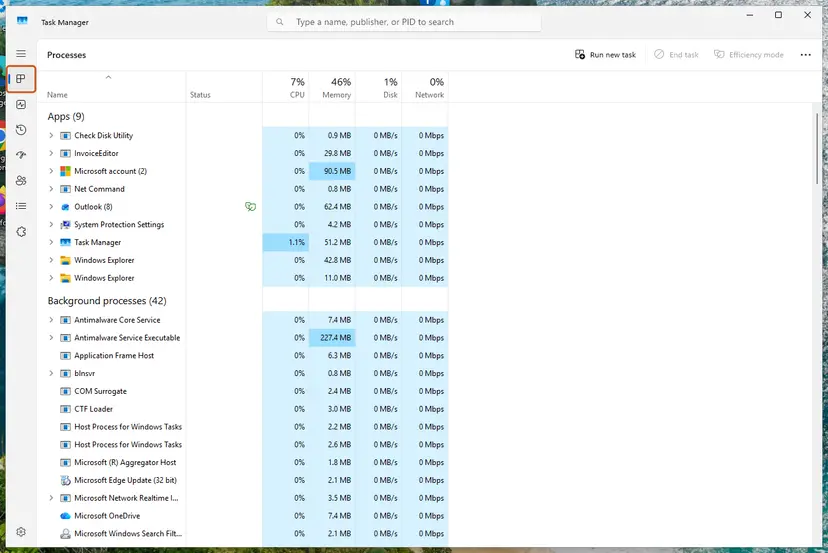
If an app hangs while you close it, end it in Task Manager: Close a frozen app (Task Manager, Force Quit).
It worked if: The empty button disappears the moment you quit one app. That app is the owner.
If not: If the button disappears only after a restart and comes back later, note which apps start with Windows and repeat Method 1 after the next sign in.
Method 2. Update the owning app and Windows
10 to 30 minutesLow riskYou know the owning app, and Windows or the app has updates waiting.
The bug sits in the XAML hosting code and in how apps use it. On Microsoft's tracker a developer wrote that it was fixed in Windows 11, and Microsoft closed the report citing "a reported fix in later releases of Windows 10". Current versions are where any fix lands.
- Press Win + I to open Settings.
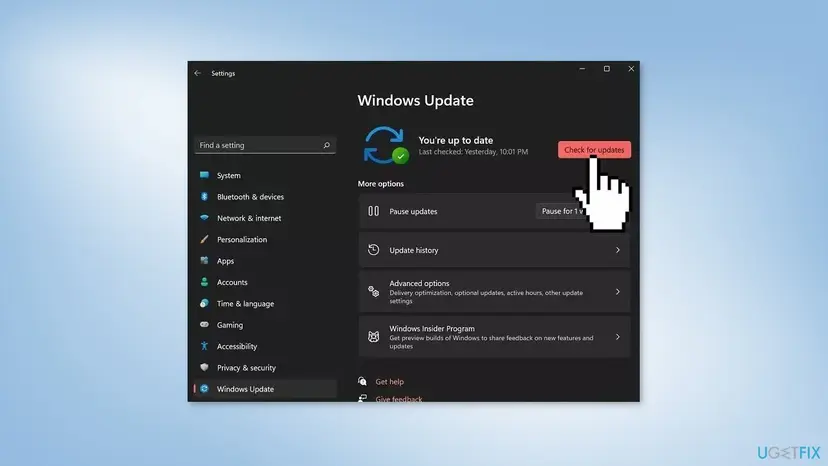
- On Windows 11 select Windows Update. On Windows 10 open Update & Security > Windows Update.
- Select Check for updates and install what is offered, including optional quality updates.
- Restart the PC.
- For OneDrive, select the cloud icon, the gear icon, Settings, then About, and note the version.
- If the version is old, download OneDrive from microsoft.com/microsoft-365/onedrive/download and run the file. It installs over the old version.
- For another app, use its own update option or reinstall its newest version from the maker's site or the Microsoft Store.
It worked if: After the restart the owning app starts and no empty button appears next to it.
If not: If the button is still there with everything up to date, hide it with Method 3, or for OneDrive go on to Method 4.
Method 3. Hide the button with the virtual desktops taskbar setting
2 minutesNo riskUpdates did not help, and you use one desktop or do not mind the taskbar showing only the current one.
The helper window behaves like a window that belongs to another virtual desktop. When the taskbar shows only the windows of the desktop you are using, the empty button stops appearing while the app keeps running. This is the answer that more than 100 users marked helpful on Microsoft Q&A.
- Press Win + I to open Settings and select System.
- Select Multitasking.
- On Windows 11, expand Desktops. On Windows 10, scroll to Virtual desktops.
- Find the option for which open windows the taskbar shows. On Windows 10 it reads On the taskbar, show windows that are open on.
- Change it to Only the desktop I'm using.
- Look at the taskbar. The change applies at once.
A user who confirmed the workaround on Microsoft Q&A wrote that "it does not actually fix the issue. It just hides it". The app still runs and syncs as before. We could not confirm the exact wording of the Windows 11 option on 26H2.
It worked if: The empty DesktopWindowXamlSource button is gone, and OneDrive or the other app still runs in the notification area.
If not: If the button is still visible, the setting did not cover your case. For OneDrive, go to Method 4.
Method 4. Reset OneDrive when OneDrive owns the window
5 minutes plus the resyncLow riskMethod 1 showed that OneDrive is the owner and Methods 2 and 3 did not help.
A reset stops OneDrive, clears its settings and starts it again, which rebuilds the windows it creates at start. It does not delete your files. Be ready for a mixed result: the user who opened the Microsoft Q&A thread reset OneDrive and the window stayed.
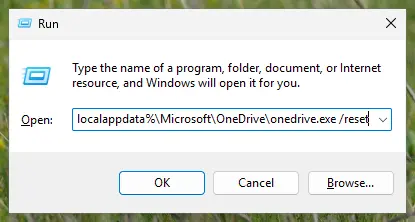
- Press Win + R to open the Run box.
- Paste this command and select OK.
%localappdata%\Microsoft\OneDrive\onedrive.exe /reset - If Windows says it cannot find the file, use the full steps in the procedure below, which list the other two install paths.
- Wait one or two minutes. If the cloud icon does not return, open OneDrive from Start.
Microsoft's full reset steps: How to reset OneDrive in Windows. After a reset OneDrive syncs every file again, and if you chose to sync only some folders, choose them again.
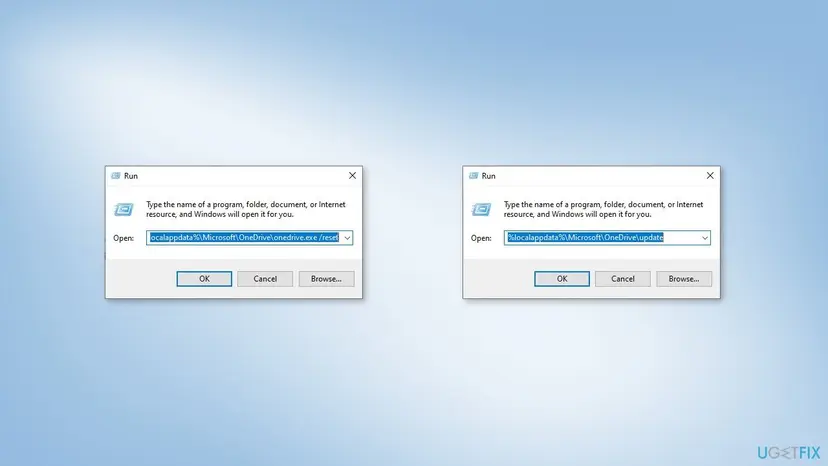
It worked if: OneDrive starts fresh, the cloud icon returns, and no empty DesktopWindowXamlSource button appears next to it.
If not: If the button comes back with OneDrive, reinstall it with Method 5, or keep Method 3 in place.
Method 5. Uninstall and reinstall OneDrive
10 to 20 minutes plus the resyncLow riskOneDrive owns the window, and nothing above removed it.
A reinstall replaces every OneDrive program file with the current version. The old guide said most users reported success with it, but the Microsoft Q&A asker reinstalled and still had the window, so treat it as the last attempt.
- Select the OneDrive cloud icon and check that your files are up to date, so nothing waits to upload.
- Open Settings > Apps > Installed apps on Windows 11, or Settings > Apps > Apps & features on Windows 10.
- Find Microsoft OneDrive, select the three dots (Windows 11) or the entry (Windows 10), then Uninstall, and confirm.
- Restart the PC.
- Download OneDrive from microsoft.com/microsoft-365/onedrive/download and run the file.
- Sign in and choose the same OneDrive folder as before, so files already on the PC are not downloaded again.

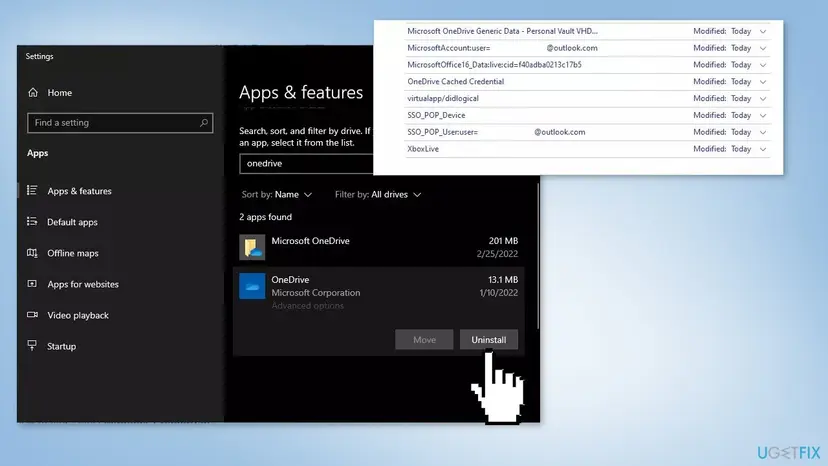
More ways to uninstall a program: Uninstall a program or app in Windows. Your files in the OneDrive folder stay on the PC and in the cloud.
It worked if: OneDrive is back, signed in and syncing, and the taskbar shows no empty window.
If not: If the window is still there after a reinstall, the bug is in the current OneDrive or Windows build. Keep Method 3 and check again after the next update.
When DesktopWindowXamlSource is preventing shutdown
At shutdown Windows asks every open window to close. Users report that the empty helper window sometimes does not answer in time, so the shutdown screen lists it by name and waits. Nothing is lost when you go ahead: the window holds no document.
- Right now. Select Shut down anyway or Restart anyway on that screen. OneDrive closes with the rest.
- Before each shutdown. Quit OneDrive from its cloud icon first (gear icon, Quit OneDrive). The window goes with it.
- For good. Update the app and Windows (Method 2). If OneDrive owns it, reset or reinstall it (Methods 4 and 5).
- What not to do. Do not set Windows to end every app at shutdown without asking. It can close an editor with unsaved work.
How to undo each change
None of the methods removes anything you need. Each one can be put back in a minute or two.
| What you changed | How to put it back |
|---|---|
| Quit OneDrive or another app in Method 1. | Open it again from Start. OneDrive also starts by itself at the next sign in. |
| Changed the virtual desktops taskbar setting in Method 3. | Go back to Settings > System > Multitasking and choose All desktops (Windows 10) or the all desktops option (Windows 11). |
| Reset OneDrive in Method 4. | Nothing to undo. Choose again which folders sync if you used selective sync. |
| Uninstalled OneDrive in Method 5. | Install it from Microsoft's download page and sign in. |
| Closed the empty button by hand. | Start the app that owned it again. |
Myths about DesktopWindowXamlSource
The odd name makes people think the worst. Here is what holds up against Microsoft's own pages and what does not.
- "It is a virus." It is a Microsoft class name used by real apps such as OneDrive. The window holds nothing and runs no code of its own.
- "Delete the DesktopWindowXamlSource file." There is no file with that name to delete. The window exists only while its app runs.
- "Run SFC and DISM." The old version of this guide said so. The bug is in how the helper window is shown, not in a damaged Windows file, so SFC has nothing to repair.
- "Close it to free memory." It has no process of its own. Closing it quits OneDrive and frees only what OneDrive used.
- "It is the same as Desktop Window Manager." Desktop Window Manager (
dwm.exe) draws all windows. It is a different part of Windows. - "Microsoft fixed it in 2021." The bug report was opened in December 2021 and closed in August 2023. Users still reported the window with OneDrive in January 2023.
Frequently asked questions
What is DesktopWindowXamlSource?
DesktopWindowXamlSource is a class in Microsoft's Windows programming interface, in the Windows.UI.Xaml.Hosting namespace. It lets a classic desktop app, such as one built with Win32, WPF or Windows Forms, show modern XAML controls inside its own window. To do that, Windows creates a helper window with the same name that should stay hidden. When a bug makes it visible, you see an empty taskbar button titled DesktopWindowXamlSource. It belongs to the app that created it, most often OneDrive in the reports we read.
Is DesktopWindowXamlSource a virus?
No. DesktopWindowXamlSource is the name of a Microsoft class that real apps such as OneDrive use, and the empty window holds no content and runs nothing of its own. Malware has no reason to show a blank window with a Microsoft class name on your taskbar. If you want to be sure, follow Method 1: when you quit OneDrive or another known app and the button disappears, you have found its owner. If you still suspect malware for other reasons, run a full Microsoft Defender scan, but this window is not a sign of one.
Why does closing DesktopWindowXamlSource also close OneDrive?
Because the empty window is part of the OneDrive process, not a separate program. The developer who reported the bug on Microsoft's XAML tracker noted that closing the blank window causes the entire process to exit. A user on Microsoft Q&A saw the same with OneDrive: closing the window closed OneDrive, and closing OneDrive removed the window. If you close it by mistake, open OneDrive from Start so your files keep syncing.
How do I stop DesktopWindowXamlSource from preventing shutdown?
Select Shut down anyway or Restart anyway on the screen that lists it. The window holds no document, so nothing is lost. To avoid the screen, quit OneDrive from its cloud icon before you shut down, because the window closes with it. For a lasting fix, install all Windows and OneDrive updates (Method 2), then reset or reinstall OneDrive if it is still the owner (Methods 4 and 5). Do not set Windows to force every app to close at shutdown, because that can lose unsaved work in other apps.
Is it safe to remove the DesktopWindowXamlSource window?
Yes. Hiding it is completely safe, and closing it is safe too, but closing quits the app that owns it, which is usually OneDrive. The safest way to make it disappear while the app keeps running is the virtual desktops taskbar setting in Method 3. Nothing in Windows needs to be deleted, disabled or repaired for this window, and none of the methods in this guide touch your files.
Does DesktopWindowXamlSource slow down my PC?
We found nothing that says so. The window is an empty helper inside an app that is already running, and it has no process of its own in Task Manager. Removing it gives you a cleaner taskbar and, sometimes, a shutdown without a waiting screen. It does not free memory, disk space or processor time worth measuring. If your PC is slow, look at the apps that use the most resources in Task Manager instead.
Why does DesktopWindowXamlSource appear on Windows 10 more than Windows 11?
The bug report on Microsoft's XAML tracker reproduced it on Windows 10 build 19044 (21H2). A developer in that thread wrote that the fix was made in Windows 11 but not carried to Windows 10. Microsoft closed the report in August 2023, citing a reported fix in later Windows 10 releases. Windows 10 left support on 14 October 2025, so a PC that stays on it may keep the bug. Installing all available updates is still the first step.
What does a DesktopWindowXamlSource error mean?
Usually there is no error message, only the empty window. Some users report an application error window from OneDrive or another app that mentions the name. In that case the problem is in that app, and the name only tells you the app uses XAML hosting. Update or reinstall the app named in the error, as in Methods 2 and 5. If the error names a OneDrive file and a status code, see our guide to the OneDrive.exe Bad Image error.
Can developers hide the DesktopWindowXamlSource window in their own app?
Yes, and this page is mostly for users, so only in short. On Microsoft's tracker, developers described two workarounds. One finds the helper window and hides it with ShowWindow(hwnd, SW_HIDE). The other, which the reporter said resolved it for good on versions where hiding failed, removes its taskbar button with ITaskbarList::DeleteTab. Microsoft closed the report because WinUI 2 is in maintenance mode and a workaround exists, and asked for a new report if WinUI 3 is affected.
Sources
- Microsoft Learn: DesktopWindowXamlSource Class (Windows.UI.Xaml.Hosting) (learn.microsoft.com)
- Microsoft XAML issue tracker on GitHub, issue 6490: Empty DesktopWindowXamlSource window visible on task bar (December 2021 to August 2023) (github.com)
- Microsoft Q&A (user reports): Empty taskbar window called DesktopWindowXamlSource tied to OneDrive (January 2023) (learn.microsoft.com)
Did this fix work?
One click, no account. It tells the next reader which guides are worth their time.
Questions and experiences: DesktopWindowXamlSource: what the empty taskbar window is and how to remove it
Still broken, or found a fix we did not cover? Ask here: members and our editors answer. Reading is open; writing needs a free account.
…