
How to fix OneDrive.exe - Bad Image error in Windows?

Prefer to fix it yourself? The manual steps follow.
- 6methods
- 5 to 45 minutes
- Easy
Applies to Windows 11 and Windows 10: the Bad Image window titled OneDrive.Sync.Service.exe or OneDrive.exe, with error status 0xc0e90002, 0xc000012f or another code
6 methods in this guide
- The two OneDrive programs
- What the error means
- Read the window first
- Causes, ranked
- The fixes
- 1. Reset OneDrive
- 2. Rename the Codecs folder
- 3. Reinstall OneDrive
- 4. Repair system files
- 5. Check the CodeIntegrity log
- 6. Check disk and memory
- Stop the window for now
- Still there: what to send
- Keep it from coming back
- FAQ
When I start my PC, I keep getting the following error: "OneDrive.exe - Bad Image." It's been happening for a couple of weeks already, and I still don't know how to fix it.
The OneDrive Bad Image window means OneDrive tried to load a DLL and Windows refused it. Since 2026 it is mostly titled OneDrive.Sync.Service.exe, names avutil-60.dll or avcodec-62.dll in OneDrive's Codecs folder and ends with 0xc0e90002, often on PCs in S mode. Reset OneDrive first, and do not uninstall it on an S mode PC.
Read the path and the code at the end of the window. If it names a DLL under AppData\Local\Microsoft\OneDrive\Codecs with 0xc0e90002, reset OneDrive (Fix 1) and rename the Codecs folder so OneDrive builds a new one (Fix 2). On a PC in S mode, do not uninstall OneDrive: the sync app is not in the Microsoft Store. If the path is in C:\Windows\System32 with 0xc000012f, repair Windows files with DISM and SFC (Fix 4).
| Error | OneDrive.Sync.Service.exe - Bad Image or OneDrive.exe - Bad Image: a DLL "is either not designed to run on Windows or it contains an error", followed by an error status. |
|---|---|
| Where it appears | When you sign in to Windows and OneDrive starts. Users report it coming back every day, even after the window was closed. |
| Main cause | In 2026 reports: a code integrity policy, usually S mode, refuses a video codec DLL that OneDrive keeps in %localappdata%\Microsoft\OneDrive\Codecs (status 0xc0e90002). In older reports: a damaged Windows DLL (status 0xc000012f). |
| Fastest fix | Reset OneDrive with %localappdata%\Microsoft\OneDrive\onedrive.exe /reset (Fix 1), then rename the Codecs folder (Fix 2). Your files stay where they are. |
| Also written as | OneDrive bad image error, one drive bad image, OneDrive sync service bad image, OneDrive.Sync.Service.exe - Bad Image, OneDrive.exe bad image, onedrive sync bad image. |
| Status codes readers report | 0xc0e90002 with avutil-60.dll or avcodec-62.dll in Codecs\8.1.2 or Codecs\8.0.0.54. 0xc000012f with a Windows DLL such as Windows.Networking.Connectivity.dll. |
| Affects | Windows 11, most visibly Windows 11 in S mode. Older reports come from Windows 10 x64. Windows 10 left support on 14 October 2025. |
| Microsoft's status | Not listed. Microsoft's page of recent OneDrive issues (last updated 20 April 2026) and the OneDrive release notes do not mention it on 15 October 2026. |
| Not affected | Your files. Microsoft: "You won't lose files or data by resetting OneDrive on your computer." The same holds for uninstalling it. |
| Time to fix | 2 to 5 minutes for Fix 1 and Fix 2. 20 to 30 minutes for DISM and SFC (Fix 4). |
Facts checked on 15 October 2026. Steps written for Windows 11 (25H2 and 26H2) and Windows 10 22H2.
What OneDrive.Sync.Service.exe and OneDrive.exe are
OneDrive.exe is the OneDrive sync app you see as a cloud icon near the clock. On a normal home PC it is installed for your user account under %localappdata%\Microsoft\OneDrive. Microsoft's reset page also lists C:\Program Files\Microsoft OneDrive and C:\Program Files (x86)\Microsoft OneDrive for PCs where it was installed for all users.
OneDrive.Sync.Service.exe is a helper of the same app, the Microsoft OneDrive Sync Service. It sits in a folder named after the OneDrive version, for example %localappdata%\Microsoft\OneDrive\26.055.0323.0004, and does the syncing in the background. Both files are signed by Microsoft. The Bad Image window takes its title from whichever of the two was loading the DLL.
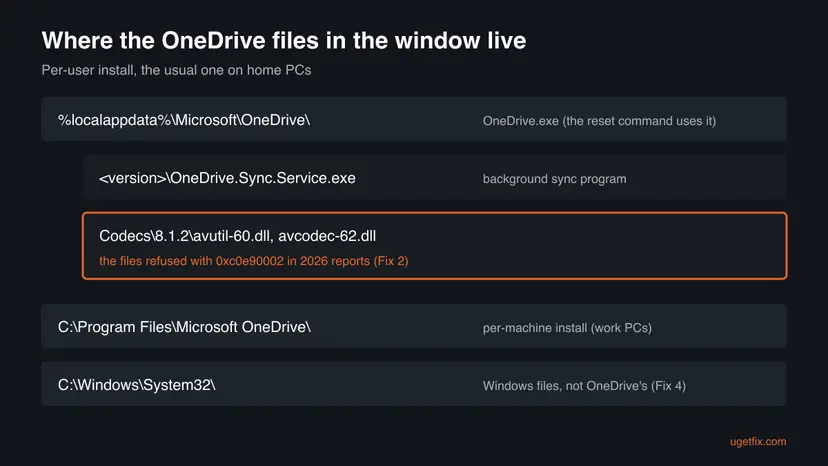
- Two OneDrive apps. Microsoft separates the Microsoft OneDrive sync app, "available for download from the OneDrive website", from the OneDrive app in the Microsoft Store, which "does not backup and sync your files". This window belongs to the sync app.
- Is it a virus? Not by its name. The real files sit in the OneDrive folders above. A OneDrive.exe in
C:\Windows, in Temp or in Downloads would be something else: scan it with How to scan for malware with Microsoft Defender.
What the OneDrive.Sync.Service.exe Bad Image error means
The window says that a OneDrive program asked Windows to load a DLL, and Windows refused. The sentence in the middle is fixed. Microsoft documents it for status 0xC000007B: the file "is either not designed to run on Windows or it contains an error. Try installing the program again using the original installation media or contact your system administrator or the software vendor for support." Windows reuses that text and only changes the code at the end.
The code is what matters. A reader on Microsoft Q&A quoted the 2026 window like this, with the path of the codec DLL and Error status 0xc0e90002:
The window as a reader typed it on Microsoft Q&A (August 2026)
OneDrive.Sync.Service.exe - Bad Image
C:\Users\Owner\AppData\Local\Microsoft\OneDrive\Codecs\8.1.2\avutil-60.dll
is either not designed to run on Windows or it contains an error.
Try installing the program again using the original installation media
or contact your system administrator or the software vendor for support.
Error status 0xc0e90002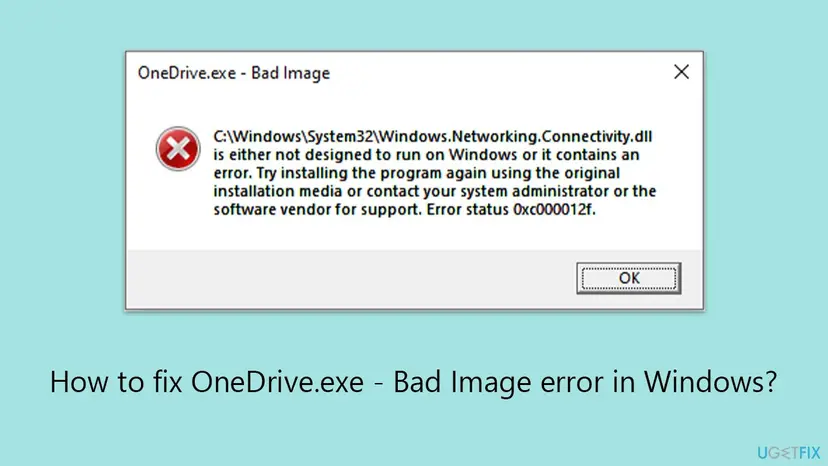
| Status at the end | Microsoft's meaning | What it means for OneDrive |
|---|---|---|
0xc0e90002 | A code integrity policy did not allow the file. Our guide to Bad Image error 0xc0e90002 explains the code in full. | The file may be fine. S mode or Smart App Control does not trust it. This is the 2026 Codecs case. |
0xc000012f | STATUS_INVALID_IMAGE_NOT_MZ: "The specified image file did not have the correct format: it did not have an initial MZ." | The file content is broken. Every program file starts with the letters MZ, and this one does not. |
0xc000007b | STATUS_INVALID_IMAGE_FORMAT, the classic Bad Image text. | A wrong or damaged program file. Treat it like 0xc000012f. |
0xc0000428 | STATUS_INVALID_IMAGE_HASH: "The hash for image %hs cannot be found in the system catalogs. The image is likely corrupt or the victim of tampering." | Usually a damaged Windows file. Fix 4. |
- Spellings people search. OneDrive bad image error, one drive bad image error, onedrive.sync.service.exe bad image, onedrive sync service exe bad image, onedrive sync bad image and onedrive.exe bad image error all mean this window.
- The DLL names.
avutil-60.dllandavcodec-62.dllare names used by FFmpeg, a widely used video and audio library. An independent advisor on Microsoft Q&A called the problem "a recent issue with the codecs OneDrive uses for image and video viewing and playback". Microsoft has not published what OneDrive uses them for.
How to read the OneDrive.exe Bad Image window before you fix it
Take a photo of the window or write down two things before you select OK: the folder in the path and the code after Error status. They decide which fix is yours. The window does not come back on request, so this is the moment to catch it.
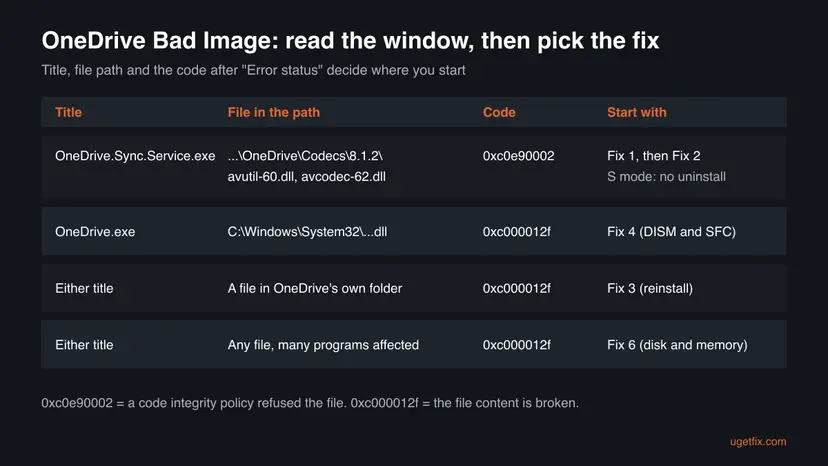
| What the path shows | Whose file it is | Start with |
|---|---|---|
...\AppData\Local\Microsoft\OneDrive\Codecs\<version>\avutil-60.dll or avcodec-62.dll | A codec file OneDrive downloaded for itself. | Fix 1, then Fix 2 |
Another file in AppData\Local\Microsoft\OneDrive or C:\Program Files\Microsoft OneDrive | A file of the OneDrive app. | Fix 3 (not in S mode) |
C:\Windows\System32\... or C:\Windows\SysWOW64\... | A Windows file that OneDrive uses. | Fix 4 |
| A different file every time, or other programs also show Bad Image | Not one bad file, but the disk, the memory or a policy. | Fix 5 and Fix 6 |
Open Settings > System > About and read Edition under Windows specifications. If it ends with in S mode, only Microsoft Store apps can be installed. Uninstalling OneDrive then removes a sync app you cannot get back without leaving S mode. Several readers on Microsoft Q&A learned this the hard way.
What causes the OneDrive sync Bad Image error, from most to least common
Most often, in 2026, OneDrive downloads a codec DLL that S mode or Smart App Control refuses to load. Less often a Windows file that OneDrive needs is damaged. Rarely the OneDrive install itself or the disk is the problem.
| Cause | How often | How to tell | Fix |
|---|---|---|---|
| A code integrity policy refuses a OneDrive codec DLL. | Most often since April 2026 | Path in OneDrive\Codecs, status 0xc0e90002, often an S mode laptop. | Fix 1, Fix 2, then Fix 5 |
| A Windows system file is damaged. | Often in older reports | Path in C:\Windows\System32, status 0xc000012f. | Fix 4 |
| A OneDrive program file is damaged. | Sometimes | Path in a OneDrive version folder, status 0xc000012f. | Fix 3 |
| The disk or the memory corrupts files. | Rarely | Other programs also show Bad Image, or the error returns after a repair. | Fix 6 |
- Why it started "out of nowhere". The first reports we found with an
avutil-60.dllpath date from April 2026 (Codecs\8.0.0.54). A larger wave withCodecs\8.1.2began in early August 2026, with more than 50 people marking "same question" on one Microsoft Q&A thread. OneDrive updates itself, so a new OneDrive build can bring new codec files without you doing anything. We could not confirm the exact build from Microsoft. - Why it comes back daily. Users report that a reset closes the window, but it returns the next day. That fits a file OneDrive downloads or loads again on a schedule. We could not confirm the mechanism.
- Visual C++ and DLL registration. The older version of this page blamed the Visual C++ packages and suggested
regsvr32. Neither of the reported paths points to a Visual C++ file, and registering a DLL does not change its content or its trust. Both methods are gone.
How to fix OneDrive.exe and OneDrive.Sync.Service.exe Bad Image error
Fix 1 and Fix 2 are for the Codecs window with 0xc0e90002, the common case in 2026. They are safe on any PC, S mode included. Fix 3 reinstalls OneDrive on PCs that are not in S mode. Fixes 4 to 6 handle damaged files and come last.
| What you see or what your PC has | Start with |
|---|---|
OneDrive\Codecs\...\avutil-60.dll or avcodec-62.dll, status 0xc0e90002 | Fix 1, then Fix 2 |
| The window came back after Fix 2, PC in S mode | Fix 5, and hide the window until OneDrive updates |
| Another OneDrive file named, PC not in S mode | Fix 3 |
A file in C:\Windows\System32 and status 0xc000012f | Fix 4 |
| Other programs show Bad Image too, or files keep breaking | Fix 6 |
Fix 1. Reset OneDrive to close the window and rebuild its settings
2 to 5 minutesLow riskAny OneDrive Bad Image window, and the first thing to try on a PC in S mode.
A reset stops OneDrive, deletes its settings file and starts it fresh. Microsoft says no files or data are lost. Users with the Codecs window report that the reset ends the current window, which makes it the quickest relief.
- Press Win + R to open the Run box.
- Paste this command and select OK. Wait one or two minutes.
%localappdata%\Microsoft\OneDrive\onedrive.exe /reset - If you see a message that begins with Windows cannot find, use this command instead. If it fails too, try
C:\Program Files (x86)\Microsoft OneDrive\onedrive.exe /reset.C:\Program Files\Microsoft OneDrive\onedrive.exe /reset - If the cloud icon does not come back by itself, select Start, type OneDrive and open the OneDrive app. Sign in if it asks.
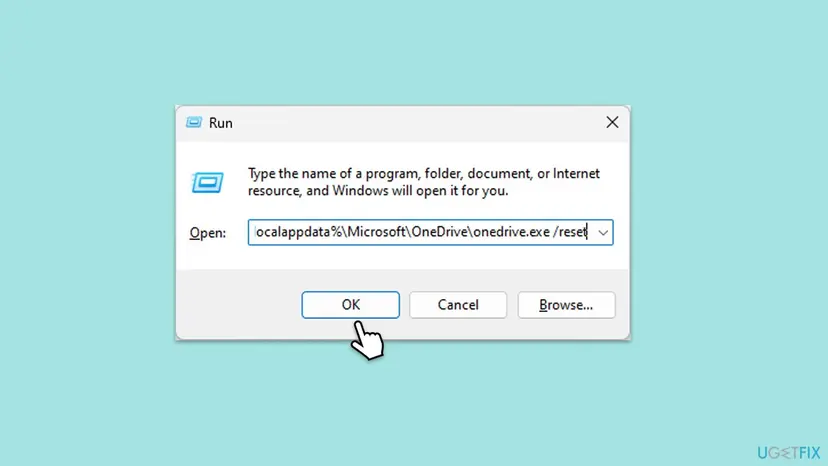
Microsoft's full steps, including the Store cache step it suggests first, are here: How to reset OneDrive in Windows
- What a reset changes. All sync connections are rebuilt and OneDrive does a full sync. If you chose to sync only some folders, Microsoft says you have to choose them again.
- It may be temporary. Readers on Microsoft Q&A report the Codecs window returning the next day. If it does, go on to Fix 2.
It worked if: The Bad Image window closes, the OneDrive cloud icon returns near the clock, and the next sign-in shows no window.
If not: If the window returns with a Codecs path, rename the Codecs folder with Fix 2. If it names a System32 file, go to Fix 4.
Fix 2. Rename the OneDrive Codecs folder so OneDrive builds a new one
5 minutesLow riskThe window names avutil-60.dll, avcodec-62.dll or another file in OneDrive\Codecs. Safe in S mode.
The refused DLL lives in OneDrive's own Codecs folder, not inside Windows. Renaming the folder takes those exact files out of OneDrive's way without uninstalling anything, and an independent advisor on Microsoft Q&A suggested it as the S mode alternative to a reinstall.
- Select the OneDrive cloud icon near the clock, select the gear icon and choose Quit OneDrive. Confirm.
- Press Ctrl + Shift + Esc to open Task Manager. On Details, if
OneDrive.Sync.Service.exeis still listed, select it and choose End task. - Press Win + R, paste this path and select OK. File Explorer opens the OneDrive program folder.
%localappdata%\Microsoft\OneDrive - Select the folder Codecs, press F2, type
Codecs.oldand press Enter. - Restart the PC, sign in, and let OneDrive start by itself.
The same rename in Command Prompt (no administrator rights needed)
ren "%localappdata%\Microsoft\OneDrive\Codecs" Codecs.old- "The action can't be completed because the folder is open". A OneDrive process still holds a file. Repeat step 2, or restart and rename the folder before you open anything else.
- Undo. Quit OneDrive again, delete the new
Codecsfolder if one appeared, and renameCodecs.oldback toCodecs. - After a week without the window, you can delete
Codecs.old.
Microsoft has not documented the Codecs folder. We could not confirm whether OneDrive downloads the same codec version again, or a newer one that the policy accepts. A reader whose window came back daily reported that it stopped by itself after a while, which points to a later OneDrive update. Judge by the window after two or three sign-ins.
It worked if: OneDrive starts and syncs, a new Codecs folder may appear, and no Bad Image window shows at sign-in for several days.
If not: If the window comes back naming the new Codecs folder, the policy refuses the version OneDrive ships. Confirm it with Fix 5 and hide the window until OneDrive updates (see "Stop the window while you wait").
Fix 3. Uninstall and reinstall the OneDrive sync app (not on S mode PCs)
10 to 20 minutes plus the resyncLow riskThe window names a OneDrive program file with 0xc000012f, or Fix 1 and Fix 2 did not help, and the PC is not in S mode.
A reinstall replaces every OneDrive program file with a fresh copy from Microsoft. Renaming the Codecs folder before the new install also removes the downloaded codec files, which is what the Microsoft Q&A advisor recommended.
Microsoft offers the OneDrive sync app only as a download from its website. S mode runs only Microsoft Store apps, and the Store's OneDrive app only views files and does not sync them. Readers on Microsoft Q&A who uninstalled OneDrive in S mode could not install it again.
- Select the OneDrive cloud icon and check that it says your files are up to date, so nothing waits to upload.
- Open Settings > Apps > Installed apps on Windows 11, or Settings > Apps > Apps & features on Windows 10.
- Find Microsoft OneDrive, select the three dots (Windows 11) or the entry (Windows 10), then Uninstall, and confirm.
- Rename the leftover Codecs folder if it is still there.
ren "%localappdata%\Microsoft\OneDrive\Codecs" Codecs.old - Restart the PC.
- Open microsoft.com/microsoft-365/onedrive/download in your browser, download OneDrive and run the file.
- Sign in and pick the same OneDrive folder location as before, so that files already on the PC are not downloaded again.
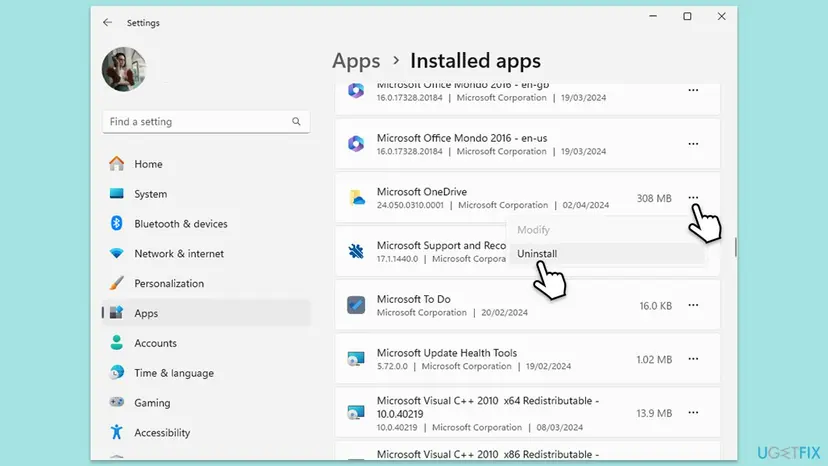
Microsoft states: "You won't lose files or data by uninstalling OneDrive from your computer. You can always access your files by signing in to OneDrive.com." The general way to remove a program: Uninstall a program or app in Windows
It worked if: The new OneDrive signs in, syncs your folders, and the next sign-in to Windows shows no Bad Image window.
If not: If the same window returns on the fresh install, the cause is outside OneDrive: go to Fix 4 for a Windows file, or Fix 5 for 0xc0e90002.
Fix 4. Repair Windows system files with DISM and SFC
20 to 30 minutesNo riskThe window names a file in C:\Windows\System32 or SysWOW64, such as Windows.Networking.Connectivity.dll, with 0xc000012f or 0xc0000428.
Here the broken file is part of Windows, not of OneDrive, so reinstalling OneDrive cannot help. DISM repairs the store of Windows components, and SFC then replaces damaged Windows files from it. On Microsoft Q&A a Windows 10 x64 user reported that DISM followed by SFC solved exactly this OneDrive.exe window.
- Open an elevated command window. Right-click Start and select Terminal (Admin), or type cmd in the search box, right-click Command Prompt and select Run as administrator. Select Yes when Windows asks for permission.

Search for cmd and choose Run as administrator. Screenshot: Windows 11 26H2. - Run DISM first. Type the command below and press Enter. DISM downloads clean copies of damaged components from Windows Update, so it can take several minutes. Wait until it says The operation completed successfully.
DISM.exe /Online /Cleanup-Image /RestoreHealth
DISM /RestoreHealth running. Screenshot: Windows 11 26H2. - Run System File Checker. In the same window, type the command below and press Enter. Do not close the window until the verification reaches 100%.
sfc /scannow
sfc /scannow at 100%. Screenshot: Windows 11 26H2. - Read the result and restart. Compare the last message with the table below this guide, then restart the PC so that repaired files are loaded.

The result line tells you what SFC did. Screenshot: Windows 11 26H2.
These steps were written for Windows 11 24H2 and 25H2. The full page with the other versions and what each result means: Run DISM and SFC to repair Windows system files
Run DISM first, then SFC, then restart. SFC alone can fail when the component store it copies from is damaged too.
It worked if: SFC reports that it found no integrity violations or that it repaired files, and OneDrive starts without the window after a restart.
If not: If SFC cannot repair the file, or the same file breaks again later, check the disk and memory with Fix 6.
Fix 5. Find out which policy refused the OneDrive file
5 minutesNo riskStatus 0xc0e90002 stays after Fix 1 and Fix 2, and you want to know whether S mode, Smart App Control or a work policy is behind it.
Status 0xc0e90002 always comes from a code integrity policy, and Windows writes every block into its CodeIntegrity log with the file and the policy. Knowing the policy tells you whether anything on the PC can change, or whether you are waiting for Microsoft.
- Right-click Start and select Event Viewer.
- Open Applications and Services Logs > Microsoft > Windows > CodeIntegrity > Operational.
- Look for event 3077 at the time the window appeared. Microsoft calls it "the main App Control block event for enforced policies".
- Read the file name in the event (it should be the DLL from the window) and the policy name in its details.
- Open Windows Security > App & browser control > Smart App Control settings and note whether it is On, Evaluation or Off.
| What you find | What it means | What to do |
|---|---|---|
| Edition ends with in S mode | S mode refused the codec DLL. | Keep Fix 1 and Fix 2, hide the window, wait for a OneDrive update. |
| Smart App Control is On | Smart App Control refused it. | Microsoft: "There is currently no way to bypass Smart App Control protection for individual apps." Same as above. |
| A policy with an unfamiliar name, on a work PC | Your organization's App Control policy. | Send the event to your IT department. |
- OneDrive's version. Select the cloud icon, the gear icon, Settings, then About. Note the version for a report and check it again later: OneDrive updates itself.
- Report it to Microsoft. Press Win + F to open the Feedback Hub, describe the window, and attach the photo and the 3077 event. Reports with the codec path help Microsoft see how many PCs are affected.
It worked if: You see a 3077 event for the codec DLL and know which policy blocked it.
If not: If no 3077 event exists and the status is 0xc000012f, the file is damaged rather than refused: go back to Fix 3 or Fix 4.
Fix 6. Check the disk and the memory when files keep breaking
30 minutes to several hoursLow riskOther programs also show Bad Image, or the same OneDrive or Windows file is damaged again after a repair.
Status 0xc000012f says a file's content is wrong. One damaged file after a power cut happens. Files that keep breaking point to a disk or memory that corrupts what Windows writes.
- Back up the files you cannot lose first, because a failing disk can get worse: Back up your files (Windows Backup, File History, Time Machine)
- Check drive C: with chkdsk, read-only first, then with repair if it finds errors: Check a disk for errors (chkdsk)
- Test the memory with Windows Memory Diagnostic: How to test your RAM with Windows Memory Diagnostic
- When both checks are clean or repaired, repeat Fix 3 or Fix 4 to put good files back.
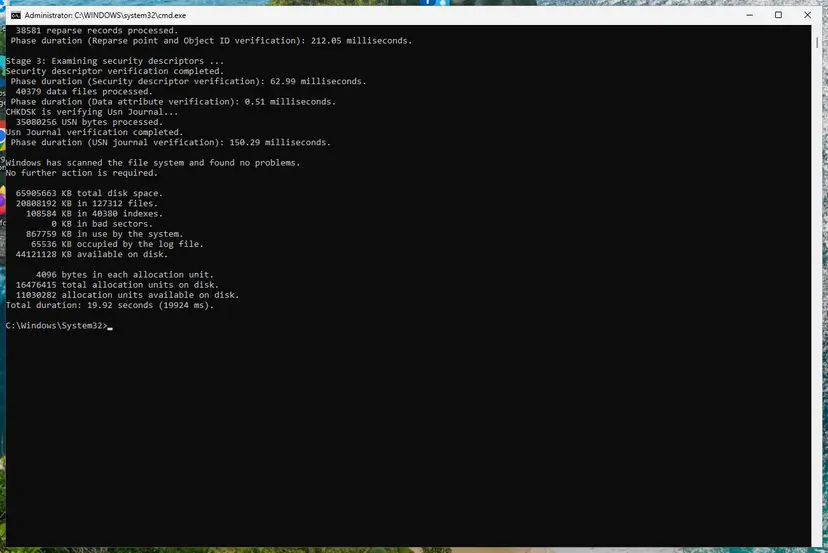
It worked if: chkdsk finds no problems or fixes them, the memory test reports no errors, and the repaired files stay good.
If not: If chkdsk reports bad sectors or the memory test finds errors, the hardware needs attention before any software fix lasts. See "If the OneDrive Bad Image window is still there".
Stop the OneDrive window while you wait for a fix
If the Codecs window survives Fix 1 and Fix 2 on an S mode PC, you can keep OneDrive from starting at sign-in. The window then stops, but so does syncing. Files already in the cloud stay safe on OneDrive.com, and Microsoft's OneDrive app in the Store can still show them.
- Open Settings > Apps > Startup.
- Set Microsoft OneDrive to Off.
- When you want to sync, open OneDrive from Start by hand. Turn the startup switch back on when an update has ended the window.
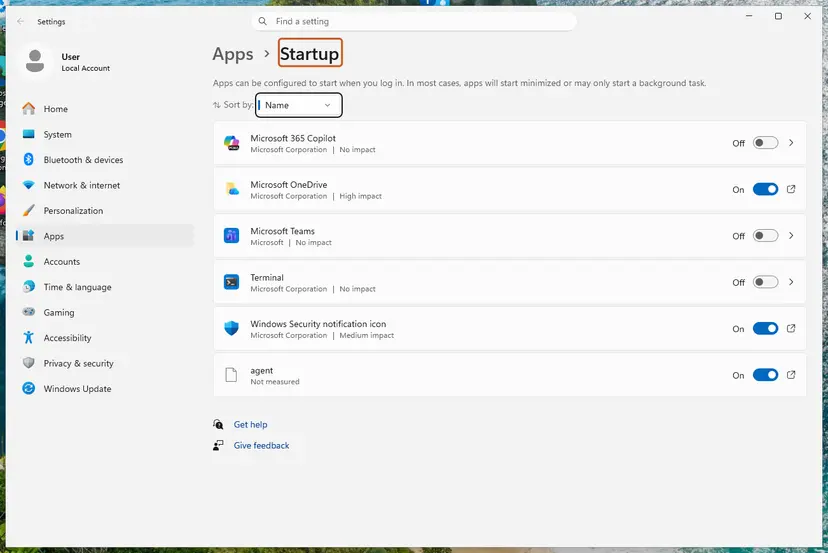
All the ways to stop a startup app: Stop apps from opening at startup
If the OneDrive Bad Image window is still there
Stop changing things and collect what Microsoft support needs. Three facts decide the next step: the exact path, the status code, and whether other programs show Bad Image too.
- Take a photo of the window with the full path and the status visible.
- Note the OneDrive version from Settings > About in OneDrive, and the Windows version from
winver(press Win + R, typewinver). - Note the edition from Settings > System > About, including in S mode if it is there.
- Export the 3077 event from the CodeIntegrity log (Fix 5) or any Application log error that names OneDrive.
- Send it through the Feedback Hub (Win + F) or to Microsoft support from the OneDrive help menu.
| What you see | What it points to |
|---|---|
| chkdsk found bad sectors, or the memory test reports errors | Hardware. Fix it first, then Fix 3 or Fix 4. |
| Many programs show 0xc000012f | Disk, memory or a damaged Windows. Fix 6, then Fix 4. |
| Only the OneDrive codec DLL, status 0xc0e90002 | A policy decision, not a broken PC. It needs a OneDrive update. |
| A work or school PC | Your administrator. OneDrive and App Control may be managed centrally. |
Microsoft has no public article about the OneDrive Codecs window. What we know comes from the status code, Microsoft's documentation of S mode and Smart App Control, and the reports of users and independent advisors on Microsoft Q&A.
How to keep the OneDrive Bad Image window from coming back
You cannot control which files OneDrive downloads. You can keep Windows healthy, keep the policy that protects you, and avoid the steps that turn a nuisance into a lost sync app.
- Let Windows and OneDrive update, and restart when Windows asks.
- Check whether the PC is in S mode before you uninstall anything.
- Shut down from Start, not with the power button, so files are written completely.
- Act early on chkdsk or SMART warnings about the disk.
- Turn OneDrive's startup switch back on once the window is gone.
- Do not uninstall OneDrive on an S mode PC.
- Do not download avutil-60.dll or avcodec-62.dll from a DLL website.
- Do not switch out of S mode or turn off Smart App Control only to silence this window.
- Do not delete the whole OneDrive folder in AppData to make the window go away.
- Do not run registry cleaners on OneDrive entries.
Frequently asked questions
What is OneDrive.Sync.Service.exe?
OneDrive.Sync.Service.exe is the Microsoft OneDrive Sync Service, a background program of the OneDrive sync app. It sits in a folder named after the OneDrive version, under C:\Users\<your name>\AppData\Local\Microsoft\OneDrive, and keeps the files on your PC and in your OneDrive account the same. It is signed by Microsoft and starts with OneDrive when you sign in. You can stop it only by stopping OneDrive itself, for example by quitting the app or turning off its startup entry. A file with this name in C:\Windows or in a Temp folder would not be the real one.
Is it safe to keep using my laptop for banking with this error?
The window itself is not a sign of infection. With status 0xc0e90002 it means the opposite: a Windows protection, usually S mode or Smart App Control, checked a OneDrive file and refused to load it. Your browser, your bank's site and Microsoft Defender are not involved. The window is a nuisance, not a hole. If you want certainty, run a quick scan in Windows Security. If the window names a file outside the OneDrive and Windows folders, scan the PC fully before you sign in to anything important.
Why did the OneDrive Bad Image error suddenly start?
OneDrive updates itself in the background. Reports on Microsoft Q&A show the Codecs window first in April 2026 and in a large wave from early August 2026, with avutil-60.dll or avcodec-62.dll in a new Codecs version folder. That timing fits a OneDrive update that brought new codec files, which the policy on S mode PCs does not trust. We could not confirm the build from Microsoft, which has not listed the issue. For the older OneDrive.exe window with a System32 file, the usual trigger is a Windows file damaged by an interrupted update or a disk problem.
Will I lose my files if I reset or uninstall OneDrive?
No. Microsoft states that you won't lose files or data by resetting OneDrive, and the same for uninstalling it: you can always reach your files by signing in to OneDrive.com. A reset only rebuilds the sync connections and runs a full sync. Two cautions. If you chose to sync only some folders, you must choose them again after a reset. And before you uninstall, check the cloud icon says your files are up to date, so that nothing that exists only on this PC is waiting to upload.
Why can't I reinstall OneDrive in S mode?
Because Microsoft offers the OneDrive sync app only as a download from its website, and Windows in S mode runs only apps from the Microsoft Store. The OneDrive app in the Store is a different app: Microsoft says it lets you view your OneDrive but does not back up and sync your files. Readers on Microsoft Q&A who uninstalled OneDrive on S mode laptops found exactly that. If it already happened, you can still use OneDrive.com in the browser and the Store app to see your files. Getting the sync app back requires leaving S mode, which is permanent.
Should I switch out of S mode or turn off Smart App Control to stop it?
Not for this window alone. Microsoft says switching out of S mode is one-way: you won't be able to switch back. Smart App Control can now be turned on again after recent Windows updates, but while it is off, it does not block untrusted apps anywhere on the PC. Both trade real protection for silence. Try Fix 1 and Fix 2, stop OneDrive from starting at sign-in if needed, and give a OneDrive update time. Leave S mode only if you need desktop apps for other reasons anyway.
Does reinstalling Visual C++ fix the OneDrive Bad Image error?
We found no case where it did, and the older version of this page was wrong to suggest it. The window always names the file that failed. In the 2026 reports that file is a codec DLL in OneDrive's own Codecs folder, refused by a policy. In older reports it is a Windows file in System32. Neither is part of a Visual C++ package. Reinstalling Visual C++ helps only when the window names a file such as msvcp140.dll or vcruntime140.dll, and then the steps are here: How to repair Microsoft Visual C++ Redistributable and .NET Framework
What does error status 0xc000012f mean in the OneDrive window?
It is the Windows status STATUS_INVALID_IMAGE_NOT_MZ. Microsoft's text: the specified image file did not have the correct format, it did not have an initial MZ. Every Windows program file starts with the letters MZ, so a file without them is broken, often emptied or overwritten after a cut-off update or a disk fault. Re-registering the file cannot repair that. Replace it: with DISM and SFC when the file is in System32 (Fix 4), or with a reinstall when it belongs to OneDrive (Fix 3).
The window says 正しくないイメージ or imagen incorrecta. Is it the same error?
Yes. Windows translates the title of the Bad Image window into the language of the PC. OneDrive.exe 正しくないイメージ in Japanese and OneDrive.exe imagen incorrecta in Spanish are the same window as OneDrive.exe - Bad Image in English. The file path and the code after the status are not translated, so read those two and follow the same fixes on this page. The menu names in Settings will be in your language, but the commands and paths in the code boxes stay exactly the same.
Can I just disable OneDrive if I do not use it?
Yes. If you keep your files elsewhere, turn off Microsoft OneDrive in Settings, Apps, Startup, and the window stops because OneDrive no longer starts. On a PC that is not in S mode you can also uninstall it, and Microsoft says no files are lost, since they remain on OneDrive.com. On an S mode PC, prefer the startup switch over uninstalling, because you cannot reinstall the sync app there. Remember that folders you backed up with OneDrive, such as Desktop or Documents, stop being backed up while it is off.
Sources
- Microsoft Support: Reset OneDrive (commands, paths, no data loss) (support.microsoft.com)
- Microsoft Support: Reinstall OneDrive (sync app from the website, Store app does not sync) (support.microsoft.com)
- Microsoft Support: Turn off, disable, or uninstall OneDrive (support.microsoft.com)
Did this fix work?
One click, no account. It tells the next reader which guides are worth their time.
Questions and experiences: fix OneDrive.exe - Bad Image error in Windows
Still broken, or found a fix we did not cover? Ask here: members and our editors answer. Reading is open; writing needs a free account.
…