
How to uninstall Opera Stable, and should you remove it?

Prefer to fix it yourself? The manual steps follow.
6 methods in this guide
Hello guys. Recently I installed the Opera Stable browser on my machine because I saw an advertisement on a website. I was using Google Chrome for years before; it was installed by a savvy friend of mine. I do not know much about browsers, but Opera is my default one, although I would prefer going back to Chrome. Please, could you help me?
Opera Stable is simply the name Windows shows for the regular Opera web browser from Opera Software. It is not a virus and Windows does not need it, so you can remove it safely. Set another default browser first, then uninstall Opera Stable in Settings and decide whether to tick Delete my Opera user data.
Opera Stable is the release version of the Opera browser, safe to keep and safe to remove. First make Chrome or Edge your default browser in Settings > Apps > Default apps. Then close Opera, open Settings > Apps > Installed apps, select More > Uninstall next to Opera Stable, and tick Delete my Opera user data only if you do not want your bookmarks and passwords back. Restart and delete any leftover Opera folders.
| Program | Opera Stable: the regular, non-beta release of the Opera web browser for Windows and macOS. Opera GX Stable is a separate browser with its own entry. |
|---|---|
| Publisher | Opera Software (the name in the Publisher column of Programs and Features). The help link in the entry points to help.opera.com. |
| Safe to remove | Yes. It is not a virus and no part of Windows uses it. You lose Opera's bookmarks, passwords and history unless you back them up or sync them. |
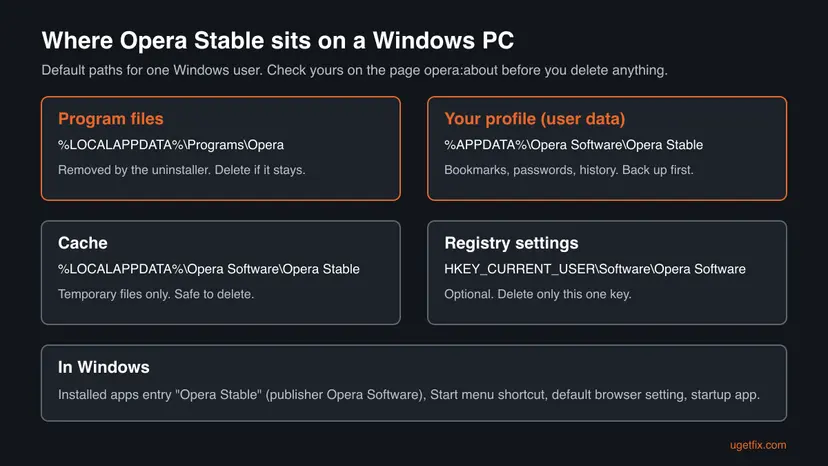
| Leaves behind | Often the profile folder %APPDATA%\Opera Software\Opera Stable, the cache in %LOCALAPPDATA%\Opera Software, and the registry key HKEY_CURRENT_USER\Software\Opera Software. |
| Official removal tool | None. Opera's own uninstaller runs from Installed apps, and its window has the option Delete my Opera user data. |
| What stops working | Links and HTML files that opened in Opera, Opera's built-in VPN, ad blocker and sidebar messengers. |
| Needs a restart | Not required. We advise one before you delete the leftover folders. |
| Time | 10 to 15 minutes, most of it the backup. |
| Per user | Opera installs into each Windows user's own AppData folder, so every account that installed it has its own copy to remove. |
Facts checked on 15 October 2026. Steps written for Windows 11 (25H2 and 26H2) and Windows 10 22H2, read against Opera Help and Microsoft Support.
What Opera Stable is and whether you should remove it
Opera Stable is the Opera web browser. Opera publishes test builds called beta and developer, and the finished build that most people get from opera.com is labelled Stable. That is why the apps list, Task Manager and the profile folder all say Opera Stable instead of just Opera.
It is built on Chromium, the same open source base as Google Chrome and Microsoft Edge, and it adds its own ad blocker, a browser VPN and messengers in a sidebar. None of it is needed by Windows or by your other programs.
| What you see | What it is | Where |
|---|---|---|
| Opera Stable in Installed apps or Programs and Features. | The Opera browser itself, publisher Opera Software. | Settings > Apps > Installed apps. |
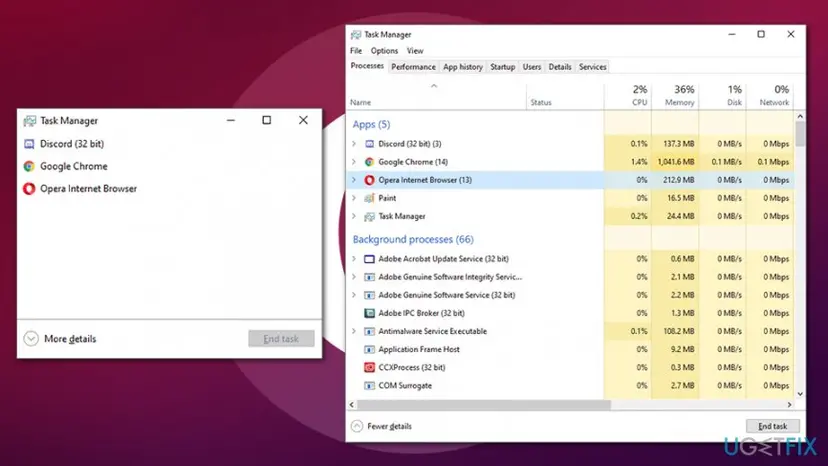
| Opera Internet Browser in Task Manager. | The running browser, often with many child processes, one per tab or extension. | Task Manager > Processes. |
| Opera GX Stable. | Opera GX, the gaming edition. A separate browser with its own entry and its own profile. | Installed apps, next to Opera Stable. |
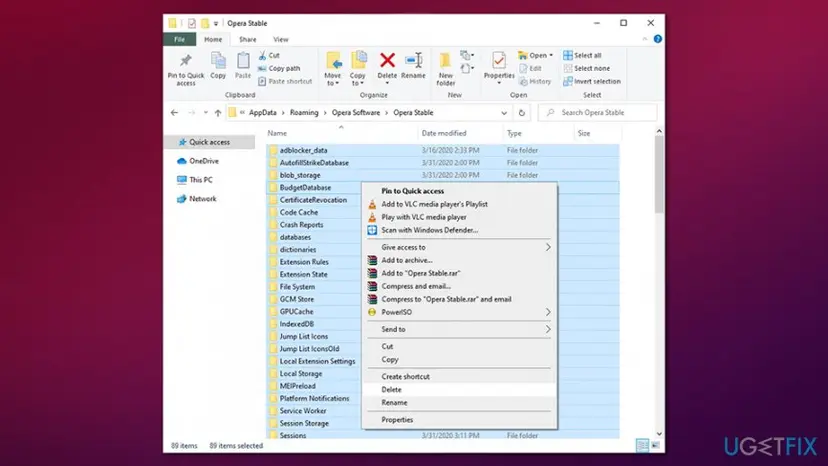
| Folder Opera Stable in AppData. | Your Opera profile: bookmarks, saved passwords, history, extensions. | %APPDATA%\Opera Software\Opera Stable. |
Opera Stable is a legitimate browser, not malware. Remove it if you do not use it or if you want another browser as your default. Windows, your files and your other browsers are not affected.
If you do not remember installing Opera, open Control Panel > Programs > Programs and Features and read the Installed On date next to Opera Stable. A date that matches another program's installation usually means Opera came as an offer inside that setup.
Before you start: what you lose and how to keep it
Opera's uninstaller asks one question. With Delete my Opera user data ticked, it removes your profile too. Left unticked, the profile stays on the disk and a later Opera installation picks it up again.
| Data | File in the profile folder | How to keep it |
|---|---|---|
| Bookmarks. | Bookmarks and BookmarksExtras. | Import them into Chrome or Edge, or copy the files. |
| Saved passwords. | Login Data, encrypted and readable only on this PC. | Import into another browser, or sign in to Opera sync. |
| History and open tabs. | History and Current Session. | Copy the files if you plan to come back to Opera. |
| Extensions and their data. | Folders Extensions and Local Extension Settings. | Install the same extensions in the new browser. |
| Settings. | Preferences and Local State. | Copy the files. Only Opera can use them. |
To find the exact profile path on your PC, type opera:about in Opera's address bar. Opera Help names this page as the place that shows your profile and data folders.
You do not need an administrator account, because Opera installs per user. Windows 10 left support on 14 October 2025: the steps below still work there, and the differences are noted.
How to uninstall Opera Stable completely, step by step
Do the steps in order. If Opera Stable is missing from the list of apps or the uninstaller fails, go to the section "Opera Stable will not uninstall" below.
Step 1. Save your bookmarks and passwords from Opera
5 minutesNo riskYou have bookmarks or saved passwords in Opera that you want in your next browser.
Once Opera's profile is deleted, its bookmarks and passwords are gone. Chrome and Edge can import them directly from Opera, but only while Opera is still installed.
- Open Chrome, or the browser you are moving to.
- In Chrome, open the menu (three dots) and select Bookmarks and lists > Import bookmarks and settings.
- Choose Opera in the list if it is offered, tick what you want, and select Import.
- If Opera is not offered, open Opera, type
opera:aboutin the address bar and note the Profile path. - Close Opera and copy the files
BookmarksandLogin Datafrom that folder to Documents or another drive.
If you signed in to Opera sync, your synced bookmarks and passwords stay in your Opera account. Opera notes that signing out does not remove data from the browser, so sign out only after you have what you need.
It worked if: Your bookmarks show in the new browser, or the copied files are in a folder outside AppData.
If not: Keep the profile: in Step 4, leave Delete my Opera user data unticked. The folder stays on the disk and you can copy from it later.
Step 2. Make Chrome or Edge your default browser first
2 minutesNo riskOpera is your default browser, as in the reader's question above.
If the default browser is removed first, Windows asks which app to use every time you click a link. Choosing the new default before the uninstall avoids that and is the way back to Chrome.
- Press Win + I to open Settings.
- Select Apps > Default apps.
- Under Set defaults for applications, select Google Chrome (or Microsoft Edge).
- Next to Make Google Chrome your default browser, select Set default.
- On Windows 10, open Default apps, select the browser under Web browser and pick Chrome.
It worked if: A link in an email or document opens in Chrome or Edge, not in Opera.
If not: Open Chrome itself, go to Settings > Default browser and select Make default. It opens the same Windows page.
Step 3. Close Opera and every Opera process
2 minutesNo riskEveryone, before the uninstall starts.
Opera runs many processes, and some keep running after the last window closes. A running process locks files in its folder, and the uninstaller then stops or leaves them behind.
- Close every Opera window.
- Press Ctrl + Shift + Esc to open Task Manager. On Windows 10, click More details if you see the small view.
- On Processes, select Opera Internet Browser and click End task.
- Repeat for any other entry with Opera in its name, such as the Opera auto-updater.
More ways to close a program that will not quit: Close a frozen app (Task Manager, Force Quit).
It worked if: Task Manager shows no process with Opera in its name.
If not: Restart the PC, do not open Opera, and go on with Step 4.
Step 4. Uninstall Opera Stable in Windows Settings
3 minutesRead the warningOpera Stable is in the list of installed apps.
This starts Opera's own uninstaller, the way Microsoft recommends for any desktop program. Only this uninstaller offers to delete the user data as well, which is the cleanest way to remove Opera completely.
With Delete my Opera user data ticked, your Opera bookmarks, passwords, history and extensions are deleted. Finish Step 1 first if you want any of it.
- Select Start > Settings > Apps > Installed apps. On Windows 10 the page is Apps & features.
- Type
Operain the search box above the list. - On Windows 11, select More (three dots) next to Opera Stable, then Uninstall. On Windows 10, select the entry, then Uninstall.
- Click Yes if Windows asks for permission.
- In Opera's window, tick Delete my Opera user data for a complete removal, or leave it unticked to keep the profile.
- Click Uninstall and wait until the window closes. A feedback page from Opera may open in your browser: you can close it.
- If you also have Opera GX Stable, repeat these steps for it.

If the entry cannot be removed in Settings, Microsoft's fallback is Control Panel: open Control Panel > Programs > Programs and Features, right-click Opera Stable and select Uninstall.
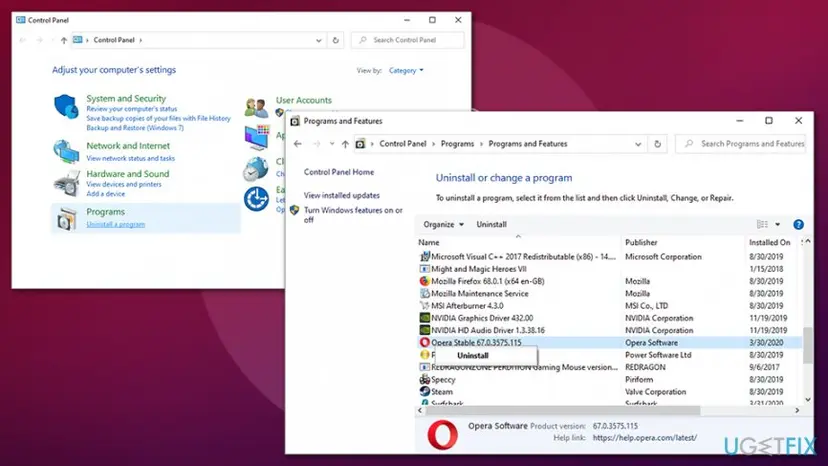
Pictures of every Windows uninstall screen: Uninstall a program or app in Windows.
It worked if: A search for Opera in Installed apps returns nothing, and the Opera shortcut is gone from the Start menu.
If not: Do not run the same uninstall many times. Go to "Opera Stable will not uninstall" below and find what you see.
Step 5. Delete the leftover Opera folders
3 minutesRead the warningYou want no trace of Opera, or you left the user data box unticked and no longer need it.
Opera keeps the profile and the cache in two different AppData folders. If the user data box was unticked, or a file was locked, they stay on the disk.
The Opera Stable folder in Roaming is your profile. Deleting it removes bookmarks and saved passwords for good. Copy what you need first.
- Press Win + R, type
%APPDATA%\Opera Softwareand press Enter. - Delete the folder
Opera Stable(andOpera GX Stableif you removed Opera GX too). - Press Win + R, type
%LOCALAPPDATA%\Opera Softwareand press Enter. Delete theOpera Stablecache folder. - Press Win + R, type
%LOCALAPPDATA%\Programsand press Enter. Delete theOperafolder if it is still there. - Empty the Recycle Bin.
If Startup apps still lists an Opera entry, turn it off: Stop apps from opening at startup.
It worked if: None of the three Opera folders exists any more.
If not: If a folder will not delete, restart, then delete it before you open anything else.
Step 6. Restart and confirm Opera is gone
3 minutesNo riskEveryone, at the very end.
A restart ends anything Opera left running and releases locked files. Only after it can you trust the checks below.
- Select Start > Power > Restart.
- Open Settings > Apps > Installed apps and search for
Opera. - Click a link in an email or a document and check that it opens in your new default browser.
- Go through the table in "How to confirm Opera Stable is gone" below.
It worked if: No Opera entry, process or folder is found, and links open in Chrome or Edge.
If not: Repeat Step 5 after the restart. If the apps entry is still there, see the section below.
What Opera Stable leaves behind and where to find it
These are the default places for one Windows user. Each user account that installed Opera has its own set.
| Where | What it is | Delete it? |
|---|---|---|
Folder %LOCALAPPDATA%\Programs\Opera. | The program files of Opera Stable. | Yes, if the uninstaller left it. |
Folder %APPDATA%\Opera Software\Opera Stable. | Your profile: bookmarks, passwords, history, extensions, settings. | Yes, after you saved what you need. |
Folder %LOCALAPPDATA%\Opera Software\Opera Stable. | The cache: temporary copies of web pages and images. | Yes. Nothing in it is needed. |
Folder Opera GX Stable in the same two places. | Profile and cache of Opera GX. | Only if you removed Opera GX too. |
Registry key HKEY_CURRENT_USER\Software\Opera Software. | Opera's settings for your user, seen in our earlier screenshot of the Registry Editor. | Optional. It starts nothing on its own. |
| Startup apps entry with Opera in its name. | A helper that starts with Windows. We could not confirm its exact name. | Turn it off in Settings > Apps > Startup. |
| Scheduled tasks for Opera updates. | We could not confirm their names from an Opera source. | Leave them to the uninstaller. Do not hunt for them by hand. |
If you want to clear the registry key, do it only after Step 6, and only this one key. Back up the registry first: Back up the registry before editing it.
- Press Win + R, type
regeditand press Enter. Click Yes in the User Account Control prompt. - Go to
HKEY_CURRENT_USER\Software\Opera Software. - Right-click Opera Software and select Delete, then Yes.
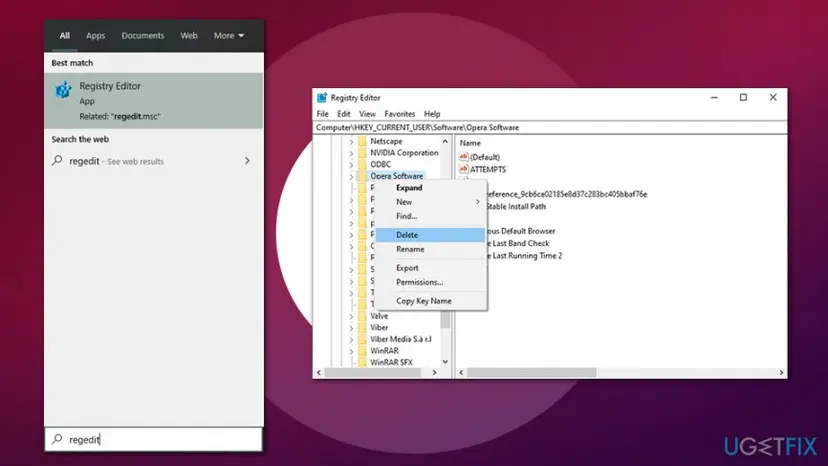
The old advice to search the whole registry for the word Opera and delete every hit is risky: other programs mention Opera in their own keys. A settings key that stays behind does nothing.
Opera Stable will not uninstall: each failure and its way out
| What you see | Likely cause | Way out |
|---|---|---|
| Opera Stable is not in Installed apps, but Opera still opens. | The entry is missing, or Opera was installed under another Windows user. | Try Start > All apps, right-click Opera, Uninstall. Then sign in as the other user and uninstall there. |
| The uninstaller starts and then stops or freezes. | An Opera process is still running and holds a file. | Do Step 3, or restart without opening Opera, and try again. |
| Opera comes back after the uninstall. | The profile was kept, or a second copy exists for another user or as Opera GX. | Delete the folders in Step 5 and check every user account and entry. |
| The entry stays in the list after a successful uninstall. | The list was not refreshed, or the entry is broken. | Restart. If it stays, install Opera again from opera.com and uninstall it at once. |
| Windows shows an error when you uninstall. | A broken installation or uninstall record. | Use Microsoft's troubleshooter below, then repeat Step 4. |
Installing Opera again over a broken copy repairs its uninstall entry, and the fresh uninstaller then removes it properly. Download only from opera.com.
- Windows 10 reports an uninstall error. Microsoft points to its Program Install and Uninstall Troubleshooter from the page Uninstall or remove apps and programs in Windows.
- A folder is still locked after a restart. Start Windows in Safe Mode, where Opera does not load, and delete it there: Start Windows or a Mac in Safe Mode.
- You think it is not the real Opera. If the entry's publisher is not Opera Software, scan the PC with Windows Security before anything else.
How to confirm Opera Stable is gone
| Check | How | Clean result |
|---|---|---|
| Apps list. | Settings > Apps > Installed apps, search Opera. | No Opera Stable or Opera GX Stable entry. |
| Processes. | Task Manager > Processes. | No Opera Internet Browser. |
| Folders. | Open %APPDATA%\Opera Software and %LOCALAPPDATA%\Programs\Opera with Win + R. | Windows says it cannot find them. |
| Default browser. | Settings > Apps > Default apps. | Your new browser is the default. |
| Command. | Run winget list --name Opera in Terminal. | No installed package found. |
winget list --name OperaHow to uninstall Opera on a Mac
On macOS there is no uninstaller and no user data box. You quit Opera, move the app to the Trash and then remove its folders in your Library.
- Open Applications > Utilities > Activity Monitor.
- Select each process named Opera, Opera Helper or opera_autoupdate and click Force Quit (the X button).
- Open Applications, right-click Opera and select Move to Trash.
- In Finder, select Go > Go to Folder, type
~/Library/Application Supportand delete the foldercom.operasoftware.Operaif you do not need your profile. - Check
~/Library/Cachesand~/Library/Preferencesthe same way for items starting withcom.operasoftware.Opera. - Empty the Trash.
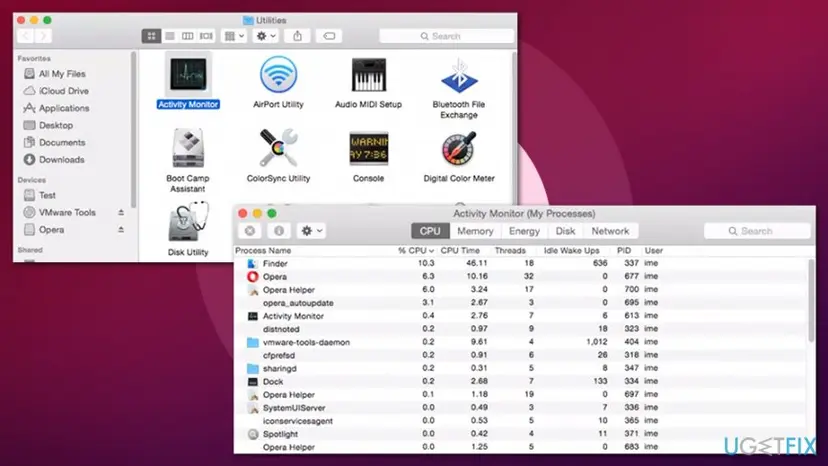
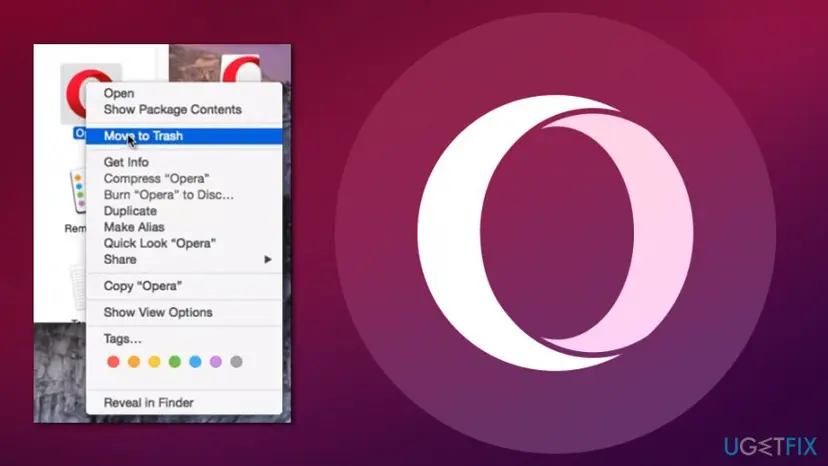
We could not confirm the Mac folder names from an Opera source for this page. Open the page opera:about in Opera before you remove it: it shows the exact profile path on your Mac.
Frequently asked questions
Is Opera Stable a virus?
No. Opera Stable is the release version of the Opera web browser, published by Opera Software, and Stable only means it is not a beta. It shows up as Opera Stable in the apps list and as Opera Internet Browser in Task Manager. Security tools do not treat the genuine browser as malware. If you see an entry with that name whose publisher is not Opera Software, or a browser that keeps opening ads you did not ask for, scan the PC with Windows Security, because that is a different problem from the browser itself.
Opera Stable: should I remove it?
Remove it if you do not use it, and keep it if you do. Windows and your other programs do not depend on Opera, so nothing breaks except Opera itself. Before you remove it, set another default browser and save the bookmarks and passwords you want, because the option Delete my Opera user data erases them. If Opera is installed but you never open it, it still updates itself and may start with Windows, which is a fair reason to uninstall it.
What is Opera Stable on my computer?
It is the Opera web browser, installed for your Windows user account. The word Stable is the name of Opera's release channel, next to the beta and developer test builds. If you did not install it on purpose, check the Installed On date in Programs and Features. It often matches the day you installed another free program that offered Opera during its setup. It can also be the day you followed an advertisement, as in the reader's question at the top of this page.
What is the difference between Opera Stable and Opera GX Stable?
They are two separate browsers from the same company. Opera Stable is the regular Opera browser. Opera GX Stable is the gaming edition, with its own look and limits for memory and network use. Each has its own entry in Installed apps and its own profile folder, Opera Stable or Opera GX Stable under %APPDATA%\Opera Software. Uninstalling one leaves the other in place, so remove both if you want no Opera at all.
Will uninstalling Opera delete my bookmarks and passwords?
Only if you tick Delete my Opera user data in the uninstall window. Left unticked, the profile folder stays in %APPDATA%\Opera Software\Opera Stable, and installing Opera again brings your bookmarks, passwords and history back. Saved passwords are encrypted for this PC, so the Login Data file is not readable on another computer. The safest way to keep them is to import them into Chrome or Edge before the uninstall, or to sync them to an Opera account.
How do I make Chrome my default browser again?
Open Settings with Win + I and select Apps > Default apps. Under Set defaults for applications, select Google Chrome, then select Set default next to Make Google Chrome your default browser. On Windows 10, the Default apps page has a Web browser entry where you pick Chrome. Do this before you uninstall Opera, so that links do not ask which app to open. Chrome also has its own button under Settings > Default browser that opens the same Windows page.
Opera Stable is not uninstalling. What should I do?
First make sure Opera is not running: end every Opera process in Task Manager or restart without opening Opera. Then uninstall from Settings > Apps > Installed apps, and if that fails, from Control Panel > Programs and Features. If the entry is missing or broken, install Opera again from opera.com and uninstall it straight away, which writes a fresh uninstaller. Also check other Windows user accounts and Opera GX, because each one is a separate copy that keeps Opera on the PC.
Do I need to delete Opera from the registry?
No. The uninstaller and the folder cleanup in Step 5 are enough, and a settings key left in the registry does not start anything. If you want it gone anyway, delete only the key HKEY_CURRENT_USER\Software\Opera Software after a registry backup. Do not search the registry for the word Opera and delete every result: other programs can mention Opera in their own keys, and removing those can break them.
How do I uninstall Opera on a Mac?
Quit Opera and its helper processes in Activity Monitor, then open Applications, right-click Opera and select Move to Trash. That removes the app. Your profile stays in your user Library, so if you want it gone too, remove the Opera folders under Application Support, Caches and Preferences, then empty the Trash. Opera on a Mac has no Delete my Opera user data option, which is why the folders are cleared by hand. The section on a Mac above has the steps.
Can I reinstall Opera later and get my data back?
Yes, as long as the profile was kept. If you left Delete my Opera user data unticked, or copied the profile folder somewhere safe, a new Opera from opera.com finds the same folder and your bookmarks, history and passwords return. If you used Opera sync, signing in to your Opera account brings the synced data back on any PC. If you deleted the profile and had no sync, the data cannot be restored by Opera.
Sources
- Opera Help: Crashes and issues (back up your Opera files, profile path at opera:about, clean install) (help.opera.com)
- Microsoft Support: Uninstall or remove apps and programs in Windows (support.microsoft.com)
- Microsoft Support: Change default apps in Windows (support.microsoft.com)
Did this fix work?
One click, no account. It tells the next reader which guides are worth their time.
Questions and experiences: uninstall Opera Stable, and should you remove it
Still broken, or found a fix we did not cover? Ask here: members and our editors answer. Reading is open; writing needs a free account.
…