
What is Web Indexing Service (Bright Data) and how to uninstall it in Windows

Prefer to fix it yourself? The manual steps follow.
6 methods in this guide
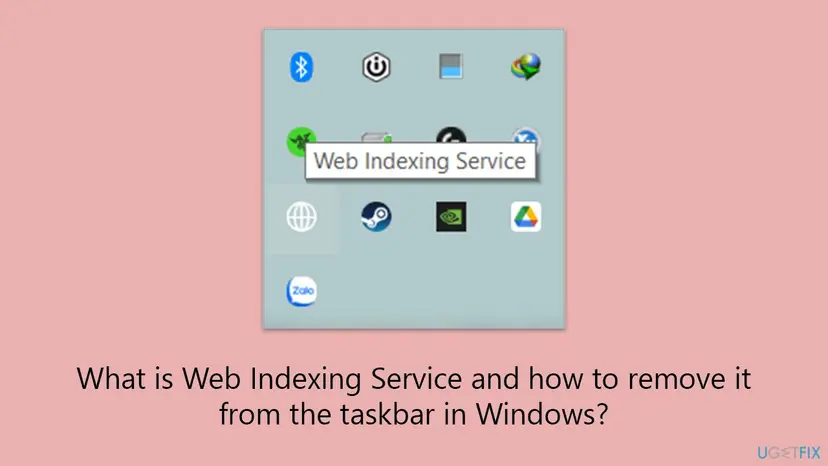
Recently I started seeing a strange icon on my taskbar. When I hover over it with the mouse, it says "Web Indexing Service". The icon looks like a globe. What is Web Indexing Service and how do I remove it?
Web Indexing Service is the globe icon of Bright SDK, a part from Bright Data that a free app such as FormatFactory adds after you accept its offer. It uses your internet connection to download public web pages for Bright Data, and Windows does not need it. Turn it off in the app's settings, or uninstall the app that brought it.
Web Indexing Service is Bright SDK from Bright Data, built into a free app you installed. It is not a Windows part and is safe to remove. To keep the app, open its settings and turn the option off: in FormatFactory that is Option > Advanced > share device resources (brightdata.com). To remove it completely, right-click the globe icon, select Exit, then uninstall the app in Settings > Apps > Installed apps and restart.
| Program | Bright SDK for Windows, shown as the globe icon "Web Indexing Service" in the notification area near the clock. |
|---|---|
| Publisher | Bright Data Ltd. The SDK is built into other apps. FormatFactory shows it as "share device resources (brightdata.com)". |
| Safe to remove | Yes. Windows does not use it. You may lose the perk the app gave you for turning it on, such as fewer ads or a paid feature. |
| Leaves behind | Bright Data publishes no list. Check the folder of the app that carried it and the startup apps list after the uninstall. |
| What it does | According to Bright Data, it uses your IP address and unused bandwidth to download public web pages for its customers, in the background. |
| Official removal | Opt out in the app's settings, or uninstall the app through Add or remove programs. Bright Data offers no separate removal tool. |
| Needs a restart | Not always. Restart once at the end so you can see whether the icon comes back. |
| Time | About 5 minutes to opt out, 10 to 15 minutes for a full removal. |
Facts checked on 15 October 2026. Steps written for Windows 11 (25H2 and 26H2) and Windows 10 22H2, read against Bright Data and Microsoft documentation.
What Web Indexing Service is and which app put it on your PC
The globe icon with the tooltip "Web Indexing Service" belongs to Bright SDK, a software kit made by Bright Data. App makers put the kit into free programs and get paid for each user who turns it on. Bright Data calls the activity "web indexing": your PC downloads public pages, such as product prices or flight fares, from your IP address and sends them to Bright Data's cloud.
| Fact | What Bright Data says |
|---|---|
| How it got there | You must opt in on a screen in the app. Bright Data says a preselected box clicked through with Next does not count. |
| What you got for it | Usually a reward: fewer or no ads, a paid feature unlocked, or virtual goods. |
| Runs in the background | Yes on Windows, whenever the PC is online. |
| Personal data | Bright Data states it does not collect personal data, files or browsing history and leaves no cookies. |
| Is it a proxy | Bright Data's own FAQ answers yes: the SDK is a third-party proxy that uses your connection. |
Safe to remove: yes. It is not malware in the usual sense, but it is not needed either. Remove it if you do not want other companies' requests to go out from your internet connection.
The best known carrier is FormatFactory, a free media converter, where the option sits under Platinum Feature. Users also report the icon with other free tools. Bright Data does not publish a list of the apps that include its SDK, so the first step below shows how to find yours.
Before you start: what you lose and what to decide
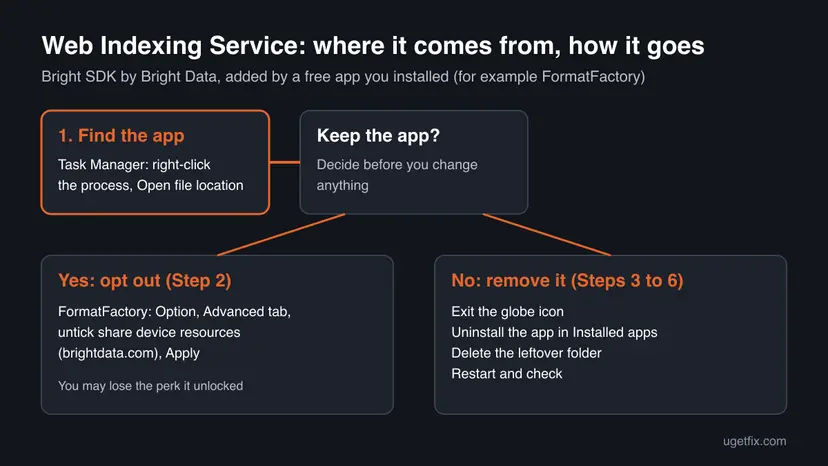
There are two ways out, and they differ in what you keep. Bright Data warns that opting out may take away the value you received when you opted in. Decide first whether you still need the app that carries the icon.
| Your choice | What happens | What you lose |
|---|---|---|
| Keep the app, opt out (Step 2). | The app stays and the web indexing stops. | The perk tied to it, for example FormatFactory's Platinum Feature or fewer ads. |
| Remove the app (Steps 3 to 6). | The app and the SDK inside it go together. | The app itself. Files you converted or made with it stay on the disk. |
| Only click Exit on the icon. | The icon closes for now. | Nothing, but it starts again with Windows. |
You need an administrator account to uninstall a program installed for all users. Windows 10 left support on 14 October 2025: the steps still apply to it, and the differences are noted.
How to remove Bright Data Web Indexing Service, step by step
Start with Step 1. If you want to keep the app, Step 2 is enough. For a full removal skip Step 2 and do Steps 3 to 6 in order.
Step 1. Find the app that runs Web Indexing Service
3 minutesNo riskYou do not know which program added the globe icon.
Bright SDK is not a program of its own in most cases: it lives inside another app's folder. The folder of the running process tells you which app to change or uninstall.
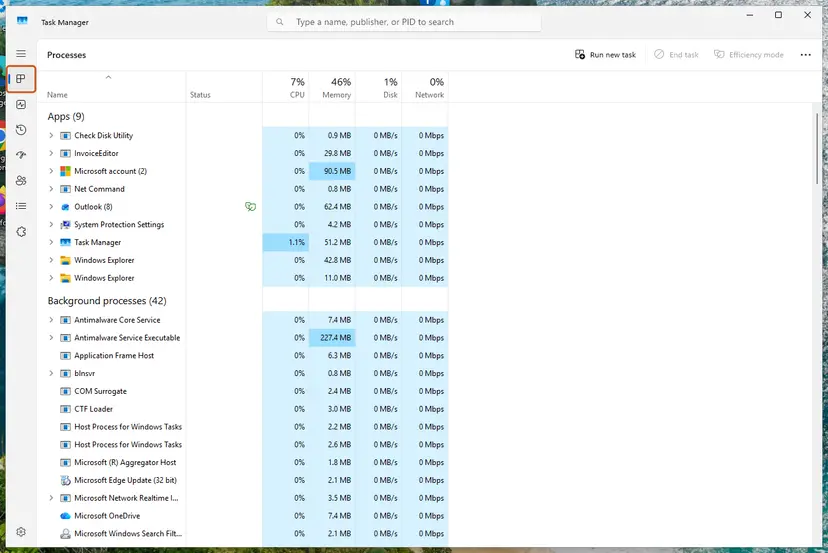
- Press Ctrl + Shift + Esc to open Task Manager.
- On the Processes page, look under Background processes for a process named Web Indexing Service, Bright Data or brightdata.
- Right-click it and select Open file location.
- Read the folder path in File Explorer. A path such as
C:\Program Files\FormatFactorynames the app. - Write the app's name down for the next steps.
It worked if: File Explorer opens a folder whose path names the app that carries Bright SDK.
If not: If no such process is listed, hover over the globe icon first to make sure it runs, then check Settings > Apps > Installed apps for free tools you installed recently.
Step 2. Turn off web indexing in the app's settings and keep the app
2 minutesLow riskYou want to keep FormatFactory or the other app and only stop the web indexing.
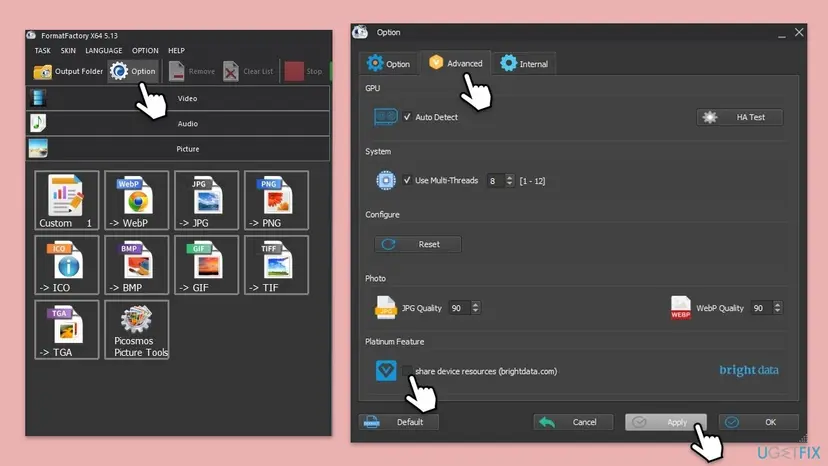
Bright Data says opting out in the app's settings is the way to stop the SDK at any time. In FormatFactory the checkbox "share device resources (brightdata.com)" is that switch.
- Open FormatFactory.
- Click Option in the toolbar at the top.
- In the Option window, open the Advanced tab.
- Under Platinum Feature, clear the box share device resources (brightdata.com).
- Click Apply, then OK.
- Check the notification area: the globe icon should close.
In another app, look in its settings for words such as share resources, web indexing or Bright Data. Bright Data says the opt-out is usually in the app's settings menu. If you cannot find it, remove the app with Steps 3 to 6.
It worked if: The checkbox stays cleared after you reopen the Option window, and the globe icon does not return after a restart.
If not: If the icon returns after a restart, or the app has no such option, continue with Step 3 to remove the app.
Step 3. Exit Web Indexing Service and close the app
1 minuteNo riskBefore you uninstall the app that carries it.
Windows cannot delete files that a running process holds open. The SDK keeps running in the background after the app's window is closed, so stop it first.
- Click the arrow next to the clock to show hidden icons.
- Right-click the globe icon Web Indexing Service and select Exit.
- Close the app that carries it, for example FormatFactory.
- In Task Manager, check that no Web Indexing Service or Bright Data process is left. End it with End task if it is.
More ways to stop a program that will not close: Close a frozen app (Task Manager, Force Quit).
It worked if: The globe icon is gone from the notification area and Task Manager lists no Bright Data process.
If not: Restart the PC, do not open the app, and go straight to Step 4.
Step 4. Uninstall the app that brought Bright Data
5 minutesRead the warningYou do not need the app, or Step 2 did not stop the icon.
Bright Data's own answer for Windows is to open Add or remove programs, find the relevant app and uninstall it. The SDK is part of that app, so it goes with it.
This removes the app and its settings. Files you converted or saved elsewhere stay, but copy any presets or output folders inside the app's folder first if you want them.
- Select Start > Settings > Apps > Installed apps. On Windows 10 the page is Apps & features.
- Type the app's name from Step 1 in the search box, for example
FormatFactory. - On Windows 11 select More (the three dots), then Uninstall. On Windows 10 select the entry, then Uninstall.
- Follow the uninstaller and click Yes or OK until it finishes.
- Search the list for
Brightand forWeb Indexing. If an entry shows up, uninstall it the same way. - If an entry will not uninstall in Settings, use Control Panel > Programs > Programs and Features, right-click it and select Uninstall.
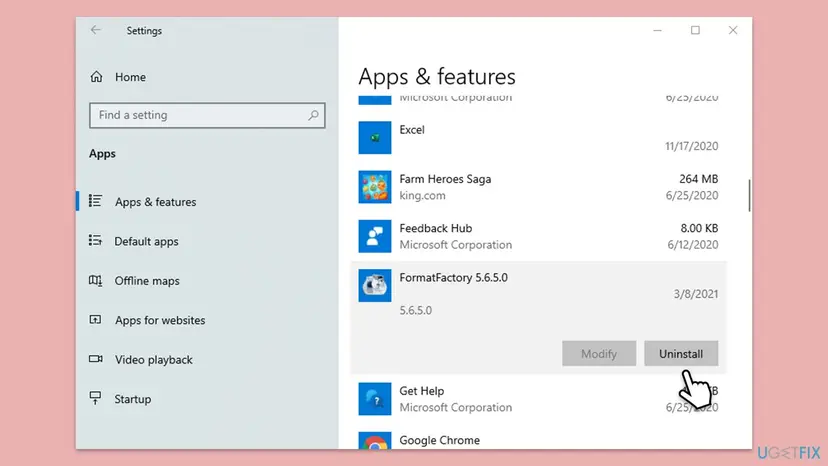

The general procedure with every Windows screen: Uninstall a program or app in Windows.
It worked if: The app is no longer in Installed apps, and the globe icon does not appear in the notification area.
If not: Read the section "Web Indexing Service will not uninstall" below for each failure and its way out.
Step 5. Delete the leftover folder and the startup entry
3 minutesLow riskAfter the uninstall, to clear what it left on the disk.
An uninstaller can leave a folder behind when a file in it was in use. Users report that a Bright Data file can stay in the app's old folder and start again with Windows.
- Press Win + E and open the folder path you noted in Step 1.
- If the folder still exists, delete it. If Windows says a file is in use, restart and try again.
- Press Ctrl + Shift + Esc and open Startup apps (the Startup tab on Windows 10).
- If a Web Indexing Service, Bright Data or brightdata line is listed, right-click it and select Disable.
- Empty the Recycle Bin.
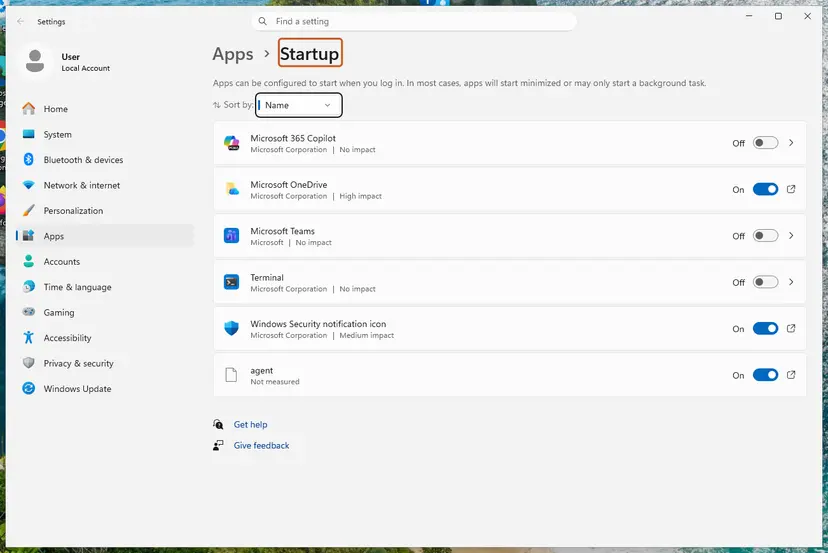
More on programs that start with Windows: Stop apps from opening at startup.
It worked if: The old app folder is gone and Startup apps lists nothing from Bright Data.
If not: If the folder will not delete after a restart, start Windows in Safe Mode and delete it there: Start Windows or a Mac in Safe Mode.
Step 6. Restart the PC and confirm Web Indexing Service is gone
3 minutesNo riskAt the end of the removal or of the opt-out.
The icon is easy to close for one session, so only a restart shows whether it really stopped. After the restart every check below should come back empty.
- Select Start > Power > Restart.
- Wait two or three minutes after you sign in, then open the hidden icons near the clock.
- Look for the globe icon and hover over any unknown icon.
- Go through the table in the section "How to confirm Bright Data is gone" below.
It worked if: No globe icon, no Bright Data process and no Bright Data line in Startup apps after the restart.
If not: Repeat Step 1 to find a second app that carries the SDK, then Steps 3 to 5 for that app.
What Web Indexing Service leaves behind and where to find it
Bright Data does not publish the names of its Windows files, services or registry keys. This table lists the places worth checking and says plainly where we could not confirm a name.
| Where | What it is | Delete it? |
|---|---|---|
The app's folder, for example C:\Program Files\FormatFactory. | Program files of the app that carried the SDK. Users report a Bright Data file can stay here. | Yes, after the uninstall. |
| The folder shown by Open file location in Step 1. | The exact place the running SDK started from on your PC. | Yes, once the app is uninstalled. |
| Task Manager > Startup apps. | A startup entry that brings the globe icon back after a restart. | Disable it if it is still listed. |
| Installed apps entries with Bright or Web Indexing in the name. | A separate entry, when an app installed the SDK on its own. | Uninstall it, do not delete its files by hand. |
| Registry keys. | Not named by Bright Data. We could not confirm any key name. | Leave them. Do not search the registry for Bright Data and delete the results. |
| Windows services and scheduled tasks. | Not named by Bright Data. We could not confirm any. | Do not hunt for them by hand. If the icon returns, repeat Step 1. |
Bright Data says the SDK stores no web data on your device and leaves no cookies, so there is no cache or data folder of its own to clean.
Web Indexing Service will not uninstall: each failure and its way out
| What you see | Why | Way out |
|---|---|---|
| The globe icon comes back after every restart. | The SDK is still turned on in the app, or a startup entry is left. | Do Step 2 or Step 4, then Step 5. |
| No app in Installed apps looks related. | The SDK sits inside a tool you did not suspect. | Use Open file location from Step 1 to see the folder. |
| The uninstaller fails or says a file is in use. | The SDK process is still running. | Do Step 3, or restart and uninstall before you open anything. |
| FormatFactory has no share device resources box. | Your version shows it under another name or not at all. | Uninstall FormatFactory with Step 4, then reinstall it and decline the offer. |
| The leftover folder will not delete. | A file is locked, or your account is not an administrator. | Restart, then delete it from an administrator account or in Safe Mode. |
If Windows reports a broken uninstall entry, Microsoft's page on uninstalling programs points to the Program Install and Uninstall troubleshooter. If you think an app turned the SDK on without asking, Bright Data asks for reports at [email protected].
- Still unsure the file is genuine? Scan the folder with Microsoft Defender before you delete it: How to scan for malware with Microsoft Defender.
- Want to reinstall the app without the SDK? Run its installer again and leave the Bright Data offer unselected. Bright Data says you can always decline it.
How to confirm Bright Data is gone
Run these checks after the restart in Step 6. Each one should come back empty.
| Check | How | Clean result |
|---|---|---|
| Notification area. | Click the arrow near the clock and hover over each icon. | No globe icon named Web Indexing Service. |
| Processes. | Open Task Manager with Ctrl + Shift + Esc and sort by name. | No Web Indexing Service, Bright Data or brightdata process. |
| Startup. | Task Manager > Startup apps (the Startup tab on Windows 10). | No Bright Data line, or it is Disabled. |
| Apps list. | Settings > Apps > Installed apps, search for Bright. | No result. |
| Command. | Open Terminal and run winget list Bright. | No installed package is found. |
| Opt-out only. | Reopen FormatFactory > Option > Advanced. | The share device resources box is cleared. |
If one check still finds Bright Data, repeat Step 1 for that process: a second app may carry the SDK too.
Frequently asked questions
What is Bright Data Web Indexing?
Bright Data Web Indexing is the name Bright Data gives to the work its SDK does on your PC. The SDK uses your IP address and spare bandwidth to download public web pages, such as prices, reviews or search results, for Bright Data's business customers. It is not part of Windows. It arrives inside a free app, which shows an offer screen and gives you something in return, such as fewer ads or a premium feature. On Windows it runs in the background whenever you are online and shows the globe icon Web Indexing Service.
What does "share device resources" or "sharing resources" mean?
It is the label some apps use for the Bright Data offer. In FormatFactory the checkbox reads "share device resources (brightdata.com)" under Platinum Feature on the Advanced tab. When it is ticked, Bright SDK uses part of your internet connection to fetch public web pages for Bright Data. Bright Data describes the main resource as unused bandwidth and says CPU and GPU use stay minimal. Clearing the box and clicking Apply turns the sharing off. You may lose the Platinum Feature or other perk that the app gave you for it.
Is Web Indexing Service a virus or spyware?
Based on Bright Data's own statements, it is a consent-based bandwidth sharing kit from a known company, not a virus. Bright Data says it collects no personal data, files or browsing history and does no crypto mining. These are the publisher's statements, not an independent audit. What it does do is send other companies' web requests from your IP address, and Bright Data's FAQ itself calls it a third-party proxy. If you did not mean to allow that, remove it. If you got the app from an unofficial download site, also run a Microsoft Defender scan.
I never agreed to this. How did it get on my PC?
Bright Data says the SDK can run only after you actively opt in on its offer screen, and that a preselected box does not count. In practice the screen appears during the setup or first start of a free app, and it is easy to accept it without noticing. Some apps offer the choice between allowing Bright Data and paying for a licence. Bright Data asks users to report any app that turns it on in a misleading way to [email protected]. Whatever happened, you can opt out or uninstall the app at any time.
Does Bright Data slow down my PC or internet?
Bright Data states that the SDK uses only a small part of your unused connection, yields to streaming and gaming, and has very little effect on the CPU. We did not measure this ourselves. Even if the effect is small, the traffic still counts against any data cap on your plan, and websites see the requests coming from your IP address. If you notice slowdowns while the globe icon is running, turning it off in Step 2 is a quick way to test whether it is the cause.
Can I just click Exit on the globe icon?
Exit closes Web Indexing Service only until the next restart or the next start of the app. Users report that right-clicking the icon shows only Exit, and the icon is back after Windows starts again. To stop it for good, either clear the opt-in option in the app's settings, as in Step 2, or uninstall the app that carries it, as in Step 4. Then restart the PC and check the notification area to make sure the icon does not come back.
How do I remove Bright Data but keep FormatFactory?
Open FormatFactory, click Option, go to the Advanced tab and clear the box share device resources (brightdata.com) under Platinum Feature. Click Apply and OK, then restart to confirm the globe icon stays gone. You lose the Platinum Feature that the option unlocked. If your version has no such box, or the icon keeps coming back, uninstall FormatFactory, restart, install it again from the official site and leave the Bright Data offer unselected during setup. Bright Data says declining the offer is always possible.
Do I need to clean the registry after removing Web Indexing Service?
No. Bright Data's own removal advice for Windows is to uninstall the app through Add or remove programs, and it names no registry keys. We could not confirm any key name, so this page gives none. A settings key that stays behind does not start a program or use your connection. Searching the registry for Bright Data and deleting every match can break other software. Check the startup apps list and the app's old folder instead, as in Step 5, because those are the places that can bring the icon back.
How do I uninstall Bright Data Web Indexing (que es, desinstalar)?
This page answers the Spanish searches too: "que es" means what is it, and "desinstalar" means uninstall. Bright Data Web Indexing is Bright SDK, added by a free app, and it uses your internet connection to download public web pages. To uninstall it, find the app in Task Manager with Open file location, then either clear its Bright Data option in the app's settings, or remove the app in Settings, Apps, Installed apps. On Spanish Windows the page is called Aplicaciones instaladas. Restart and check that the globe icon is gone.
Sources
- Bright SDK: FAQ for end users (Bright Data), including Bright SDK for Windows (bright-sdk.com)
- Microsoft Support: Uninstall or remove apps and programs in Windows (support.microsoft.com)
Did this fix work?
One click, no account. It tells the next reader which guides are worth their time.
Questions and experiences: What is Web Indexing Service (Bright Data) and how to uninstall it in Windows
Still broken, or found a fix we did not cover? Ask here: members and our editors answer. Reading is open; writing needs a free account.
…