
Bluebook not opening on Windows: fix "An unexpected error has occurred"

Prefer to fix it yourself? The manual steps follow.
- 8methods
- 5 to 30 minutes
- Easy
Applies to Windows PCs where the Bluebook app closes with an unexpected error, stays on its loading screen or does not open
8 methods in this guide
Hello. I use the Bluebook app, and I can no longer open it because of the "An unexpected error has occurred, closing the app" error. I am running Windows 10.
Bluebook closes with "An unexpected error has occurred, closing the app" or does not open at all. On Windows the first thing to check is the version, because College Board lists Windows 11 24H2 as the required minimum and Windows 10 is below it. If your PC meets the minimum, the fixes below cover restarting, the required update, free space, the clock, leftovers and a clean reinstall.
Check your Windows version first: press Win + R, type winver and compare it with College Board's minimum, Windows 11 24H2. On Windows 10 the app can't be installed, so you need a supported device. If the version is fine, fully close Bluebook, restart the PC and let the app finish its required update.
| Error | "An unexpected error has occurred, closing the app." The app closes, or does not open at all. |
|---|---|
| Where it appears | A dialog when you start the Bluebook desktop app on a Windows laptop, desktop or tablet. |
| Main cause | College Board does not explain this message. Its pages name an unsupported Windows version, a blocked required update, too little free space and a wrong clock as reasons the app will not run. |
| Fastest fix | Fix 1: run winver and compare with Windows 11 24H2. Then Fix 2: close Bluebook fully and restart the PC. |
| Official minimum | Windows 11 24H2. College Board recommends up to Windows 11 26H2 and excludes S mode and Windows 11 SE. |
| Windows 10 | Below the minimum. College Board says Bluebook can't be installed on versions under the required minimum. |
| Space and hardware | At least 1 GB of free storage, 2 GB of RAM and a 1 GHz processor. |
| Time to fix | 5 to 30 minutes, longer if Windows needs a big update. |
Facts checked on 16 October 2026. Steps written for Windows 11 (25H2 and 26H2) and Windows 10 22H2.
What "An unexpected error has occurred, closing the app" means and what Bluebook needs
"An unexpected error has occurred, closing the app" is a general message from the app. College Board's published Bluebook pages do not explain this wording, so no exact meaning is given here. What they do publish is what the app needs to start, and a PC that misses one of those items is the place to look first.
Bluebook is a desktop app, not a website. It checks its own version when it opens and tries to update itself. College Board says the app won't open if that update is blocked for any reason, and that students must always test on the latest version.
- Required Windows
- Windows 11 24H2 or newer. Bluebook can't be installed on versions below it.
- Recommended maximum
- Windows 11 26H2. Newer versions are not fully tested.
- Excluded
- S mode, Windows 11 SE, and virtual machines or remote desktops.
- Hardware
- 1 GHz processor, 2 GB RAM, 1 GB free storage, screen at least 1024 x 768.
Windows 10 22H2 left Microsoft's support on 14 October 2025. College Board's minimum is above it, so a Windows 10 PC that used to open Bluebook can stop after a required update. Users on forums report that College Board raised the requirement to Windows 11 24H2, but the cause on your PC is confirmed only by your Windows version.
Why Bluebook won't open on Windows, and which fix matches
Each cause below comes from College Board's own requirement and update pages, except the last two, which are common Windows reasons any desktop app fails to start. Start with the row that matches what you see, not with the first fix.
| Cause | What you see | Fix |
|---|---|---|
| Windows is below the minimum, or is Windows 10 | winver shows 22H2 or a Windows 11 version older than 24H2; the app closes or can't be installed | Fix 1 |
| Bluebook is still running in the background | Reopening does nothing, or a message says the app cannot be closed | Fix 2 |
| The required update is blocked or did not finish | The loading screen never ends, or the app closes right after it opens | Fix 3 |
| Not enough free storage, or the clock is wrong | Less than 1 GB free on the system drive, or the date or time is off | Fix 4 |
| Windows is missing updates | Windows 11 older than 24H2 with updates waiting | Fix 5 |
| Temporary files left by an interrupted update | The app worked before and fails after a failed update | Fix 6 |
| A damaged installation | Reinstalling is the only thing the app has left to try | Fix 7 |
| Security software blocks the app or its update | A third party antivirus quarantines or blocks Bluebook | Fix 8 |
Older guides send you to compatibility mode and a registry or cache cleanup first. College Board documents none of that. Compatibility mode changes how an app behaves, not your Windows version, so it can't lift the Windows 11 24H2 requirement. Check the version first, then work down the list.
How to fix Bluebook not opening on Windows
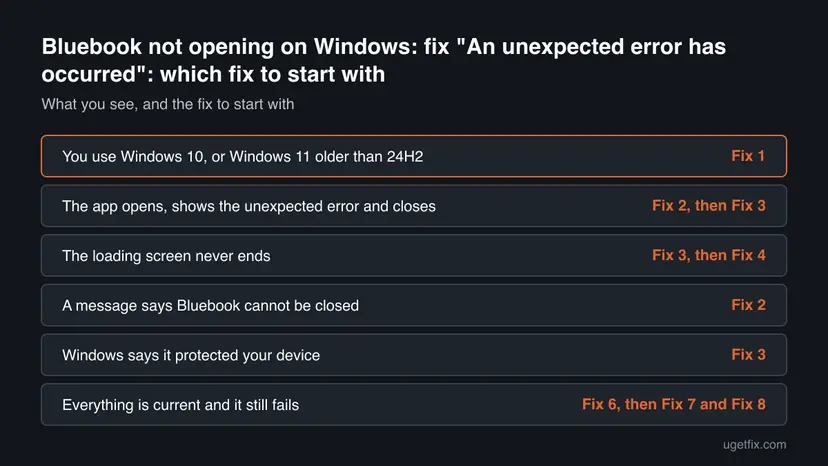
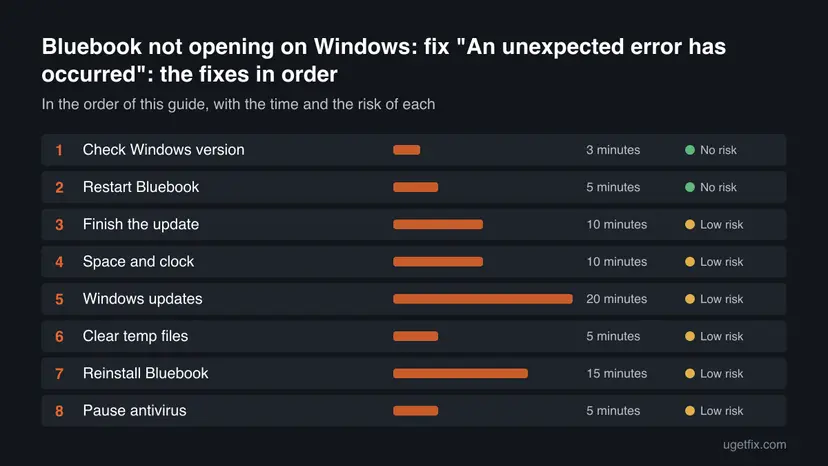
Fix 1 shows whether your PC can run Bluebook at all, and Fix 2 and Fix 3 deal with the app itself. Fix 4 to Fix 6 clear the usual Windows causes. Fix 7 and Fix 8 are the last resorts. Test Bluebook after every fix.
| What you see | Start with |
|---|---|
| You use Windows 10, or Windows 11 older than 24H2 | Fix 1 |
| The app opens, shows the unexpected error and closes | Fix 2, then Fix 3 |
| The loading screen never ends | Fix 3, then Fix 4 |
| A message says Bluebook cannot be closed | Fix 2 |
| Windows says it protected your device | Fix 3 |
| Everything is current and it still fails | Fix 6, then Fix 7 and Fix 8 |
Fix 1. Check that your Windows version meets Bluebook's minimum
3 minutesNo riskYou use Windows 10, or Bluebook stopped opening after working before.
College Board sets Windows 11 24H2 as the lowest version Bluebook installs on. If your PC is under that line, no other fix on this page can make the app run, so this check saves the most time.
- Press Win + R, type
winverand press Enter. - Read the version line. Windows 11 shows 24H2, 25H2 or 26H2. Windows 10 shows 22H2.
- Open Settings > System > About and read Edition under Windows specifications. A name that ends in S mode or says Windows 11 SE is excluded by College Board.
- Compare with the table in the meaning section: the minimum is Windows 11 24H2, and 26H2 is the recommended maximum.
Windows 10 is below the minimum, so Bluebook can't be installed on it and a reinstall will not help. If Windows Update offers Windows 11 on your PC, you can install it. If a school or employer manages the PC, ask their IT staff first. For a scheduled test, College Board's advice is to use a backup device and to contact your test coordinator.
College Board also strongly recommends preventing automatic Windows updates before test day. Do not install a feature update newer than 26H2 on a PC you rely on for an exam.
It worked if: winver shows Windows 11 24H2 or newer, and the Edition is not S mode. Then Bluebook can run on this PC and you continue with Fix 2.
If not: If winver shows Windows 10 or an older Windows 11, use a supported device or upgrade Windows. If your version is fine, go on to Fix 2.
Fix 2. Close Bluebook completely and restart the PC
5 minutesNo riskThe app froze, closed with the unexpected error, or says it cannot be closed.
A closed window does not always end the app. A leftover Bluebook process can stop a new copy from starting or an update from replacing files, and a restart clears it along with other stuck processes.
- Press Ctrl + Shift + Esc to open Task Manager. If you see a short list, select More details.
- On the Processes tab find Bluebook, select it and choose End task. Check Background processes too.
- Select Start > Power > Restart. Use Restart, not Shut down, because Restart reloads Windows completely.
- Open Bluebook from Start and wait on the first screen for a minute. You do not need to sign in.
If Task Manager lists nothing or the app will not end, follow Close a frozen app (Task Manager, Force Quit).
It worked if: Bluebook starts from a clean state and shows its sign-in screen, or starts its update without the unexpected error.
If not: If the same message returns, go to Fix 3. If it says the app cannot be closed again, end the process once more before you press Retry.
Fix 3. Let Bluebook finish its required update
10 minutesLow riskThe loading screen never ends, the update fails, or Windows warns you about the app.
College Board says Bluebook tries to update when it is launched and won't open if the update is blocked. A broken connection, a school network or security software can block it, so give the update a clear path.
- Open a browser and go to collegeboard.org. If the site does not load, fix the connection with How to check your internet connection in Windows before anything else.
- Open Bluebook and leave it on the first screen. The update runs there, and a big one can take several minutes on a slow link.
- If Windows shows Windows protected your device, College Board calls this routine after a new release and says it does not mean Bluebook is unsafe. If you started Bluebook yourself, select More info and then Run anyway.
- On the sign-in screen read the version number in the bottom right corner. Compare it with the latest version in the table on College Board's Bluebook releases page. It must be the same or higher.
- On a school PC, ask IT staff to check that nothing blocks updates. College Board tells schools to adjust the settings of any network or security device that could prevent updates.
College Board released a required update on 3 September 2026 for Windows PCs and Macs. It installs the next time the app is opened, and students can't use Bluebook until it has finished.
It worked if: Bluebook finishes loading, shows the sign-in screen and a version number that matches or beats the one on the releases page.
If not: If the update still can't finish, go to Fix 4. If a school manages the PC, ask IT staff, use another device, or tell your test coordinator.
Fix 4. Free storage space and set the clock correctly
10 minutesLow riskThe drive is nearly full, or the date and time on the PC are wrong.
College Board lists at least 1 GB of free storage as a requirement, and its troubleshooting list has separate help articles for low free space and for clock settings that stop Bluebook. Both are quick to check.
- Open Settings > System > Storage and look at the system drive. Aim for well over 1 GB free. If it is tight, follow Free up disk space and delete temporary files.
- Open Settings > Time & language > Date & time. Turn on Set time automatically and Set time zone automatically.
- Select Sync now under Additional settings and check that the time matches your phone. How to fix the date and time in Windows covers the cases where it will not stay correct.
- Restart Bluebook.
It worked if: The drive shows enough free space, the clock is correct, and Bluebook loads past its first screen.
If not: If space and time are fine and Bluebook still fails, go to Fix 5.
Fix 5. Install all pending Windows updates
20 minutesLow riskWindows 11 is older than 24H2, or updates are waiting to install.
Bluebook needs Windows 11 24H2 or newer, and a PC that is behind on updates may be under that line. Pending updates can also leave system files half replaced, which stops apps from starting.
- Type Updates in Windows search and press Enter.
- Select Check for updates on the right side of the window and let everything download and install.
- If optional updates are listed (Windows 11: Advanced options > Optional updates), install the ones for your drivers and security.
- Select Restart when Windows asks. Check
winveragain afterwards and open Bluebook.
College Board recommends staying at or below Windows 11 26H2 and strongly recommends preventing automatic updates before test day. If your PC already runs a version in the supported range and Bluebook worked, do not start a larger feature update just before an exam.
It worked if: Windows reports it is up to date, winver shows Windows 11 24H2 or newer, and Bluebook opens.
If not: If an update fails or loops, use Install an update from the Microsoft Update Catalog or Run the Windows Update troubleshooter. If updates are fine, go to Fix 6.
Fix 6. Clear temporary files
5 minutesLow riskBluebook worked before an update failed or was interrupted.
A stopped update can leave partial files in the temporary folders. Clearing them removes leftovers without touching your documents. College Board does not document this step, but it only removes files Windows can recreate.
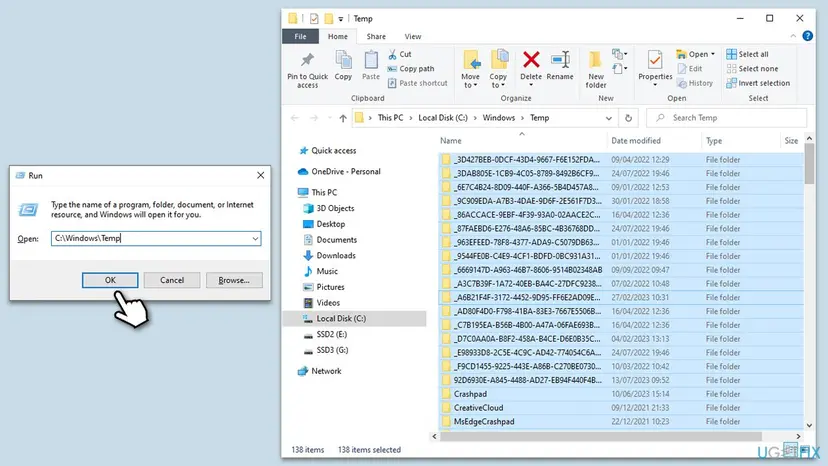
- Close Bluebook, then press Win + R on your keyboard to open the Run dialog.
- Type
C:\Windows\Tempand press Enter or select OK. Select Continue if Windows asks for permission. - Press Ctrl + A, then Delete. Select Skip for any file that is in use.
- Open Run again and go to
%USERPROFILE%\AppData\Local\Temp. Delete the contents here as well. - Restart the PC and open Bluebook.
It worked if: Both folders are empty, apart from files in use that Windows skipped, and Bluebook starts after the restart.
If not: If nothing changed, the files were not the cause. Go to Fix 7.
Fix 7. Uninstall and reinstall Bluebook
15 minutesLow riskThe version is supported, the update is done and the app still closes.
A damaged installation can fail the same way every time. Removing the app and installing the current version from College Board replaces every file with a clean copy and runs the required update fresh.
- Right-click Start and select Installed apps (Windows 10: Apps and Features). Select Bluebook and then Uninstall. The full steps are in Uninstall a program or app in Windows.
- Select Restart when the uninstall ends.
- On the official website of Bluebook, open the Technology pages, then Devices, then Windows, and use the installation instructions there.
- Install the app, open it and let it finish its first update.
On a school-managed PC, ask IT staff to install it for you. They may have to approve the installer.
It worked if: A fresh Bluebook opens, updates itself and shows the sign-in screen.
If not: If the installer says the PC is not supported or fails at once, go back to Fix 1. If it installs but still closes, go to Fix 8.
Fix 8. Pause third party antivirus for one test
5 minutesLow riskEverything else is current and a third party antivirus is installed.
Some antivirus programs mistake an app or its update for a threat and block it. Pausing it for a few minutes shows whether it is the cause, and you switch it back on straight afterwards.
- Open your antivirus program and use its option to pause protection for a few minutes. Follow Turn off Microsoft Defender protection for a moment if you are unsure.
- Open Bluebook and wait on the first screen.
- Switch protection back on right away, whatever the result.
- If Bluebook opened only with protection paused, add an exception for Bluebook in the antivirus. The steps differ for each program, so use the vendor's website.
This is a single test, not a fix. Never browse with the antivirus paused, and never switch off Windows Security for good.
It worked if: Bluebook opens while protection is paused, which proves the antivirus is blocking it.
If not: If it still fails with protection paused, the antivirus is not the cause. Switch it back on and send your results to support as described below.
Bluebook still won't open: what to check and who to ask
If nothing above worked, collect facts before you contact anyone. College Board support and your test coordinator can only help when they know exactly what the PC shows.
- Windows version: the line from
winver, for example Windows 11 24H2. - Bluebook version: the number in the bottom right corner of the sign-in screen, if you reach it.
- The exact message: copy it word for word, for example the unexpected error text.
- What you tried: which fixes from this page, and what changed.
Use a backup device if you have one, and tell your test coordinator in good time. College Board names both steps in its own update troubleshooting.
Other Bluebook messages: loading, slow starts and "cannot be closed"
Searches around this error often use other wording. College Board's pages do not list these messages, so the notes below are what the wording points to, not official meanings.
- bluebook the application is loading please stand by: the app is still starting or updating. Wait a few minutes with the PC connected to the internet, then use Fix 3.
- bluebook cannot be closed error, and bluebook cannot be closed please close it manually and click retry to continue: a copy of Bluebook is still running, so something cannot replace its files. End Bluebook in Task Manager as in Fix 2, then press Retry.
- why is bluebook taking so long to load: the usual causes are a large update on a slow connection, a nearly full drive or a blocked update. Use Fix 3 and Fix 4.
How to keep Bluebook working before a test
Most test day problems start with a PC that was not checked in advance. A short routine a few days before an exam avoids them.
- Open Bluebook a few days early on the PC you will use, and let it update. Students do not need to sign in for this.
- Do not start a Windows feature update in the week before an exam, and keep to the recommended Windows 11 26H2 maximum.
- Keep at least 1 GB free and the clock set automatically.
Frequently asked questions
Why is Bluebook not opening on my Windows PC?
The most likely reasons are on College Board's own pages. The PC may be below the required Windows 11 24H2, the required update may be blocked, the drive may have under 1 GB free, or the clock may be wrong. Run winver first (Fix 1), then close Bluebook completely, restart the PC and let it update (Fix 2 and Fix 3). The message itself has no published meaning, so the version check is the best first step.
Does Bluebook work on Windows 10?
No. College Board lists Windows 11 24H2 as the required minimum and says Bluebook can't be installed on versions below it. Windows 10 22H2 is below that, and Microsoft ended its support on 14 October 2025. Reinstalling will not change that. Use a supported Windows 11 device, upgrade the PC if Windows Update offers Windows 11, or ask your school IT staff or test coordinator for a backup device.
How do I restart the Bluebook app?
Close it, then end any leftover process. Press Ctrl + Shift + Esc, select Bluebook on the Processes tab and choose End task. Then use Start > Power > Restart to restart Windows and open Bluebook again from Start. College Board also suggests opening and closing the app before test day, and you do not need to sign in for that. Fix 2 has the full steps.
What does "An unexpected error has occurred, closing the app" mean?
College Board's published Bluebook pages do not explain this message, so there is no official meaning to quote. It is a general error from the app that ends the session. Treat it as a sign that the app could not start correctly, and check the requirements in Fix 1, the update in Fix 3 and the free space and clock in Fix 4.
Why is Bluebook taking so long to load?
Bluebook checks for a required update every time it opens, and a large update on a slow or filtered network can take several minutes. A nearly full drive also slows the install. Keep the app open on its first screen, test collegeboard.org in a browser, and check that the drive has at least 1 GB free. On a school network, ask IT staff whether anything blocks updates.
My Bluebook update is not working. What can I do?
College Board says Bluebook won't open if its update is blocked, and its own steps are to check that collegeboard.org loads, ask IT staff on school managed devices, and use a backup device. On your own PC also check the Windows version, free space and clock. Fix 3 walks through each step, and Fix 8 tests whether your antivirus blocks the update.
What does "Windows protected your device" mean when I open Bluebook?
This is the Windows SmartScreen warning. College Board says launching Bluebook soon after a new release can trigger it, that it is routine, and that it does not mean Bluebook is unsafe. If you started Bluebook yourself, select More info and then Run anyway. If the warning appears for a file you did not expect, do not continue.
Can I use compatibility mode or a virtual machine to run Bluebook?
Compatibility mode changes how an app behaves but not your Windows version, so it can't lift the Windows 11 24H2 requirement, and College Board does not list it as a fix. Virtual machines, thin clients and similar technology are prohibited for testing and could lead to disciplinary measures, including score cancellation. Use a real, supported Windows 11 device.
How much space and what hardware does Bluebook need on Windows?
College Board lists a 1 GHz processor, 2 GB of RAM and at least 1 GB of free storage. The screen must be at least 10 inches on a laptop or 8 inches on a tablet, with a resolution of at least 1024 x 768, and a second monitor is not permitted. S mode and Windows 11 SE are excluded. Check free space in Settings > System > Storage.
Should I turn off my antivirus for Bluebook, and who do I contact if nothing works?
Only pause a third party antivirus for one short test, as in Fix 8, and switch it on again at once. Then add an exception for Bluebook. If nothing works, send your test coordinator or College Board support the winver line, the Bluebook version, the exact message and the fixes you tried. For a scheduled test, ask for a backup device early.
Sources
- College Board Bluebook: Windows Requirements (bluebook.collegeboard.org)
- College Board Bluebook: Bluebook Releases and Application Updates (bluebook.collegeboard.org)
- College Board Bluebook: What if Bluebook can't update to the latest version? (bluebook.collegeboard.org)
Did this fix work?
One click, no account. It tells the next reader which guides are worth their time.
Questions and experiences: Bluebook not opening on Windows: fix "An unexpected error has occurred"
Still broken, or found a fix we did not cover? Ask here: members and our editors answer. Reading is open; writing needs a free account.
…