
How to fix 0x00000bbb Printer error in Windows?

Prefer to fix it yourself? The manual steps follow.
- 6methods
- 5 to 30 minutes
- Beginner to intermediate
Applies to Windows 11 and Windows 10 PCs that print to a USB, Wi-Fi or network printer of any brand
6 methods in this guide
Hello. When I try to use the printer with my Windows laptop, I receive the 0x00000bbb error. How can I fix it?
Error 0x00000bbb means Windows could not start a print job: the printer is installed, but the job never opens. Most often a stuck job or a damaged spool file blocks the Print Spooler, less often the printer's driver or its port. Clear the print queue and the spool folder first.
0x00000bbb is Windows error 3003, "A StartDocPrinter call was not issued." The print job was never opened, so nothing reaches the printer. Stop the Print Spooler, empty the folder C:\Windows\System32\spool\PRINTERS and start the spooler again (Fix 1). If only one printer fails, remove its driver package and install the maker's driver again (Fix 2). For a network printer, switch from the WSD port to a Standard TCP/IP port (Fix 3).
| Error | Operation could not be completed (error 0x00000bbb). Windows error 3003, ERROR_SPL_NO_STARTDOC: "A StartDocPrinter call was not issued." |
|---|---|
| Where it appears | In a box titled Printers when you print a test page, or in an app as "Unable to create print job" when you press Print. |
| Main cause | The Print Spooler cannot open a new job: stuck or damaged files in the spool folder, a broken printer driver, or a port that no longer answers. |
| Fastest fix | Stop Print Spooler, empty spool\PRINTERS, start it again (Fix 1). Next: a clean driver install (Fix 2) or a TCP/IP port (Fix 3). |
| Also written as | 0x0000bbb, 00000bbb, 0X00000BBB, error 0xbbb, erreur 0x00000bbb, fehler 0x00000bbb. |
| Affects | Windows 11 and Windows 10; reports name Brother, HP and other brands, USB and network printers alike. |
| Microsoft's status | No known issue or update tied to the code. Microsoft documents only its meaning in the list of system error codes. |
| Time to fix | 5 minutes for Fix 1, 15 to 20 minutes for Fix 2 or Fix 3. |
Facts checked on 15 October 2026. Steps written for Windows 11 (25H2 and 26H2) and Windows 10 22H2.
What printer error 0x00000bbb means
The message reads "Operation could not be completed (error 0x00000bbb)." Windows shows it in a small box titled Printers, most often when you select Print test page. Inside an app, the same failure can read "Unable to create print job" with the code next to it. The printer itself usually looks fine: it is installed, online and may even print from a phone or another PC.
The code is precise. 0xBBB is 3003 in decimal, and Microsoft's list of system error codes names 3003 ERROR_SPL_NO_STARTDOC, with the text "A StartDocPrinter call was not issued." StartDocPrinter is the call that opens a new document in the Print Spooler. In plain words: Windows tried to send pages to a print job that was never opened.
Windows prints eight digits after 0x: 0x00000bbb. People also type 0x0000bbb, 00000bbb or 0X00000BBB. Leading zeros and capital letters change nothing. Do not mix it up with 0x00000bcb, which is error 3019, a missing driver for a shared printer.
Why Windows cannot create the print job: causes of 0x00000bbb, ranked
Before a page is sent, the Print Spooler opens a job and writes a spool file into C:\Windows\System32\spool\PRINTERS. Then the printer's driver turns the pages into printer language and the port sends them out. 0x00000bbb means the first step did not happen. The reports we read point to these causes, from common to rare.
| # | Cause | How to recognise it | Fix |
|---|---|---|---|
| 1 | A stuck job or damaged spool files | Documents sit in the queue and cannot be deleted, or the error came after a crash or a forced shutdown | Fix 1 |
| 2 | A broken or wrong printer driver | Microsoft Print to PDF works, one printer fails; the code may change to 0x000007d1 "The specified driver is invalid" | Fix 2 |
| 3 | A WSD port that no longer answers | A Wi-Fi or network printer whose port in Printer properties starts with WSD | Fix 3 |
| 4 | The spooler cannot write to its folder | Every printer fails, also Print to PDF, and Fix 1 changes nothing | Fix 4 |
| 5 | Another program hooks into printing | A print manager, PDF tool or old printer utility runs at startup | Fix 5 |
| 6 | Damaged Windows printing files | Printing broke after a failed update, and nothing above helps | Fix 6 |
- Why the spool folder comes first. The job that could not be opened lives in the spool folder. Answers to a Windows 10 report of "Unable to create print job" with this code on every printer started with emptying
spool\PRINTERSand checking that folder's permissions. - Why the driver comes second. In a Microsoft Q&A thread from October 2022, a new Windows 11 PC installed a Brother MFC-J805DW without error, yet the test page failed with 0x00000bbb. The printer worked from another PC and a phone. After the maker's driver package was installed, the code changed to 0x000007d1, "The specified driver is invalid", which points at the driver.
- Why it is rarely hardware. In that same report the printer printed from other devices. The code is raised by Windows before a page leaves the PC.
0x00000bbb on Windows 11 and Windows 10
The message and its meaning are the same on both versions. Only the place of the printer settings differs. Windows 10 left support on 14 October 2025, so a Windows 10 PC gets no more fixes for its printing system.
| Task | Windows 11 | Windows 10 22H2 |
|---|---|---|
| Printer list | Settings > Bluetooth & devices > Printers & scanners | Settings > Devices > Printers & scanners |
| Printer properties and ports | Select the printer, then Printer properties > Ports | Select the printer, Manage, then Printer properties > Ports |
| Drivers installed | Printers & scanners > Print server properties > Drivers | Printers & scanners > Print server properties > Drivers |
| Print Spooler service | services.msc, Print Spooler | services.msc, Print Spooler |
How to fix printer error 0x00000bbb: six fixes in order
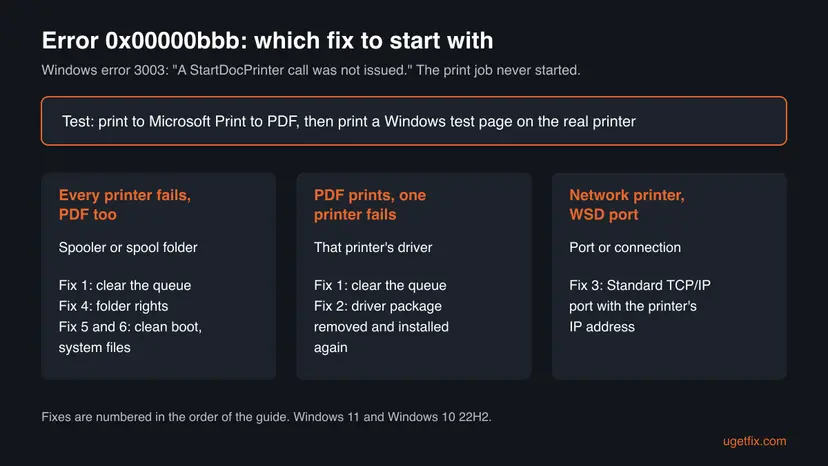
First print once to Microsoft Print to PDF. If that works, the problem sits with one printer: Fix 1, then Fix 2 or Fix 3. If even the PDF printer fails, Windows printing as a whole is blocked: Fix 1, then Fix 4 to Fix 6.
| What you see or have | Start with |
|---|---|
| Any printer, documents stuck in the queue, or the error after a crash | Fix 1 |
| Microsoft Print to PDF works, one printer fails | Fix 2 |
| The code changed to 0x000007d1 "The specified driver is invalid" | Fix 2 |
A Wi-Fi or network printer with a port that starts with WSD | Fix 3 |
| Every printer fails, Print to PDF too, and Fix 1 did not help | Fix 4, then Fix 5 and Fix 6 |
Fix 1. Clear the print queue and the spool folder, then restart Print Spooler
5 minutesLow riskFor everyone, first. Needs an administrator account.
Error 3003 says the job was never opened. A job that hangs in the queue, or a half-written spool file, keeps the spooler from opening the next one. Emptying the folder while the service is stopped gives it a clean start.
- Press Win + S, type
cmd, right-click Command Prompt and select Run as administrator. - Type
net stop spoolerand press Enter. Wait for "The Print Spooler service was stopped successfully." - Type
del /Q /F %systemroot%\System32\spool\PRINTERS\*and press Enter. This deletes only waiting print jobs. - Type
net start spoolerand press Enter. - Open Printers & scanners, select the printer and select Print test page.
net stop spooler
del /Q /F %systemroot%\System32\spool\PRINTERS\*
net start spooler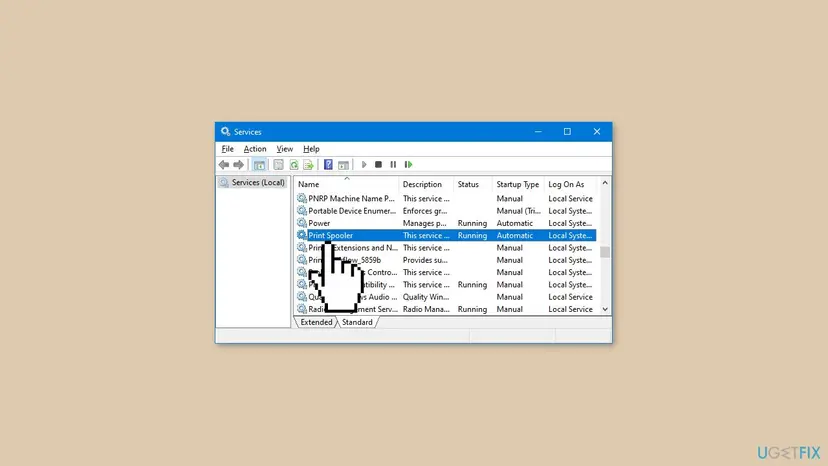
You can also restart the service in the Services window instead of the commands. Step by step: Check and restart Windows services.
It worked if: The queue is empty, Print Spooler shows Running, and the test page prints without the box.
If not: If only one printer still fails, go to Fix 2. If net start spooler fails or the service stops by itself, read our guide to print spooler error 0x000006BA, then try Fix 4.
Fix 2. Remove the printer and its driver package, then install the maker's driver again
15 to 20 minutesLow riskMicrosoft Print to PDF prints, but one printer fails with 0x00000bbb, or the code changed to 0x000007d1. Needs an administrator.
The driver is the part that starts the document for the printer. A driver that installed with errors, or a generic one Windows picked, can fail at that step. Removing the package, not just the printer, makes Windows install a fresh copy.
- Download the full driver for your model and Windows version from the printer maker's website. Do not run it yet.
- Open Settings > Bluetooth & devices > Printers & scanners, select the printer and select Remove.
- On the same page, open Print server properties and go to the Drivers tab.
- Select the printer's driver, select Remove, choose Remove driver and driver package and confirm.
- Restart the PC, run the maker's driver setup and follow it until the printer is added.
- Print a test page from Printers & scanners.
If Windows says the driver is in use, run the three commands of Fix 1 first, then remove the package again. Windows error 3001 means exactly that: "The specified printer driver is currently in use."
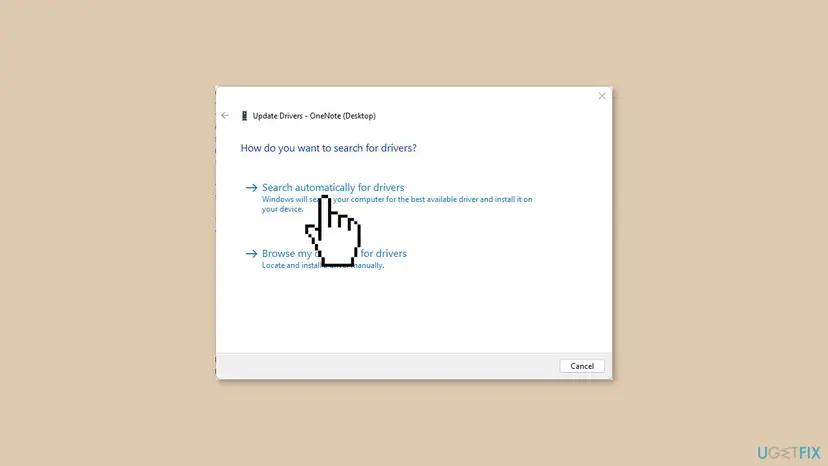
A lighter variant: in Device Manager, expand Print queues, right-click the printer and update its driver with the maker's files. Step by step: Update, roll back or reinstall a driver.
It worked if: The printer is listed again with the maker's driver and the test page prints.
If not: If a network printer still fails, its port is the next suspect: Fix 3. If the maker has no driver for your Windows version, try the maker's universal driver.
Fix 3. Give a network printer a Standard TCP/IP port instead of a WSD port
10 minutesLow riskThe printer is on Wi-Fi or Ethernet, and its port in Printer properties > Ports starts with WSD.
Windows adds most network printers through Web Services for Devices (WSD), which finds the printer by name on the network. In the Brother report above, the failing printer used a WSD port. A Standard TCP/IP port talks to the printer's IP address directly.
- Find the printer's IP address on its control panel or on a network status page it prints.
- Open Printers & scanners, select the printer and then Printer properties.
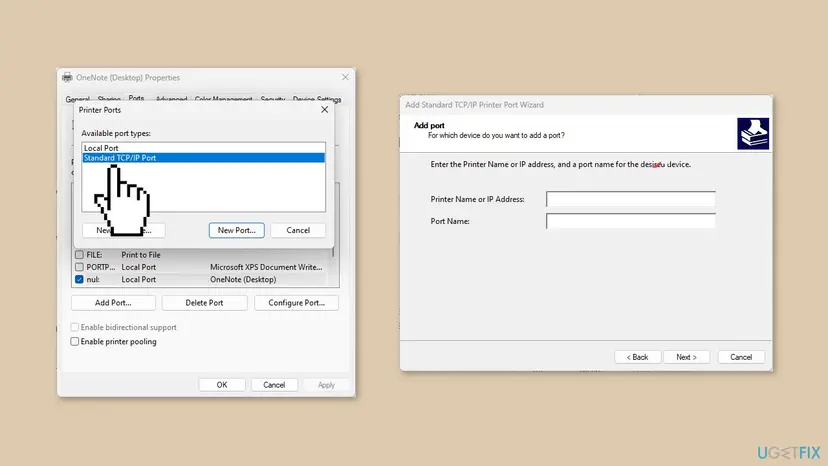
- Open the Ports tab and select Add Port.
- Select Standard TCP/IP Port, then New Port, and select Next.
- Type the IP address in Printer Name or IP Address and finish the wizard.
- Back on the Ports tab, make sure the new port is ticked, select Apply and print a test page.
Give the printer a fixed IP address in your router. Otherwise the router may hand it a new address later and the new port stops working.
It worked if: The port list shows the new IP port ticked and the test page prints.
If not: If the printer is connected by USB, this fix does not apply. If every printer still fails, go to Fix 4.
Fix 4. Check that Windows may write to the spool folder
10 minutesRead the warningEvery printer fails, also Microsoft Print to PDF, and Fix 1 did not help. Needs an administrator.
The spooler must create a file in spool\PRINTERS before the job exists. If a cleanup tool or a manual change took away the rights on that folder, no job can be opened, on any printer.
Wrong rights on a Windows folder can break printing further or open it to other users. Change nothing you cannot undo: take a screenshot of the Security tab before you edit it, and compare it with a PC where printing works.
- Open File Explorer and go to
C:\Windows\System32\spool. - Right-click the PRINTERS folder, select Properties and open the Security tab.
- Select each name in the list and read its rights. SYSTEM and Administrators should be listed with full rights.
- If one of them is missing or denied, select Edit, add it back or clear the Deny box, and select OK.
- Run the three commands of Fix 1 again and print a test page.
Older answers, and the old version of this guide, gave cacls.exe PRINTERS /E /G administrator:C. It works only in an administrator Command Prompt opened in the spool folder, not in the Run box, and only if an account is named exactly "administrator". Checking the Security tab shows what is really wrong.
It worked if: The folder lists SYSTEM and Administrators with full rights, and both Print to PDF and the printer work again.
If not: If the rights look normal, something else blocks the spooler. Try Fix 5.
Fix 5. Start Windows with a clean boot to find a program that blocks printing
15 minutesLow riskEvery printer fails, and a print manager, PDF tool or printer utility starts with Windows.
Programs that add printers or watch print jobs hook into the spooler. A clean boot starts Windows with Microsoft services only, so if printing works there, one of your startup programs is the cause.
- Open System Configuration. Select Search on the taskbar, type msconfig and select System Configuration from the results.
- Hide Microsoft services. On the Services tab, select the Hide all Microsoft services check box. Only services from other companies stay in the list.

With Hide all Microsoft services ticked, only third-party services stay in the list. Screenshot: Windows 11 26H2. - Disable the remaining services. Select Disable all, then select Apply.
- Open Task Manager. On the Startup tab of System Configuration, select Open Task Manager.

The Startup tab only links to Task Manager. Screenshot: Windows 11 26H2. - Disable the startup apps. On the Startup apps tab in Task Manager, select each item whose status is Enabled and select Disable. Write down or take a screenshot of the items you disable: you need the list to turn them back on.

Select an app, then Disable. Screenshot: Windows 11 26H2. - Confirm the changes. Close Task Manager. On the Startup tab of System Configuration, select OK.
- Restart and test. Restart the PC. Windows now starts in a clean boot environment: try again the thing that failed (run the app, install the update, uninstall the program).
These steps were written for Windows 11 25H2 and 26H2. The full page with the other versions and what each result means: How to perform a clean boot in Windows
After the test, turn the services back on in groups to find the one that breaks printing, then update or remove that program. Full steps: How to perform a clean boot in Windows.
It worked if: In the clean boot the test page prints. Once you find the program, printing also works in a normal start.
If not: If printing fails even in a clean boot, Windows itself is the suspect: Fix 6.
Fix 6. Repair Windows system files with SFC and DISM
20 to 30 minutesLow riskPrinting broke after a failed update or a crash, and Fix 1 to Fix 5 did not help.
The spooler and the print processor are Windows files. If one of them is damaged, no printer can open a job. SFC and DISM compare these files with a clean copy and replace what is broken.
- Open an elevated command window. Right-click Start and select Terminal (Admin), or type cmd in the search box, right-click Command Prompt and select Run as administrator. Select Yes when Windows asks for permission.

Search for cmd and choose Run as administrator. Screenshot: Windows 11 26H2. - Run DISM first. Type the command below and press Enter. DISM downloads clean copies of damaged components from Windows Update, so it can take several minutes. Wait until it says The operation completed successfully.
DISM.exe /Online /Cleanup-Image /RestoreHealth
DISM /RestoreHealth running. Screenshot: Windows 11 26H2. - Run System File Checker. In the same window, type the command below and press Enter. Do not close the window until the verification reaches 100%.
sfc /scannow
sfc /scannow at 100%. Screenshot: Windows 11 26H2. - Read the result and restart. Compare the last message with the table below this guide, then restart the PC so that repaired files are loaded.

The result line tells you what SFC did. Screenshot: Windows 11 26H2.
These steps were written for Windows 11 24H2 and 25H2. The full page with the other versions and what each result means: Run DISM and SFC to repair Windows system files
Step by step: Run DISM and SFC to repair Windows system files. Restart the PC afterwards and run Fix 1 once more.
It worked if: SFC reports that it found and repaired files, or found nothing wrong, and the test page prints.
If not: Read the log in the next section and collect the facts for the printer maker or Microsoft support.
Still getting error 0x00000bbb? Where the real cause is written
The box only says the job was not opened. Before you change more, collect these facts. They also tell support in minutes what a long thread would take days to find.
| Check | Where | What it tells you |
|---|---|---|
| Print to PDF | Any app, Print, printer Microsoft Print to PDF | Works: one printer's driver or port. Fails: the spooler or Windows |
| Print Service log | Event Viewer, Applications and Services Logs > Microsoft > Windows > PrintService > Admin | The driver or port named at the time of the error |
| Port type | Printer properties > Ports | WSD, USB or an IP port |
| Driver | Print server properties > Drivers | Driver name and version, maker's or Windows' own |
| Spooler | services.msc, Print Spooler | Running, stopped, or stops by itself |
- Is it hardware? Rarely. If the printer prints from a phone or another PC, as in the Microsoft Q&A report, the printer is fine and the cause is on your PC.
- The printer troubleshooter. It is under Settings > System > Troubleshoot > Other troubleshooters on Windows 11. In the Q&A report it found no problem; it does not repair a spool folder or replace a driver.
- Neighbour codes. 0x00000bba (3002) means "The spool file was not found." and points at the same folder as Fix 1. 0x000007d1 means the driver is invalid: Fix 2.
- What to send to support: Windows version, printer model, driver name and version, port type, whether Print to PDF works and the PrintService events from the time of the error.
How to keep error 0x00000bbb from coming back
The error returns after a crash in the middle of a print job, a driver swap by Windows Update, or a printer that changed its network address. A few habits keep it away.
- Install the full driver from the printer maker, not only the one Windows picks.
- Give a network printer a fixed IP address and a Standard TCP/IP port.
- Cancel stuck jobs in the queue before you shut down the PC.
- Remove printers and drivers you no longer use in Print server properties.
- Do not let cleanup tools change rights on Windows folders.
- Do not keep several printer utilities from different makers running at startup.
- Do not switch off the PC while a large job is still spooling.
Frequently asked questions
What does error 0x00000bbb mean?
It is Windows system error 3003, named ERROR_SPL_NO_STARTDOC. Microsoft's description is "A StartDocPrinter call was not issued." StartDocPrinter opens a new job in the Print Spooler, so the error means pages were sent to a job that was never opened. The usual reasons are stuck files in the spool folder, a broken printer driver or a port that does not answer. Start with Fix 1, which clears the spool folder.
How do I fix 0x00000bbb on Windows 11?
Open Command Prompt as administrator, run net stop spooler, empty C:\Windows\System32\spool\PRINTERS and run net start spooler (Fix 1). Then print a test page from Settings > Bluetooth & devices > Printers & scanners. If one printer still fails, remove it and its driver package under Print server properties > Drivers and install the maker's driver again (Fix 2). A Wi-Fi printer may need a Standard TCP/IP port (Fix 3).
How do I fix 0x00000bbb on Windows 10?
The fixes are the same as on Windows 11. Only the menus differ: the printers are under Settings > Devices > Printers & scanners, and you select Manage before Printer properties. Windows 10 left support on 14 October 2025, so it gets no more fixes for its printing system. If the error keeps returning on an old Windows 10 PC, plan the move to Windows 11.
What does "Operation could not be completed error 0x00000bbb" mean on a test page?
It means Windows could not open the test page as a print job. The printer is installed, but the spooler, the driver or the port failed before any page was sent. The test page is a good check, because it uses no app. If the test page fails and Microsoft Print to PDF works, the cause belongs to that one printer: Fix 2 or Fix 3. If both fail, Fix 1 and Fix 4.
What does "Unable to create print job" with 0x00000bbb mean?
It is the same error, shown by the app you print from instead of the Windows Printers box. The app asked Windows for a new print job and did not get one. In a Windows 10 report of this message on every printer, the suggested answers were to empty the spool folder and to check its rights. That is Fix 1 and Fix 4 on this page, in that order.
Is 0x00000bbb a printer hardware fault?
Rarely. The code comes from Windows before any data reaches the printer. If the printer prints from a phone, another PC or its own copy button, the hardware works. In the Microsoft Q&A report about a Brother printer, the same printer worked from other devices while one Windows 11 PC got 0x00000bbb. Look at the PC first: the spool folder, the driver and the port.
Why did the error change to 0x000007d1 after I installed the driver?
0x000007d1 means "The specified driver is invalid." It shows that the failing part is the printer's driver, not the spooler. That happened in the Brother case on Microsoft Q&A after the maker's package was installed over the old printer. Remove the printer and the driver package completely, restart, and install the driver again with nothing old left behind, as in Fix 2.
Is 0x00000bbb the same as 0x00000bcb?
No. The codes look alike but mean different things. 0x00000bbb is error 3003, a print job that was not started. 0x00000bcb is error 3019, a driver that must be downloaded when you connect to a printer shared by another PC. If you see 0x00000bcb while you add a shared printer, read our guide to error 0x00000bcb.
What is "erreur 0x00000bbb" or "Fehler 0x00000bbb"?
These are the French and German searches for the same error. Windows translates the text of the message, but the code 0x00000bbb stays the same in every language. This page is in English, yet the fixes and the order of the menus are the same on a French or German Windows. The commands in Fix 1 also work unchanged on any language version.
Sources
- Microsoft Learn: System Error Codes (1700-3999), ERROR_SPL_NO_STARTDOC 3003 (0xBBB) (learn.microsoft.com)
- Microsoft Q&A: Windows 11 will not print, test print gives "Operation could not be completed (error 0x00000bbb)" (user report) (learn.microsoft.com)
- Experts Exchange: Windows 10, unable to create print job, error 0x00000bbb on any printer (user report) (experts-exchange.com)
Did this fix work?
One click, no account. It tells the next reader which guides are worth their time.
Questions and experiences: fix 0x00000bbb Printer error in Windows
Still broken, or found a fix we did not cover? Ask here: members and our editors answer. Reading is open; writing needs a free account.
…