
How to fix 0x800700aa error in Windows?

Prefer to fix it yourself? The manual steps follow.
- 7methods
- 5 minutes to 1 hour
- Intermediate
Applies to Windows 11 and Windows 10: Windows Update (above all the Microsoft Defender for Endpoint update KB5005292), turning on Microsoft Defender in Windows Security, copying or moving files, and System Restore
7 methods in this guide
Hi, I was trying to enable Windows Defender, and I've received an error 0x800700aa. Any idea what's going on?
Error 0x800700AA means Windows needed a file, a drive, a service or an installer that something else was using at that moment. It is Win32 error 170, "The requested resource is in use." Restart once and retry, then follow the fix for the place where you saw the code.
0x800700AA is not damage. It means something else was using what Windows needed: a file, a drive, the antivirus slot or an installer. Restart and retry first (Fix 1). For the Defender for Endpoint update KB5005292, compare the installed sensor version (Fix 2). For Microsoft Defender that will not turn on, remove the other antivirus (Fix 3). For file copy, find the program holding the file (Fix 4).
| Error | 0x800700AA: Win32 error 170, ERROR_BUSY, "The requested resource is in use." |
|---|---|
| Where it appears | Settings > Windows Update and Update history (often as "Install error - 0x800700aa" next to KB5005292), Windows Security when you turn on protection, File Explorer copy and move dialogs, and the System Restore result window. |
| Main cause | Another process holds the resource: a running installer or sensor, a second antivirus, a program with the file open, or a backup that uses the drive. |
| Fastest fix | Select Start > Power > Restart and retry (Fix 1). Then the fix for your window: Fix 2 to Fix 5. |
| Also written as | 0x800700aa, 800700AA, error 0x80070aa (a common typo with one zero missing), ox800700aa, error 170, 0xAA, -2147024726. |
| Affects | Windows 11 and Windows 10. The code is a general Windows error, not tied to one version or one update. |
| Microsoft's status | No known issue names 0x800700AA (read 15 October 2026). Microsoft's KB5005292 page lists no known issues and says the package applies only when the installed sensor is older. |
| Not the cause | Low disk space (that is 0x80070070) and a FAT32 or NTFS mismatch. Old guides blamed both. |
| Time to fix | 5 minutes for Fix 1. 10 to 20 minutes for Fixes 2 to 4. Up to 1 hour for System Restore from recovery. |
Facts checked on 15 October 2026. Steps written for Windows 11 (25H2 and 26H2) and Windows 10 22H2.
What error 0x800700aa means in Windows
0x800700AA is a plain Windows system error in the eight digit form that Windows Update, Windows Security and File Explorer print. 0x8007 marks a Win32 error wrapped for these components. 00AA is 170 in hexadecimal. Microsoft's list of system error codes gives 170 the name ERROR_BUSY and the text "The requested resource is in use."
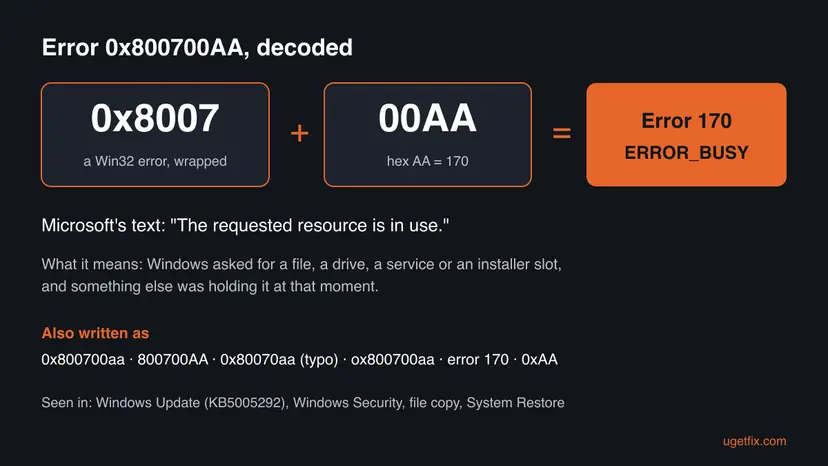
So the code does not say that anything is broken. It says that at one moment Windows asked for something and another process had it. What that something is depends on the window where you saw the code, and so does the fix.
| What you see | Where | What was busy |
|---|---|---|
| "Update for Microsoft Defender for Endpoint - KB5005292" with "Install error - 0x800700aa" | Settings > Windows Update and Update history | The Defender for Endpoint sensor (MsSense.exe) or its installer. Fix 2. |
| Protection will not turn on, with the code under the switch or on the home page | Windows Security > Virus & threat protection | The antivirus slot: another antivirus is registered and active. Fix 3. |
| A copy, move or delete error dialog with Error 0x800700AA | File Explorer, when you copy, move, rename or delete | The file, the folder or the drive is open in another program. Fix 4. |
| System Restore did not complete successfully, with the code | The System Restore result window after the restart | A file the restore had to replace was held by a running program or a backup. Fix 5. |
| The same code in another app, for example a backup tool or an Xbox app | That app's own window | The same meaning. See the FAQ. |
Error 170 describes a moment, not a state. Whatever held the resource usually lets go when it finishes or when Windows restarts. When the same action fails again right after a restart, the holder starts with Windows, and the fixes below find it.
Why error 0x800700aa happens, from most to least likely
Microsoft has not published one cause for 0x800700AA, because error 170 is a general code. The ranking below follows what the code means, where readers of this page meet it, and what Microsoft says about the KB5005292 package. Each cause points to its fix.
| Cause | How often | How to tell | Fix |
|---|---|---|---|
| A one time lock: an installer, a scan or a sync was still running. | Most often | It failed once, and you have not restarted since. | Fix 1 |
| The Defender for Endpoint sensor is already at that version or newer, or the package does not match the installed branch. | Often, on work PCs | The failed update is KB5005292. The PC is managed by a company. | Fix 2 |
| A second antivirus is active, so Microsoft Defender cannot take the antivirus slot. | Often, when turning on Defender | Windows Security lists another provider, or one was removed badly. | Fix 3 |
| A program has the file or the drive open. | Often, with files | Copy, move or delete fails on one file or one drive. | Fix 4 |
| A running program or backup holds a file System Restore must replace. | Sometimes | Only System Restore fails. | Fix 5 |
| A startup program or service grabs the resource every time. | Rarely | It comes back after every restart. | Fix 6 |
| Damaged system files make a Windows component hang and hold its files. | Rarely | Other errors appear too. | Fix 7 |
Disk Cleanup and a check of FAT32 against NTFS are common advice for this code. A full disk shows another code, 0x80070070, and a FAT32 drive refuses a large file with its own message about the file being too large. Neither frees a resource that is in use.
How to fix error 0x800700aa in Windows
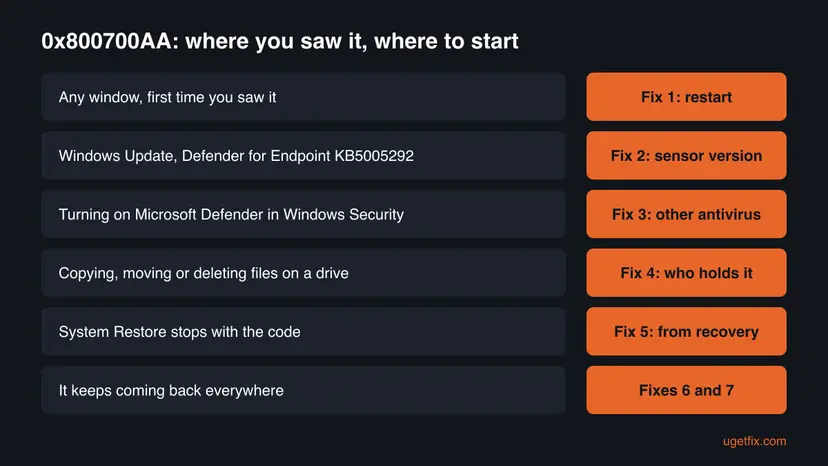
Fix 1 takes five minutes and changes nothing, so everybody starts there. Fixes 2 to 5 each match one window where the code appears: pick yours from the table. Fixes 6 and 7 are for a code that keeps coming back.
| What you see or have | Start with |
|---|---|
| You saw the code once, in any window, and have not restarted. | Fix 1 |
| Windows Update shows KB5005292 with Install error - 0x800700aa. | Fix 2 |
| Microsoft Defender or real-time protection will not turn on. | Fix 3 |
| Copying, moving, renaming or deleting a file or folder fails. | Fix 4 |
| System Restore stops with the code. | Fix 5 |
| It comes back after every restart, in more than one place. | Fix 6, then Fix 7 |
Fix 1. Restart Windows, close what is running and retry
5 minutesNo riskAlways first, and above all when the code appeared once.
Error 170 means another process held the resource at that moment. A real restart ends every process, including installers and scans that were still running, so the next attempt finds the resource free.
- Save your work and close your apps, including cloud sync and backup apps you can close.
- Select Start > Power > Restart. Use Restart, not Shut down, because Fast Startup can keep parts of the last session.
- After the restart, wait a minute so that startup tasks finish.
- Repeat exactly what failed: Retry in Windows Update, the switch in Windows Security, the copy or the restore.
- If it fails again, note the window and the exact text, then pick your fix in the table above.
It worked if: The update installs, protection turns on, or the copy finishes without the code.
If not: If the same action fails again with 0x800700AA, go to the fix for your window: Fix 2 for KB5005292, Fix 3 for Defender, Fix 4 for files, Fix 5 for System Restore.
Fix 2. Fix KB5005292 "Install error - 0x800700aa" by checking the Defender for Endpoint sensor version
10 minutesNo riskWindows Update or Update history shows "Update for Microsoft Defender for Endpoint - KB5005292" with "Install error - 0x800700aa". This is almost always a work or school PC.
KB5005292 updates the Defender for Endpoint EDR sensor, MsSense.exe. Microsoft writes that the update applies only if the sensor on the PC is older than the package. When the sensor is already at that version or newer, or the package is from another branch, the installer stops instead of replacing a sensor that is running.
- In Settings > Windows Update > Update history, note the version in the failed update's name, for example
10.8838.26060.15013. - Right-click Start and select Terminal (Admin). On Windows 10, search for
powershelland select Run as administrator. - Read where the sensor is installed. The folder name ends with its version number.
Get-ItemProperty -Path 'Registry::HKEY_LOCAL_MACHINE\SOFTWARE\Microsoft\Windows Advanced Threat Protection\' -Name 'InstallLocation' - Compare the version at the end of
InstallLocationwith the version from step 1. - If the installed version is the same or higher, the update is not needed. The failure is expected and you can leave it.
- If the installed version is lower, restart (Fix 1) and select Retry once more.
- If it still fails on a work PC, send the two version numbers to your IT team. A management server such as WSUS or Intune may offer a package from the wrong branch.
| Installed sensor | Offered in KB5005292 | What to do |
|---|---|---|
| Same or newer | Older or same | Nothing. The update is not needed. Microsoft updates the onboarding package often, so a new install can already be ahead. |
| Older | Newer | Restart and retry. If it still fails, ask IT to check the deployment or install the package from the Microsoft Update Catalog. |
No InstallLocation value | Any | The sensor is not installed. The PC should not be offered this update. Ask IT. |
Microsoft's KB5005292 page lists Windows Server 2016 and Windows Server 2012 R2, yet Windows Update on some PCs shows the name "Windows 10/11 - Update for Microsoft Defender for Endpoint". We could not confirm why. The version check above works the same on both.
It worked if: Either the installed sensor is already current and the error can be ignored, or the update installs after the restart and Update history shows it as installed.
If not: If the sensor is older and the update keeps failing, the deployment is the problem, not the PC. Collect the details listed in the section after the fixes and send them to IT.
Fix 3. Turn on Microsoft Defender after removing the other antivirus
20 minutesLow riskWindows Security shows 0x800700AA when you turn on Microsoft Defender or real-time protection.
Windows runs one active antivirus at a time. While another antivirus is registered as active, or a badly removed one still leaves its parts behind, Microsoft Defender cannot take the antivirus slot and the switch fails with error 170.
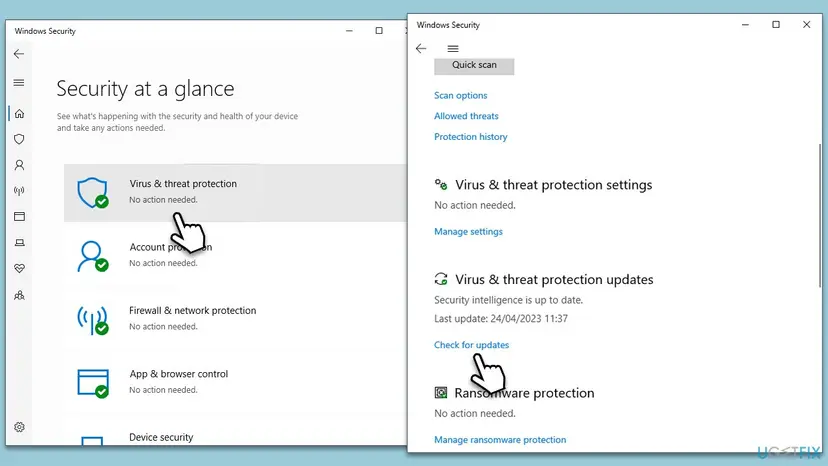
- Open Windows Security > Virus & threat protection. If it names another provider, that program is the active antivirus.
- Remove that program in Settings > Apps > Installed apps (Windows 10: Settings > Apps > Apps & features). Its steps are here: Uninstall a program or app in Windows.
- If the maker offers its own removal tool, run it too. Antivirus programs often leave drivers and services behind.
- Restart with Start > Power > Restart.
- Open Windows Security > Virus & threat protection > Manage settings and turn Real-time protection on.
- Under Virus & threat protection updates, select Check for updates so that Defender gets current security intelligence.

Uninstall the other antivirus only when you are ready to turn Defender on right after the restart. Do not browse or open email in between.
It worked if: Real-time protection stays on, and Windows Security shows a green check under Virus & threat protection.
If not: If no other antivirus is listed and the switch still fails, a work policy may manage Defender. On a home PC, run Fix 6 and then Fix 7.
Fix 4. Find the program that holds the file or drive, then copy or delete again
10 minutesLow riskFile Explorer shows 0x800700AA when you copy, move, rename or delete a file, a folder or a whole drive.
Here error 170 means another program has the file, the folder or the drive open. Resource Monitor shows which process holds a file, so you close that one program instead of guessing.
- Close every app that may use the file: the app that made it, a media player, a preview window, a sync or backup app.
- Press Win + R, type
resmonand press Enter to open Resource Monitor. - Open the CPU tab and expand Associated Handles.
- Type the file or folder name, or the drive letter such as
E:\, in the Search Handles box. - Note the Image column: that process holds the file. Close that program normally.
- If it does not close, end it in Task Manager. Unsaved work in that app is lost. Steps: Close a frozen app (Task Manager, Force Quit).
- If the image is
explorer.exe, close every File Explorer window or restart it with Restart File Explorer. - Retry the copy, move or delete.
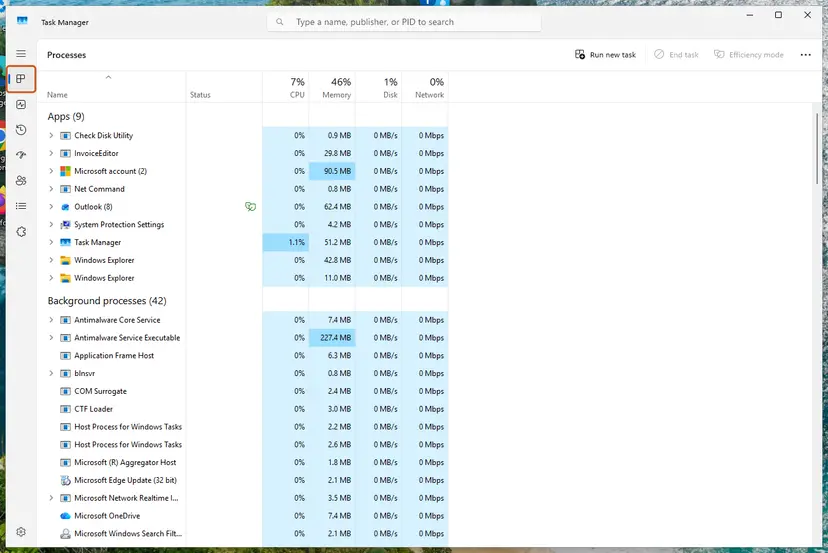
Use Safely remove in the taskbar. If Windows says the device is in use, the same Resource Monitor search with the drive letter shows which program holds it.
It worked if: The copy or delete finishes and the file is where it should be.
If not: If no process holds the file and it still fails, restart (Fix 1). If it fails after every restart, the holder starts with Windows: go to Fix 6.
Fix 5. Run System Restore from Windows Recovery and pick another restore point
30 minutes to 1 hourRead the warningSystem Restore stops with 0x800700AA and says it did not complete.
System Restore replaces system files, drivers and programs. If a running program or a backup holds one of them, the restore stops with error 170. In Windows Recovery none of your programs run, so nothing holds the files.
System Restore keeps your personal files, but programs, drivers and updates installed after the restore point are removed. Note what you installed recently, and back up anything important first.
- Open Settings > System > Recovery and select Restart now next to Advanced startup. On Windows 10: Settings > Update & Security > Recovery.
- Select Troubleshoot > Advanced options > System Restore, then pick your account and type its password.
- Select Choose a different restore point and Next.
- Tick Show more restore points and pick a point from before the problem began.
- Select Next and Finish, and wait. The PC restarts on its own.
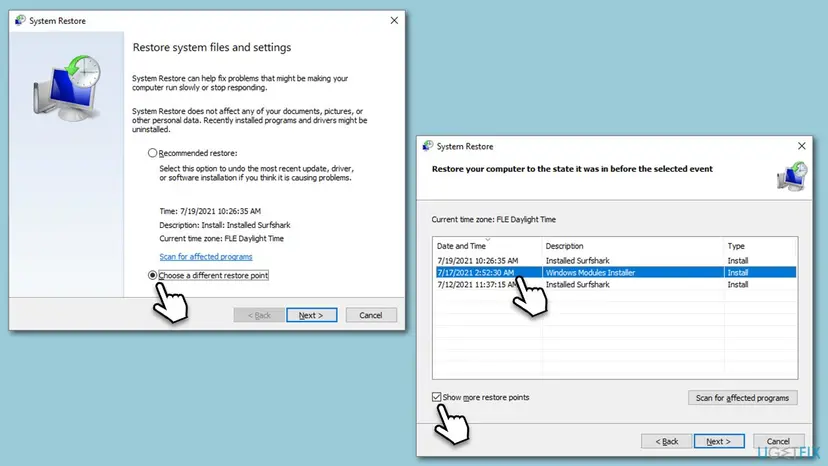
The full steps, including System Restore from inside Windows, are here: Undo recent changes with System Restore.
It worked if: After the restart, Windows says System Restore completed successfully.
If not: If it fails from recovery too, try an older restore point once. If every point fails, run the repairs in Fix 7 from Windows and try again.
Fix 6. Find the startup program that holds the resource with a clean boot
20 minutesLow riskThe code comes back after every restart, in Windows Security, in file operations or in Windows Update.
A clean boot starts Windows with only Microsoft services. If the action works now, a third-party program that starts with Windows held the resource: a backup tool, a sync client, a disk tool or a security program.
- Open System Configuration. Select Search on the taskbar, type msconfig and select System Configuration from the results.
- Hide Microsoft services. On the Services tab, select the Hide all Microsoft services check box. Only services from other companies stay in the list.
- Disable the remaining services. Select Disable all, then select Apply.
- Open Task Manager. On the Startup tab of System Configuration, select Open Task Manager.
- Disable the startup apps. On the Startup apps tab in Task Manager, select each item whose status is Enabled and select Disable. Write down or take a screenshot of the items you disable: you need the list to turn them back on.
- Confirm the changes. Close Task Manager. On the Startup tab of System Configuration, select OK.
- Restart and test. Restart the PC. Windows now starts in a clean boot environment: try again the thing that failed (run the app, install the update, uninstall the program).
These steps were written for Windows 11 25H2 and 26H2. The full page with the other versions and what each result means: How to perform a clean boot in Windows

- In clean boot, repeat the action that failed with 0x800700AA.
- If it works, turn half of the disabled services back on and restart.
- Repeat with halves until the code returns. The last group you turned on holds the program.
- Update, reconfigure or remove that program, then undo the clean boot with Enable all.
It worked if: The action works in clean boot, and you find the one program that blocks it.
If not: If it fails in clean boot too, no third-party program is the cause. Repair Windows files in Fix 7.
Fix 7. Repair Windows system files with DISM and SFC
30 minutesLow riskFixes 1 to 6 did not help, or other Windows errors appear as well.
A damaged system file can make a Windows component such as the update installer or Windows Security hang while it holds its files. DISM repairs the component store, then SFC repairs the files from it.
- Open an elevated command window. Right-click Start and select Terminal (Admin), or type cmd in the search box, right-click Command Prompt and select Run as administrator. Select Yes when Windows asks for permission.
- Run DISM first. Type the command below and press Enter. DISM downloads clean copies of damaged components from Windows Update, so it can take several minutes. Wait until it says The operation completed successfully.
DISM.exe /Online /Cleanup-Image /RestoreHealth - Run System File Checker. In the same window, type the command below and press Enter. Do not close the window until the verification reaches 100%.
sfc /scannow - Read the result and restart. Compare the last message with the table below this guide, then restart the PC so that repaired files are loaded.
These steps were written for Windows 11 24H2 and 25H2. The full page with the other versions and what each result means: Run DISM and SFC to repair Windows system files

- When both commands finish, restart with Start > Power > Restart.
- Repeat the action that failed with 0x800700AA.
It worked if: DISM says the restore operation completed, SFC finds no integrity violations or repairs them, and the action works after the restart.
If not: If SFC cannot repair some files or the code stays, collect the details in the next section and ask for help.
If error 0x800700aa is still there: what to check and send
Error 170 is always about one resource held by one process. Write down where you saw the code before you ask for help, because the right person to ask depends on it.
| Case | Where to look | What to send |
|---|---|---|
| KB5005292 in Windows Update | Update history, and InstallLocation from Fix 2 | Offered and installed sensor versions, the dates of the failures |
| Microsoft Defender will not turn on | Windows Security > Virus & threat protection, and Event Viewer > Applications and Services Logs > Microsoft > Windows > Windows Defender > Operational | The provider listed, and the error lines at the time you tried |
| File copy or delete | Resource Monitor search from Fix 4 | The file path and the process named in the Image column |
| System Restore | The System Restore result window | The restore point date and whether recovery mode failed too |
- On a work PC: Defender for Endpoint, Windows Update and security settings are usually managed by your company. Send the details above to your IT team instead of changing policies.
- When it is hardware: if file operations on one drive fail with several codes and the drive disconnects or makes noise, back it up and test it with Check a disk for errors (chkdsk). Error 170 itself is not a disk fault.
- A related code: if a file cannot be decrypted while you copy it, see our guide to error 0x80071771.
How to keep 0x800700aa from coming back
The code comes back when two programs want the same thing at the same time. A few habits keep that from happening.
- Keep one antivirus. Two security programs fight for the same slot and the same files.
- Remove an old antivirus with its maker's removal tool, not only from Installed apps.
- Close sync and backup apps before you move large folders, and let a running backup finish before System Restore.
- Restart with Start > Power > Restart at least once a week, so that installers and updates finish.
- Eject USB drives with Safely remove before you unplug them.
- Windows 10 left support on 14 October 2025. A Windows 10 PC without Extended Security Updates gets no new monthly updates, so plan the move to Windows 11.
Frequently asked questions
What is error 0x800700aa?
It is Win32 error 170 in the eight digit form Windows Update, Windows Security and File Explorer use. Microsoft names it ERROR_BUSY, with the text "The requested resource is in use." It means another process was using what Windows needed at that moment: a file, a drive, the antivirus slot or an installer. It does not mean that a file is damaged. A restart clears it in many cases, and the window where you saw it tells you which fix to use next.
Is 0x80070aa the same error as 0x800700aa?
Yes, in practice. 0x80070aa has one zero missing and is a common typo of 0x800700AA, which is how many people search for it. Windows always prints the code with eight digits after 0x. The same goes for 800700aa without 0x, ox800700aa with the letter o, and error 170. All of them mean "The requested resource is in use." Use the fixes on this page.
Why does KB5005292 fail with install error 0x800700aa?
KB5005292 updates the Microsoft Defender for Endpoint EDR sensor, MsSense.exe. Microsoft writes that the package applies only when the sensor on the PC is older than the package. If the sensor is the same or newer, or the package is from another branch, the install stops with 0x800700AA. Check the installed version with the PowerShell command in Fix 2. If it is current, the failure can be ignored. On a work PC, IT manages this update.
Can I ignore the KB5005292 install error?
Often, yes. If the installed sensor version is the same as or newer than the version in the update name, the update has nothing to do and the failure is expected. Microsoft releases this update again and again under the same KB number, so a newer one will replace it. If the installed sensor is older, do not ignore it: the sensor protects the PC. Restart and retry, then ask IT.
Why can't I turn on Microsoft Defender with error 0x800700aa?
Usually another antivirus is still active, or was removed without its maker's removal tool. Windows runs one active antivirus at a time, so Microsoft Defender cannot take the slot while the other one holds it. Check Windows Security > Virus & threat protection for another provider, remove it, restart and turn real-time protection on. Fix 3 has each step. On a work PC, a policy may manage Defender instead.
Should I turn off my antivirus to fix 0x800700aa?
No. Turning off protection is not a fix for this code. If a second antivirus is the cause, remove it and use one antivirus, as Fix 3 shows. If a security program holds a file you copy, close or update that program instead. For a single test, you may pause protection for a few minutes and turn it back on right after: Turn off Microsoft Defender protection for a moment. Never keep it off.
Does Disk Cleanup or freeing space fix 0x800700aa?
Not on its own. Error 170 means a resource is in use, not that the disk is full. A full disk gives another code, 0x80070070, "There is not enough space on the disk." Keep enough free space for updates and restore points, but start with the fix for the window where you saw the code. Disk Cleanup does not close a program that holds a file.
I see 0x800700aa in an Xbox app, a backup tool or a repair tool. Is it the same?
It is the same error, a resource that another process was using, but the fix depends on the program. A backup tool that cannot connect to its server with 800700aa usually means the target or its service is busy with another job. A repair tool that cannot start may find another repair or installer running. Restart, close other installers, and retry. This page covers the Windows cases in detail.
What does the error mean in other languages, for example インストール エラー or erro 0x800700aa?
The meaning is the same in every language version of Windows: the requested resource is in use. The Japanese "インストール エラー - 0x800700aa" is the same install error that Windows Update shows next to KB5005292 in English. The fixes and commands on this page work the same in any language of Windows. This page is in English only.
Sources
- Microsoft Learn: System Error Codes (0-499), error 170 (0xAA) ERROR_BUSY (learn.microsoft.com)
- Microsoft Support: Microsoft Defender for Endpoint update for EDR Sensor (KB5005292) (support.microsoft.com)
- Microsoft Q&A: Windows 10/11 - Update for Microsoft Defender for Endpoint - KB5005292, install error 0x800700aa (learn.microsoft.com)
Did this fix work?
One click, no account. It tells the next reader which guides are worth their time.
Questions and experiences: fix 0x800700aa error in Windows
Still broken, or found a fix we did not cover? Ask here: members and our editors answer. Reading is open; writing needs a free account.
…