
How to fix 0x80073cfd error in Windows?

Prefer to fix it yourself? The manual steps follow.
- 6methods
- 5 to 30 minutes
- Intermediate
Applies to Windows 11, Windows 10; Add-AppxPackage and downloaded .appx or .msix packages, Microsoft Store reinstalls with PowerShell, Microsoft Store apps, the Xbox app and Game Pass games on PC
6 methods in this guide
Hi. I've been having trouble with Microsoft Store, so I tried to reinstall it via PowerShell, but I received a 0x80073cfd error. Any tips on what to do next?
Error 0x80073CFD means that Windows refused an app package because one of its install prerequisites is not met on your PC. Most often the package needs a newer Windows build than yours, or a game is going to a drive that cannot take it. Check the package's minimum version first, then the install drive.
0x80073CFD is Microsoft's code for "A specified install prerequisite couldn't be satisfied". If you installed a downloaded package with PowerShell, compare the MinVersion in its manifest with your Windows build and update Windows or use a package made for your version (Fix 1). If it came from a Store reinstall command, register only the Store (Fix 2). For a Game Pass game, install to the C: drive first (Fix 3).
| Error | 0x80073CFD, name ERROR_INSTALL_PREREQUISITE_FAILED, Microsoft's text "A specified install prerequisite couldn't be satisfied." |
|---|---|
| Where it appears | In PowerShell after Add-AppxPackage, in a Microsoft Store install or update, and in the Xbox app when a Game Pass game installs or starts. |
| Main cause | The package asks for something your PC does not have: most often a newer Windows build, for games a drive in a format the app can use. |
| Fastest fix | Compare the package's MinVersion with your build from winver (Fix 1). For games, install to the C: drive (Fix 3). |
| Also written as | 0x80073cfd, (0x80073cfd), 80073CFD, "Deployment failed with HRESULT: 0x80073CFD, A Prerequisite for an install could not be satisfied." |
| Affects | Windows 11 and Windows 10, mostly with packages installed by hand. Windows 10 left support on 14 October 2025. |
| Microsoft's status | A documented deployment error, not a bug with a patch. Microsoft's table gives no list of causes for it. Xbox Support has a page for Game Pass on Windows 10. |
| Where the cause is logged | Event Viewer > AppXDeployment-Server, or Get-AppxLog in PowerShell. |
| Time to fix | 5 minutes to read the version and the log. Up to 30 minutes when Windows needs a feature update. |
Facts checked on 15 October 2026. Steps written for Windows 11 (25H2 and 26H2) and Windows 10 22H2.
What error 0x80073CFD means: an install prerequisite was not met
0x80073CFD is one of the deployment errors that Windows returns when it installs an app package, the .appx or .msix format that Microsoft Store apps, Xbox app games and many downloaded apps use. Microsoft names it ERROR_INSTALL_PREREQUISITE_FAILED and describes it in one line: "A specified install prerequisite couldn't be satisfied."
A prerequisite is a condition that the package sets before Windows will install it. The package writes its conditions into its manifest file, and Windows checks them before any file is copied. If one is not met, the install stops at once and nothing is changed on your PC.
- HRESULT
- 0x80073CFD (people also type 0x80073cfd, (0x80073cfd) and 80073CFD)
- Name
ERROR_INSTALL_PREREQUISITE_FAILED- Microsoft's developer table
- A specified install prerequisite couldn't be satisfied.
- Text in PowerShell
- A Prerequisite for an install could not be satisfied.
- Xbox Support, Game Pass on Windows 10
- Reformat your external storage. Windows 10 apps need either FAT32 or exFAT format.
In PowerShell the full message reads:
The message in Windows PowerShell
Add-AppxPackage : Deployment failed with HRESULT: 0x80073CFD, A Prerequisite for an install could not be satisfied.The earlier text on this page quoted a PowerShell message with 0x80073CF6, "Package could not be registered". That is a different error, which happens after the checks. It has its own guide: error 0x80073CF6.
Why this error is coming: the causes of 0x80073CFD, ranked
Microsoft does not list the prerequisites behind this code. The reports that rank for it on Google show a clear pattern: a package installed by hand on a Windows build that is too old for it, and Game Pass games on external drives. Store problems come last.
| Cause | How often | How to tell | Fix |
|---|---|---|---|
| The package needs a newer Windows build than yours (its MinVersion). | Most often | You installed a downloaded .appx, .msix or bundle with PowerShell or App Installer. | Fix 1 |
| A command re-registers every app, and some of them cannot be installed for your account. | Often with Store reinstalls | Red text for a few packages, while Microsoft Store itself works afterwards. | Fix 2 |
| The game drive is in a format the Xbox app cannot use. | Often for Game Pass | Games fail on an external drive and install on C:. | Fix 3 |
| Windows itself is out of date for a Store app. | Sometimes | One Store app fails, others install. | Fix 4 |
| Microsoft Store or its cache is damaged. | Rarely | Every Store install fails. | Fix 5 |
| Windows system files are damaged. | Rarely | Nothing installs, and other system tools fail too. | Fix 6 |
The column "How often" is our reading of Microsoft's table, Xbox Support's page and the public reports for this code. Microsoft publishes no numbers for it.
Related codes: 0x80073D01, 0x80073D13, 0x80073D21, 0x80073D25, 0x80073D3F and 0x80073D31
People who search for 0x80073CFD often meet a neighbour of it. All of them come from the same deployment table, and each has its own cause. Microsoft's text for each one is below, in short.
| Code | Microsoft's name | What it means | What to do |
|---|---|---|---|
| 0x80073D01 | ERROR_DEPLOYMENT_BLOCKED_BY_POLICY | A policy blocks the install, for example Application Control, or you are signed in with a temporary profile. | Ask your administrator, or sign out and in again. Our 0x80073D01 guide. |
| 0x80073D13 | ERROR_PACKAGE_NOT_SUPPORTED_ON_FILESYSTEM | This package type is not supported on the file system of the target drive. | Install to the C: drive (Fix 3). |
| 0x80073D21 | ERROR_DEPLOYMENT_BLOCKED_BY_VOLUME_POLICY_PACKAGE | This app must go on the system drive, but another drive is set as the default. | Make the system drive the default place for new content. |
| 0x80073D25 | ERROR_SINGLETON_RESOURCE_INSTALLED_IN_ACTIVE_USER | Another signed-in user has the package installed. | Sign out all other users who have the app, then install again. |
| 0x80073D3F | ERROR_INSTALL_DRIVE_NOT_FOUND | The drive set for installs is missing. | Connect the drive, or change Settings > System > Storage > Change where new content is saved. |
| 0x80073D31 | Not in Microsoft's table that we read | We could not confirm its meaning. | Read the log as shown under "If the error is still there". |
0x80073D13, 0x80073D21 and 0x80073D3F all point at the install drive, like the Game Pass case of 0x80073CFD. Fix 3 covers that check.
How to fix error 0x80073CFD in Windows 11 and Windows 10
The fixes work on Windows 11 and Windows 10, with both paths where they differ. Fix 1 and Fix 2 are for PowerShell and downloaded packages, Fix 3 for Game Pass games, Fix 4 and Fix 5 for Microsoft Store. Fix 6 is the general repair for a code that keeps coming back.
| What you see or have | Start with |
|---|---|
You installed a downloaded .appx, .msix or bundle with Add-AppxPackage or App Installer. | Fix 1 |
| You ran a command that re-registers or reinstalls Microsoft Store for all apps. | Fix 2 |
| A Game Pass game in the Xbox app fails, most of all on an external drive. | Fix 3 |
| One app in Microsoft Store fails to install or update. | Fix 4 |
| Every app in Microsoft Store fails. | Fix 5 |
| Nothing above fits, or the code returns after every fix. | Fix 6, then the log |
Fix 1. Check the package's minimum Windows version and update Windows or get the right package
5 to 10 minutesNo riskYou installed a downloaded .appx, .msix, .appxbundle or .msixbundle with PowerShell or App Installer.
Every package names the oldest Windows build it runs on in the MinVersion of its TargetDeviceFamily. When your build is lower, that prerequisite fails before anything is installed. Packages built for Windows 11 fail this way on Windows 10 22H2, which is build 19045.
- Press Win + R, type
winverand select OK. Note the build number, for example OS Build 19045 or 26200. - Copy the package file to a folder of its own and change the ending of the copy from
.appxor.msixto.zip. - Open the .zip in File Explorer. In a bundle, open the inner package for your processor, usually the one with x64 in its name, the same way.
- Open
AppxManifest.xmlin Notepad and search forTargetDeviceFamily. - Read MinVersion. In
10.0.22000.0the third number, 22000, is the build the package needs. - If that number is higher than your build, update Windows (Fix 4) or download the package version that the publisher made for your Windows.
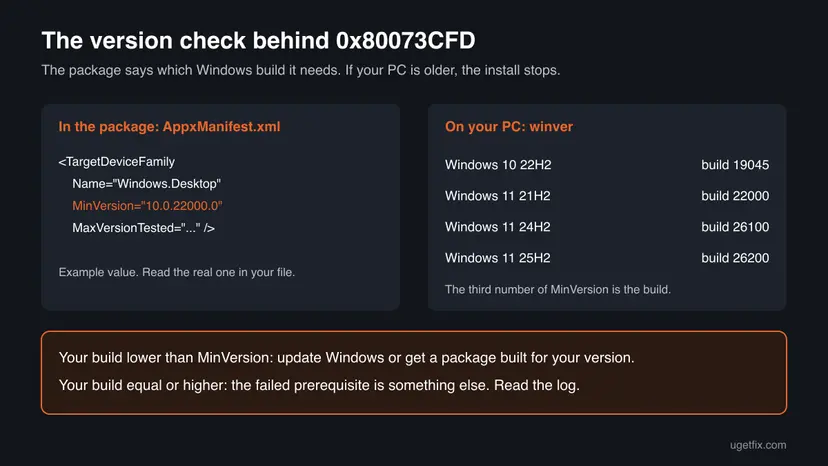
- Windows Subsystem for Android packages: many public reports of this code come from Windows Subsystem for Android builds and tools for it. Microsoft no longer supports that subsystem, and Microsoft's own support staff sent such a question elsewhere. We do not cover it here.
- Packages from unknown sites: a package from outside Microsoft Store or the publisher's own site can hold anything. Install only packages from a source you trust.
- Several MinVersion lines: a package can list
Windows.DesktopandWindows.Universal. On a PC, theWindows.Desktopline counts.
It worked if: Your build is equal to or higher than MinVersion and the install runs, or you know that the package is made for a newer Windows.
If not: If your build is high enough, the failed prerequisite is something else. Read the log as described under "If the error is still there", then go to Fix 6.
Fix 2. Reinstall Microsoft Store by registering only the Store, not every app
10 minutesLow riskYou ran a PowerShell command to reinstall or re-register Microsoft Store and some lines ended with 0x80073CFD.
The command that is often copied for this runs Add-AppxPackage for every package of every user. Packages that cannot be installed for your account answer with errors such as 0x80073CFD, while the Store itself may be fine. Registering only the Store tells you whether the Store is the problem at all.
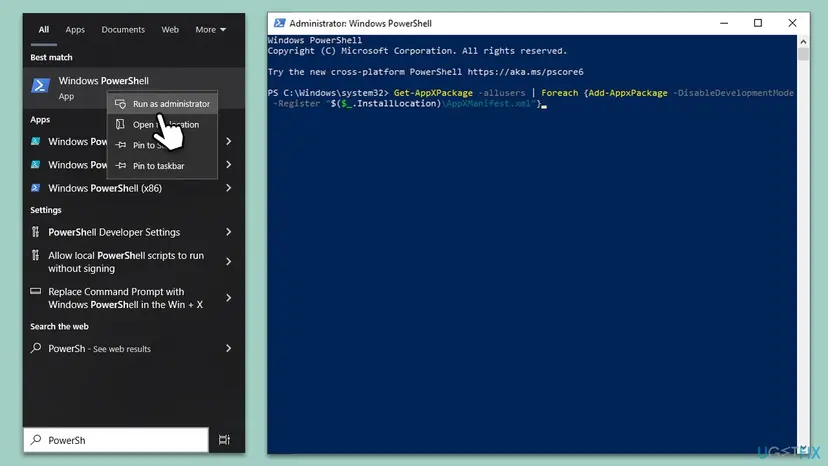
- Open Microsoft Store. If it opens and installs an app, the red lines from the big command can be ignored.
- If the Store does not open, select Start, type PowerShell and open Windows PowerShell the normal way, not as administrator.
- Run the command below. It registers the installed copy of Microsoft Store again for your account.
- No red text means the registration worked. Open the Store and try the install again.
- If red text names 0x80073CFD for the Store itself, update Windows first (Fix 4).
Register Microsoft Store again for your account
Get-AppxPackage -Name 'Microsoft.WindowsStore' | ForEach-Object { Add-AppxPackage -DisableDevelopmentMode -Register "$($_.InstallLocation)\AppxManifest.xml" }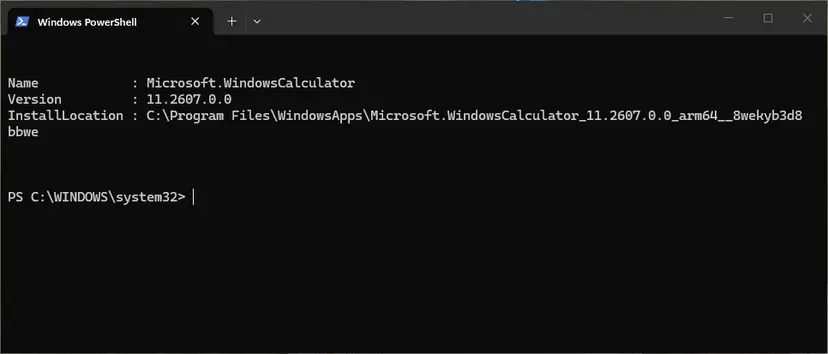
The same steps for any app, with every screen: How to re-register Microsoft Store apps with PowerShell
It worked if: The command ends without red text, and Microsoft Store opens and installs apps.
If not: If the Store still fails, repair it in Settings (Fix 5). If only one other package failed, go back to Fix 1 for that package.
Fix 3. Install the Game Pass game to the C: drive, then check the external drive
10 to 30 minutesRead the warningA Game Pass game in the Xbox app fails with 0x80073CFD, most of all on an external or second drive.
Xbox Support's page for this code says the external storage is not formatted to work with your device. The prerequisite that fails is the drive. Installing to the system drive proves it in one step, before you change any drive.
Xbox Support's note is plain: reformatting permanently deletes any content already on the drive. Copy what you need to another drive first: Back up your files (Windows Backup, File History, Time Machine). Try the C: drive test before you format anything.
- Open the Xbox app, select your profile picture and then Settings.
- Select Installation options and choose the C: drive as the place for new games.
- Install the game, or a small game, again.
- If it installs on C:, the external drive is the cause. Leave the game on C:, or fix the drive.
- Read what the Xbox app says about the external drive on the same page before you format it.
| Source | What it says about the drive |
|---|---|
| Xbox Support, page for 0x80073CFD | Written for Windows 10: "Windows 10 apps need either FAT32 or exFAT format." |
| Xbox Support, current pages for the Xbox app | Ask for NTFS for games and offer a Drive Compatibility Tool. We used them for our 0x80073CF6 guide. |
Because the two texts disagree, do not pick a format from either page alone. Use the drive check in the Xbox app, which reads your own drive, and follow the format it asks for.
It worked if: The game installs on C:, or on the external drive after the Xbox app reports the drive as ready.
If not: If the game fails on C: as well, update Windows (Fix 4) and then repair Microsoft Store (Fix 5).
Fix 4. Update Windows to the latest build
15 to 30 minutesLow riskFix 1 showed that your build is too old, or one Store app fails while others install.
The most common prerequisite is a Windows build. A feature update raises your build number, which can meet the package's MinVersion. On Windows 10 22H2 no newer feature update exists, so some packages need Windows 11.
- Select Start > Settings > Windows Update. On Windows 10: Start > Settings > Update & Security > Windows Update.
- Select Check for updates.
- Install every update, including an offered feature update to a newer version.
- Restart the PC when asked.
- Run
winveragain and compare the build with MinVersion from Fix 1.
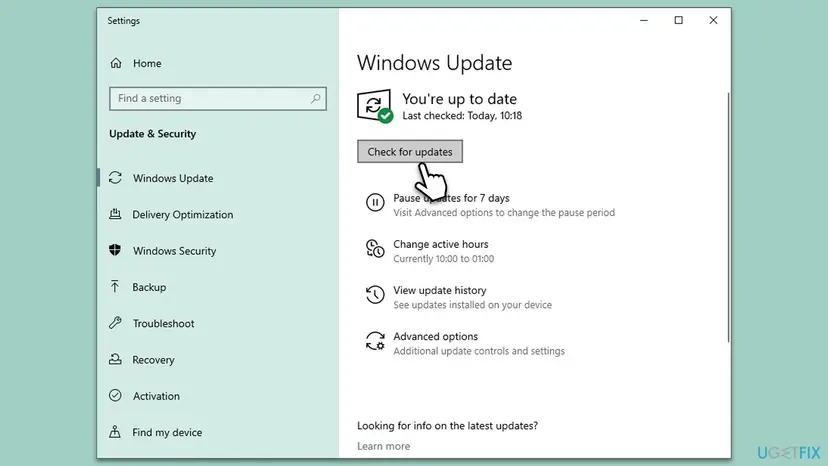
It worked if: Windows shows that it is up to date, and winver shows a build at or above the package's MinVersion.
If not: If your PC cannot get a newer build, use the package made for your version. For Store installs, go to Fix 5.
Fix 5. Repair or reset Microsoft Store
10 minutesLow riskEvery install in Microsoft Store fails, not only one package.
Microsoft Store is a package itself. When its cache or data is damaged, its own checks before an install can fail. The cache reset, Repair and Reset fix the Store without touching other apps.
- Press Win + R, type
wsreset.exeand select OK. Wait until Microsoft Store opens by itself. - Try the install. If it fails, select Start > Settings > System > System components.
- Next to Microsoft Store, select the three dots and Advanced options.
- Select Repair and try again.
- If that does not help, select Reset, open the Store and sign in again.
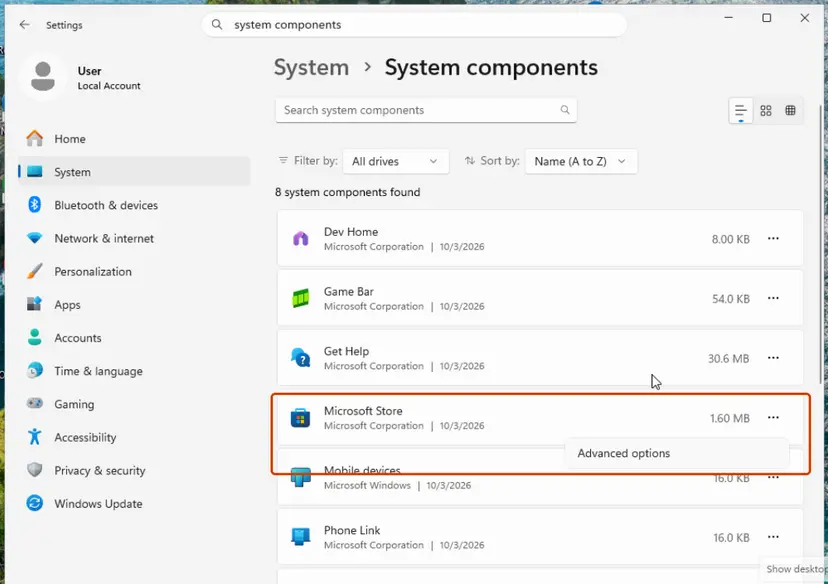
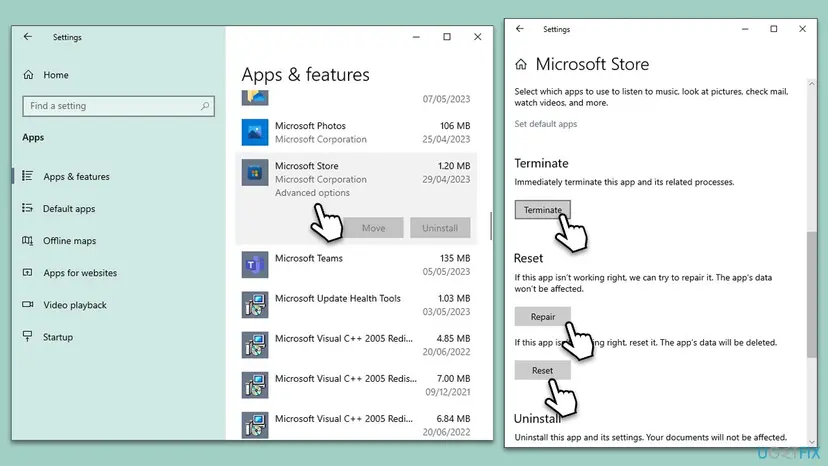
Reset removes the Store's data on this PC and the sign in. Purchases stay with your Microsoft account. Every screen: Reset the Microsoft Store
It worked if: Microsoft Store opens, and the app installs without the code.
If not: Go to Fix 6, then read the log.
Fix 6. Repair Windows system files with SFC and DISM
20 to 30 minutesLow riskNothing installs, other system tools fail too, or no fix above helped.
No Microsoft source ties 0x80073CFD to damaged system files. It is the last general check, for the case where the deployment service itself is damaged and every package fails its checks.
- Open an elevated command window. Right-click Start and select Terminal (Admin), or type cmd in the search box, right-click Command Prompt and select Run as administrator. Select Yes when Windows asks for permission.

Search for cmd and choose Run as administrator. Screenshot: Windows 11 26H2. - Run DISM first. Type the command below and press Enter. DISM downloads clean copies of damaged components from Windows Update, so it can take several minutes. Wait until it says The operation completed successfully.
DISM.exe /Online /Cleanup-Image /RestoreHealth
DISM /RestoreHealth running. Screenshot: Windows 11 26H2. - Run System File Checker. In the same window, type the command below and press Enter. Do not close the window until the verification reaches 100%.
sfc /scannow
sfc /scannow at 100%. Screenshot: Windows 11 26H2. - Read the result and restart. Compare the last message with the table below this guide, then restart the PC so that repaired files are loaded.

The result line tells you what SFC did. Screenshot: Windows 11 26H2.
These steps were written for Windows 11 24H2 and 25H2. The full page with the other versions and what each result means: Run DISM and SFC to repair Windows system files
It worked if: SFC reports that it found no problems or that it repaired them, and the install runs after a restart.
If not: Read the deployment log as shown in the next section. It names the prerequisite that failed.
If the error is still there: read the deployment log
Microsoft's advice for every deployment error is the AppXDeployment-Server event log. For 0x80073CFD it is the only place that says which prerequisite failed.
- Make the error appear once more and note the time.
- Open Windows PowerShell and run the command below. A table opens in its own window.
- Look for the rows with 0x80073CFD and read the lines around them for the package name and the condition.
- For Event Viewer, press Win + R, run
eventvwr.mscand open Applications and Services Logs > Microsoft > Windows > AppXDeployment-Server. - Open Microsoft-Windows-AppXDeploymentServer/Operational and read the Error entries at the time you noted.
The last deployment in a table
Get-AppxLog | Out-GridView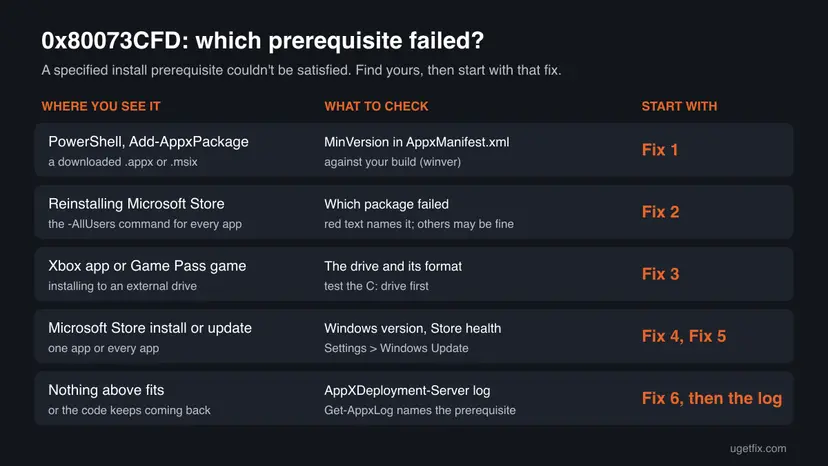
- What to send to support: the error entry from the log, the package name, the OS build from
winver, and where you installed from. - Not a fault of your PC: if the log shows a build or a device family that your PC does not have, the package is not made for it. Only the publisher can change that.
How to keep 0x80073CFD from coming back
- Install from Microsoft Store when you can. The Store checks the prerequisites before it offers an app, so a version mismatch does not reach the install.
- Read MinVersion before you install a package by hand. It takes a minute and saves the error.
- Keep Windows on a current build. Windows 10 left support on 14 October 2025, and new packages are built for Windows 11.
- Do not run all-app commands without need. Registering every package at once produces errors for packages that do not matter.
- Keep game drives connected and set up in the Xbox app. A missing or wrong drive gives this code and its neighbours 0x80073D13 and 0x80073D3F.
Frequently asked questions
What does error 0x80073CFD mean?
It means that Windows refused an app package because one of its install prerequisites is not met. Microsoft names the code ERROR_INSTALL_PREREQUISITE_FAILED and describes it as "A specified install prerequisite couldn't be satisfied". PowerShell shows it as "A Prerequisite for an install could not be satisfied". The check happens before any file is copied, so nothing on your PC was changed. The most common prerequisite is a minimum Windows build. For Game Pass games, it is the install drive.
Why does 0x80073CFD appear on Windows 10?
Most often because the package is made for a newer Windows than Windows 10 22H2, which is build 19045. Packages that need Windows 11 carry a MinVersion of 10.0.22000.0 or higher, and Windows 10 cannot meet it. No newer feature update for Windows 10 exists, so the only ways out are a package made for Windows 10 or an upgrade to Windows 11. Windows 10 left support on 14 October 2025, so more packages will need Windows 11 over time.
I got 0x80073CFD when I reinstalled Microsoft Store with PowerShell. Is the Store broken?
Not necessarily. The common reinstall command registers every package for every user. Some packages cannot be installed for your account and answer with errors like 0x80073CFD, while the Store itself is fine. Open Microsoft Store and try an install. If it works, ignore the red lines. If not, register only the Store with the command in Fix 2, and repair it in Settings if that fails.
How do I fix 0x80073CFD for a Game Pass game?
Install the game to the C: drive first, in the Xbox app under Settings > Installation options. If it works there, the external drive is the cause. Xbox Support's page for this code says the external storage is not formatted to work with the device. That page is written for Windows 10 and names FAT32 or exFAT, while current Xbox app pages ask for NTFS. Follow what the Xbox app itself says about your drive, and back up the drive before any format.
Does 0x80073CFD happen on Windows 11 25H2?
It can, but less often for the version reason. Windows 11 25H2 is build 26200, which meets the MinVersion of most packages. On a current Windows 11, the code usually means another prerequisite: the install drive, a package made for a different device family, or a package that needs an even newer build. Read the deployment log with Get-AppxLog to see which one it is.
What is the difference between 0x80073CFD and 0x80073CF3?
Both are checks before the install. The code 0x80073CF3 means the package failed its update, dependency or conflict check: a needed framework package is missing, it conflicts with an installed package, or the processor architecture is wrong. The code 0x80073CFD means an install prerequisite failed, most often the Windows version. If you see 0x80073CF3, install the missing framework packages first. Our guide to error 0x80073CF3 covers that code.
Will SFC or resetting Windows Update fix 0x80073CFD?
Usually not. No Microsoft source ties this code to damaged system files or to the Windows Update cache. The error comes from a condition in the package, and repairing Windows does not change that condition. SFC and DISM are the last general step on this page, for a PC where nothing installs at all. Resetting the Windows Update components is not on this page, because it does not touch app packages.
Can I force the install by editing MinVersion in the manifest?
No. A package is signed, and changing its manifest breaks the signature, so Windows refuses it with another error. A lower MinVersion would also not make the app work, because the app may use features of the newer Windows. Get the version that the publisher made for your Windows, or update Windows.
What is 0x80073D31?
We could not confirm it. It is not in the Microsoft deployment table that we read for this page, and we found no official description. If you see it, read the deployment log with Get-AppxLog right after the error. The log entry names the package and the reason, which is the only reliable way to know what this code means on your PC. The related codes 0x80073D01, 0x80073D13, 0x80073D21, 0x80073D25 and 0x80073D3F are described in the table above.
Sources
- Microsoft Learn: Troubleshooting packaging, deployment, and query of Windows apps (error codes and event logs) (learn.microsoft.com)
- Xbox Support: Error 0x80073CFD occurs when playing an Xbox Game Pass game on a Windows 10 device (support.xbox.com)
- Microsoft Q&A: Add-AppxPackage : Deployment failed with HRESULT: 0x80073CFD, A Prerequisite for an install could not be satisfied (a user report) (learn.microsoft.com)
Did this fix work?
One click, no account. It tells the next reader which guides are worth their time.
Questions and experiences: fix 0x80073cfd error in Windows
Still broken, or found a fix we did not cover? Ask here: members and our editors answer. Reading is open; writing needs a free account.
…