
How to fix 0x8024200B error on Windows?

Prefer to fix it yourself? The manual steps follow.
- 7methods
- 5 minutes to 2 hours
- Intermediate
Applies to Windows 11 and Windows 10: cumulative, security, driver and Microsoft Defender definition updates that fail in Windows Update with 0x8024200B
7 methods in this guide
How to fix Windows Update error 0x8024200B? It occurred when I was installing updates. I am using Windows 10.
Error 0x8024200B means the installer behind one Windows update failed, so Windows Update rolled the update back. The code itself does not name the cause: the name of the failed update and a second code in the logs do. Restart the PC, retry the update once, and if it fails again, install it by hand from the Microsoft Update Catalog.
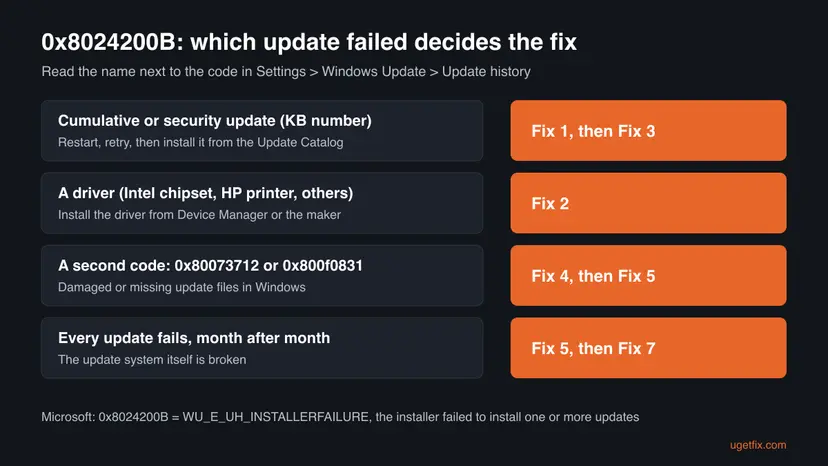
0x8024200B means the update's own installer failed. Open Settings > Windows Update > Update history, note which update failed, restart the PC and select Retry (Fix 1). If it is a driver, install that driver outside Windows Update (Fix 2). If it is a cumulative or security update and fails again, download it from the Microsoft Update Catalog and install it by hand (Fix 3). Repair Windows files only when a second code points to damage (Fix 4).
| Error | Install error - 0x8024200b in Settings > Windows Update, or Installation Failure: Windows failed to install the following update with error 0x8024200B in Event Viewer. |
|---|---|
| Where it appears | Windows Update in Settings, its Update history, and the System log in Event Viewer (source WindowsUpdateClient). |
| Main cause | The installer of one update failed. Microsoft names the code WU_E_UH_INSTALLERFAILURE: "The installer failed to install (uninstall) one or more updates." The real reason sits one level deeper. |
| Fastest fix | Restart, then Retry (Fix 1). For a driver, install it from Device Manager or the maker (Fix 2). For a KB update, install it from the Update Catalog (Fix 3). |
| Also written as | 0x8024200b, 8024200B, install error - 0x8024200b, Fehler 0x8024200b (German Windows). |
| Affects | Windows 11 and Windows 10, also Windows Server 2022. Seen with cumulative and security updates, driver updates and Defender definition updates. |
| Microsoft's status | A generic installer failure, not one known bug. One case was a bug: in 2022, KB5012599 for Windows 10 failed with 0x8024200B and 0x800F0831, and Microsoft fixed it with the May 2022 update. |
| Where the cause is written | C:\Windows\Logs\CBS\CBS.log for Windows updates, and the second code shown when you install the same update by hand. |
| Time to fix | 5 to 30 minutes for Fix 1 to Fix 5. About an hour or more for the repair reinstall in Fix 7. |
Facts checked on 15 October 2026. Steps written for Windows 11 (25H2 and 26H2) and Windows 10 22H2.
What error 0x8024200B means in Windows Update
Windows Update does not install every update itself. It hands each one to an update handler: the servicing stack for Windows updates, the driver installer for drivers, the Defender engine for definitions. Microsoft's error code list puts 0x8024200B in the group of update handler errors and names it WU_E_UH_INSTALLERFAILURE: "The installer failed to install (uninstall) one or more updates."
So the code is a wrapper. It tells you that the installer gave up, not why. That is why the same code shows up for a Windows 11 cumulative update, an Intel chipset driver, an HP printer driver and a Microsoft Defender definition update. The fix depends on which of them failed.
| What you see | Where | What it tells you |
|---|---|---|
| Install error - 0x8024200b | Settings > Windows Update, next to the update's name | The update downloaded, but its installer failed. The name tells you which update. |
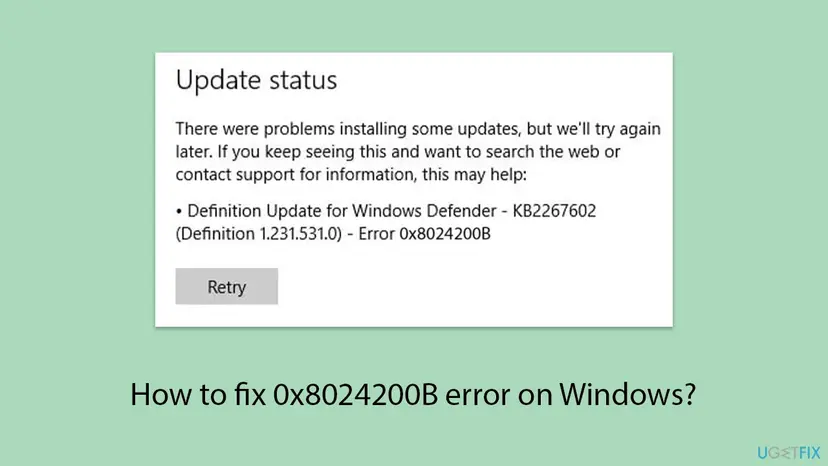
| There were problems installing some updates, but we'll try again later. | Windows 10 Update status page, with the update and the code below | The same failure on Windows 10, often for a Defender definition update. |
| Installation Failure: Windows failed to install the following update with error 0x8024200B | Event Viewer, Windows Logs > System, source WindowsUpdateClient | The same failure, with the full update title and KB number. |
| 0x8024200B next to 0x80073712 or 0x800F0831 | Update history or forum reports | The second code is the real reason: damaged or missing update files. |
Why error 0x8024200B appears
The causes are ordered from the most likely to the least likely. The meaning of the code comes from Microsoft. The order comes from the cases that show up for this code: which updates fail and which second codes appear next to it.
| Cause | How often | How to tell | Fix |
|---|---|---|---|
| The installer stopped on a one-time problem: an earlier update waiting for a restart, a lost connection, a full drive C:. | Most often | The update failed once. Other updates installed. | Fix 1 |
| A driver offered by Windows Update does not install on this device. | Often | The failed item in Update history is under Driver updates, for example an Intel or HP driver. | Fix 2 |
| The Windows Update download of a cumulative or security update is broken. | Sometimes | The same KB fails at every retry. | Fix 3, Fix 5 |
| The component store, where Windows keeps update files, is damaged. | Sometimes | A second code such as 0x80073712 or 0x800F0831, or DISM reports damage. | Fix 4 |
| Windows Update itself is broken. | Rarely | Every update fails, month after month, on the same PC. | Fix 5, Fix 6, Fix 7 |
In April 2022 the Windows 10 update KB5012599 failed on many PCs with 0x8024200B and 0x800F0831. Microsoft called it a regression caused by servicing stack changes and fixed it with the May 2022 update. If you see the code today, that old bug is not the reason.
How to fix error 0x8024200B
Fix 1 to Fix 3 are specific to this code and solve it for most readers. Fix 4 to Fix 6 repair Windows Update itself and are for the case where the same update keeps failing. Fix 7 reinstalls Windows over itself and keeps your apps and files.
| What you see or have | Start with |
|---|---|
| One update failed once, other updates installed | Fix 1 |
| The failed item is a driver (Intel, HP, a printer, a chipset) | Fix 2 |
| A Defender definition update failed | Fix 1, the tip about Windows Security |
| The same KB update fails at every retry | Fix 3 |
| A second code: 0x80073712 or 0x800F0831 | Fix 4, then Fix 5 |
| Every update fails, month after month | Fix 5, Fix 6, then Fix 7 |
| A work or school PC, or Windows Server 2022 | Read the CBS.log and ask the administrator |
Fix 1. Restart the PC and install the update again
5 to 20 minutesNo riskThe update failed once, or you do not know yet which update it is.
0x8024200B only says that the installer stopped. A pending restart from an earlier update, a lost connection or a full system drive stops it once and not again. A real restart clears the first, and the retry downloads what was missing.
- Open Settings > Windows Update > Update history (Windows 10: Settings > Update & Security > Windows Update > View update history).
- Note the name and KB number of the item with Install error - 0x8024200b, and whether it is listed under Quality updates, Driver updates or Definition updates.
- Select Start > Power > Restart. Use Restart, not Shut down.
- Check that drive C: has free space in Settings > System > Storage. If it is almost full, free space first: Free up disk space and delete temporary files.
- Open Settings > Windows Update and select Retry or Check for updates.
- Restart again when Windows asks.
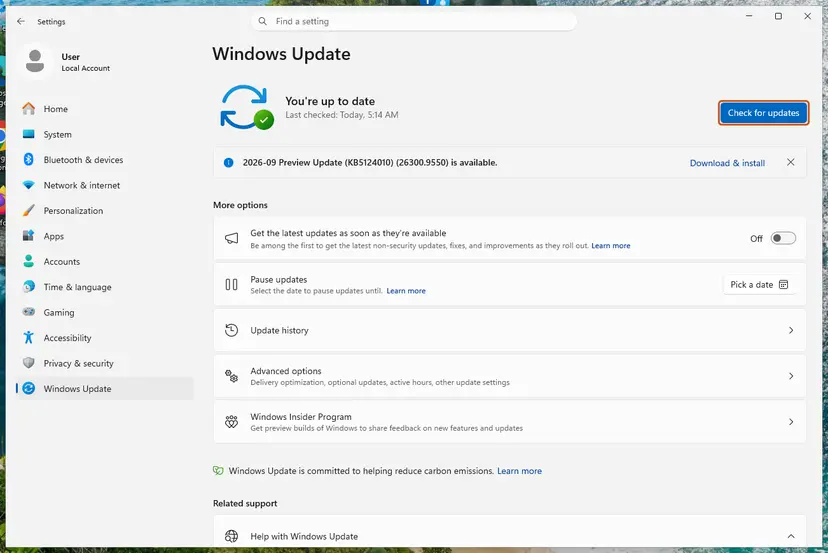
Definitions do not need Windows Update. Open Windows Security > Virus & threat protection, select Protection updates and then Check for updates. The failed entry in Windows Update then no longer matters, because newer definitions replace it.
It worked if: Update history lists the update as Successfully installed, and Windows Update says you are up to date.
If not: If the failed item is a driver, go to Fix 2. If it is a KB update that fails again, go to Fix 3.
Fix 2. Install the failing driver outside Windows Update
10 to 20 minutesLow riskThe failed item in Update history is under Driver updates, for example an Intel chipset or an HP printer driver.
For a driver, the update handler is the driver installer. When it rejects the package Windows Update offers, the device often already has the same or a newer driver, or needs the maker's own package. Users report 0x8024200B mostly with Intel system drivers and HP printer drivers.
- Open Device Manager. Right-click Start and select Device Manager.

Device Manager lists devices by category; a yellow warning sign marks a device with a problem. Screenshot: Windows 11 26H2. - Open the device's Driver tab. Expand the category (for example Display adapters), right-click the device, select Properties and open the Driver tab. Driver Date and Driver Version show what is installed now.
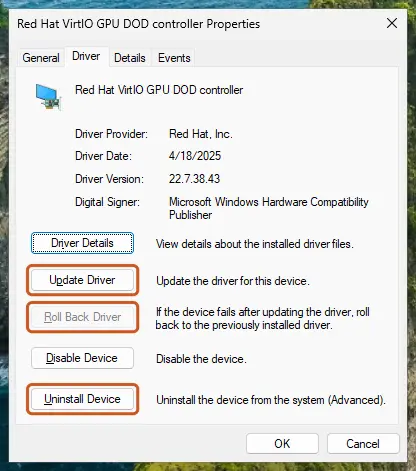
The Driver tab holds all three actions: update, roll back, uninstall. Screenshot: Windows 11 26H2. - Update the driver. Select Update Driver and let Windows search automatically. To use a driver you downloaded from the device maker, select Browse my computer for drivers instead and point to the unpacked folder.
These steps were written for Windows 11 24H2 and later. The full page with the other versions and what each result means: Update, roll back or reinstall a driver
- In Device Manager, on the Driver tab, compare the Driver Version with the version in the name of the failed update.
- If the installed version is the same or newer, the device is fine. Nothing needs to be done, and the failed entry can be ignored.
- If it is older, download the driver from the PC or device maker's support page and install it.
- Restart the PC and select Check for updates in Settings > Windows Update.
It worked if: Device Manager shows the new driver version and Windows Update no longer offers the failed driver.
If not: If Windows keeps offering the same driver and it keeps failing, while the device works, the entry is harmless. Ask the maker's support, or go to Fix 4 if Windows updates fail too.
Fix 3. Install the update by hand from the Microsoft Update Catalog
15 to 30 minutesLow riskA cumulative or security update with a KB number fails at every retry.
The Catalog file is a fresh, complete copy of the update, so a broken Windows Update download is out of the way. If it fails too, the standalone installer usually shows the real error code behind 0x8024200B, which tells you which fix comes next.
- Check the processor type. Open Settings > System > About and look at System type: an x64-based PC needs the x64 file, an ARM-based PC (for example Snapdragon) needs the arm64 file.
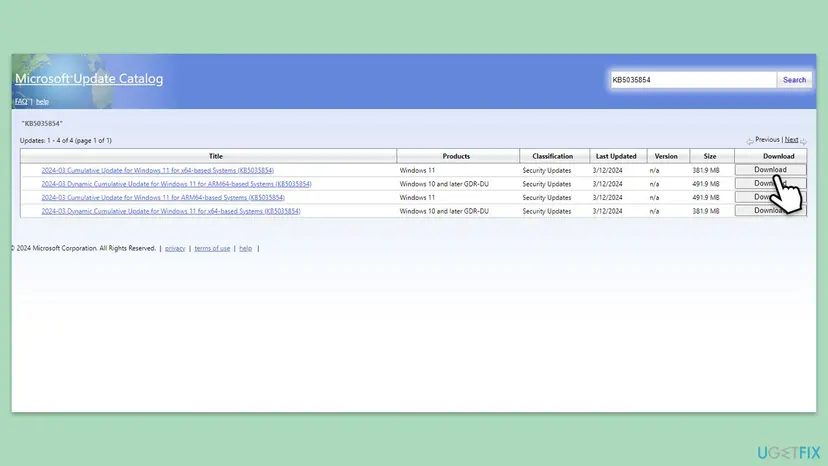
- Search the catalog. Open the Microsoft Update Catalog at catalog.update.microsoft.com in your browser, type the KB number (for example KB5124010) in the search box and press Enter.
- Pick the right row. Find the row whose title names your Windows version and your processor type (x64-based or arm64-based) and select Download on that row.
- Download every file listed. A window lists one or more .msu links. Download all of them into one empty folder, for example C:\packages. On Windows 11 24H2 and later the list can include earlier checkpoint updates that the new one needs.
- Install a single file. If there is only one file, double-click it and confirm the installation in the Windows Update Standalone Installer.
- Install several files with DISM. If there are several files, open an elevated Terminal or Command Prompt and run DISM with the newest file. DISM finds the other files in the same folder and installs them in the right order.
DISM /Online /Add-Package /PackagePath:C:\packages\<newest-file>.msu - Restart. Restart the PC when the installation finishes, then run winver again: the OS build should have changed.
These steps were written for Windows 11 24H2 and later; Windows 10 22H2. The full page with the other versions and what each result means: Install an update from the Microsoft Update Catalog
- If the installer stops with a different code, write it down.
- A code that starts with 0x800f08 or 0x80073712 points to damaged or missing update files: go to Fix 4.
- Any other code: search our site for that code, it is the real cause.
It worked if: The installer finishes, the PC restarts, and winver shows the build of the update.
If not: If the installer shows a code of the 0x800f08 family or 0x80073712, repair Windows files with Fix 4.
Fix 4. Repair the component store with DISM and SFC
15 to 40 minutesNo riskA second code such as 0x80073712 or 0x800F0831 appears, or Fix 3 failed too.
When the installer behind 0x8024200B is the Windows servicing stack, it fails if the component store is damaged. DISM with RestoreHealth downloads clean copies of the damaged files, and SFC then repairs the system files that depend on them.
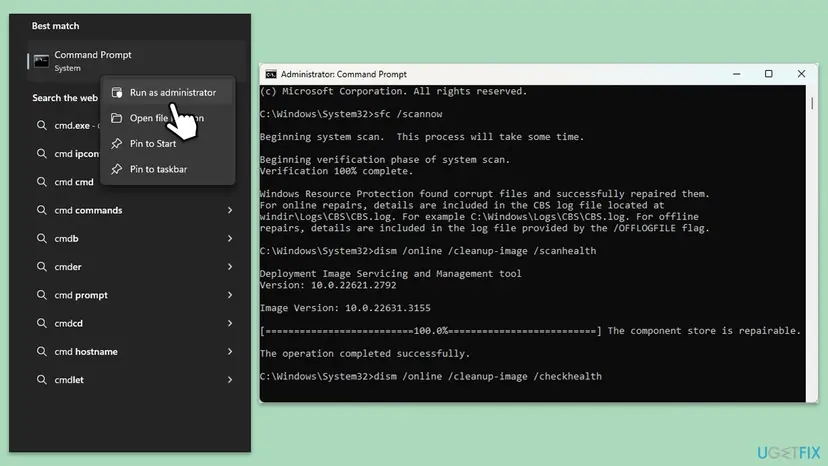
- Open an elevated command window. Right-click Start and select Terminal (Admin), or type cmd in the search box, right-click Command Prompt and select Run as administrator. Select Yes when Windows asks for permission.
- Run DISM first. Type the command below and press Enter. DISM downloads clean copies of damaged components from Windows Update, so it can take several minutes. Wait until it says The operation completed successfully.
DISM.exe /Online /Cleanup-Image /RestoreHealth - Run System File Checker. In the same window, type the command below and press Enter. Do not close the window until the verification reaches 100%.
sfc /scannow - Read the result and restart. Compare the last message with the table below this guide, then restart the PC so that repaired files are loaded.
These steps were written for Windows 11 24H2 and 25H2. The full page with the other versions and what each result means: Run DISM and SFC to repair Windows system files
It worked if: DISM reports The operation completed successfully., SFC finds no violations or repairs them, and the update installs after a restart.
If not: If the update still fails, clear the update cache with Fix 5.
Fix 5. Reset the Windows Update components
10 minutesLow riskThe same update keeps failing after Fix 1 and Fix 4, or every update fails.
Windows Update reuses a broken download from its SoftwareDistribution folder at every retry, and the installer fails on it each time. Renaming the cache folders and restarting the update services makes Windows download the update again from zero.
- Open Command Prompt as administrator. Type cmd in the search box, right-click Command Prompt and select Run as administrator. Select Yes when Windows asks for permission.
- Stop the update services. Type the commands below and press Enter after each one. If Windows says that other services depend on Cryptographic Services, it stops them too. A message that a service is not started is fine.
net stop wuauserv net stop bits net stop cryptsvc - Delete the download queue files. This clears the list of downloads that the Background Intelligent Transfer Service keeps. If Windows says it cannot find the files, continue.
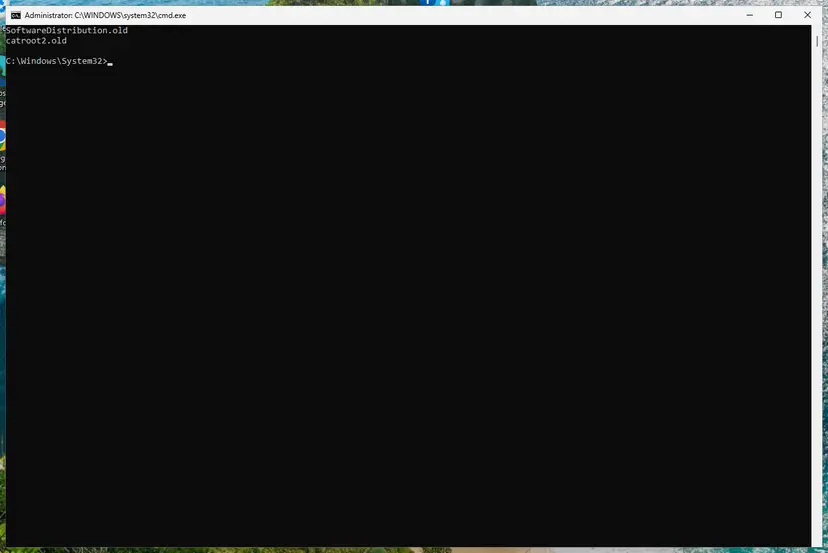
del "%ALLUSERSPROFILE%\Application Data\Microsoft\Network\Downloader\qmgr*.dat" - Rename the update cache folders. Renaming keeps a copy in case you need it; Windows creates new, empty folders when the services start again. If you get Access is denied, a service is still running: repeat the previous step.
ren %systemroot%\SoftwareDistribution SoftwareDistribution.old ren %systemroot%\System32\catroot2 catroot2.old - Start the services again. Type the commands below and press Enter after each one. The requested service has already been started is fine: Windows started it on its own.
net start cryptsvc net start bits net start wuauserv - Restart and check for updates. Restart the PC. Then select Start > Settings > Windows Update > Check for updates. The first check can take longer than usual because everything is downloaded again.
These steps were written for Windows 11 and Windows 10 (the steps are the same). The full page with the other versions and what each result means: Reset Windows Update components
It worked if: Windows Update downloads the update again and installs it without the error.
If not: Run the Windows Update troubleshooter, Fix 6.
Fix 6. Run the Windows Update troubleshooter
5 minutesNo riskUpdates fail and you prefer an automatic check before a reinstall.
The troubleshooter checks the update services, their settings and the pending update state, and repairs what it finds. It does not fix a damaged driver package, so it comes after the specific fixes.
- Open Troubleshoot settings. Select Start > Settings > System > Troubleshoot.
- Open the list of troubleshooters. Select Other troubleshooters.
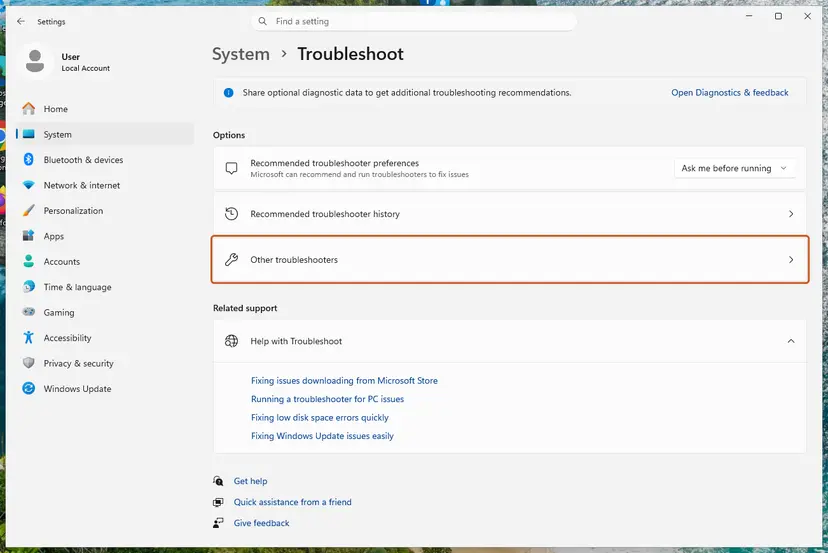
Settings, System, Troubleshoot: select Other troubleshooters. Screenshot: Windows 11 26H2. - Run the Windows Update troubleshooter. Under Most frequent, select Run next to Windows Update. The Get Help app opens and starts the checks.
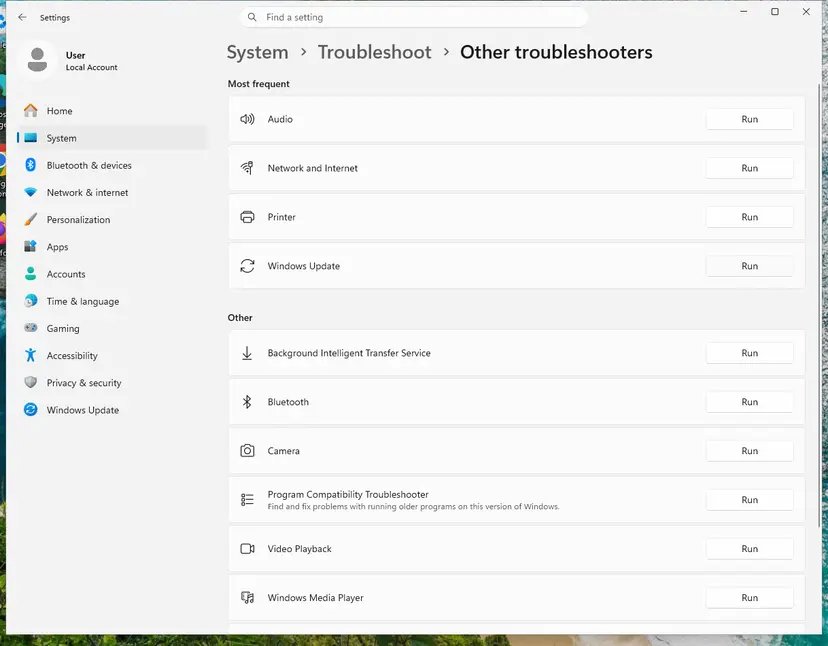
Windows Update is in the Most frequent group; select Run on its row. Screenshot: Windows 11 26H2. - Read the result. Wait until Get Help finishes. If it found and fixed a problem, it says so and asks whether this solved the problem. Answer the question so it can offer the next step.
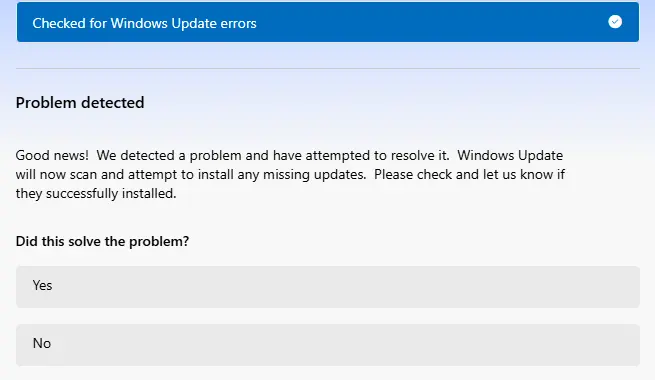
Get Help reports what it found and asks if the problem is solved. Screenshot: Windows 11 26H2. - Restart the PC. Restart when the troubleshooter finishes, even if it does not ask you to.
- Check for updates again. Select Start > Settings > Windows Update > Check for updates, and install the updates it finds.
These steps were written for Windows 11 (screenshots: 26H2). The full page with the other versions and what each result means: Run the Windows Update troubleshooter
It worked if: The troubleshooter reports that it fixed a problem, and the update installs on the next try.
If not: If it finds nothing and every update still fails, use the repair reinstall in Fix 7.
Fix 7. Reinstall Windows over itself and keep your apps and files
1 to 2 hoursLow riskEvery update fails with 0x8024200B and Fix 1 to Fix 6 did not help.
A repair reinstall replaces the servicing stack, the component store and the update services with clean copies of the current Windows version. That removes every Windows cause of an installer failure at once, while apps, files and settings stay.
- Open Recovery in Settings. Open Settings > System > Recovery. Next to Fix problems using Windows Update, select Reinstall now. This keeps your apps, files and settings.

Fix problems using Windows Update reinstalls the current version and keeps apps, files and settings. Screenshot: Windows 11 26H2. - Start the reinstall. Choose whether the PC may restart on its own 15 minutes after the installation, then select OK.
- Wait and restart. Windows Update downloads and installs a repair copy of your current Windows version. Keep the PC plugged in and online, and restart it when asked.
These steps were written for Windows 11 22H2 and later. The full page with the other versions and what each result means: Reinstall Windows without losing files
Your files are meant to stay, but a failed reinstall can leave Windows unable to start. Back up what you cannot lose first: Back up your files (Windows Backup, File History, Time Machine). Keep a laptop plugged in until it finishes.
It worked if: The PC starts into the same desktop with your apps and files, and the next update installs without the error.
If not: Read the next section: the log tells you what is still wrong.
If error 0x8024200B is still there
Because 0x8024200B is a wrapper, the real reason is written in the servicing log. Read it before you try anything else.
- Press Win + R, type
%windir%\Logs\CBSand press Enter. - Copy
CBS.logto the Desktop and open the copy in Notepad. - Press Ctrl + F and search for
errornear the time the update failed. - Note the KB number, the package name and the code in that line, for example
0x80073712or0x800f0831.
| Situation | What to do |
|---|---|
| Work or school PC, updates from WSUS, Configuration Manager or Intune | Send the administrator the code, the KB number, the build from winver and a copy of CBS.log. |
| Windows Server 2022, including domain controllers | Users report 0x8024200B on Server 2022 cumulative updates. Repair the store with DISM (Fix 4), then install the update from the Catalog (Fix 3) and keep CBS.log for support. |
| Windows 10 22H2 | Windows 10 left support on 14 October 2025. Only PCs in Extended Security Updates still get security updates. Plan a move to Windows 11. |
| The drive shows errors or the PC lost power during an update | Check the drive first: Check a disk for errors (chkdsk) |
Nothing about 0x8024200B points to memory or the processor. The exception is a drive that reports errors in chkdsk, because a failing drive can damage the update files again after every repair.
How to keep error 0x8024200B from coming back
- Restart when Windows asks, so a half-installed update does not block the next one.
- Keep at least some free space on drive C: so updates can unpack.
- Install drivers for chipsets and printers from the PC or device maker when Windows Update keeps failing on them.
- Read the name of the failed update before you start any repair.
- Do not download update files from sites other than catalog.update.microsoft.com.
- Do not delete files in
C:\Windows\WinSxSby hand. Updates build on that folder. - Do not turn off your antivirus for good to make an update install.
- Do not leave the PC without updates for months while you look for a fix.
If one driver keeps failing while the device works, the failed entry is cosmetic. Windows Update offers it again until the device has that version, so installing the maker's driver is the clean way to stop it.
Frequently asked questions
What is error code 0x8024200B?
It is a Windows Update error that means the installer of an update failed. Microsoft's error list names it WU_E_UH_INSTALLERFAILURE: "The installer failed to install (uninstall) one or more updates." Windows Update itself worked, downloaded the update and handed it to the installer, which then stopped. The code does not say why. The name of the failed update and a second code in the logs tell you that, so read Update history first.
What does Install error - 0x8024200b mean in Windows 11?
It is how Windows 11 shows the same failure on the Windows Update page in Settings. The update was downloaded but did not install. Note the name next to it: a cumulative update with a KB number, a driver or a definition update. Restart the PC and select Retry. If it fails again, a KB update can be installed by hand from the Microsoft Update Catalog, and a driver can be installed from Device Manager or the maker's site.
What does Windows failed to install the following update with error 0x8024200B mean?
That is the text of the Windows Update entry in Event Viewer, under Windows Logs > System, with WindowsUpdateClient as the source. It is the same failure as in Settings, written with the full title of the update, for example a security update with its KB number. Use that KB number for Fix 3: search it in the Microsoft Update Catalog, download the file for your Windows version and install it by hand.
Is 0x8024200B a Windows 10 or a Windows 11 error?
Both. The code belongs to the Windows Update Agent, which works the same way on Windows 10, Windows 11 and Windows Server 2022. The question on this page came from a Windows 10 user, and many current reports are about Windows 11 and Server 2022. The fixes are the same, only some Settings paths differ, and the steps give both. Windows 10 left support on 14 October 2025, so plan a move to Windows 11.
Why does a driver update fail with 0x8024200B?
For driver updates, the installer that fails is the driver installer. It can reject the package when the device already has the same or a newer driver from the maker, or when the package does not fit the exact device. Users report this with Intel system drivers and HP printer drivers. Compare the installed version in Device Manager. If it is newer, ignore the entry. If it is older, install the maker's driver directly.
Can I fix 0x8024200B by turning off my antivirus?
Not as a fix. No source ties this code to security software, and turning protection off would leave the PC exposed. If you suspect another program interferes with updates, pause protection for one test only and turn it on right after: Turn off Microsoft Defender protection for a moment. A clean boot is a safer test: How to perform a clean boot in Windows. In most cases the cause is the update itself or the Windows update files, so start with Fix 1 to Fix 4.
What is the difference between 0x8024200B and 0x8024200D?
They are neighbours in Microsoft's list of update handler errors. 0x8024200B means the installer failed to install the update. 0x8024200D, WU_E_UH_NEEDANOTHERDOWNLOAD, means the update handler did not install the update because it needs to be downloaded again. For 0x8024200D, resetting the update cache in Fix 5 is the most direct fix. For 0x8024200B, find out which update failed first.
Is KB5012599 still the reason for 0x8024200B?
No. KB5012599 was the April 2022 update for Windows 10 versions 20H2 to 21H2. It failed on many PCs with 0x8024200B and 0x800F0831, and Microsoft named the root cause a regression from servicing stack changes. The fix came with the May 2022 update. Today the code has other reasons, and those versions of Windows 10 no longer get updates at all.
Do I lose my files if I reinstall Windows to fix this?
Not with the repair reinstall in Fix 7. It reinstalls the same Windows version and keeps your apps, files and settings. Reset this PC with Keep my files is different: it keeps your files but removes installed apps. Back up the files you cannot lose before any reinstall, and keep a laptop plugged in until it finishes, because a reinstall that stops halfway can leave Windows unable to start.
I searched for fehler 0x8024200b, que pasa? or cosa bisogna fare? Is this page for me?
Yes. The code is the same in every language of Windows, only the words around it are translated. Fehler is the German word for error, and the other questions ask what is happening and what to do. The fixes on this page work on a German, Spanish, Italian or any other Windows. The menu names in the steps are the English ones, so follow the position of the items in Settings.
Sources
Did this fix work?
One click, no account. It tells the next reader which guides are worth their time.
Questions and experiences: fix 0x8024200B error on Windows
Still broken, or found a fix we did not cover? Ask here: members and our editors answer. Reading is open; writing needs a free account.
…