
Fix: A connection to the Windows Metadata and Internet Services (WMIS) could not be established

Prefer to fix it yourself? The manual steps follow.
7 methods in this guide
Hi. In my Event Viewer, I keep getting messages related to Windows Metadata and Internet Services. They look like this: "Warning: A connection to the Windows Metadata and Internet Services (WMIS) could not be established" and "Error: Metadata staging failed, result=0x80072EFE for container {D4CC0444-8D50-11ED-A2D1-D8BBC1447EFE}." Any idea what's going on?
"A connection to the Windows Metadata and Internet Services (WMIS) could not be established" is warning 201 from DeviceSetupManager. Windows tried to download icons and info for your devices and could not reach Microsoft's metadata server. If your internet and devices work, it is harmless; turning off that download in Device Installation Settings stops it.
A connection to the Windows Metadata and Internet Services (WMIS) could not be established means Windows failed to download device icons and info, not that your PC is damaged. Check that the internet and your devices work (Fix 1). Then set Device Installation Settings to No (Fix 2) to stop the warning and the 131 errors. SFC, driver updates and even a clean install do not stop them.
| Error | Source DeviceSetupManager, Event ID 201, level Warning: A connection to the Windows Metadata and Internet Services (WMIS) could not be established. |
|---|---|
| Where it appears | Event Viewer, Applications and Services Logs > Microsoft > Windows > DeviceSetupManager > Admin. Usually together with error 131 and warnings 200 and 202. |
| Main cause | Windows could not reach the device metadata server (go.microsoft.com/fwlink/?LinkID=252669 redirects to devicemetadataservice.trafficmanager.net). Users report that address failing since late 2023. |
| Fastest fix | System Properties > Hardware > Device Installation Settings, choose No (Fix 2). The events stop; devices keep working with Windows' standard icons. |
| Also written as | WMIS could not be established, DeviceSetupManager 201, Metadata staging failed, result=0x80072EFE, event 131, in Russian Windows "не удалось установить подключение к службам WMIS". |
| Affects | Windows 11 and Windows 10. Users tied a wave of reports to KB5032288 (Windows 11 22H2) and KB5032189 (Windows 10 22H2), November 2023. |
| Microsoft's status | Microsoft Learn marks device metadata as deprecated and to be removed in a future Windows release. No Microsoft fix for the server address is published. |
| Not the same as | WMI (Windows Management Instrumentation, service Winmgmt). WMIS is only the device metadata service. |
| Time to fix | 2 minutes for Fix 2. 5 minutes to check the log first. |
Facts checked on 15 October 2026. Steps written for Windows 11 (25H2 and 26H2) and Windows 10 22H2.
What "A connection to the Windows Metadata and Internet Services (WMIS) could not be established" means
WMIS, the Windows Metadata and Internet Services, is Microsoft's online store of device metadata. Hardware makers submit these packages so Windows can show a real picture of your printer, phone or headset, its model name and a link to the maker's app. Since Windows 7, Windows uses WMIS to find, index and match these packages to the devices you connect.
The Device Setup Manager service runs this lookup in the background, mostly at startup and when a device is added. When it cannot reach the server, it writes a small group of events to its own log. None of them come from Windows Logs > System, which is why many people only find them while looking for something else.
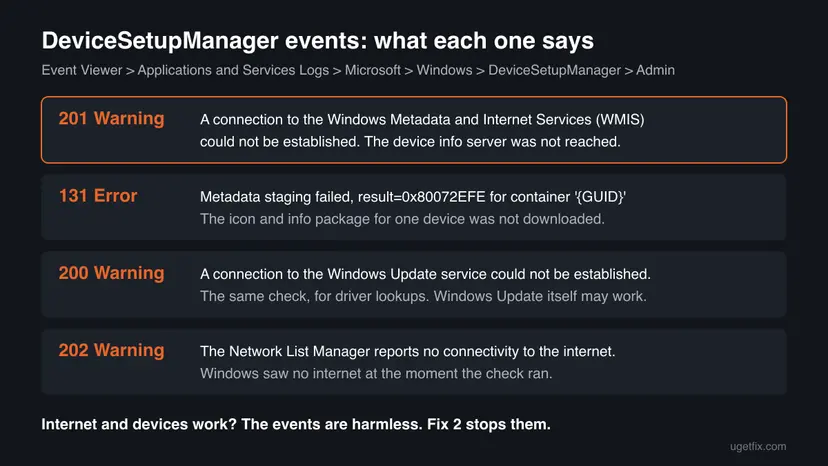
DeviceSetupManager/Admin, the events as users posted them on Microsoft Q&A
Warning 200: A connection to the Windows Update service could not be established.
Warning 201: A connection to the Windows Metadata and Internet Services (WMIS) could not be established.
Warning 202: The Network List Manager reports no connectivity to the internet.
Error 131: Metadata staging failed, result=0x80072EFE for container '{9D4B63A4-C1E9-5EDF-9B1D-FCDB8ED9F48C}'- Event 201 is the WMIS warning this page is about. It says the metadata server was not reached.
- Event 131 follows it. Metadata staging means downloading and preparing the package for one device; the container GUID is that device. Each connected device can give its own 131 row.
- 0x80072EFE is the Windows internet error 12030 (
0x2EFE): the connection to the server was cut off before an answer came back. - Event 200 is the same check for Windows Update driver lookups. It does not mean Windows Update is broken.
- Event 202 means that at that moment the Network List Manager saw no internet at all.
The old version of this page called WMIS the Windows Management Information System. That is wrong. WMI (Windows Management Instrumentation, service Winmgmt) is a different part of Windows, and "WMI service is down or disabled" is a different problem. These DeviceSetupManager events say nothing about WMI.
Why the WMIS connection fails, most common cause first
The service always tries the same address. Which cause you have depends on whether the rest of your internet works when the events are written.
| Cause | How it looks | Fix |
|---|---|---|
The metadata server does not answer. Most common. The registry value DeviceMetadataServiceURL points to a Microsoft link that redirects to devicemetadataservice.trafficmanager.net, and users report that this second address fails. | 201 and 131 every startup, internet works, devices work. Often started after an update in November or December 2023. | Fix 1, then Fix 2 or Fix 3 |
| Windows ran the check before the network was up. | 202 at the same second as 201, only right after switching on or waking from sleep. | Fix 1; nothing else needed |
| A firewall, proxy, DNS filter or VPN blocks Microsoft's metadata address. | Office or school PC, Pi-hole or a privacy blocker at home. Other Microsoft services may work. | Fix 7, or Fix 2 |
| The internet connection itself is failing. | 202 again and again, websites do not open, the Wi-Fi icon shows no internet. | Fix 5 |
| Windows Update cannot connect either. | 200 in this log and Windows Update shows its own error in Settings. | Fix 6 |
One Windows 11 user on Microsoft Q&A ran SFC and DISM with no errors, did a clean install and a cloud reset, and still got 131, 200, 201 and 202. The events only stopped when automatic device downloads were turned off. That fits the cause: the problem is on the server side, not on your PC.
When you can ignore the WMIS warning and when it points to a real problem
- Websites, Microsoft Store and Windows Update work.
- Your printer, mouse, headset and other devices work.
- The rows come at startup and when you plug in a device.
- Event 202 repeats all day and the internet really drops (Fix 5).
- Windows Update itself shows an error in Settings (Fix 6).
- A new device does not work at all after you plug it in.
If you came here because the PC crashes or restarts, look at the time stamps. Users on the same Microsoft Q&A thread posted blue screens next to these events, but nothing we read ties a metadata download to a crash. A crash is written as Kernel-Power 41 or EventLog 6008 in Windows Logs > System.
How to fix "A connection to the Windows Metadata and Internet Services (WMIS) could not be established"
Fix 1 shows in five minutes which events you have and whether anything is really broken. Fix 2 is the fix that stops the events for most readers. Fix 3 and Fix 4 are for administrators. Fix 5 to Fix 7 are only for PCs where the internet, Windows Update or a firewall is the real problem.
| What you see | Start with |
|---|---|
| 201 and 131 in the log, internet and devices work | Fix 1, then Fix 2 |
| You manage several PCs or the setting comes back | Fix 3 |
| You want the log quiet but keep metadata downloads on | Fix 4 |
| 202 all day, websites do not open | Fix 5 |
| Windows Update shows its own error in Settings | Fix 6 |
| Office or school network, proxy or DNS filter | Fix 7 |
Fix 1. Check which DeviceSetupManager events you have and whether anything is broken
5 minutesNo riskEveryone who found the WMIS warning, before changing anything.
The WMIS warning comes with three other events, and the mix tells you the cause. If only 201 and 131 appear while your internet works, the server side is the problem and Fix 2 is all you need.
- Press Win + R, type
eventvwr.mscand press Enter. - In the left pane open Applications and Services Logs > Microsoft > Windows > DeviceSetupManager and select Admin.
- Open the newest 201 warning and read the text on the General tab. It should be the WMIS message.
- To count the events at once, right-click Start, select Terminal (Admin) (Windows 10: Windows PowerShell (Admin)) and run the command below.
- Open a website and check that your printer, headset or other devices work.
PowerShell: count events 131, 200, 201 and 202 in the DeviceSetupManager log
Get-WinEvent -LogName 'Microsoft-Windows-DeviceSetupManager/Admin' -MaxEvents 500 |
  Where-Object { $_.Id -in 131,200,201,202 } |
  Group-Object Id |
Format-Table Count, Name -AutoSize| What you find | What it means | Next |
|---|---|---|
| 201 and 131, internet and devices work | The metadata server is not reached. Nothing on the PC is broken. | Fix 2 |
| 202 only right after startup | The check ran before the network was up. | Stop here, or Fix 2 |
| 202 all day and no websites open | The connection itself fails. | Fix 5 |
| 200 and Windows Update shows an error | Windows Update cannot connect. | Fix 6 |
It worked if: You know which of the four events you have and whether your internet and devices work.
If not: If the Admin log is empty or the command finds no rows, the warning is not written on this PC any more, or the log was turned off earlier (see Fix 4 to turn it on). If the internet or a device really fails, go to the matching row of the table.
Fix 2. Turn off automatic download of manufacturers' apps and custom icons
2 minutesLow riskThe internet and your devices work and 201 and 131 keep coming. This is the fix for most readers.
The warning is written each time Windows tries to download device metadata. When the download is off, Device Setup Manager stops asking the server, so 201 and 131 stop. On Microsoft Q&A this was the change that ended the events after clean installs did not.
- Press Win + R, type
sysdm.cpland press Enter. You can also go to Settings > System > About and select Advanced system settings. - Open the Hardware tab.
- Select Device Installation Settings.
- Choose No (your device might not work as expected) instead of Yes (recommended).
- Select Save Changes, then OK, and restart the PC.
- After a day of normal use, run the Fix 1 command again.
Windows stops fetching makers' pictures, model names and app links for your devices. Devices then show a standard icon. We could not confirm on every Windows build whether this choice also holds back drivers from Windows Update, so after the change check Settings > Windows Update > Advanced options > Optional updates now and then for driver updates.
It worked if: No new 201 or 131 rows after the restart, while your devices work as before.
If not: If the choice goes back to Yes or the rows continue, set the same policy in the registry with Fix 3. To undo, choose Yes (recommended) again.
Fix 3. Set PreventDeviceMetadataFromNetwork in the registry
5 minutesRead the warningFix 2 did not stick, or you want to set it on many PCs with a script.
Microsoft's community support answer on the 131, 200, 201 and 202 thread gives this registry value as the second way to stop device metadata coming from the network. It is the same switch a script or an administrator can push to every PC.
A wrong registry change can stop parts of Windows from working. Export the Device Metadata key before you change it, so you can put it back with a double-click. Step by step: Back up the registry before editing it

- Export
HKEY_LOCAL_MACHINE\SOFTWARE\Microsoft\Windows\CurrentVersion\Device Metadataas shown above. - Right-click Start and select Terminal (Admin) (Windows 10: Windows PowerShell (Admin)).
- Run the first command below. It creates or sets the value to 1.
- Restart the PC.
- To undo, run the second command, or double-click the .reg file you saved.
Turn off device metadata from the network (run as administrator)
reg add "HKLM\SOFTWARE\Microsoft\Windows\CurrentVersion\Device Metadata" /v PreventDeviceMetadataFromNetwork /t REG_DWORD /d 1 /fUndo: allow device metadata again
reg add "HKLM\SOFTWARE\Microsoft\Windows\CurrentVersion\Device Metadata" /v PreventDeviceMetadataFromNetwork /t REG_DWORD /d 0 /fIt worked if: After the restart, the Fix 1 command shows no new 201 or 131 rows.
If not: If the rows continue, an organisation policy may set the value back. Ask your administrator, or quiet the log only with Fix 4.
Fix 4. Turn off only the DeviceSetupManager Admin log
2 minutesLow riskYou want device pictures and maker apps to keep downloading, but you do not want the warnings in Event Viewer.
Microsoft's community support answer also lists turning off this log channel. The download keeps trying in the background; Windows just stops writing the result. It hides the symptom and fixes nothing, so use it only after Fix 1 showed that nothing is broken.
- Right-click Start and select Terminal (Admin).
- Run the first command below.
- To turn the log on again later, run the second command.
Turn off the DeviceSetupManager Admin log (run as administrator)
wevtutil sl "Microsoft-Windows-DeviceSetupManager/Admin" /e:falseUndo: turn the log on again
wevtutil sl "Microsoft-Windows-DeviceSetupManager/Admin" /e:trueThe same thing in Event Viewer: right-click Admin under DeviceSetupManager and select Disable Log. While the log is off, real device setup errors are not written there either, so turn it on again before you troubleshoot a device.
It worked if: No new rows of any kind appear in DeviceSetupManager > Admin.
If not: If you later have trouble with a new device, turn the log on again and repeat Fix 1.
Fix 5. Reset the network when event 202 shows a real loss of internet
10 minutes plus a restartLow riskEvent 202 repeats all day, not only at startup, and websites drop or do not open.
In this case the WMIS warning is only a side effect: nothing on the PC can reach the internet. Clearing the DNS cache and resetting Winsock and TCP/IP repairs the most common local faults in the network stack.
Command Prompt or Terminal (Admin), one line at a time
ipconfig /flushdns
ipconfig /release
ipconfig /renew
netsh winsock reset
netsh int ip reset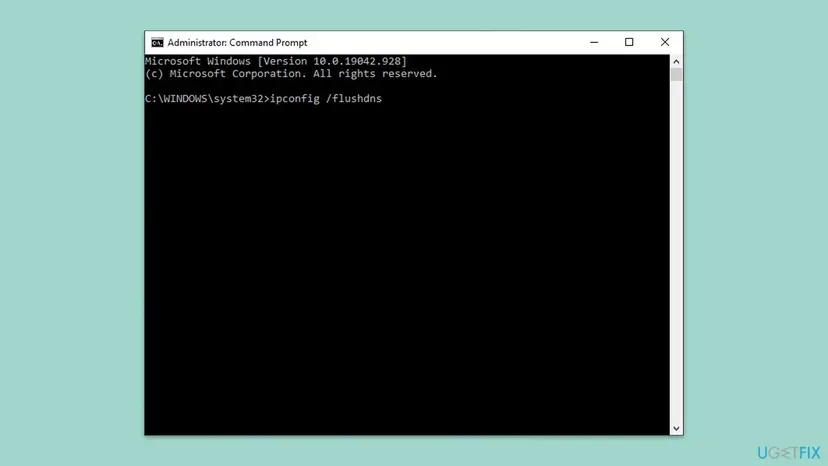

Each command, what it changes and the full network reset in Settings: Reset the network and flush DNS. Restart the PC after the last command.
It worked if: Websites open again and the Fix 1 command shows no new 202 rows outside of startup.
If not: If 202 continues while other devices on the same network are online, the problem is the adapter or its driver: Update, roll back or reinstall a driver. If the internet works and only 201 remains, use Fix 2.
Fix 6. Repair Windows Update when event 200 comes with a real update error
15 to 30 minutesLow riskEvent 200 is in the log and Settings > Windows Update also shows an error or cannot check for updates.
Event 200 alone is only the driver lookup that failed together with WMIS. When Windows Update in Settings also fails, the update service is the real problem, and resetting its components is the targeted repair.
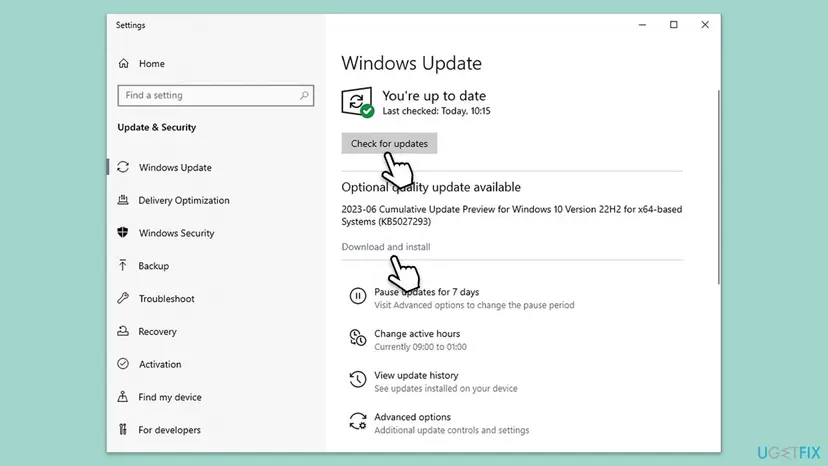
- Open Settings > Windows Update (Windows 10: Settings > Update & Security > Windows Update) and select Check for updates.
- If it works and installs updates, Windows Update is fine: go back to Fix 2.
- If it shows an error code, run the troubleshooter: Run the Windows Update troubleshooter
- If the error stays, reset the update components: Reset Windows Update components
It worked if: Check for updates finishes without an error.
If not: Install the latest cumulative update by hand: Install an update from the Microsoft Update Catalog
Fix 7. Check the metadata service address and allow it through your firewall or proxy
10 minutesNo riskThe PC is on an office or school network, uses a proxy, a DNS filter such as Pi-hole, or a VPN, and you want device metadata to keep working.
Device Setup Manager reads its server address from the registry. If that address or the site it redirects to is blocked, 201 and 131 appear on every startup while everything else works.
- Open Terminal (Admin) and run the read-only command below.
- Check that
DeviceMetadataServiceURLishttp://go.microsoft.com/fwlink/?LinkID=252669&clcid=0x409. The end of the link can differ with the Windows language. - If the value is different and you did not set it, ask your administrator; do not change it on a managed PC.
- Ask whoever runs the firewall, proxy or DNS filter to allow
go.microsoft.comanddevicemetadataservice.trafficmanager.net. - Restart the PC and run the Fix 1 command again.
PowerShell: read the metadata settings (changes nothing)
Get-ItemProperty 'HKLM:\SOFTWARE\Microsoft\Windows\CurrentVersion\Device Metadata' |
  Select-Object DeviceMetadataServiceURL, PreventDeviceMetadataFromNetwork
It worked if: The address is the default one, and after the firewall change the 201 rows stop.
If not: If 201 continues on an open network too, the server side is the cause. Use Fix 2; there is nothing more to repair on the PC.
If the WMIS warning is still there: what to check and what to send
Once Fix 2 or Fix 3 is in place, new 201 and 131 rows should stop. Old rows stay in the log; that is normal and they can be cleared with Clear Log on the Admin log.
- New rows after Fix 2. Check that the Device Installation Settings choice is still No, and read the registry value with the Fix 7 command. On a work PC a policy can switch it back.
- The full event. Open a 201 or 131 row, select Details > XML View and copy the text. It holds the time, the container GUID and the result code.
- A real device problem. If a device fails, look in Device Manager for a yellow mark and in this log for errors other than 131, 200, 201 and 202.
- Crashes or restarts. Read Kernel-Power 41 and EventLog 6008 in Windows Logs > System. These metadata events are not their cause.
- Windows version. Press Win + R, type
winverand note the version and build when you ask for help on Microsoft Q&A.
| Sign | Where to look instead |
|---|---|
| The PC freezes, shows a blue screen or restarts | Kernel-Power 41 and the errors just before it in Windows Logs > System |
| No internet on any website | Fix 5 and the router |
| Windows Update fails in Settings | Fix 6 |
| A device does not work after you plug it in | Device Manager and the device maker's driver |
How to keep the WMIS warning from coming back
- Leave Fix 2 or Fix 3 in place. Microsoft has marked device metadata as deprecated and plans to remove it, so the feature you turn off is on its way out anyway.
- Check after big updates. A feature update can reset settings. Run the Fix 1 command after the update and repeat Fix 2 if 201 is back.
- Get drivers from Windows Update or the maker. Optional driver updates are under Settings > Windows Update > Advanced options > Optional updates.
- Do not chase it with generic repairs. SFC, DISM, driver reinstalls and Reset this PC do not change a server that does not answer.
- Turn off the metadata download when the events bother you.
- Back up the registry key before Fix 3.
- Turn the Admin log on again before troubleshooting a device.
- Reinstall Windows because of these warnings.
- Turn off the firewall or antivirus to make them stop.
- Download "registry cleaners" that promise to remove Event Viewer errors.
Frequently asked questions
What does "A connection to the Windows Metadata and Internet Services (WMIS) could not be established" mean?
It means Windows tried to reach Microsoft's device metadata server and could not. The warning is event 201 from DeviceSetupManager, in the DeviceSetupManager Admin log. WMIS holds the pictures, model names and app links that hardware makers publish for their devices. When the server is not reached, Windows simply uses standard icons. Your drivers, your internet and your files are not affected by this warning on its own.
Is the WMIS warning harmful, and can I ignore it?
In most cases it is harmless. If websites open and your devices work, the warning only records a failed download of device icons and info. Many users on Microsoft Q&A see it on every startup with no effect. You can ignore it, or stop it with Fix 2 in two minutes. Look further only when event 202 repeats all day and the internet really drops, or when Windows Update shows its own error in Settings.
What does "Metadata staging failed, result=0x80072EFE" mean?
It is event 131, the error that follows the WMIS warning. Staging is the download and preparation of a metadata package for one device, and the container GUID in braces identifies that device. The code 0x80072EFE is the Windows internet error 12030: the connection to the server was cut off before an answer came. So event 131 has the same cause as 201, and Fix 2 stops both.
Why did these events start after a Windows update?
Users on Microsoft Q&A reported that the events began after the November 2023 cumulative updates, KB5032288 for Windows 11 22H2 and KB5032189 for Windows 10 22H2, and later builds kept them. They traced it to the metadata server address: a Microsoft link that redirects to devicemetadataservice.trafficmanager.net, which they found not answering. Microsoft has not published a fix for that address and marks device metadata as deprecated.
Can the WMIS warning cause blue screens, freezes or restarts?
Nothing we read shows that a failed metadata download can crash Windows. Some users posted blue screens on the same thread, but the warnings are written at startup anyway, so they sit next to any crash in the log. For a blue screen or a restart, read Kernel-Power 41 and EventLog 6008 in Windows Logs > System and the errors right before them.
Will turning off device metadata break my printer or other devices?
Devices keep working with their drivers. What you lose is the maker's picture, model name and app link in Windows. Microsoft's dialog still warns that your device might not work as expected, and we could not confirm on every Windows build whether the No choice also holds back drivers from Windows Update. Check Optional updates in Windows Update for drivers, and switch back to Yes if a new device needs it.
Is WMIS the same as WMI, and does "WMI service is down or disabled" have the same fix?
No. WMIS is the Windows Metadata and Internet Services for device information. WMI is Windows Management Instrumentation, which programs use to read system data, and its service is called Winmgmt. A message that the WMI service is down or disabled is a different problem with a different fix, and nothing on this page applies to it.
My Windows is in Russian: "не удалось установить подключение к службам WMIS". Is it the same warning?
Yes. A Russian-language Windows writes the same DeviceSetupManager event 201 in Russian, and people search it as "не удалось установить подключение к службам WMIS". The cause and the fixes are the same. In Russian Windows the menu names are translated, but sysdm.cpl opens the same System Properties window in Fix 2, and the registry and wevtutil commands in Fix 3 and Fix 4 are the same in every language.
Will SFC, DISM, a driver update or a clean install fix it?
Usually not. On Microsoft Q&A one Windows 11 user ran SFC and DISM with clean results, did a clean installation and a cloud reset, and the 131, 200, 201 and 202 events came back each time. They stopped only when automatic device downloads were turned off. The cause is a server Windows cannot reach, so repairing files on the PC does not change it.
Where do I find these events in Event Viewer?
Press Win + R, type eventvwr.msc and open Applications and Services Logs > Microsoft > Windows > DeviceSetupManager > Admin. The WMIS warning has Event ID 201, Metadata staging failed has 131, the Windows Update warning has 200 and the no connectivity warning has 202. The PowerShell command in Fix 1 counts all four at once, so you can see which ones your PC writes and how often.
Sources
- Microsoft Learn: Windows Metadata and Internet Services (what WMIS does; device metadata is deprecated) (learn.microsoft.com)
- Microsoft Q&A: DeviceSetupManager Errors (Event IDs 131, 200, 201 & 202) (event texts, server address, Device Installation Settings and registry answer from Microsoft community support) (learn.microsoft.com)
Did this fix work?
One click, no account. It tells the next reader which guides are worth their time.
Questions and experiences: Fix: A connection to the Windows Metadata and Internet Services (WMIS) could not be established
Still broken, or found a fix we did not cover? Ask here: members and our editors answer. Reading is open; writing needs a free account.
…